Claude for Excel · From Data to Decisions
Data Cleaning
Supervise an automated cleanup end-to-end
Tame the Messy Export
Last lesson, formulas answered to you. This lesson takes on a different angle: the export where nothing is broken, but everything is untidy.
You'll turn a raw system export full of duplicates, mixed formats, and blanks into a dataset worth analyzing. By the end of the lesson, next month's export will arrive cleaner on its own.
Let's get started!

Scenario: The Monthly Export
Imagine you're the sales operations specialist at Vendaflow, a subscription service that delivers snack boxes to office kitchens. Every month, the order system produces a customer export.
Today it arrived messy:
- The same companies are spelled 3 ways.
- Dates appeared in 2 formats.
- Amounts are with and without currency signs.
- Blanks are scattered through the revenue column.
Your analysis is due this evening. Cleaning the data by hand alone will take a full day. But there's a smarter approach. Let's try it out!

First move, same as any unfamiliar file: look before you touch. Ask for a damage report — with strict instructions to change nothing.
practice preview
Interactive practice
Fill in the blank
Get the full picture of what's inconsistent before any cleaning starts.
Nicely done! One reply, and the mess has a shape: 5 problems, each with a count.
A Useful Chip
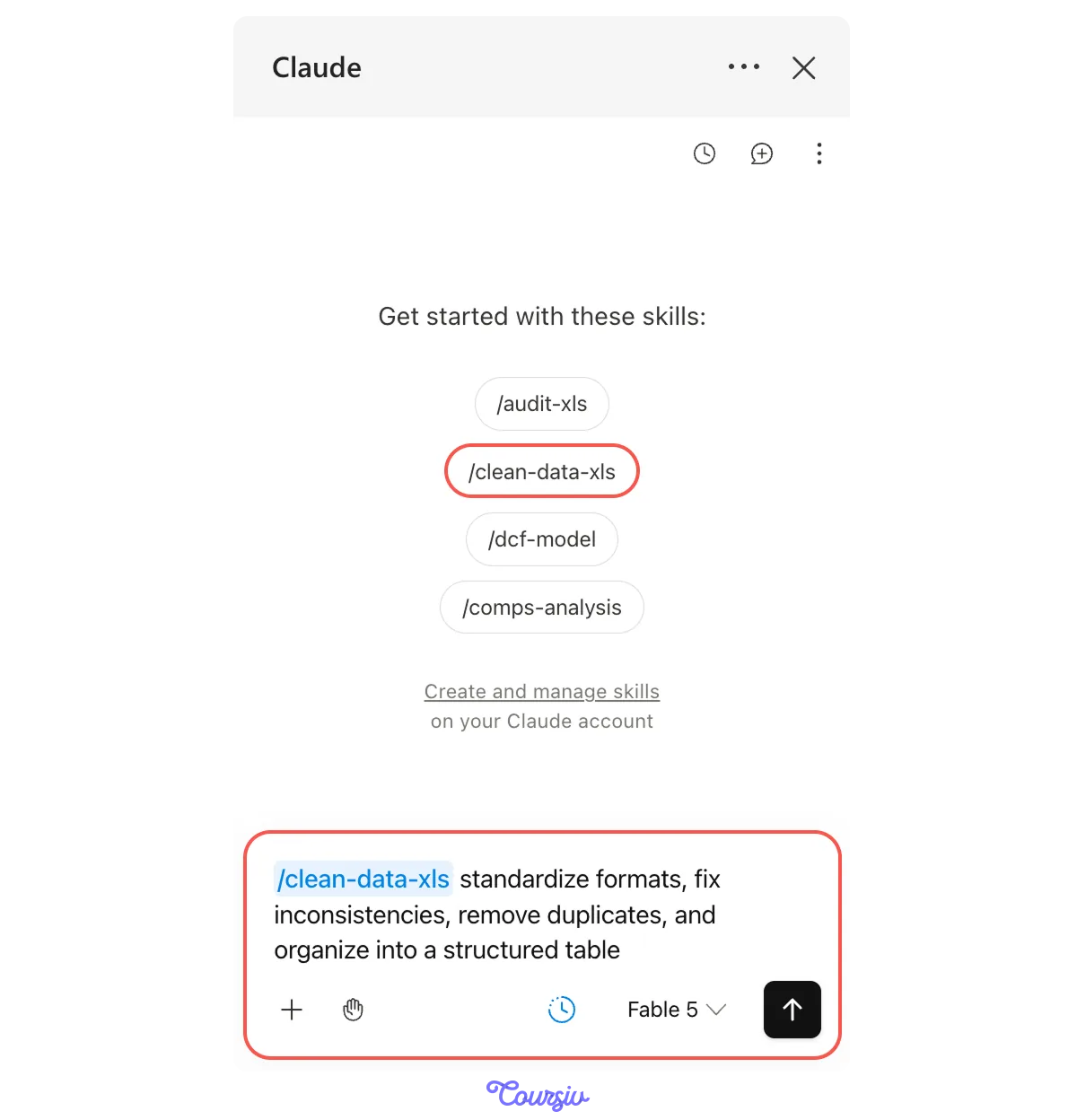
The sidebar has a chip for exactly this — "/clean-data-xls": one command that standardizes, merges, and tidies in a single run.

This routine runs in a fixed order:
- Survey the sheet.
- Ask you about the decisions it can't make on its own.
- Lay out a plan
- Ask permission before each change
- Report what it did.
Click "/clean-data-xls", and the command lands in the reply box with a short description attached.
Whatever you type after it guides how the run works. And that's where your custom rules go. Let's practice!
practice preview
Interactive practice
Fill in the blank
Add your rules to the cleaning command before you send it.
The Call That Is Yours
Nice work! Claude surveys the sheet and stops with a question:
"19 rows have blank amounts. How should I handle them?", followed by tappable options.
No matter how carefully you plan a routine, it will eventually face a decision you didn’t anticipate. Let's see how a well-built routine handles it.
Choose one
Claude asks how to handle the 19 blank revenue amounts. Which option do you pick?
A blank is something a human needs to decide. Filling it based on a pattern is still a guess. Flag anything Claude can't know for certain, especially in columns that affect totals.
Read the Plan
Decision made, Claude lays out its plan — numbered steps, in order:
- Standardize the spellings
- Convert the dates
- Turn text amounts into numbers
- Merge duplicates by your rule
- Flag the blanks
- Organize the block into a structured table.

As Claude executes your plan, it will stop and ask you two types of questions:
- Judgment — how should I treat this data? You're guarding the meaning.
- Permission — may I change this? You're guarding the file.
Asking For Permissions
The first one arrives right away: "Claude wants to fix formulas in row 5."
Three ways to answer:
- Allow once — one change, then ask me again.
- Always allow — stop asking for this kind of edit in this run.
- Deny — don't do it.

practice preview
Interactive practice
True / False
Decide how to answer the permission dialog.
Plan read, permissions given, and the routine runs. Then the report lands, with a number that should stop you.
Look at the duplicate count. The plan promised 23 groups. The run merged 31.
Nothing went wrong — 8 more groups appeared because the spellings were fixed first. "brightlabs ltd" and "Bright Labs Ltd." are the same customer, but Claude couldn't see that until both were written the same way.
Duplicates can only be matched reliably when their formats are consistent. That’s why a good cleaning routine standardizes the data before merging duplicates.
Review the Run
The work is almost done! 512 rows are now 474: newest kept, notes carried over, nothing silently dropped. The 19 blanks are flagged.
Read the scope note at the end. Claude names the rows it checked directly. Click 2 or 3 highlighted cells yourself, and the review is done.

Make Next Month Cleaner
The command cleaned up this month’s data. One more step can help prevent the same mess next month.
Most errors start with free typing. Replace it with a dropdown. Data validation lets people choose a plan name from a predefined list instead of typing it manually.
practice preview
Interactive practice
Fill in the blank
Add a dropdown so next month's export can't invent new spellings.
That's the monthly rhythm now:
- Audit first, change nothing.
- Run the command with your rules attached.
- Answer the follow-up questions.
- Lock the entry points.
Let's put the supervised run in order!
practice preview
Interactive practice
Put in order
Arrange the steps of a supervised cleaning run, first to last.
Yours to Keep
Nice work! The export is done, and the data is clean: audited, merged, flagged, and future-proofed.
And notice what you really built: your own version of the preset command, with judgment attached. That's an important step, and later in this course, you'll save your custom routine as your own skill.
- Know the file before you clean it: An audit with counts is what lets you supervise a routine rather than trust it blindly.
- Adjust the command to match your own rules: Whatever you type after "/clean-data-xls" sets the rules for the run.
- Some calls need your judgment: When it asks, that's the routine working — answer with judgment, not speed.
- Read the plan, then allow the permissions: Choose based on what is required.
- Blanks are questions: Flag them for a human, especially in columns that affect totals.
What's Next?
Clean data is where the interesting questions start.
Next, you'll put this data to work and analyze it like a pro: asking Claude what your numbers say, digging past the averages to where the answer lives, and testing what happens when you change an assumption.
Let's keep going!