Claude for Excel · From Data to Decisions
Automation: Put Your Reports on Repeat
Turn repeated work into automated workflows
Put Your Friday Report on Repeat
Every Friday, you repeat the same workflow in the same workbook. The numbers change, but the work around them barely does.
In this lesson, you'll turn that repeated process into a reusable Skill, run it again from Claude for Excel, and schedule the recurring version in Cowork — while keeping the decisions that still need you.
Let's get started!

Scenario: The Friday Recap
Imagine you're back at Northframe. Every Friday, you repeat the same reporting routine:
- Check the new week's export.
- Clean the known issues.
- Refresh the summary.
- Compare the latest week with the previous one.
- Write the three changes the team needs to know.
The data changes every week, but the process itself doesn't. How about an automation that will save you the whole day?

In this lesson, you'll build a routine based on the custom Skill and Claude Cowork scheduled task, so your workflow will run automatically.
A Skill saves a repeatable process. The next time the work comes up, Claude can follow the same method without you rewriting every step.
Turn the Process Into a Skill
You've already worked with the preset Skills. Let's build your own this time!
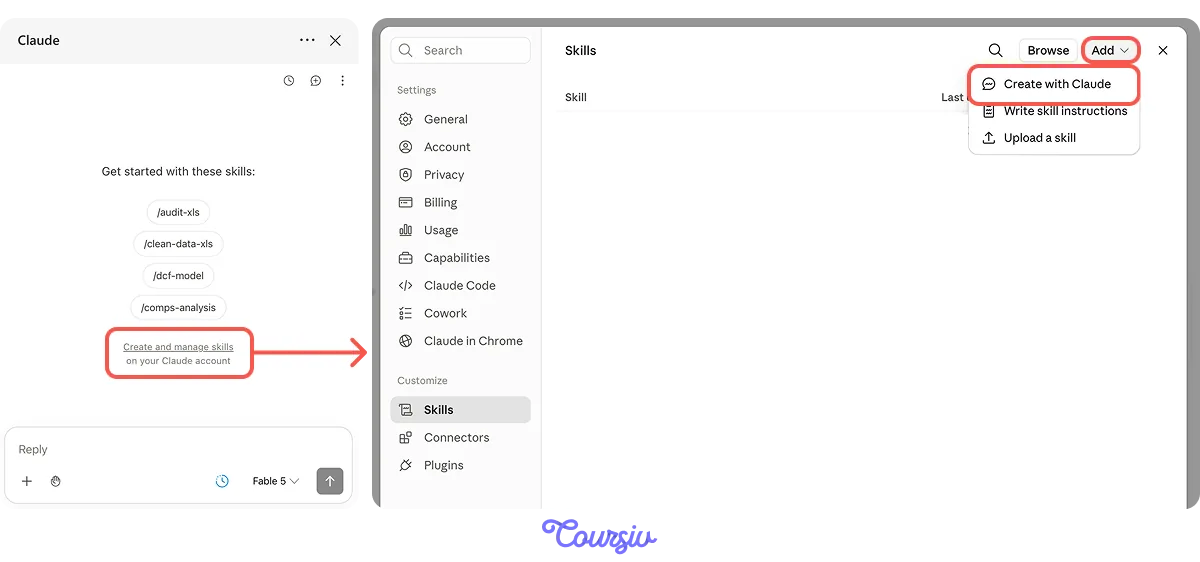
From Claude for Excel, open Create and manage skills. In the Skills area, select Add → Create with Claude.
This option enables Skill creation through conversation — the easiest way to wrap a repeatable process, since Claude can ask for any missing details and offer useful suggestions.
Tell Claude what the Skill should do, explaining the process step by step and providing the key details. Based on the Claude's suggestions, focus on the following areas:
- When it should trigger
- What it should produce
- Whether it's testable
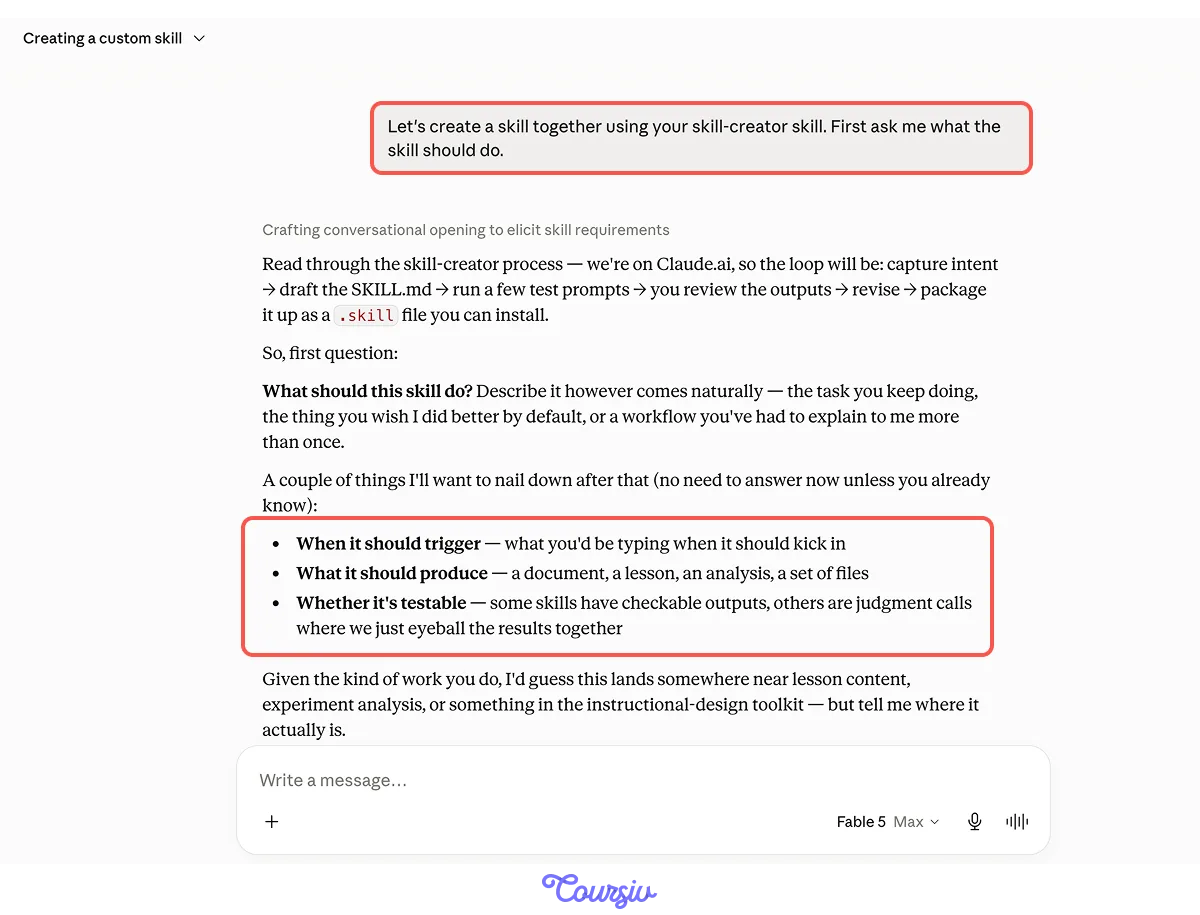
It will then ask you the follow-up questions about what is unclear:
- The input
- Repeated steps
- Output
- Decisions it should never make alone
practice preview
Interactive practice
Fill in the blank
Give Claude the process and the boundary that must travel with it.
Bring the Skill Back Into Excel
Nicely done! Now save the skill. Once saved, the Skill becomes available in Claude for Excel.
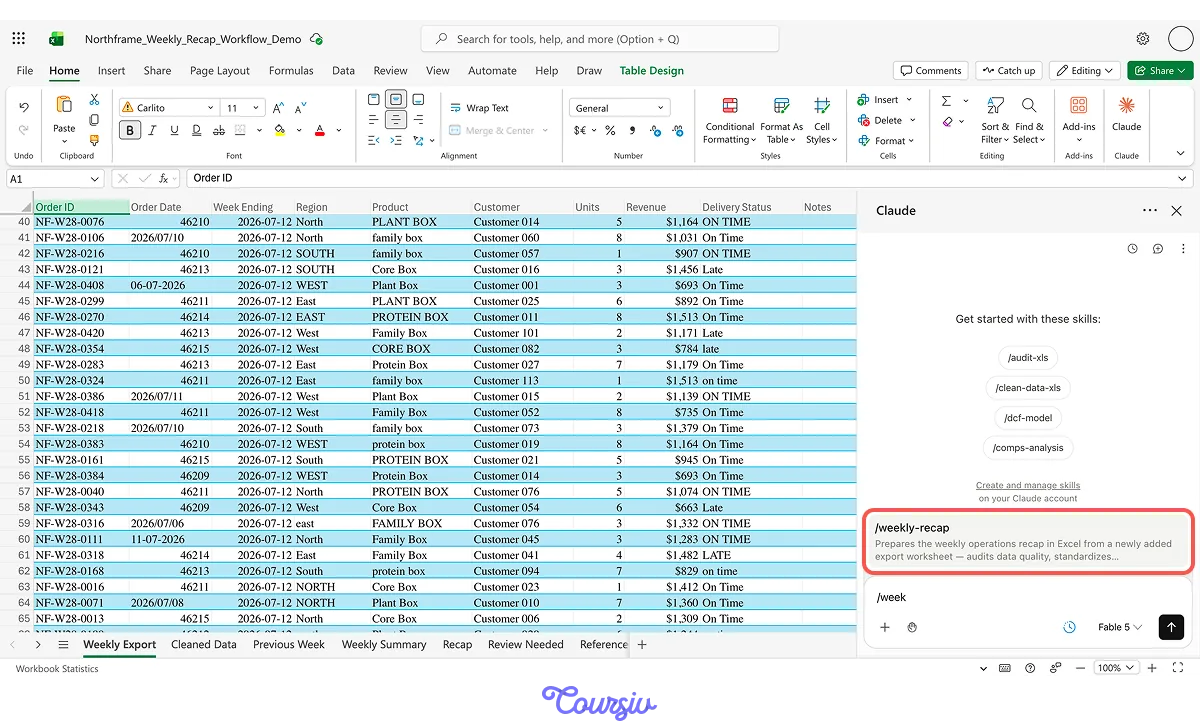
Return there, open your weekly report, and type "/". Then select /weekly-recap from the list.
practice preview
Interactive practice
Fill in the blank
Call the Skill and add only what is specific to this run.
The Skill now works through the process it saved.
Instead of waiting for a new prompt after every step, Claude can move through the routine in order: from understanding the workbook to preparing the recap.
Then the Process Reaches Its Boundary
During the run, Claude finds four rows it can't resolve safely:
- A blank Region
- Ablank Product
- An unknown Region
- A Product outside the known list
So, based on the prompt, Claude stops and asks what to do.
practice preview
Interactive practice
True / False
Decide what a reusable workflow should do when it reaches uncertainty.
Once you answer, the Skill continues.
It writes the cleaned data, reconciles the summary, compares the two weeks, prepares the three biggest changes, lists unresolved items, and leaves the recap as a draft for review.
The data changed. The method held.
On Request or on Schedule?
Great job! Notice how the Skill has removed the need to explain the process over and over again.
But inside Claude for Excel, you still start the run yourself.
For a report that should begin automatically every Friday, move the recurring version to Cowork.
Cowork is a Claude workspace for longer, multi-step work that can use files on your computer, tools, and Skills.
A scheduled task tells Cowork to start that work automatically on a recurring time — for example, every Friday morning — instead of waiting for you to start it manually.
To start working in Cowork, open the desktop app.
Then select the Cowork tab and choose a project folder. Save the Excel dataset into the project folder (for example, call it Northframe), so Claude Cowork can reach it.
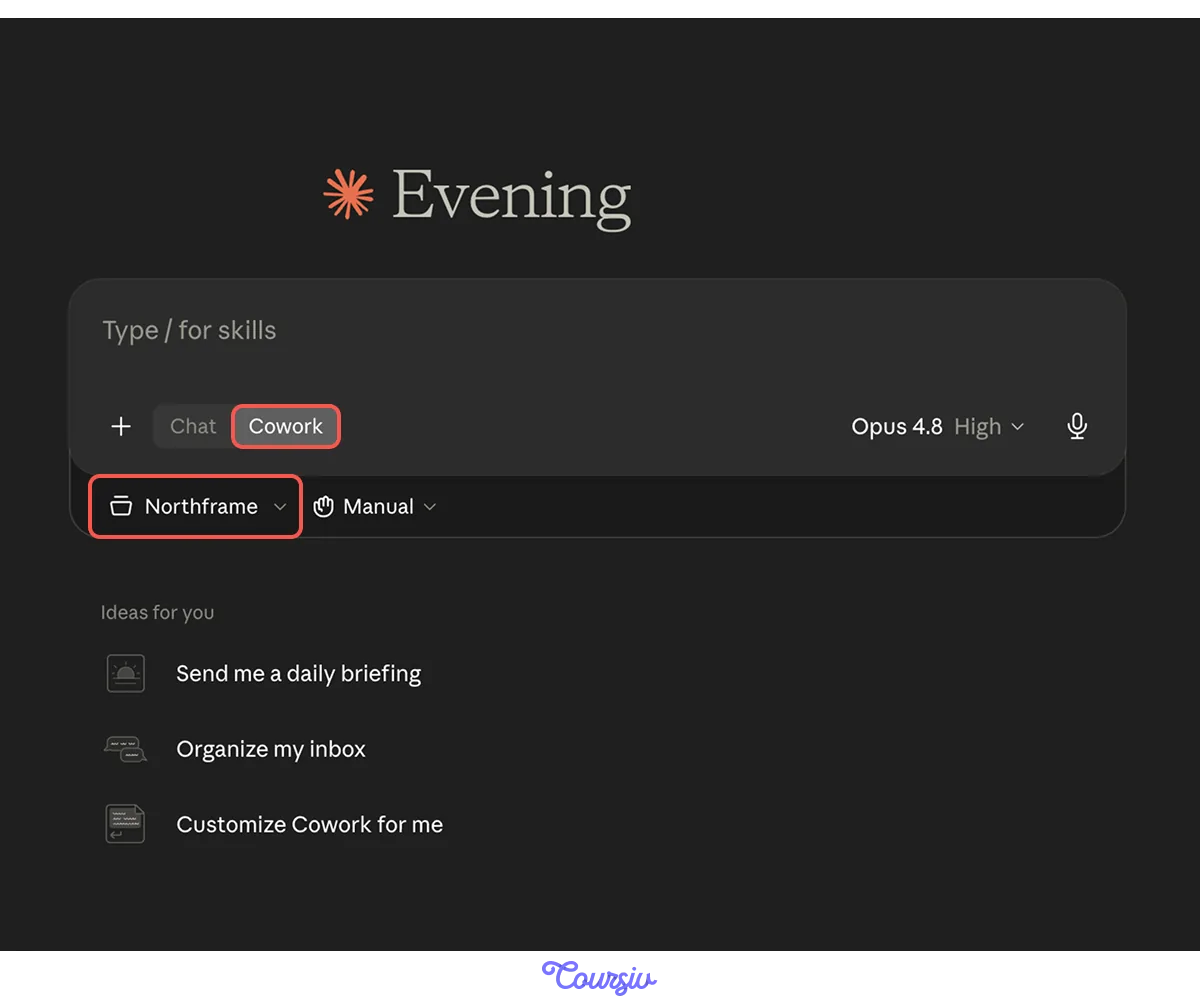
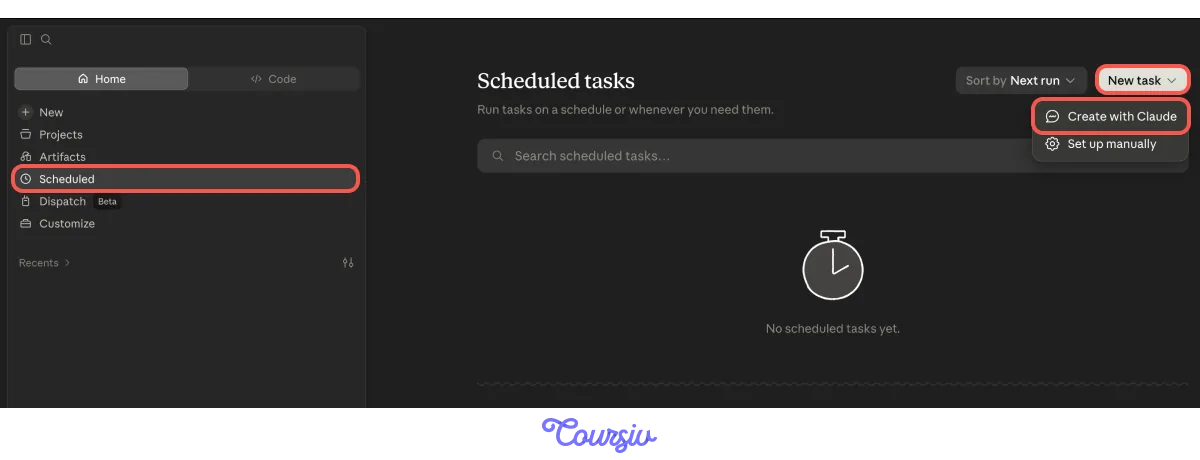
Then, open Scheduled, select New task, and choose Create with Claude. This starts a conversation where you describe what should run and when.
practice preview
Interactive practice
Fill in the blank
Give the recurring task a cadence and preserve the review boundary.
Great! Claude turns your request into a proposed scheduled task.
Before it becomes active, review the cadence, the source it should use, the process it should follow, and what it must leave for human review.
Then select Schedule.
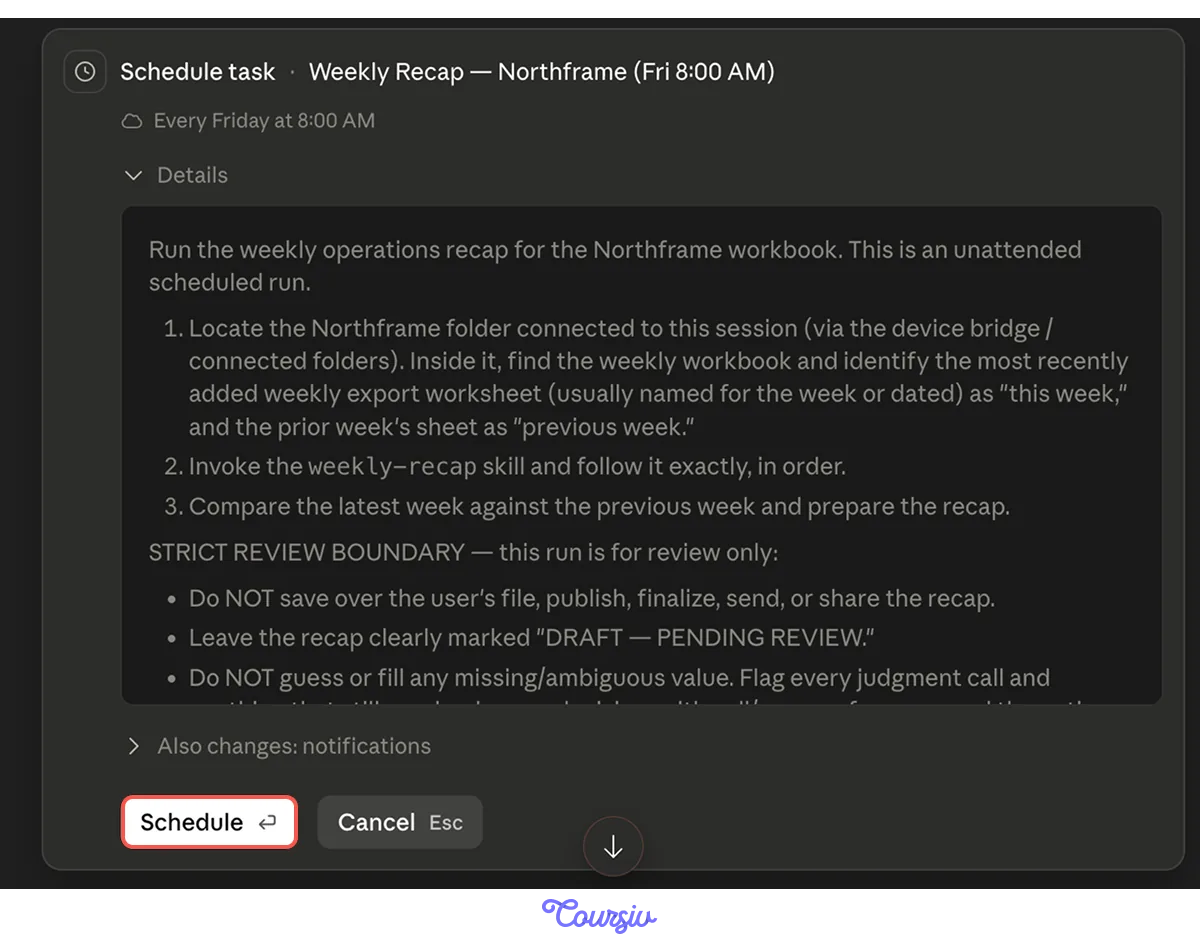
Now the recurring task is active!
Cowork can start the run on schedule using the available files and tools, while the completed recap awaits review.
practice preview
Interactive practice
True / False
Decide what happens when the scheduled run reaches an unresolved issue.
Know What Each Layer Does
Your weekly reporting process now has three layers:
- Skill — what repeats: the proven method.
- Run context — what changed: the workbook or data for this run.
- Schedule — when it starts: the recurring cadence in Cowork.
And one responsibility stays with you: decisions and final review.
- A Skill stores the method: New data can go through the same process without rebuilding the instructions.
- Review before you reuse: A Skill repeats the process you save, including its weaknesses.
- Keep human checkpoints inside the workflow: When Claude reaches a decision that the data can't support, it should stop and ask.
- Use Cowork for recurring starts: A schedule can begin the work on a cadence, but the output still needs review before it is used or shared.
From Workbook to Workflow
Great job! You started this course by asking Claude questions about a workbook you didn't know.
Since then, you've learned to repair formulas, clean data, investigate results, build PivotTables, create dashboards, and turn a repeated reporting process into reusable work.
You can now move from a raw workbook to a recurring workflow, with Claude handling more of the execution as the process becomes clearer, and your judgment staying where it matters most.
Now go and build something amazing! Good luck!