Claude for Excel · From Data to Decisions
Claude For Excel Essentials
Set up Claude inside Excel
The Report That Builds Itself
You've probably worked with Excel and struggled with a report that eats your Friday afternoons. You manually click through it cell by cell, tracing where the numbers come from, and hoping nothing important hides on tab 3.
Claude for Excel changes that! Over this course, you'll get formulas explained and fixed, messy exports cleaned, pivot tables and dashboards built by describing them — until that Friday report assembles itself while you review.
Let's get started!

Meet Claude for Excel
Claude for Excel is an add-in that puts Claude in a sidebar right inside Excel. It reads the workbook you have open — every tab of it — and answers questions about it in plain language.

Scenario: The Tracker You Inherited
Imagine you're the operations coordinator at Northframe, a furniture retailer with a dozen stores. A colleague leaves the company, and their sales tracker lands on you: three tabs, zero notes, and a monthly report due next week.
The usual way through is slow — clicking cell after cell, tracing formulas by hand. Let's try a different approach with Claude for Excel!
Claude for Excel comes with a paid Claude plan. No plan right now? Keep going: every exercise in this course shows you Claude's real replies, so you can learn the moves now and install whenever you're ready.
Get Set Up
Setup is a one-time job: open Excel on the web platform, then open the App menu on the left, and click More apps.
Find "Claude by Anthropic for Excel" on Microsoft's add-in marketplace and add it.
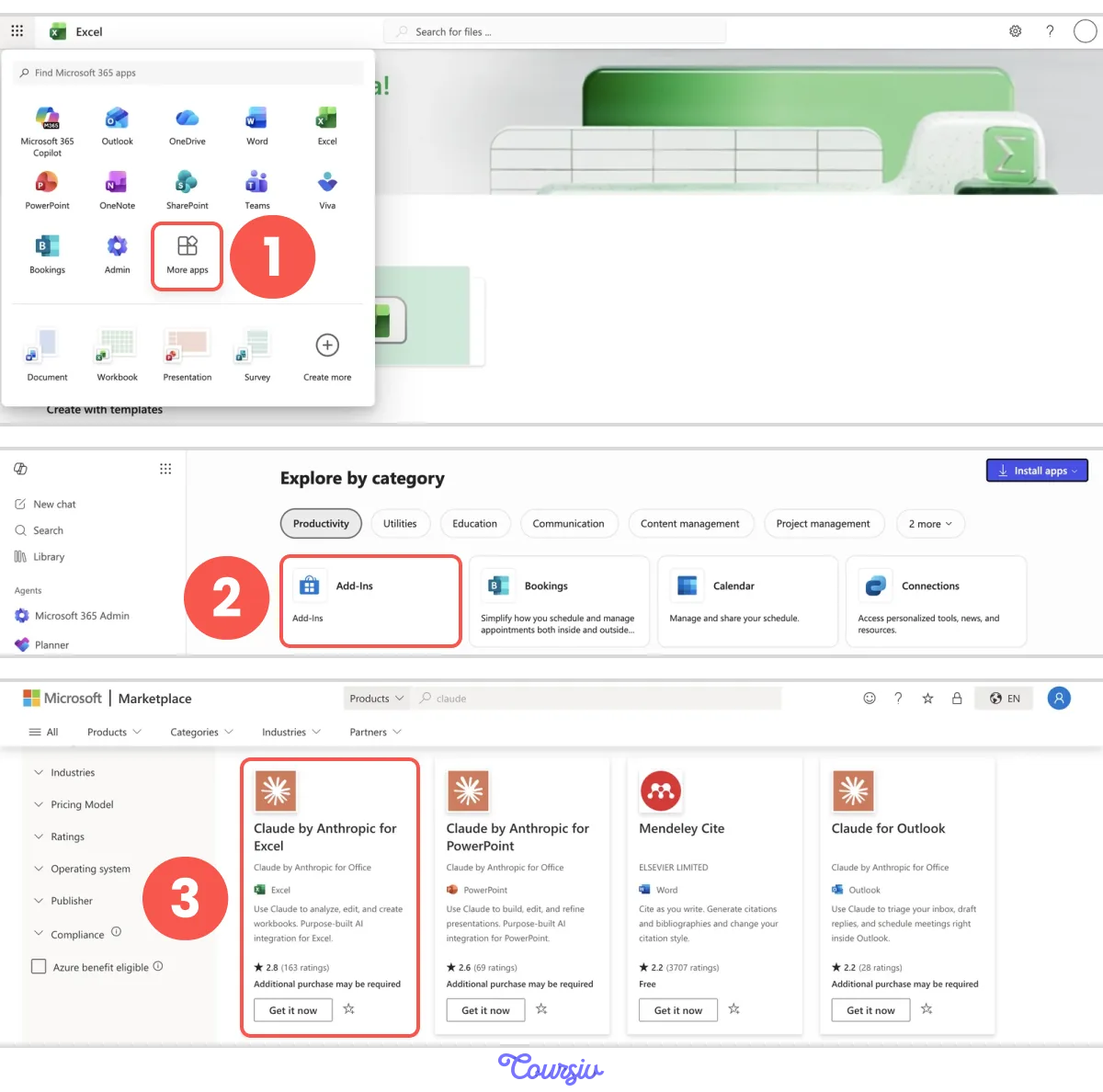
Then sign in with your Claude account.
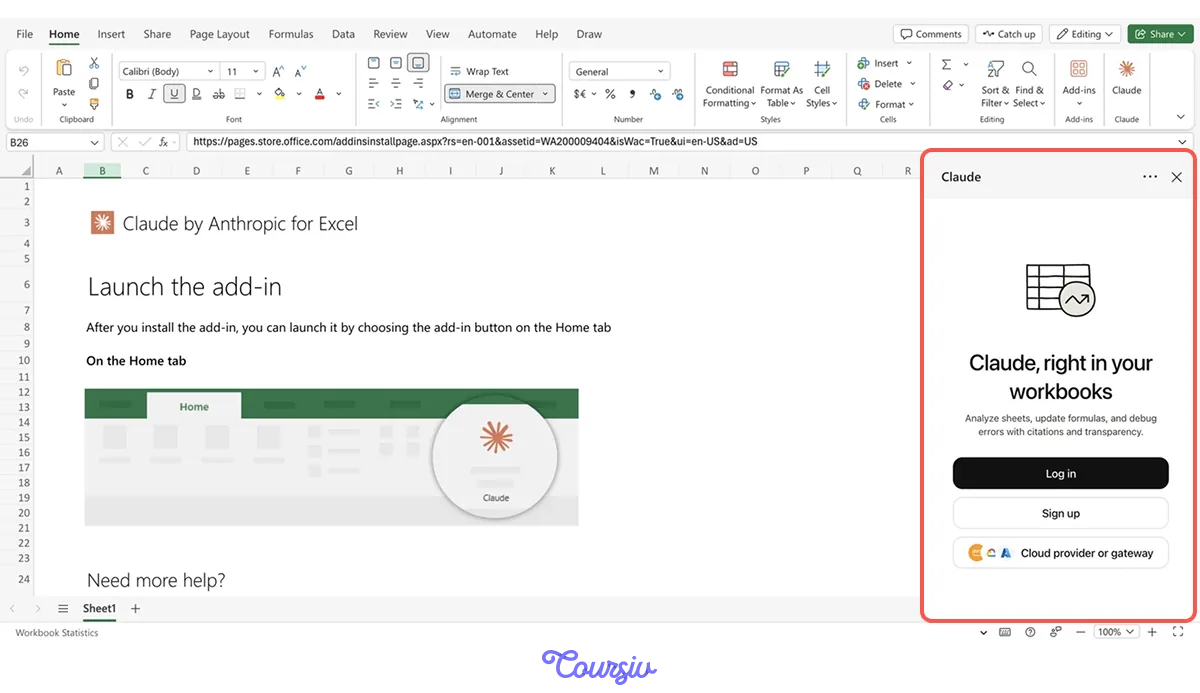
The add-in runs in Excel on the web, Windows, Mac, and iPad. In this course, you'll practice with Excel on the web.
After the guided setup process, Claude appears in a sidebar next to your sheet, ready to open the workbook.
Your First Question
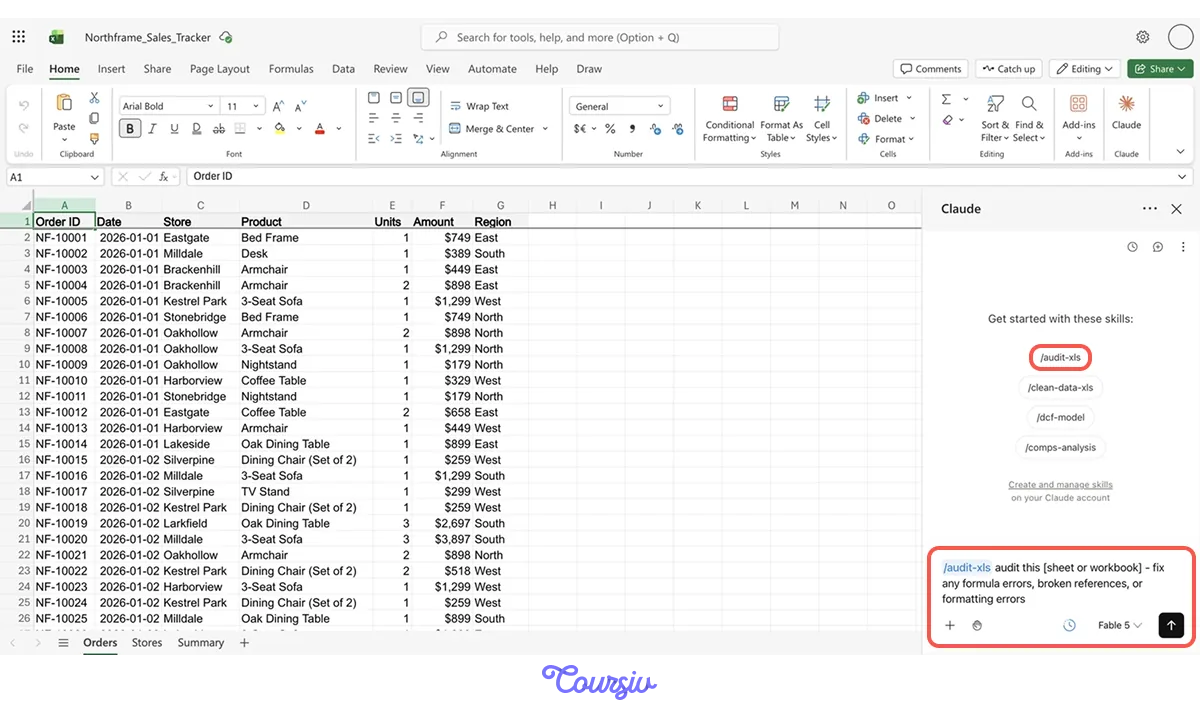
The tracker is open, and the sidebar is waiting — the smartest first move is orientation: have Claude describe the workbook before you change or trust anything.

The empty sidebar greets you with a few chips, like "/audit-xls" and "/clean-data-xls". These are Skills — reusable instructions that help Claude repeat a task consistently each time.
Click one, and a full prompt appears in the reply box, with a placeholder left for you to fill.
For a workbook you've never seen, "/audit-xls" is the right chip: it sweeps every formula, reference, and format for problems.
Since you barely know this file, you'll add one line of your own before sending. Let's practice!
practice preview
Interactive practice
Fill in the blank
Complete the prompt triggered by a Skill.
Great! Two findings in under a minute, but notice what each one really is: a claim. And every claim arrives with a cell citation.
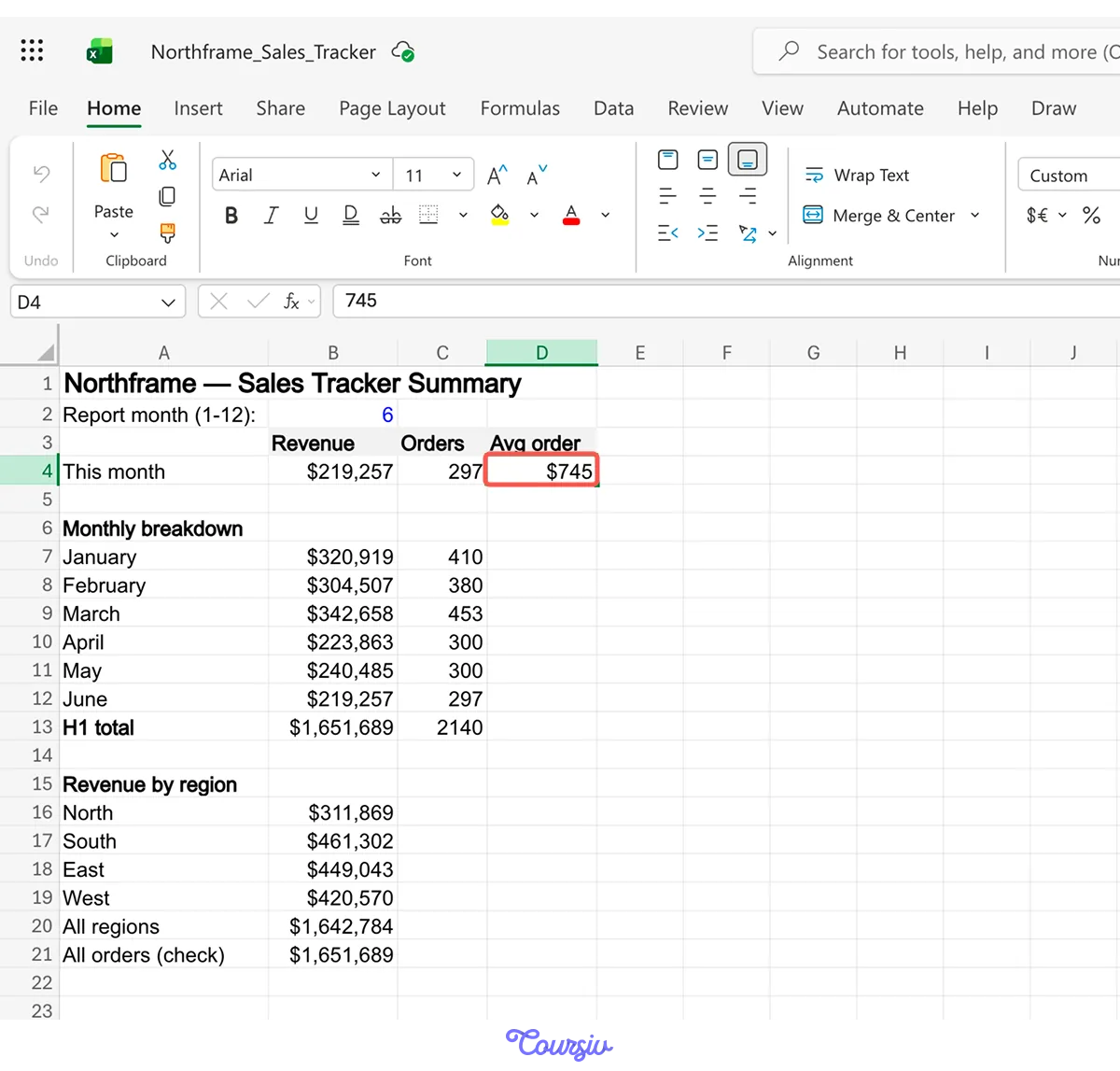
Click the one on Summary!D4, and Excel jumps straight to that cell, so checking takes seconds instead of trust.
Choose one
You click the citation, land on D4, and there it is — a typed number sitting in a row of formulas. What did that click actually buy you?
Every answer from Claude for Excel points to the cells behind it. Verify the first few in any new workbook — build the trust first.
Now in Your Own Words
Skills are shortcuts, but the sidebar's native language is yours — anything you can describe, you can ask, no chip required. The audit checked the file's health. Now find out what the file actually does.
practice preview
Interactive practice
Fill in the blank
Ask Claude to walk you through the workbook — and to flag what an audit wouldn't catch.
Nice work! Within 20 minutes, you know this tracker's health, its structure, and its one oddity — more than any handover note would have told you. And every claim came with cells you clicked and checked yourself.
Where the Add-In Stops
It is important to know what the Claude for Excel can and cannot do:
- Claude works on the workbook you have open
- It can't run macros — the small recorded programs that some workbooks use — or VBA code.
Good Job!
The tracker that promised a lost afternoon took 20 minutes — mapped, explained, and checked against its own cells. The monthly report is no longer a mystery; it's a workbook you understand.

That's the full first-session rhythm:
- Health check
- Orientation
- Verification
- Follow-ups
The same workflow you'll repeat with every unfamiliar workbook in front of you. Let's practice and put the steps in order!
practice preview
Interactive practice
Put in order
Arrange the steps of a first session with an unfamiliar workbook.
- Ask before you dig: The sidebar reads your open workbook, every tab of it, and answers in plain language.
- Skills are shortcuts: Chips like "/audit-xls" drop a ready-made prompt into the reply box, and you edit it before sending.
- Click the receipts: Cell citations let you verify any claim in seconds; check a few in every new workbook.
- Know the edges: No macros, no VBA.
What's Next?
Great! You can now check a workbook's health, ask what it does, and prove every answer. Next, you'll focus on formulas — creating and fixing them with Claude. Let's keep going!