Gemini · Build Reliable Workflows
Automate Business Tasks
Connect with Workspace for real efficiency
Automate Business Tasks
Think about how much time you spend on routine work each week — writing reports, creating documents, analyzing data, organizing information.
This is the final lesson, and here you'll learn to automate these repetitive tasks by connecting Gemini directly to your Google Workspace tools.

The Daily Task Repetition Problem
Writing meeting summaries, creating status reports, drafting SOPs, formatting data from Sheets, sending follow-up emails, and organizing information from multiple documents.
All of this probably takes a lot of your time, and you probably do it manually.
Choose one
What's the biggest inefficiency with handling these tasks this way?
Gemini can connect with your Google Workspace tools — Docs, Sheets, Gmail, and Drive — letting you create, analyze, and organize information directly inside your files instead of working in a separate chat.
To access this feature, you'll need a paid Gemini subscription.
This becomes possible thanks to two key capabilities: Workspace integration, which lets Gemini connect to your Google tools, and document automation, which helps it create, edit, and organize content for you automatically.
Connecting Gemini to Google Workspace
Before Gemini can work with your Workspace tools, you need to enable the integration.
This gives Gemini permission to access your Docs, Sheets, Drive, and Gmail when you request it.
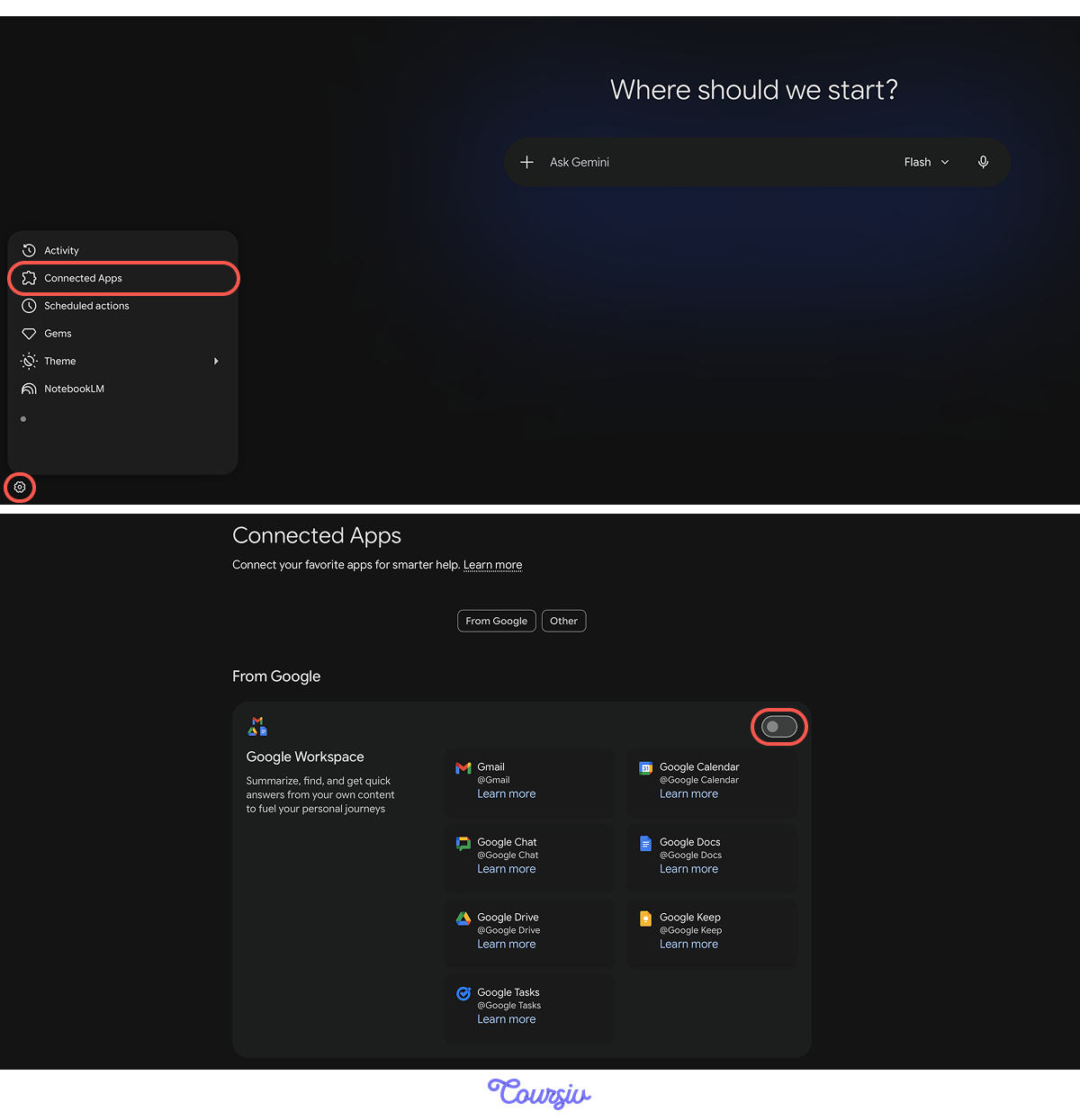
Enabling Workspace Integration:
- Open Gemini settings (gear icon in top right).
- Navigate to "Connected Apps" and then to "Google Workspace."
- Toggle on the tools you want Gemini to access (Docs, Sheets, Drive, Gmail).
- Grant permissions when prompted.
Once enabled, Gemini can reference and work with your Workspace files directly.
With integration enabled, you can open any Google Workspace tool and ask Gemini to:
- Create new Docs with specific content and formatting
- Analyze data from Sheets and generate insights
- Search Drive for relevant files and summarize them
- Draft emails based on context from documents
Let's start with document creation — the most immediately useful capability.
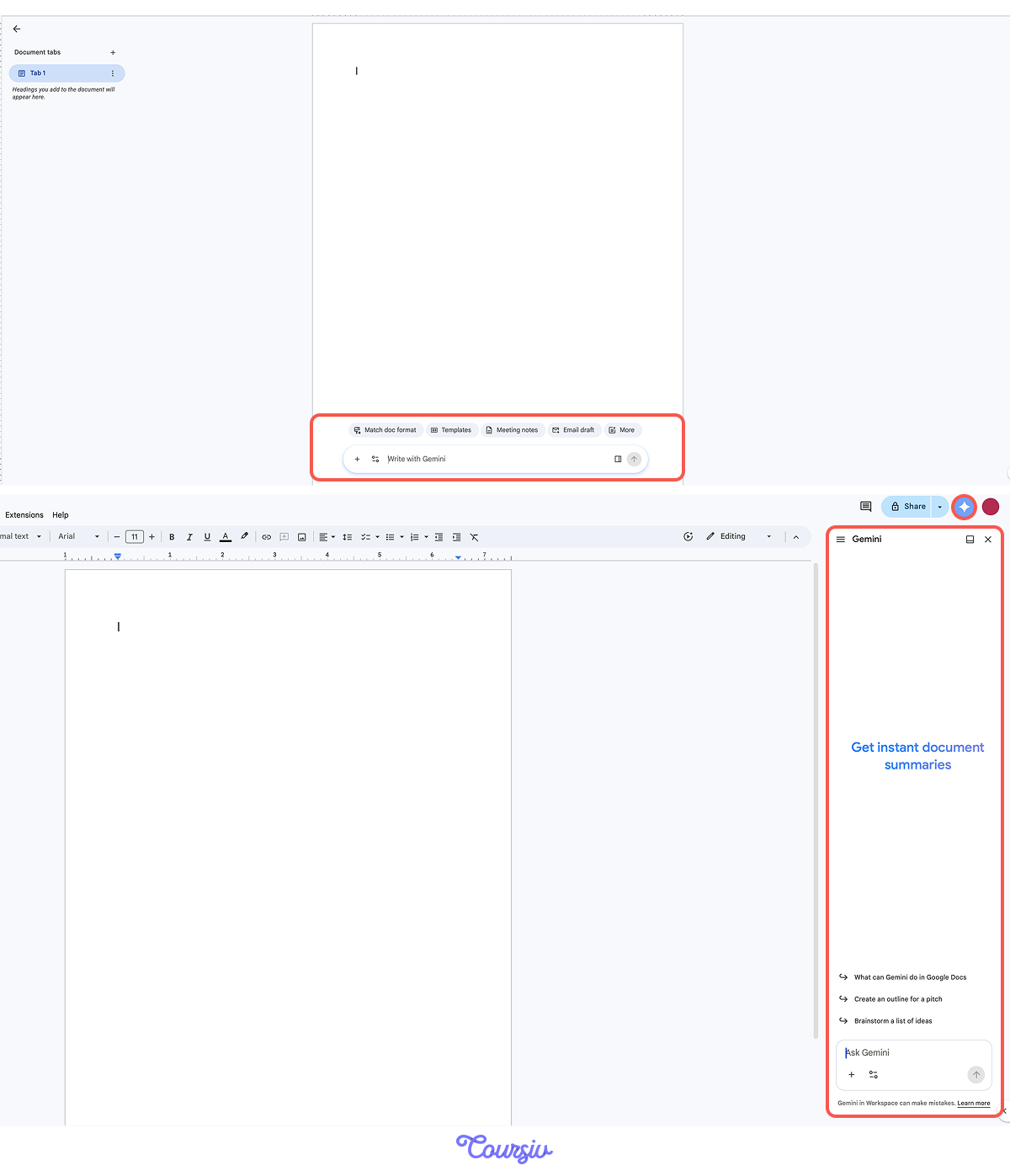
practice preview
Interactive practice
Fill in the blank
Ask Gemini to create a formatted document directly in Google Docs.
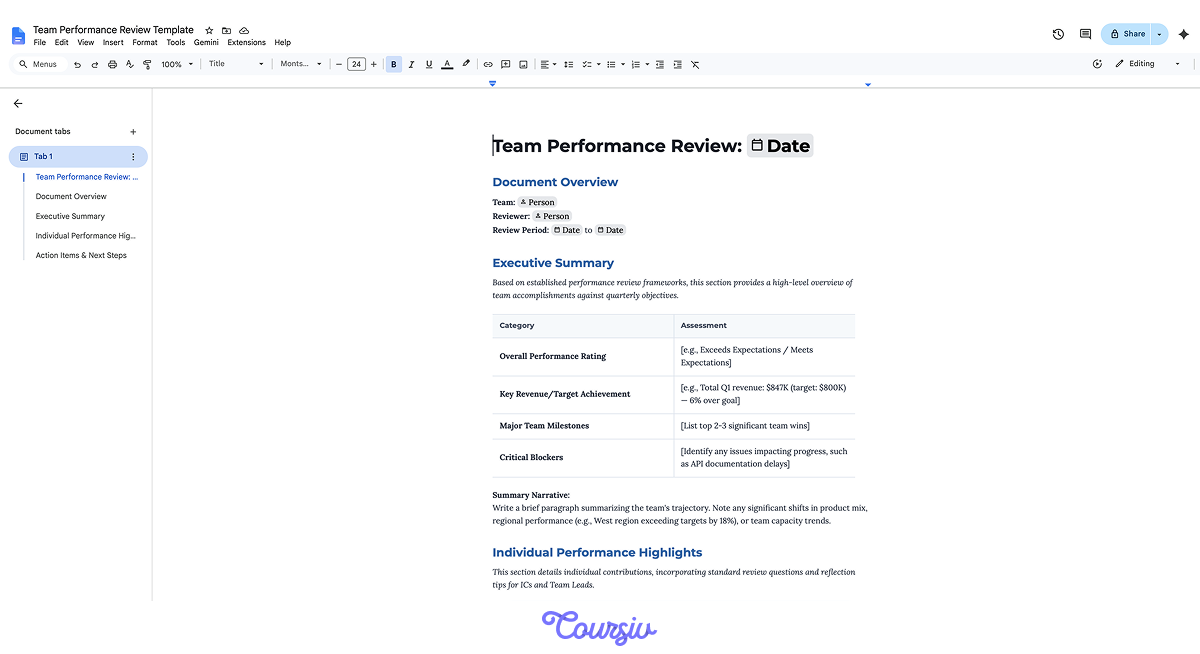
Structure, sections, formatting — all created in seconds. Now you just populate it with your specific team data.
Here's what the created document looks like in Google Docs:
Choose one
How does this improve your workflow compared to creating documents manually?
Gemini can create structured documents for any business need:
- Meeting notes templates with agenda, discussion points, and action items
- Project SOPs with step-by-step processes, responsible parties, and timelines
- Status reports with standard sections for progress, blockers, and next steps
- Onboarding docs with role descriptions, resources, and first-week checklists
Analyzing Data and Creating Reports
The real magic happens when Gemini analyzes information from your existing files and creates new documents based on that data.

For example, imagine you track weekly metrics in a Google Sheet. Every Friday, you manually review the data, identify trends, and write a summary for your team.
Gemini can do this automatically by reading your Sheet and generating the report. To do so, navigate to the Gemini icon on your respective Google Sheet page and input the prompt.
practice preview
Interactive practice
Fill in the blank
Ask Gemini to analyze data from Sheets and create a summary report in Docs.
Choose one
What makes this capability valuable for regular business reporting?
Powerful automation happens when Gemini connects multiple Workspace tools:
- Sheet → Doc: Analyze sales data, create executive summary
- Drive → Doc: Search past reports, synthesize findings into a new strategy doc
- Gmail → Sheet: Extract action items from email threads, organize in tracking sheet
- Multiple Docs → Summary: Review project documents, create consolidated status report
Let's see this in action with a common business workflow: creating SOPs from scattered information.
practice preview
Interactive practice
Fill in the blank
See how you can pull information from multiple sources to create a comprehensive document.
This is powerful for knowledge management. Information spreads across documents over time — onboarding processes, project procedures, best practices.
Gemini finds scattered pieces, reviews them, and consolidates them into one comprehensive, organized document you can actually use.
Building Reusable Automations
You've seen one-time document creation and data analysis.
Now let's build repeatable automations for tasks you do weekly or monthly.
Select all that apply
What should you include when creating a reusable automation prompt for recurring tasks?
practice preview
Interactive practice
Fill in the blank
Now, using what you learned, complete the template prompt for a recurring business task.
See how the template works? The structure is fixed: "Every Monday, access Sheet X, analyze Y, create Doc Z with sections A-E."
Only [date] changes weekly. You build once, reuse forever — that's the power of template-based automation.

Common Business Automations
Now that you know how to create them, let's look at some tips for automation workflows that you can build immediately for your business
High-Impact Automations
- Weekly reporting: Sheet data → Doc summary (metrics, trends, actions)
- Meeting prep: search in Drive for relevant docs → Doc agenda with context
- Status updates: multiple project Docs → consolidated progress report
- Email drafting: Doc talking points → Gmail draft with professional tone
- SOP creation: scattered Drive docs → organized comprehensive procedure
- Onboarding docs: template sections → customized role-specific guides
All follow the same pattern: identify sources → specify analysis → define output format.
practice preview
Interactive practice
Put in order
To finish it off, arrange these steps for creating a business automation with Gemini.
Business Automation Achieved!
You started this lesson spending hours on repetitive tasks — manual data analysis, document formatting, and copy-pasting between tools.
Now, you can automate recurring workflows, create documents instantly, and analyze data across multiple sources — all while working directly in the tools you use every day.

With that, you've completed the full Gemini course. Excellent job!
You've learned to guide AI strategically, analyze documents, build workflows, generate creative concepts, and automate business tasks.
Now, the question is not what Gemini can do — it's what you'll build with it.
Start automating. Keep building. Transform how you work!