ChatGPT: Deep Dive · Build and Create
Codex for Complex Workflows
Automate recurring work with Codex
Build a Repeatable Workflow
In the previous lesson, Work organized your files and repeated a tested task on a schedule.
Now you'll switch to Codex. This time, the goal isn't only to complete the job. You'll connect tools, inspect the workflow before it runs, turn the approved process into a reusable Skill, and schedule Codex to use it again.
Let's get started!

The Tasks That Keep Coming Back
Imagine this: you set up a workflow once. Friday afternoon comes around, and the work does itself — files filed, spreadsheet updated, follow-ups flagged, all before you've thought about it.

Meet Codex
Codex is OpenAI's agent for software development and complex workflows.
It can work with local files and repositories, run commands, inspect changes, use plugins and Skills, operate approved tools, and keep several tasks moving in parallel.
In this lesson, you'll use Codex to build and test the system behind a recurring workflow.
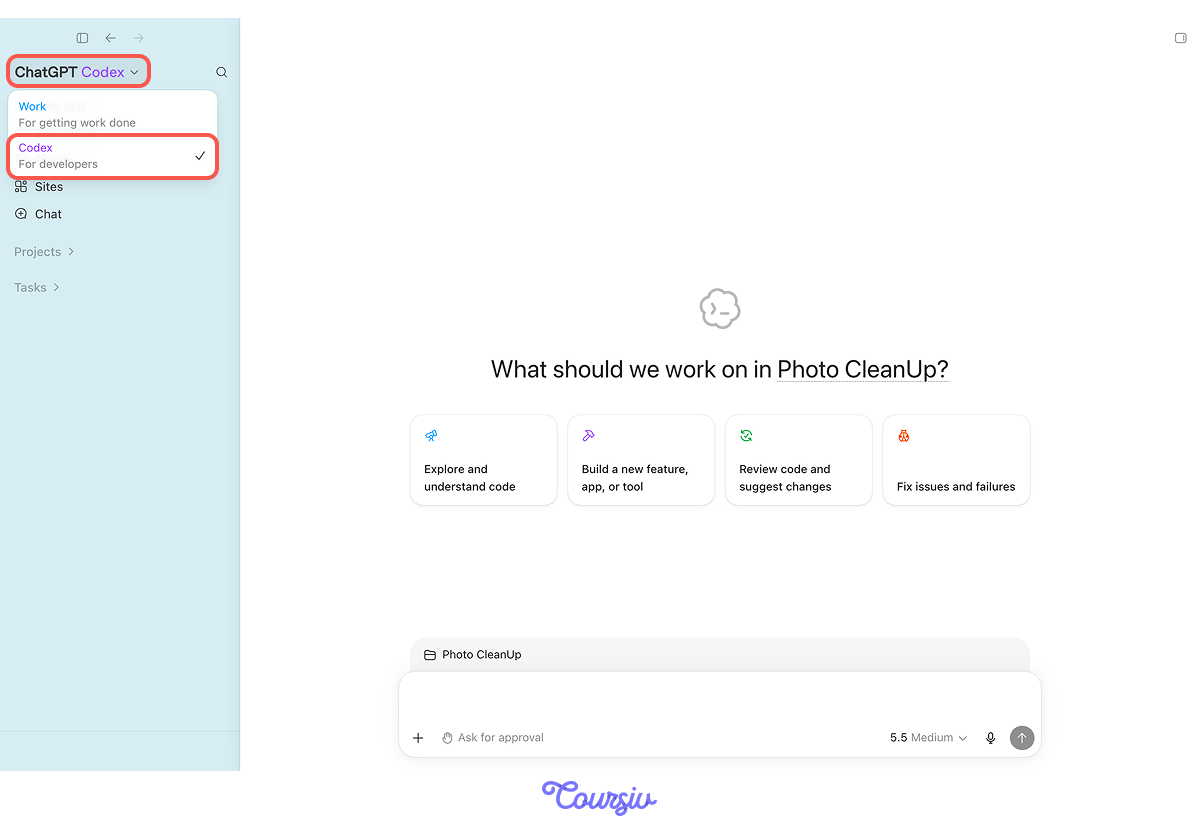
Open the ChatGPT desktop app and select Codex from the mode picker. The Codex workspace includes:
- New task
- Scheduled
- Plugins
- Sites
- Quick chat
Three New Moves
This lesson adds three more layers to the automations:
- Plugins: live connections from your Codex project to your services (Gmail, Drive, Slack, etc.)
- Automations: workflows that run on a schedule, without you starting them
- Computer Use: Codex operating apps and websites the way a person would, in cases that plugins don't cover
Together, they turn Codex from "do this task" into "keep doing this task."
Computer Use is available on supported macOS and Windows installations.
Availability may depend on your region, plan, app version, workspace settings, and rollout. It also requires separate operating-system and app permissions.
Scenario: The Job Search You Need to Track
Imagine you're job-searching. Applications go out, recruiter emails come in, interview confirmations land, and follow-ups need to be sent. You meant to keep a record in a spreadsheet.
Two weeks in, the spreadsheet is half-empty, and you can't remember whether you replied to the last recruiter. By the end of this lesson, the spreadsheet will build itself every Friday, while you'll be doing something else.
Connecting Gmail
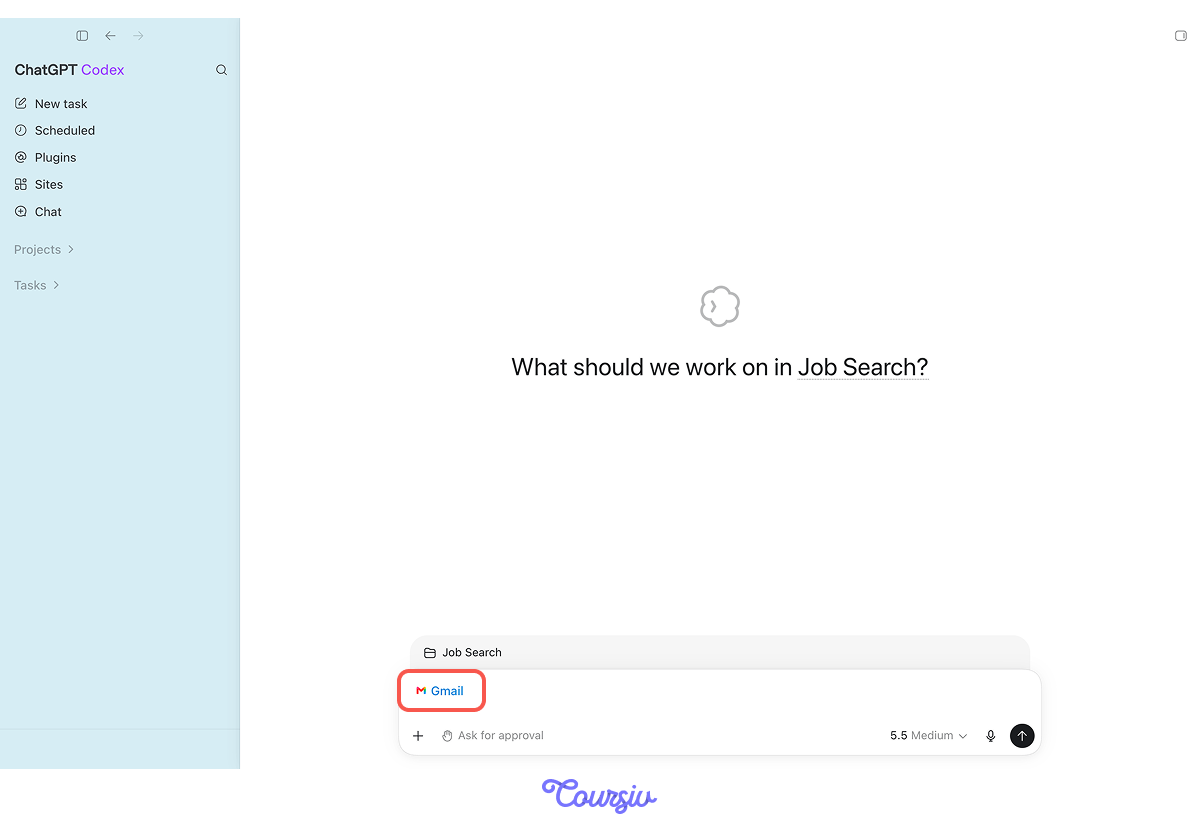
Let's start with connecting the plugins. You've already met them in the previous lessons.
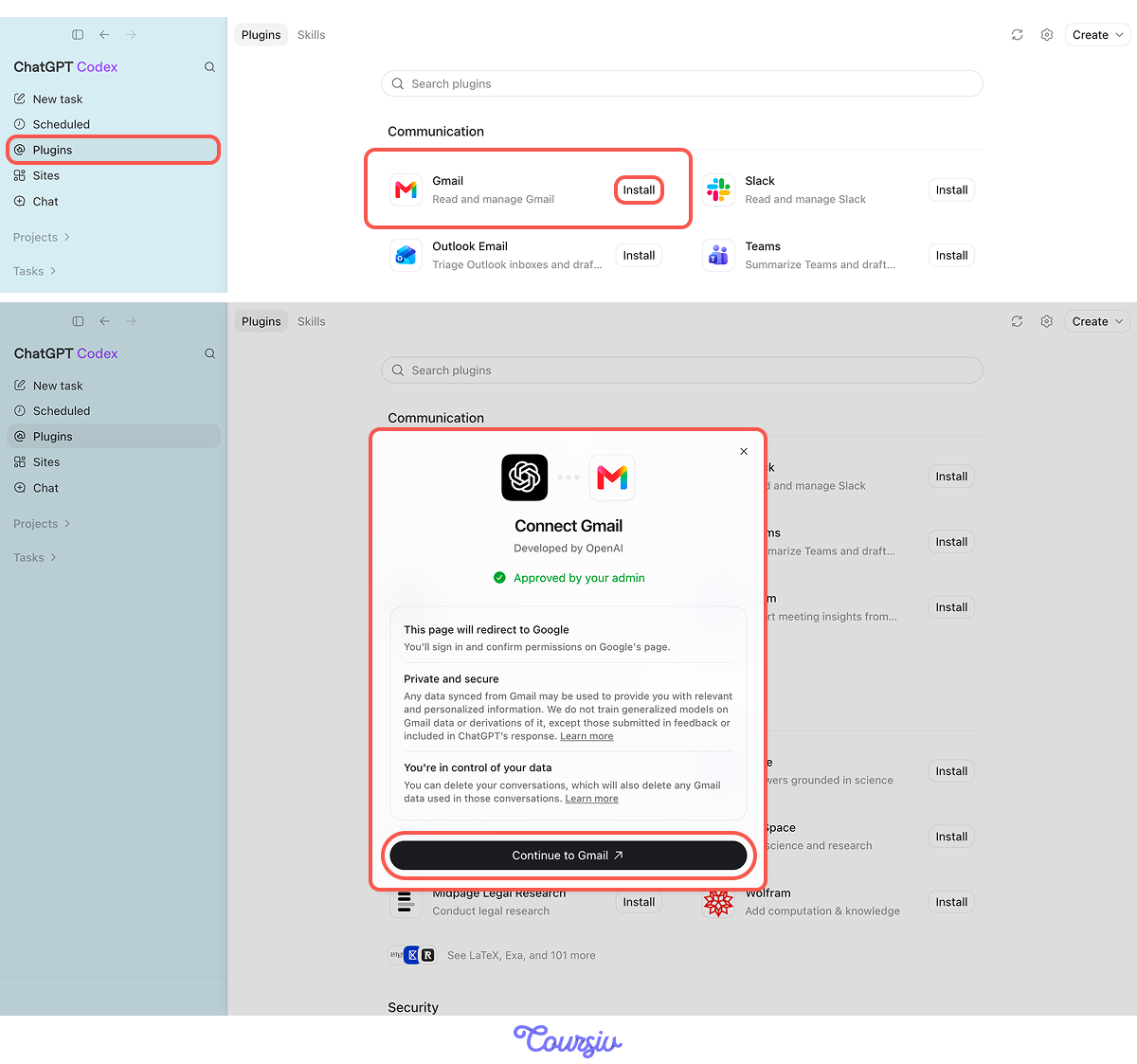
In your new Codex project, open the Plugins panel from the sidebar and find Gmail. Click Install, sign in, and approve the permissions that Codex requests.
The connection stays put. Next time you assign a task involving email, Codex already has access without re-uploading or re-explaining.
Select all that apply
What is the difference between a plugin and an uploaded email export?
A Workflow With Stages
A job search is a chain of steps, where each one feeds the next.
You pull the week's emails. You read them to figure out what stage each company is at. You file the PDFs. You update the tracker spreadsheet. You flag anything that's gone quiet. Each step depends on the one before it.
The Five Stages
Here's the chain you're going to build:
- Gather: Pull this week's job-related emails from Gmail.
- Extract: Figure out the status for each company (applied, interviewing, rejected, ghosted).
- File: Save attached PDFs to a company-named folder.
- Update: Add or change rows in the tracker spreadsheet.
- Flag: Surface threads that haven't moved in 14 days.
Codex runs the whole chain in one go. Your job is to brief it well.
Write the Brief
With Gmail connected and the five stages clear, you write the whole chain as one brief — each stage named in order, so Codex runs them in sequence. Point it at the tracker file by its path so it updates the right spreadsheet, and spell out the flag rule at the end.
practice preview
Interactive practice
Fill in the blank
Complete the stages of the brief.
Walking the Chain
Great job! Codex now runs each stage and passes the result to the next.
- The "gather" pulls 23 emails.
- The extract step turns those into 9 companies, each with a status.
- The file step saves 11 PDFs into folders.
- The "update" writes to the spreadsheet.
- The flag step finds three threads that have been silent for over two weeks.
One brief in one chain gave five outputs. The workflow itself is built, but nothing is running on a schedule yet.
A Useful Toggle Before the First Run
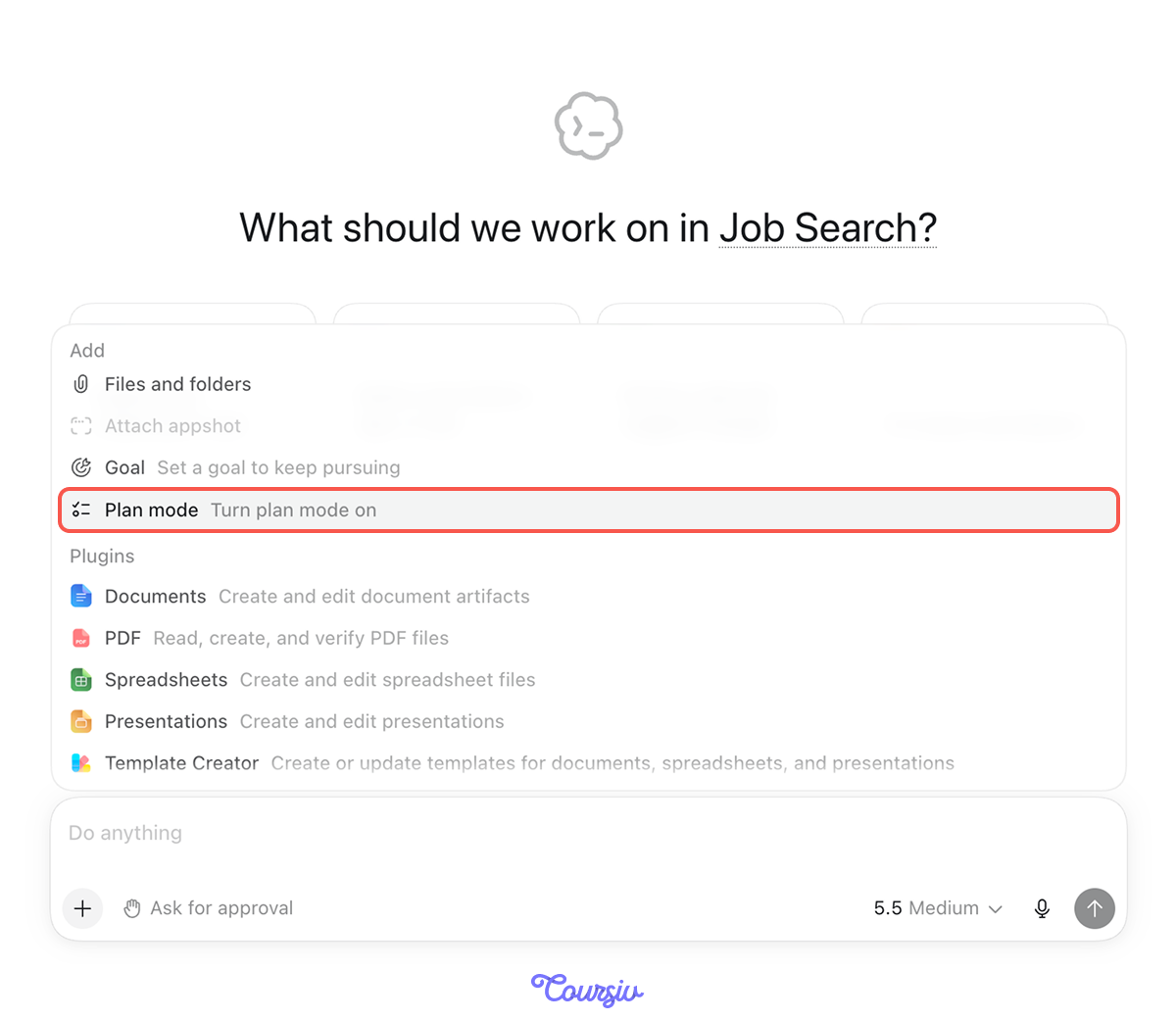
When you run the chain for the first time, turn on Plan mode — a toggle next to the prompt bar. With it on, Codex writes out the steps it intends to take before executing: which emails it'll pull, which statuses it'll extract, where it'll save the PDFs, and which threads it'll flag.
You read the plan, fix anything that's off, and only then does the chain run. After a few successful runs, you can turn it off and let Codex execute directly.
Choose one
Before you schedule this workflow, what should you do?
Turn the Tested Workflow Into a Skill
Great! The workflow now works, but its rules still live within a single task. You can change that. Ask Codex to turn the approved process into a reusable Skill:
“Use $skill-creator to create an instruction-only Skill called job-search-update. Include the status rules, tracker columns, attachment rules, follow-up threshold, and every case that must be flagged for review.”
Review the drafted Skill before saving it.
Schedule the Skill
Now, it's time to build your automation.
Stay in the tested Codex task and ask: “Every Friday at 5 p.m., return to this task and run $job-search-update. Use the Gmail plugin and the Job Search project. Do not send emails. Post a summary of changes and list anything that needs my decision.”
Review the drafted task before confirming it. Because the workflow updates a local spreadsheet and folders, the computer must remain on, the ChatGPT desktop app must be running, and the project must be available at run time.
Friday Evening Arrives
You don't open your laptop on Friday. Saturday morning, you check the project:
- The tracker has new rows for the three companies you applied to this week
- Two folders of PDFs are filed
- The "Needs Follow-Up" column shows two threads to chase on Monday.
The work that used to never happen is now done with no effort on your part.
Check It From Your Phone
You don't have to be at your computer to see what your automations did. Open Remote in the ChatGPT mobile app Settings to connect to Codex running on your computer.
First, select Connections in the desktop app, then proceed with the linking process. Both devices must use the same ChatGPT account and workspace.
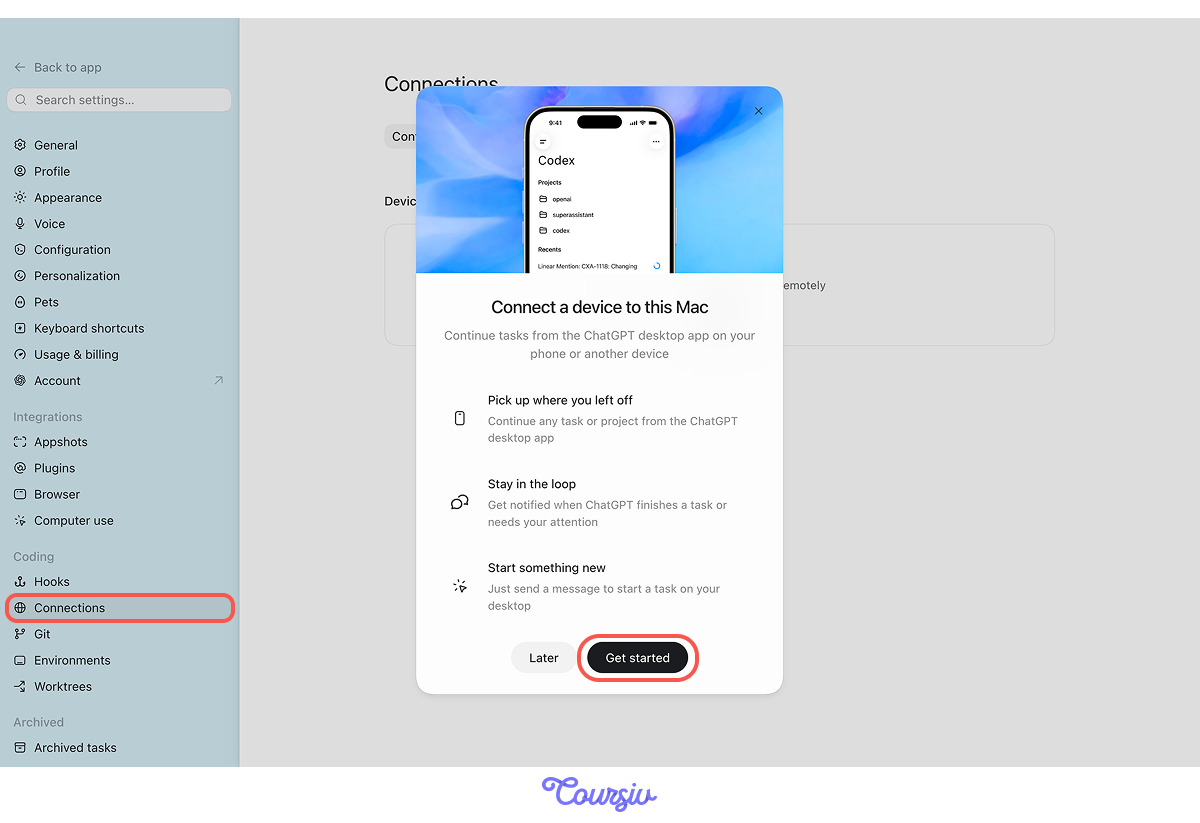
From your phone, you can:
- Start or continue tasks on the connected computer
- Send instructions and answer Codex's questions
- Approve actions
- Review outputs, screenshots, terminal results, and file changes
- Receive notifications when a task finishes or needs attention
When Plugins Don't Reach
Plugins cover the major services — Gmail, Drive, Calendar, Slack. They don't cover everything.
Take Reminders on your Mac. Years of lists, no plugin, no clean export. You'd think you're stuck doing it by hand. You're not.
Codex Opens the App
This is Computer Use. Codex literally takes control of your screen — opens Reminders, walks through your lists, reads each one, and writes them all to a Markdown file in your project folder.
When to Use the Computer Use
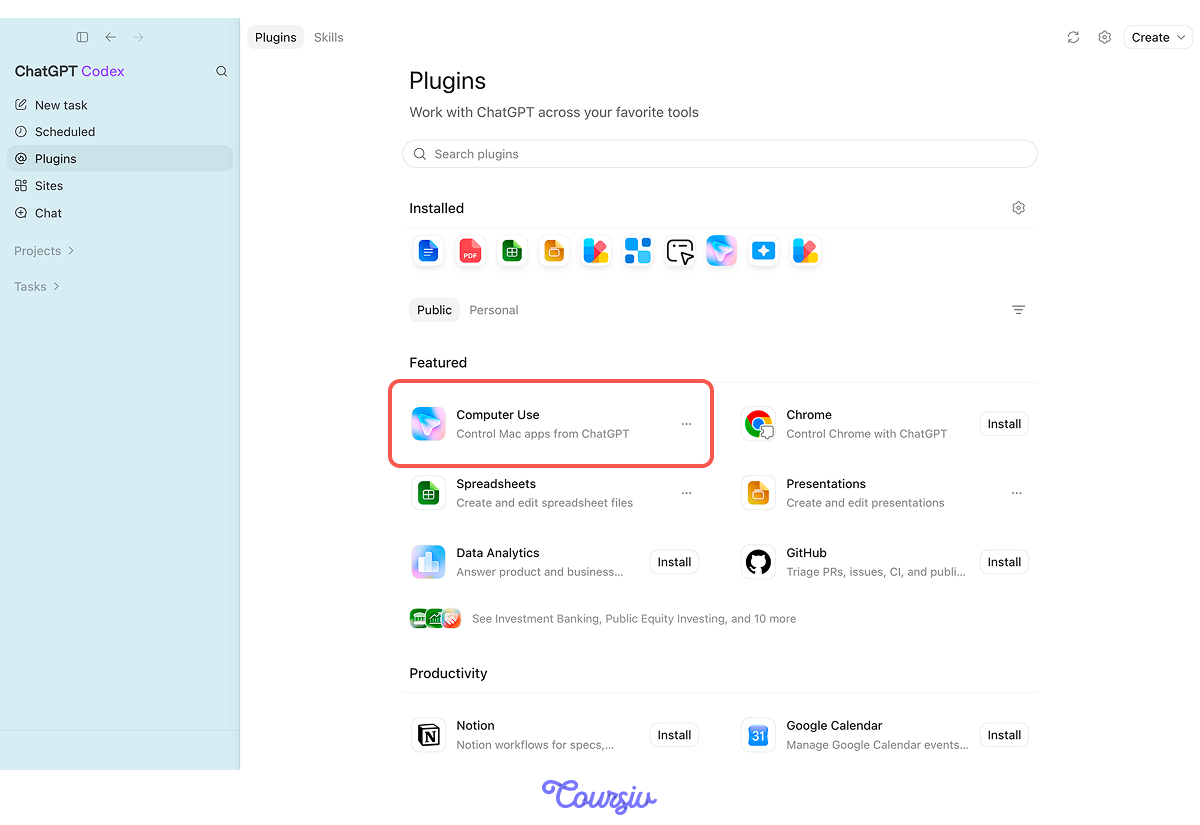
Computer Use is in the same Plugins panel as Gmail, Drive, and the rest.
What makes it different is what it does. Other plugins reach a service through their integration. Computer Use reaches anything else by operating the screen the way you would. You enable it like any other plugin, then it's available when your workflow needs it.
Now Apply It!
You just built a job-search system. The shape — gather, extract, file, write, run on a trigger — works for plenty of other recurring work.
Let's see another scenario: trip archive. Every time you travel, you end up with a pile of scattered records — boarding passes, hotel confirmations, restaurant receipts. They usually don't get organized.

Same Chain, Different Materials
Look at what carries from the job-search build:
- Gather: Pull trip-related emails from Gmail (booking confirmations, e-tickets, hotel reservations).
- Extract: Identify trip dates and destination from the bookings.
- File: Save PDFs into a folder named for the trip.
- Produce: Build a post-trip to-do list (expenses to submit, missing receipts, anything that needs follow-up).
What changes is the trigger — not a weekly schedule, but after each trip ends. And one stage hits a wall that plugins can't get past on their own.
The Receipt Behind the Login
Your hotel booking confirmation lives in Gmail — the plugin covers that. But the itemized receipt, the one with line items and taxes you need for records, isn't in the email. It's behind a login on the booking site.
This is where Computer Use earns its place. Codex logs in to the booking site, navigates to the trip, downloads the receipt PDF, and files it in the trip folder alongside everything else.
Setting Up the Trip Project
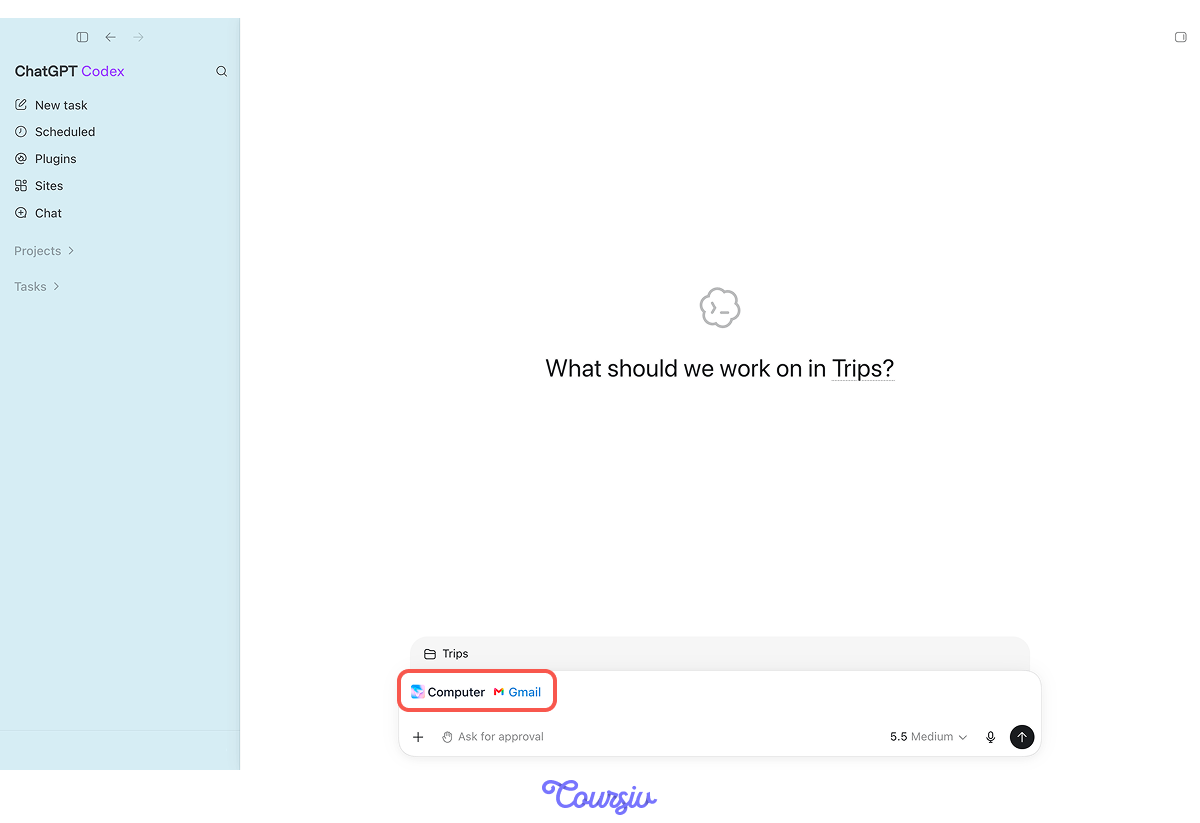
Create a new Codex project — call it "Trips." Connect the same Gmail plugin (you already authorized it once, so the connection is quick), and add Computer Use for the hotel-portal step. Now it's time to write a new brief.
practice preview
Interactive practice
Fill in the blank
Complete the brief for the trip archive automation.
- Codex can turn a tested process into a reusable workflow using local files, connected tools, and Skills.
- Plugins package capabilities and provide access to external services such as Gmail.
- Use Plan mode before execution to review the stages, rules, and proposed changes.
- Create Skills explicitly with $skill-creator and invoke them later by name.
- Scheduled Tasks can run Skills and plugins together, but local runs still require the computer, desktop app, and project to remain available.
What's Next?
Great job! Codex now does recurring work for you — it pulls from your apps and runs on its own.
Next, you'll hand off the finding out: sending ChatGPT to run deep, source-based research and return a full report — which you'll then learn to check, source by source, before you rely on it.
Let's keep going!