ChatGPT: Deep Dive · Build and Create
Work Mode for Routine Tasks
Brief workflow for bulk jobs
The Work You Keep Putting Off
There's always that one task you've been meaning to do for weeks. The folder you keep meaning to organize. The list you keep meaning to clean up. Work that's simple to describe and miserable to do by hand, so it never gets done.
In this lesson, you'll use ChatGPT Work to handle a long, repetitive task across files on your computer — and learn how to keep the result safe and reviewable.
Let's get started!

The Task You'd Never Do by Hand
Imagine this: 12K photos in one folder, collected over eight years. Then there are 500 contacts spread across three exports, full of duplicates and inconsistent formatting.
The work is easy to describe and miserable to complete one file at a time.
This lesson is about handing these tasks to ChatGPT Work while keeping control over what it changes.
Meet ChatGPT Work
The ChatGPT desktop app now brings three experiences into one place:
- Chat for work you guide through conversation: exploring ideas, producing content, analyzing files.
- Work for longer tasks that involve several steps, files, tools, and finished outputs
- Codex for complex workflows, software development, repositories, and tests. You'll explore it in the next lesson.

When to Use Work, Chat, or Codex
With all the experiences in one place, it is worth understanding when to choose each one:
- Use Chat when you need an answer or a quick draft.
- Use Work when you want ChatGPT to complete a longer task across files or tools and return a finished result.
- Use Codex when the task involves complex workflows, building, testing, or reviewing software.
Your task is file cleanup, so in this lesson, you'll use Work.
Work is built for tasks that involve several steps and a concrete outcome to review at the end.
In the desktop app, it can use a folder you select, inspect and edit files inside that workspace, and create new outputs for you to review.
Start Your Work Session
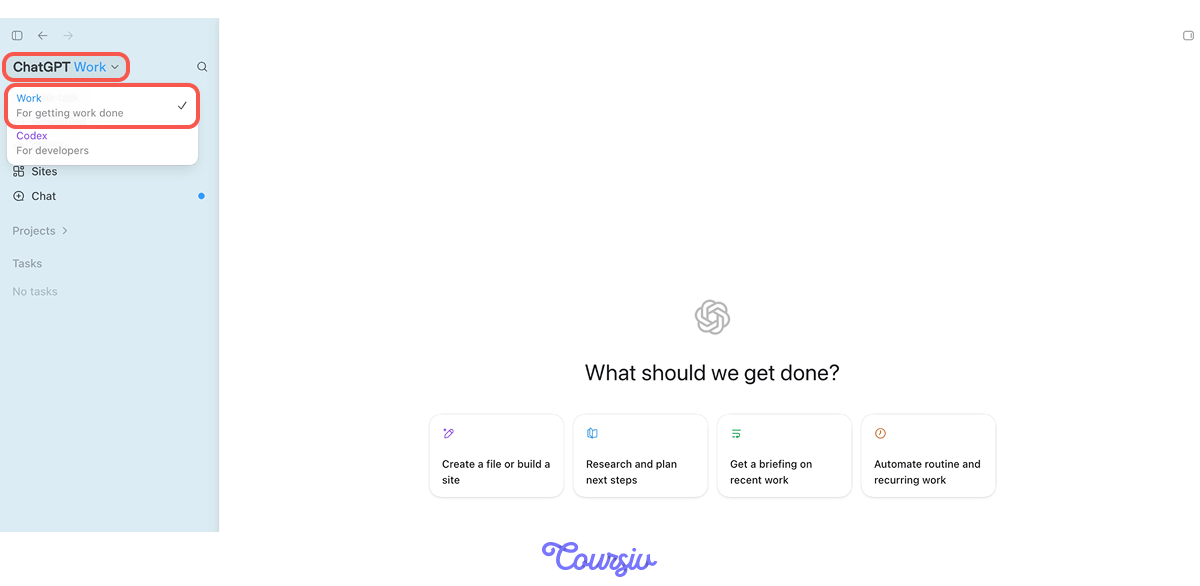
Open the ChatGPT desktop app and select ChatGPT Work in the top-left mode switcher.
You can start a standalone task or create a project.
Project or Standalone Task?
A standalone task works for a quick, self-contained job. Create a project when:
- Several tasks use the same files
- You want to return to work later
- The outputs should stay together
- The task may eventually repeat
Your First Task: 8 Years of Photos
Remember the photo dump with 12K photos that you need to sort? Filenames like "IMG_4471.jpg" tell you nothing. You want them renamed by the date each was taken, sorted into folders by year and month.
Create the Photo Project
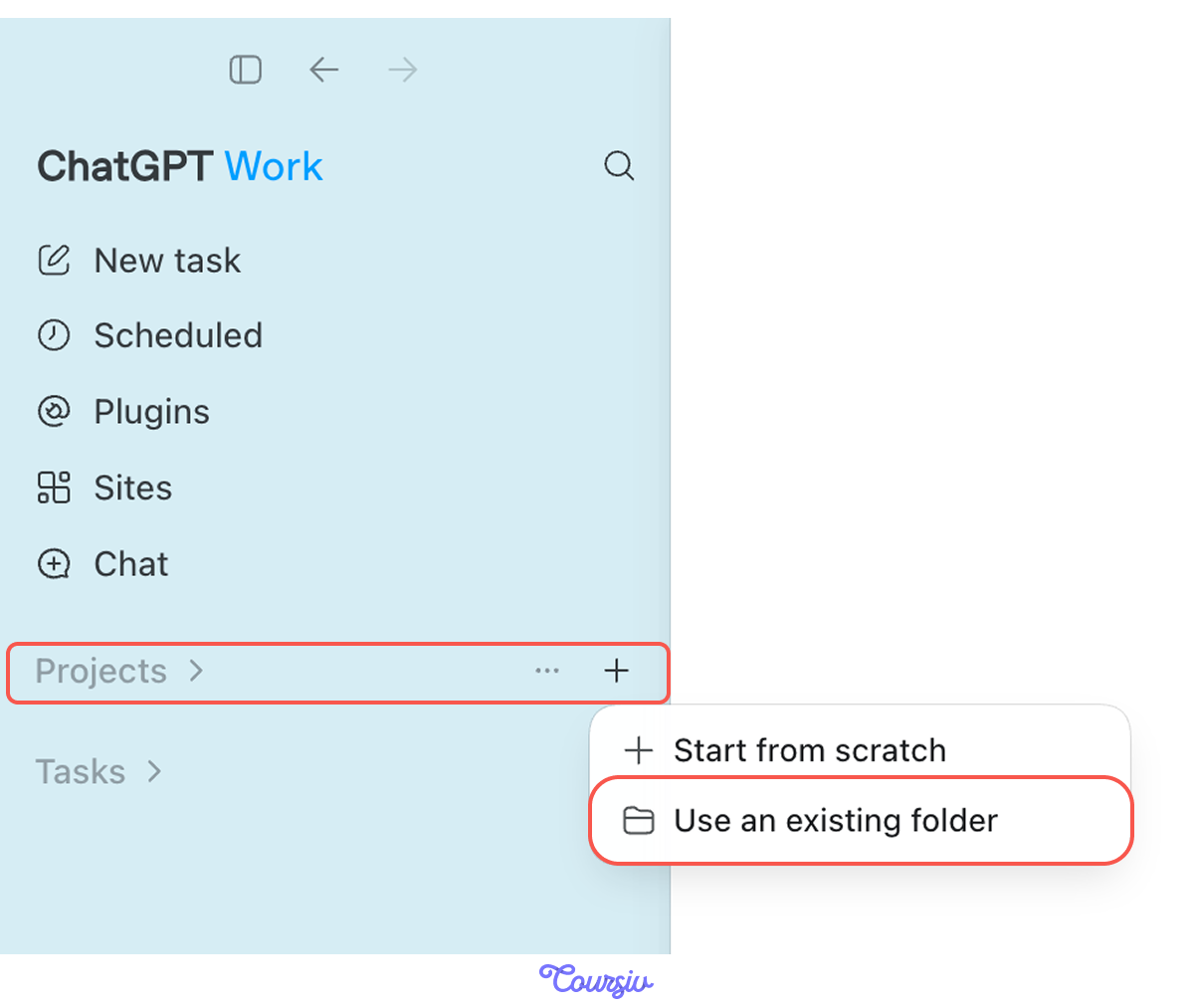
Create a project called Photo Cleanup and open a folder containing a copy of the photo library. Do not begin with the originals.
The selected folder becomes the boundary within which Work can operate.
Your First Task: Eight Years of Photos
The folder contains filenames such as IMG_4471.jpg, which tell you nothing about when a photo was taken.
You want Work to read the available data, propose clearer filenames, and organize the copies into folders by year and month.
What a Good Brief Needs
Define five things before Work changes anything:
- Goal = what you want done
- Input = which files and in what format
- Output = what the result should look like
- Fallback = what to do when something doesn't fit the pattern
- Review point = what it must show you before the full run
Skip the fallback, and Work makes its own call when it hits a file that doesn't fit — and you won't know it happened.
practice preview
Interactive practice
Fill in the blank
Complete the brief that tells Work how to rename and sort the photos.
Don't Run It on All 12K Yet
Notice what Work offered at the end: a sample first. That's the single most important habit with any agent that acts on real files.
Choose one
Why run Work on a 20-photo sample before the full amount?
The Sample Looks Right — Run It
The 20 sample photos come back correctly renamed and sorted. The date logic works, the folders are right, and nothing landed in "Needs Review" that shouldn't have.
Now you authorize the full run. Work processes all 12K and saves them to your folder.

The One-Time Cleanup Is Done!
The folder is organized, but new photos will keep arriving. Instead of letting another eight-year folder build up, you can schedule a task to sort your photos automatically. Let's do it using the Scheduled feature.
Meet the Scheduled Feature
Scheduled lets ChatGPT run a task later without waiting for you to start it manually.
A task can:
- Run once at a chosen time
- Repeat on a schedule
- Return to an existing Work task and reuse its context
- Check for changes regularly and report when something relevant happens
For the photo workflow, you'll create a monthly task that returns to the setup you've already tested.
Create a small Incoming folder inside the project folder on your computer. New files go there first.
Next, schedule the new routine from the current Work task so it returns to the same project and reuses the approved rules.
Stay inside the Work task where you tested the photo workflow. In the composer, type: "Schedule this workflow for the first Saturday of every month at 10 a.m. Return to this task each time and reuse the approved rules. Process only the Incoming folder."
Send the message and review the proposed schedule.
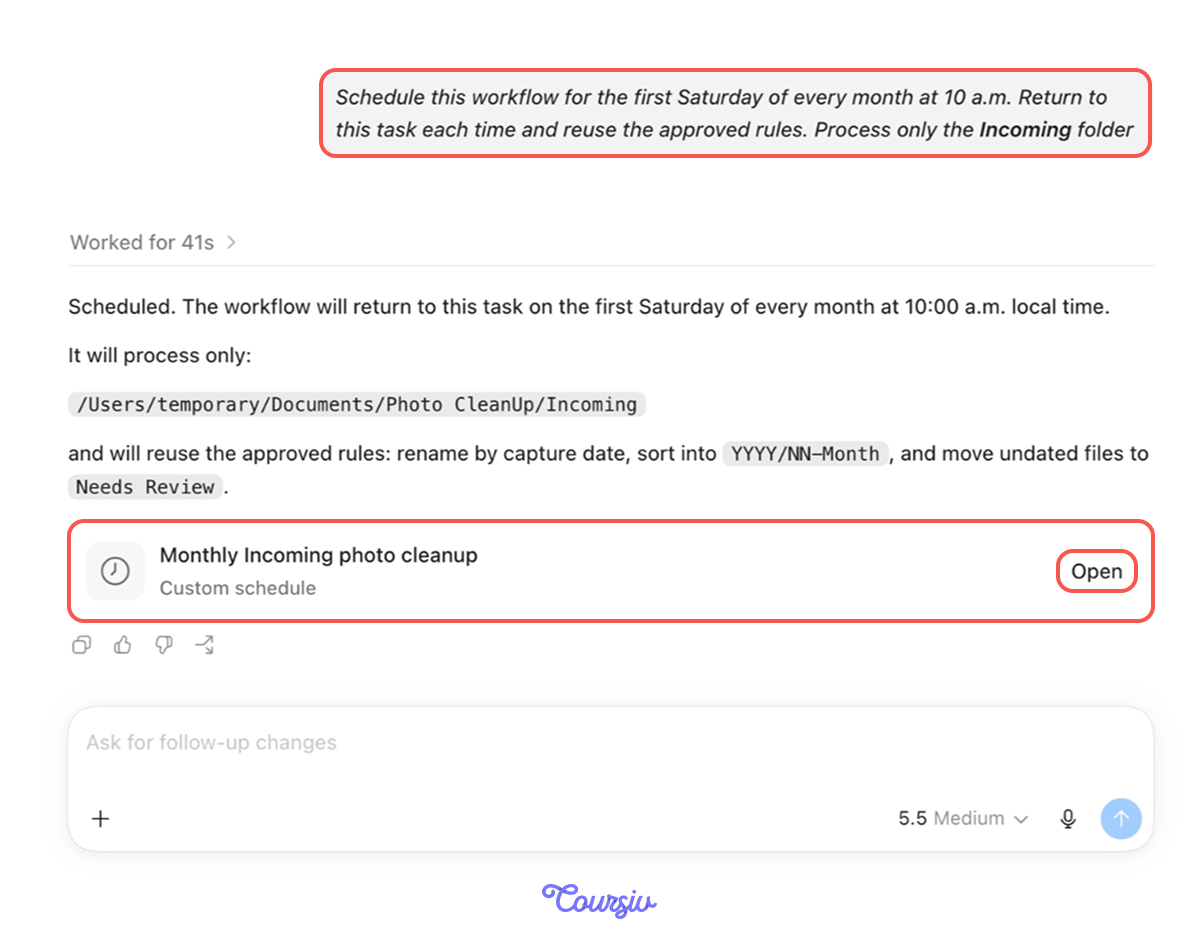
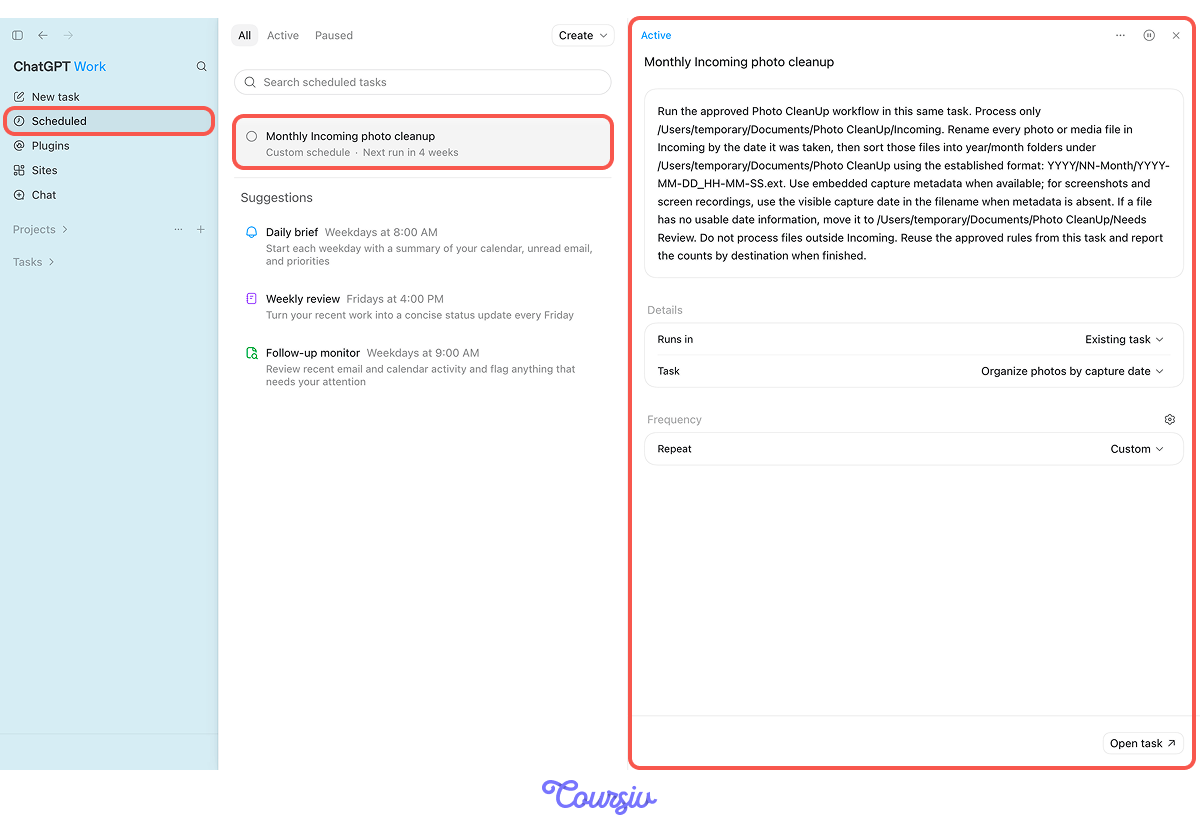
Then open the scheduled task from the conversation or in the Scheduled section in the left sidebar. There, you can navigate the existing tasks and add more.
Review the task and edit it if needed.
Great Job!
On the first Saturday of each month, Work checks the Incoming folder and runs the same sorting workflow. Now, everything is organized from a single prompt and a small automation.
A Messier Job — 500 Contacts
The photo task was clean: every photo has a date, and the rule is unambiguous. But some file work isn't that tidy.
Picture your contacts: exported from your phone, your email, and an old spreadsheet. A lot of rows, full of duplicates, inconsistent formatting, and half-empty fields. You want one clean list — but "clean" here involves judgment the photo task never did.
Where Judgment Comes In
Renaming a photo by its date yields a single correct answer. Merging contacts doesn't.
Is "Jon Smith" the same person as "Jonathan Smith"? Is the same email under two different names one contact or two? Work has to make calls like these — and if you don't tell it how, it decides on its own, and you won't see what it chose.
Choose one
Merging the contact list is harder for Work than renaming photos. Why?
Briefing for the Uncertain Cases
This is where the fallback earns its place. For the contacts, the fallback isn't "set it aside" — it's a rule for what counts as a match and what to do when Work isn't sure.
practice preview
Interactive practice
Fill in the blank
Work has access to the project folder with your three contact exports. Complete the brief to merge them and flag uncertainties.
The Difference a Fallback Makes
Great job! Without that rule, Work would have merged every near-match on its own, quietly collapsing two real people into one.
With it, you get 492 safe merges handled automatically and 8 judgment calls returned to you. The agent does the bulk work; you make only the decisions that actually need a human.
Beyond Photos and Contacts
The same pattern fits any repetitive file job:
- 200 PDF receipts → one spreadsheet with date, vendor, amount
- A folder of documents → renamed and sorted by content
- Three messy exports → one clean, deduplicated list
Every single one is the same shape: point Work at the files, write the four-part brief, test on a sample, run. The task changes; the method doesn't.
What Work Reaches That a Chat Can't
That workspace you set up earlier — the project pointed at your folder — works because Work has something a chat doesn't: permission to your computer.
It runs inside an environment tied to a folder of your files — read them, edit them, save new ones — and with Computer Use, it can operate apps on your machine the way you would: click, type, move between windows.
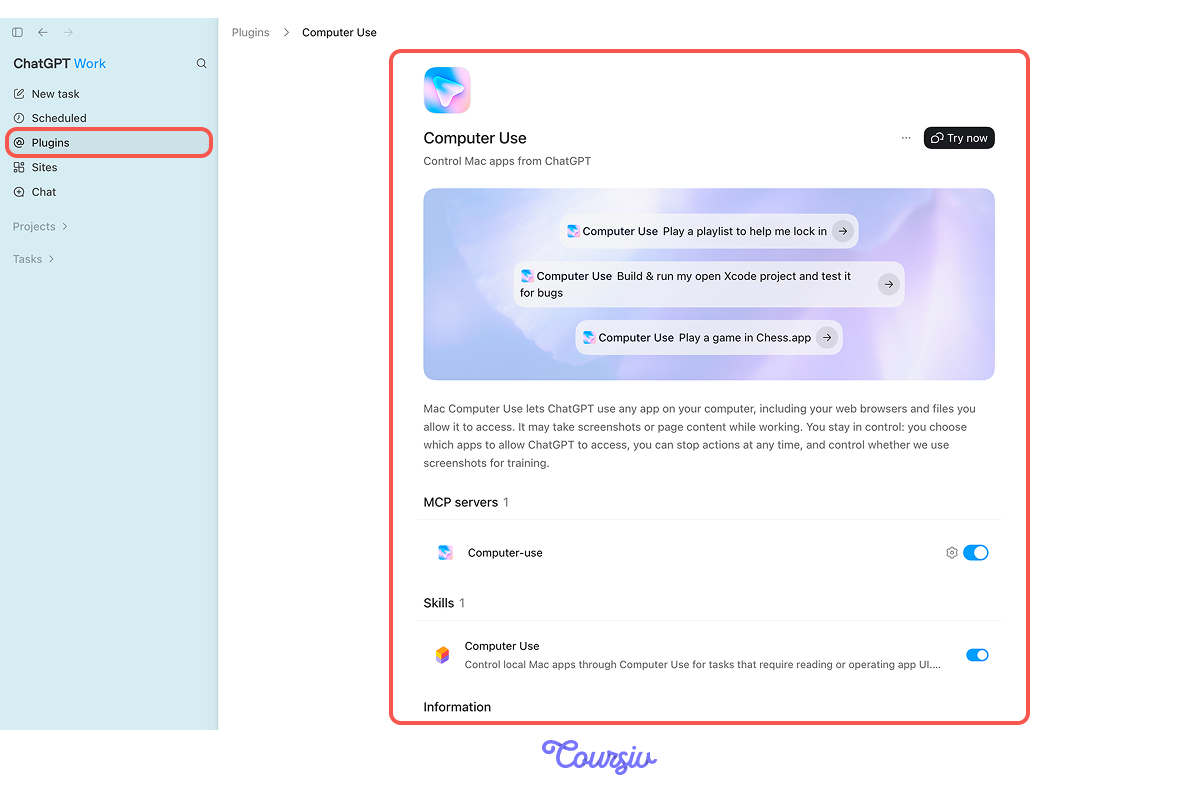
That's why the photos and contacts task worked. The files weren't somewhere on the web for an agent to reach through an API. They were on your machine. Work is the one with permission to be there.
- Use Work for longer, multi-step tasks across files that produce a finished result you can review.
- A project keeps related files, instructions, and outputs together and gives Work access to the selected folder.
- Brief file tasks in five parts: goal, input, output, fallback, and review point.
- Work on copies and test the rules on a small sample before applying them to the full set.
- Use a fallback to separate uncertain files or records instead of letting Work guess.
- Once a workflow works reliably, use Scheduled to repeat it from the same Work task.
What's Next?
In the next lesson, you'll try Codex, which works as a connected system — pulling from Slack, Gmail, and Drive, running jobs on a schedule, and chaining multi-step workflows that handle recurring work for you, automatically.