ChatGPT: Deep Dive · Automate and Delegate With ChatGPT
Plugins: Building Your Personal Assistant
Build an assistant from plugins
The Personal Assistant That Runs Your Week
Your week lives in pieces: appointments in one app, emails in another, and a to-do list partly in your head.
Every Monday, you stitch everything together by hand. But one conversation can pull it all into a single view instead! By the end of this lesson, you'll connect several Plugins at once and build an assistant that does exactly that.
Let's get started!

Scenario: Handling Household Logistics
Naomi works part-time in marketing and has two kids, aged 7 and 11. She runs the household logistics.
The load is real but invisible, scattered across her calendar, her inbox, some shared docs, and a Notion tracker she set up last year.
The Monday Problem
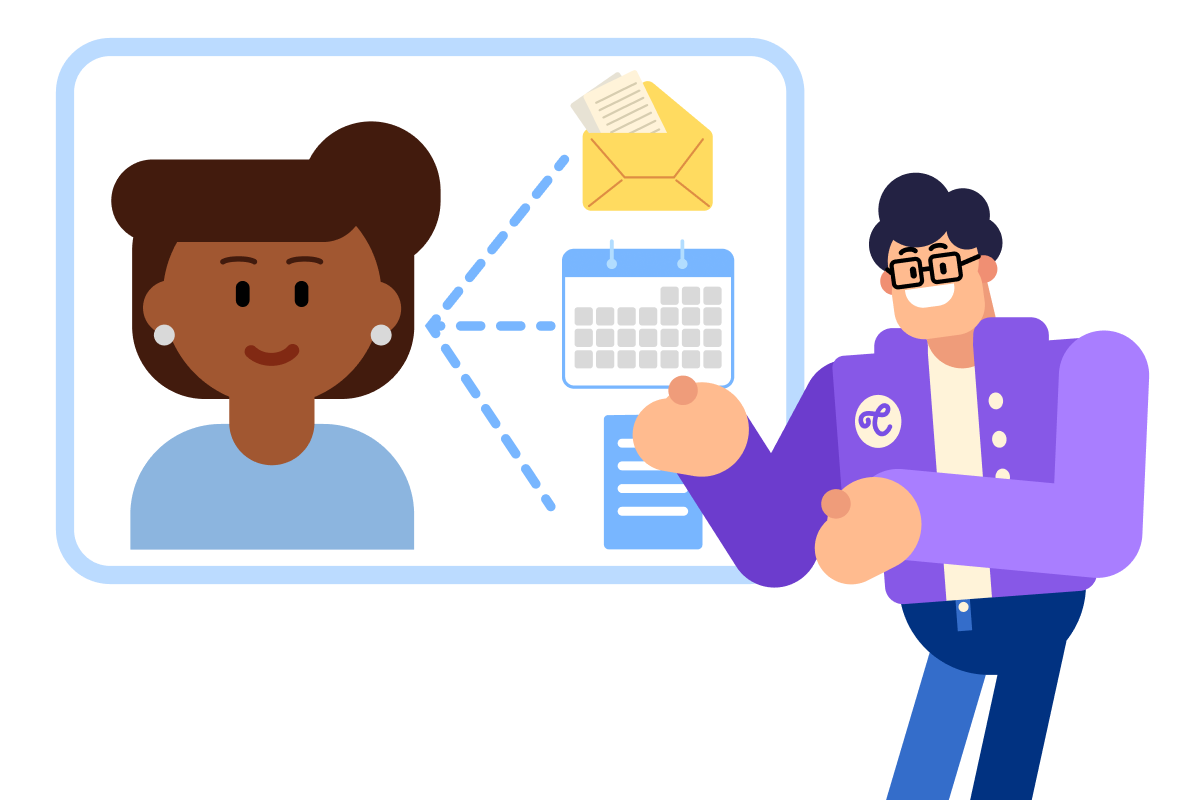
Every Monday, she pieces the week together by hand. Check the calendar. Scroll through the inbox for school emails. Open the meal-plan doc. Cross-check both kids' activities against her own work shifts.
20-30 minutes of tab-switching before she even knows what the week needs from her.
Where It All Lives
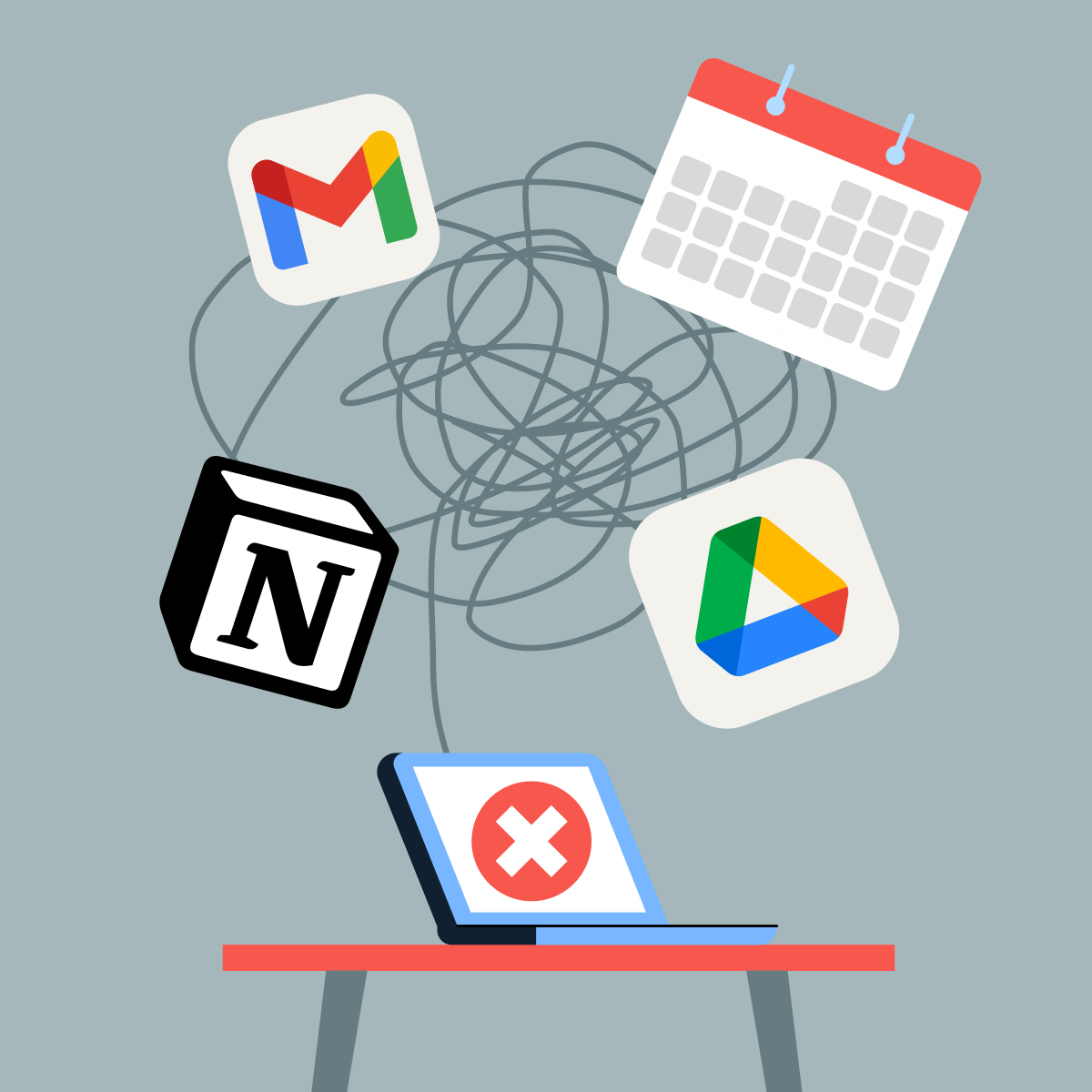
Naomi's week is spread across four tools:
- Calendar: appointments, kids' activities, her work shifts
- Gmail: school emails, activity sign-ups, confirmations
- Drive: permission slips, forms, the family budget
- Notion: the meal plan, chores, the running to-do list
Each holds one piece, and none of them talks to each other.
Select all that apply
What makes Naomi's Monday prep so slow?
Connecting More Than One
ChatGPT now organizes connected workflows through plugins.
A plugin can package skills, app integrations, and reusable setup for a particular job. The apps inside it are what connect ChatGPT to external services such as the calendar, inbox, or document storage.
The new move here is to use multiple connected apps in a single prompt. ChatGPT can retrieve relevant information from each source and combine it into one response.
Two Kinds of Plugins
Plugins come in two types, and the difference matters:
- Reference plugins pull data in: Calendar, Drive, Gmail, and Notion all retrieve information for ChatGPT to work with.
- Interactive plugins run an experience in chat: Canva, for example, builds a design right inside the conversation.
Naomi's assistant is built entirely from reference plugins. It gathers, but doesn't create.
practice preview
Interactive practice
True / False
Decide which type of plugin this action uses.
Finding the Plugins
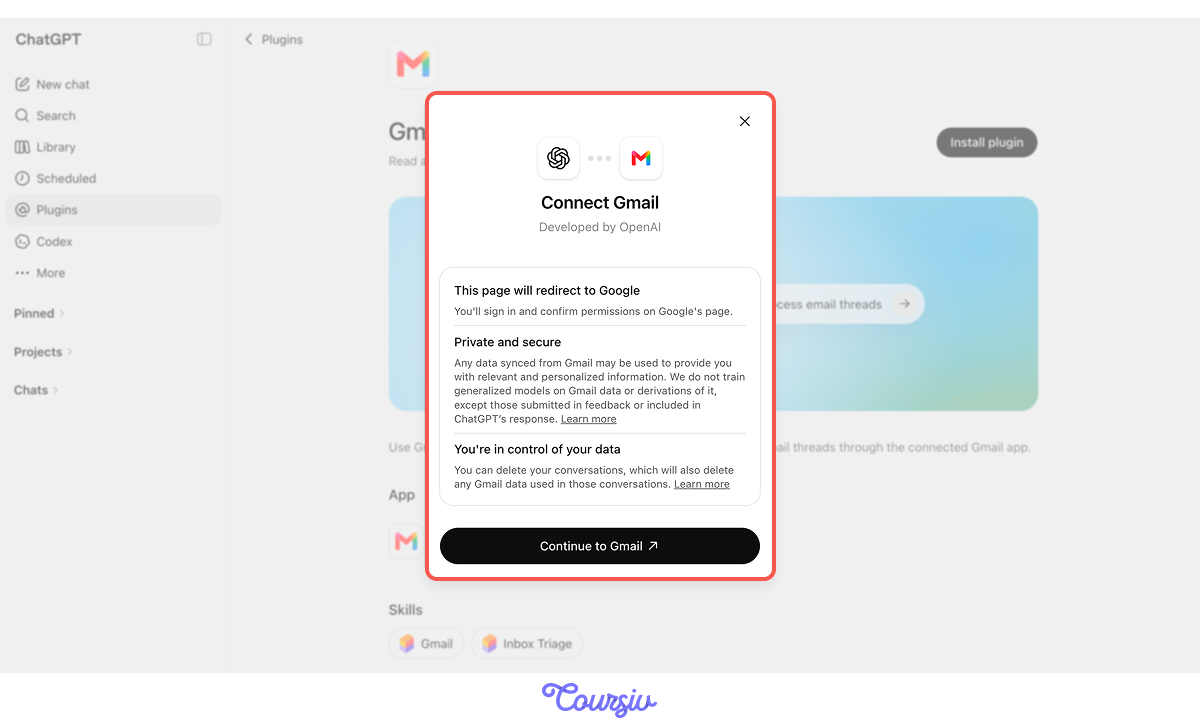
It's time for Naomi to connect her plugins. Connecting starts in the Plugins panel. Open it from the sidebar, and you'll see a directory of available services grouped into categories.
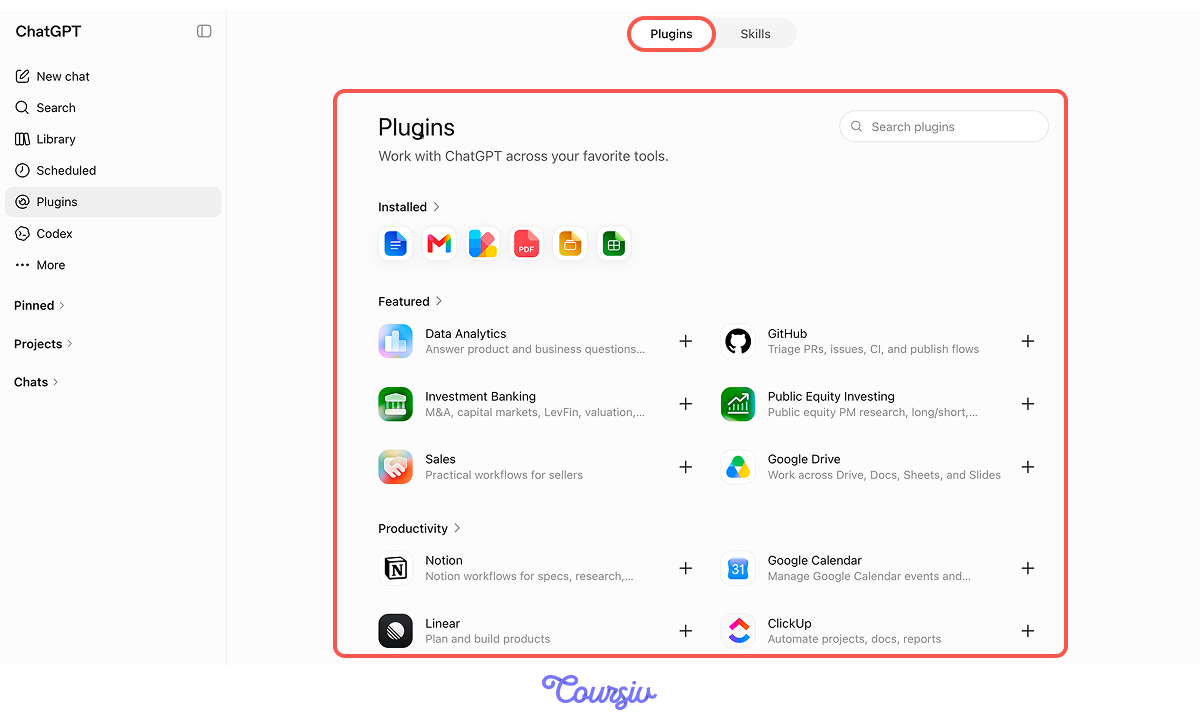
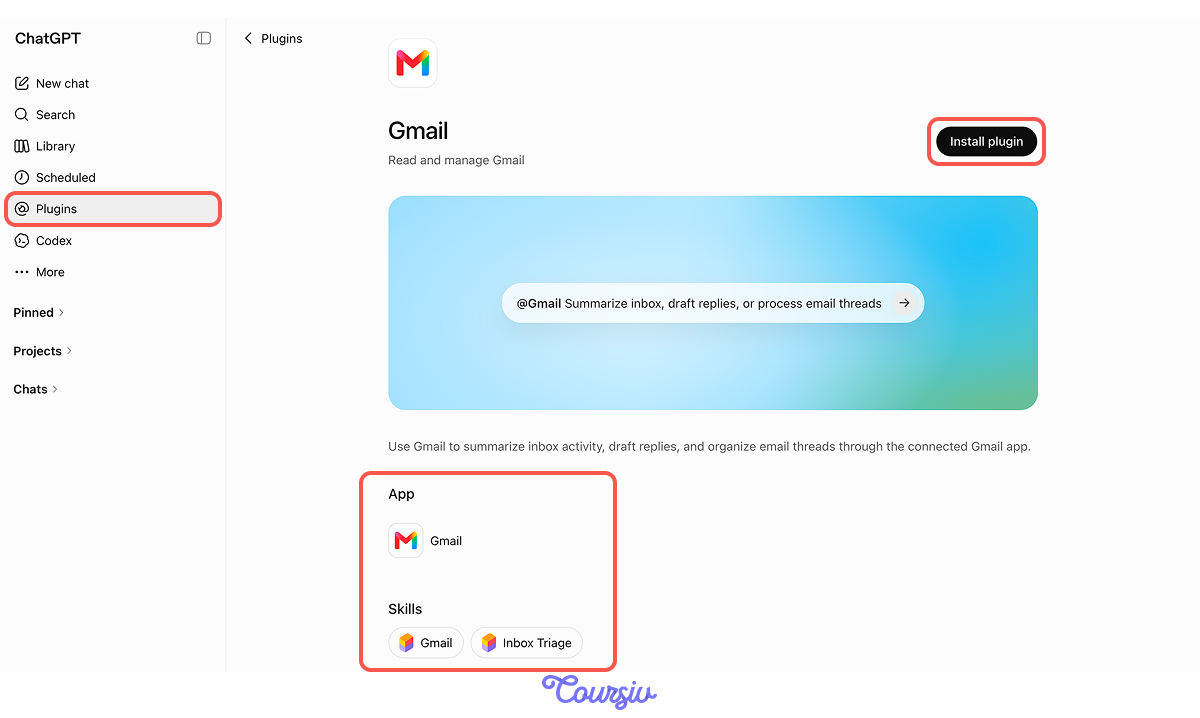
Naomi searches for each tool she needs by name: Google Calendar, Gmail, Drive, and Notion. Each one shows a short description, the app it connects to, the skills that become available, and other important information.
Connecting Each One
For each plugin, Naomi clicks Install Plugin and signs in to that service. The plugin asks what it's allowed to access — for Calendar, that's her events; for Gmail, her messages — and she approves.
Once connected, the plugin stays available across the conversation. She repeats this for all four, and the assistant can now reach every source at once.
The First Brief
With everything connected, Naomi asks for what she wants: a single view of the week ahead, built from all four sources at once.
Let's see what she types.
practice preview
Interactive practice
Fill in the blank
Complete the prompt that pulls Naomi's whole week into one view.
It Worked — But Look Closer
In one conversation, ChatGPT pulled from four tools to build a single view. No tab-switching or manual cross-checking required.
But look at the brief again. Everything is listed flat — the permission slip due Wednesday sits in the same plain list as "low on milk." Nothing tells Naomi what needs her first.
Choose one
The brief pulled everything correctly, but listed it flat. What's the problem with that?
Teaching ChatGPT to Prioritize
A useful assistant ranks tasks by urgency.
Naomi adds one instruction: sort everything by urgency, surface what needs her today or this week first, and push the informational items to the bottom.
One line changes the brief from a data dump into a plan.
practice preview
Interactive practice
Fill in the blank
Complete the instruction that ranks the brief by what matters most.
A Brief That Is Useful
Great! With the same sources and information, the data now reads like a clear plan. The dentist appointment, the permission slip and work deadline now sit at the top, so Naomi sees what's urgent first.
Bringing information together is only half the job.
- Retrieval: Find the relevant information across the connected plugins.
- Verification: Check important dates and details against the original sources.
- Ranking: Sort the verified items by urgency and importance.
What Stays Connected
Naomi's assistant works, and another important question arises. Should it have permanent access to everything?
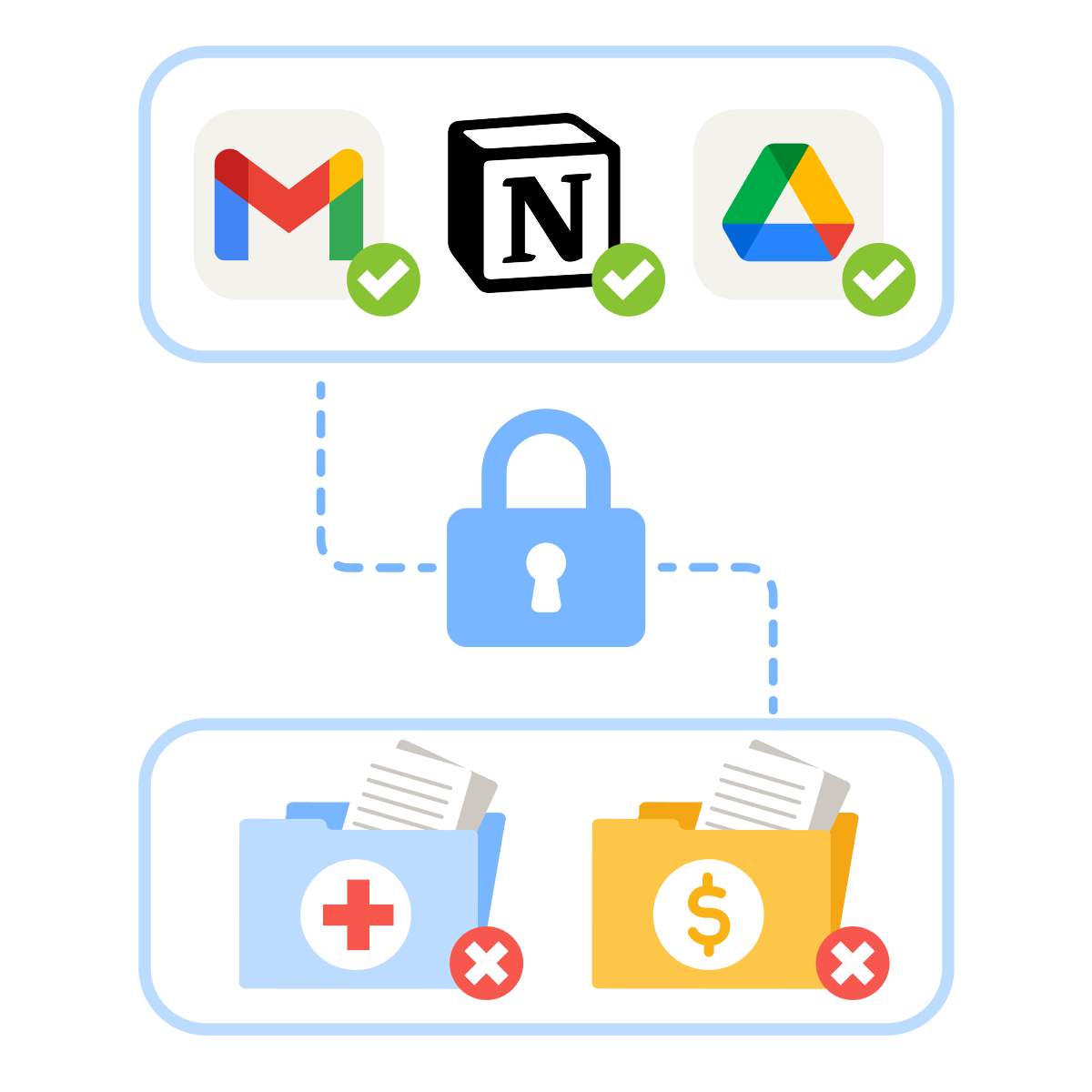
Some apps she checks constantly: Calendar, Gmail, and Notion. Others hold sensitive information she only needs occasionally — the family medical records and financial forms in Drive.
Daily-Driver vs. Task-Scoped
The cleaner setup splits plugins by how often and how sensitively they're used:
- Always connected: Calendar, Gmail, Notion. Low-sensitivity, used in every brief.
- Task-scoped: the Drive folder with medical and financial docs. Connected only when a specific task needs it, then left out of the standing assistant.
This is the same scoping instinct from the previous lesson, just applied to whole plugins.
practice preview
Interactive practice
True / False
Decide whether this source belongs in the standing assistant or should stay task-scoped.
A permanent assistant should keep permanent access only to what it uses constantly and safely.
- Daily-drivers stay connected — high frequency, low sensitivity
- Sensitive sources stay task-scoped — pulled in when needed, not left open
Where This Stops
Naomi's assistant tells her the permission slip is due on Wednesday. The natural next thought: can it reply to the school email for me?
That's a different capability. This assistant informs — it tells her what the week needs. Making it act — reply, book, submit — is the next layer. You'll learn about it in the next lesson.
practice preview
Interactive practice
Put in order
Arrange the steps for building a personal assistant that pulls together recurring tasks.
Beyond Naomi's Monday
The pattern transfers to any recurring task spread across tools:
- A Monday work brief: Calendar + Drive + Slack
- A freelance week-ahead: Calendar + Gmail + an invoicing app
- A study-week plan: Calendar + Drive + Notion
Same structure every time: connect the sources, synthesize into one view, rank by what you need first.
The Result
Naomi's Monday prep used to take half an hour of opening tabs and cross-checking. Now it's one short conversation — the week pulled together, ranked, and ready before she starts her morning coffee.
- Connecting several plugins at once lets ChatGPT draw on all of them in a single conversation.
- Reference plugins gather data; interactive ones work in chat.
- A multi-source brief needs prioritization, such as an urgency rank.
- Keep daily-driver plugins connected and sensitive plugins task-scoped.
- Synthesis tells you what needs to be done. Making the assistant act on it is the next step.
What's Next?
Naomi's assistant tells her what the week needs. The next lesson goes one step further — connecting plugins in sequence, so ChatGPT acts across them: read an email, pull out the task, create it on a board, all in one flow.
Let's keep going!