Midjourney · Midjourney Essentials
Navigating Midjourney
Discover what Midjourney can do
Meet Midjourney
Today, we meet a faster way to create powerful visuals and enhance your storytelling with images, keeping it all consistent and appealing.
Midjourney is an AI tool that generates images from your written request. That's how your design story begins: without complex software, without brushes — just prompts!
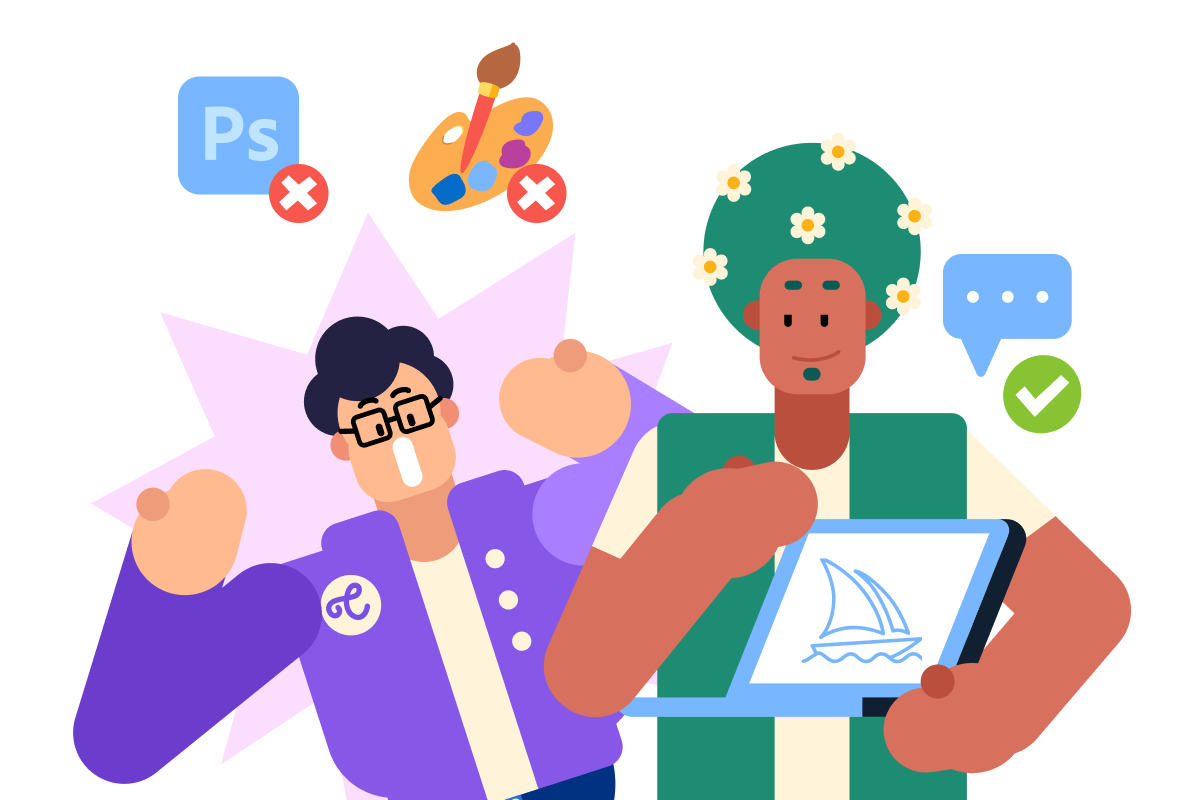
How Does It Work?
You can use Midjourney in two main ways:
- In the Midjourney web app, where you type your prompt into the "Imagine" bar
- On Discord, where you talk to the Midjourney Bot with commands
In this course, we'll focus on the web app, which offers a cleaner interface, visual settings, and organized workspaces.
practice preview
Interactive practice
Fill in the blank
Write a simple request for the Midjourney web app to see how it works.
Great Job!
See? The way you get results from the tool is simple: you describe what you want — Midjourney creates stunning art from your words.
Whether it's social media content, product concepts, or digital illustration, the tool has you covered!
Navigating the Interface
When you open Midjourney, you'll see the "Imagine" bar above — this is where you type your prompts, like the one you just created.
In the "Explore" tab, you'll find the works of other users to get inspired, and in the "Create" tab — your own art.
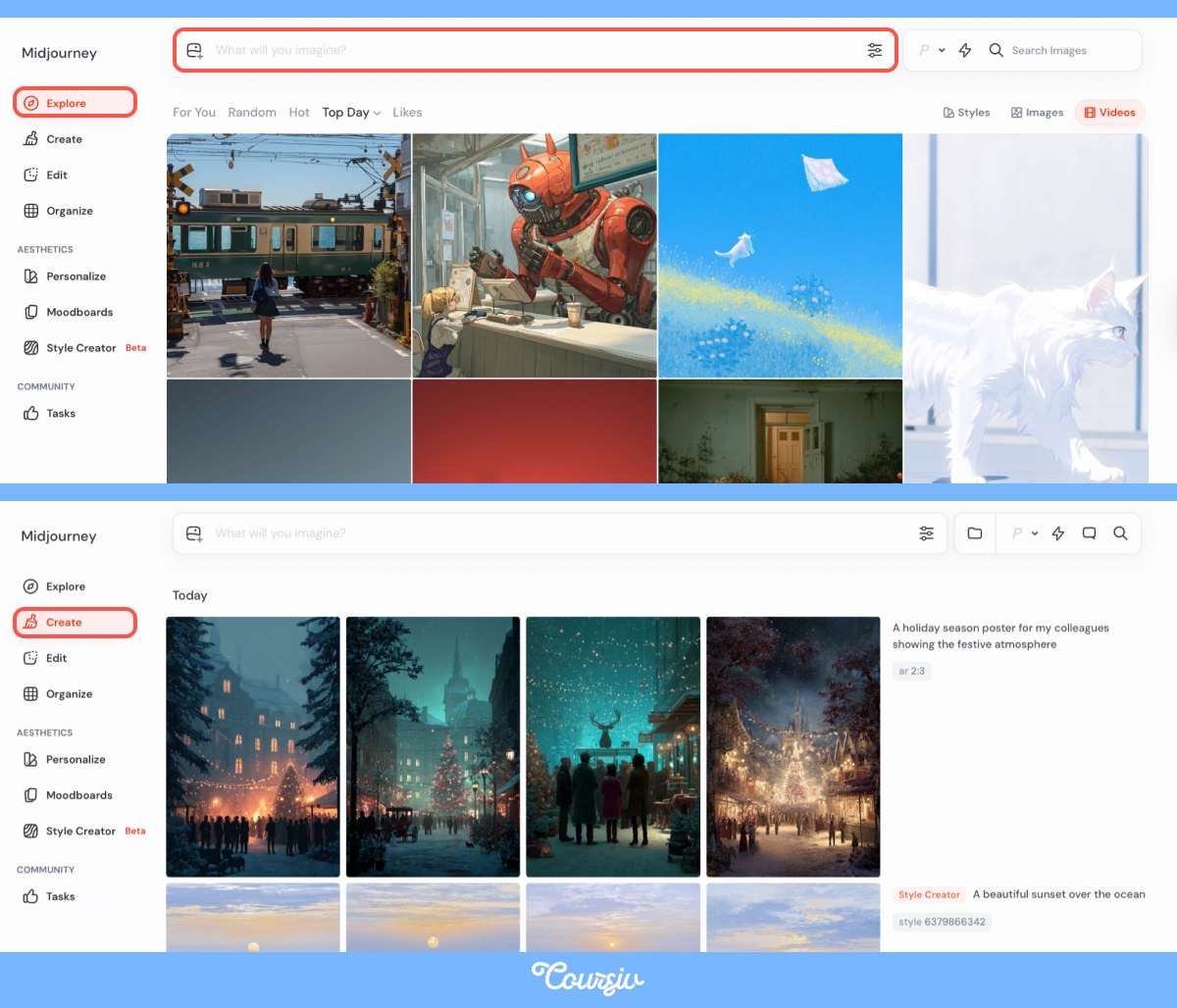
As you've already noticed, once you enter your request, Midjourney gives you four options at a time. It's like having four artists paint your idea simultaneously!
Editing Your Result
Let's say you've actually generated four sunset pictures. They are okay, but not exactly what you wanted.
Once you hover over any of them, you'll see buttons for quick changes:
- "Vary Subtle" — creates a variation of the selected image that stays very close to the original
- "Vary Strong" — larger changes in composition, shape, style, or mood
- "Animate" — generates a short animation based on the image
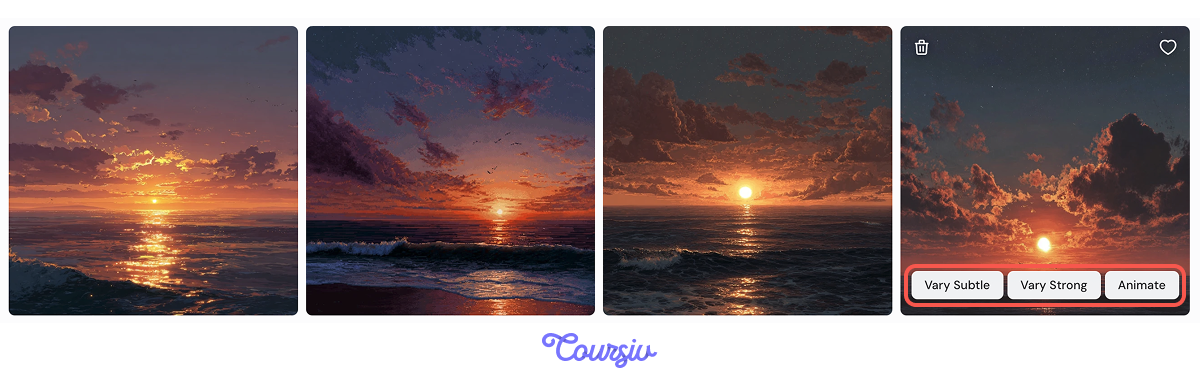
You can find the same commands and even more if you click on any image in the bottom right corner.
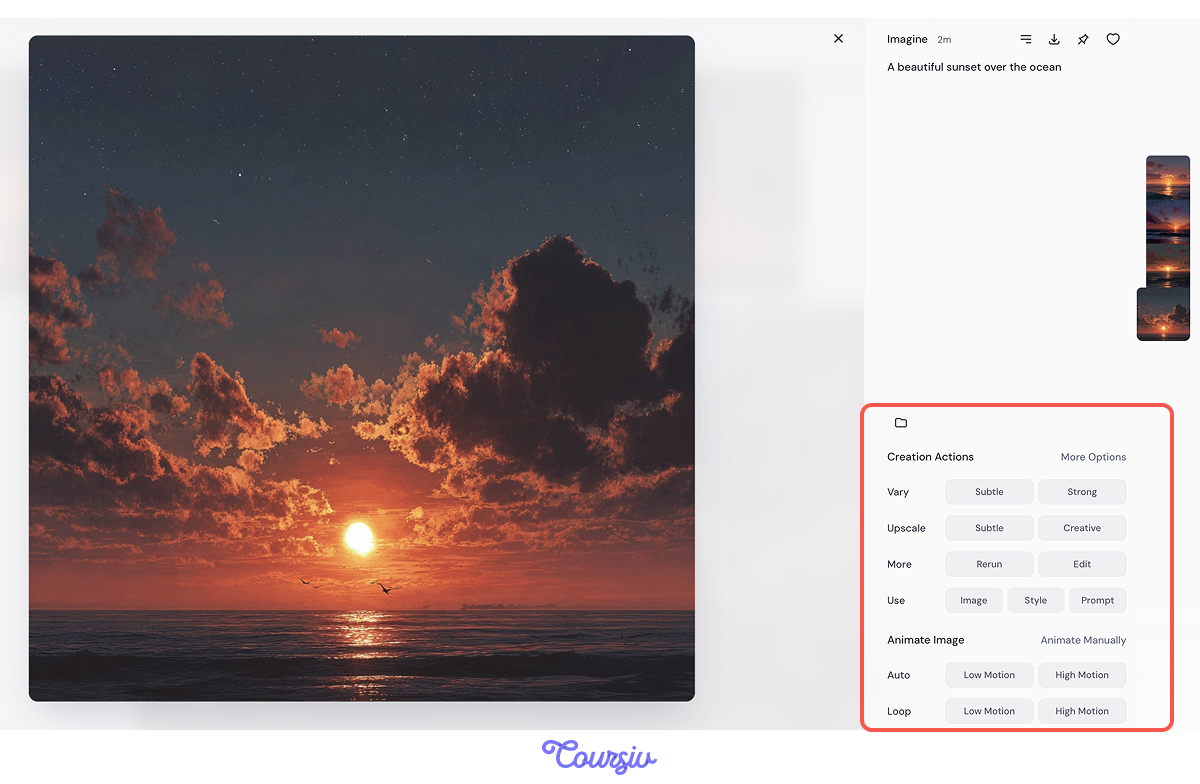
Creation Actions
You can use this panel to set up and control:
- Image variations — create subtle or stronger alternate versions without changing the core idea.
- Upscaling — increase resolution and detail, either conservatively or with a more creative touch.
- Reruns and edits — regenerate the image or make targeted adjustments without rewriting everything.
- Reuse options — apply the same image, style, or prompt as a starting point for a new generation.
Animation settings:
- Motion intensity — choose between low or high movement for calmer loops or more dynamic results.
- Loop behavior — control how the animation repeats for a seamless or expressive effect.
There are even more customization and modification capabilities in Midjourney — we will learn more about them in future lessons!
However, you don't just make changes by hitting buttons in this tool. Great art starts with even greater prompts!
The Importance of Prompts
Prompts are the way of telling AI exactly what you want: subject, mood, lighting, style, even camera angle. Change one word, and your image can go from "okay" to "award-winning" or vice-versa.
practice preview
Interactive practice
Fill in the blank
Change one word in the prompt to create a different emotional tone.
practice preview
Interactive practice
Fill in the blank
Adjust one phrase to change how the light shapes the scene.
Choose one
What is the main reason these two images look so different?
Midjourney responds best when you're clear and direct in your prompts. Always test minor tweaks — choice of words and tone can change everything!
Fine-Tuning Your Prompts
Well done, you have just created your first AI art!
MidJourney always gives you four versions, so you can pick one and refine it. Choose the image that fits best, and you can upscale or reimagine it for more detail.
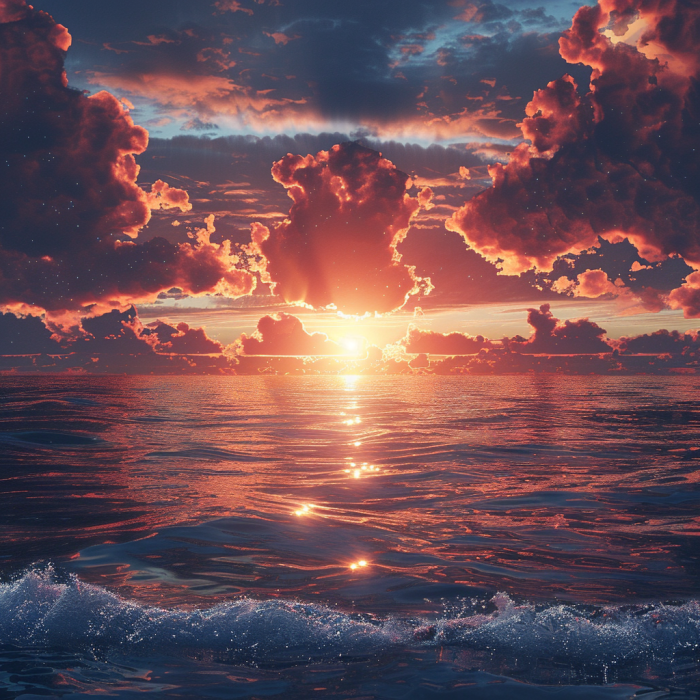
The more you experiment, the more control you'll gain. In the following lessons, you'll learn how to adjust aspect ratios, lighting, and even artistic style — that's when the real magic begins!
A few early lessons:
- Be specific. Details shape direction.
- Experiment. Some of your best results will be happy accidents.
- Refine. Re-prompt until it feels right — perfection is just iteration done well.
- Midjourney generates images from written prompts: no design software or drawing skills required.
- The web app is your workspace. The "Imagine" bar creates, "Explore" inspires, and "Create" stores your work.
- Every prompt gives you four options. Pick the one closest to your vision and refine from there.
- Quick edits live on hover: Vary Subtle for small tweaks, Vary Strong for bigger changes, Animate to bring an image to life.
- The prompt does the heavy lifting. Subject, mood, lighting, and style all shape the result.
Conclusion
That's your first step into the world of AI art! You now know what MidJourney is, how to use it, and how to write your first prompt.
From here, it only gets more exciting!
Next Steps
In the next lesson, we'll create your first AI art together and start shaping your unique visual style.
And remember: Midjourney doesn't make art for you. It makes art with you.
Stay curious!