Midjourney · Explore Techniques and Styles
Shape Your Visual Direction
Stylize and achieve a unique look
Fine-Tune Your Visual Direction
Welcome to the second unit — where you begin shaping not only what Midjourney creates, but how it looks.
Today's focus is style — the part that influences clarity, mood, and communication. Understanding how style works helps you move from experimenting at random to producing images that feel consistent and intentional.
Exploring Style
You already shaped images using parameters like --ar for framing and --no for exclusions. Those tools helped you control structure.
Another thing that parameters can set is style — but it adds another layer. It affects texture, contrast, detail, and atmosphere — the qualities that shape how a viewer reads your scene. Exploring these elements gives you more control over the final result.
Style as a Combination of Cues
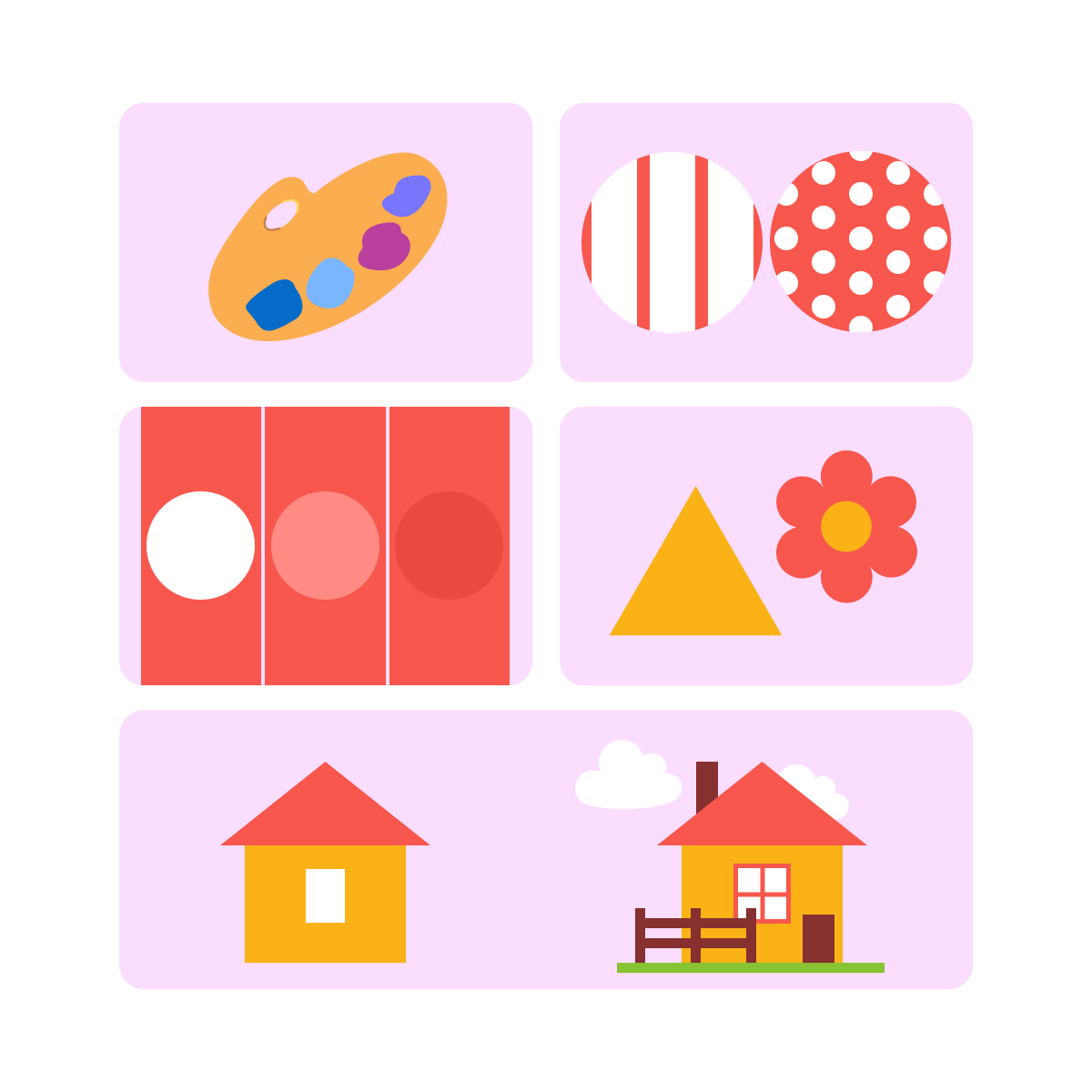
A style is built from several visible elements working together, such as:
- Color — soft, bold, muted, or bright
- Texture — smooth, grainy, painterly
- Contrast — strong or subtle
- Shapes — geometric or organic
- Detail level — minimal or intricate
Noticing these cues helps you describe and refine style more easily.
Why Prompt Phrasing Isn't Always Enough
Throughout the lessons, you've already tried adding phrases like "watercolor style" or "cartoonish" to your prompts. Let's see how such descriptions guide Midjourney.
Say you want to design a holiday poster for your office that conveys the festive atmosphere. You imagine it in traditional Christmas holiday colors.
practice preview
Interactive practice
Fill in the blank
Ask Midjourney to produce a holiday poster.
Choose one
You were thinking about the traditional holiday color scheme. In your opinion, did Midjourney succeed with the task?
Meet Personalize
Midjourney has a feature that solves exactly this kind of problem. It's called Personalize, and it works like a style memory — you teach Midjourney what you like, and it applies that to every image you generate.
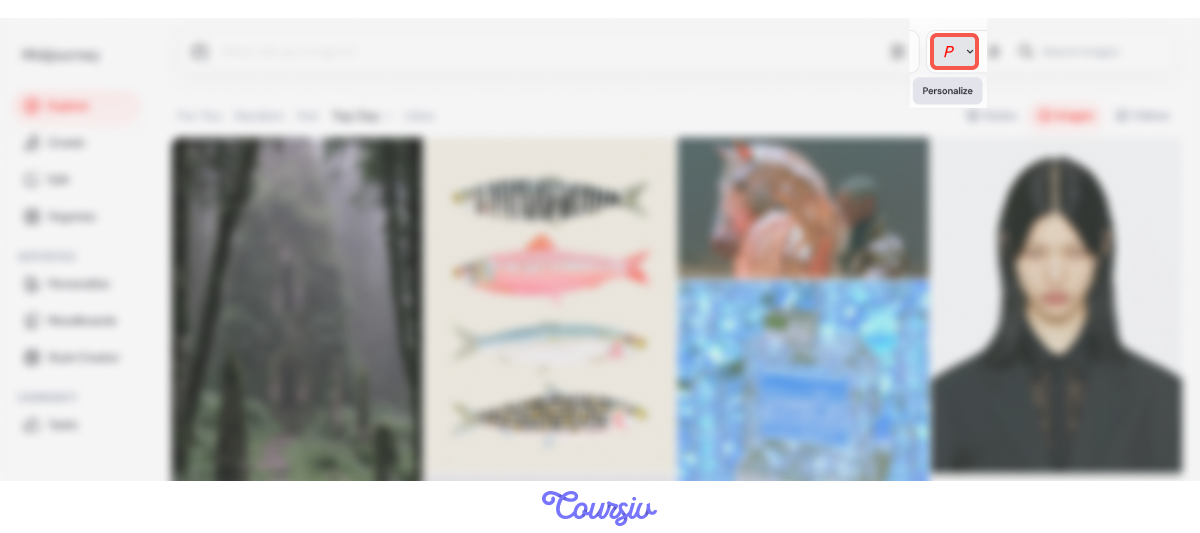
You'll find it as a small "P" pill next to the search bar, with an On/Off toggle.
There are two ways to teach Midjourney your style:
- Rate images: Midjourney shows you visuals, you pick the ones you like, and it learns your taste over time. This builds a Profile.
- Upload references: you gather images you already love into a Moodboard, and Midjourney studies them.
Both shape the same parameter: "--p". When Personalize is turned on, Midjourney adds it to your prompts.
Let Midjourney Learn by Rating
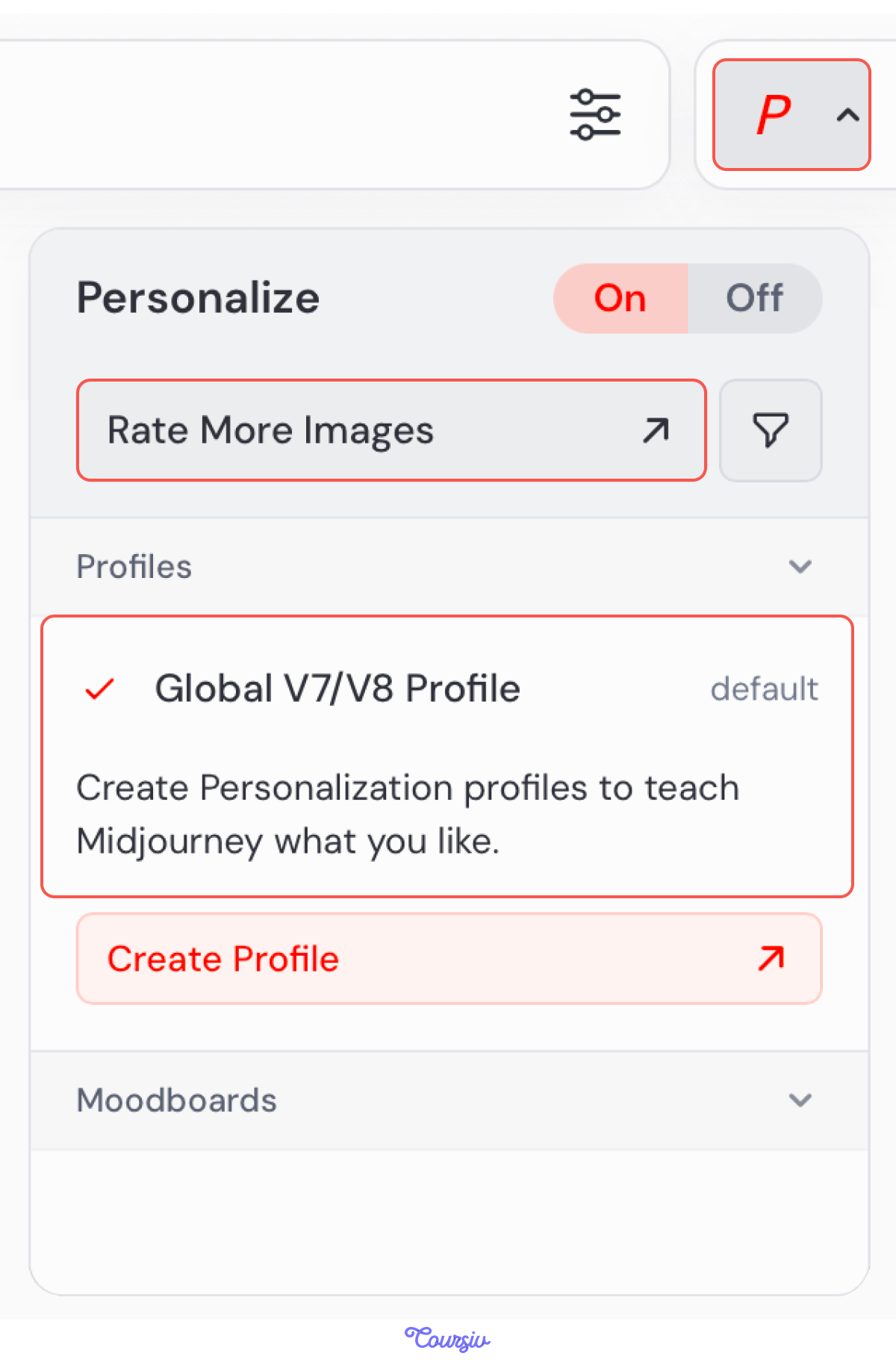
When you first open the Personalize panel, you'll see your Global Profile — it's there by default, waiting to be unlocked.
To unlock it, click "Rate More Images." Midjourney shows you a grid, and you pick the visuals that match your taste. The more you rate, the more your Global Profile sharpens.
Create Multiple Profiles
One Profile isn't always enough. You might work on different projects — a calm wellness brand one week, a bold sports campaign the next.
For cases like this, you can click "Create Profile" to build a separate one. Each new Profile is trained the same way — by rating images — but remains independent.
Profiles work well when you want Midjourney to learn your taste gradually.
But sometimes you have a specific look in mind right now, and references already in hand. Here comes another cool feature — Moodboards.
Personalize from References
Moodboards allow you to gather references and observe patterns across examples. Researching different visual directions and then showing them to Midjourney helps a lot with defining style.
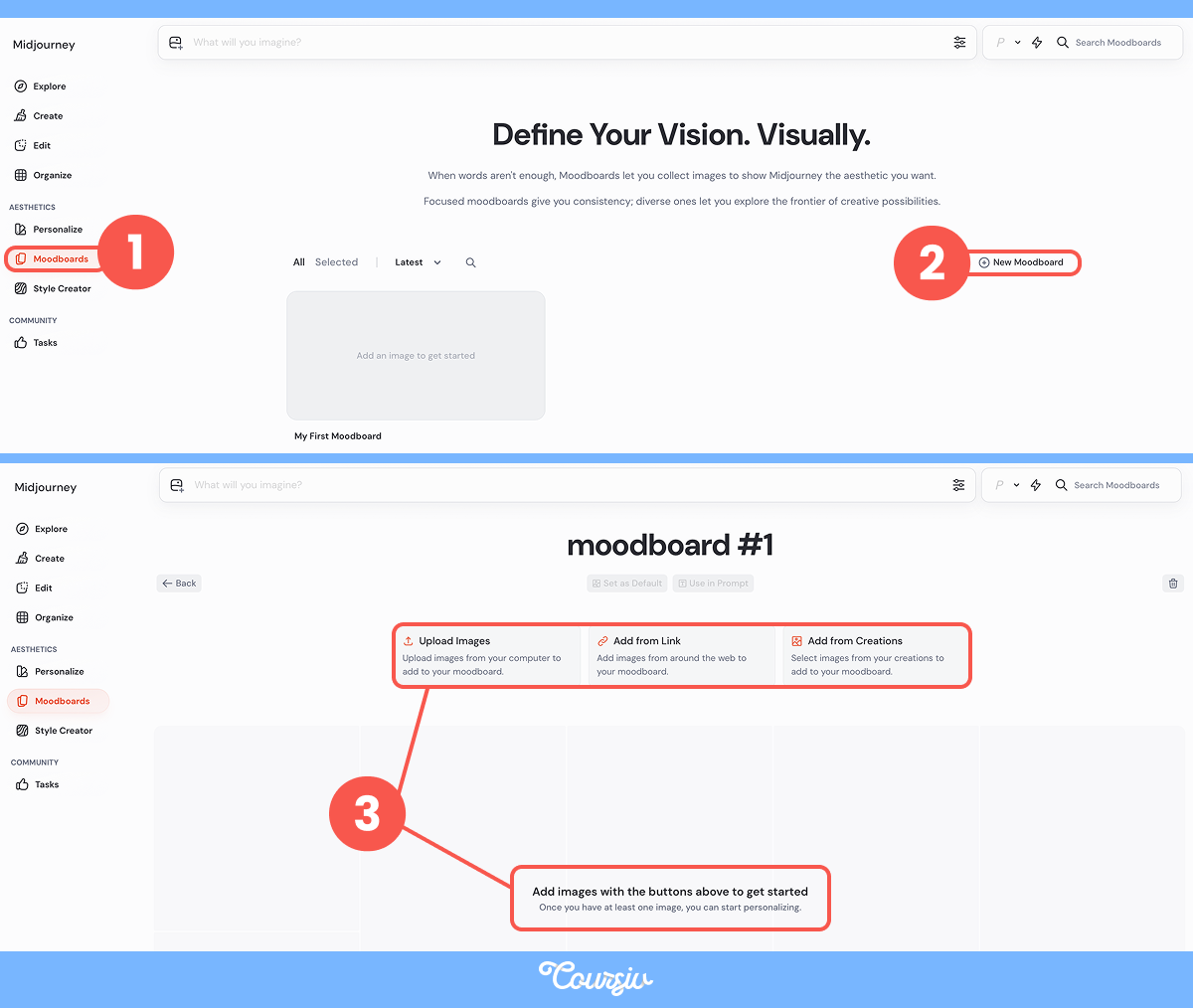
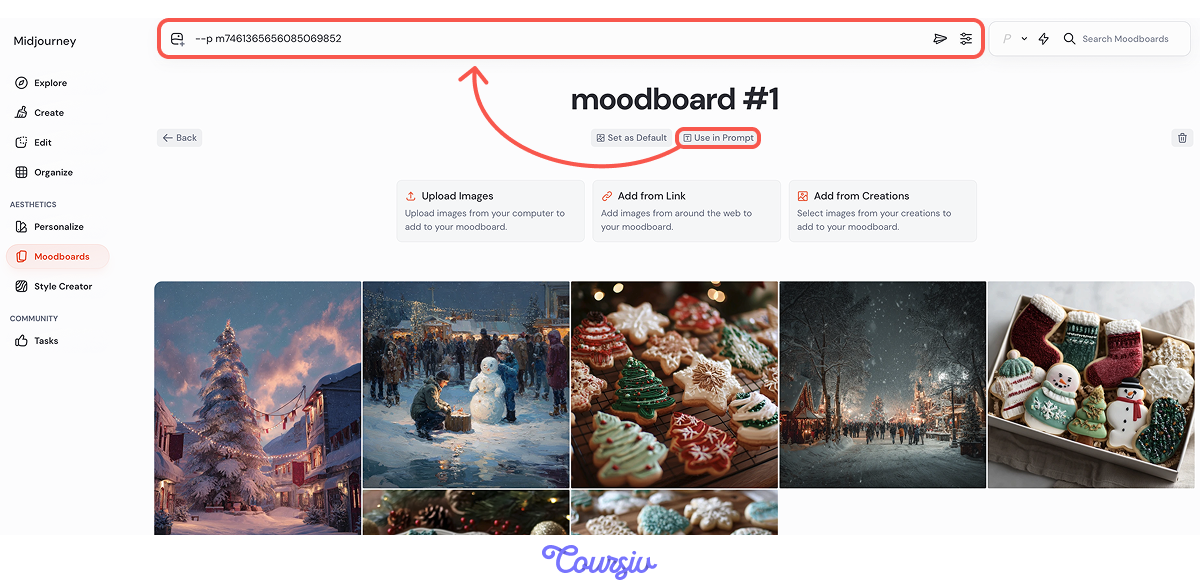
You gather a few winter-themed images and place them into a moodboard. After you've uploaded your images, click "Use in Prompt" — Midjourney will create a "--p" parameter with a unique number that personalizes your prompt.
Then, you request whatever you want to see — the image will be similar in style and vibe to the moodboard.
practice preview
Interactive practice
Fill in the blank
Give Midjourney a direction using the pictures you found.
Select all that apply
Choose which features in the pictures came from the moodboard.
What Moodboards Reveal
See? You don't even need to mention colors. Moodboards help you notice which elements repeat across your references — colors, shapes, textures, or lighting patterns. These shared cues form the style direction your images follow.
Style Creator
Profiles and Moodboards both assume you already know what you like. But what if you don't? That's where Style Creator comes in.
Creating a Style Through Iteration
The Style Creator doesn't start with finished references. Instead, it helps you discover a style by iterating on your own prompt. Let's dive deeper into it!
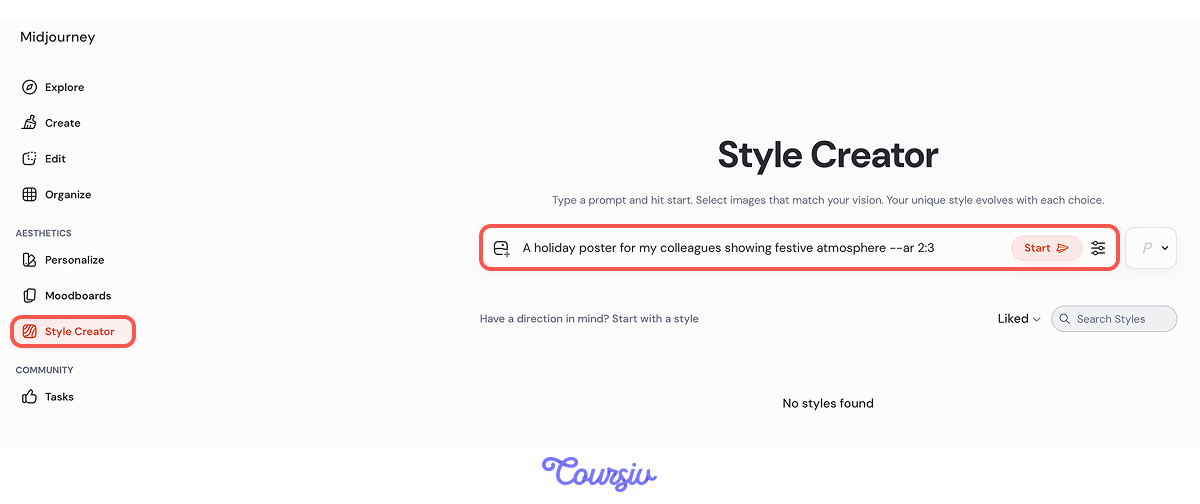
You begin by writing a regular prompt — focusing on subject and idea, not style perfection. After you submit your prompt, Midjourney generates a grid of different styles for the same idea. Each option explores a different visual direction.
Your task is simple: pick the versions that feel closest to what you want. You're not naming the style — you're reacting to it visually.
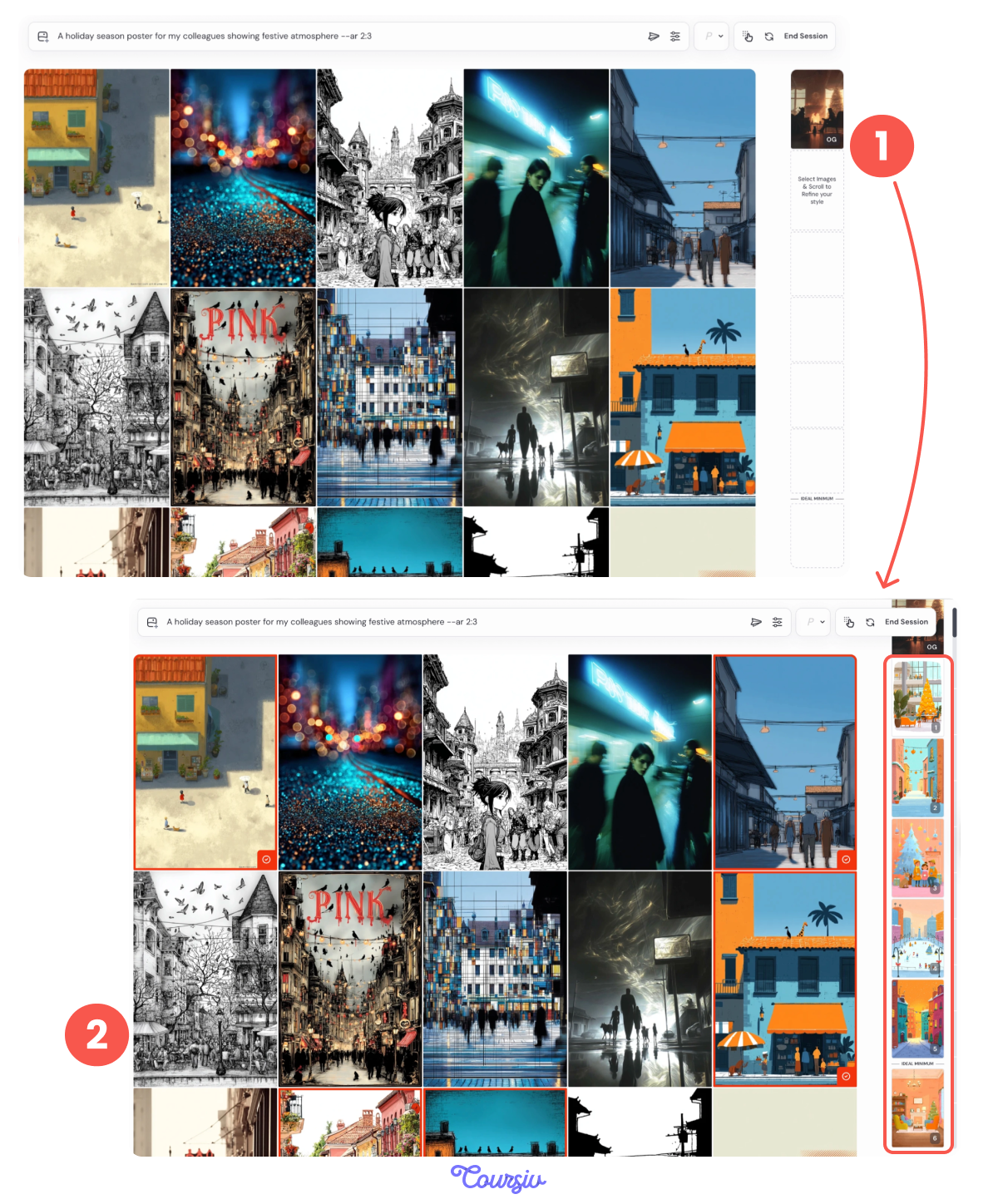
With each selection, Midjourney refines the style based on your choices.
After a few rounds, the results begin to stabilize — the colors, textures, and rendering start to feel consistent. At this point, you're no longer browsing styles, but shaping one.
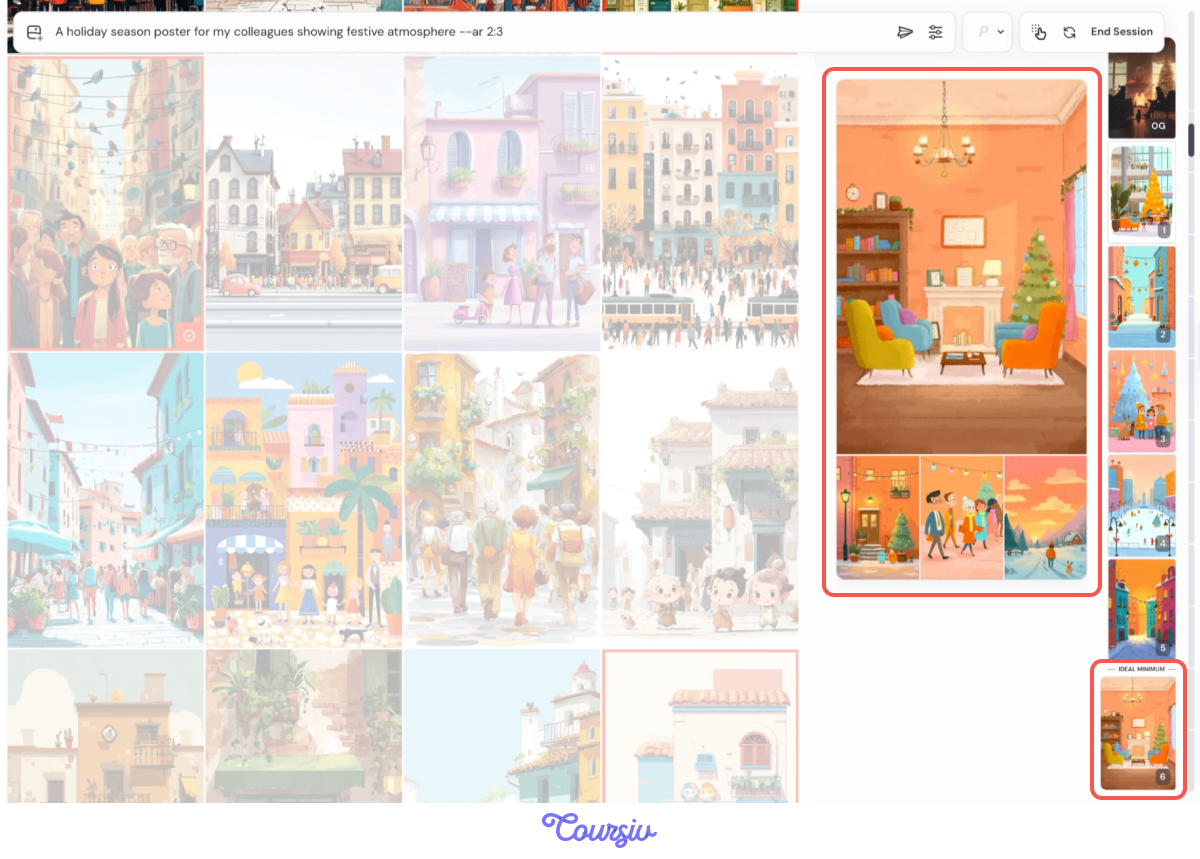
Once you see what you like, you can stop selecting and enjoy the result!
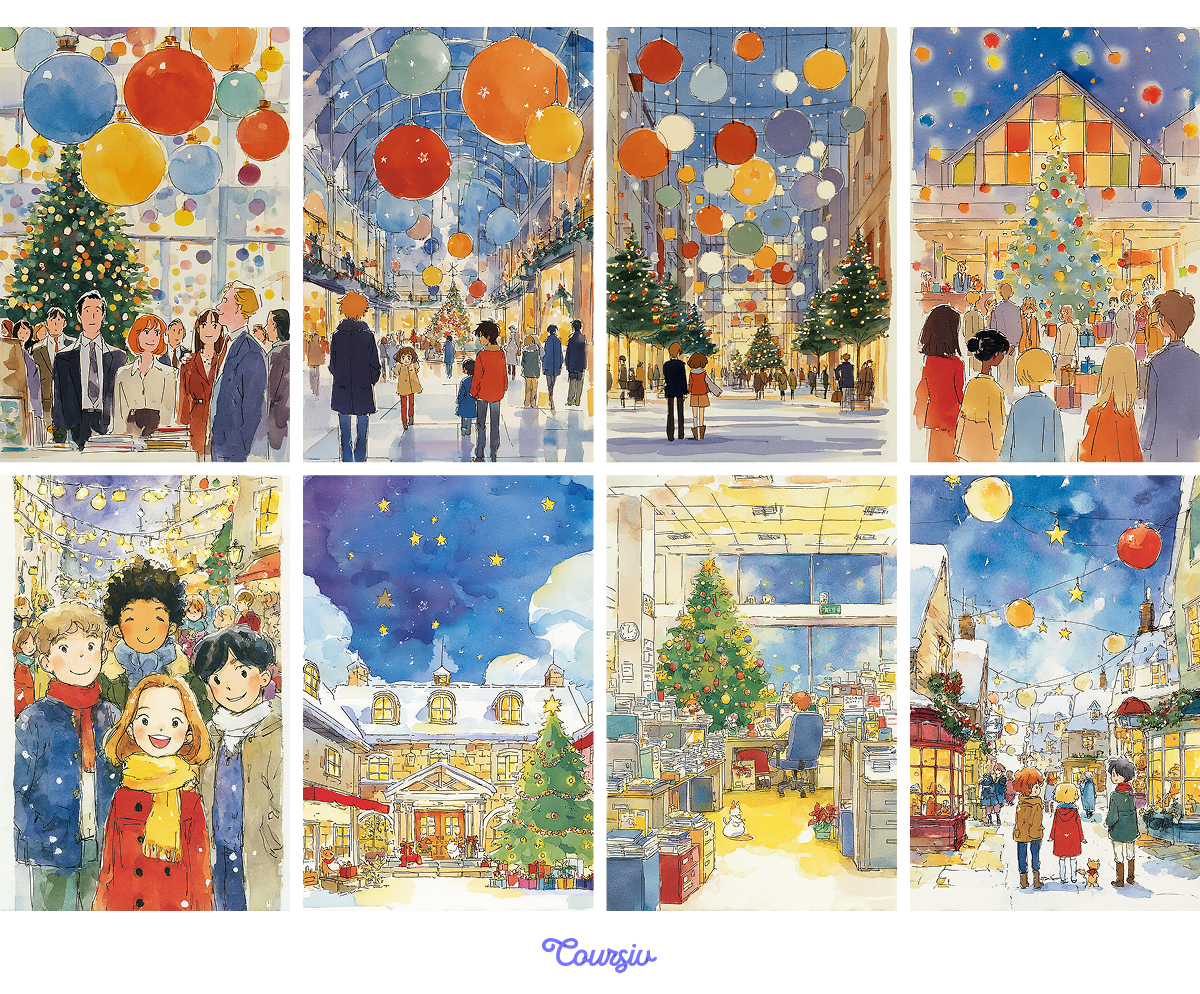
From Direction to Nuance
Early iterations define the overall direction. Later ones refine details.
Roughly:
- The first few rounds establish the style
- The next several add clarity and consistency
- Later iterations focus on subtle differences
This process turns preference into a repeatable visual style.
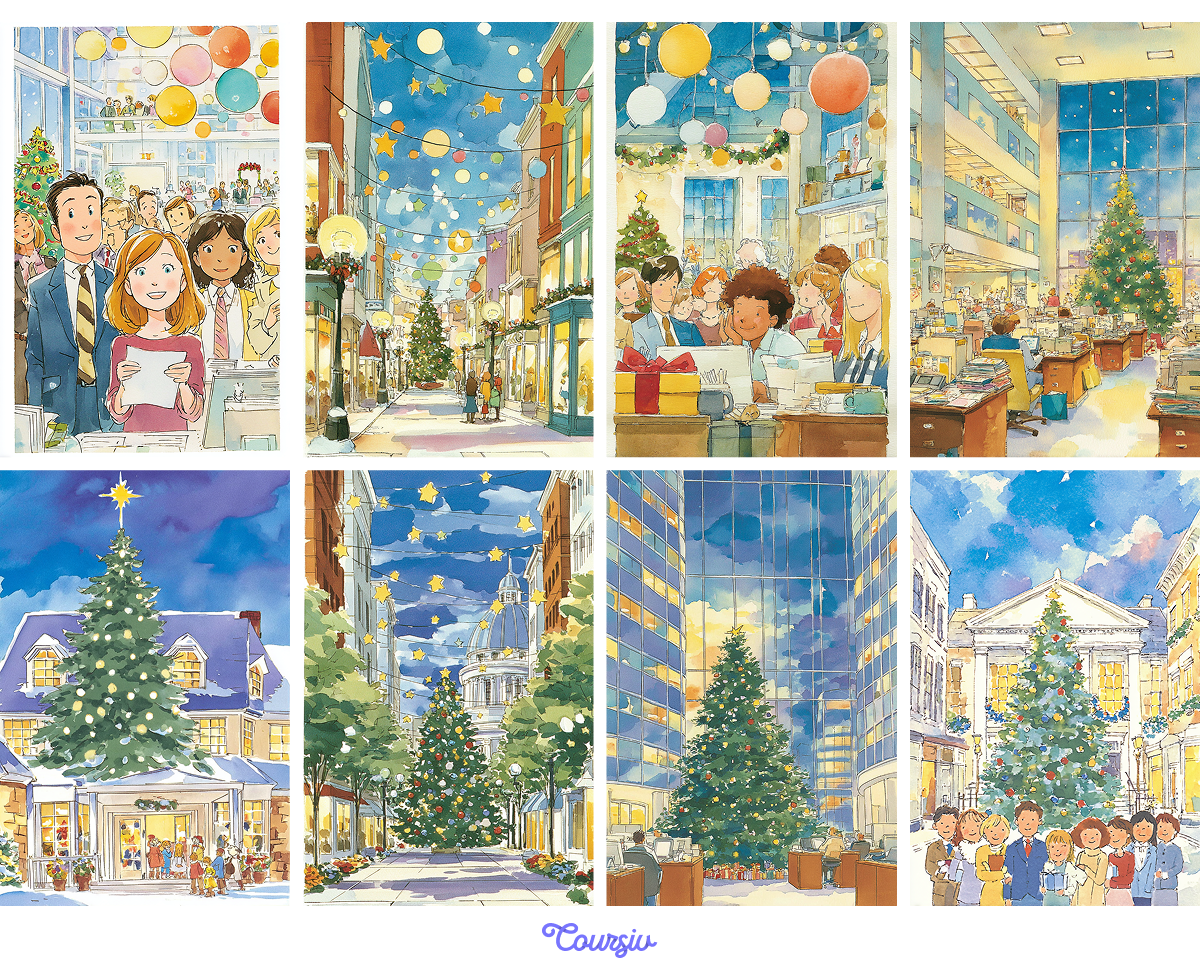
Applying Your Custom Style
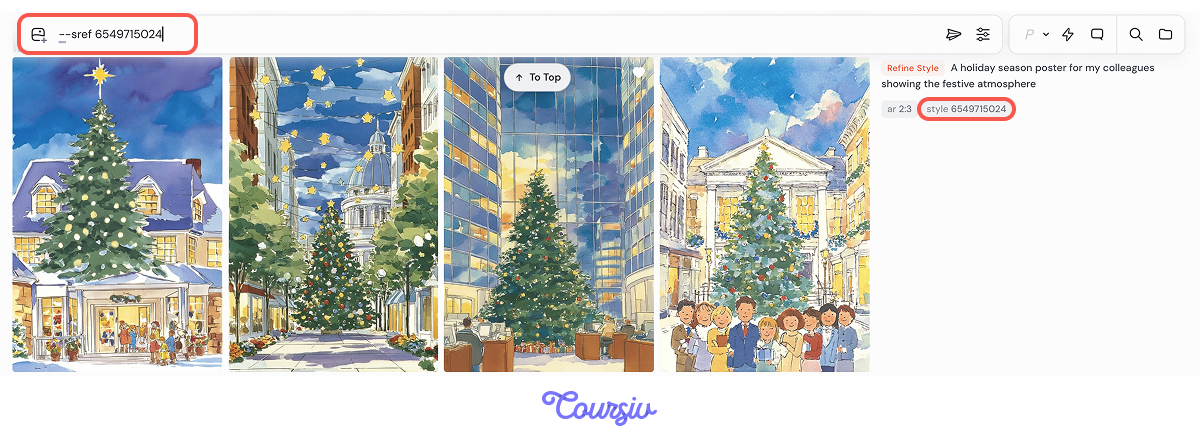
Once the style feels right, you can use it in new prompts. Click on it in the right column next to your prompt — it will convert into "--sref" (style reference) parameter and appear in the "Imagine" bar.
The subject may change, but the visual treatment stays aligned with the style you shaped. This makes Style Creator especially useful when you want a consistent look without manually adjusting multiple parameters!
Choose one
Which solution fits this situation best?
Scenario: You're not sure which visual direction works yet and want to compare several styles for the same idea before choosing one.
Choose one
Which solution fits this situation best?
Scenario: You already like the general look of your images and want to slightly alter it without much change.
- Style shapes texture, contrast, detail, and atmosphere.
- Personalize is Midjourney's style memory. Turn it on with the "P" pill, and it applies your taste through "--p."
- Profiles learn by rating. The Global Profile builds gradually, and you can create separate ones for different projects.
- Moodboards learn from references. Upload images that capture the look, and Midjourney studies the patterns.
- Style Creator helps you discover a direction. React to style options, then apply your choice as "--sref."
Good Job!
In this lesson, the focus was on defining style and adjusting settings with the help of Midjourney features. You explored how visual cues shape an image and how Midjourney tools help clarify a style direction before any fine-tuning begins.
What's Coming Next
Next, you'll start working with controls that directly influence how Midjourney interprets and renders style. These tools allow you to adjust expressiveness, variation, and structure once a visual direction is clear.
The style awareness you built here will make those controls easier to understand and apply.