Midjourney · Explore Techniques and Styles
Smarter Creative Exploration
Replace one-prompt iteration with a structured system
Generating a Few Images at a Time
You've learned how to shape a single image with intention, combining parameters to hit a specific look, mood, or brief.
Now, let's zoom out. Creative work usually starts with a few directions on the table. Today, you'll learn how to test several visual directions in parallel, saving time, credits, and effort along the way!
The Brief
Let's look at one example.
You're working on visuals for a premium coffee brand. Before settling on one direction, you want to see a few options side by side. Your job is to explore fast and bring back a shortlist worth developing.
Two Ways to Generate
Every Midjourney generation runs at full quality by default — high detail, full credit cost and render time. That's the right mode for final assets, but wrong for early exploration when you don't yet know which direction is the strongest one.
What Draft Mode Changes
Draft Mode generates at a lower resolution and costs roughly 4x less than a standard generation. It shows you enough to judge composition, mood, and color, which is all you need when you're still deciding.
Midjourney regularly releases new versions, and the latest ones support Draft Mode. As of now, v8 generates 24 images, and v7 produces the standard 4 visual assets.
To apply the Draft Mode, you simply add the --draft parameter at the end of your prompt.
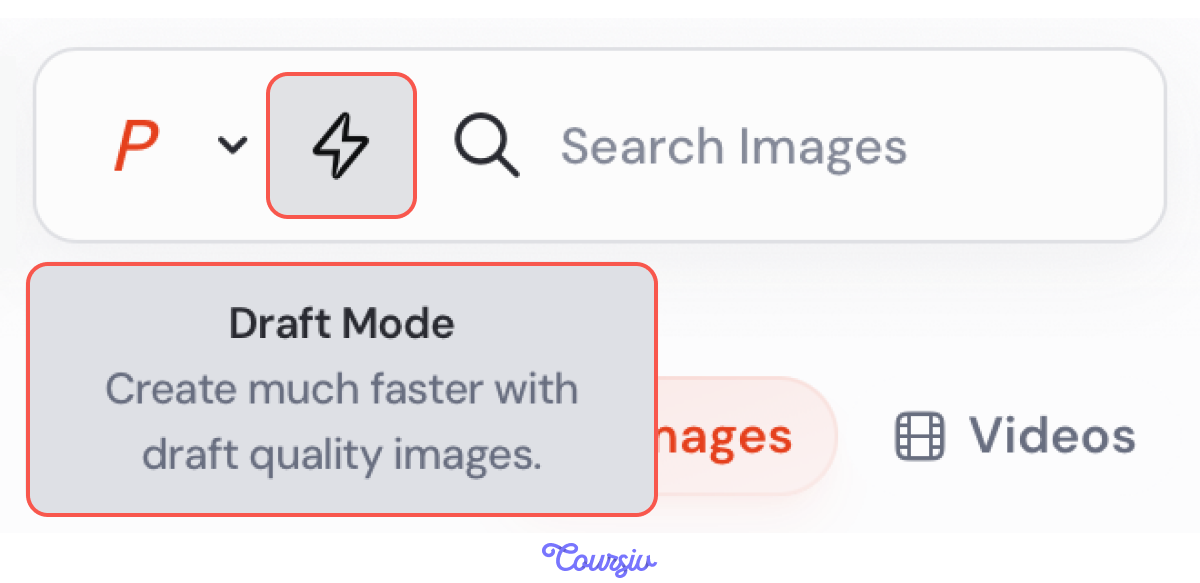
You can also access it from the Explore or Create pages. Click the lightning button near the prompt bar, and you're ready to explore in Draft Mode.
Let's generate your first campaign direction! You were thinking about the cozy Sunday morning at home, so now you want to test how well it matches the premium coffee brand.
practice preview
Interactive practice
Fill in the blank
Generate your first direction for the coffee brand campaign in Draft Mode.
Nicely done! You now have a big batch of 24 images to evaluate against the brief and choose the strongest candidates.
When checking out the drafts, you're looking for three things:
- Does the composition work? Strong composition means the subject is clearly placed and the image has visual hierarchy.
- Does the mood match the brief? Mood fit means the atmosphere matches the brief: premium, intimate, bold, or whatever you need.
- Is there something here worth developing further? Brief alignment means you can see a path from this draft to an appropriate deliverable.
Choose one
You've run your first draft result for the coffee campaign. Evaluate it against the brief. What's the best next step?
Test Multiple Directions at Once
You've tested one direction, but for your brief, it's better to have four. Writing and running four separate prompts is slow — and you're likely to miss combinations you never thought to try. Permutations solve this.
How Permutations Work
Permutations are a Midjourney feature that lets you test several versions of a prompt in a single command. Instead of running four separate prompts, you list the options you want to compare, and Midjourney generates all combinations at once.
To use them, add options in curly braces separated by commas: {option A, option B}. You can add more than one combination to the same prompt.
practice preview
Interactive practice
Fill in the blank
Complete the permutation prompt. Fill in the content for each variable to test two moods and two styles.
Reading the Matrix
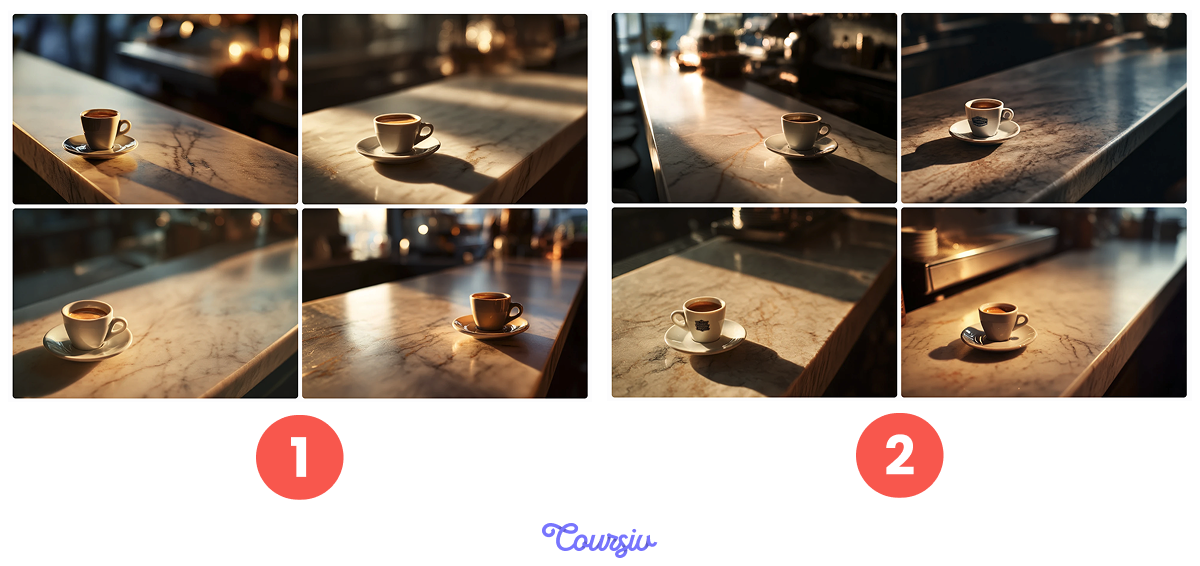
Good! Now you have four Draft results. Before picking a direction, look at the spread — how different are the results from each other?
A good matrix shows you four clearly different starting points. If they cluster together, the matrix is telling you something.
Choosing the Right Variables
The most common mistake with permutations is choosing variables that are too similar. If both options in a variable produce near-identical results, you've just generated variations of the same direction twice.
For example, "Editorial + ritual" and "documentary + energy" feel like variations of the same direction rather than four genuinely different ones.
Choose one
Your permutation matrix produced four results that look similar. What does that tell you?
The Second Pass With Better Variables
The fix is straightforward: swap the variables for options that are further apart. Replace {editorial, documentary} with something that produces a genuinely different visual character — like {editorial photography, painterly illustration} — and run a second Draft pass.
practice preview
Interactive practice
Put in order
Put the steps of a professional Draft Mode exploration in the right order.
The Winner — and What's Still Wrong
After a second pass with wider variables, one direction pulls clearly ahead: editorial photography, quiet ritual mood, marble counter at dawn. The composition works, the premium feel comes through, and the brief is answered. One problem: the lighting reads too cool and clinical. The brief calls for warmth. Everything else is worth keeping.
Where Remix Comes In
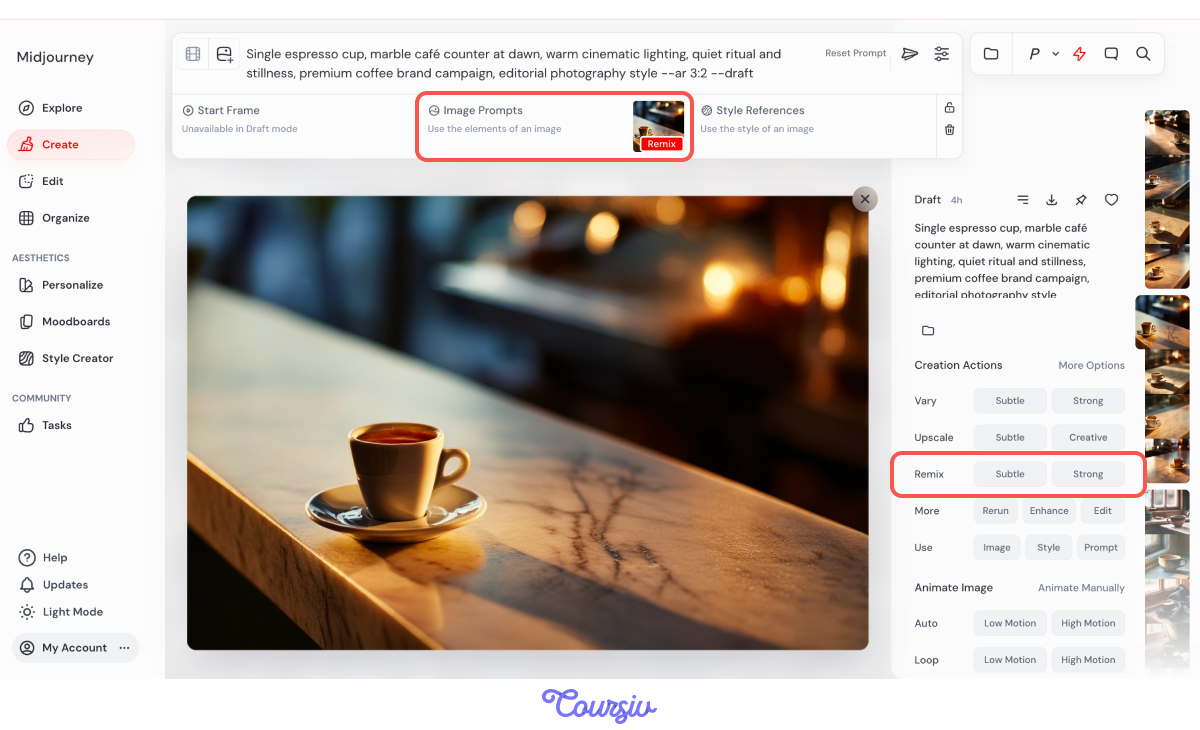
Remix lets you edit the prompt of an existing image before generating the next one. It keeps the composition you liked and applies only the changes you ask for.
To access it, open any image you've created from your Create page. This will bring up the image along with additional controls.
Then, locate the Creation Actions panel. Here you'll see the Remix options.
If you don't see Remix at first, click More options and enable it by checking the "Remix" box.
Which Option to Use
Remix gives you two options:
- Subtle holds the composition close while your prompt changes take effect. Use it when only one element needs to shift.
- Strong allows bigger departures. Use it when the concept needs a more significant change.
practice preview
Interactive practice
Fill in the blank
Enable Remix and shift the lighting without losing the composition.
Remix lets you fix what's wrong without losing what's working. Use it when the direction is confirmed, but one element needs to change. When the direction itself needs to change, go back to Draft Mode.
Practice Time
Now, as you have a vision of how to use Midjourney for a systematic exploration, let's test your knowledge.
Choose one
Mid-project, the client changes the brief — they now want the campaign to feel warm and lifestyle-oriented rather than premium and editorial. Your current winner is a strong editorial composition. What's the right move?
Choose one
Your shortlisted direction has the right composition and mood. The client wants to see a version with a warmer color treatment before final sign-off. Which tool do you reach for?
- Draft Mode is for exploring. It costs ~4x less than a full generation and gives you enough to judge composition and mood.
- Permutations test multiple options in one command. Use {option A, option B} to generate every combination at once. Keep the options genuinely different, or you'll just get the same direction twice.
- Remix is for refining. Use it when the direction is right and only one part needs to change.
- New brief means new exploration: when the goal shifts, go back to Draft Mode. Remix can't change what a direction fundamentally is.
Closing the Unit
You've completed the unit!
From here on, you're equipped not just to generate images but to design outcomes with intention, consistency, and control.
In the next unit, you'll put these skills to work on real creative projects: product visuals, marketing campaigns, editorial content, and full illustrated stories. You'll learn how to combine everything you've learned so far to deliver polished, purposeful work.
See you there!