Claude Code · Work Like a Pro With Claude Code
Routines: Work That Runs Itself
Make Claude work without prompting
Work That Runs Itself
You've built apps, connected outside data, installed plugins, and taught Claude your patterns.
In this lesson, you start automating your work and make it run on its own. You set up a Routine, and by the end, Claude does a real workflow — from start to finish — even while you're not near your laptop.
Let's finish strong!
Scenario: Customer Interview
Imagine this: you're a product manager. Every customer interview ends the same way — you sit down after, listen back, pull out the signals, draft a PRD (Product Requirements Document), file the tickets, and post a summary to the team. Lots of work, and it happens after every interview.
And now imagine this:
- The interview ends.
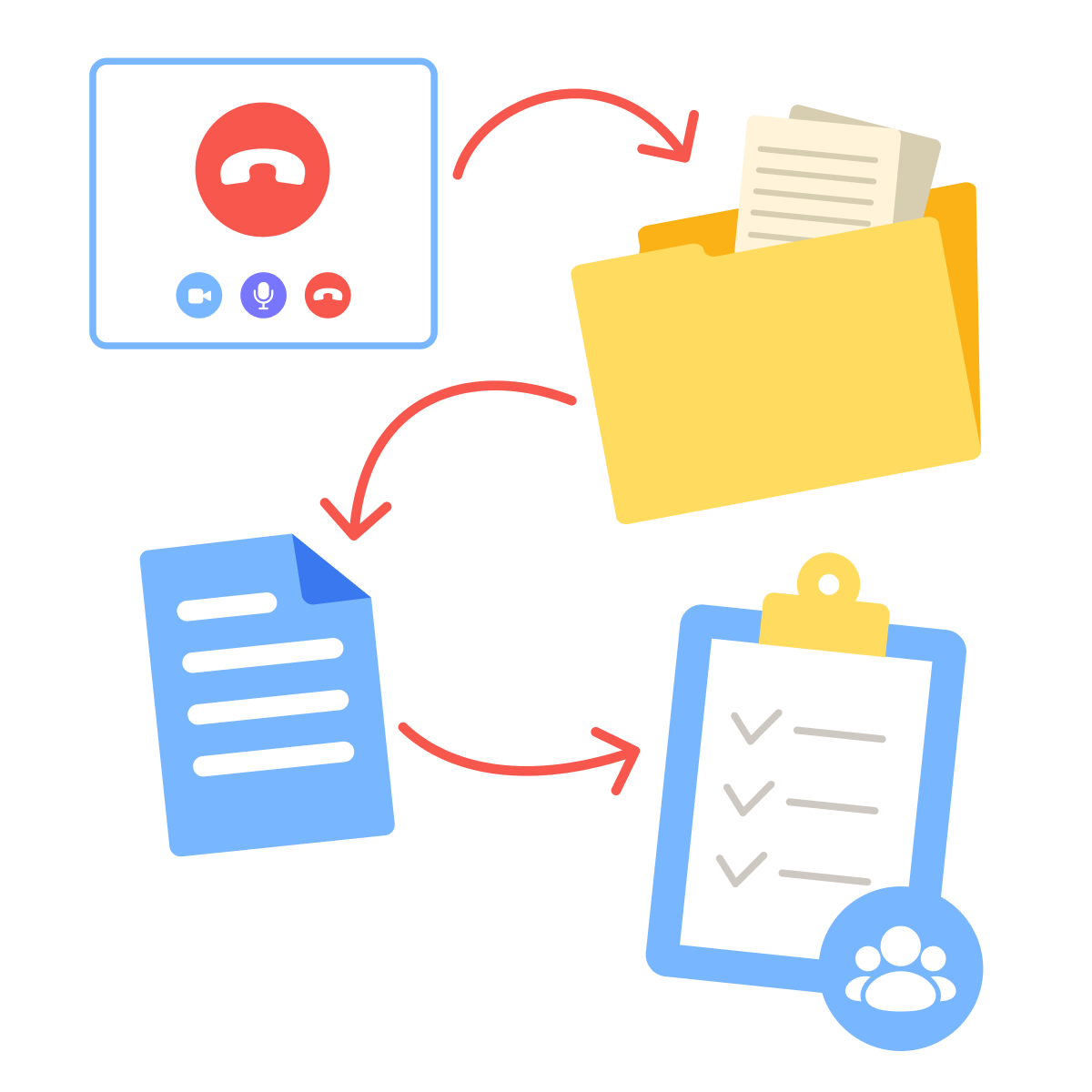
- The transcript lands in your meetings folder.
- A minute later, a PRD draft exists in your Drive, tickets are filed in your project tracker.
- A summary is in your product team's Slack — all in your team's format, all triggered by the transcript appearing.
You didn't open Claude, and you weren't even at your laptop. That's what a Routine does.
Where Everything Comes Together
A Routine brings together everything you've learned so far:
- Connectors give the Routine reach into external tools like Drive, Jira, and Slack.
- Plugins add extra capabilities.
- Skills provide repeatable workflows.
- CLAUDE.md supplies rules, preferences, and instructions.
A Routine is the layer on top that triggers all of it, on its own.
What's a Routine?
A Routine is a saved Claude Code configuration with three parts:
- A prompt: what to do
- A trigger: when to run
- The environment it has access to: connectors, repositories, and tools
Once saved, it runs without you, so the prompt must cover everything Claude might need to know up front.
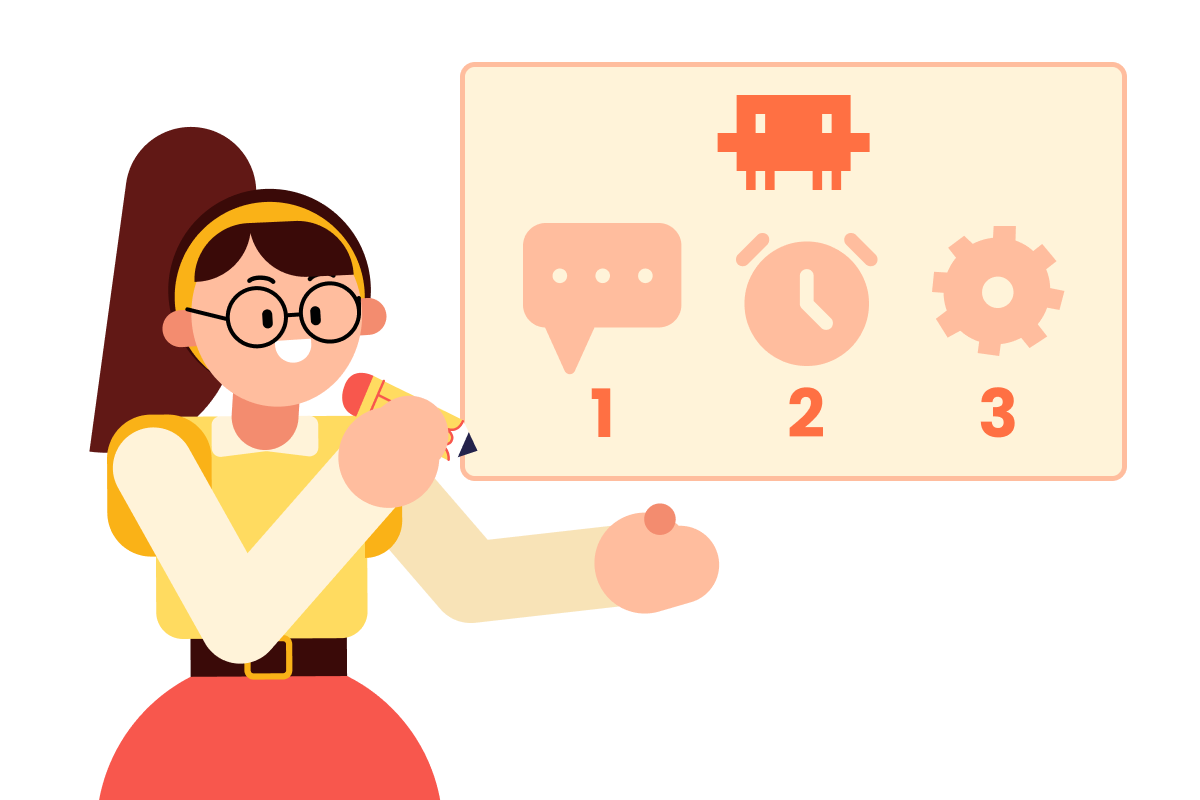
A Routine fires on one of three trigger types:
- Schedule — runs on a cadence ("every weekday at 9 a.m.").
- Event — runs when something specific happens ("when a new file appears in this folder").
- API — runs when an external system calls it.
Today's case is event-based: a transcript landing triggers the chain.
Local vs. Cloud
Routines run in two places:
- Local — fires while your Claude Code app is open. Simple, no setup, only runs when you're around.
- Cloud — fires from Anthropic's servers, even when your laptop is closed.
For something that runs after every interview — including ones that happen on Friday at 5 p.m. when you've shut down — you want cloud. That's where this one lives.
Set Up the Connections First
A Routine can't reach tools that aren't connected. Before you build this one, make sure three connectors are active in Customize:
- Drive — to read the transcript and save the spec.
- Jira — to file the tickets.
- Slack — to post the summary.
If any are missing, install them from Customize → Connectors before continuing. You learned this flow in Lesson 4 — same path, same one-click setup.
Where Routines Live
Open Routines in the sidebar. The page shows your saved Routines along with templates to start from: briefings, email triage, system health checks, and others. For something custom, you'll use the prompt at the top.
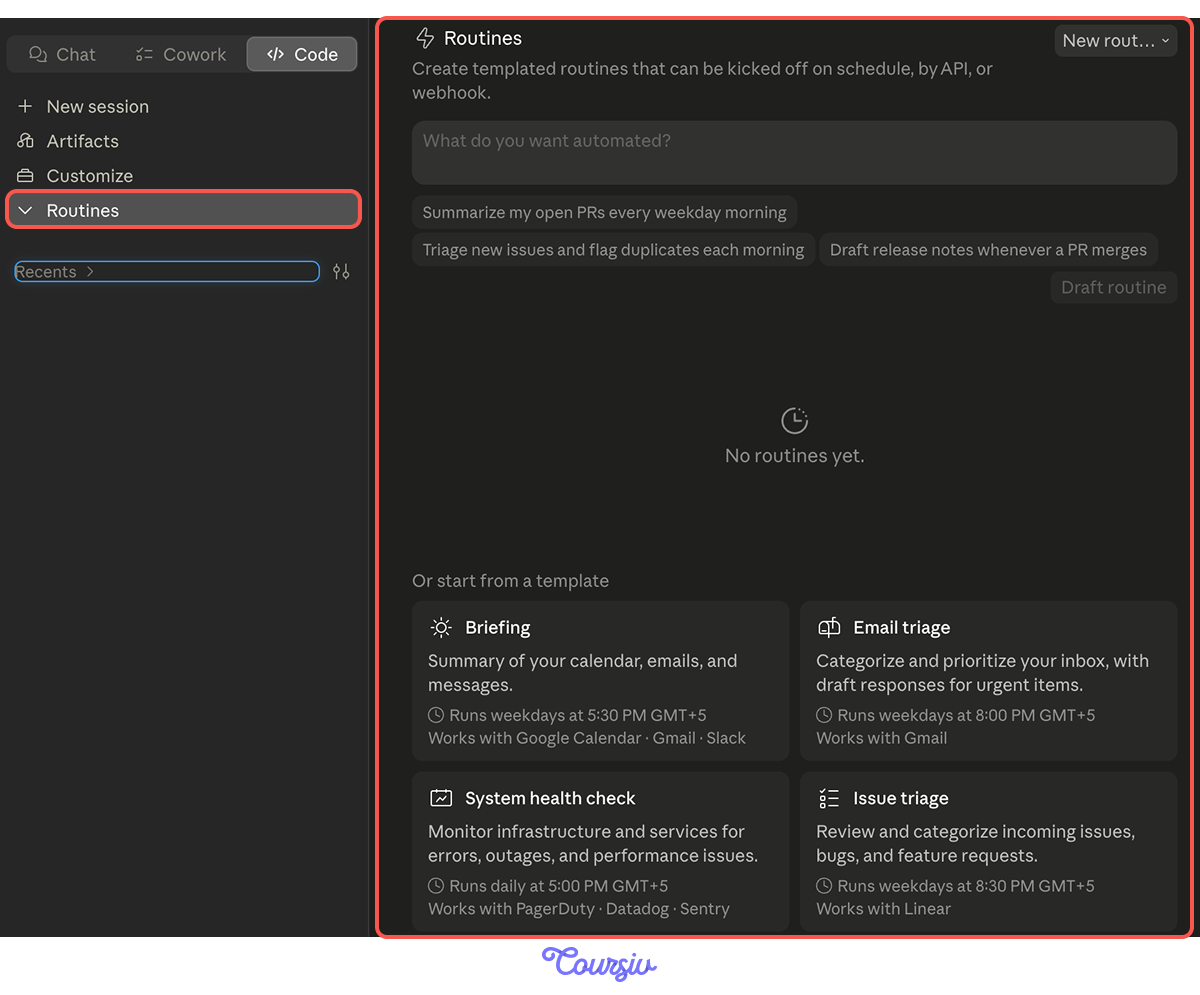
At the top of the Routines page, there's a single input field labeled "What do you want automated?"
You describe the work in natural language — what fires it, what it should do, where the output goes — and Claude drafts the full Routine for you. You review and edit before saving.
Writing the Routine's Prompt
The prompt is important. Unlike a chat, there's no human in the loop to clarify, correct, or approve along the way. The Routine reads the prompt once and runs.
That means:
- Name what to read
- What to produce
- Where each thing goes
- What not to do
practice preview
Interactive practice
Fill in the blank
Write the Routine that turns a transcript into PRD + tickets + Slack summary.
Start as a Draft
You just wrote a Routine that, when a transcript drops, drafts a PRD, files Jira tickets, and posts to Slack — all on its own, with no one watching.
The first time it fires, it might do something you didn't expect. So for the first few runs, tell the Routine to stop short of taking action: produce drafts in a review folder, don't file tickets or post messages. Once you've watched it work and it's solid, edit the prompt to let it go all the way.
The pattern: draft → review → trust → automate.
The First Run
A customer interview ends. The transcript drops into your folder. Soon after:
- A PRD draft exists in /Drive/PRDs/ titled with the interview date and customer.
- Three Jira tickets sit in the PM queue, labeled and linked.
- A Slack post in #product reads: "From today's interview with Acme Co — top signals: 1) reporting export gaps, 2) onboarding friction in step 3, 3) integration request (Salesforce). PRD here, tickets here."
You read it on your phone over coffee. It's good.
When to Let It Run Full Auto
After a few runs you trust, you take the draft step out of the prompt. The Routine now goes end-to-end: tickets file directly, the Slack post lands in the team channel, and the PRD goes to its real home.
practice preview
Interactive practice
True / False
Decide if the job makes sense to automate this way.
This Is What Everything Was Building To
Look at what the Routine just used:
- A connector to Drive (to read the transcript) and Slack (to post)
- The PRD-writing skill you'd already built
- The rules in CLAUDE.md about format, tone, and ticket conventions
The Routine isn't a new piece of Claude. It's the layer that finally makes everything you set up run on its own.
Routines for Other Kinds of Work
The PM workflow you just built is one shape of a Routine. A few others to picture:
- Sync your vocabulary tracker: Every Sunday, check your Finnish Vocabulary for new words and add them to the app (the one you previewed in Lesson 4).
- Weekly project status: Every Friday afternoon, pull updates from Jira and Slack, then draft a status post for your team.
- Inbox triage: Every two hours, scan new emails, categorize them, and draft replies for those that need a fast turnaround.
Different work, same pattern: a prompt, a trigger, the connectors it needs.
Setting Up the Vocabulary Routine
Let's set up your language tracker routine:
- Connector needed: Google Drive (already connected from Lesson 4)
- Trigger: schedule — every Sunday evening
- Local or cloud: cloud, so it runs whether your laptop's on or not
Open the Routines page and describe the work in the "What do you want automated?" field.
practice preview
Interactive practice
Fill in the blank
Write the Routine that pulls new words from your doc every Sunday.
Another Shape of Autonomous Work
Routines run work over time — scheduled or event-triggered, days or weeks apart. There's another shape worth knowing about that runs differently: subagents.
A subagent is a parallel worker Claude spawns within your current session. You delegate a specific task to it — research, analysis, a focused review — and it goes off and works in its own context window while you keep going in the main chat. When it's done, it reports back.
Routines vs. Subagents
- A Routine is recurring work that finds its own time. Routines run on a trigger, not on demand. They happen whether you're at your laptop or not, and they finish their work in their own time.
- A subagent is one-time work you delegate to keep going. Subagents run when you ask, in the moment. You spawn one inside a session; it runs in parallel and reports back to you in the same session.
When a Subagent Helps
A subagent earns its keep when:
- The work takes long enough that you don't want to wait in the main chat: research across many sources, a long file review, or a multi-step analysis.
- The work is focused enough to hand off: a clear question and a defined scope.
- You want to keep working on something else while it runs.
Bad fits: a quick fix, anything needing back-and-forth clarification, anything where the result depends on context that only you have.
Spawning One
You don't open a separate window or configure anything. You just ask. "Spawn a subagent to do X."
Claude spins one up, you see a message that the subagent is working, and you keep going in your main chat. A few minutes later, the report appears.
practice preview
Interactive practice
Fill in the blank
Ask Claude to spawn a subagent for a focused, parallel task.
What Just Happened
Great job! You delegated competitor research and kept iterating on your bakery website project.
That's what subagents earn their keep on: focused work that takes time, where you don't want to wait and don't need to weigh in mid-research. You came back to a finished report, not a back-and-forth chat.
- A Routine is a saved Claude Code workflow with a prompt, a trigger, and an environment. It runs on its own.
- There are three trigger types: schedule, event, and API.
- Local routines run while your app is open, and cloud routines run from Anthropic's servers: Pick cloud when timing can't depend on you being online.
- The prompt is everything. There's no one to step in mid-run, so name what to read, produce, and avoid.
- Start as a draft, not an action. Write the prompt to produce review drafts first, graduate to full auto once you trust it.
- Routines use everything you've built. Connectors, plugins, skills, CLAUDE.md all feed in.
- Subagents are a different shape of autonomous work. Spawn one to handle focused, parallel tasks while you keep going in your main chat.
Course Complete!
You started by turning an Instagram-only bakery into a real homepage. You built an app for yourself with data and design. You connected outside tools, installed expert plugins, taught Claude your patterns, and now you've automated a workflow that runs without you.
Whatever comes next — a side project, a small tool for someone you love, automating a part of your job that's been eating your time — you have everything you need.
Good luck!