Claude Code · Work Like a Pro With Claude Code
Build Your First Asset
Learn how Claude builds real websites
From Idea to a Real Website
You've probably had an idea for creating a website, an interactive tool, an app, but assumed it was too complex to create — you need to know how to code, or you need money to hire someone who could write it for you.
Claude Code changes that! Over this course, you'll build a complete website and an app from scratch with interactive features with no coding on your part.
Let's get started!
Scenario: A Website For Your Business
Imagine this: your weekend bakery, Saturday Bakehouse, lives entirely on Instagram — the loaf photos and "DM to order" in every caption.
It works, but as the business grows, Instagram starts feeling limiting. There's no dedicated place for your menu, story, ordering process, or customer information.
Claude Code can give your bakery a real home — but first, let's see how it differs from the Claude you already know.
Chat vs. Claude Code
- In a regular Claude chat, you talk, and Claude responds. It can create files and interactive Artifacts, but your project folder stays out of reach.
- In a Local Claude Code session, Claude works right inside your project folder: reading and editing files, running commands, and previewing results as your project grows.

You may have created an artifact in a regular Claude chat — a single page or component that appears in the conversation.
That's a great fit for one standalone piece. A full website is different: many pages and features that grow over time, kept together as one project — and that's what Claude Code is built for.
The homepage you'll build today is made of the same kind of files any website uses, saved right in your folder that you will use as a workspace in Claude Code.
You can open them, edit them, and put them online when you're ready. The whole project lives on your computer, under your control.

Select all that apply
You're building your bakery's full website — multiple pages you'll grow over the coming weeks. Why build it in Claude Code instead of a chat artifact?
Installing an App
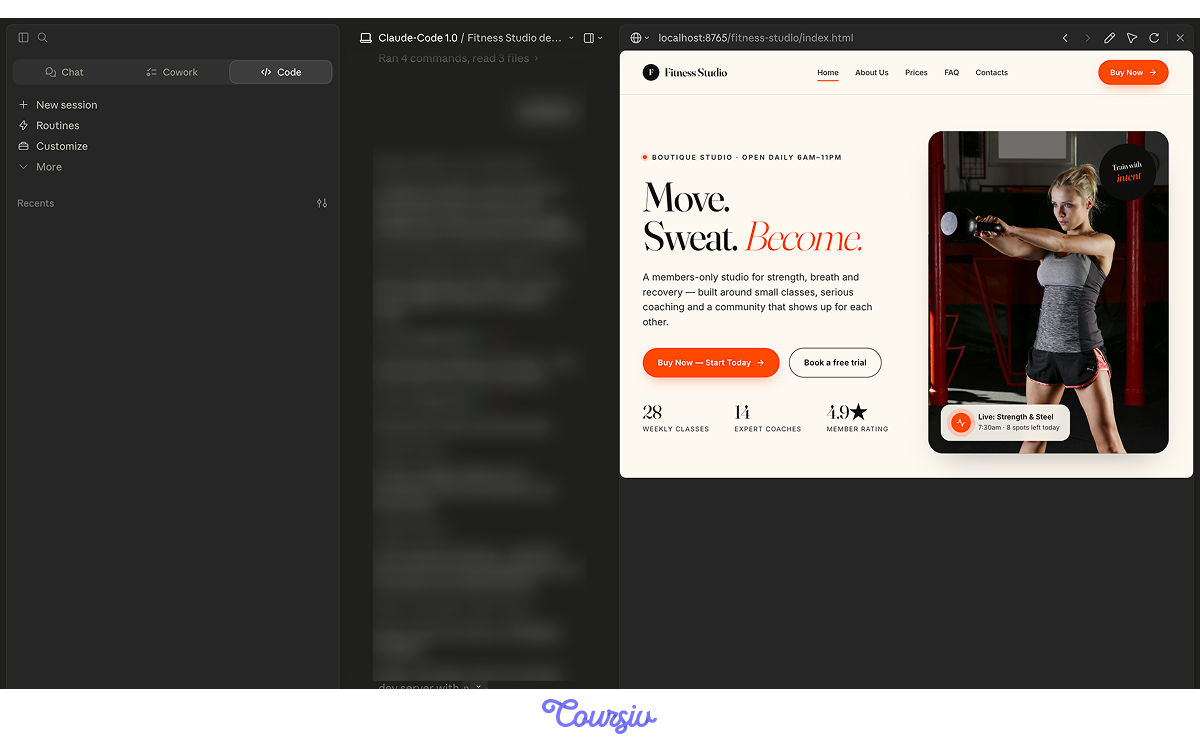
In this course, you'll work in the Claude desktop version. Claude Code also runs in a terminal, inside supported code editors, or in the Claude Web version, but the desktop app is the easiest place to start.
You see your page render, watch each change in the preview, and review everything in one window.
What About the Terminal?
The terminal is a text-only interface for controlling your computer: you type commands instead of clicking. Developers often run Claude Code there, but you won't need it for this course — everything you'll do happens in the app's windows.
Setting Everything Up
To start working in Claude Code, download and install the Claude desktop app on your computer, then sign in with your Anthropic account (Claude Code is included with the paid Claude plans).
On a Mac, you're ready right away; on Windows, the first time you open it, you'll be asked to install Git for Windows, then restart the app.

What You See in the App
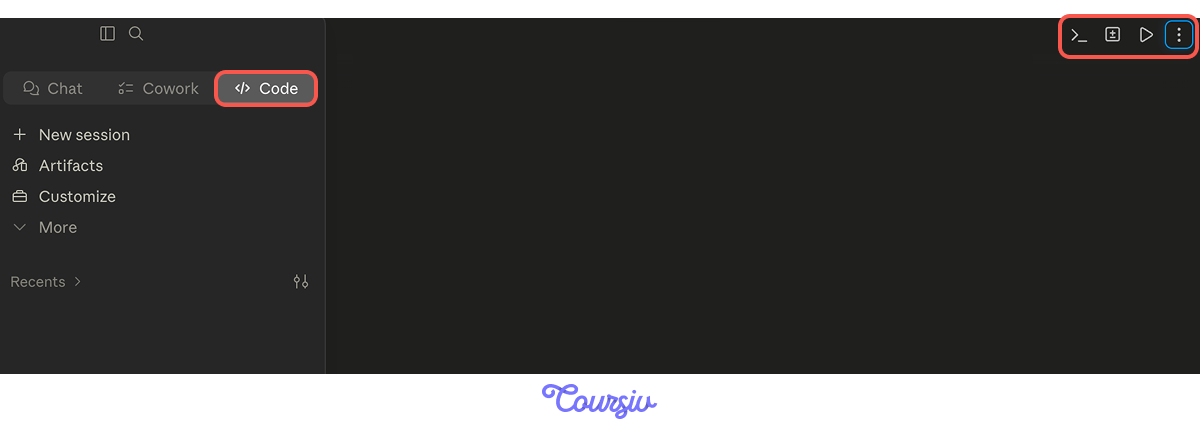
Inside the app, the Code tab is where you work. The chat fills the screen — you type your request, and Claude's replies and edits appear right in the conversation.
After your first prompt, buttons appear in the top-right corner — one for each view:
- Terminal — where commands can be run
- Diff — where you review changes made to your files
- Preview — where you review your page
- File — where you can open and make small edits to project files
- Session actions
practice preview
Interactive practice
Match pairs
Tap a left item, then a right item to match.
Communicating With Claude Code
You give Claude instructions in plain language, just like in a normal chat: "add a contact section" or "make the heading bigger."
There are also slash commands: type "/" to see shortcuts for common tasks and skills.
Opening Your Project Folder
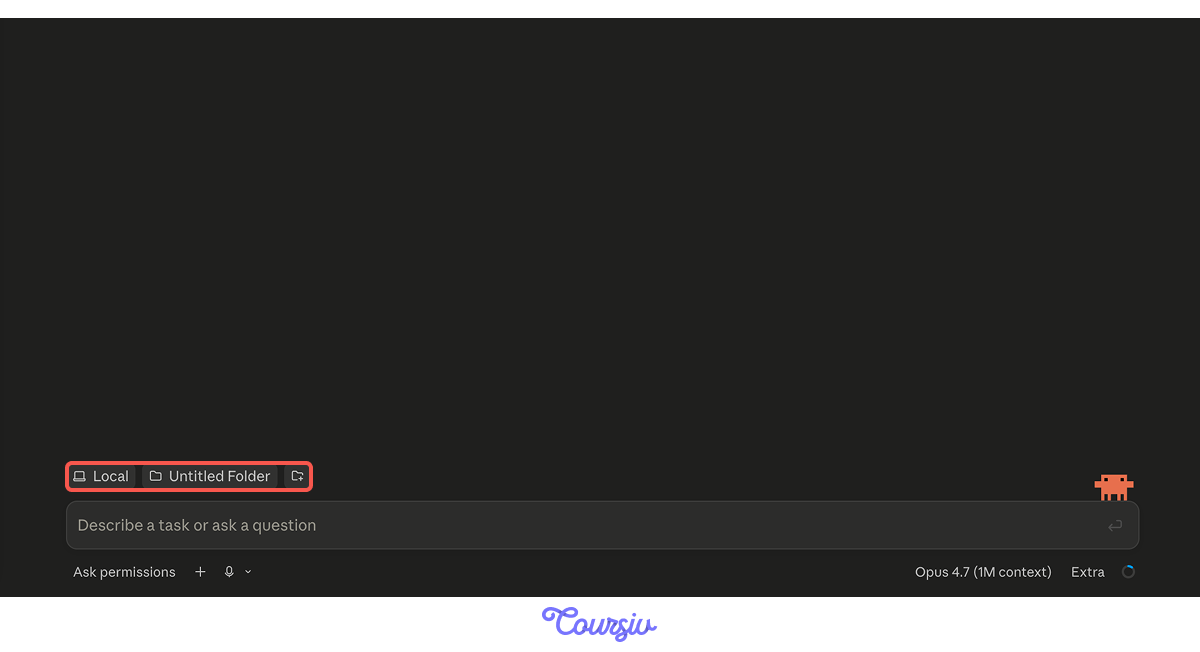
Every session starts by opening a folder — the place your bakery site will live.
In the Code tab, choose Local so Claude works on your own computer, then select the folder for your project.
That folder is now Claude's workspace: the exact set of files it can see and change.
Select all that apply
Your bakery folder is open. Which of these can Claude work with right now?
From Idea to Page
Now, describe the page:
- What it's for
- What goes on it
- How it should look
You don't have to write the words yourself — give Claude the idea of your story in a regular chat, and it will draft the copy for you. The clearer your brief, the closer the first build lands to what you pictured.
In Manual mode — the default for a Local desktop session — Claude pauses to ask for approval when creating or changing a file or running a command. Read each request carefully before you allow it, so you know what you're agreeing to — and if one isn't clear, paste it into a regular Claude chat and ask what it means. It also asks a quick question whenever your request could go more than one way.
Let's start your first session in Claude Code!
practice preview
Interactive practice
Fill in the blank
Complete a clear build request.
What Just Happened
Great job! One prompt — and your homepage exists. The files sit in your folder, ready for you to keep editing.
This is how Claude Code works: unlike the artifacts in a regular Claude chat, your homepage lives on your computer as real files you own. Tomorrow, next week, next month — open the folder, and your project is right here.
Targeted Edits
After creating the first draft, it's time to iterate. If you want to change one specific thing, you don't have to describe its location in words. Click the element right in the preview — a heading, a button, an image — and tell Claude what to change about it. It knows which piece you mean and edits that one.
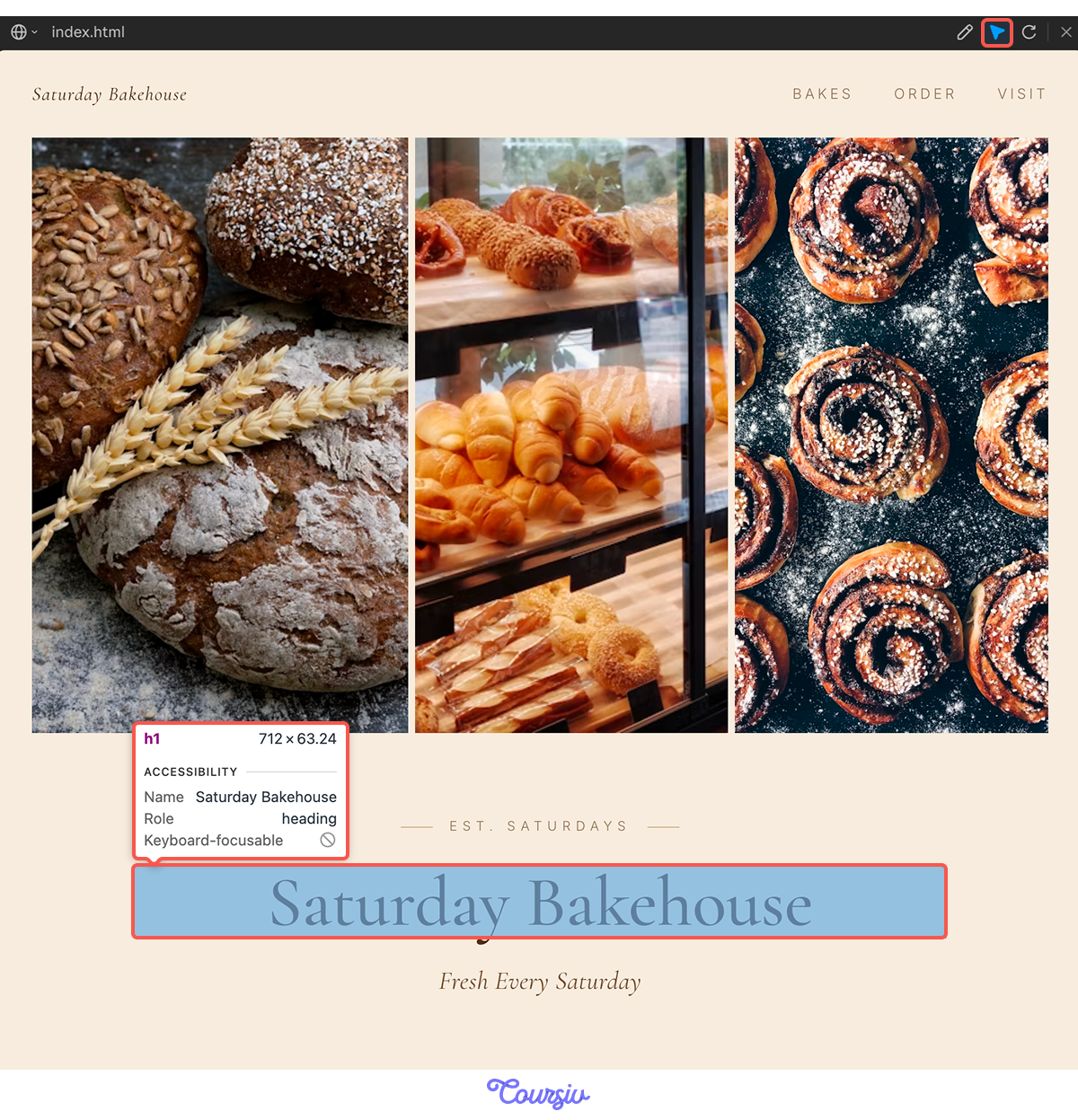
The core workflow is a describe → review → refine loop. Describe what you want, review what Claude built, refine the parts that aren't quite right. Here are a few techniques that keep edits clean:
- Point at the element: Click the spot in the preview, or name it ("the order button"), so Claude changes exactly that and nothing else.
- Say what stays: Adding "leave everything else as it is" keeps a fix from rippling into the rest of the page.
- Build up in passes: Get one piece right, then move to the next, instead of describing the whole page over again.
Saving Your Work
As Claude edits, it writes the changes straight into your files, so your work is saved on your computer as you go.
To keep a checkpoint you can return to — a snapshot of the whole project — you commit it, a version-control term for a labeled save. You don't type anything technical: ask Claude to "commit my changes," and it handles it.
- Claude Code builds inside a folder. In a Local session, Claude works on real files in the folder you open, and only there.
- Real files vs. chat artifacts. A chat artifact stays within a single conversation. Claude Code's files live on your computer, ready for you to open and edit whenever you want.
- You describe and review. No code; you direct the work and approve each change.
- The desktop app is the easiest way in. You see the page render and review changes in one window, with the terminal and editors as other options.
What's Next?
Take a second to notice what you just did: a bakery that lived only on Instagram now has a real homepage you built and own.
Next, you'll think bigger than a single page. In Plan Mode, Claude maps your whole site — every page and how they connect.
Let's keep going!