Claude Code · Work Like a Pro With Claude Code
Connect Claude to Your Tools
Use your data beyond the project folder
Bring In Your Real Data
Last lesson, your tracker went live. It remembers the words and study activity you add in each browser.
But your real vocabulary list still lives somewhere else: a Google Doc your tutor regularly updates. It already has hundreds of entries, and you don't want to copy them into the tracker one by one.
In this lesson, you'll connect Claude to the doc, check what's inside, and turn the list into data your tracker can use.

The New Feature for Your Tracker
So far, the files Claude has created and changed have lived inside your project folder.
The vocabulary you need now lives outside it — in a Google Doc. The same is true for much of the information you use every day: emails, notes, calendars, team documents, and design files.
To work with those sources, Claude needs a way to connect to them.
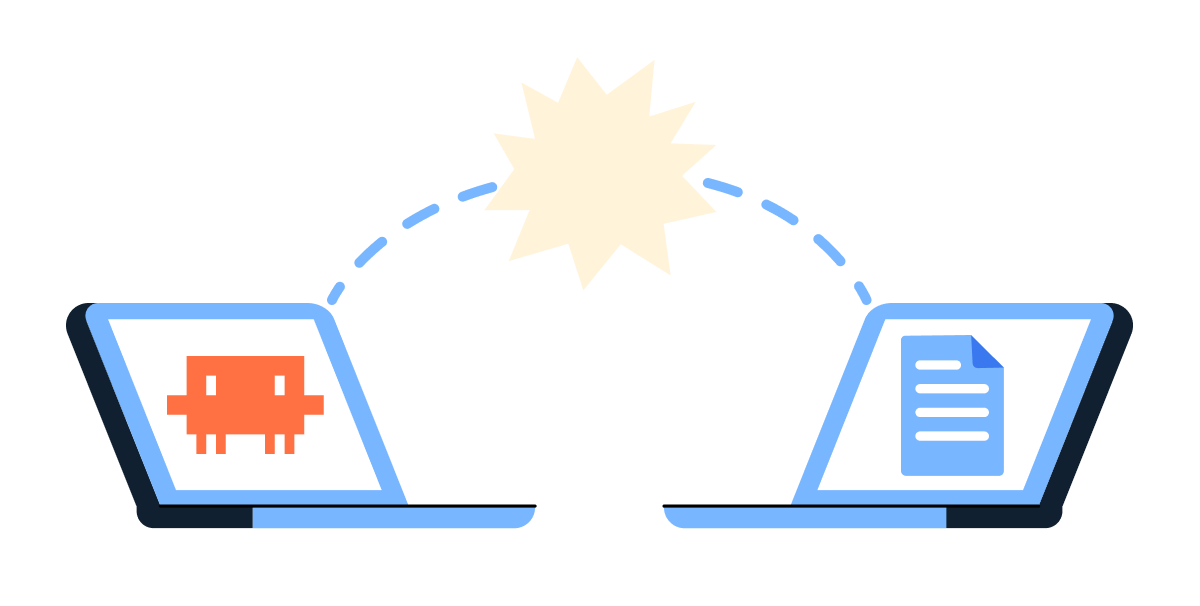
Your Finnish Vocabulary doc has grown to 280 entries. It started as a few lines and became the place you keep everything. Retyping 280 words into the tracker is a non-starter. You want Claude to bring them across.
In the earlier lessons, you typed "@" followed by a filename to add a project file to the conversation. But this command only reaches inside that folder.
For data that lives elsewhere, Claude needs a different way to plug in.
Meet MCP
That way is MCP (Model Context Protocol). Think of it like USB-C: a single plug that works with many different devices. With MCP, Claude can connect to many outside tools through the same kind of "plug."
Inside the Claude Code interface, you'll work with the Connectors based on the MCP.
Where Connectors Live
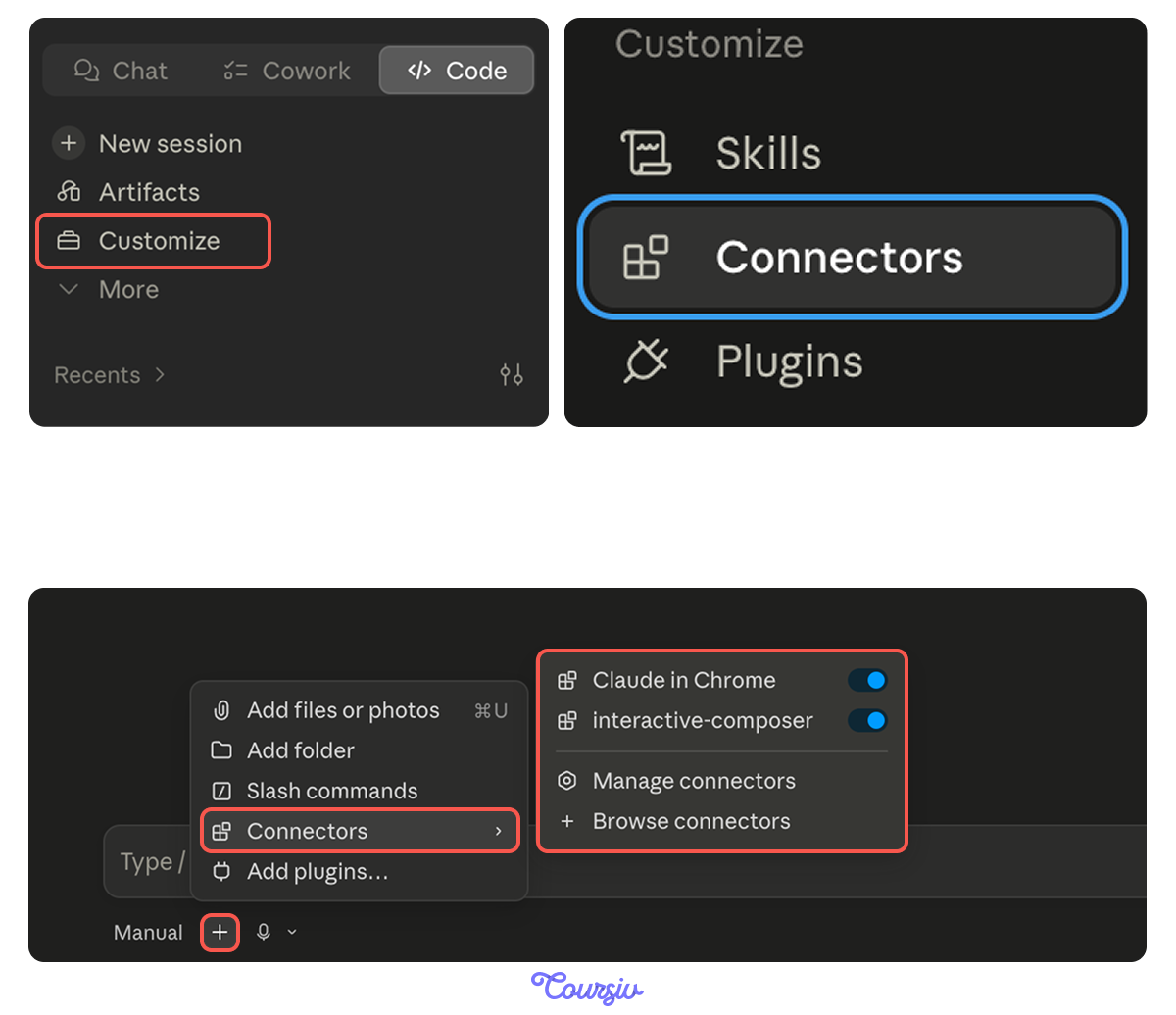
To find Connectors, open Customize in the sidebar. You'll see two other sections there — Skills and Browse plugins — that you'll dive into in the next two lessons.
You can also add one without leaving your Local session: click "+" next to the prompt box and choose Connectors.
This is where Claude brings external tools into the session. To manage or disconnect them later, open Settings → Connectors.
The Directory
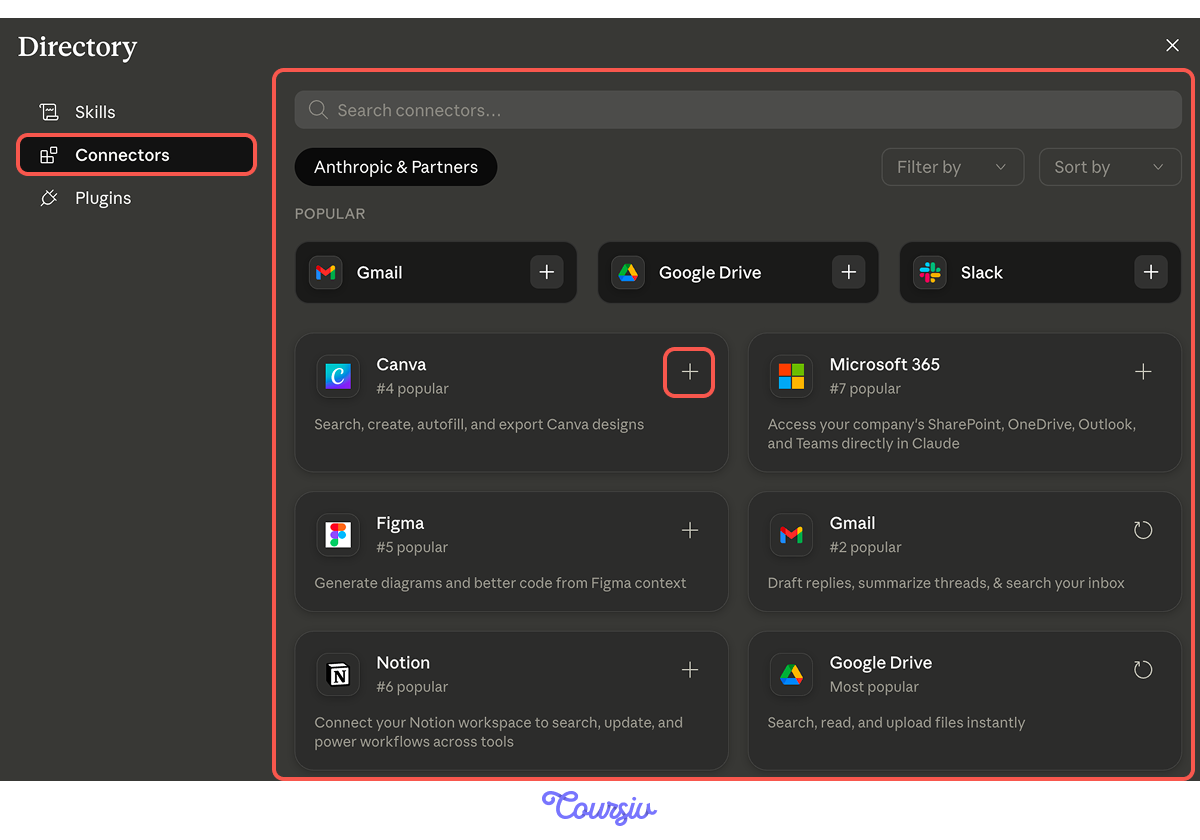
Inside Connectors, a directory opens with the apps Claude can plug into: Google Drive, Gmail, Notion, Slack, Calendar, Figma, and more. Each card has a "+" to add it.
Connecting Google Drive
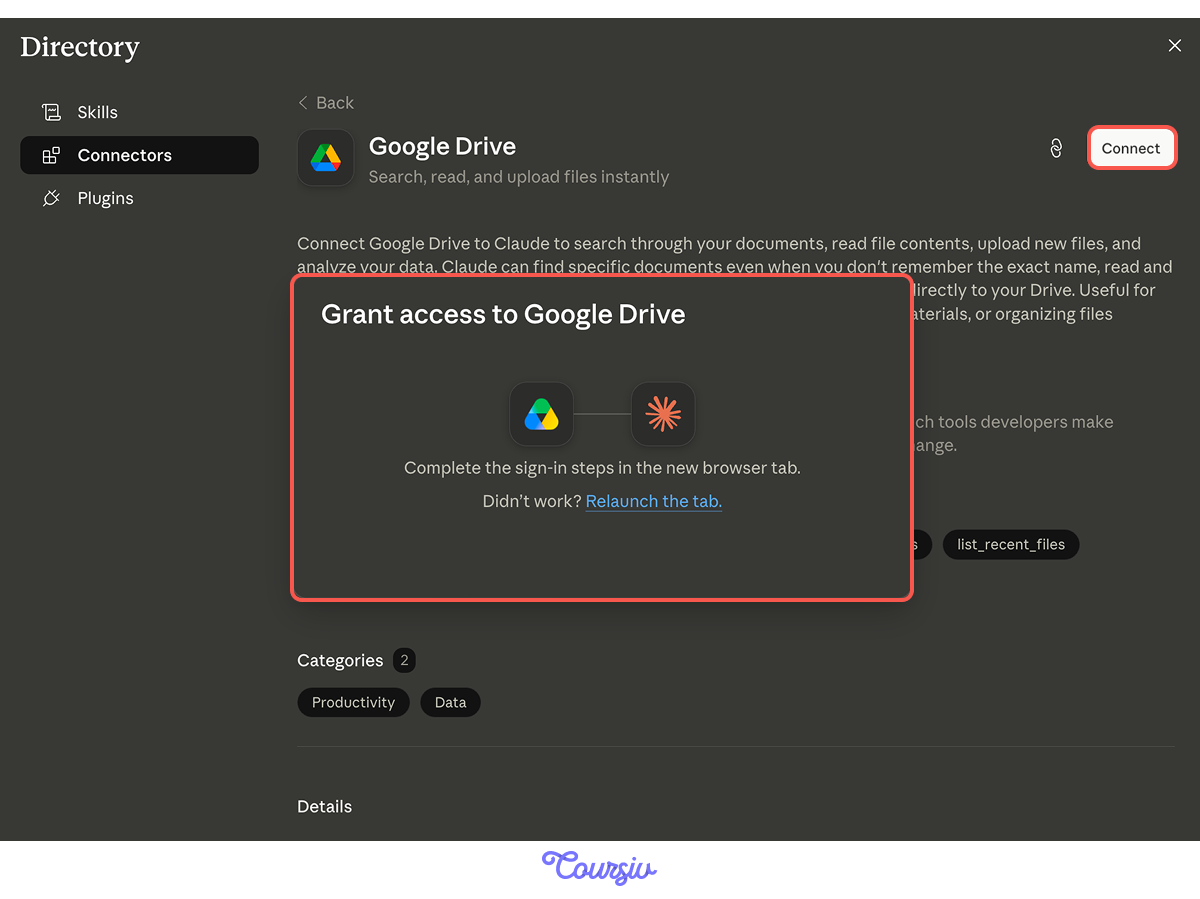
Click "+" on Google Drive. A browser window opens with Google's sign-in screen. You sign in, approve what Claude can do, and the window closes on its own.
You're back in the Code tab, and the connector is live.
Referencing Your Doc
Great job! You don't type "@" with a Google Doc name — @ is for local files. Instead, you describe it: tell Claude, "find my Finnish Vocabulary doc in Google Drive," and it locates the file by name.
Select all that apply
After you connect Google Drive, what becomes possible?
Check Before You Pull
In the last lesson, you learned that you can ask Claude to explain its own code before changing it. The same habit works for data: before pulling 280 words into your app, ask Claude what's actually in the doc.
You've been adding to it for months. There's more in there than you remember — and you want to know what's coming before it lands.
practice preview
Interactive practice
Fill in the blank
Ask Claude to summarize the doc before bringing anything in.
The Migration
Good — you know what's in the doc. Now you ask Claude to bring everything in.
This is a one-time move: 280 words, four months of notes, all landing in the tracker at once.
practice preview
Interactive practice
Fill in the blank
Ask Claude to pull everything in.
One Doc, Not Everything
You gave Claude a narrow task: find one document, inspect it, and use it for one feature. That's the right habit.
The connector may be authorized to search more of your Drive, but your prompt should still name the exact document or folder you want Claude to use. Review the connector action before approving it.
practice preview
Interactive practice
True / False
Decide whether the request stays in bounds.
What About New Words?
From here on, you'll keep adding to the Finnish Vocab doc as you learn — but right now, the connector doesn't watch for changes. Claude reads when you ask, not in the background.
You can pull new entries manually anytime ("check the doc for new words since last week and add them"), but it's easy to forget. There's a better way coming.
In a later lesson, you'll set up a Routine — a task that runs on a schedule even when your laptop's off. For your tracker, the routine would do something like this every Sunday evening:
"Check my Finnish Vocab doc for any entries added since last week. Add new words to the tracker, skipping anything already there."
You'll set it up later. The migration you just did is a one-time event; ongoing sync is what Routines are for.
Don't Forget to Publish
One more thing — your tracker's local files have the new words, but the live URL from last lesson is still serving the empty version. Don't forget to republish it.
And now, as you know how to use Connectors, you can actually do it through Claude Code!
Connecting Netlify
Go back to Customize → Connectors — same place you connected Google Drive — and click "+" on the Netlify card. Sign in, approve the connection, and you're back in the Code tab.
Now you don't have to drag your project via the Netlify website; you just ask Claude. Simply tell: "Republish my tracker to Netlify."
Claude packages your local files, pushes them through the Netlify connector, and the live URL refreshes with the new version — your 280 words now live on every device that opens the link.
Many Connectors, Many Workflows
Drive and Netlify are two examples of the connectors built for Claude Code work — bringing things into your project, pushing your project out, building automations and routines. A few you'll likely reach for:
- Notion — pull spec docs or notes into your project, the way you just did with Drive.
- Figma — bring design references into Claude when you're shaping a UI.
- GitHub — work with repositories, issues, pull requests, and code-review workflows.
- Linear — read a bug ticket and have Claude trace it in the code.
Each one is the same flow: connect once, then ask.
- Connectors plug Claude into tools outside your folder. They live in Customize → Connectors.
- MCP is the standard underneath. You only work with the connector layer on top.
- @ mentions stay local. For Google Drive and other connected tools, describe what to find ("find my Finnish Vocab doc").
- Ask before you pull. Have Claude summarize a doc first, so you know what's coming.
- Name what to read; don't open up everything — specific docs or folders, not "everything in my Drive."
- You can disconnect anytime: same place in Customize where you connected.
- Connect your host to faster publishing. It becomes a one-line ask, no more dragging folders.
What's Next?
Nice work! Your tracker now runs on 200+ real words migrated in a single ask.
Next, you'll add a different kind of capability. You'll install a plugin — a pre-built tool someone else has packaged, dropped right into your Customize hub. You'll use one to give your tracker the features it's still missing.
Let's keep going!