Claude Code · Work Like a Pro With Claude Code
Plan and Build the Website
From homepage to complete website
Building the Whole Website
Last lesson, you built a real homepage from a single Instagram bio and learned the rhythm of working with Claude Code: describe, review, refine. That homepage is the front door to something bigger.
In this lesson, you'll set up the controls that shape how Claude works, then plan and build the rest of your site around it.
Three Dials That Shape the Work
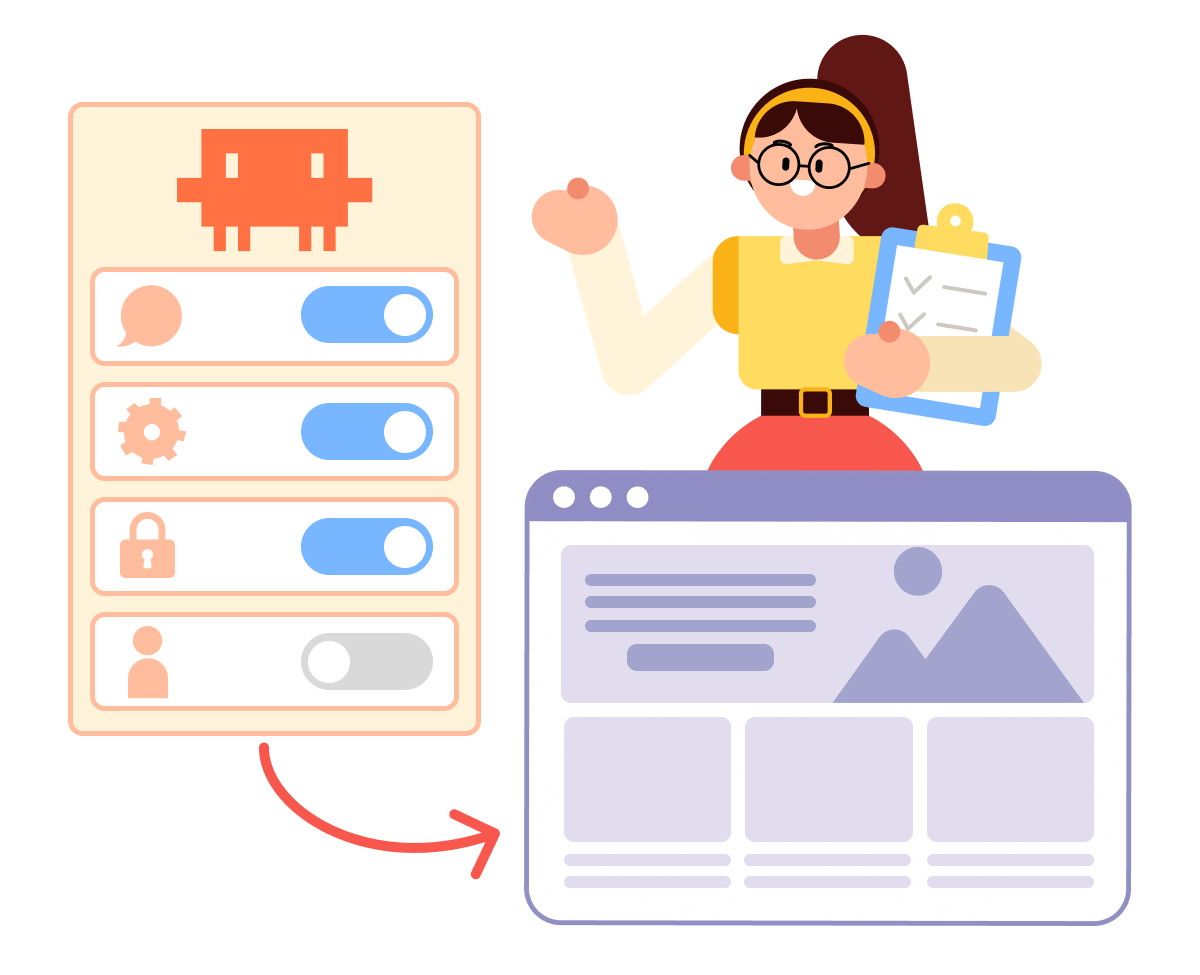
Before you take on bigger work, let's focus on the three settings in the app:
- Which version of Claude does the work?
- How hard does it think?
- How much does it check with you before acting?
Each one changes how a build goes. Here's what they do and how to set them.
Choosing the Model
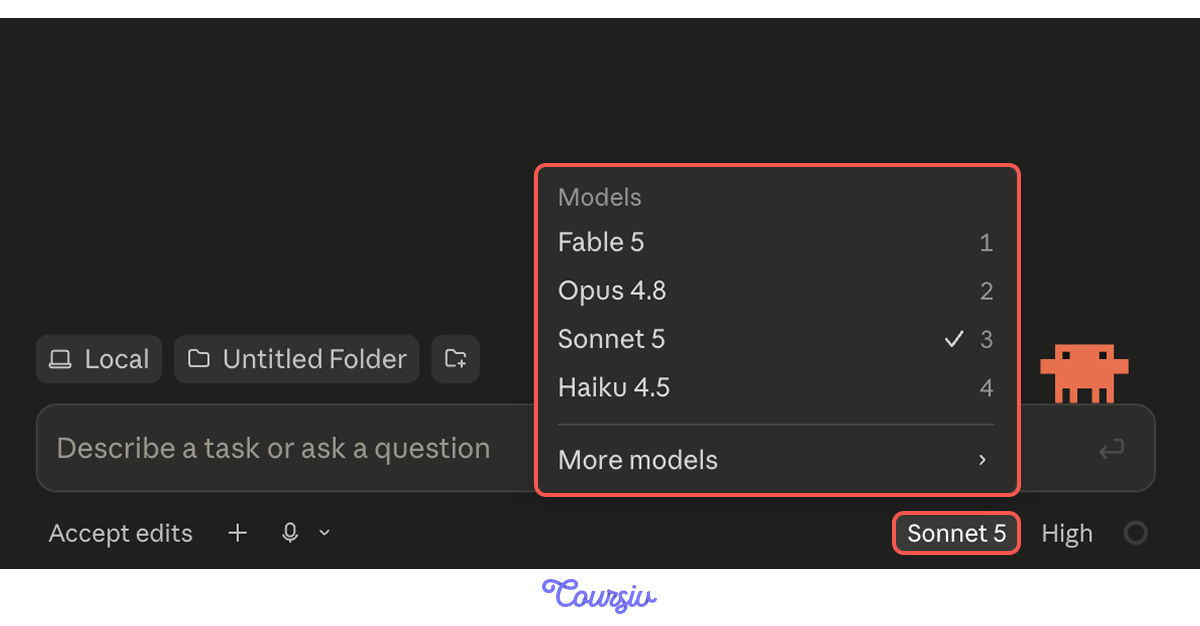
From a menu near the send button, you choose which Claude model to use. Models differ in capability, speed, and how much of your usage they consume.
Match it to the job:
- Haiku for quick, straightforward tasks
- Sonnet for balanced everyday development work
- Opus for more complex coding and reasoning
- Fable for the most advanced, high-capability tasks
Choosing the Effort
The second dial is Effort. It controls how much reasoning Claude puts into the task before it responds. The available levels can depend on the model:
- Low for a quick edit or routine file task
- Medium or high for most development work
- Extra or max for especially difficult builds
More effort can help with a hard problem, but it also takes longer and uses more of your allowance. For a small edit, lower effort is usually enough.
Working Within Your Limits
Claude Code and the regular Claude app can draw from the same usage included with your plan.
How quickly you use it depends on the model, effort level, size of the project, and how much context Claude is working with. A long, complex session usually takes more than a short, focused task.
A few habits keep you from hitting your limit too soon:
- Match the model to the job. Save the most capable one for hard problems; a lighter model handles routine pages fine.
- Keep related work together. Stay in the same session while you're building on the same task.
- Reset between unrelated tasks. Start a new session when you move to a different project, so Claude isn't carrying context you no longer need.
- Don't overthink small jobs. Low effort is usually enough for a button label, spacing fix, or copy change.
Choosing the Permission Mode
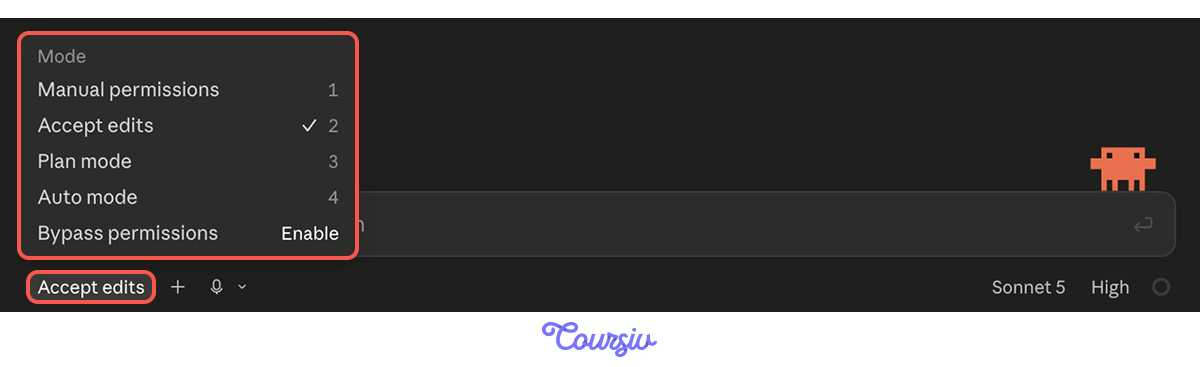
With usage under control, the next setting is the permission mode, which sets how much Claude does on its own, and you pick it from the selector at the bottom-left of the prompt box.
- Manual pauses before anything changes, so you can review each step before Claude edits files or runs commands.
- Accept edits moves faster by applying file changes automatically, while still checking in for certain actions.
- Plan mode steps back to map out the approach, exploring the project without touching your source files.
- Auto mode keeps things running by handling routine actions in the background and only pausing when something needs attention.
- Bypass permissions removes the guardrails, letting Claude act without approval, even for higher-risk actions. Use it carefully.
Auto mode reduces the number of permission prompts by checking actions in the background. It keeps going when an action matches your request, but can pause when something looks risky or unclear.
For your first projects, Manual is a good place to start. Once you're comfortable reviewing Claude's work, Auto can make longer builds feel smoother.
practice preview
Interactive practice
Match pairs
Tap a left item, then a right item to match.
practice preview
Interactive practice
True / False
Choose the right mode for the moment.
Building the Website
Now that you know how to set the model, effort, and permission mode, let's keep building your website.
Right now, Saturday Bakehouse has a homepage. What it needs next is a set of pages that work together as one complete site.
When to Plan, When to Just Ask
Last lesson, you made small, targeted changes one at a time. For a quick fix, that's still the fastest way.
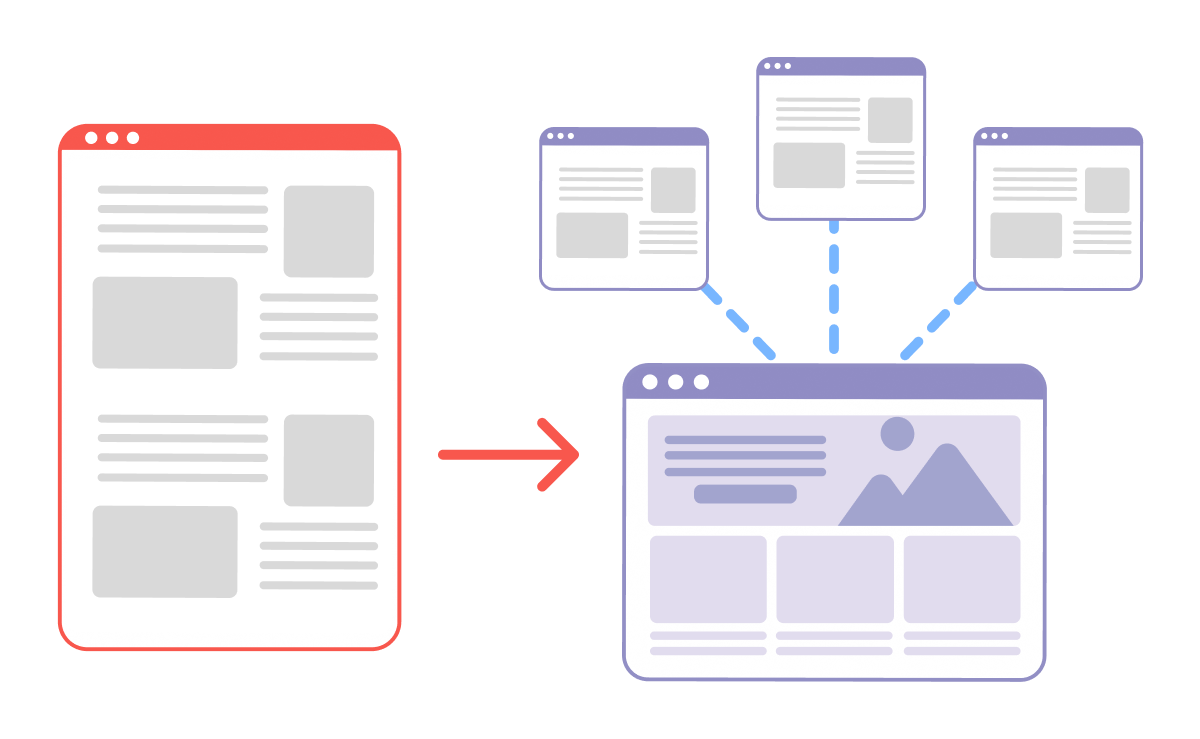
A five-page website is different. The navigation, structure, content, and design all need to work together. If you build each part without looking at the whole, pages can overlap, contradict one another, or leave important gaps.
So you'll work in two gears: plan the whole structure once, then refine it piece by piece.
Planning the Whole Site
This is what Plan mode is for: working out how to build something before any code is written.
Switch to Plan mode and describe the website you want. Claude looks through the project, may ask a few questions, and proposes an approach: which pages to create, how they connect, and where to begin.
Your job is to check the direction before the build starts.
What the Plan Covers
A good plan is how your pages connect, what each one does, and where to start. It helps to know roughly what you want first, so you can tell whether Claude's approach is right.
So before you ask, picture the pages your bakery needs.

A Clear Plan Request
Stay in the same chat as your homepage and switch to Plan mode. Claude already knows your folder, your bakery, and the style you've established — you don't need to re-explain.
The clearer your request, the better the plan. Name what the site needs and state the limits.
practice preview
Interactive practice
Fill in the blank
Complete the request so that Claude can plan the right approach.
Claude may ask different questions or suggest another valid way to structure the site.
Your answer doesn't need to match the example word for word. Check that it includes the pages you requested, respects your limits, and gives you a clear build order.
A Plan, Not a Build
Claude answers your questions and lays out its approach: the pages, how they link, and where it'll start. Your source files haven't changed yet, which makes this the easiest moment to correct the direction.
Read it through carefully: is anything missing, doubled, or out of order?
Choose one
Claude's plan puts the order form at the bottom of your website's Menu page, but you'd asked for Order to be its own page. What should you do?
Approve, and It Builds
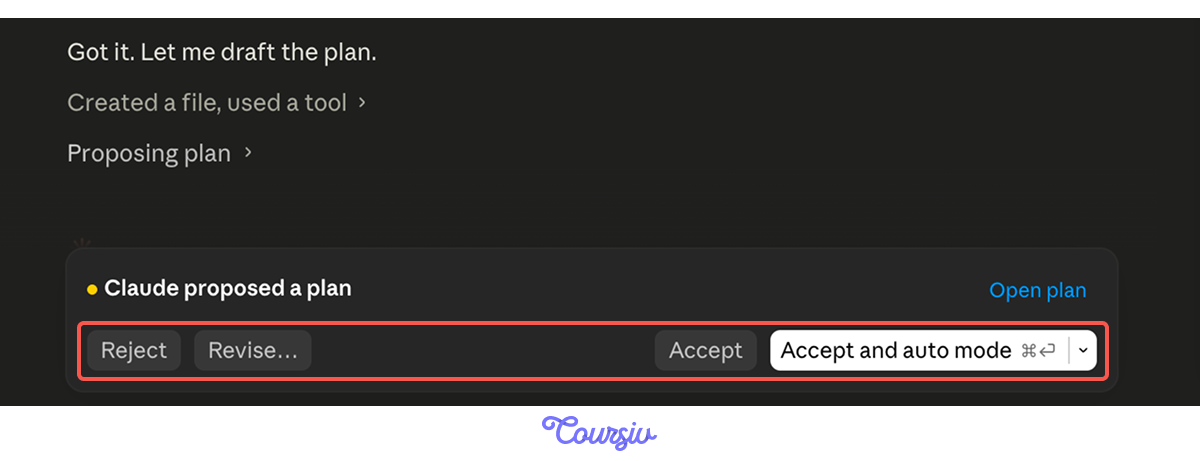
When the plan doesn't sound right to you, you revise it. Click "revise," and tell Claude what is off. Claude rewrites the plan, you read the new version, and keep going.
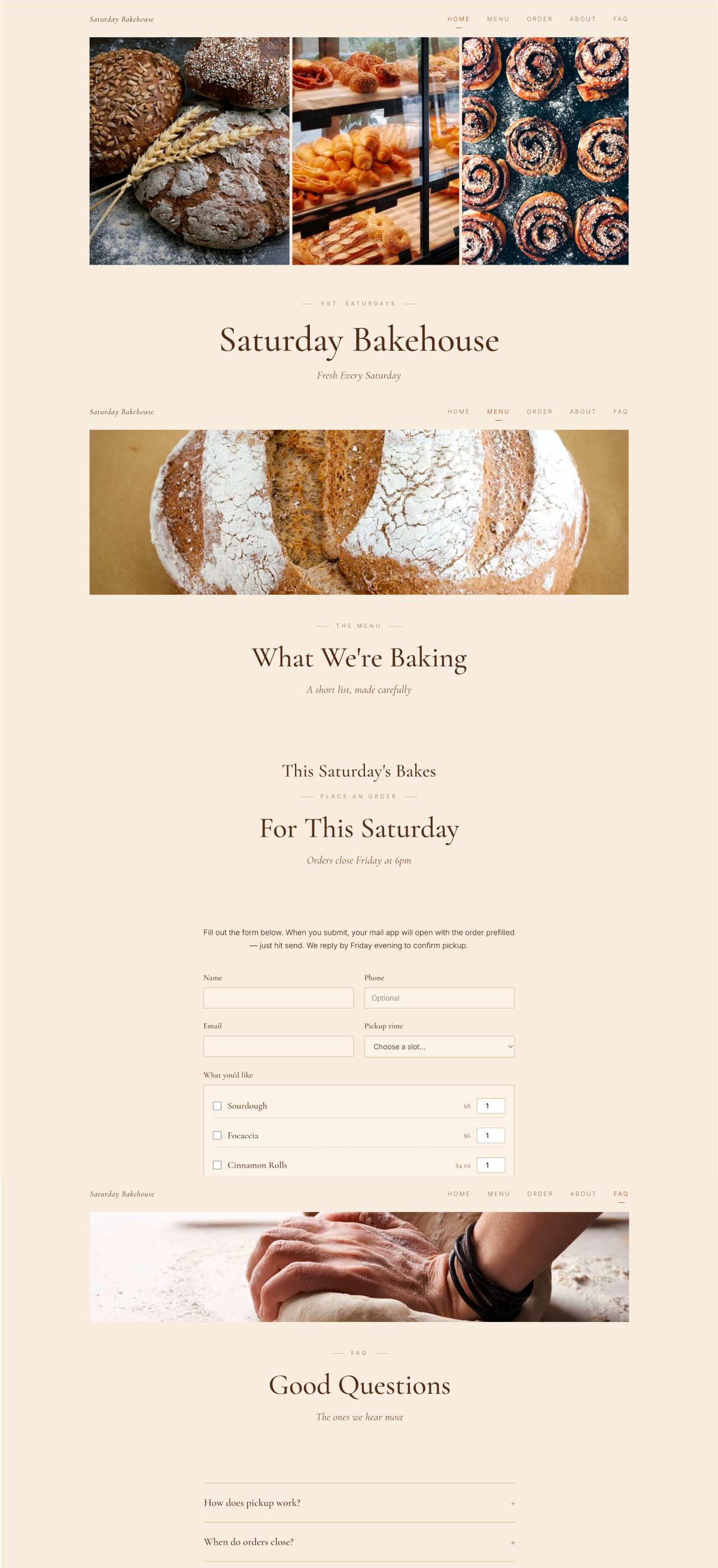
When the plan looks right, you accept it. Claude leaves Plan mode and builds all the pages at once — writing the files, linking them with navigation, and dropping in starter copy.
A Foundation, Not the Finish
What you have now is the skeleton: every page in place, linked together, with placeholder copy standing in. It's not finished, and it's not meant to be.
From here, you go back to working in small steps, refining one piece at a time, the way you did with your homepage.
Choose one
Your five pages are built and linked, with placeholder text throughout. What's the right next move?
Pointing Claude at a File
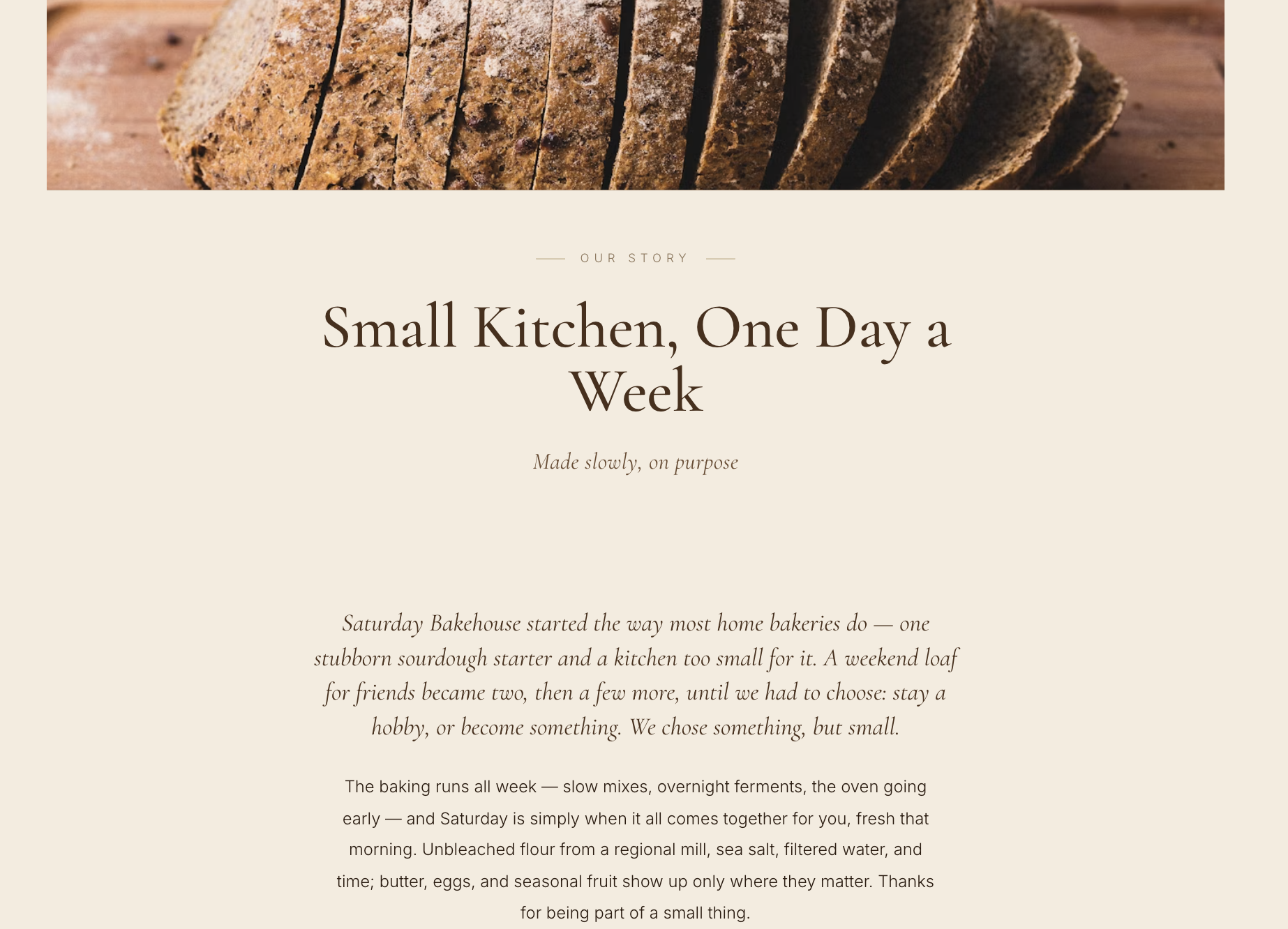
Take your About page: Claude wrote a placeholder story, but your real story sits in a notes file in the project folder on your computer. Rather than copy-pasting it, type "@" followed by the file's name to pull it into the chat, then ask Claude to use it.
That's a mention — a quick way to point Claude at one specific file.
practice preview
Interactive practice
Fill in the blank
Complete the request to make a single, targeted change.
What You Got
This is what your About page looks like after the targeted change.
From Your Folder to the Internet
Your site works in the preview, but it only lives on your computer. It's time to make it live!
To share it, you need to publish it via the host. A host stores your files and serves them to visitors when they open the URL. For a small site like yours, free hosts are plenty:
- Netlify
- Vercel
- GitHub Pages, etc.
You can also use the paid ones, which are commonly used for bigger sites or custom domains — unique website addresses.
Publishing Your Site
Right now, you publish manually — Claude prepares the files, and you upload them. Here's the path with Netlify, which makes it as easy as it gets:
- Go to netlify.com and create a free account.
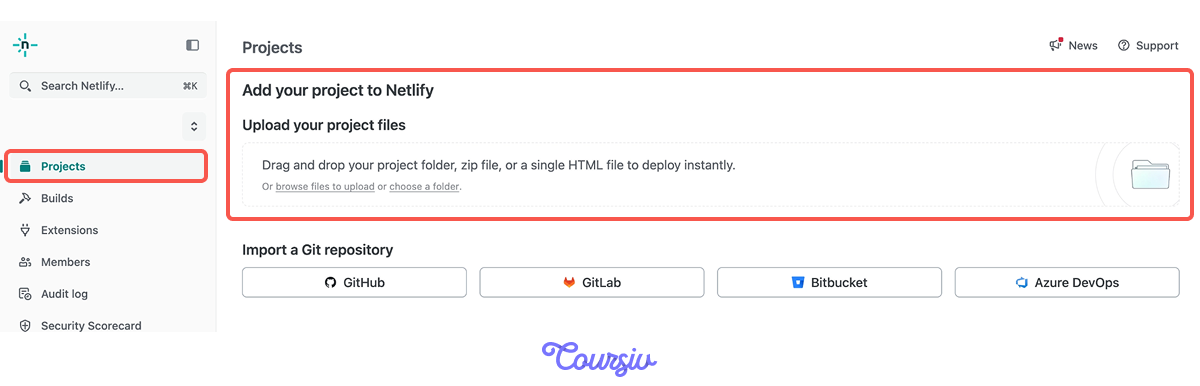
- On your Netlify dashboard, find the "Add your project" option and choose "Deploy manually."
- Drag your project folder into the upload area. Netlify uploads the files and hands you a live URL.
That URL works on any device.
When you update the website, open the same Netlify project and drag the revised folder into its production deploy area. Netlify creates a new version and updates the live site.
Later in the course, you'll set up a connector that lets Claude do all of this for you — one ask, and the site goes live or updates.
- Three dials shape how Claude works: the model (which version), effort (how hard it thinks), and the permission mode (how much it checks with you).
- Match the model and effort to the job to keep your usage from running out too soon.
- Plan mode is for deciding how to build before any file changes. You review and correct the approach, then approve, and what you get is a structure to refine from there.
- Refine one piece at a time after the big build. The big structural work is done in the plan; everything after is small, targeted changes.
- Point Claude at a specific file with an "@" mention to bring it into the chat.
- Publish your site to share it. Drag your folder into a free host like Netlify, and re-upload whenever you make a visible change.
What's Next?
Nice work! Your bakery went from one page to a connected, multi-page site.
So far, you've been building websites — pages that sit and wait for visitors. Next, you'll cross into apps: things that hold data, respond to you, and grow feature-by-feature.
Same Claude Code, different kind of work. Let's keep going!