Claude Code · Work Like a Pro With Claude Code
Install Plugins
Give Claude new skills in minutes
Add Capability With Plugins
Your tracker now runs on your real words from the Finnish doc. You open it daily, log your sessions, watch the streak climb — but every time you open it, the design quietly bothers you. The current one is fine, but as you use it, you notice the UI isn't user-friendly, and the visuals are slightly off.
In this lesson, you'll install a plugin — a packaged, prebuilt capability — to fix this issue.
Let's get started!

A Tracker That Works, But Looks Plain
Your tracker does its job. The streak counts, the calendar fills, the 200+ words are right where they belong. But you want to work on your app's design to make it look more polished.
You could keep iterating with Claude on the design, prompt by prompt, learning what to ask for.
Or — this work is already done, packaged, and put in a place you can install from. That package is a plugin.
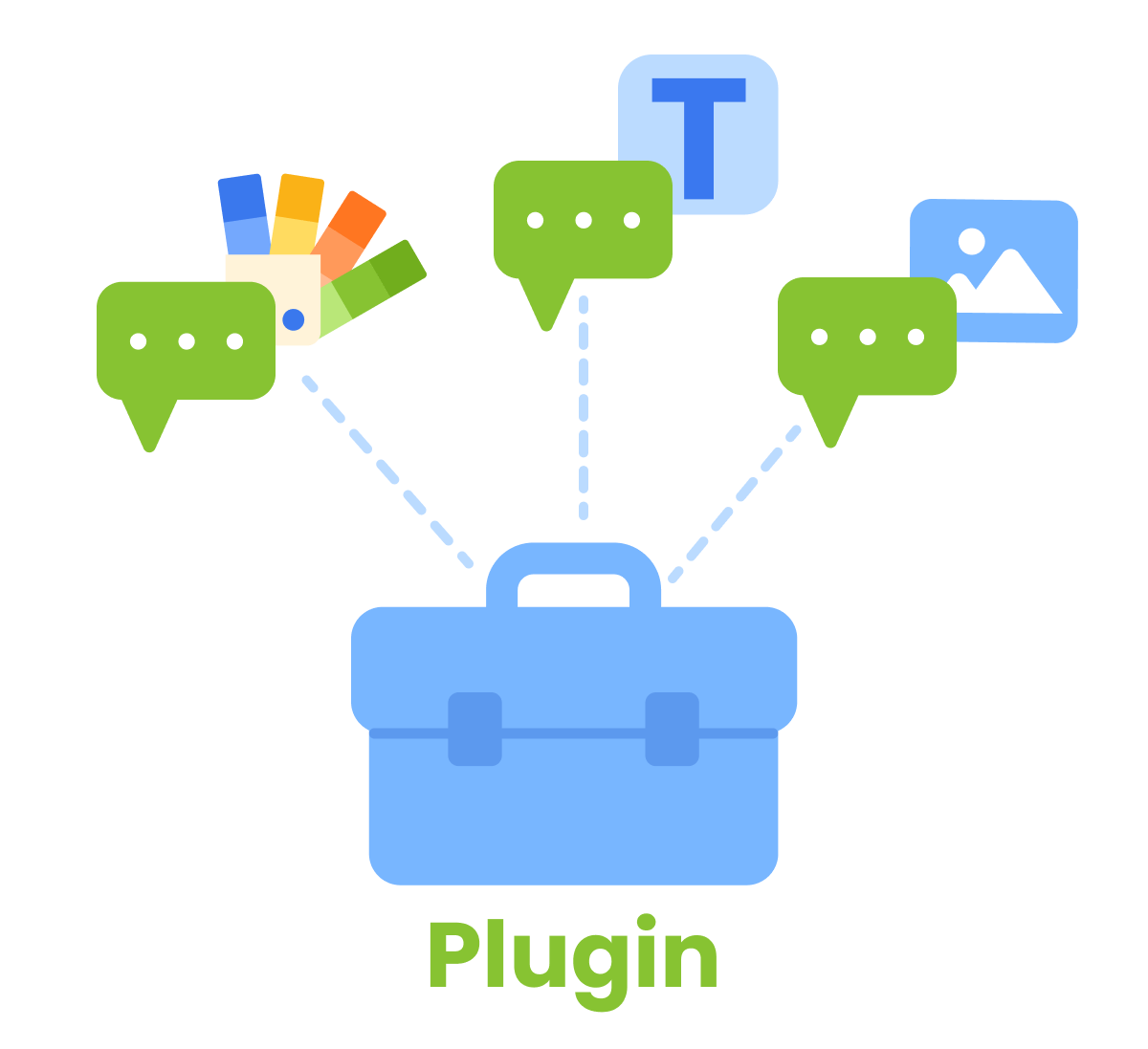
What's in a Plugin
A plugin is a bundle that adds a new capability to Claude. The main thing inside is usually a skill — a focused instruction set that teaches Claude how to do one thing well. A plugin might bundle one skill or several, sometimes with extra tools attached.
Plugins can handle certain workflows, such as designing polished, distinctive interfaces with real visual judgment.
Alongside skills, some plugins bundle hooks — small rules that fire automatically on specific events.
When you ask Claude to delete a file, a hook can run first to make a backup. When a session starts, a hook can load your team's coding rules. When Claude finishes editing code, a hook can run your test suite to check that nothing broke.
Hooks don't continuously watch everything Claude does.
They wait for a matching event, such as a session starting or a file edit finishing, and then run their assigned action.
That makes them useful for checks and rules you want applied at the same point every time.
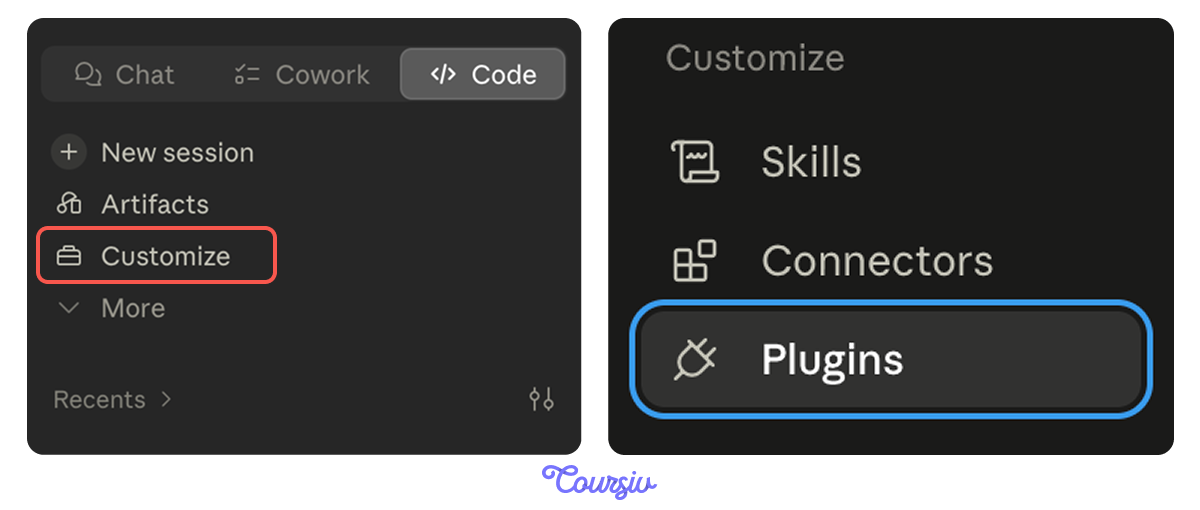
The Plugins Tab in Customize
Open Customize in the sidebar and choose the Plugins tab. It works like Connectors: a directory of available plugins, each with an Install button.
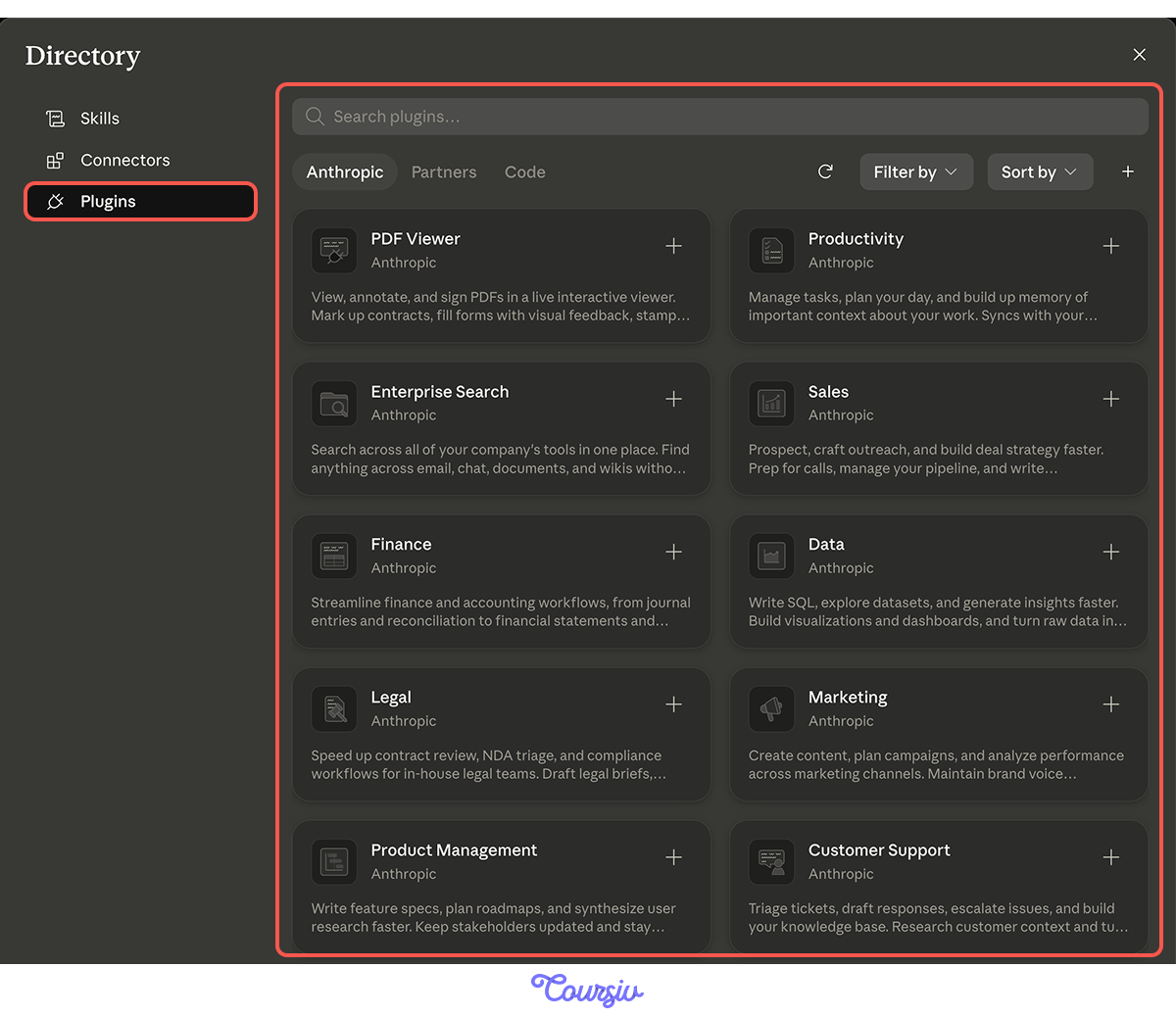
What's in the Directory
The directory has plugins for many kinds of work. Categories range across development workflows, project management, monitoring, and creative tools.
This directory is where you go to remove a plugin later. Note that installed plugins also toggle on and off, so you can keep a plugin around without it always being active.
Select all that apply
Why would you install a plugin instead of asking Claude to do the work directly?
Installing the Design Plugin
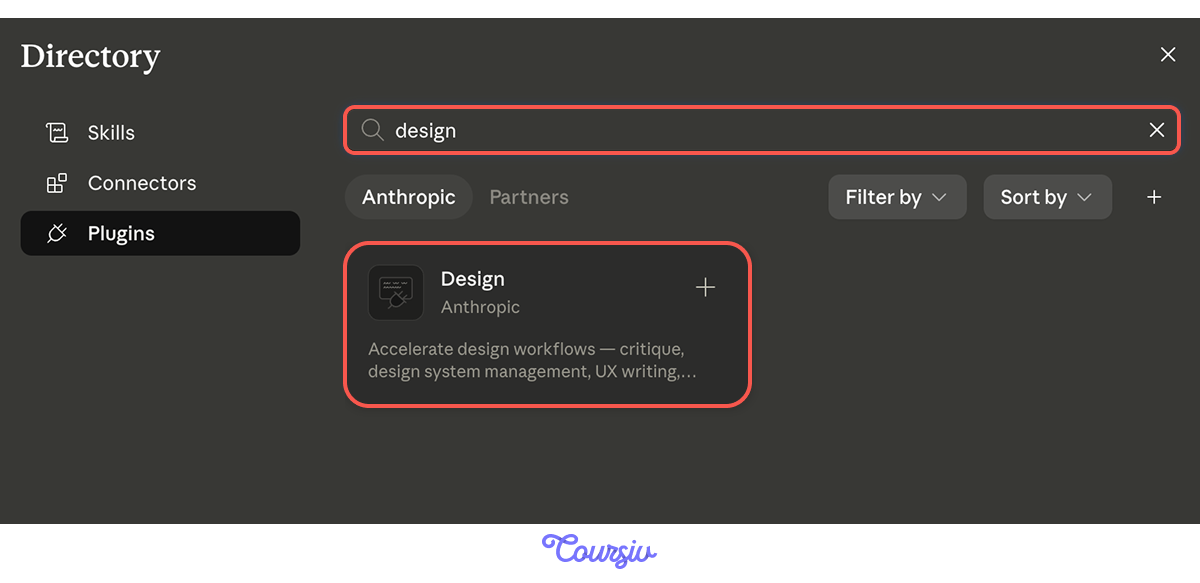
To work on your app's design, find Design in the Plugins directory. It's Anthropic's official plugin for design critique, accessibility, UX writing, and design-system work. It bundles 7 skills, each one a focused capability you can use on its own or in combination.
Click Install. A second later, it's in your installed list with no setup or configuration.
How the Design Plugin Fires
Once the design plugin is installed, two things happen.
- Claude reaches for the right skill automatically when your request fits. Ask for a critique, and design-critique runs; ask about contrast, and accessibility-review runs.
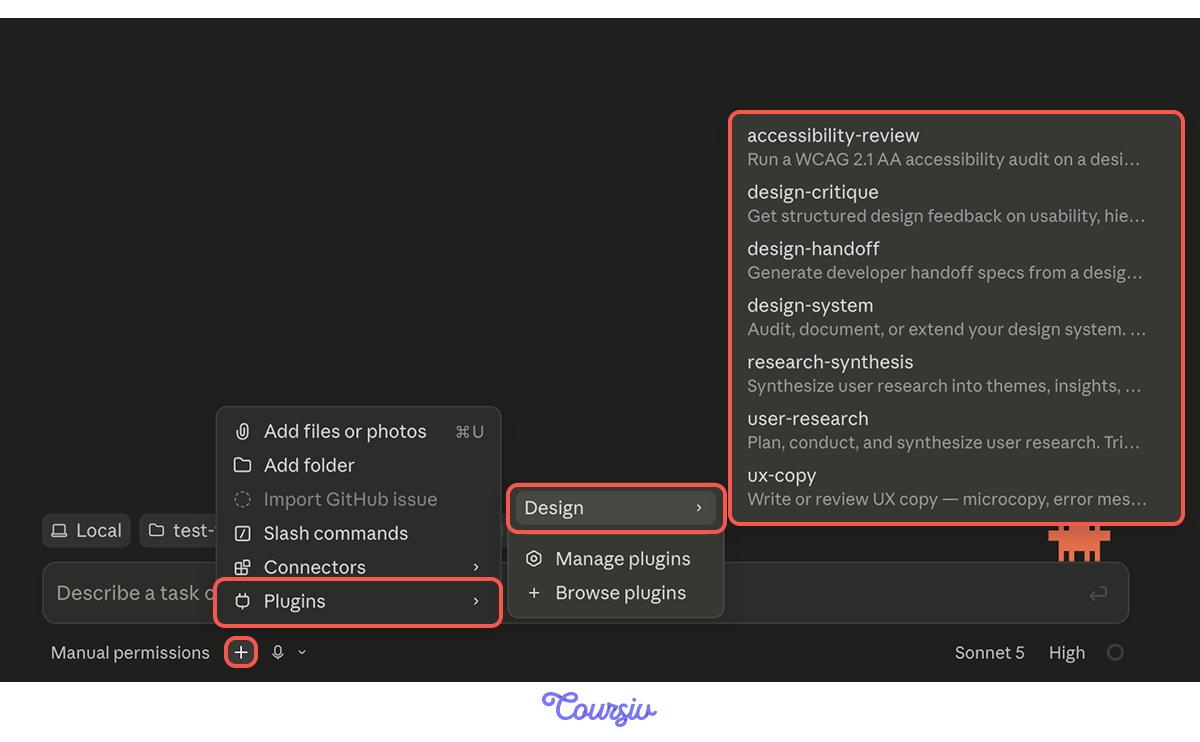
- The skills also appear in the "+" menu next to the prompt box, under Plugins → Design. You can pick one directly — design-critique, accessibility-review, UX-copy, design-system, research-synthesis, user-research — and run it on whatever you describe next.
Try It on the Tracker
The design plugin is like a set of experts who'll review what you've built and tell you what to change.
Start with a "design-critique" skill: feed it the tracker, get structured feedback on hierarchy, consistency, and visual decisions. Then you'll know what to act on.
practice preview
Interactive practice
Fill in the blank
Use "design-critique" to review the tracker and surface what to improve.
Acting on the Feedback
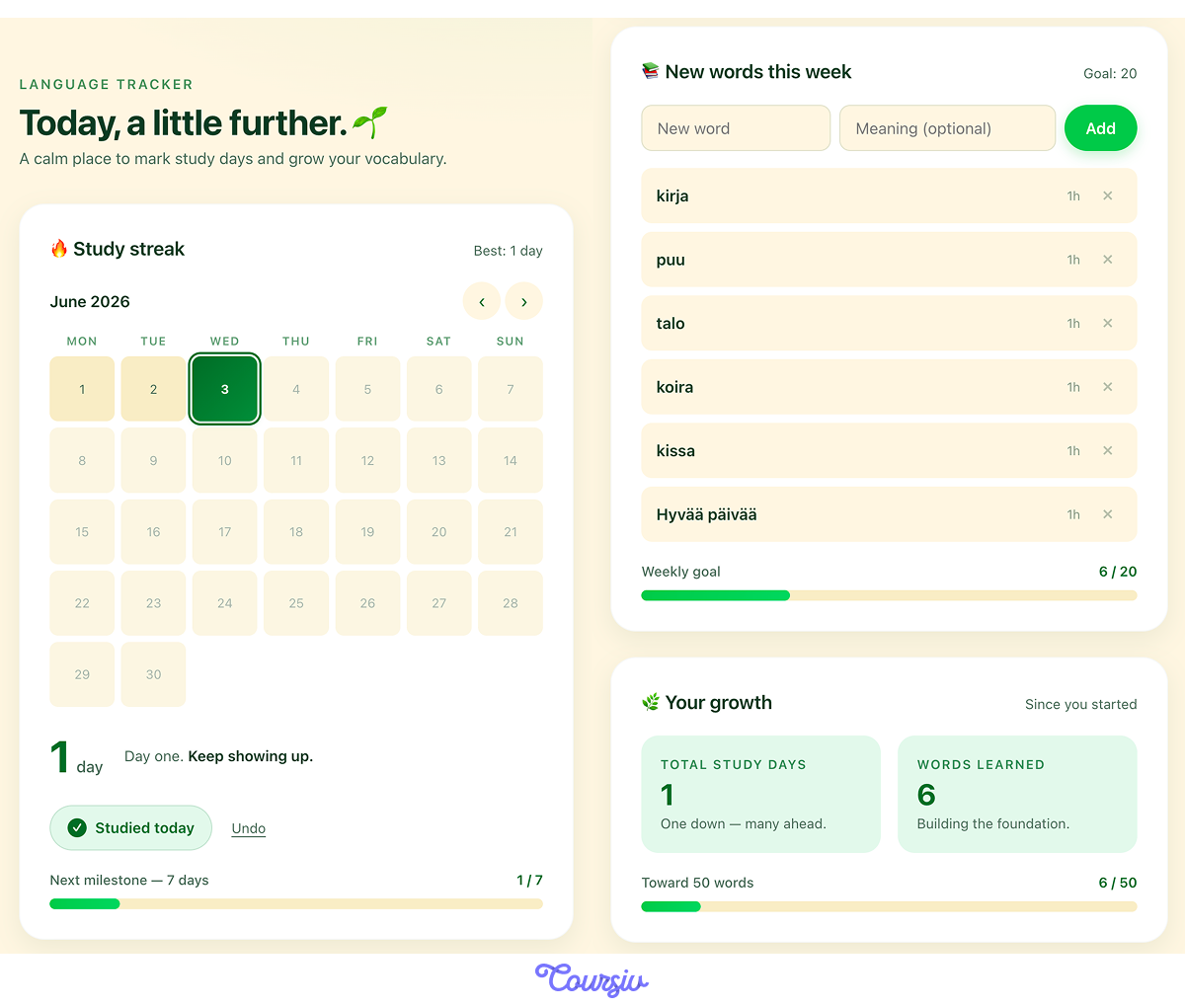
Now you have a list to work from — specific, prioritized changes from a design point of view that the tracker didn't have before.
Ask Claude to apply them. The design plugin keeps watching: it'll catch when a change you make creates a new problem.
Choose one
What did installing the design plugin actually change about your work?
Another Lens, Another Skill
That's the value of a plugin like this. It works like a whole team of reviewers, each looking at your tracker through a different lens.
Don't Forget to Publish
Your tracker looks new in the preview, but the live URL still serves the old version. Same one-line ask as in the previous lesson — Claude redeploys, and your phone and laptop both show the new design.
Working like a Pro
This plugin reaches further than what you just used. One skill worth knowing about: design-system.
A design system skill is the shared library a team uses to keep a product visually consistent — the buttons, colors, spacing rules, and naming conventions everyone reuses so the product looks cohesive.
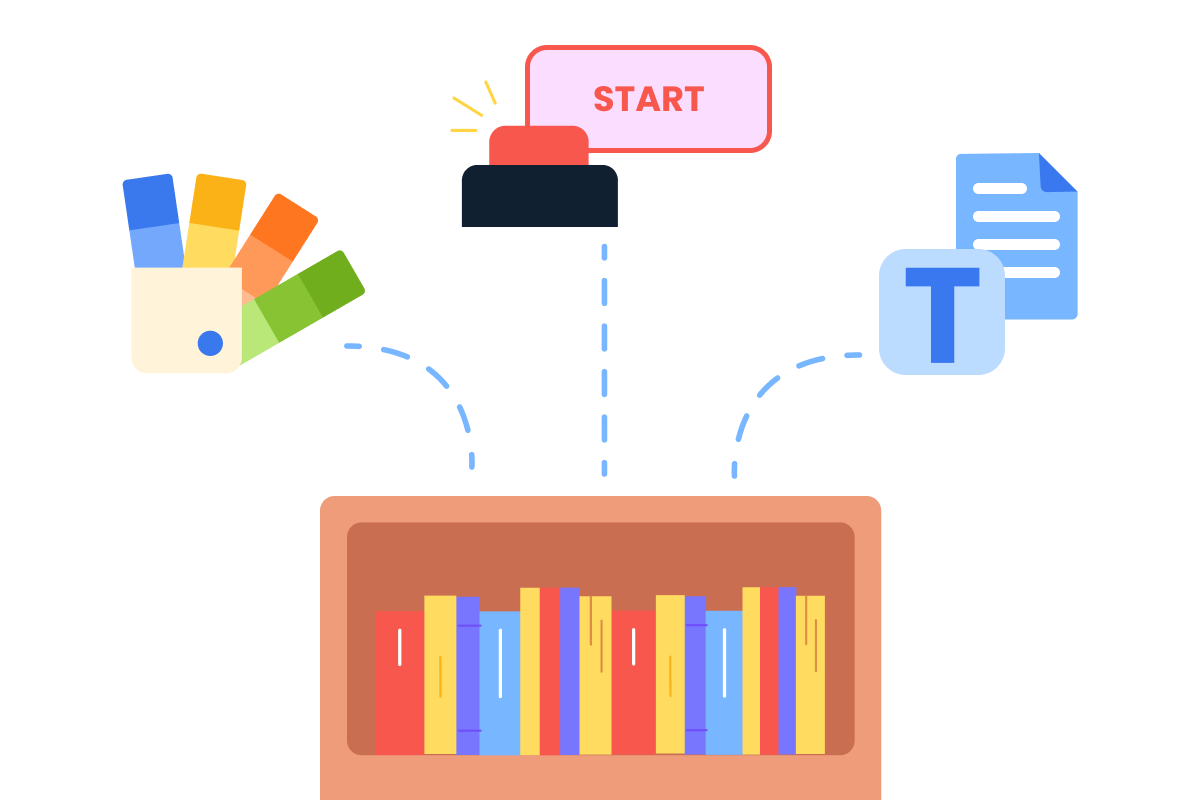
The design-system skill audits or extends one for you:
- Checks naming consistency
- Flags hardcoded values, documents a component's variants and states
- Helps design new patterns that fit what's already there
The other skills — design-handoff for engineering specs, research-synthesis for user interviews, user-research for planning studies — are there when you need them.
What Else Plugins Can Do
The design plugin is just one example of what plugins can do. Here are some others you can use:
- Product Management: Anthropic's official plugin for PM workflows. Skills for writing feature specs, drafting stakeholder updates, synthesizing user research, and putting together competitive briefs.
- Desktop Commander: a popular community plugin that extends Claude beyond a single project folder by giving it terminal and file system access to run commands, manage processes, and batch-edit files across multiple directories.
Same Workflow, Any Plugin
Whether you used two skills or seven, the path through the plugin was the same: open Customize, install, use, review. That's the loop you'll repeat for every plugin you install.
Let's put them in order.
practice preview
Interactive practice
Put in order
Put the steps of finding and using a plugin in order.
- A plugin is a packaged capability. Usually one or more skills, sometimes with tools attached.
- Install through Customize → Plugins. Browse, click Install, and the capability is live.
- Installed plugins fire in two ways. Automatically when relevant, or via the + menu where the skills appear.
- Plugins can be toggled off without uninstalling, and removed anytime from Customize.
- A plugin can hold many skills. The design plugin's seven cover critique, accessibility, microcopy, design systems, and more.
- Publish again after visible changes. The live URL doesn't update on its own.
What's Next?
Nice work! Your tracker now has a structured design.
Next, you'll move to building your own skill, so Claude does one thing your way, every time.
Let's keep going!