Claude Code · Work Like a Pro With Claude Code
Make Your Project Interactive
Build an app that stores data
Apps That Hold Your Data
Last lesson, you gave Saturday Bakehouse a full website. That project stays safely in its own folder.
Now, you'll start something new: a personal tracker that remembers what you add, responds as you use it, and grows feature by feature.
You'll also learn how to try bigger changes without losing the version that already works. Let's get started!

From a Site to an App
A website and an app serve different purposes:
- Websites help people discover information, services, or businesses.
- Apps help people complete tasks.
That means apps need to store data, respond to user actions, and handle many more moving parts behind the scenes. Building one well requires a different set of habits — the ones you'll develop in this lesson.
Scenario: A Tracker You'll Use
Imagine this: you're starting to learn a language and want something that keeps you going. Not another app from a store, but the custom one you'll build: a streak for the days you study, a list of words you're learning with a weekly goal, and progress bars to look at.
It's actually small enough to build today and useful enough to keep you opening tomorrow.
practice preview
Interactive practice
Fill in the blank
Complete a build request that covers both function and design.
A Different Kind of Work Begins
With a static site, mistakes show up as broken pages you can spot. With an app, a wrong change can quietly break behavior you only notice when you actually use the thing.
So before you try a big change, you set up a way to undo it.
Every prompt you send creates a checkpoint — a point you can return to later.
Claude Code records the state of your code before that prompt and tracks the direct file edits Claude makes after it. You don't create the checkpoint yourself; it happens automatically as you work.
To go back to one, type /rewind into the chat. A dialog opens with your past prompts. Pick the one you want to undo, and Claude takes the project back to right before that prompt was sent.
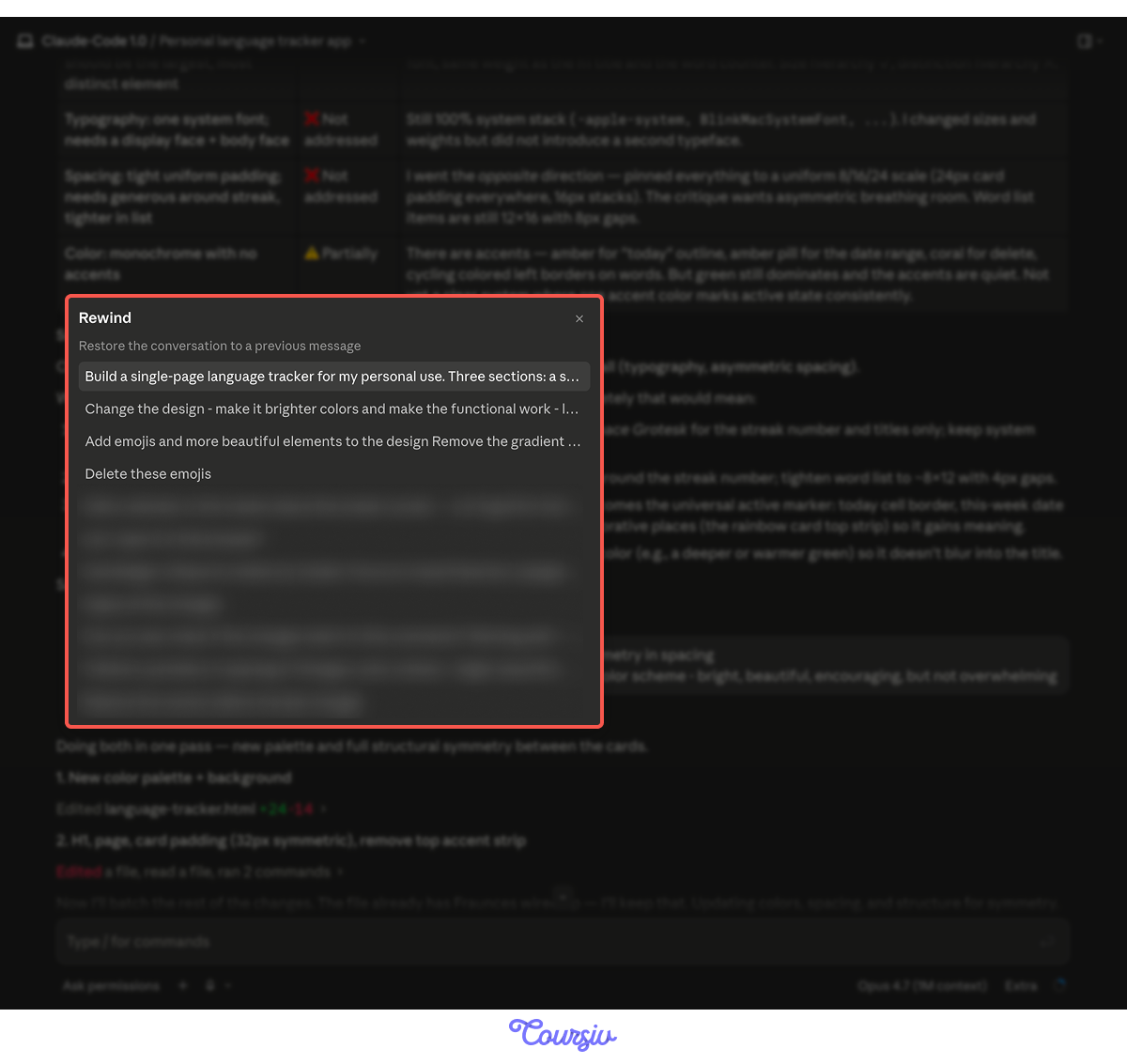
Rewind reverses the changes Claude made to the files in your folder. It doesn't touch anything you did yourself outside the chat, such as the files you edited by hand.
Time to Add Another Feature
Your tracker shows progress as bars. But you're studying most days — what about a calendar that fills in the days you studied, like a heat map?
It's bigger than a small tweak: a new view, tied to the streak data, taking visible space on the page. Exactly the kind of change worth trying now that you know you can rewind.
practice preview
Interactive practice
Fill in the blank
Ask for a calendar that fills in your study days.
Looking Good, But…
The calendar appears. The right cells fill in, and everything looks finished.
Now test the rest of the app. Open the word list, enter a new word, and press Add word.
Nothing happens. The calendar works — but the change quietly broke something else. Time to use the checkpoint.
Choose one
The /rewind dialog shows your past prompts. To undo the change without losing the rest of your work, what's the right move?
Word List Back, Calendar Gone
After the rewind, the tracker is exactly where it was before the calendar attempt — adding words works again; no heat map yet.
Now you add the calendar again, but this time you make a deliberate move.
practice preview
Interactive practice
Fill in the blank
Frame the request so the word list survives the change.
practice preview
Interactive practice
True / False
Decide whether the request protects what works.
Knowing What's in Your Project
As the app grows, you'll stop remembering where every feature lives.
The streak might depend on several functions. The word list might save data somewhere you haven't looked at since the first build.
You don't need to read every line of code to understand the project. You can ask Claude to guide you through it.
Most of what you need comes from two kinds of questions:
- "Where does the streak logic live?" — Claude tells you which file and which part of it.
- "Walk me through how the streak resets" — Claude explains its own code back to you in plain language.
Use the second question before changing logic you don't fully understand. First, find out how it works; then decide what needs to change.
From Preview to Live
You've got the tools to navigate and direct a working app. Time to actually use it — because, just like your website from the previous lesson, your tracker only lives in the preview in your Code tab right now.
To use it day-to-day, you'll get it online via its own URL, which you can open from anywhere.
The publishing process is the same as on the website:
- Open the hosting project you created.
- Upload the folder containing the finished app files.
- Open the live URL and test the app again.
Netlify can host a small static app like this one.
Your tracker stores information in the browser you use. That means:
- Entries stay after you close and reopen that browser.
- Your laptop and phone keep separate copies.
- Clearing the browser's site data can remove the entries.
- There is no account, cloud backup, or automatic sync.
On Your Phone Too
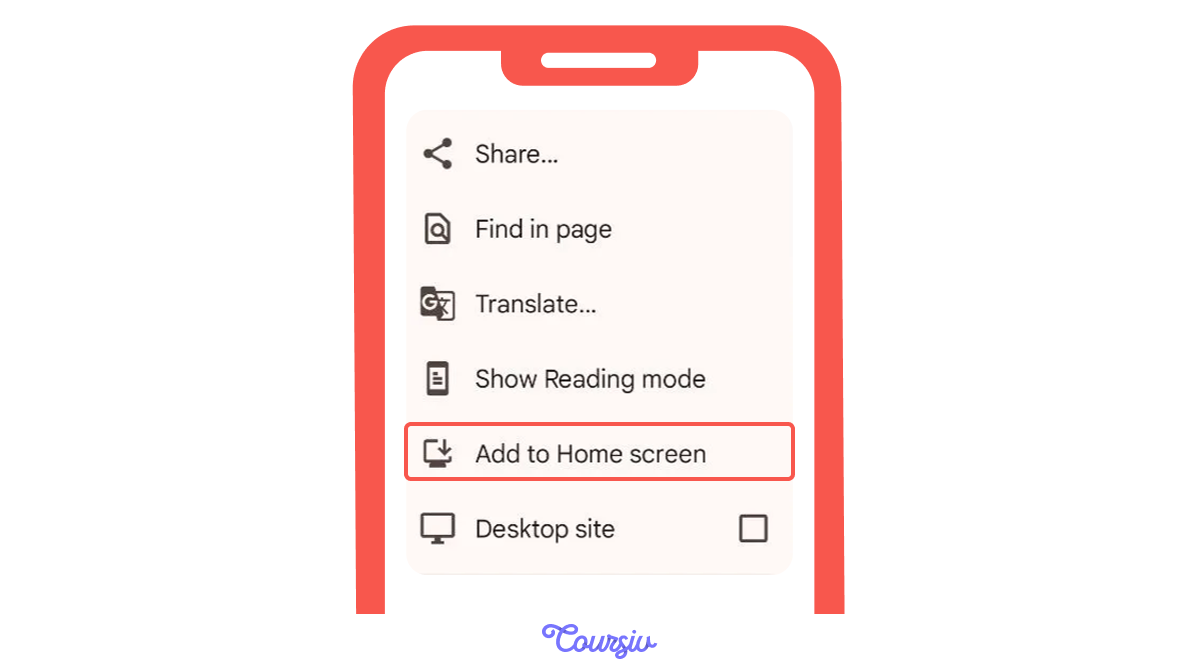
Open the URL in your phone's browser, then tap Add to Home Screen (the share button in Safari on iOS or the three-dot menu in your browser on Android). It now opens like an app — full-screen, one tap from your home screen, no app store involved.
The same URL works from your laptop's browser, too.
A Few Days Later, Another Bug
You've been using the tracker for a week. This morning, something's wrong: you logged a session at 11 p.m. last night, and the streak counter now shows zero.
Not "yesterday wasn't counted" — the streak is gone, back to zero days. Yesterday's entry is still right there in the list. The number is just wrong.
That's a symptom — what you can see. The cause is somewhere in the code that decides when one day ends and the next begins.
A strong habit is to describe the symptom carefully — with the timing and the specifics — and let Claude find the cause. You can do it in the same chat where you created your whole project.
practice preview
Interactive practice
Fill in the blank
Describe what you see and let Claude find the cause.
Claude found the cause, but it hasn't fixed anything yet — it's waiting for you to confirm. That's the moment to apply the same rule from before: name what to change, name what to protect, and ask for a verification.
A fix is just another change to a working app.
Push the Fix Live
One quick thing — your local files have the fix, but the live URL is still serving the version from your first publish. Update the project folder on your host, so the live tracker matches what's on your screen.
You'll do this every time you want a change to land for real, not just in the preview.

A Repeatable Loop
You've now done the whole thing once: tried a big change, rewound when it broke something else, tried again carefully, and fixed a real bug by describing what you saw instead of guessing at a fix.
It's a repeatable workflow you can use for every app from here on. Let's put the steps in order.
practice preview
Interactive practice
Put in order
Put the steps of a safe big change in order.
- Every prompt makes a checkpoint. Claude snapshots your project before each change, so you can always go back.
- /rewind takes you back to a past prompt. Pick the one you want to undo, and the project returns to right before it.
- Rewind doesn't reverse what you typed in the Terminal yourself. Only Claude's edits are tracked.
- Adding to a working app means protecting what works. Name what to leave alone, and check it after.
- Ask Claude to explain its own code before you change the logic you don't fully remember.
- Publish your app the same way you did your website. Upload the revised folder to the existing Netlify deploy area whenever you want a fix to go live.
What's Next?
Nice work! Your tracker is live now. It stores your data and is accessible at a URL you can open on any device.
Next lesson, you'll push it forward: you'll add your actual vocabulary that lives somewhere else — a Google Doc, a Notion page, a note on your phone — not in your tracker folder.
Let's keep going!