ChatGPT · ChatGPT Essentials
Voice Mode
Talk more conveniently with ChatGPT
The Voice Mode Opportunity
Imagine you're trying to brainstorm ideas for a new project, but every time you sit down to type, the thoughts won't come. Or you're commuting and have 20 minutes to plan your week — but your hands are full. What if ChatGPT could just listen and chat with you in real life?
That's what Voice Mode does! By the end of this lesson, you'll know when to use it and how to make it part of a real workflow, not just a one-time experiment.

Talking to the AI
You've already learned how to pick the right intelligence level and feature. Now there's one more layer that most people overlook: how to talk to ChatGPT with a Voice Mode.
Choose one
Before we dive in — what do you think Voice Mode actually does?
What Is Voice Mode?
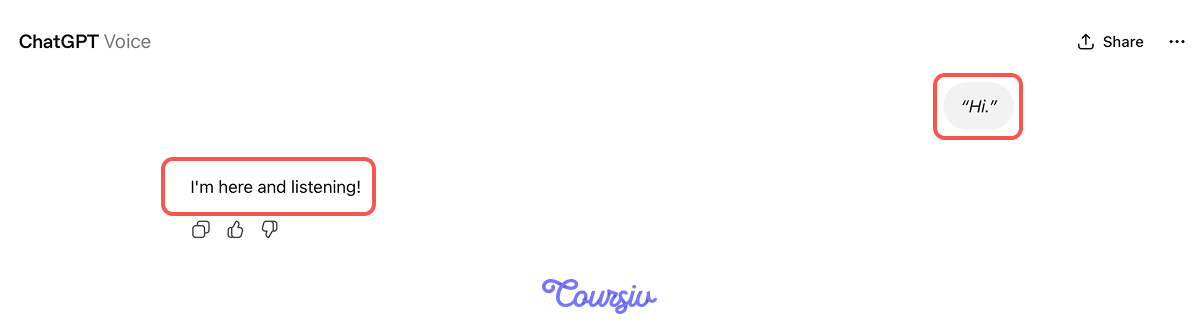
Voice Mode is a two-way spoken conversation with ChatGPT. It's different from Dictation because it doesn't just capture what you say: it listens, responds out loud, follows the thread, and adapts to your tone.
practice preview
Interactive practice
True / False
Decide whether this is a real conversation with a Voice Mode
How to Start a Voice Session
In the ChatGPT mobile app, look for the waveform icon in the bottom right corner. On the desktop, the same icon appears in the chat input bar. Once you're in Voice Mode, you'll see a small introduction about Voice.
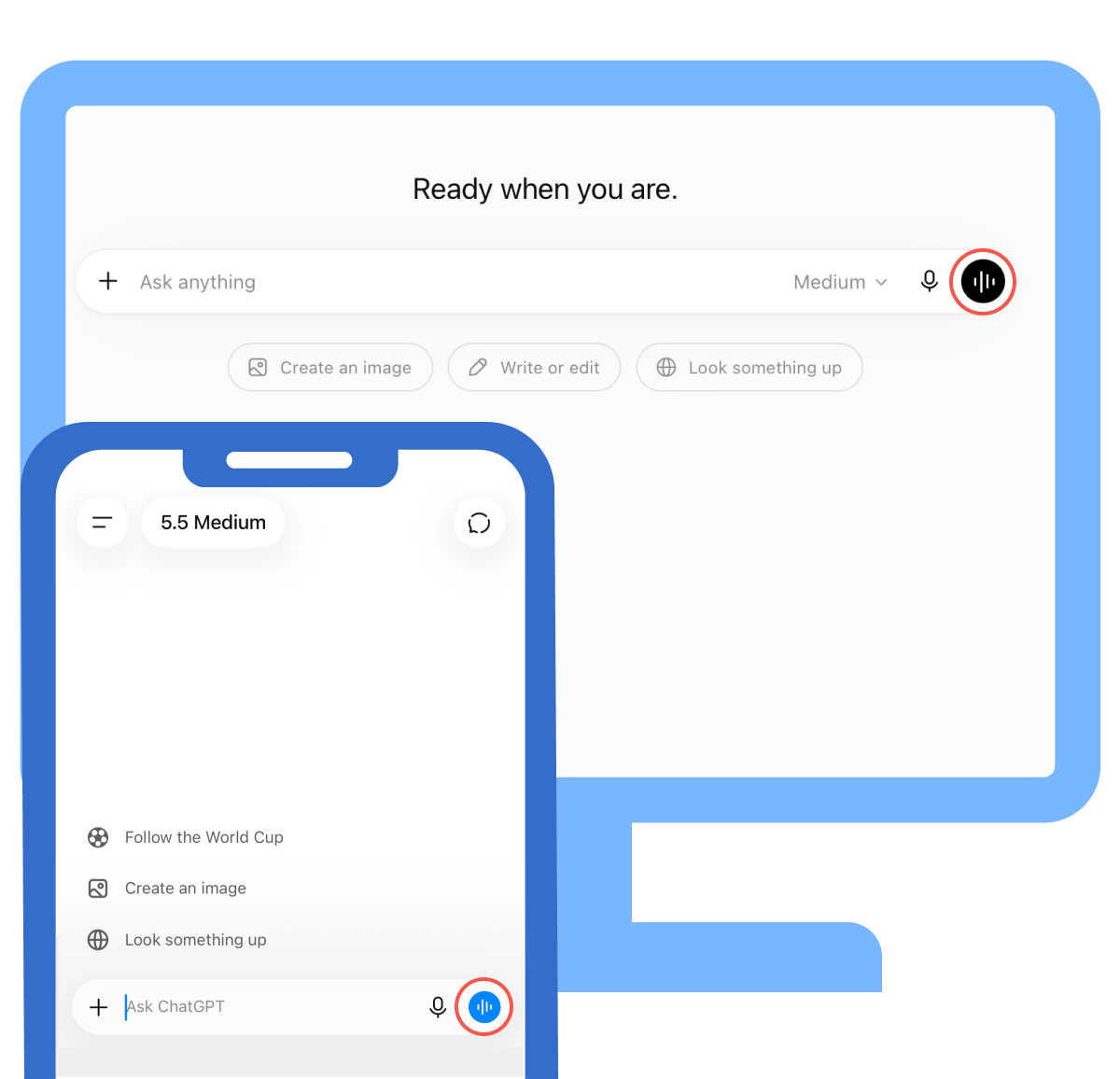
- Pulsing orb means ChatGPT is listening and is ready to respond.
- Tap the orb to hide the transcript of your convesration.
- Tap the X to end the session and return to text.
Which Voice You'll Get
Depending on your plan, region, and app version, you may see several Voice options:
- Live: the latest experience, built for natural conversation with interruptions, web search, memory, text, and images
- Advanced: the earlier real-time experience, still used for supported video and screen sharing on mobile
- Standard: a turn-by-turn experience that transcribes what you say before generating a spoken response
The available options may differ between accounts while Live is rolling out.
When Would You Actually Use It?
Now that you know how it works, here's where it fits in real life:
- "Hey, help me find a good podcast for learning Spanish."
- "Give me three ideas for a birthday party on a small budget."
- "Let's brainstorm names for my new project."
You can use it when typing feels inconvenient, or when you want to brainstorm quickly, think out loud, or work through a decision on the go.
- Brainstorming — talking through ideas without editing yourself.
- Planning — narrating your situation, getting a structured response back.
- Deciding — saying "Should I do this or that?" and talking it out.
- Reflecting — using ChatGPT as a thinking partner, not a search engine.
- Moving — commuting, walking, cooking hands-free.
You can also customize ChatGPT's voice. ChatGPT gives you several voice options to choose from, with a name and a mood for the voice. Go to Settings → Voice, tap through them to hear each one, and switch any time you want a different feel.
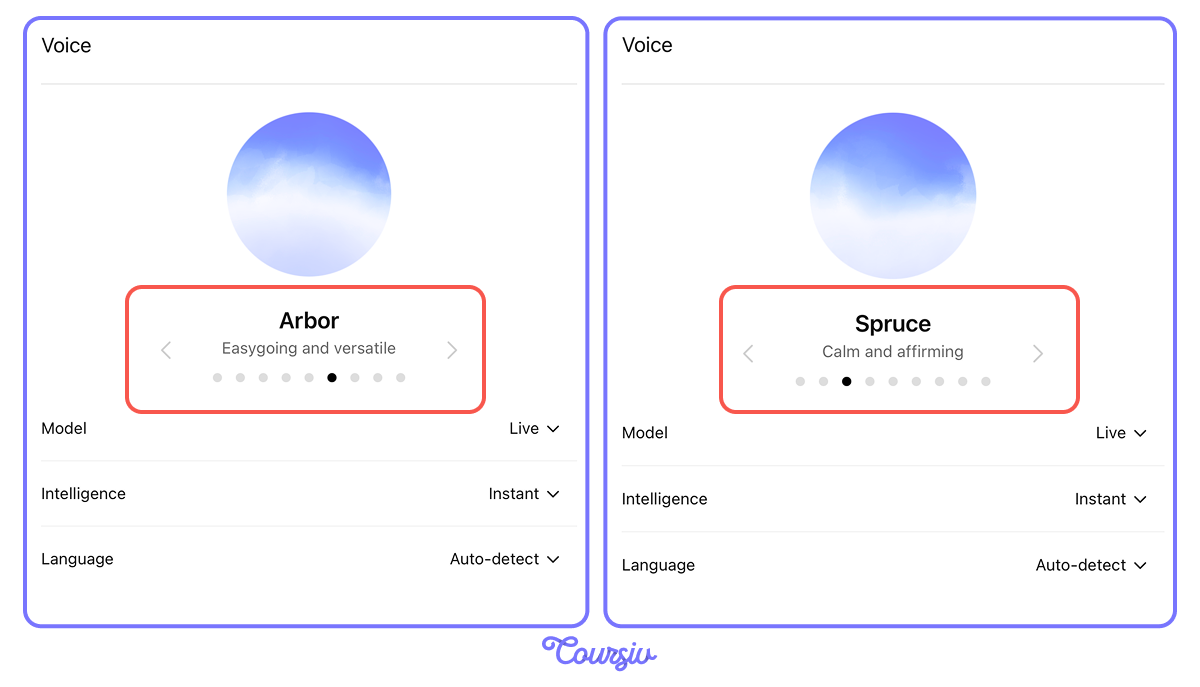
Remember Intelligence levels from the last lesson? Voice has its own. Pick Instant, Medium, or High in the same settings — if those options are available on your account.
Use Instant for quick conversation and higher levels for questions that need more reasoning — they may take longer to respond, especially when Voice searches the web.
So, everything you say and everything ChatGPT responds to is automatically saved in the chat. And after your voice session, you can scroll back and read what was covered. Let's try it.
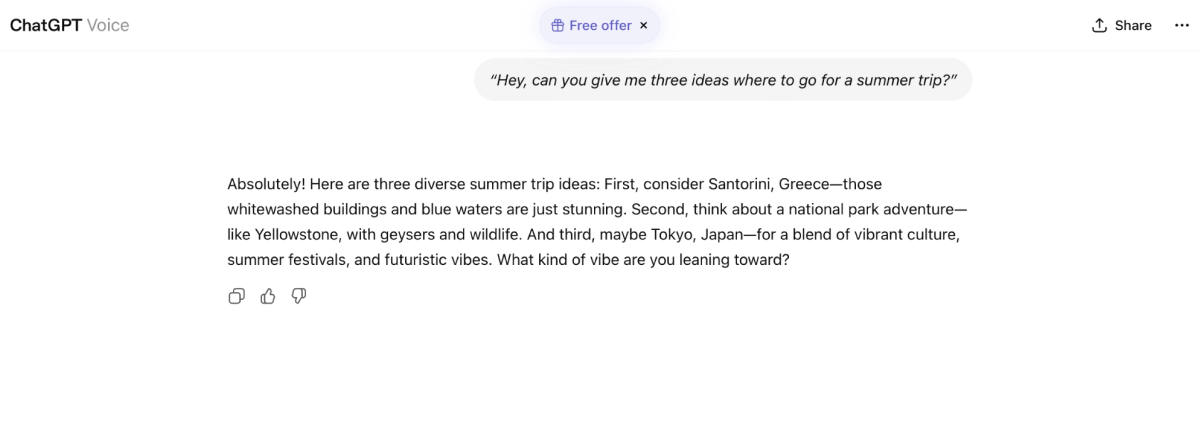
You're in a Voice session, and you ask, "Hey, can you give me three ideas where to go for a summer trip?"
Based on what you asked, it answered with three destination suggestions out loud — and you can always follow along in the on-screen transcript if you want to read the response.
Following Up in Voice Mode
ChatGPT may ask a follow-up question to narrow things down, and you simply answer to continue the conversation.
For instance, after getting three destination ideas, you could say: "I want to have a more engaging and adventurous type of trip."
When to Switch Back to Text
That's how Voice Mode works in a conversation, but not every task needs to stay in Voice. Writing a document, reviewing a list, or running a calculation are all better handled in text.
The good news is you can switch at any point. You can end a Voice session by clicking the X. The full conversation stays in the chat as a transcript — so nothing is lost, and you can continue in text right where you left off.
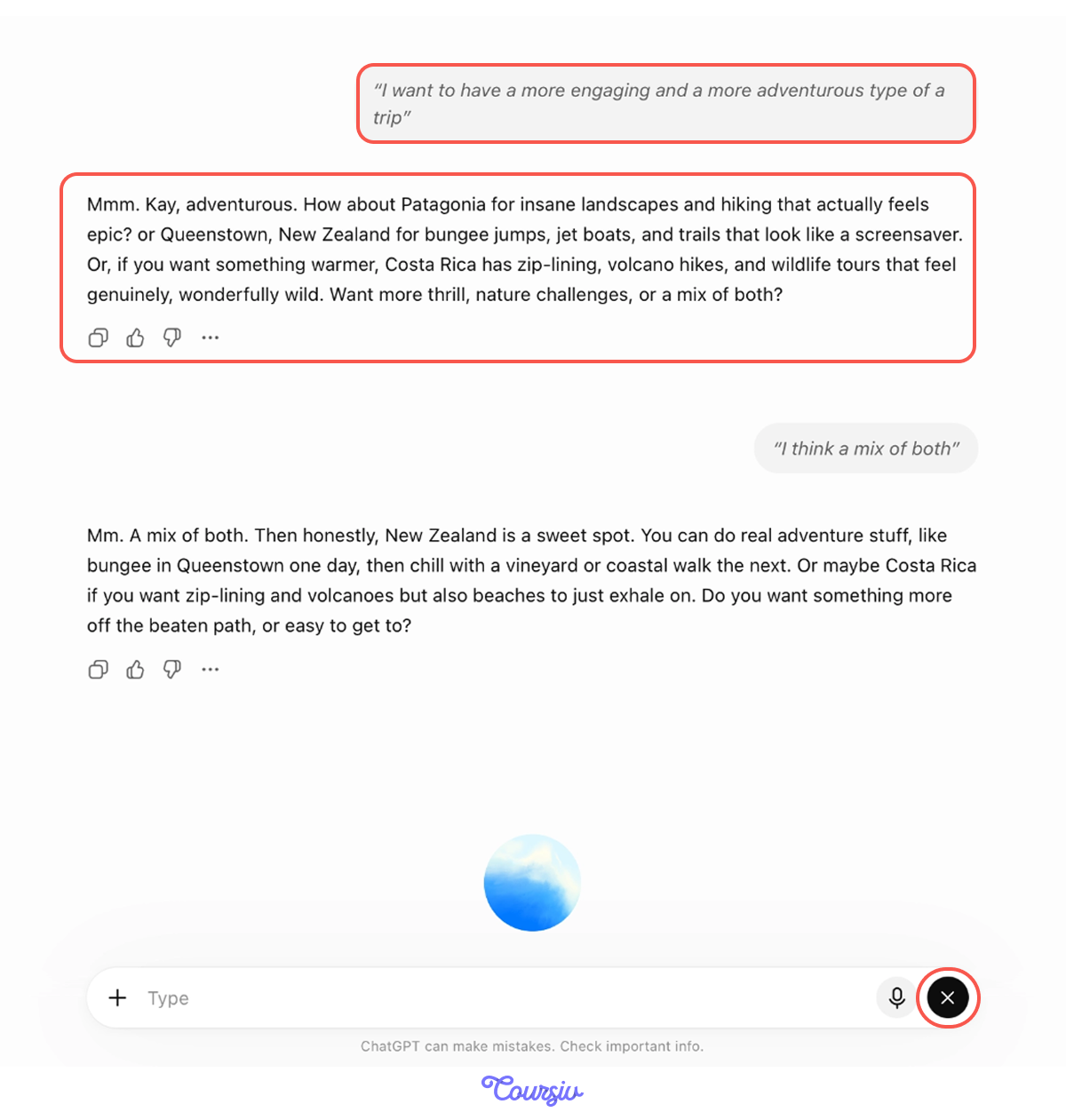
- ChatGPT follows the thread of the conversation.
- Each answer builds on the last, just like a real dialogue.
- When you're done, the full conversation stays as a transcript in the chat.
Select all that apply
Which of these are situations where Voice Mode is the more suitable choice?
practice preview
Interactive practice
Put in order
Arrange the steps in the right order to show how a smooth voice-to-text workflow looks.
Great Work!
You now know what Voice Mode is, when it helps, and how to fold it into a real workflow — not just tap it once out of curiosity.

- Voice Mode is a full conversation. ChatGPT listens, responds out loud, and follows the thread of what you're saying.
- Voice Mode is fastest for exploring. Use it for brainstorming, thinking out loud, and quick decisions, especially when you can't or don't want to type.
- Voice has its own Intelligence setting. Instant for quick chat, higher levels for deeper reasoning.
- Voice Mode is flexible. Switch between voice and text mid-workflow, depending on the task.
What's Next?
You've learned what Voice Mode is, when it helps most, how to start a session, and how to switch between voice and text depending on what your task needs.
The next lesson goes deeper into one of ChatGPT's most powerful features: connecting ChatGPT to your apps and real-world workflows so it can do things within other apps. Let's go!