ChatGPT · ChatGPT Essentials
Stay Organized: Projects
Keep context, files, and instructions in one place
What Are Projects & Why Use Them
Are you using ChatGPT by clicking that little "New Chat" button every time? There's actually a smarter way to keep your work organized, especially for longer tasks that include planning!
With Projects, instead of dealing with ChatGPT losing track of what you discussed in separate chats, you can keep everything about a task or idea in one spot.
Scenario: Heavy Planning
Let's look at this case: your child's birthday is in three weeks, and you want to use ChatGPT to plan the event. You have:
- A guest list in Excel
- Venue quotes in your email
- Theme inspiration screenshots on your phone
- A dozen text threads with your co-parent about the budget
With so many inputs, you definitely need to develop a multi-step plan.
ChatGPT can help you. But with all the information being scattered, it could be quite difficult.
Choose one
What do you think is the biggest challenge when using separate ChatGPT chats for multi-step planning?
Your Persistent Workspace
Projects solve this by creating a dedicated space where ChatGPT remembers your progress, stores your files, and follows your specific instructions — across multiple conversations.
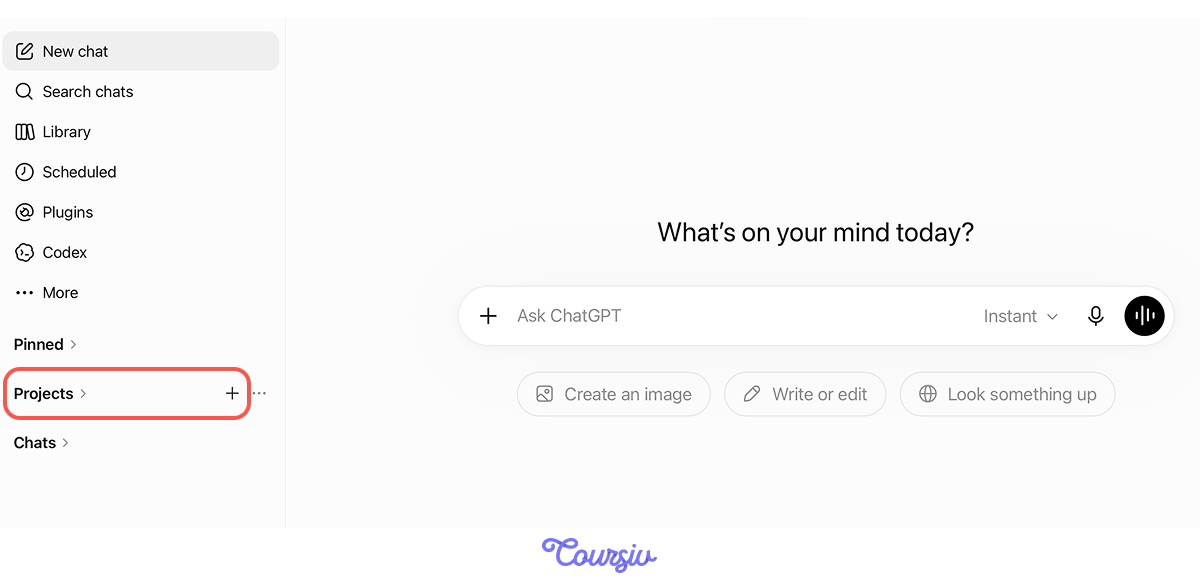
To start a new project, click "+" next to Projects to create a workspace and give it a name.
One Setting to Check First
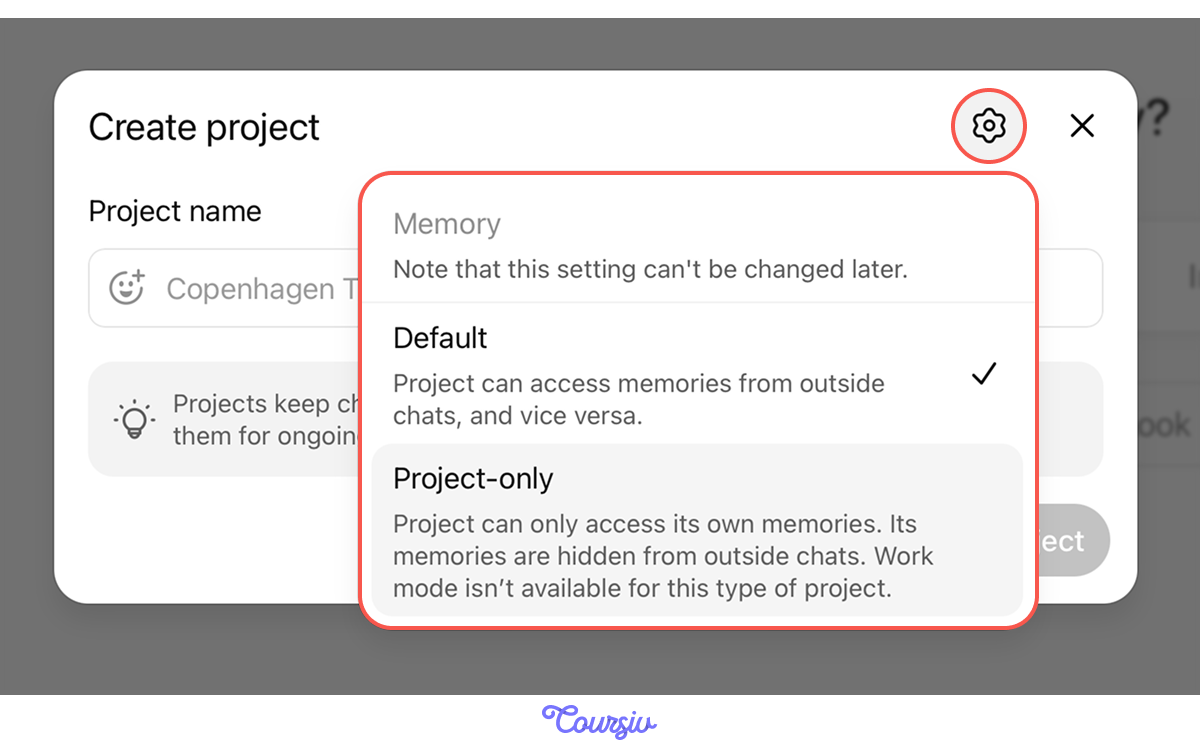
Before you hit Create, click the gear icon. It holds one important choice: how your project handles Memory.
- Default: ChatGPT brings what it knows about you into the project and remembers what happens here in your other chats.
- Project-only: Pick this when the work needs its own space — nothing leaks in, nothing leaks out.
Choose carefully — this setting can't be changed after the project is created.
Choose one
Once your first project is created, what do you think is the primary step that you need to take?
Setting Project Instructions
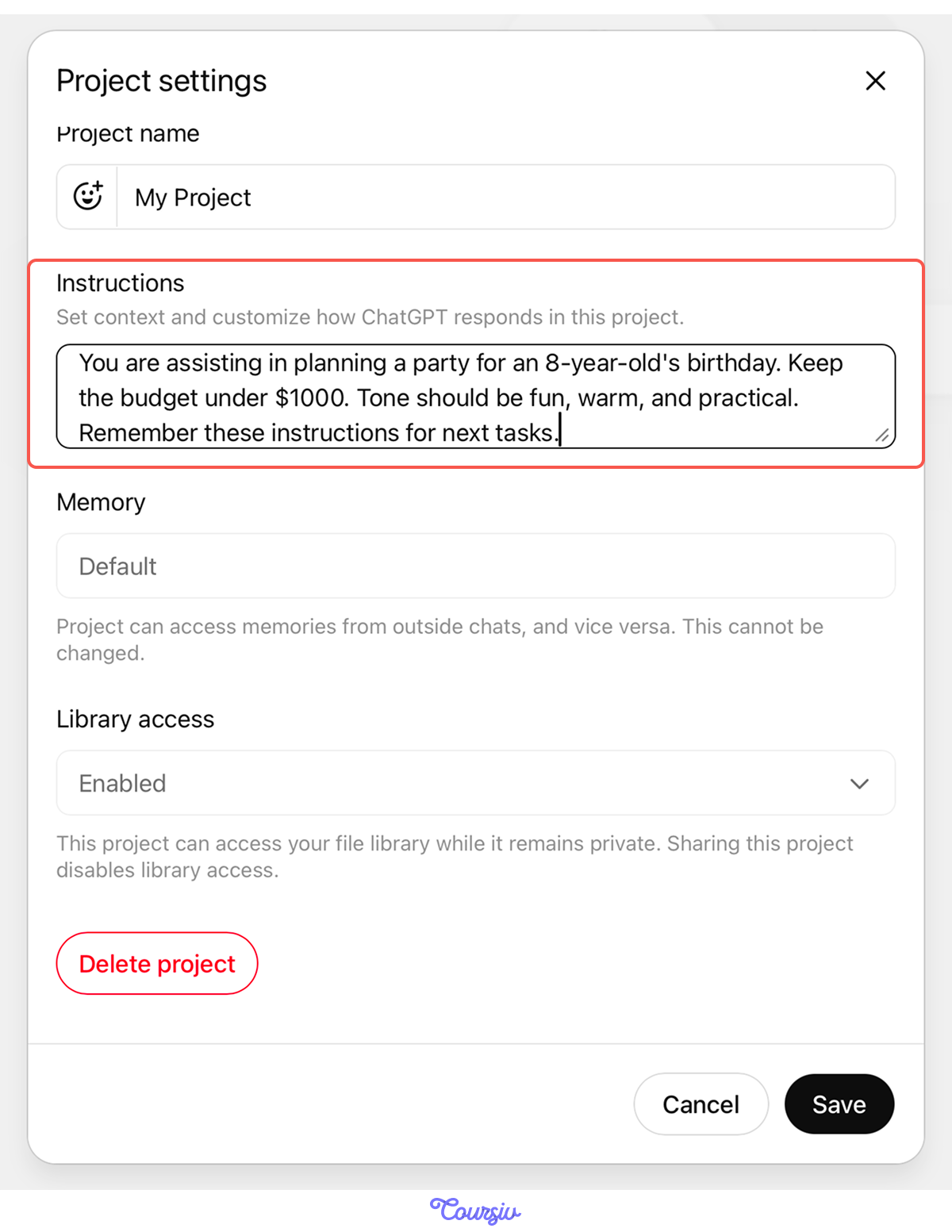
Instructions live in Project settings — a dedicated field where you describe how ChatGPT should respond in every chat within this project. For example, include:
- Tone
- Constraints
- Priorities
- Rules
You can also set instructions by typing them in the prompt field. Let's try it in the following exercise!
practice preview
Interactive practice
Fill in the blank
Complete the prompt to see how you can set instructions for your project.
Great! From now on, every chat in this project will follow these guidelines.
That is, ChatGPT will automatically consider age, budget, and tone without having to repeat them.
What's important is that this isn't just about planning birthday parties.
The prompt you completed can be used as a template to plan any other project!
Setting instructions transforms your project into a focused workspace. The same principle works for any goal:
- Project planning: "Keep timelines realistic and highlight risks."
- Work tasks: "Use professional tone, cite sources."
- Learning new skills: "Explain like I'm a beginner, use simple examples."
Uploading Your Party Planning Files
Now comes the powerful part — uploading all your party planning materials to your project.
Click Add photos & files — ChatGPT will process and reference everything from guest lists to theme inspirations in any conversation within this project.
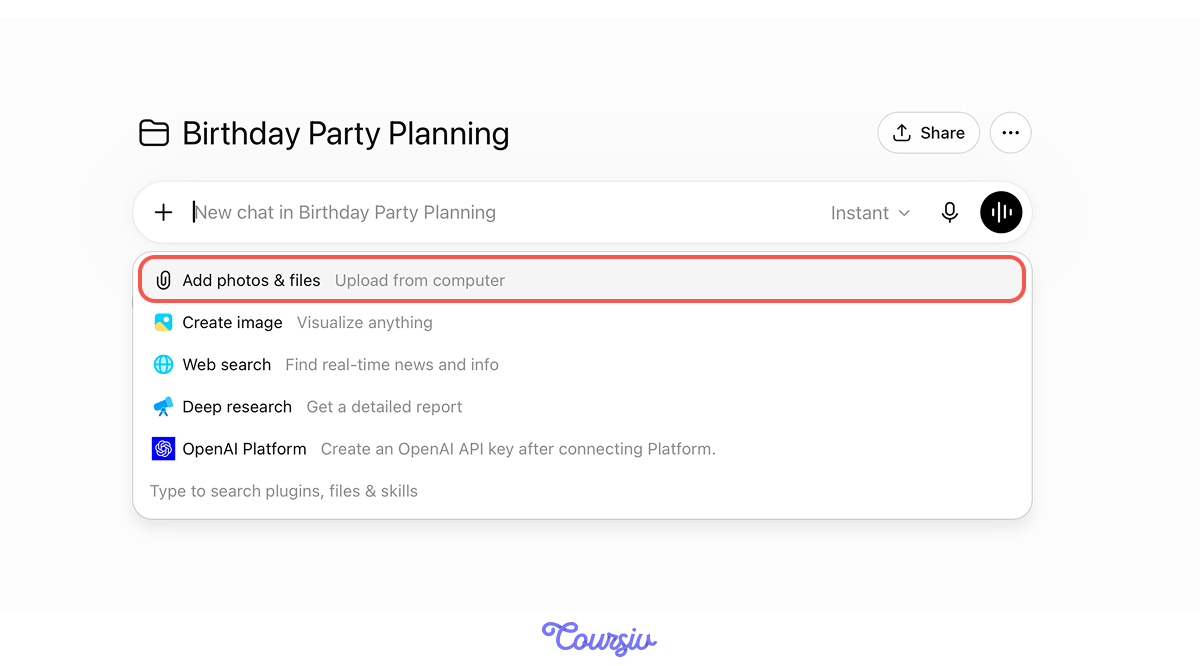
For example, imagine you have these files for your party:
- Excel sheet of guests with names, dietary restrictions, and RSVP status
- PDF document of three venue options with pricing
- Pinterest screenshots of unicorn theme ideas
Once uploaded, you can use this information in your project without re-uploading it each time.
Select all that apply
What do you think ChatGPT can do with the party-planning files you uploaded?
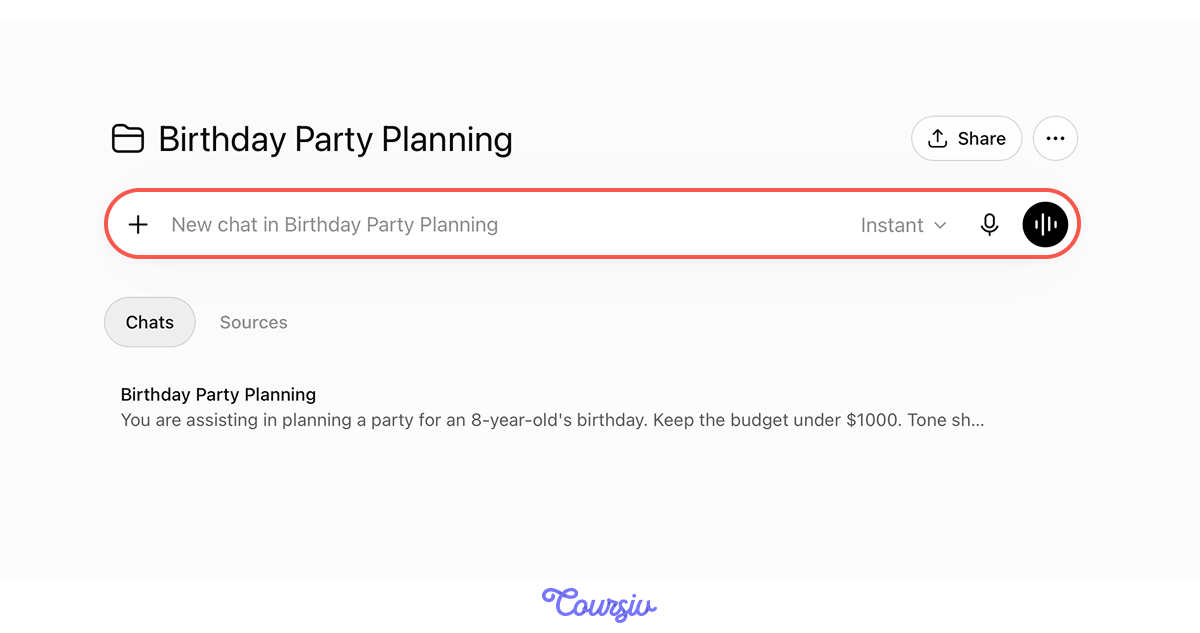
To do exactly that, start a chat and prompt ChatGPT to use the data you need.
This is the part when you start working with ChatGPT directly through prompting.
Choose one
Within your project, you can start as many chats as you wish. But what would be the best approach?
practice preview
Interactive practice
Fill in the blank
Complete the prompt to start a chat for budgeting purposes.
See? You did not need to attach your files again.
Instead, ChatGPT just instantly understood the context and organized specific pricing from the PDF into a complete budget.
Instructions and files function as working memory for your project. Just like you created a budget chat, you can start dedicated chats for:
- Timeline planning: "Create week-by-week tasks leading to party day".
- Guest management: "Track RSVPs and dietary restrictions."
- Shopping lists: "Organize decoration purchases by store."
- Day-of coordination: "Build a minute-by-minute party day schedule."
Choose one
So far, we have only covered how to use Projects for planning events. But can this feature be used for other purposes?
Using Projects for Different Purposes
Indeed, this feature can be used for various purposes, including work, hobbies, travel, events, learning, routine planning, and many more.
Let's look at some of these potential applications.
For example, if you're planning a trip to Iceland, you can have a project with chats dedicated to:
- Itinerary building: daily plans with timing and transportation
- Budget tracking: flight, accommodation, food, activities
- Reservation management: hotels, restaurants, train passes
- Packing lists: climate-appropriate clothing and essentials
Upload flight confirmations, hotel bookings, and inspiration images — ChatGPT references them across all planning chats.

Or, if you're developing your business's social media with ChatGPT, you can separate project chats for:
- Content calendar: monthly themes and posting schedule
- Caption writing: platform-specific posts (Instagram, LinkedIn, Facebook)
- Visual concepts: image generation prompts for graphics
- Performance analysis: reviewing what content works best
Upload brand guidelines and past successful posts — ChatGPT maintains a consistent voice and style.

Another example: if you're managing a freelance consulting business, your project could include chats for:
- Proposal writing: client-specific service proposals
- Project tracking: deliverables, deadlines, client communication
- Invoice generation: monthly billing with hours and expenses
- Marketing materials: case studies, testimonials, service descriptions
Upload client contracts and past proposals — ChatGPT adapts templates to new opportunities while maintaining professionalism.

The pattern is clear: Projects work best when you have multiple related tasks that share common context — files, goals, tone, and constraints.
Whether planning events, managing work, or learning skills, the structure remains the same: set instructions, upload materials, and organize chats by purpose.
practice preview
Interactive practice
Put in order
Now, arrange the steps of working in Projects to solidify this knowledge.
Excellent Work!
You've learned how Projects create persistent workspaces where files, instructions, and context stay connected across conversations.
This is powerful for multi-step planning — events, trips, business development — where decisions build on each other over time.

- Projects keep files and instructions available across multiple chats within a single workspace.
- Set instructions once to define tone, constraints, and goals for the entire project.
- Organize work by creating dedicated chats for specific purposes.
- Projects work best for multi-step tasks where context builds over time.
What's Next?
Now that you understand Projects, the next lesson introduces Custom GPTs — reusable AI assistants that you build yourself.
Ready to customize your AI? Let's go!