ChatGPT · ChatGPT Essentials
ChatGPT & Apps
Connect and do more with apps
ChatGPT & Apps
You're planning a trip and ask ChatGPT to find flights, add the best option to your calendar, and create a packing list — all without leaving the chat. Sounds like too much? ChatGPT's Plugins can help with that.
By the end of this lesson, you'll know how to connect the apps you already use and let ChatGPT take real actions on your behalf.
ChatGPT Got More Powerful
So far, ChatGPT has been answering your questions, helping you write, and thinking through problems with you. All of that happens inside the chat: it gives you text, and you do the rest.
Plugins change that. When you install a plugin, ChatGPT can do things in the real apps: search for flights, make a playlist, or build a design, all from inside the conversation.
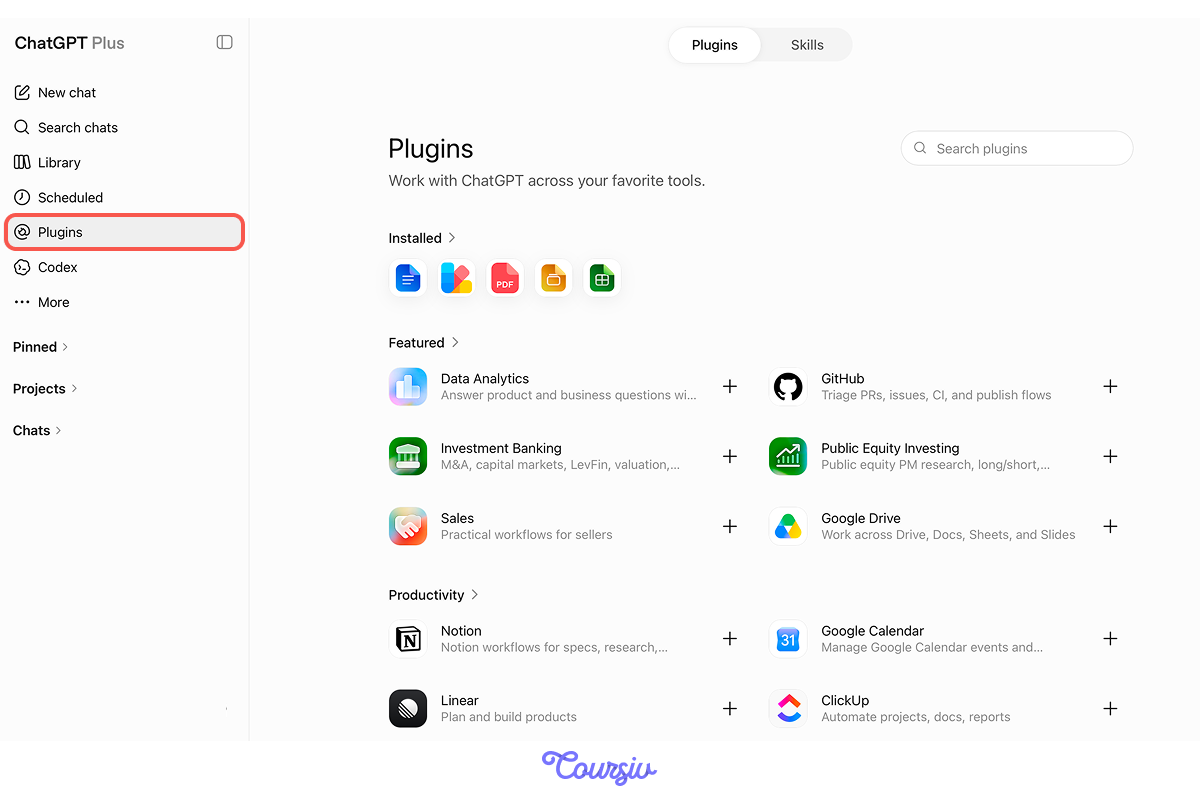
Look at the left sidebar: you'll find Plugins there. A plugin can include apps, reusable skills, and app templates.
You can browse through apps in categories like Productivity, Creativity, Data & Analysis, Communication, and more, and connect the ones you want.
ChatGPT Alone vs. ChatGPT With a Plugin
Without a plugin installed, ChatGPT is like a friend who gives great advice — but you still have to make all the calls yourself. With Plugins connected, that same friend can pick up the phone for you. Let's see how it is different in practice.

practice preview
Interactive practice
Fill in the blank
Ask ChatGPT to find the best budget hotel options in Sydney.
ChatGPT gave you real hotel options with links to their websites. That's useful, but when your goal is to book a hotel, it's not enough.
Now let's connect a booking app and ask the Plugin the same question in the chat.
Plugins in Action
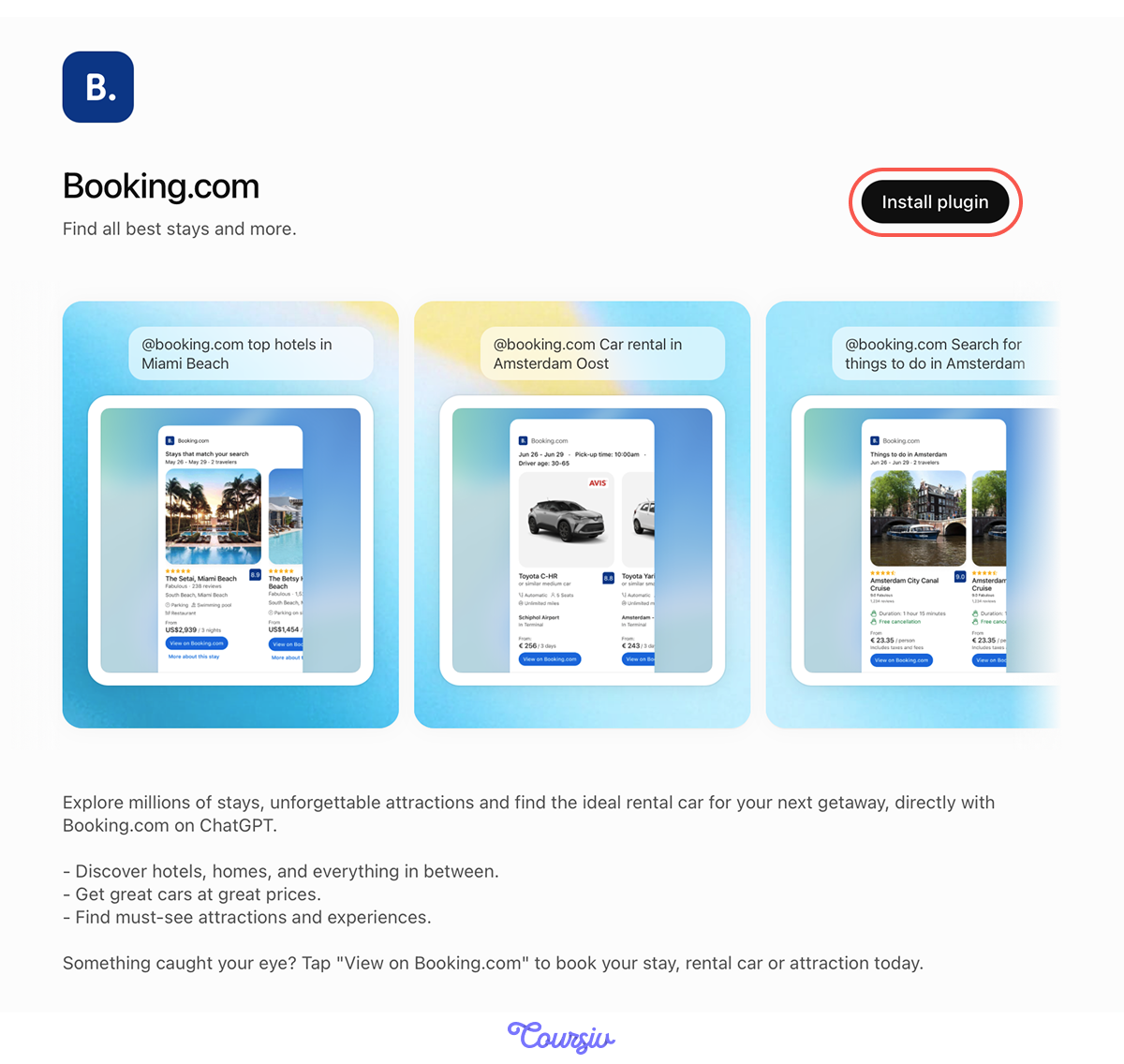
Connect Booking.com from the Plugins panel, then type your request.
practice preview
Interactive practice
Fill in the blank
Ask ChatGPT to find a hotel in Sydney.
ChatGPT's text tool did a good enough job: it pulled real hotel options with prices directly in the chat.
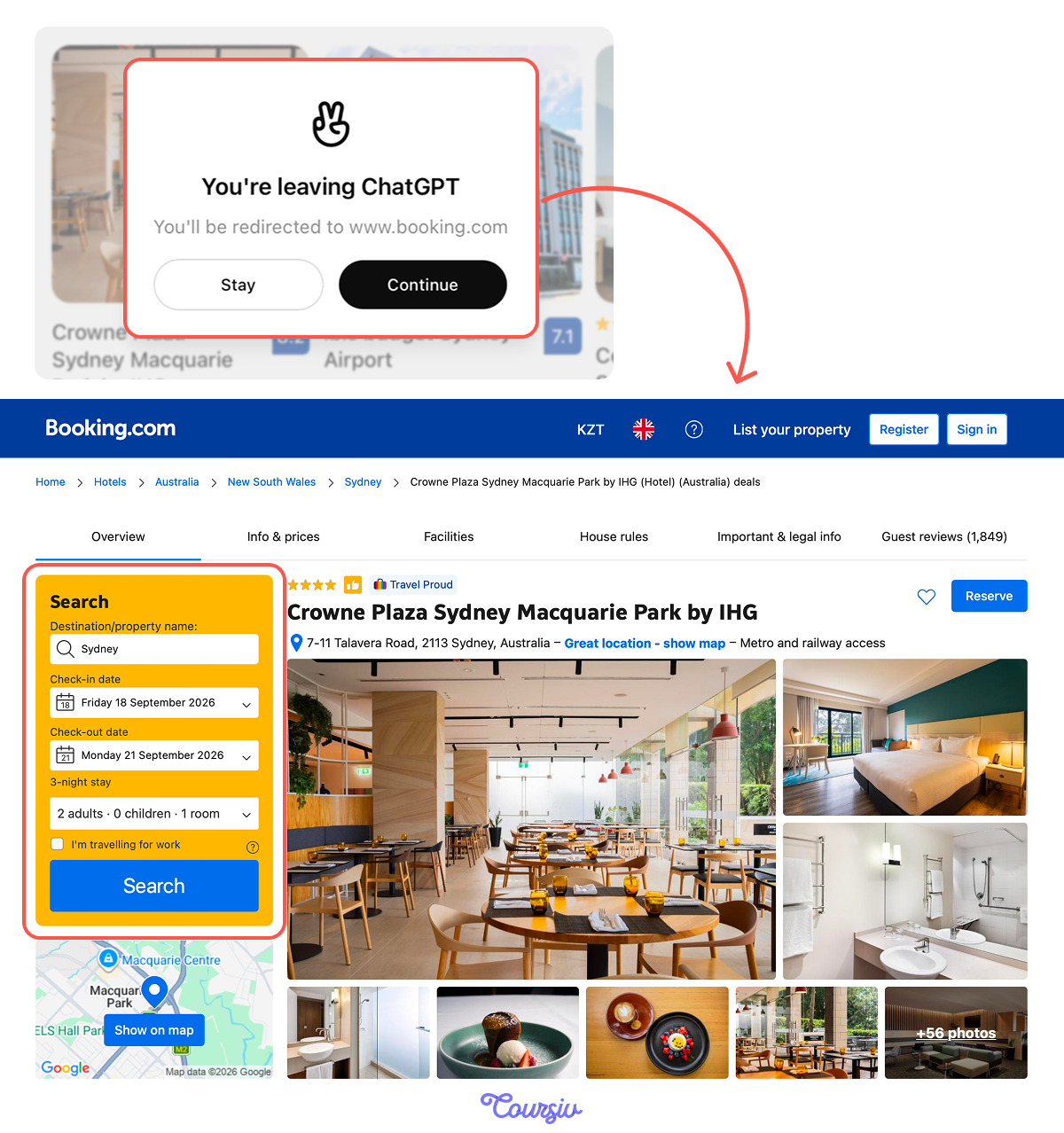
With the Booking.com app connected, you can search for hotels that match your specific criteria and refine recommendations in a conversational way without having to start the search from scratch.
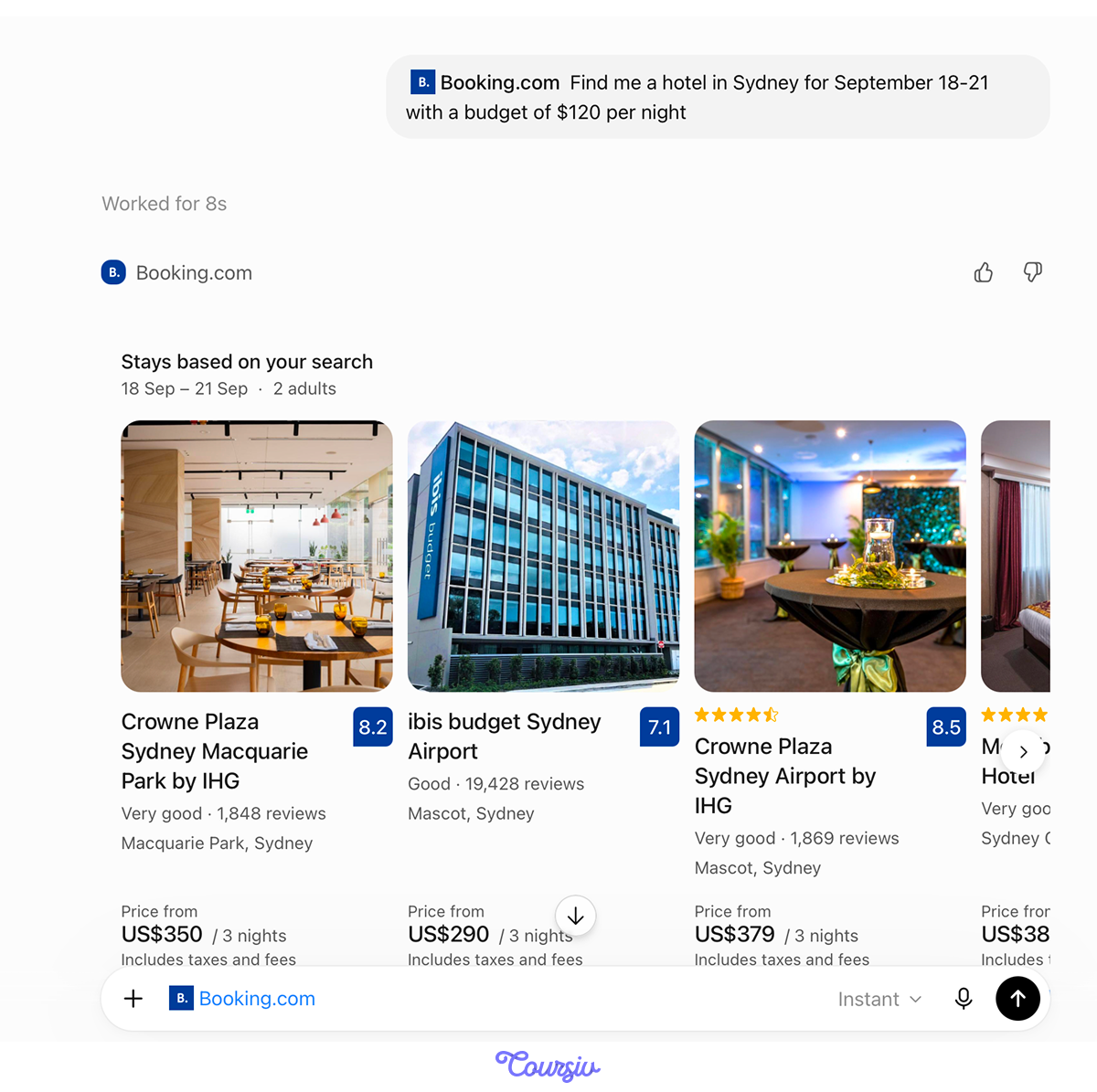
And if you like one of the options, just click View on Booking.com — it will redirect you straight to the app with all your search details already filled in, ready to book.
- Only connected apps work: ChatGPT can't reach a tool you haven't linked.
- Actions stay inside the app's scope: It can search and create, but not access your private account data unless you've granted permission.
- New apps are added regularly: What's available today is just the beginning. It's worth checking what's new every few weeks.
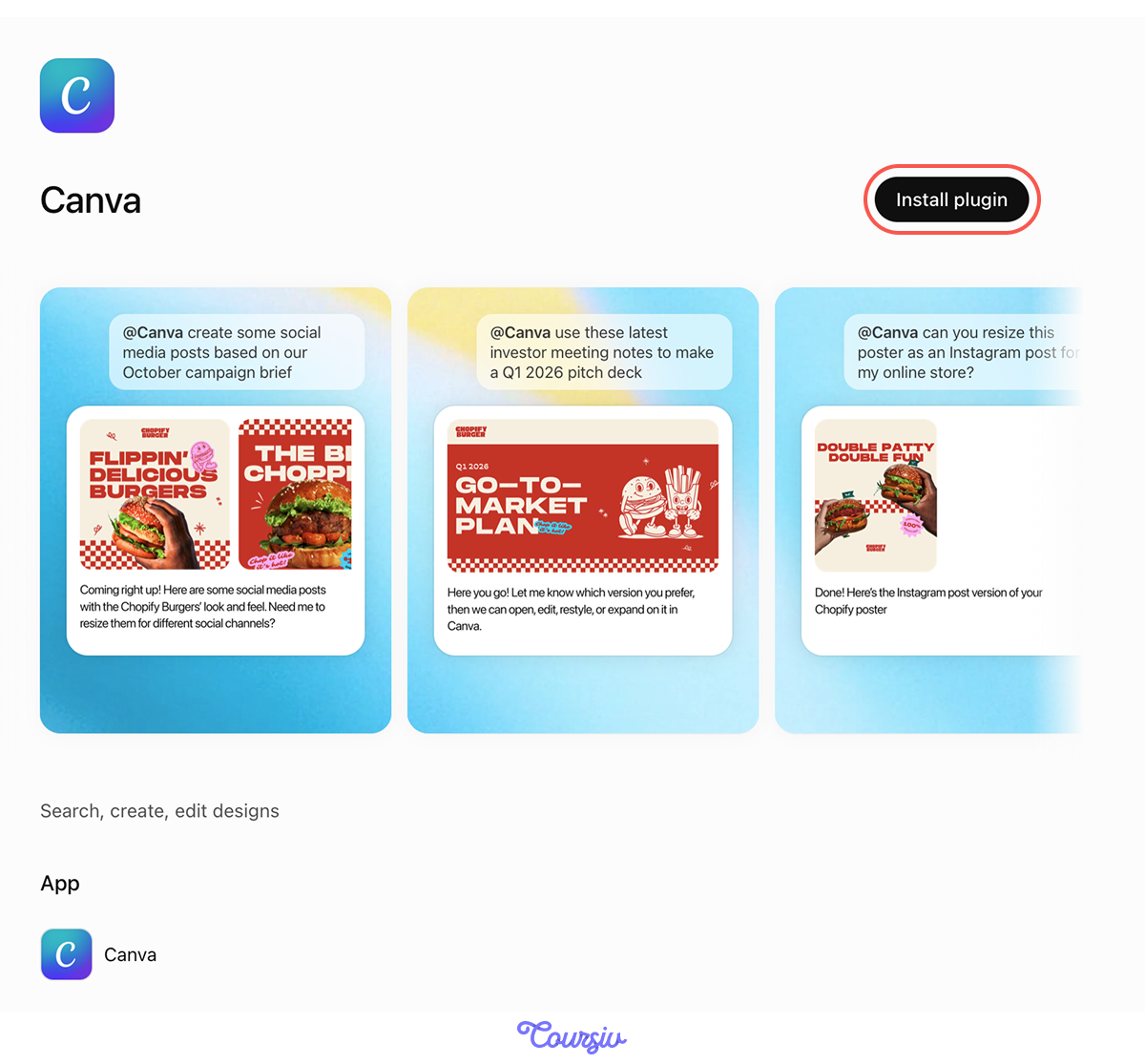
Let's try another app, but this time for creation. Imagine you want to post a travel photo on Instagram and need an eye-catching visual to go with it — just ask Canva in ChatGPT Plugins.
Connect Canva from the Plugins panel, then click "Try in chat" to ask it to create the visual directly in the chat.
practice preview
Interactive practice
Fill in the blank
You need a post for your Instagram profile. Connect Canva and complete the prompt.
Canva built a ready-to-use visual directly in the chat. If you want to edit one of the visuals, ChatGPT can take you to Canva to work on the design.
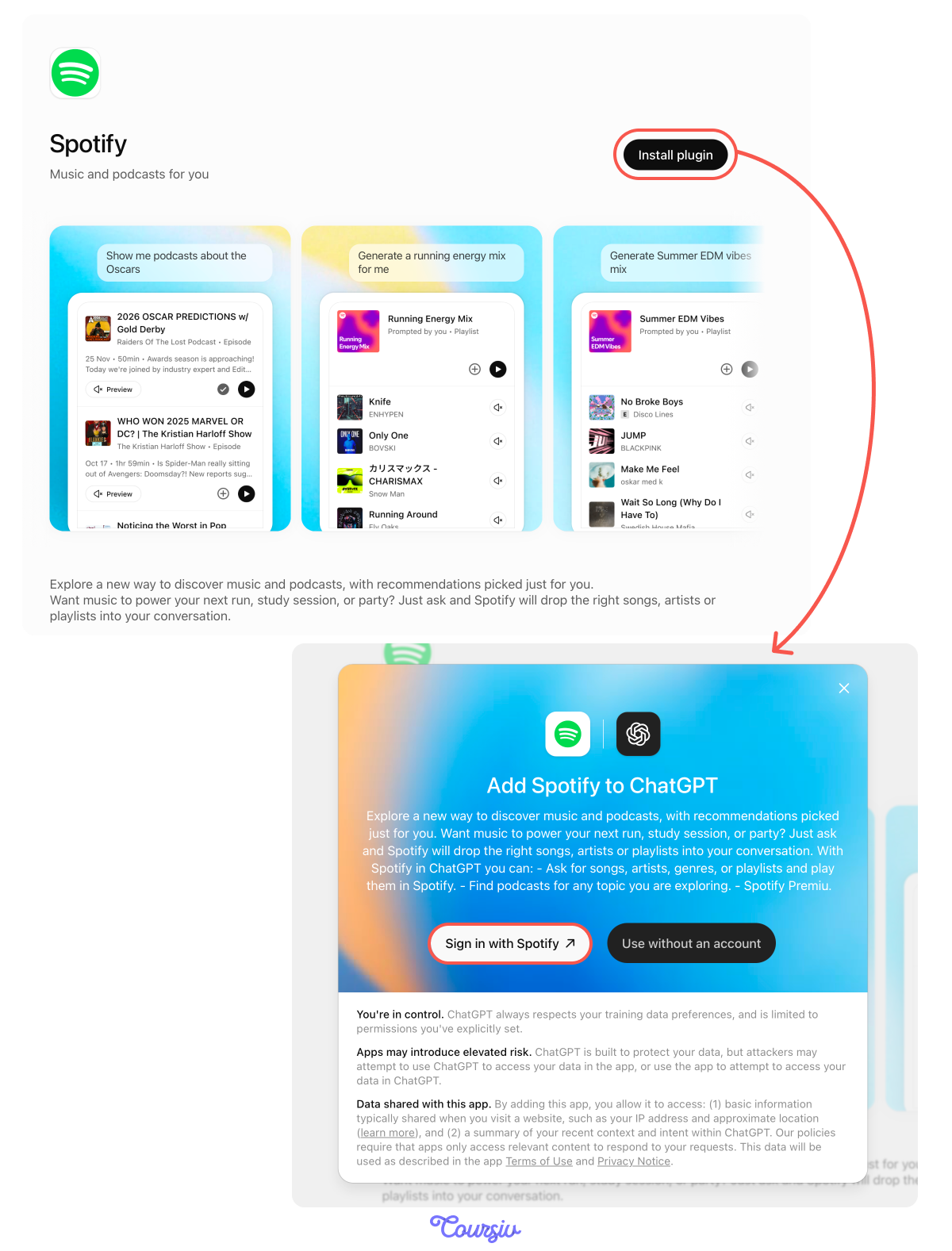
For a final task, let's connect an app you probably use every day — Spotify.
Connect it from the Plugins panel and ask ChatGPT to put on something that fits your mood.
practice preview
Interactive practice
Fill in the blank
Connect Spotify and ask ChatGPT to play something based on your mood or activity.
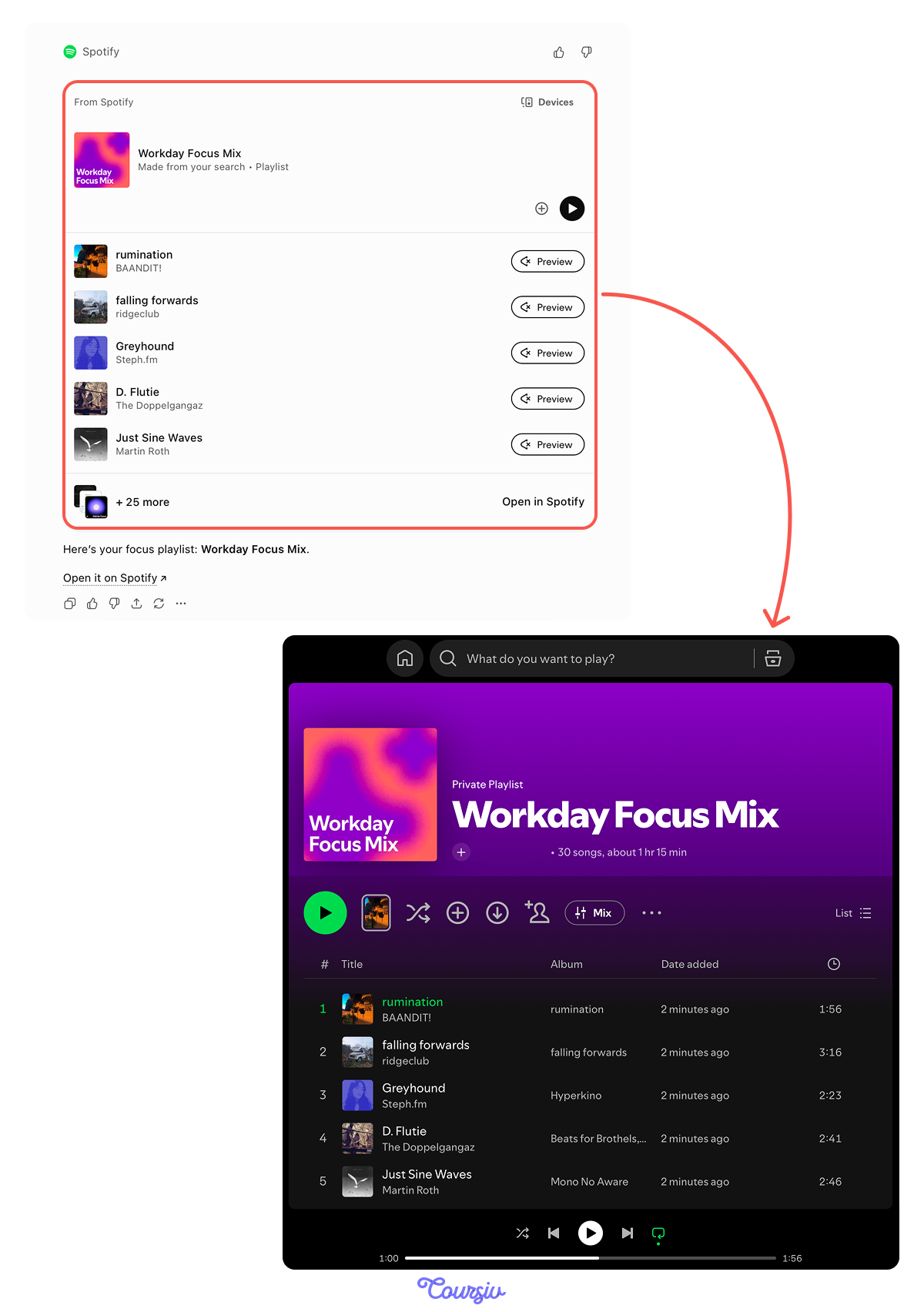
ChatGPT gives you a recommendation. Open the playlist in your Spotify app and enjoy!
practice preview
Interactive practice
Put in order
Arrange the steps in the right order to show how installing and using a Plugin works.
Great Work!
You've just seen what ChatGPT can do when it's connected to the tools you already use — it stops being just a chat and starts being an assistant that acts in your daily life.

- Plugins turn ChatGPT from a text tool into a connected assistant. It can take real actions inside Spotify, Booking.com, Canva, and more.
- You describe the outcome, and ChatGPT figures out the steps. There's no need to switch tabs or do it yourself.
- More plugins are added regularly. It's worth checking what's new — today's limitation might be gone next week.
What's Next?
You've learned how to pick the right mode and feature, use your voice, and now connect ChatGPT to the apps around you.
Next, you'll discover one of the most visual sides of ChatGPT — image generation: how to describe what you want and bring it to life.