ChatGPT · ChatGPT Essentials
Image Generation With ChatGPT
From idea to image in seconds flat
Creating Images With ChatGPT
In this lesson, you'll learn how to use ChatGPT's Image Generation feature to turn your ideas into visuals.
You'll discover how to create everything from photorealistic scenes to illustrated designs, edit existing images, and write effective prompts that get you exactly what you need.
Let's dive in!
How Image Generation Works in ChatGPT
With ChatGPT, you can create infographics, diagrams, photorealistic scenes, illustrated designs, and more, all within seconds of typing your request.
Where to Find It
To generate an image, you can use one of two ways.
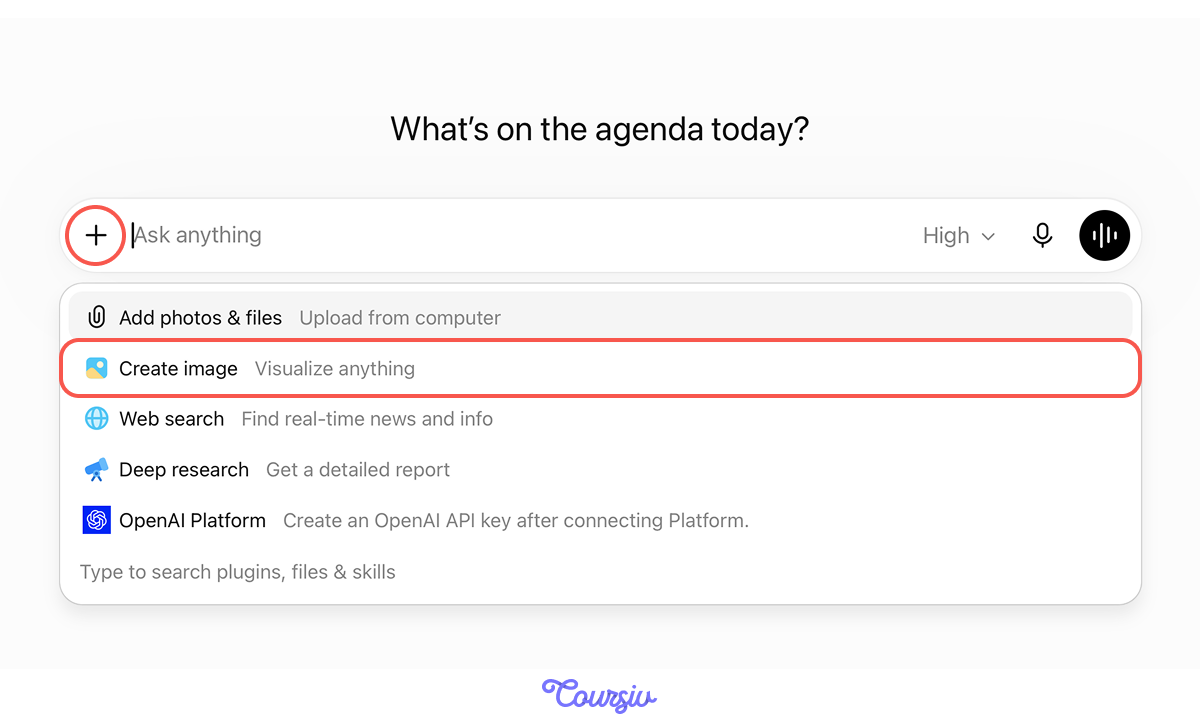
The first is to click the "+" icon, select "Create image," and type your prompt.
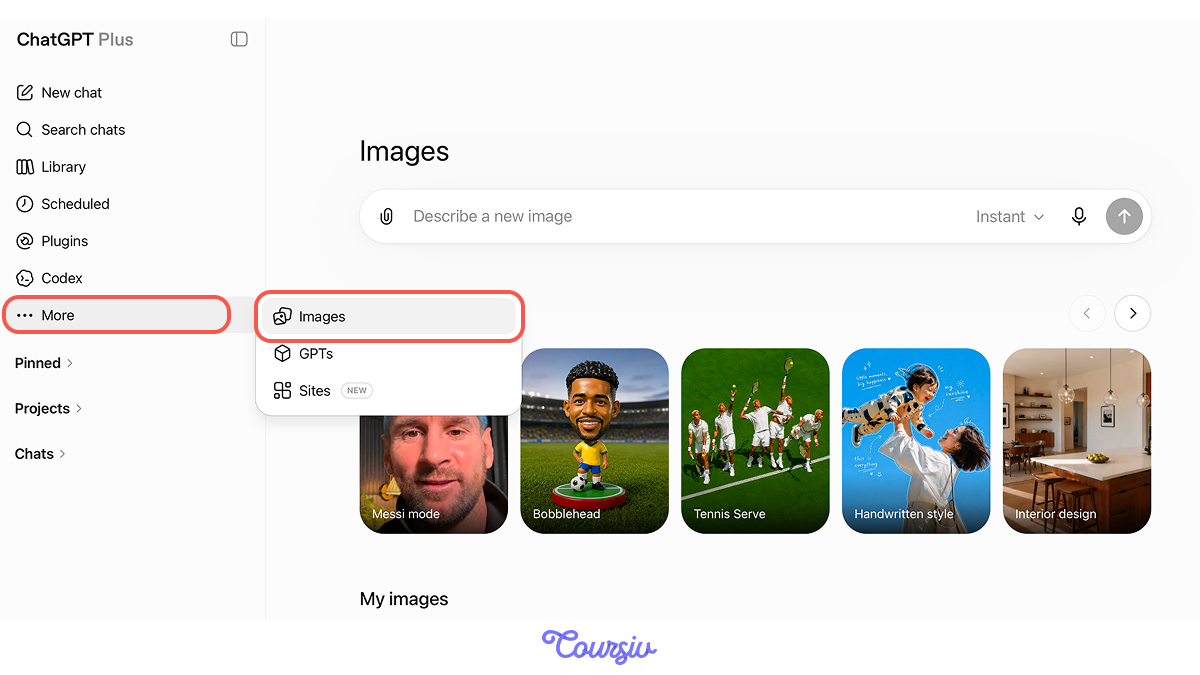
The second way is to go to the "Images" tab in the left menu, where you can also see templates and all your previous results, stored for quick access.
What makes this feature particularly powerful is how well it understands what you're asking for. It can:
- Render complex scenes with multiple elements
- Create images with readable text, like signs or menus
- Generate realistic people with accurate features
And, all of this isn't just for artistic illustration.
With ChatGPT, you can create functional imagery for presentations, marketing materials, educational content, and business documents.
Check it out by trying the following exercises yourself!
practice preview
Interactive practice
Fill in the blank
Let's start by creating a professional image that includes readable text.
See? The text in your image is clear and readable.
This is one of ChatGPT's strengths — it can generate images that make text look natural and legible, which is great for signage, product labels, or instructional diagrams.
practice preview
Interactive practice
Fill in the blank
Now, let's create an image of a person doing something specific with their hands.
Look at the hands, face, and hair of the woman in the picture: it all looks natural and accurate!
ChatGPT handles human features — particularly hands and faces — with precision, making your generated people look realistic.
This matters when you're creating professional materials like training content, presentation visuals, or marketing imagery.
Editing What You've Created
Not every generated image is necessarily a final result. You can iterate on it, explore options, and experiment with details and styles.
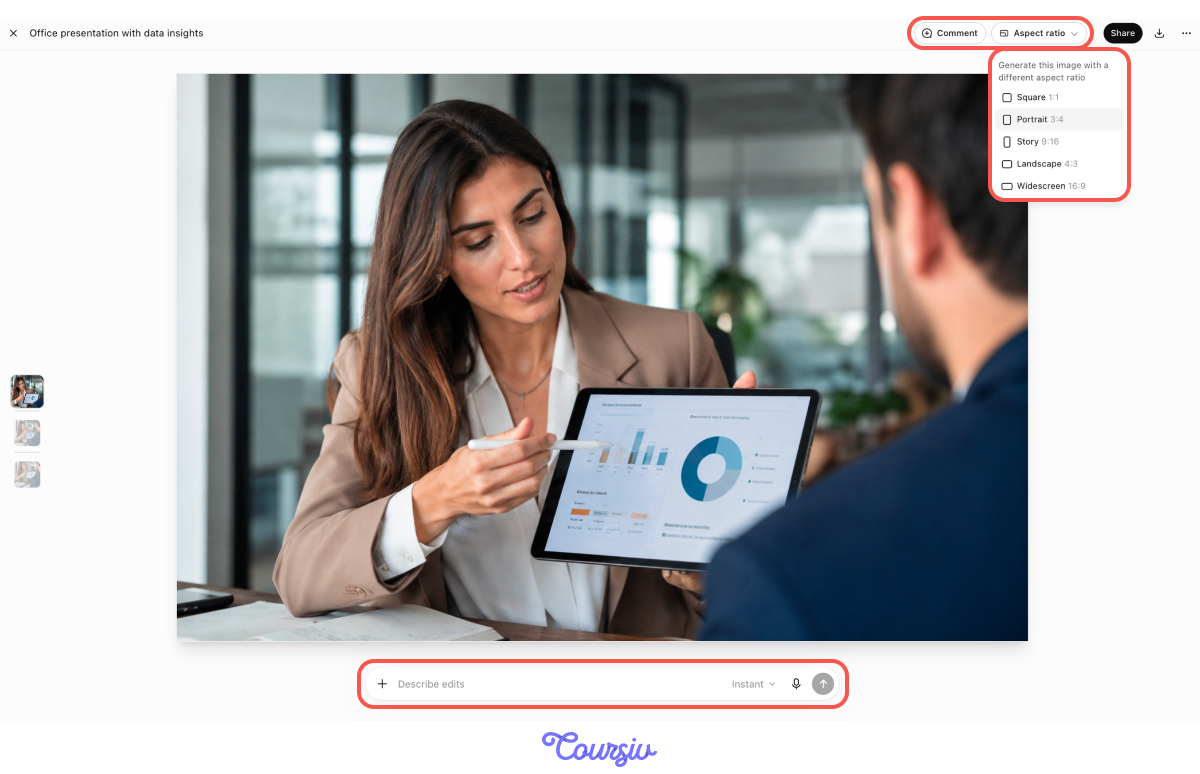
Click Edit on your image to open it in a separate view. There you'll find a Describe edits field for changes and an Aspect ratio control to switch the image's dimensions without regenerating it from scratch.
practice preview
Interactive practice
Fill in the blank
Complete the prompt to edit the businesswoman image from earlier.
ChatGPT has changed only one element — the blouse. Notice that the content on the tablet screen, facial features, hand positions, and everything else stayed the same.
This is the point of editing: you refine visuals without having to start over, which is especially useful when you're fine-tuning materials for clients or presentations.
practice preview
Interactive practice
Fill in the blank
Now push the edit further — transform the entire style of the same image.
Same scene, pose, and elements — but in a completely different artistic world.
ChatGPT can restyle an entire image while preserving its composition. Whether you need photorealism for a business presentation or an illustration for creative projects, you can switch between them without rebuilding the image.
Editing works by describing only what should change:
- Name a specific element = the rest stays intact
- Describe a new style = the composition is preserved
- Switch the aspect ratio = no regeneration needed
Putting Precision to the Test
You've created images and reshaped them. Next, let's stress-test the feature with something harder: an image packed with text and specific elements, all of which need to be accurate.
practice preview
Interactive practice
Fill in the blank
Complete the prompt to create a realistic Mac screenshot.
Check the result: the window chrome, the note title, every checklist item — it all reads correctly.
ChatGPT follows detailed, multi-part instructions and keeps text legible across every element you specify. That's what makes it usable for UI mockups, product demos, tutorials, and documentation.

Across every exercise, three creation strengths kept showing up:
- Text that's actually readable: signs, headers, buttons
- Realistic human features, including natural hands, faces, and hair
- Accuracy across multi-part instructions
Real-World Applications
You've seen what the tool can do; now it's time to apply this knowledge professionally.
For example, teachers, trainers, or instructional designers can generate diagrams, process visuals, or illustrate examples that include accurate labels and text.
The clarity makes these images genuinely useful for learning.
practice preview
Interactive practice
Fill in the blank
Imagine you're creating training materials and need a labeled diagram.
Also, if you're a business owner or marketer, you can generate logo concepts, product mockups, social media graphics, or presentation visuals.
The ability to include accurate text and realistic details means these aren't just placeholders — they're usable assets.
practice preview
Interactive practice
Fill in the blank
Let's create a product mockup for a business scenario.
Strong Work!
The text on your product mockup is legible and looks professionally placed.
This is precisely the visual you'd use in a pitch deck, marketing proposal, or client presentation.
All in all, you've discovered through practice how the Image Generation feature works — both creating images and reshaping them.
As always, be specific about what you want, mention style when it matters, include any text or details that need to appear, and describe the purpose or context.
- ChatGPT generates images with readable text, realistic human features, and accurate multi-element scenes.
- You can create both photorealistic and stylized images suitable for business and educational materials.
- Editing works by describing the change — a single element, a full style, or the aspect ratio — while the rest stays intact.
- The tool follows detailed instructions precisely, translating your prompts into usable visuals.
What's Next
The following lesson introduces Projects — a feature to create persistent workspaces where ChatGPT remembers context, files, and instructions across multiple conversations.
See you there!