Perplexity · Workflows and Automation
Connectors for Cross-App Tasks
Connect Perplexity to your real tools
Your AI Still Doesn't Know You
You've built a Space, handed workflows to Computer, and created Skills for repeated tasks. But every time a new task starts, you're still the one copying in the latest email, the updated budget, and the calendar conflict. Computer is capable, but it doesn't have access to where the work actually lives. That's what Connectors change.
In this lesson, you'll connect Computer to the tools you already use, learn when it can take action on your behalf, and set up a workflow that runs automatically.

What Are Connectors?
Connectors link Perplexity Computer to the apps where your work lives. Without them, Computer only knows what you paste in. With them, it can pull from your inbox, calendar, files, and project tools, and work with the current state of your work, not a snapshot you manually assembled.
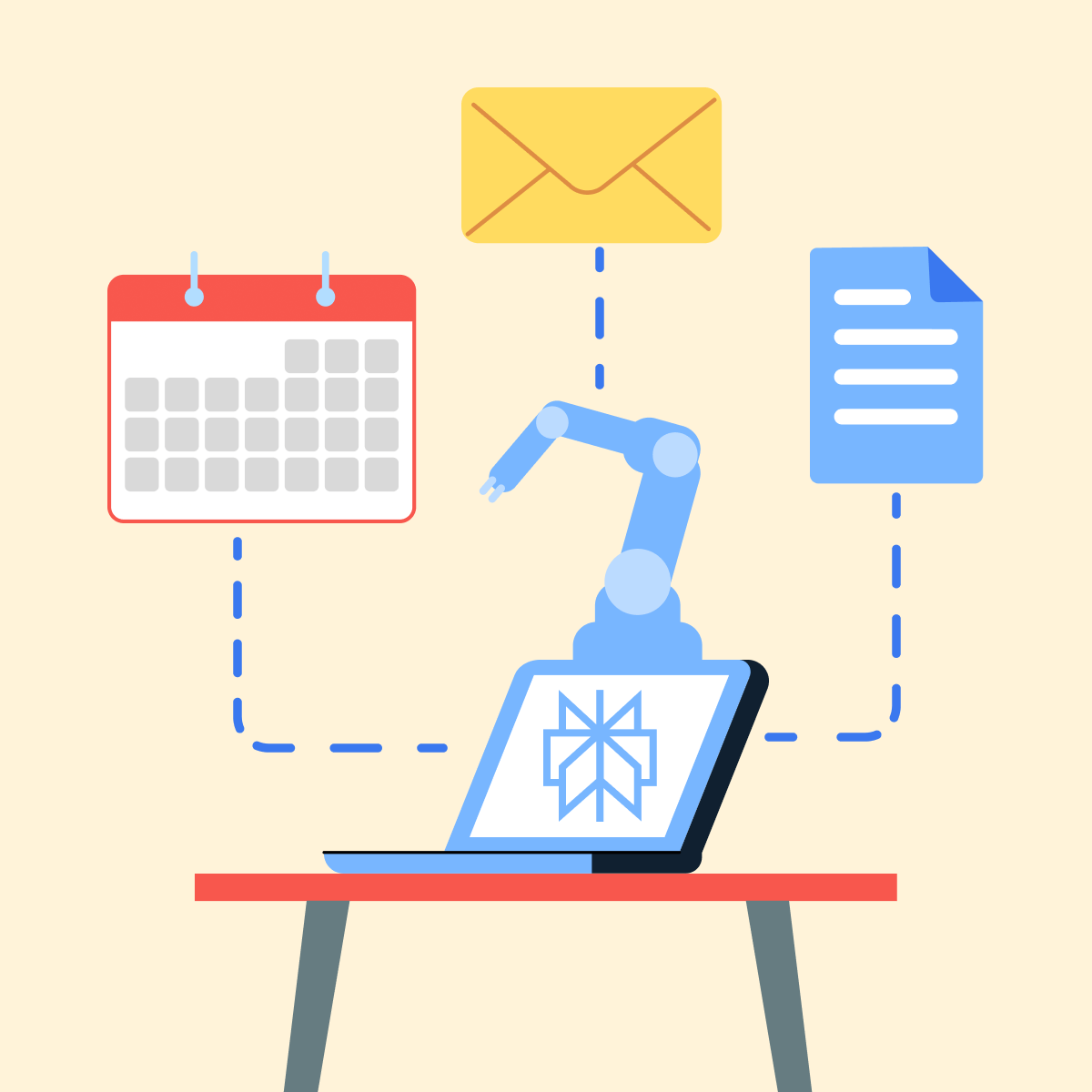
Your team lead emails a new constraint for the Prague offsite. Your coordinator updates a checklist in Notion. Two people mark themselves unavailable on Friday in Google Calendar. Without Connectors, you copy all of that in yourself, but with them, Computer reads it directly and works from there!
Where to Find Connectors
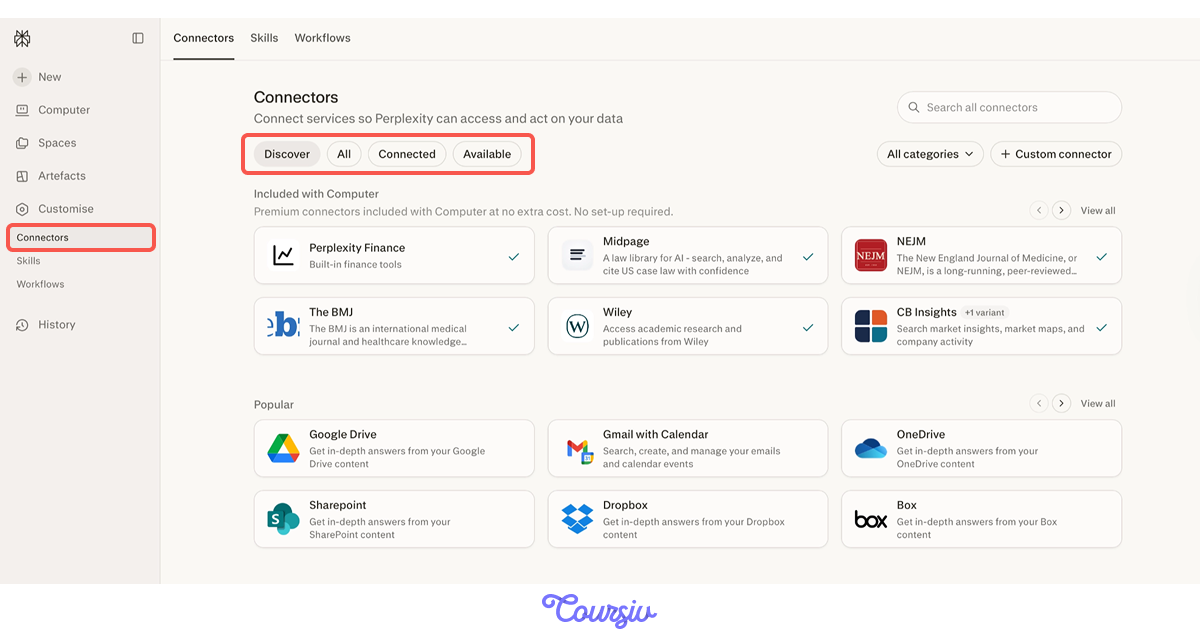
Open Customise in the sidebar and click the Connectors tab. You'll see four views: Discover, All, Connected, and Available. Some connectors are included with Computer at no extra cost — others are available to add.
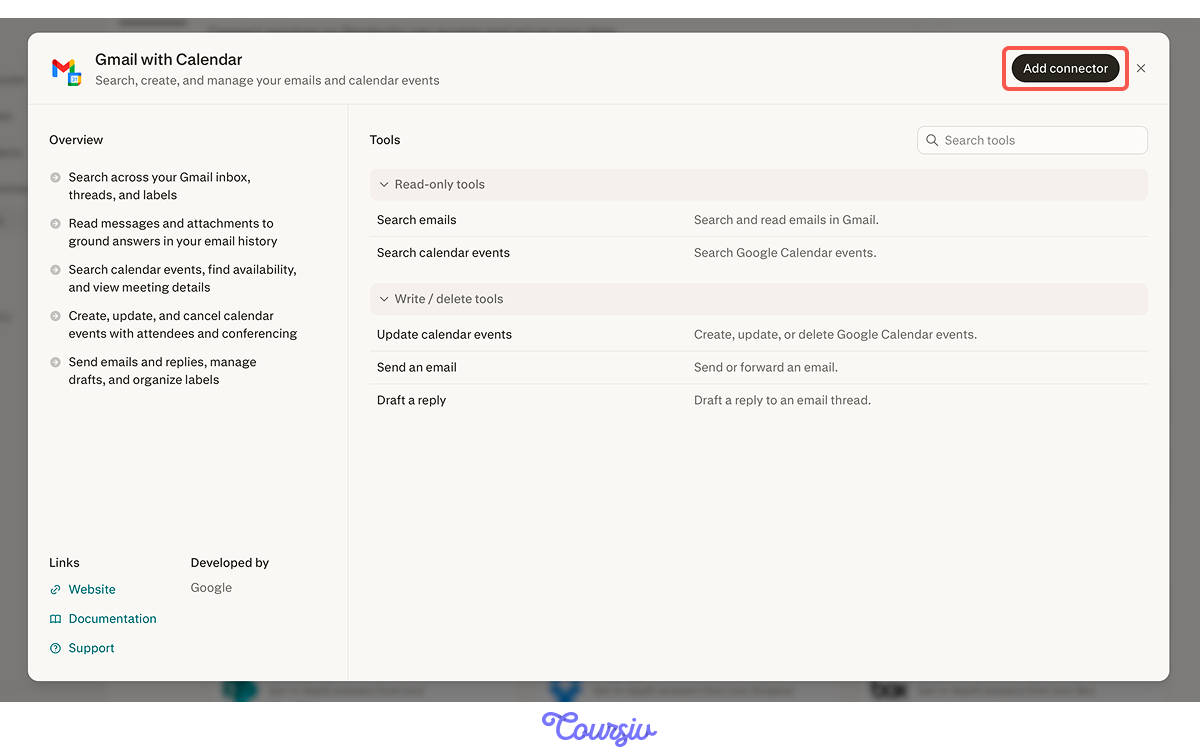
Click any connector to see what it can do: capabilities listed on the left, tools broken into read-only and write categories on the right. Click Add connector to link your account.
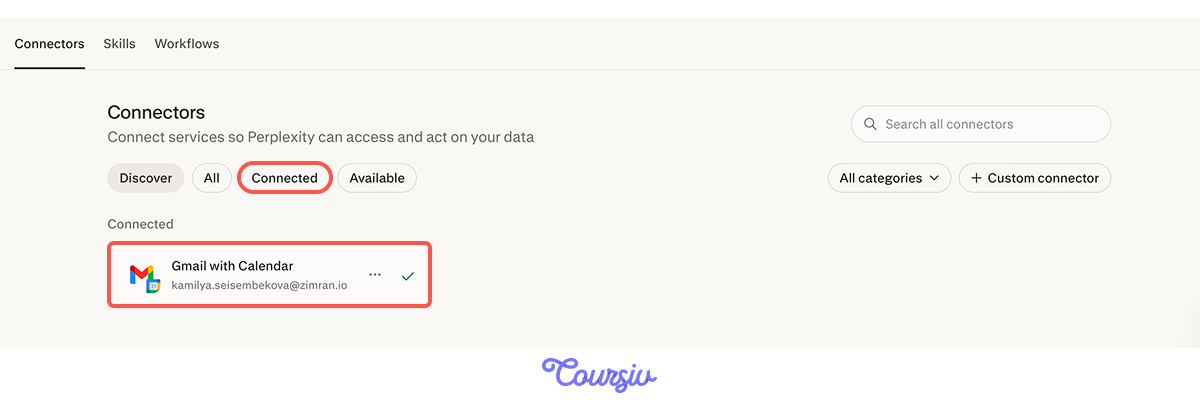
Once connected, the app appears under Connected with your account shown. It stays linked until you disconnect it manually.
Choose one
You connect Gmail to Computer and ask it to find the latest email from your team lead. What has actually changed about how Computer works?
Read vs. Action
Every connector has two tool types: read-only and write.
- Read tools let Computer pull context: searching emails, checking availability, reviewing files.
- Write tools let Computer prepare actions: drafting a reply, updating a task, creating a calendar event.
The key difference: read actions happen silently. Write actions always need your approval before they run. Computer shows you the draft or proposed change first — you decide whether it goes ahead.
practice preview
Interactive practice
True / False
Decide whether this task is a good use of Connectors.
practice preview
Interactive practice
Fill in the blank
Ask Computer to gather the latest offsite planning context from connected apps.
Computer read both tools, combined the context, and surfaced what still needs a decision. All that from one prompt!
When Computer Takes Action
Some connectors go beyond reading. Computer can draft emails, update tasks, or create calendar events — but it shows you what it intends to do before anything changes.
Let's see how that works in the next task.
practice preview
Interactive practice
Fill in the blank
Ask Computer to find a newsletter in your inbox and prepare an unsubscribe request for your review.
Computer found the email, wrote the reply, and even created a draft right in your Gmail. The only thing left for you to do is to review it and hit the send button. That's how writing tools work: Computer prepares, and you decide.

Choose one
Computer drafts an email to your coordinator with the revised offsite schedule. What should you do before it sends?
Connectors in Everyday Work
The offsite scenario is one example. The same logic applies anywhere work is spread across tools.
- Inbox management: "Find all newsletters I haven't opened in 30 days and draft unsubscribe requests for each."
- Meeting prep: "Check my calendar for tomorrow, find related emails for each meeting, and create a one-line brief for each one."
- Project tracking: "Pull open tasks from Asana, check if any are mentioned in recent Slack threads, and flag what's overdue."
- CRM updates: "Review this week's client emails in Gmail and draft follow-up notes for each contact in HubSpot."

Scheduled Tasks
Every workflow above runs on demand: Computer works when you ask it. Scheduled tasks let Computer run a connected workflow automatically, on a cadence you set.
For the offsite: every Monday morning, check the planning Space, coordinator notes, and latest emails — then produce a short update with what changed, what's blocked, and what needs a decision this week. Set it once, and it runs without you.

practice preview
Interactive practice
Fill in the blank
Set up a recurring offsite planning summary using connected tools.
Before scheduling, Computer asks you a few setup questions — what time to run, where the sources are hosted, and how to deliver the update. Answer them once, and it handles the rest automatically.
And because scheduled tasks run in the cloud, they don't need your device to be on.
Connect Only What You Need
Remember: more access isn't always better. Before connecting an app, ask whether Computer actually needs it for the task. Good connected workflows use the minimum context needed — not everything that's available.

Before any connected workflow, run through these:
- Which apps hold the context this task really needs?
- Should Computer read only, or prepare actions too?
- What should always require my approval before it changes?
- Does this task repeat enough to be worth scheduling?
practice preview
Interactive practice
Put in order
Put the connector workflow steps in the right order.
- Connectors live in "Customise": Browse by Discover, All, Connected, or Available.
- Without Connectors, Computer works from what you paste in: With them, it works from where the information lives.
- Read tools pull context silently; write tools prepare actions for your approval.
- Tell Computer where to look: Name the tools, what to find, and what output to produce.
- Scheduled tasks run connected workflows automatically: Set the cadence once, and Computer handles the check-in
What's Next?
You've now connected the tools around your workflow. Next, you'll put the full Perplexity toolkit to work across real use cases — research, reporting, and more!