Perplexity · Workflows and Automation
Skills for Repeatable Workflows
Build skills for consistent repeatable AI workflows
Skills for Repeatable Workflows
Every repeated task comes with a hidden cost: rewriting the same instructions, reformatting the same output, running the same checks. Skills eliminate that. Store the process once, and Computer follows it every time you need that kind of work done.
In this lesson, you'll learn how to use Skills to your advantage. Let's go!

What Are Skills?
Skills are reusable capabilities for Perplexity Computer — step-by-step instructions it can automatically apply whenever a matching task comes up.
You may have seen something similar in Claude, where Skills standardize how it writes or responds. Computer Skills go further: they're full automated workflows that Computer can re-run across models and tools, turning your instructions into a production-ready capability.
A Skill can store anything Computer needs to approach a type of task consistently:
- Structure and workflow steps
- Tone and formatting rules
- Review criteria and quality checks
- Brand standards and assets
- Output requirements
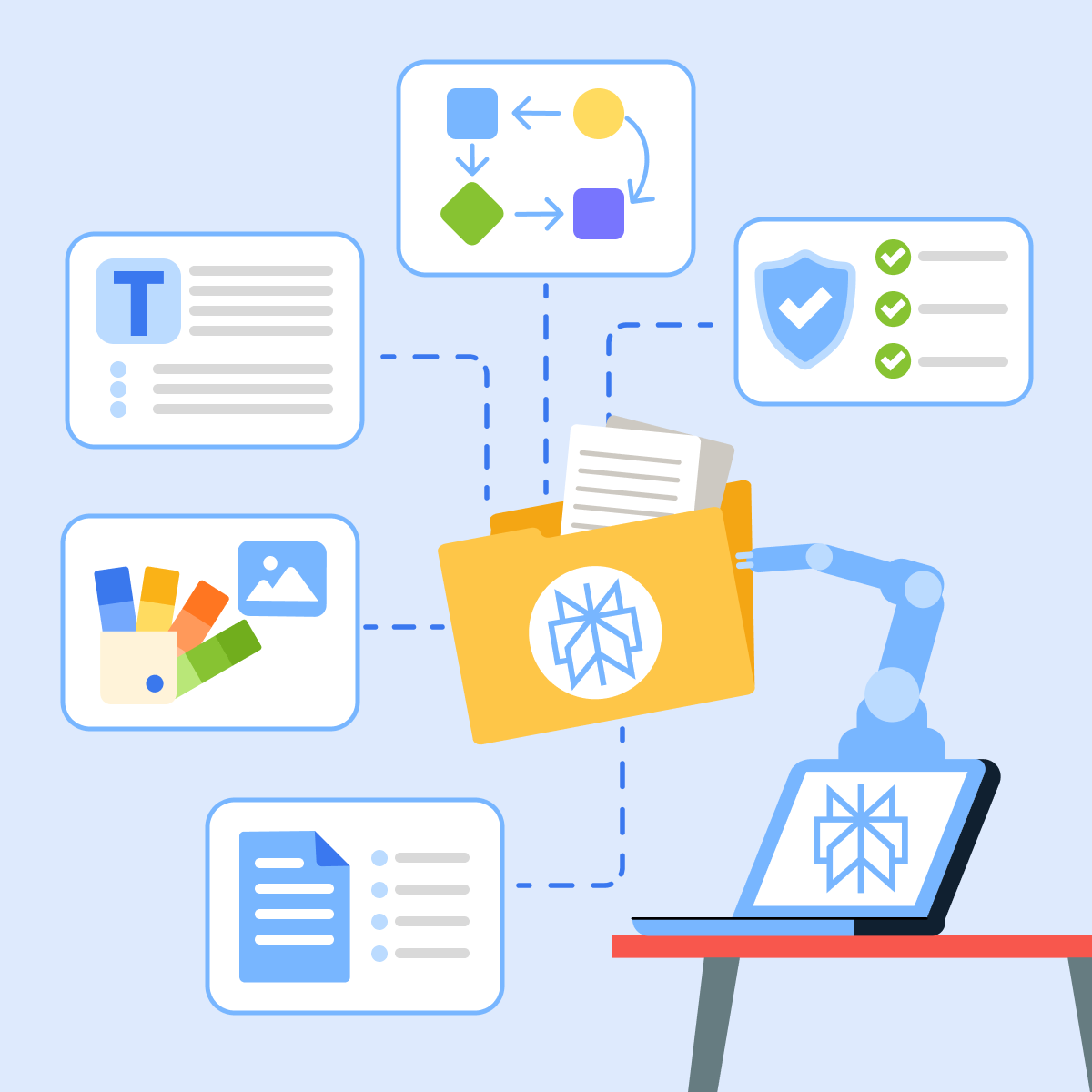
Once a Skill is set up, Computer applies it every time that kind of work comes up. You won't need to re-explain the task, context, or requirements.
Choose one
What do you think a Skill stores that a one-time prompt doesn't?
Where to Find Skills
Open Customise in the sidebar and click the Skills tab. You'll see three views: All, My skills, and Example skills. Example Skills are pre-built templates you can use as-is or as a starting point for your own.
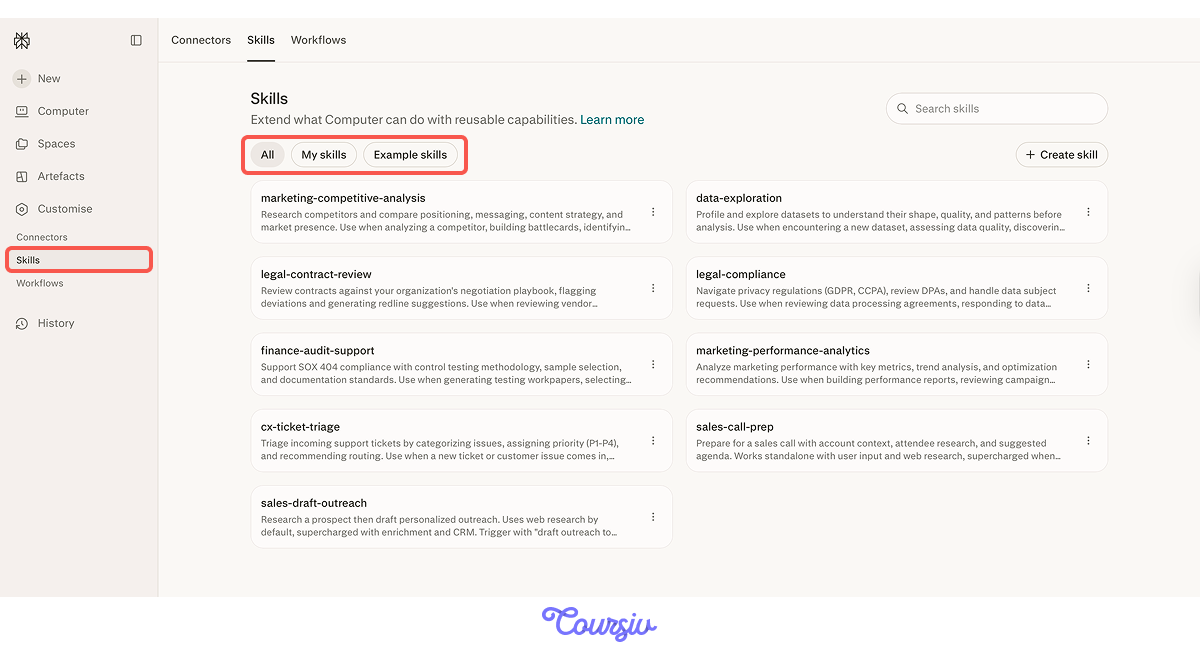
Each Skill has a name, a description of when to use it, and a SKILL.md file with the full instructions. Open any example to see what a complete Skill looks like before you build your own.
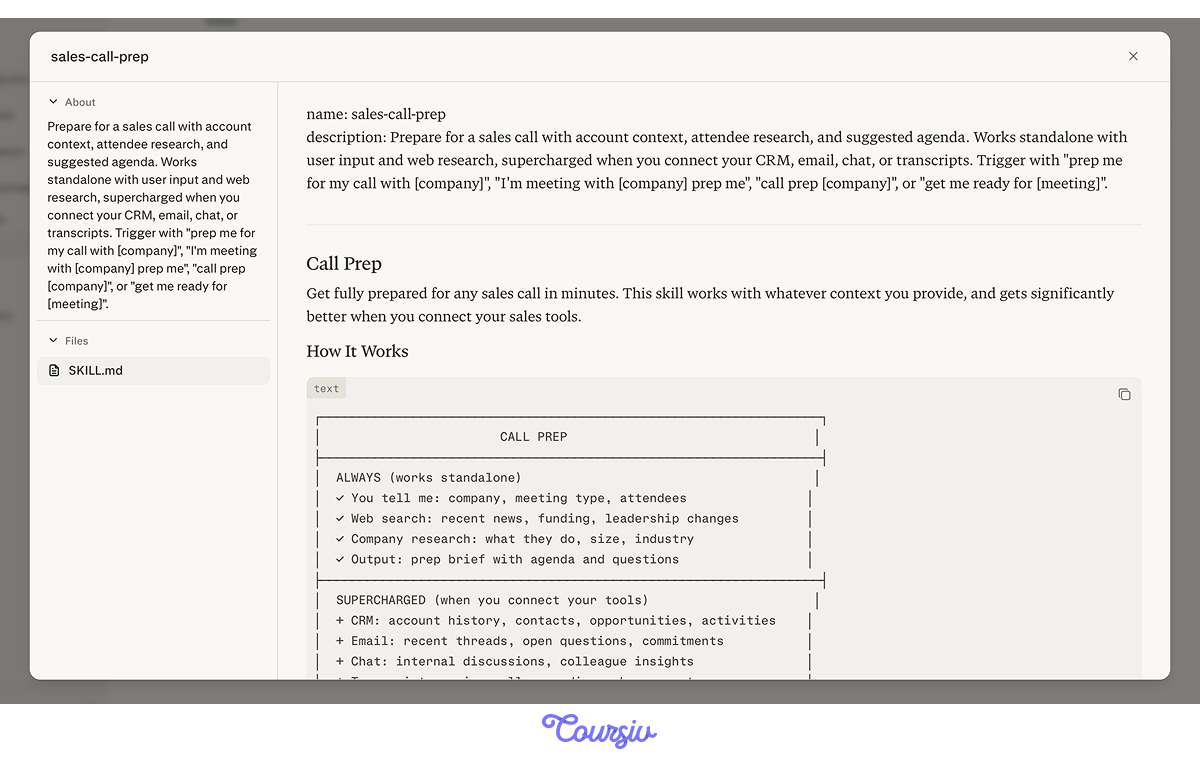
Creating a Skill
Click + Create skill in the top right. You'll see two options: "Create with Computer" builds the Skill through a conversation, and "Upload a skill" lets you import an existing .md or .zip file.
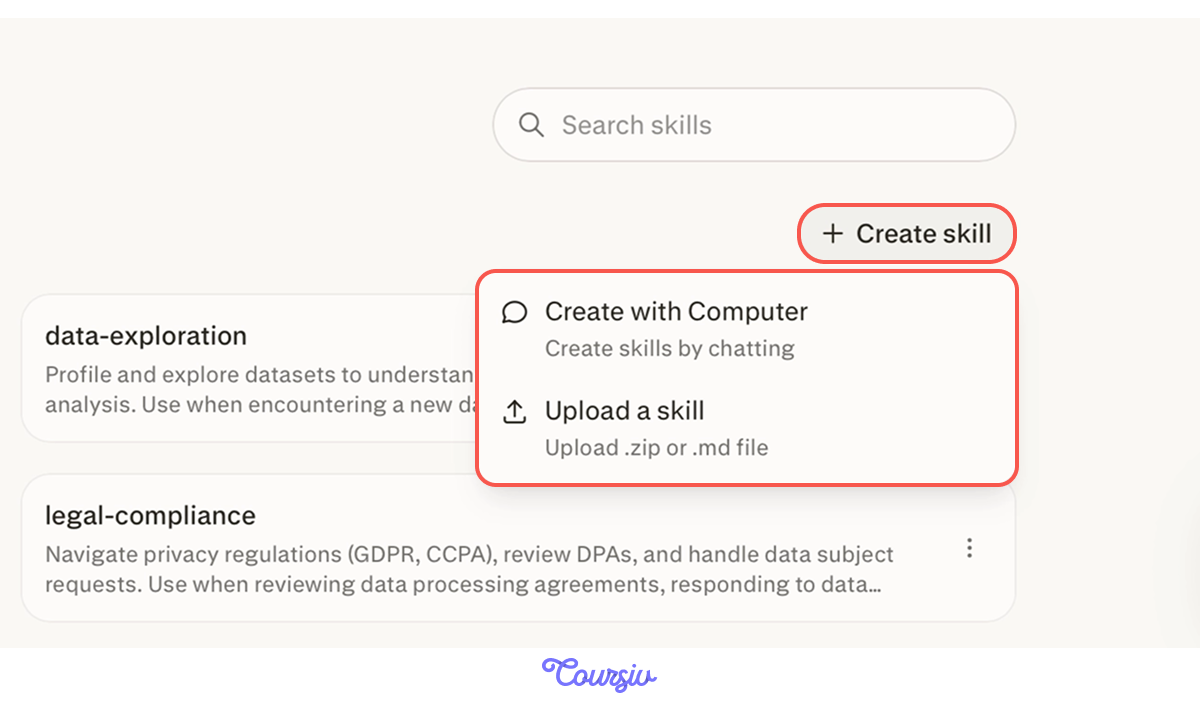
"Create with Computer" is the easiest starting point. Click the option, and Perplexity already has a head start — it uses its own built-in "create-skill" Skill to open the conversation. Computer asks you questions about the task, the context and intended user, and what a good result looks like. You answer, and it builds the Skill from there.
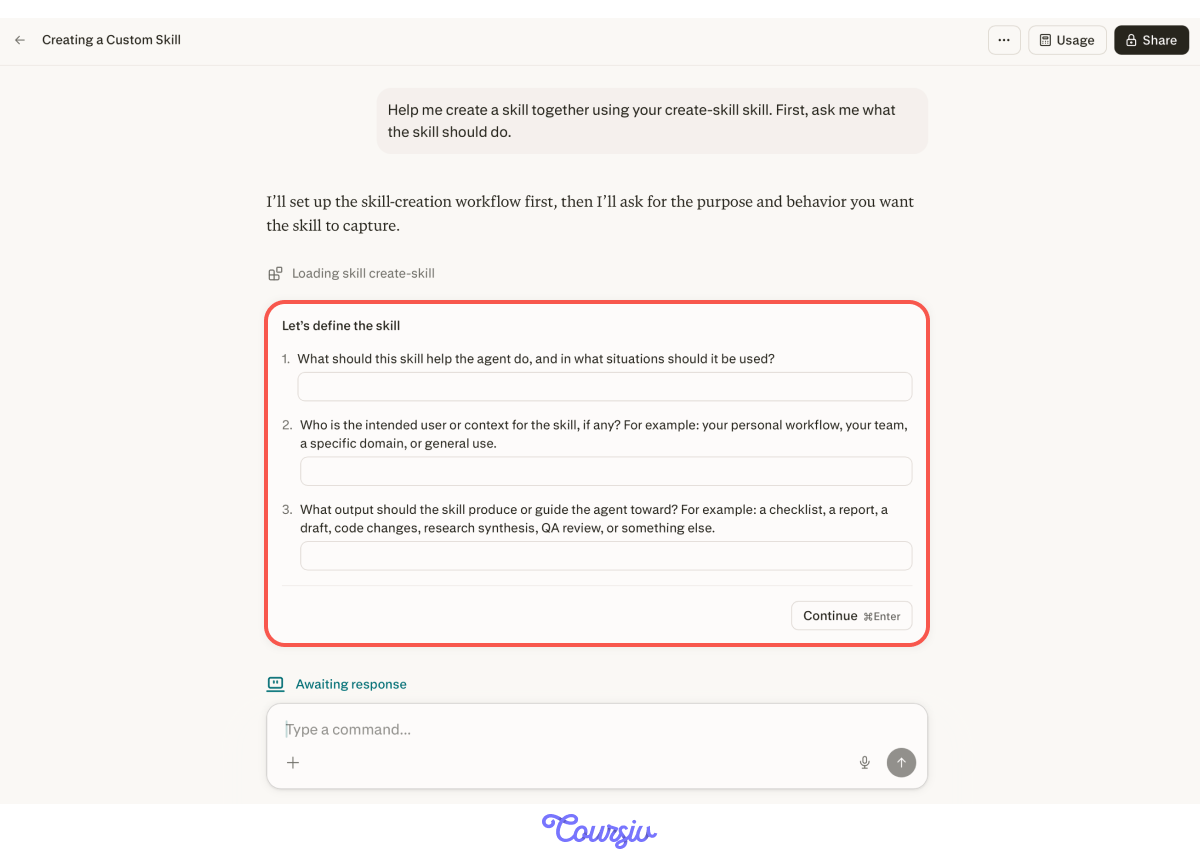
Upload a skill is useful when instructions already exist somewhere else: a process doc, a team playbook, or a Skill from another platform. Export it as a .md file or a .zip and import it directly.
Choose one
Your colleague used the same Skill to produce three competitor analysis reports. Each one came back with the same structure and review checks. What made that possible?
Query vs. Skill
To use Skills well, it helps to know what they do that a query doesn't. A query gives Computer the assignment. A Skill gives it the method.
- Query: "Create a planning brief for the Budapest offsite" — the task right now.
- Skill: "Whenever you create an offsite planning brief, include a recommendation, schedule, budget risks, flagged assumptions, open questions, and next steps" — the repeatable process behind every brief.
The query changes with each new destination. The Skill keeps the method stable. Budapest, Riga, Lisbon — same structure, same review checks, every time.
practice preview
Interactive practice
True / False
Decide whether this is a query or a Skill.
practice preview
Interactive practice
True / False
Decide whether this task is worth turning into a Skill.
Building Your First Skill
Now let's put it into practice. The offsite planning process you've built across this course is a strong Skill candidate. It needs the same structure, sections, and review checks every time a new destination comes up.
You can either answer the questions Perplexity asks when you click "Create with Computer" or come up with the prompt yourself.
practice preview
Interactive practice
Fill in the blank
Ask Computer to turn your offsite planning process into a reusable Skill.
Computer doesn't just take your answers and save them — it builds the Skill properly. It loads its own Skill-creation guidance, outlines a build plan for you to approve, then works through several steps before saving the finished Skill. You stay in control at every stage.
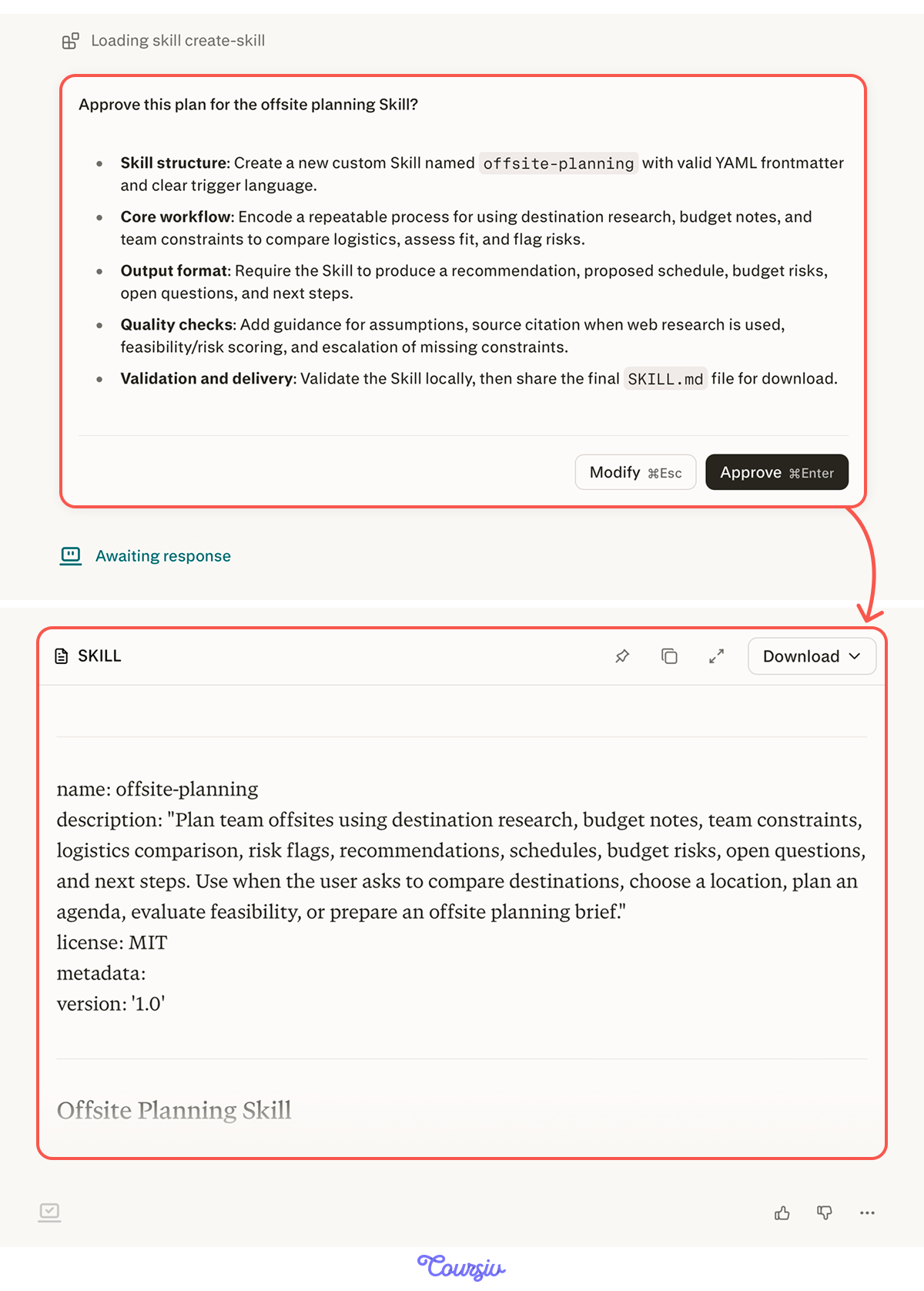
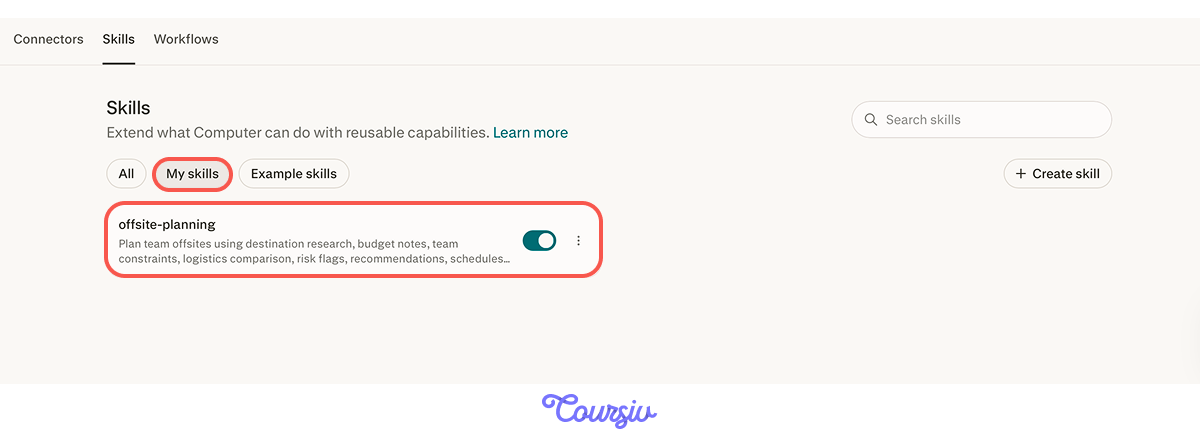
Great! Once your Skill is saved, you’ll find it under "My skills."
Skills With Brand Guidelines
One of the most practical uses of Skills is brand consistency. A Skill can store your organization's brand guidelines — tone, colors, fonts, formatting rules — so Computer applies them to any deliverable it produces.
When you upload a Skill as a .zip file, you can include supporting assets alongside the instructions: font files, color palettes, logo variations, and other brand files. Computer uses them when building presentations, documents, or any other branded output.

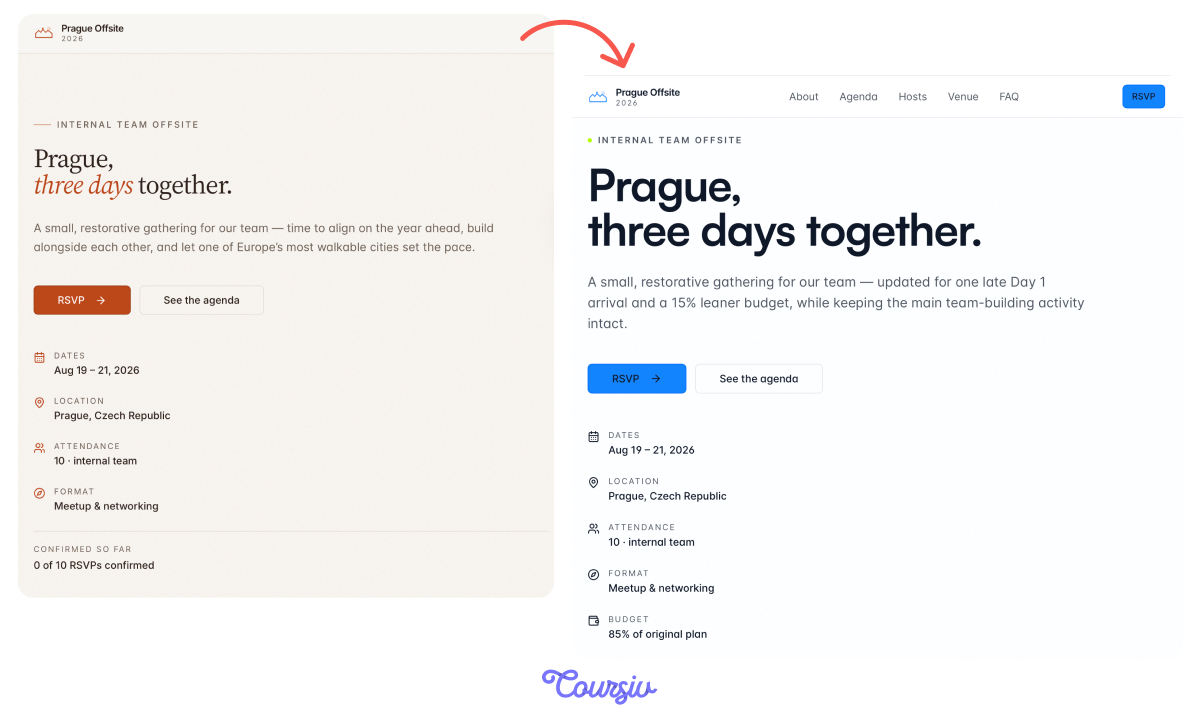
Remember the Prague offsite landing page Computer built in the previous lesson? Instead of adjusting it manually, you apply a brand Skill, and Computer realigns every slide to your organization's standards in one task.
practice preview
Interactive practice
Fill in the blank
Ask Computer to update a landing page using your brand guidelines Skill.
This is how the landing page changed with the brand-guideline skill!
When the Output Drifts
Skills keep output consistent, but they need updating when results drift. If Computer skips a section or handles something differently, update the Skill, not just the output.
Select all that apply
Computer produces a competitor report using your Skill, but it skips the recommendations section and doesn't flag data older than 12 months. What should you do?
Skills for Teams
A Skill you build doesn't have to stay personal. Once it's saved, you can share it with your team so everyone follows the same process, not just you.
This is where Skills become a team standard rather than a personal shortcut.
Beyond One Task
The same logic applies across any repeated work where consistency matters:
- Weekly research summaries: Same structure, sources, and format each time
- Competitor comparison reports: Same sections and evaluation criteria
- Brand-compliant assets: Fonts, colors, and layouts applied automatically
- CSV or budget analysis: Same review checks and risk flags on every file
- Skills live in Customise → Skills: Open any Example Skill to see what a complete one looks like.
- Query tells Computer what to do; Skill tells it how to approach that kind of work: The distinction isn't just a task, but a method.
- Create with Computer: Describe the task and let Computer build the Skill through conversation.
- Upload as .zip to include brand assets: Fonts, color palettes, and files Computer can use in output.
- Computer can recognize when a Skill fits: It may apply a relevant Skill automatically.
- Skills scale across teams: One Skill built means one consistent process shared.
What's Next?
Skills are your last customization layer inside Computer. Next, you'll learn about Connectors — how to link Perplexity to the tools and data sources you already use, so it works with your actual workflow, not just the open web.