Claude: Deep Dive · Professional Workflows
Claude for Small Business
Configure and run business workflows
Claude for Small Business
Every small business owner has a list of operational work that piles up after hours: month-end close, invoice chasing, campaign planning, the briefings nobody has time to write.
Claude for Small Business is built for exactly that work — a plugin with 30+ ready-to-run skills wired into the tools you already pay for. This lesson teaches you to configure them, run them safely, and build the governance layer that makes them deployable in a real business.
Let's get started!

What Claude for Small Business Is
Claude for Small Business is a plugin you toggle on inside Claude Cowork — the desktop app you learned to use in the Cowork lesson. It's not a new product or a separate subscription. It runs on whatever paid Claude plan you already have.
What the plugin adds:
- 30+ ready-to-run skills
- 11 connectors that bring data from the platforms you already pay for
How to Set Everything Up
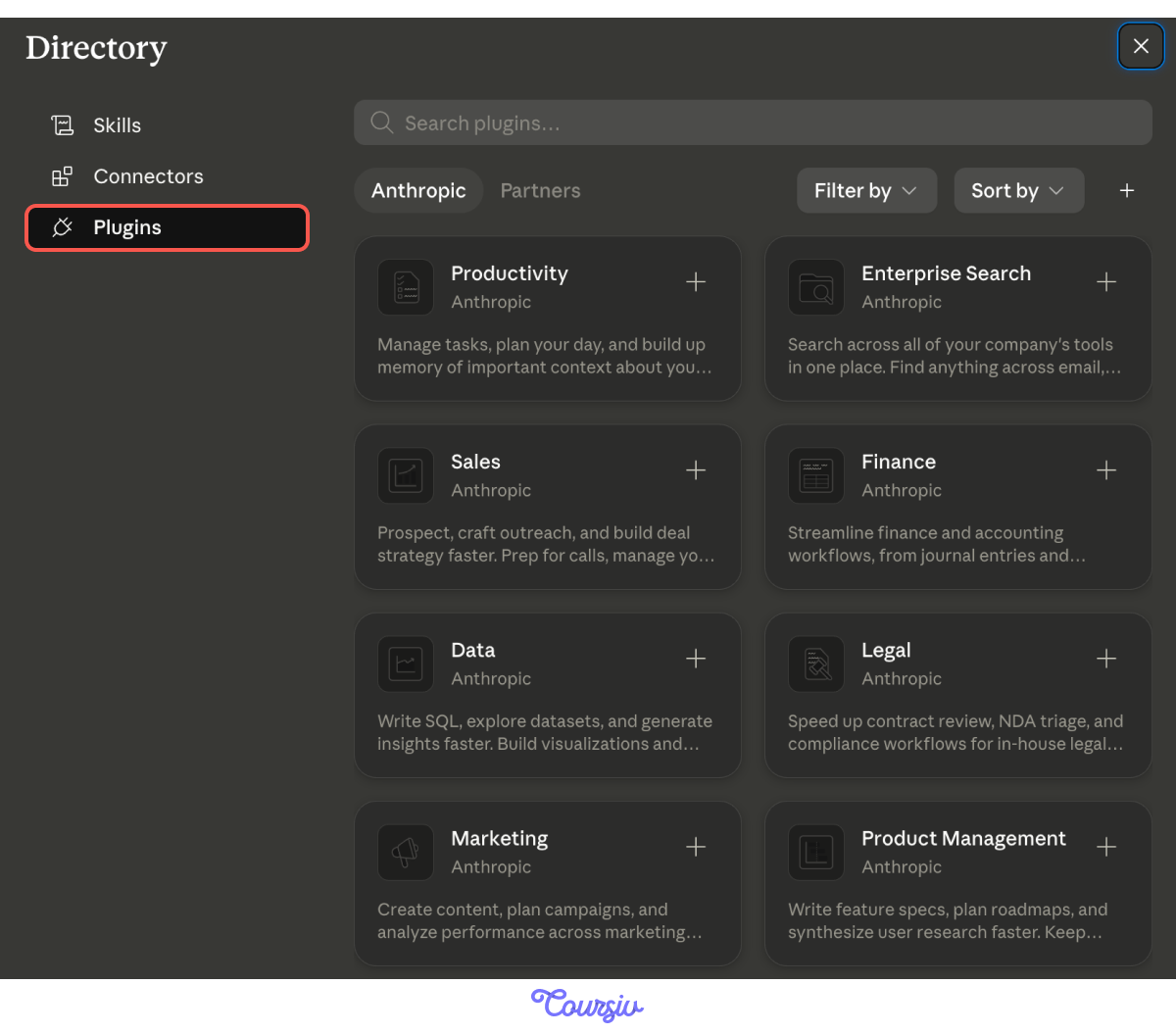
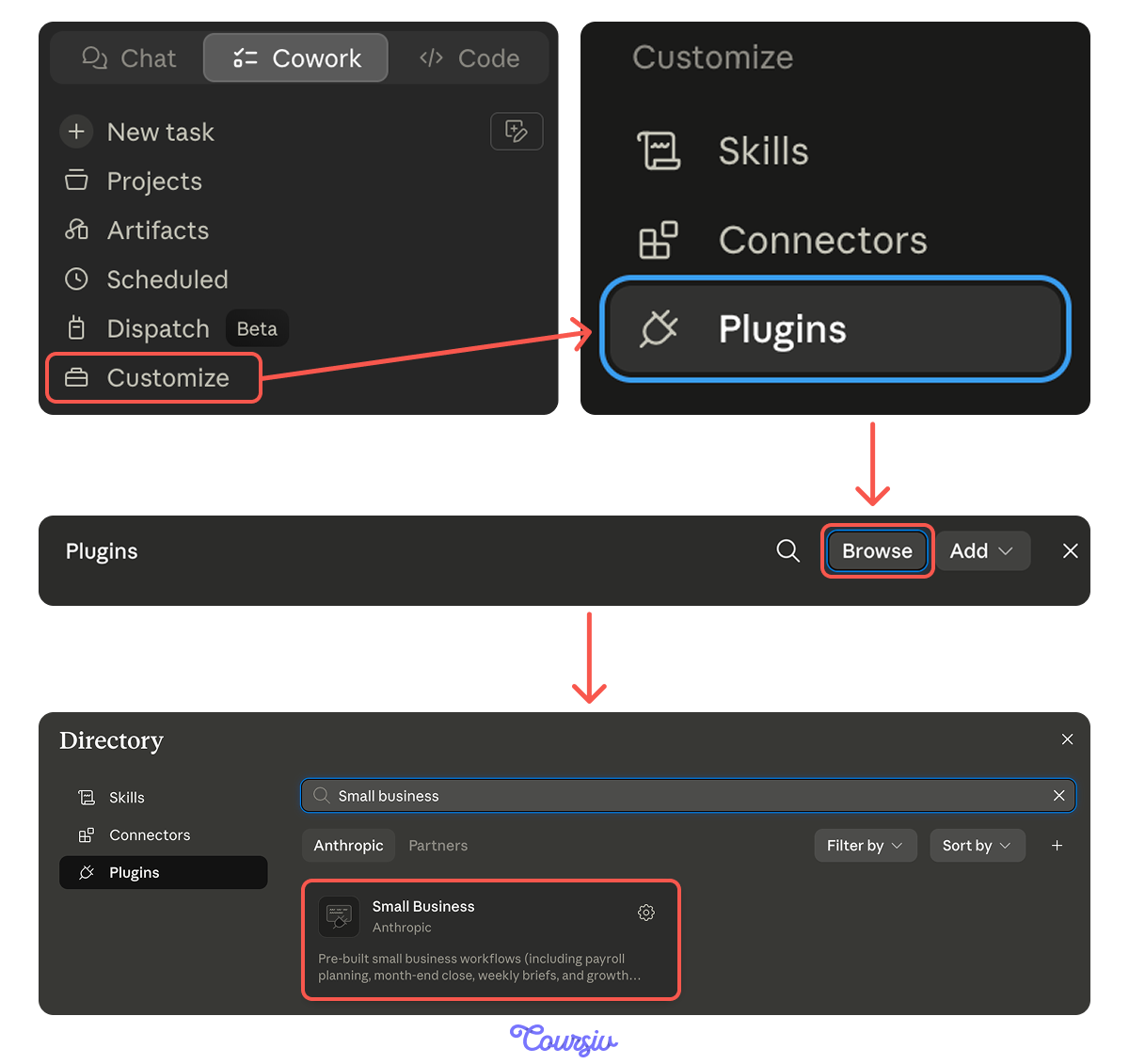
Setup is simple. Open Claude Cowork in the desktop app, go to Customize, and choose Plugins. Search "Small Business" and click "+". You added the plugin.
The Skills
The skills span the operational work small business owners actually do:
- Finance: payroll planning, month-end close, cash-flow forecasting, tax-season prep, margin analysis
- Sales and marketing: lead triage, campaign planning, customer pulse reports
- Operations: invoice chasing, contract routing, business briefings
- Customer service: support triage, response drafting
Each one is calibrated for a real recurring task. The skill knows what to do; you tell it the specifics for your business.

Two ways to run a skill inside Claude Cowork:
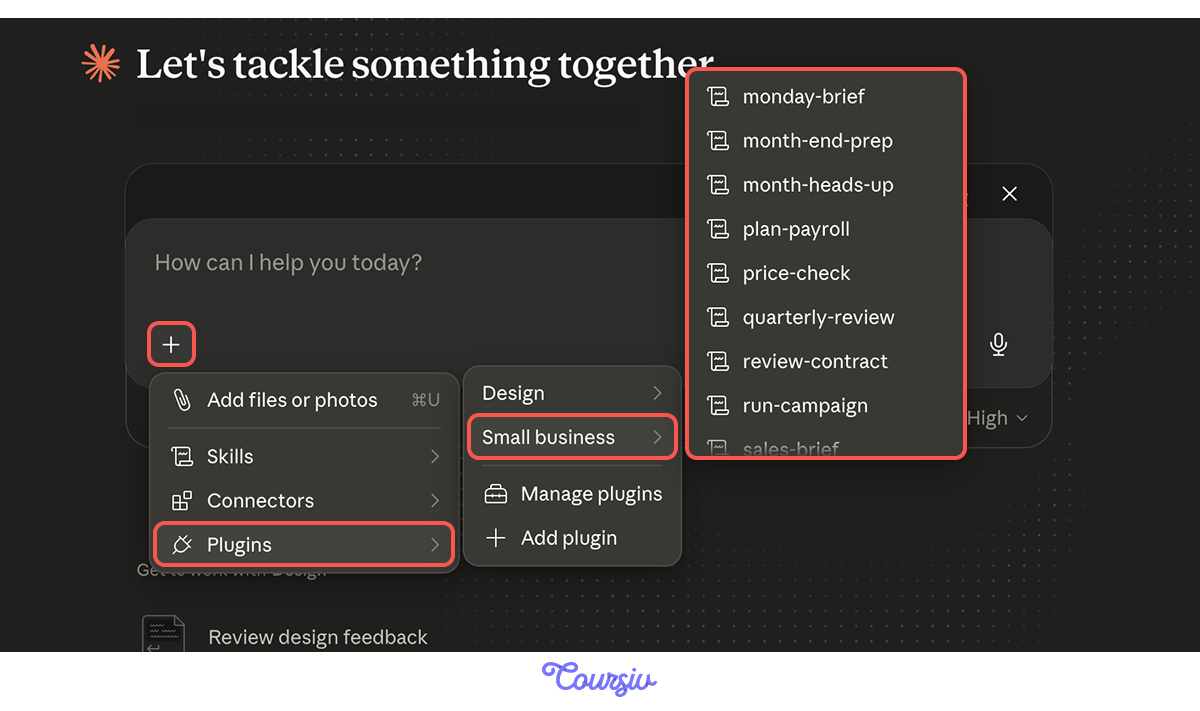
- Type a slash command — every skill has one. For example, /plan-payroll opens the payroll planning workflow. /close-month opens the month-end close.
- Describe what you need in plain English — type "plan payroll for next week" or "close the books for November" into the chat, and Claude routes you to the right skill automatically.
The skill's in four moves:
- Choosing which workflow maps to your highest-friction recurring task
- Configuring it correctly the first time so the output is usable, not generic
- Designing the approval boundary — what Claude prepares, what you review, what should never run without sign-off
- Auditing existing workflows to find the gaps that cause silent failures over time
Each of these gets its focus in this lesson.
Scenario: Your Podcast Studio
Imagine you're a founder of Wavefile Studios, a 6-person podcast production studio. Three years in. You produce 12 active shows for clients — a mix of corporate podcasts, brand-funded shows, and a handful of indie creators on retainer.
Your team: 2 producers, 2 audio engineers, 1 account manager, and you.
Your stack:
- QuickBooks for the books
- PayPal for invoices
- HubSpot for the client pipeline
- DocuSign for production contracts
- Canva for show artwork and social promo
- Google Workspace for everything else
- Slack for internal communication
The Operations Problem
You're producing too much yourself:
- Month-end close
- Invoice chasing
- Show artwork in Canva
- Client status reports
Every one of these is a recurring task. And every task is a workflow that Claude for Small Business has a prebuilt version of — if you configure them right and put the approval boundary in the right place.
The plugin is installed and ready to use. From there, you connect the tools your studio uses. The plugin's workflows and skills become available as slash commands in any chat — /monday-brief, /month-end-prep, /plan-payroll, and so on. You can type it in a chat or choose from the Plugin panel.
To work with all the capabilities, you need to use Connectors. You authorize each connector separately, such as QuickBooks, PayPal, etc. Connect the ones your studio uses. The skill only works with live data once the relevant tool is connected.
Picking the First Workflow
With the plugin installed and the connectors authorized, the first decision: which workflow do you start with?
The right first workflow is the one that takes the most time and has the lowest risk if Claude gets it slightly wrong. That's almost never an invoice or a contract route. It's usually the Monday brief — read-only, low-stakes, and immediately useful.
The Monday brief pulls your cash position from QuickBooks, incoming settlements from PayPal, pipeline movement from HubSpot, and your calendar from Google Workspace into a single Slack message. It tells you the three things that need your attention today.
Select all that apply
Why is the Monday brief usually the right first workflow to set up, even when other workflows would save more time?
Running Your First Skill — Monday Brief
With QuickBooks, PayPal, HubSpot, Google Calendar, and Slack connected, you run your first skill. In Cowork, you type /monday-brief and hit enter.
The skill responds with a quick intake form: where to post the summary (here in chat, in a Slack channel, etc.), and where to save the brief file (Cloud Drive, desktop, etc.). Pick Slack and Cloud Drive, then submit.
Claude pulls your cash position from QuickBooks, incoming settlements from PayPal, pipeline movement from HubSpot, this week's calendar from Google Workspace, and posts a brief summary to your private Slack channel after your approval.
Three things flagged at the top:
- Respond to two aged HubSpot leads
- Prep the 10 a.m. client review
- Confirm cash position covers Friday's payroll
The full brief saves to your Drive. A short summary with the flagged items goes to the Slack channel after approval.
A Higher-Stakes Skill — Month-End Prep
With Monday brief running cleanly, you take on a higher-stakes skill: month-end prep. This is the work of closing your books for the month:
- Reconciling what you earned against what your systems show
- Catching anything that doesn't match
- Producing a clean record you can hand to your accountant.
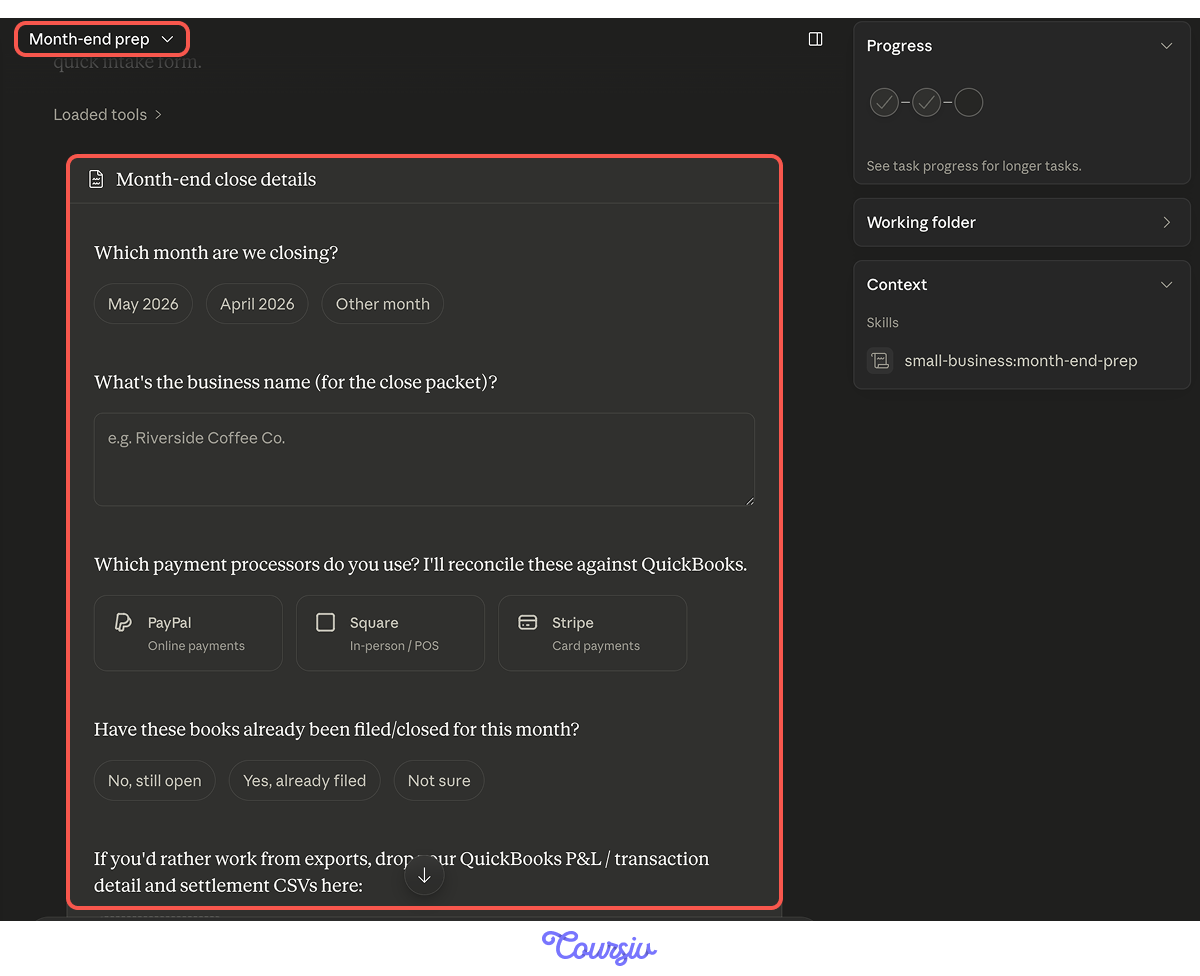
You type /month-end-prep in Cowork.
The skill walks you through the close in a conversation. As a result:
- It reconciles your QuickBooks transactions against PayPal settlements.
- Flags uncategorized transactions and suspicious duplicates.
- Asks you about any missing receipts it can't find.
- Exports a close packet — an xlsx with the reconciliation and a one-page PDF you can forward to your accountant.
Unlike the Monday brief (read-only), month-end prep produces an artifact that will reach your accountant. The configuration step matters because of what the output is used for, not just what it contains.
When you run /month-end-prep, you'll provide context up front so Claude knows what to flag, what to surface, and what to do when something's ambiguous.

Where to Run the Skill
Open a fresh conversation in Cowork for this — don't reuse the Monday brief thread. Each workflow gets its own focused session.
Type /month-end-prep to start. Claude opens the workflow and immediately asks for the setup details. The configuration prompt is how you answer those questions in one pass instead of letting Claude ask them one at a time.
practice preview
Interactive practice
Fill in the blank
Complete the configuration prompt for the month-end close.
The Review Step
The close packet lands in your Drive — the reconciliation xlsx alongside the one-page PDF summary. You open both. Four flagged items: three are routine timing differences, one is a duplicate refund that's already disputed.
You approve and forward it to your accountant.

The Approval Boundary
An important question you might have already thought about: which workflows should run without your approval, and which shouldn't?
This is the design question every Claude for Small Business setup eventually has to answer. Getting it wrong doesn't just produce bad outputs — in a financial or client-facing context, it produces liability.
The framework: three risk tiers, each with its own approval requirement.

The Three Tiers
- Tier 1: Read-only synthesis. Claude reads information and produces something for your reading — a brief, a report, a summary. There's no action step. Suitable for: morning briefs, lead triage summaries, draft research.
- Tier 2: Action with required approval. Claude prepares work that could result in action (drafts, recommendations, queued sends), then hard-stops. The workflow blocks until you click approve. Suitable for: invoice sends, contract routes, payroll runs, campaign sends.
- Tier 3: Never automate. Some decisions and the execution both stay manual. Suitable for legal disputes, anything involving sensitive employee or client information.
Each Wavefile workflow gets assigned to a tier.
- The Monday brief is Tier 1 — synthesis, no action.
- The month-end close is Tier 2 — the result doesn't go to the accountant without your sign-off.
Writing Your Protocol
With the three tiers in mind, you write the protocol for Wavefile — a one-page document that names every active workflow and its tier assignment.
You save it to your Drive, share it with your account manager and producers, and reference it whenever a new workflow gets proposed. The document says: this workflow runs at this tier, with this approval requirement, with this escalation trigger.
practice preview
Interactive practice
Match pairs
Tap a left item, then a right item to match.
Stress-Testing the Protocol
The way to find out where the protocol holds is to run real edge cases — situations the original protocol didn't model. Three scenarios worth running:
- A workflow that triggers outside business hours
- A client with a non-standard approval chain
- An invoice amount above the protocol's escalation threshold
For each one, your protocol has to specify what happens — and whether it holds or needs to evolve.
Choose one
Which of the three scenarios required your protocol to change?
When the Prebuilt Skills Don't Cover It
The prebuilt skills handle the most common operational work. They don't handle everything.
When you need a workflow that's not in the prebuilt set, you build it directly in Cowork using the same connectors. The plugin provides you with connectors and example skills, and Cowork lets you compose new workflows from them.
Not every business needs all available workflows. The plugin earns its place when these are all true:
- You use multiple connector-supported tools. At least 2-3 of QuickBooks, PayPal, HubSpot, DocuSign, Canva, Google Workspace, Microsoft 365, or Slack.
- Operational work is consuming meaningful time. Month-end takes days, invoice chasing is constant, and briefings happen ad-hoc.
- The work follows patterns. The same shape of task happens repeatedly, with variations.
- You're the bottleneck for review. Work piles up because you're the only one who can approve it.
- Claude for Small Business is a Cowork plugin. 30+ ready-to-run skills and 11 connectors, installed via the Customize — Plugins menu in the desktop app.
- Setup is two steps. Install the plugin to get the slash commands, then authorize each connector separately for the data to flow.
- Skills run as slash commands or plain English. Type /monday-brief or describe what you need; the router picks the right skill.
- Start with low-stakes skills. The Monday brief earns its place as the first skill because it's read-only and builds the habit of reviewing Claude's output.
- The approval boundary is the design. Three tiers, from "read-only synthesis" to "action with required approval" to "never automate." Every workflow gets assigned to one.
- A protocol becomes real when it's documented: Saved to Drive, shared with the team, referenced whenever a new workflow gets proposed.
- Stress-test against real edge cases. Most are handled correctly by the protocol; some need a named variant inside an existing tier or require the protocol to change.
What's Next?
The next lesson teaches a capability Claude excels at — long-document mastery. You'll learn to process 90+ page documents in a single conversation, compare versions side-by-side, extract structured data from dense prose, and surface contradictions buried across distant sections.
It's the kind of careful analysis you'll reach for when the document is too long to read end-to-end, and the stakes are too high to skim. Let's keep going!