Claude: Deep Dive · Claude Capabilities
File Creation
Package your work across formats
Package Your Work
Suppose you've already done the analysis for your task. Now, it has to become a Word report for one person, an Excel tracker for another, and a deck for someone 10 minutes before a board meeting.
How do you reshape the same work without starting over each time? This lesson reduces all three to a single Claude conversation.

Scenario: Same Analysis, Three Audiences
Let's say you've just completed a market analysis for Mara Chen, a founder considering expanding her project management software into a new vertical. The analysis is done: you know which segment to target, why the timing is right, and what the risks are.
Now three people need that work in three different forms.
- Mara wants a written report she can share with her advisory board.
- Her operations lead, David, needs a data table he can update with real numbers each month.
- The board chair, who won't read a six-page report, needs a few slides before Thursday's meeting.
Why This Is the Hardest Part
The analysis took several hours. Now, packaging it for three audiences might take even more time: reformatting in Word, rebuilding formulas in Excel, and laying out slides in PowerPoint.
The risk is also in producing something that's slightly inconsistent across all three because you made different decisions in each tool.
File Creation wins you time in this case!

File Creation turns Claude's output into downloadable files — Word documents, Excel spreadsheets, PowerPoint decks, and PDFs — that you can share, edit, and present without switching to another tool.
What Happens When Claude Creates a File
When you ask Claude to create a file, it writes and runs code behind the scenes in a secure, private workspace, not just filling in a template.
That's why the Excel files have real formulas that work, Word docs have proper headings, and PowerPoint slides have proper layouts rather than plain text on a blank slide.
Select all that apply
Which of these are genuine advantages of File Creation over creating files manually and copying and pasting Claude outputs?
Enabling File Creation
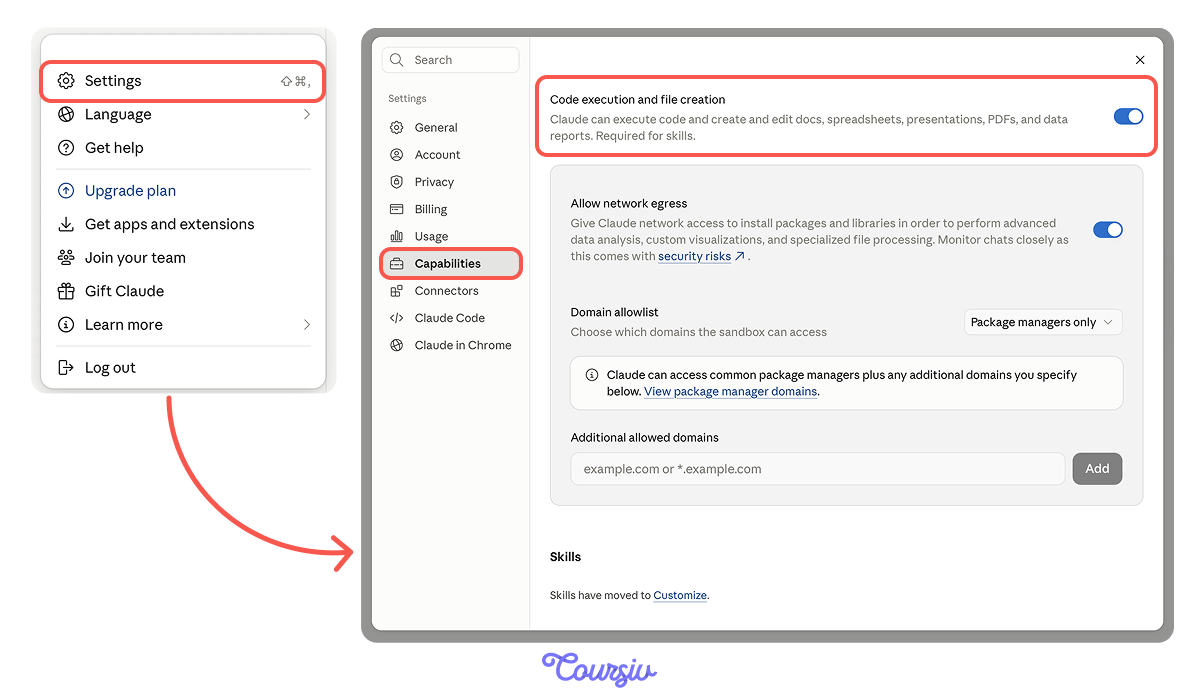
To turn on File Creation, go to Settings → Capabilities and toggle on Code execution and file creation.
Once enabled, Claude can produce downloadable files from any conversation. You'll see a download link appear directly below the file it creates. Files can also be saved straight to Google Drive if you prefer not to download them locally.
The Network Egress Setting
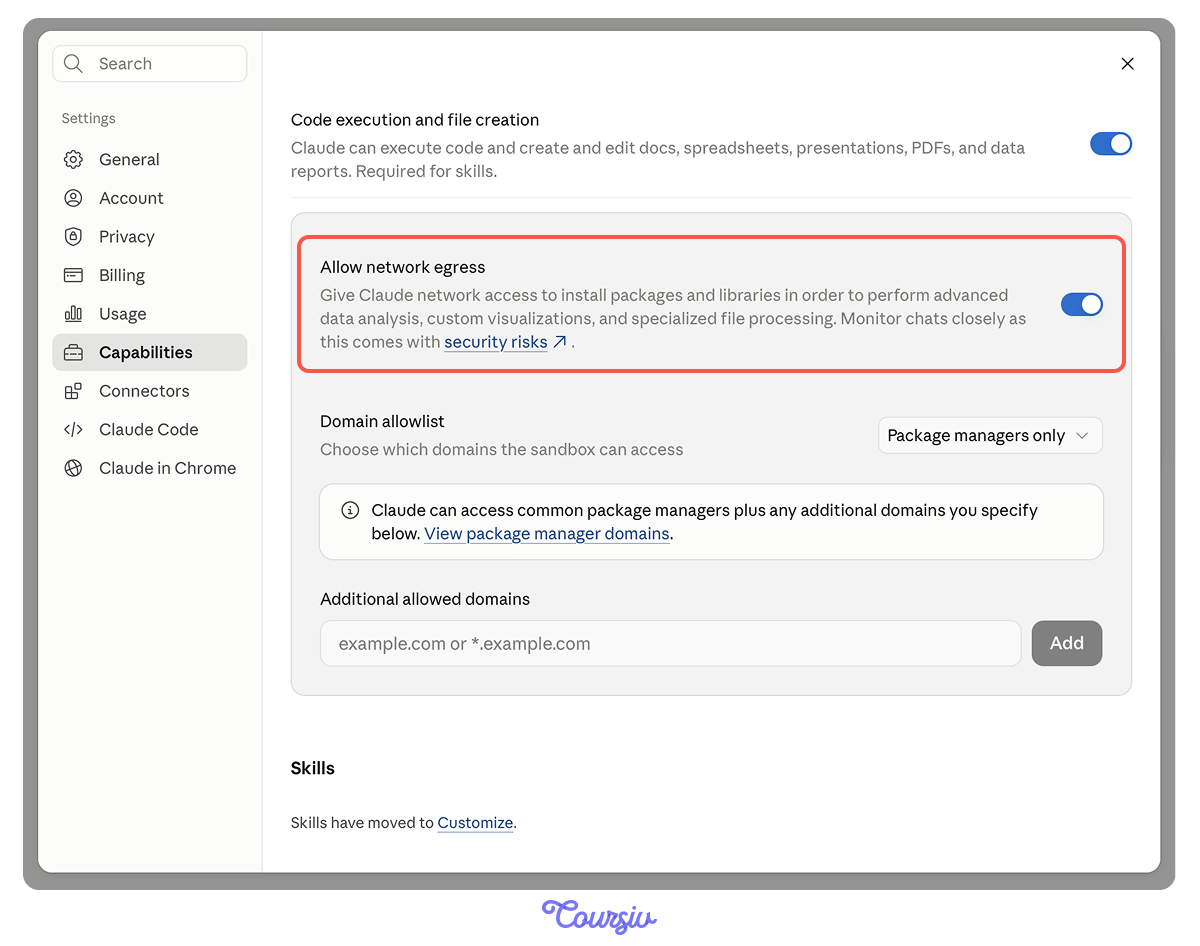
Directly below the File Creation toggle, you'll see Allow network egress — a setting that controls whether Claude can access the internet while building your files.
- "Off" keeps Claude entirely offline in its private workspace; documents still build, but no live data.
- "On" enables internet access for research-backed files. For most document-creation work, leave it off. Turn it on when a task genuinely needs live data, and monitor the conversation while it runs.
Building the Written Report — Word
For a client-facing report, the brief matters more than the prompt. "Write a market analysis report" produces a generic document. A brief that specifies the structure, sections, the types of evidence each section should draw on, and the decision the report needs to support produces a review-ready document.
practice preview
Interactive practice
Fill in the blank
Complete this File Creation prompt for the Word report. Fill in what's missing to give the document real structure.
What Makes a Deliverable Shine
A file is review-ready when it can leave your hands without you flagging anything for the recipient. Four things separate a deliverable from a draft:
- Structural integrity: Formulas calculate, headings hold, layouts don't break.
- Audience fit: The register, depth, and length match who's reading it.
- Content completeness: Every section the brief specified is present and substantive.
- Voice consistency: Sounds like the person sending it, not like a generic AI output.
If any of these is off, it's still a draft.
File Creation works best as an iterative loop rather than a single prompt.
Create the file, download it, review it, upload it back with specific edit instructions, and download the updated version. Each pass targets one problem — a section that's too long, a table that needs a new column, a slide that's missing speaker notes.
Read Before You Send
Download the report and read it the way the advisory board will. The structure looks right, the sections are all there — but read closely against the four criteria from earlier, and you'll find things that need a second pass.
Select all that apply
You read through the downloaded report and find these four issues. What needs to be fixed before this goes to Mara's advisory board?
Fixing the Issues You Just Found
Each issue you flagged has a different fix, but they all use the same workflow.
Upload the report back to Claude, name the specific section, and ask for a targeted edit:
- Duplicated risks: "Merge the two overlapping risks in the Risk Register into one, keeping the higher likelihood/impact rating between them."
- Missing TAM estimate: "Add the TAM estimate to the Opportunity Assessment using the figure from the analysis ($2.1B)."
- Voice mismatch in the executive summary: "Rewrite the executive summary in Mara's voice: direct, plain English, no hedging language. Keep the substance, change how it reads."
Building the Data Table — Excel
After the report pass, the operations lead needs a table they can update with new numbers each month, with automatic recalculation. A static table copied from the report will be out of date the week after they receive it. A properly built Excel file with working formulas won't be.

What "Working Formulas" Means
When Claude creates an Excel file, it writes real formulas — SUM, IF, VLOOKUP, and conditional formatting rules — not hardcoded values.
This matters because a file with hardcoded values looks like a spreadsheet but behaves like a static document. A file built with proper formulas updates automatically when inputs change, which is the only version worth sending.
practice preview
Interactive practice
Fill in the blank
Complete this Excel creation prompt. The gaps define the structure that makes the file actually usable month to month.
The Prompt Depth
The prompt above produced two connected sheets, working formulas, a self-updating chart, conditional formatting, and labeled cells. The difference lies in the specificity of the structure — naming the sheets, input categories, metrics, chart type, and threshold.
Building the Deck — PowerPoint
The executive sponsor is presenting to a board next week. The board won't read 6 pages of market landscape analysis — they need up to four slides that tell a clear story and give them exactly one decision to make. The PowerPoint prompt needs to explicitly reflect that constraint.
practice preview
Interactive practice
Fill in the blank
Complete this PowerPoint creation prompt. Each gap shapes the narrative and the level of detail per slide.
What the Word Count Constraint Does
"Max 40 words per slide" is a structural instruction that forces Claude to make the same editorial decisions a slide designer would. Good constraints restrict the output in useful ways: they force prioritization, shorten explanations, and keep the slide focused.
Building the PDF — When to Use It
PDF is the right format when the document needs to be locked — a proposal the client shouldn't edit, a summary delivered as a formal record, a contract-adjacent document that should look identical on every device.
It's also the right format when you're working with an uploaded PDF and need Claude to extract structured data, reformat it, and return a clean version.
- File Creation produces real files, not formatted text. Working formulas, proper heading styles, and real layouts; structurally correct from the first download.
- Edit, don't regenerate. You can describe the specific change and download the updated version.
- You can keep network egress off for standard document work. Turn it on when a task needs live data, and monitor the conversation while it runs.
What's Next
In the next lesson, you'll learn how to organize your work and give Claude a persistent memory — setting up Projects so your context, constraints, and decisions carry across every conversation without you repeating them from scratch. Let's keep going!