Claude: Deep Dive · Claude Capabilities
Connectors
Connect Claude to your tools
Unlock Claude's Potential
You've likely used AI to speed up tasks and improve results. Yet, there's always more of what you can unlock — and Claude is built exactly for that. So, in this course, you'll learn about the features that most people never touch.
Eager to level up your AI skills? Let's dive in!

What Connectors Do
When you start a work conversation in a blank chat, you often need to provide context before Claude can help. Connectors remove that step entirely.
Imagine having a couple of tables in Google Sheets that you need to compare with each other and write a report based on that. Normally, you'll need to:
- Download the tables first.
- Insert them into the chat with Claude.
- Describe the context of what these tables mean.
- Prompt it to analyze and compare them.
- Ask it to write a report based on the results.
- Transfer the report to Google Docs by yourself.
With Connectors, you would only need to connect Claude to your Google Workspace and prompt it to do the work. That's it!
Understanding Connectors
Connectors link Claude directly to the tools where your work already lives — Gmail, Google Drive, Notion, Asana, Slack, and others.
As a result, instead of gathering materials and pasting them in, you can just describe what you need, and Claude will retrieve it from the source and do the necessary work.
Connectors are useful across many tools and workflows. They make the biggest difference when:
- Source material is spread out: e.g., a project brief in Notion, updates in Slack, and files in Drive, all needed for one task
- You need the latest version: e.g., live sales data from Sheets, not a copy from last week
- Context is too large to paste: e.g., a full Gmail thread that would take forever to copy manually
In each of these contexts, you can connect your workspaces to Claude and ask it to do whatever you need with the data stored there.
Setting the Connectors Up
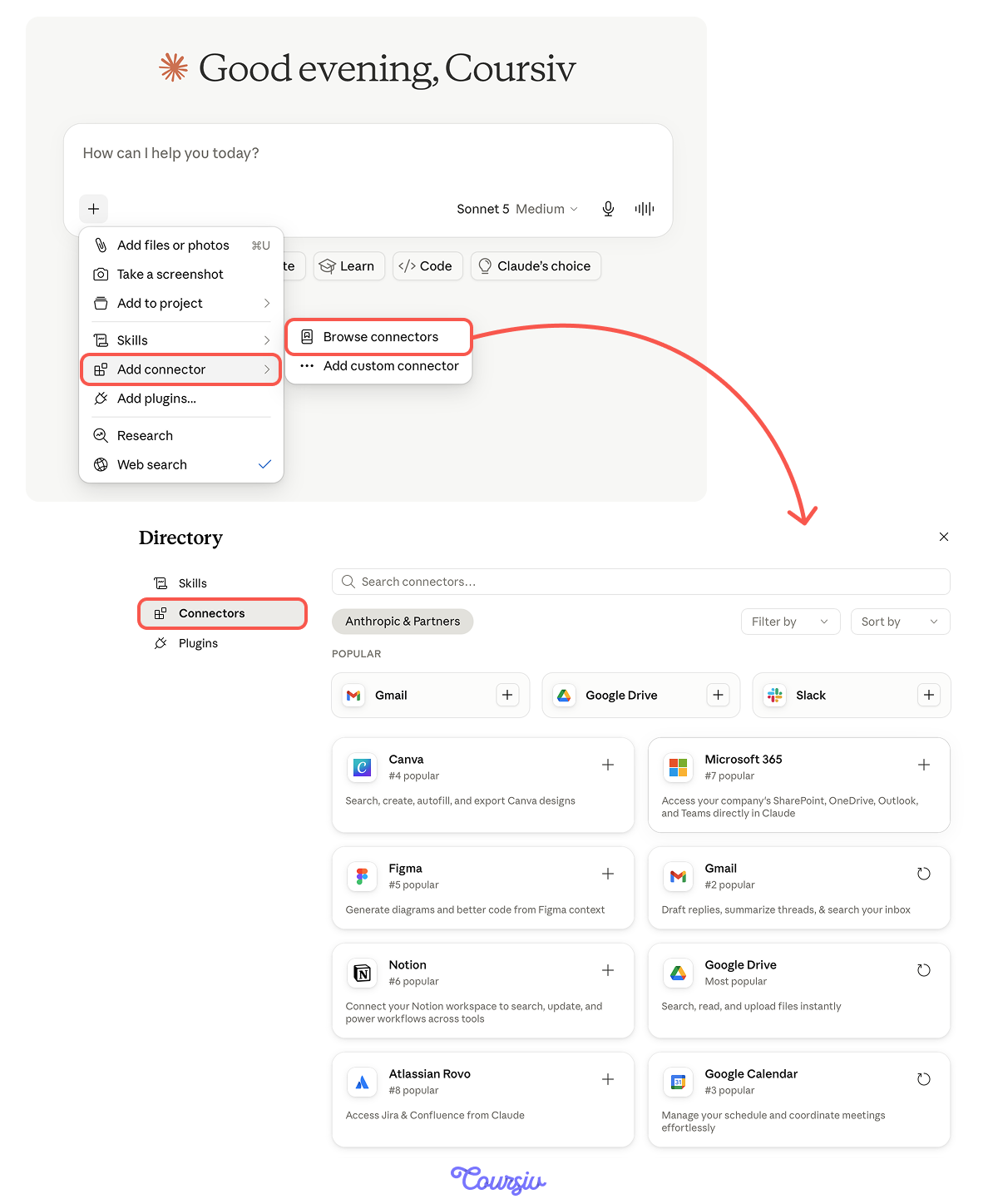
To set the Connectors up, open the "+" menu in chat, go to Add connectors → Browse connectors, choose the tool you want, and complete the authorization flow.
Claude then uses that connection only within the scope of the permissions you granted.
Connectors differ in what they're allowed to do.
- Read-focused connectors, such as Google Gmail, let Claude search for and retrieve content.
- Write-mode connectors, like Asana and Slack, go further: Claude can create tasks, update project status, or draft messages that you review before anything is sent.
Not Everything Should Be on Autopilot
Write-mode connectors open up real possibilities, but they also raise a question read-mode never does: what should Claude be allowed to do without checking with you first?
A useful way to think about it is three tiers:
- Delegate freely: retrieval, summarization, drafting things you'll review anyway.
- Requires your approval: anything that creates, sends, or changes something other people will see.
- Never delegate: irreversible actions, sensitive data access, anything where a mistake is hard to walk back.
Select all that apply
Your Claude now has access to Gmail, Asana, Drive, and Slack. Which actions should require your explicit approval before Claude executes them?
A Scenario to Work Through
To go through the full flow, let's now look at this situation:
- You're two weeks out from a product launch.
- Planning documents are spread across Drive.
- Stakeholder questions are buried in email threads.
- Your project board has tasks you're not certain are actually closed.
Before you can make decisions, you need a clear picture of what's ready and what isn't.
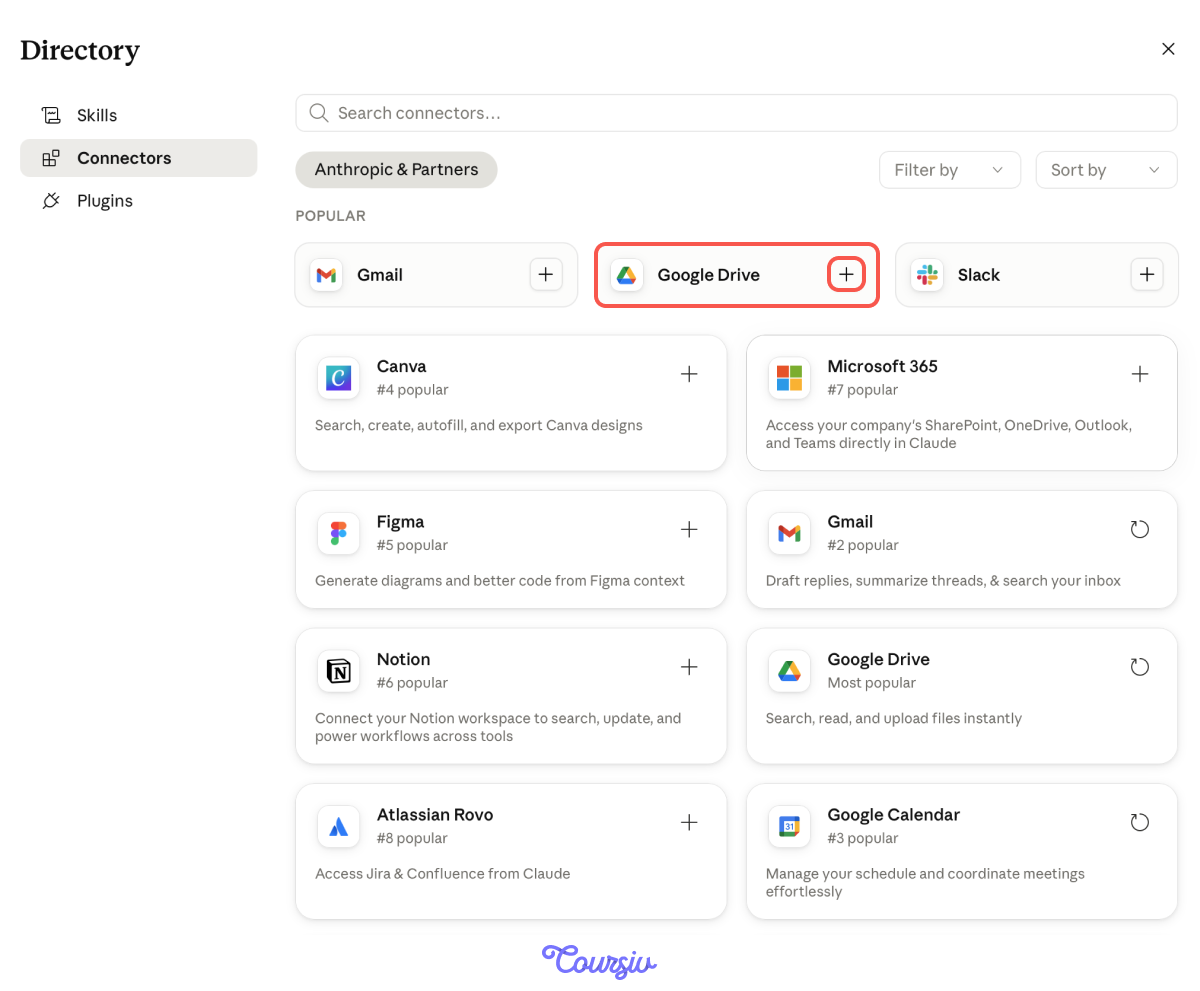
First, you need to connect to Gmail or Google Drive. To do this, once you go to the Connectors space, select the connector you want and complete the authorization flow.
Next, you need a good prompt to ask Claude to retrieve information and produce something you can act on.
That second layer — the analytical instruction on top of retrieval — is what separates a useful output from a well-organized list of documents.
practice preview
Interactive practice
Fill in the blank
Fill in the gaps to see how you can build a Google Drive connector prompt.
See how that worked?
A summary prompt would have returned a tidy list of what each document contains.
In turn, the reasoning instruction — find contradictions, flag decisions — is what surfaced the onboarding conflict and the unresolved legal clause.
Every effective connector prompt has two layers: what to pull, and what to do with it.
Skip the second layer, and you get an organized list — useful, but nothing Claude couldn't have done from a paste. The reasoning instruction is what turns retrieval into analysis.
- Name the source precisely: which tool (if you use more than one connector), folder, label, or project
- Add the analytical task: what Claude should find, compare, or flag in what it retrieves
- Specify the output format: a structured brief, a prioritized list, a risk summary
When the Context Isn't in One Tool
You've found contradictions within the documents from Google Drive. However, the whole context still lives across several tools:
- Launch status lives in Drive
- Stakeholder questions are in Gmail
- Overdue tasks are in Asana
Pulling from each separately and piecing the picture together yourself puts the synthesis work back on you. Connectors exist exactly to remove that burden.

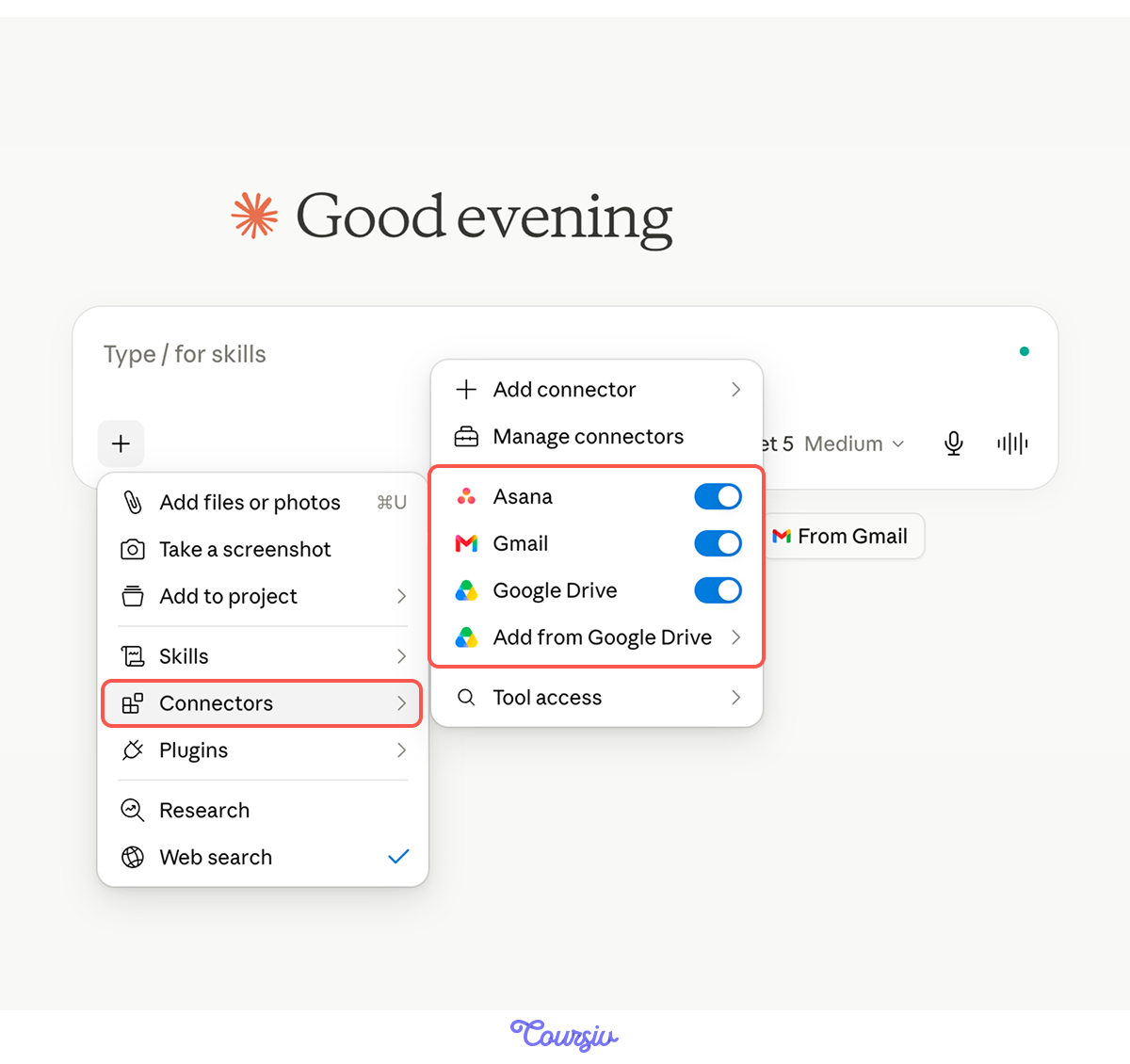
For a prompt that draws on multiple sources in a single pass, all connectors must be active within the same conversation.
Connect each one through the "+" menu before you start. Once all three appear as active, a single prompt can reach all of them simultaneously.
practice preview
Interactive practice
Fill in the blank
Complete this three-connector prompt. You're pulling from Drive, Gmail, and Asana to build a single launch-readiness picture.
Great Job!
The brief identified three things that need to move this week and listed critical items to resolve.
That's how Connectors can increase your efficiency by finding the need-to-focus areas with just one prompt!
When Connectors Use the Wrong Sources
The launch brief you just got back looked clean and confident. But connectors can return outputs that look just as confident, even when built on the wrong inputs.
Connectors fail in four predictable ways:
- Stale data: The retrieval missed recent updates, and Claude doesn't flag it.
- Permission gaps: Claude was blocked from a folder or thread it needed access to, and the output reflects only what it could see.
- Too much context: Claude retrieved everything technically relevant, and the actual signal got buried.
- File structure misreads: Claude pulled from the wrong tab, the template instead of the live doc, or an outdated version.
You only catch them by checking the inputs against what Claude reported.
Imagine you ask Claude to pull the pricing for an upcoming client proposal from your Drive's pricing folder.
Claude returns a clean breakdown. You drop them into the proposal and send it.
A day later, your sales lead flags that the numbers are 6 months out of date. The current pricing lives in a different file in the same folder.
Choose one
What is the most likely reason Claude pulled from the archived file instead of the current one?
Each input failure mode has a specific fix:
- Stale data → tighten the time scope or name the exact filter
- Permission gaps → check what Claude actually has access to before re-prompting
- Too much context → narrow the source to a specific folder, label, or project
- File structure misreads → name the exact tab, version, or sub-document
Now that you’ve seen the core connector workflow, let's see if you can identify scenarios where this feature would fit.
practice preview
Interactive practice
True / False
Decide which approach gives Claude better material to work with.
- Connectors are worth using when the material is current, scattered, or too large and numerous to gather by hand.
- Direct upload is worth using when the task is a close analysis of a single document, and you want complete, controlled access to its contents.
The Pattern Behind Any Connector Workflow
The scenario in this lesson used launch readiness, but the same structure can apply to various workflows:
- A client review
- A hiring decision
- A quarterly planning session
- Or any situation where context is scattered across tools and needs to be synthesized into something actionable
Connect what the task requires, pair retrieval with a reasoning instruction, and let the output drive what happens next.
- Connectors pull live data from your tools. No more manual context gathering.
- Good connector prompts have two layers: what to pull and what to do with it.
- Multi-connector prompts enable cross-source insights. They help Claude synthesize related context from multiple sources.
- Connectors aren't always best. Use uploads for focused, single-document analysis.
What's Next?
You can now pull live context from across your tools in a single prompt, write retrieval and reasoning prompts, spot the ways connectors quietly fail, and tell when a connector beats a manual upload.
In the next lesson, you'll push Claude's reasoning further with Thinking and Research — the modes that turn quick answers into deep, structured analysis. Together with Connectors, they make Claude useful for the work you've been putting off because it was too big to tackle on your own.
Let's keep going!