Claude: Deep Dive · Claude Capabilities
Memory & Persistent Context
Manage the context Claude keeps
The Layer That Knows You
You've spent the last few lessons building a working environment around Claude — context held in Projects, recurring processes held in Skills.
Each of those layers makes a single conversation start better than the last. There's one more layer. The one that means Claude opens every conversation already knowing how you work and what you care about. By the end of this lesson, you'll have that layer set up — and the habit of keeping it useful over time.
Let's get started!

Scenario: Months of Conversations
Imagine this: you moved into a new role a few months ago. Before, you were an individual contributor — running the analysis yourself, owning the deliverables. Now you lead a team of five.
Your work is different:
- More reviewing
- More one-on-one meetings
- More deciding what your team should focus on
You've used Claude through all of it. The old role, the transition, the new one. And Claude's been building a summary of useful work context from your conversations.
The Feature Behind the Scenes
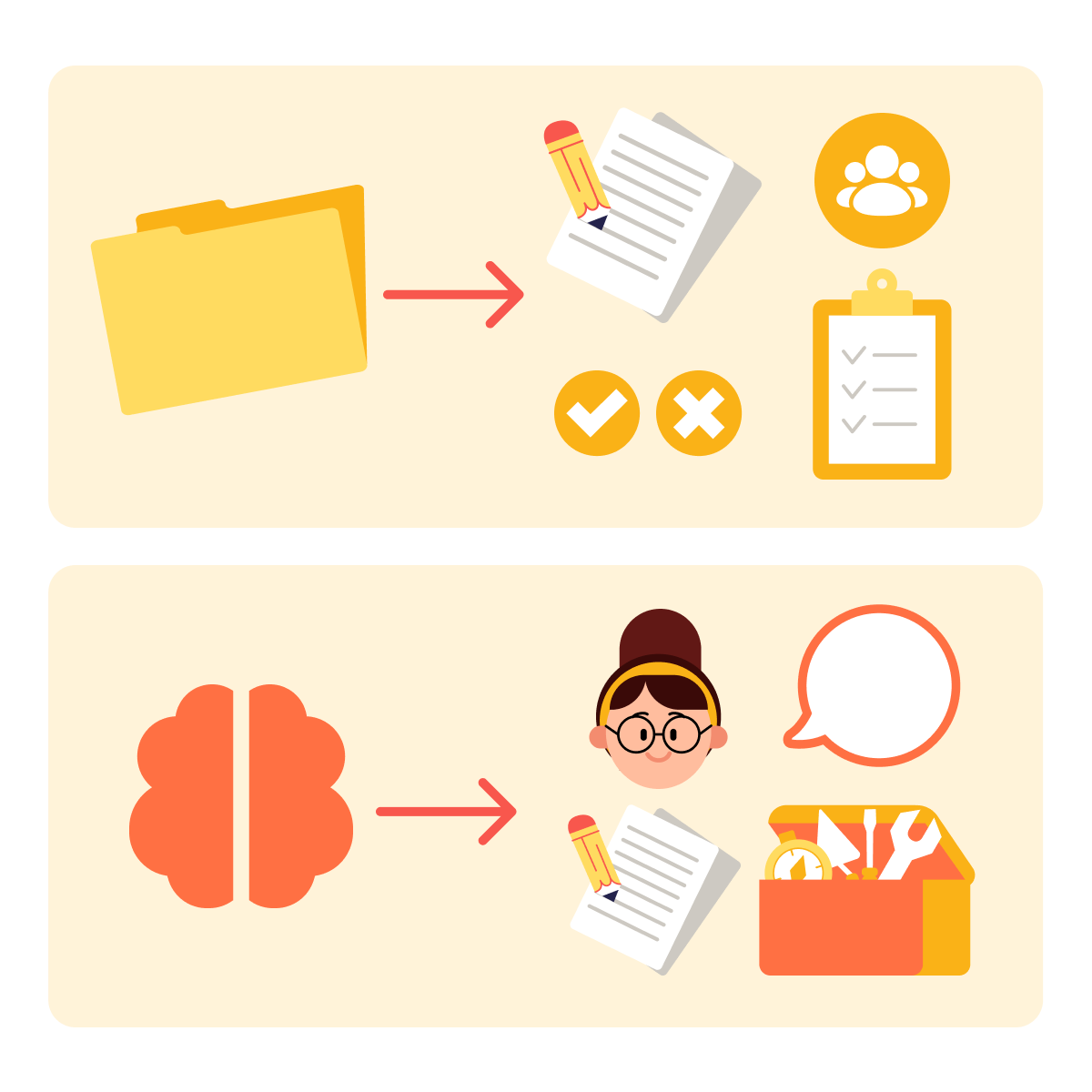
That profile is Memory — Claude's ability to carry context about you across conversations. Memory is different from Projects:
- Projects hold context for a specific body of work: the documents, the team list, the decisions, and the deliverables tied to that particular effort.
- Memory holds context about you: your role, your tools, your standards, your writing preferences, and the things you've told Claude over the months you've used it.
Depending on your plan and settings, Memory or chat search may already be enabled. Today, you’ll check what Claude can remember or reference.
The Same Question, Twice
Before opening Memory, let's see why it matters. The same prompt, run two ways — once in a fresh account with no profile, once in your account with Memory configured.
practice preview
Interactive practice
Fill in the blank
This is what the prompt looks like in a fresh Claude account. Fill in the gaps to see how it responds when it doesn't know you yet.
A reasonable response, but one that puts the work back on you. You have to type out everything Claude needs before you can get to the actual prep.
Now let's try the same prompt — but in your account, where Claude has been building a profile of you for months.
practice preview
Interactive practice
Fill in the blank
Fill in the gaps in the same prompt, now in your account, to see what changes when Claude already knows you.
Choose one
What's the most important difference between the two outputs?
What Memory Stores
Memory captures the kinds of things you'd tell a new colleague over the first few weeks of working together:
- Your role
- The tools you use
- Who's on your team
- How you like things written
- Recurring projects
- Working preferences
Claude's Memory is designed to focus on useful work-related context. Still, avoid putting passwords, sensitive personal data, or confidential information into Memory.
Two Toggles, One Setting
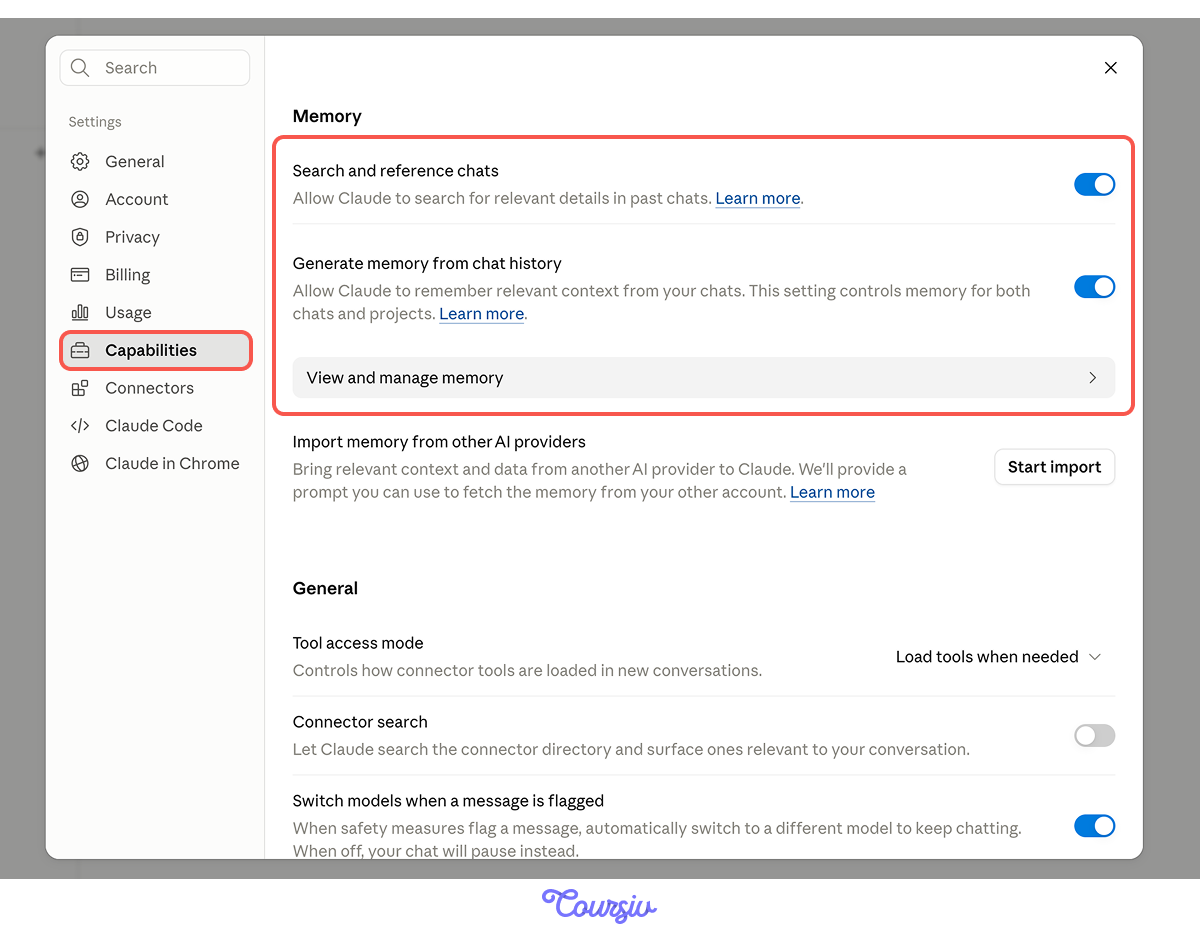
Memory lives under Settings → Capabilities. You'll find two related toggles there:
- "Generate memory from chat history" controls whether Claude builds and updates your profile from conversations.
- "Search and reference chats" controls whether Claude can reference specific past conversations when relevant.
Both can be on, both can be off, or you can use one without the other.
Time to Look
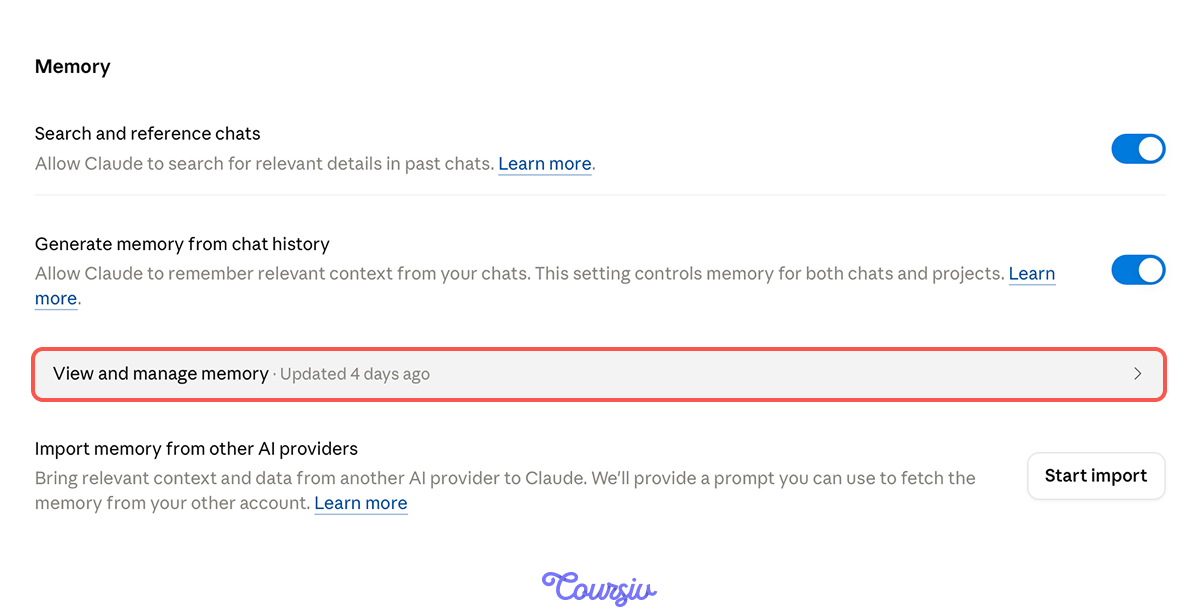
When both toggles are on, you'll see View and edit memory. Click it, and the Manage memory panel opens — a full list of everything Claude currently remembers about you.
Your accumulated profile looks like a mix of stable facts about your work, things you told Claude explicitly, and things Claude inferred from patterns in your conversations.
Read through it slowly the first time. Three categories will start to show up:
- Accurate: things that are true and worth keeping
- Outdated: things that used to be true and aren't anymore
- Inferred wrongly: things Claude concluded from patterns that don't actually hold
The third category is the tricky one. These entries look like facts, but they were never stated explicitly. Claude made a reasonable guess based on your conversations, but it was off.
Select all that apply
Looking at your accumulated profile, which entries should you flag for editing?
Why Inferred Entries Are the Risky Ones
Outdated entries are easy to spot once you look: a project name, an old title, a task you used to own. You read them and immediately know what's stale.
Inferred entries are harder. Claude didn't make them up — it concluded them from real patterns in your conversations. The depth preference came from months of you asking for a detailed analysis. The conclusions were reasonable, but they no longer hold.
How to Fix Each Kind
Outdated entries get deleted or replaced. Click the entry in the Manage memory panel and remove it, or edit it to reflect what's true now.
Inferred entries need correction. You need to explicitly give Claude the correct version.
Two Ways to Update Memory
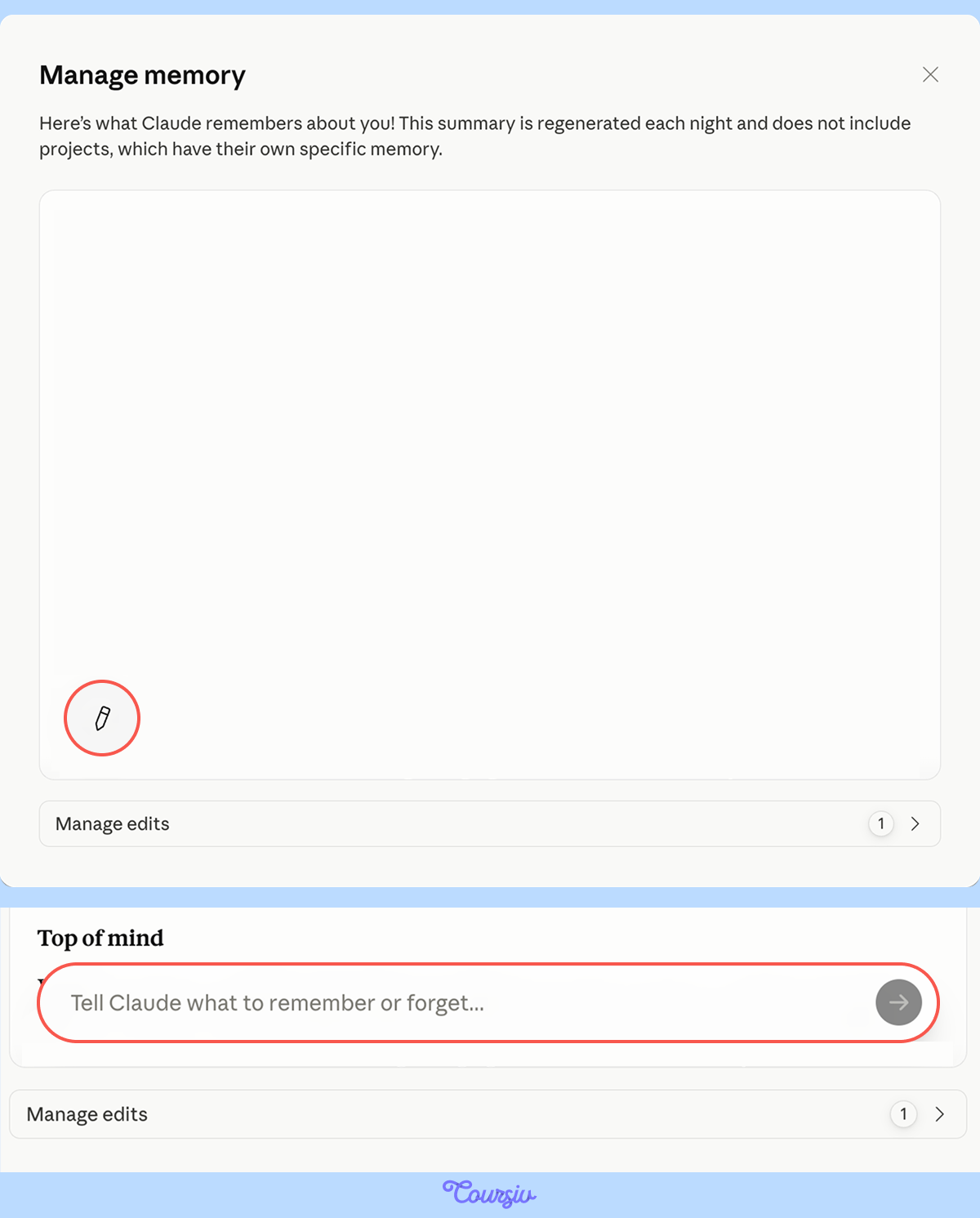
Once you've identified what needs to change, there are two ways to make the edit:
- In conversation, tell Claude directly what you want it to remember, in any chat.
- In the Manage memory panel, find the specific entry, click the "Edit" button, and tell Claude what to edit or delete.
Which way fits depends on what you're changing.
When Each Method Fits
The Manage memory panel is the right tool when you want to see what Claude knows about you and shape it deliberately. You open it to scan the full profile and fix anything that's off.
In-conversation editing is the right tool for in-the-moment additions. Something comes up you want Claude to remember going forward — a new preference, a context shift, a fact you forgot to mention — and you tell it directly in chat. No need to leave the conversation to update a panel.
practice preview
Interactive practice
Fill in the blank
You're correcting the inferred response-depth entry in the conversation. Write the instruction.
Memory From Another AI
If you've been using ChatGPT or another assistant, you have months of accumulated context sitting in their memory. Claude has an import tool that pulls that context over.
You'll find it in the same Memory settings panel. The process is straightforward: you click "Start Import," copy a prompt in the other AI, paste the result into Claude's memory settings, and Claude integrates it.
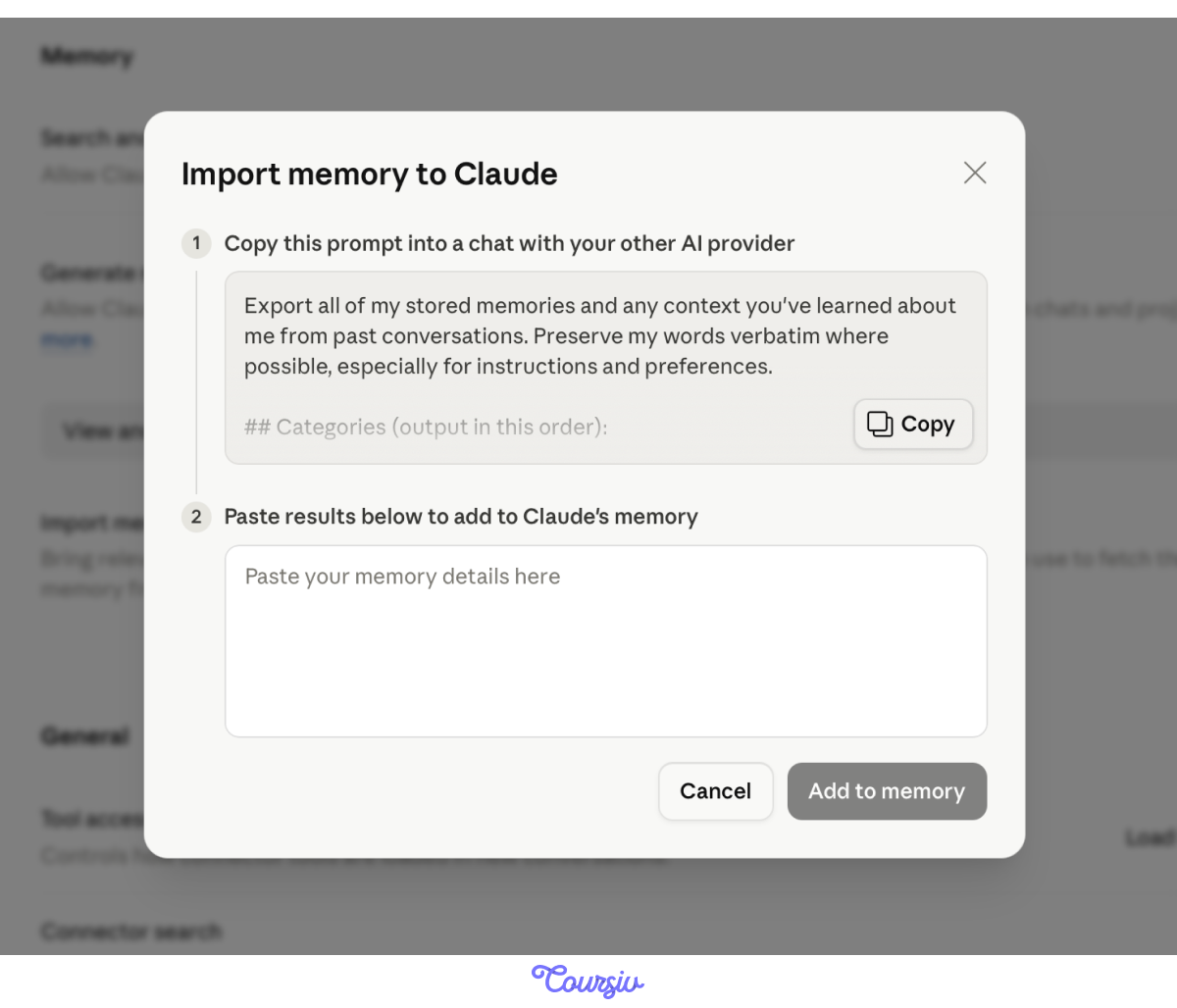
Imported memory needs the same audit treatment. Other AIs make their own inferences from their own patterns, and those don't always travel cleanly.
What Belongs Where
Now that you've seen Memory in action, the question gets sharper: what should live there?
- Memory is for you — the things that stay true across all your work.
- Projects are for work — the things specific to one body of effort.
- Skills are for process — recurring work with judgment baked in.
The most common Memory mistake is putting project-specific context into Memory, where it pollutes every unrelated conversation.
practice preview
Interactive practice
True / False
Sort this piece of context by where it belongs.
The Production Stack, Working Together
In practice, all these layers blend. A single Claude response can carry contributions from all four — and learning to recognize which layer is doing what is the synthesis skill that makes the whole stack feel coherent.
Select all that apply
You ask Claude in your launch retro Project, "Run the retro for the redesign launch." Claude produces a structured retro using the four-moves framework, in your direct plain-language voice, referencing the specific launch documents from the Project. Which layers are visibly contributing?
Memory and Your Personal Projects
One thing worth noting: most people use Claude for more than work. Personal writing, travel planning, helping a kid with homework, and the side project. Memory accumulates from all of it.
That's fine — but it means your professional profile gets mixed with hobby context and one-off mentions. Periodically, you'll want to clean Memory specifically for your professional work: remove personal entries that aren't useful, keep the ones that are, and make sure the work-relevant profile is clean.
The audit habit applies across both. Just be deliberate about which kind of entry you're keeping.

The Audit Habit
Memory rewards maintenance. The profile that worked 6 months ago doesn't necessarily work today, and the longer it goes unchecked, the more stale entries accumulate.
Two cadences are worth setting:
- Monthly check-in: Open "Manage memory," scan for outdated entries, and fix the inferences that don't hold anymore.
- Trigger-based audit: Every time something material changes (new role, new project, new direction), audit Memory specifically against that change.
- Memory carries who you are across conversations. Role, tools, preferences, working style; the things that stay true regardless of what you're working on.
- Memory is on by default. That means Claude has been remembering things about you, whether you've configured it or not.
- Three categories of entry: accurate (keep), outdated (replace), inferred wrongly (correct explicitly).
- Two methods for updating memory: The Manage memory panel for deliberate audits and structural fixes, in-conversation edits for in-the-moment additions you want Claude to remember going forward.
- Each layer has a job: Memory for you, Projects for the work, and Skills for the process.
- Audit monthly, and on every major change. Stale Memory is worse than no Memory.
What's Next
You've built the production stack — Memory, Projects, Skills, plus the connector and reasoning layers from earlier in this course. Every new conversation now opens with Claude already loaded for your work.
In the next lesson, you'll start using Claude to build with you. Advanced Artifacts — interactive tools that hold their own data across sessions, call Claude from inside themselves to handle the work, and can be shared with people who don't have Claude at all.
Let's keep going!