Claude: Deep Dive · Claude Capabilities
Claude Code
Build working tools without code
Build the Tool That Does Your Work
You've been configuring Claude, building Artifacts, and shaping how every conversation starts. Now you'll take a different step — building a real, working tool on your computer that handles a piece of your professional work end to end. A script you run when you need it, that takes inputs and produces a finished deliverable.
That's what Claude Code is for. By the end of this lesson, you'll have a working tool, and you'll know the limits of what's worth building this way.
Let's get started!
What's Claude Code?
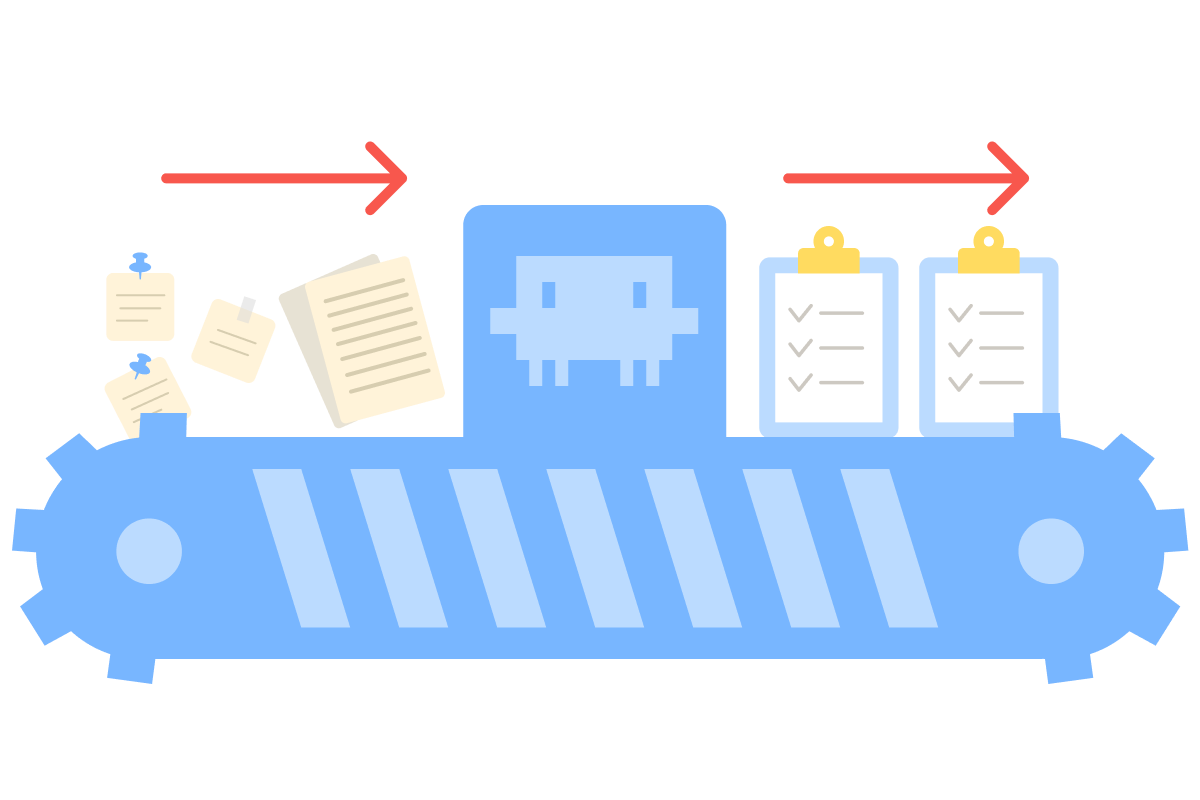
Until now, Claude could work with files you uploaded or connected. Claude Code is different because it works inside a local project folder on your computer. You build tools with your actual files — scripts and programs that live on your machine, run when you trigger them, and do real work on your data.
Why Claude Code
A regular Claude chat is for conversation — you ask, it answers, and anything it says lives in the chat. An Artifact is for interactive tools that others can use through a link.
Claude Code is a best fit for tools that need to:
- Read files on your machine: CSVs, folders of documents, and exports from other systems.
- Run actual scripts: Python, shell commands, anything that processes data.
- Produce real output files: Word documents, spreadsheets, anything that lives on disk.
- Stitch multiple steps together: read from sources, transform, format, write output.
When the work involves your local files and produces a real deliverable, Claude Code is the best choice.
Scenario: A Tool for Your Task
Imagine this: you run a small consulting practice with two retainer clients. Once a month, each client gets a status report — your formal summary of the past month's work. You've been producing these reports the same way for 9 months. Each one takes about 90 minutes.
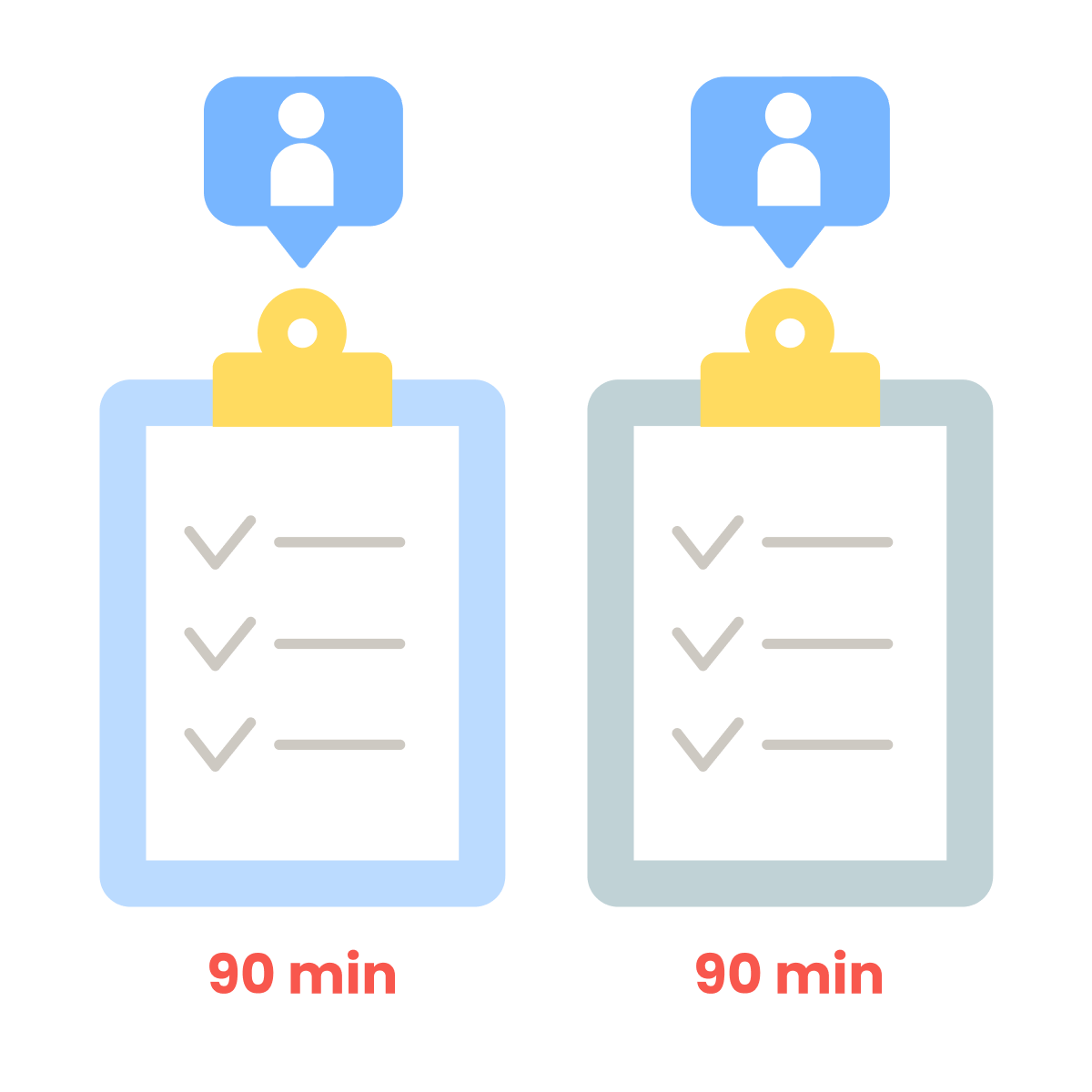
You're going on vacation in three weeks. Your colleague Sarah will cover both clients while you're away. Two reports are due during that time.
Sarah is competent, but she doesn't know your format, your sources, or the months of context behind these clients. If she produces the reports from scratch, the clients will notice the difference.
You're going to build her a tool.
Why These Reports Take 90 Minutes
The data isn't in one place. Producing the report means cross-referencing across three sources:
- A project tracker (CSV) — what got tracked. Status, hours, deliverables completed and pending.
- A folder of meeting notes — what got discussed. Decisions made, concerns raised, action items.
- An email thread export — what's still open. Questions awaiting answers, loops yet to close.

The 90 minutes are the cross-referencing work. Each source on its own is incomplete. The tracker doesn't capture the why. The meeting notes capture conversations, but you don't know what made it into the tracker. The email thread surfaces what's open, but doesn't connect to either.
What the Tool Will Do
You give it three inputs:
- The project tracker CSV
- The path to the meeting notes folder
- The client's email address (the tool fetches recent threads via the Gmail connector)
It does the cross-referencing work and produces a finished Word document — the kind of report you'd send to the client after a quick proofread.
Select all that apply
Why is Claude Code the right surface for this tool, rather than a regular Claude chat or an Artifact?
Before Anything, Set Up the Project
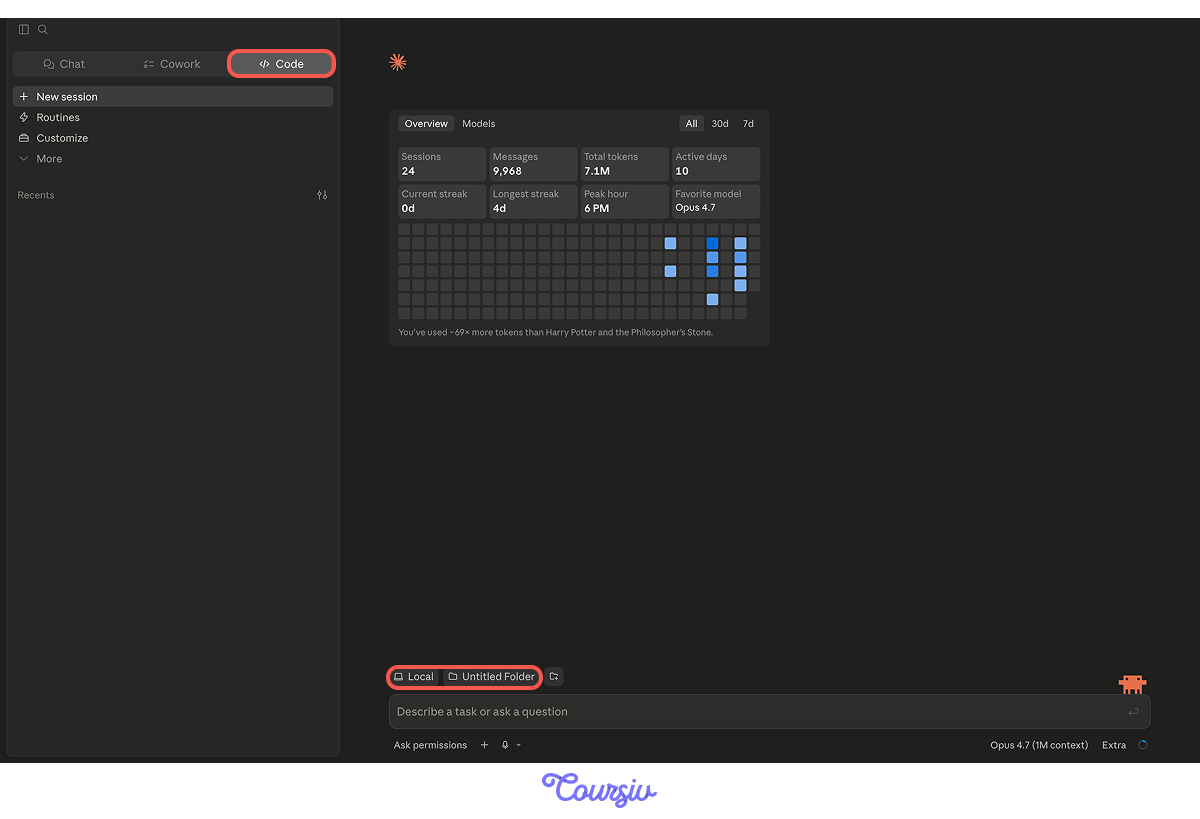
Claude Code works inside a folder. Before building anything, you create or choose the folder the tool will work with.
Connecting the Email Source
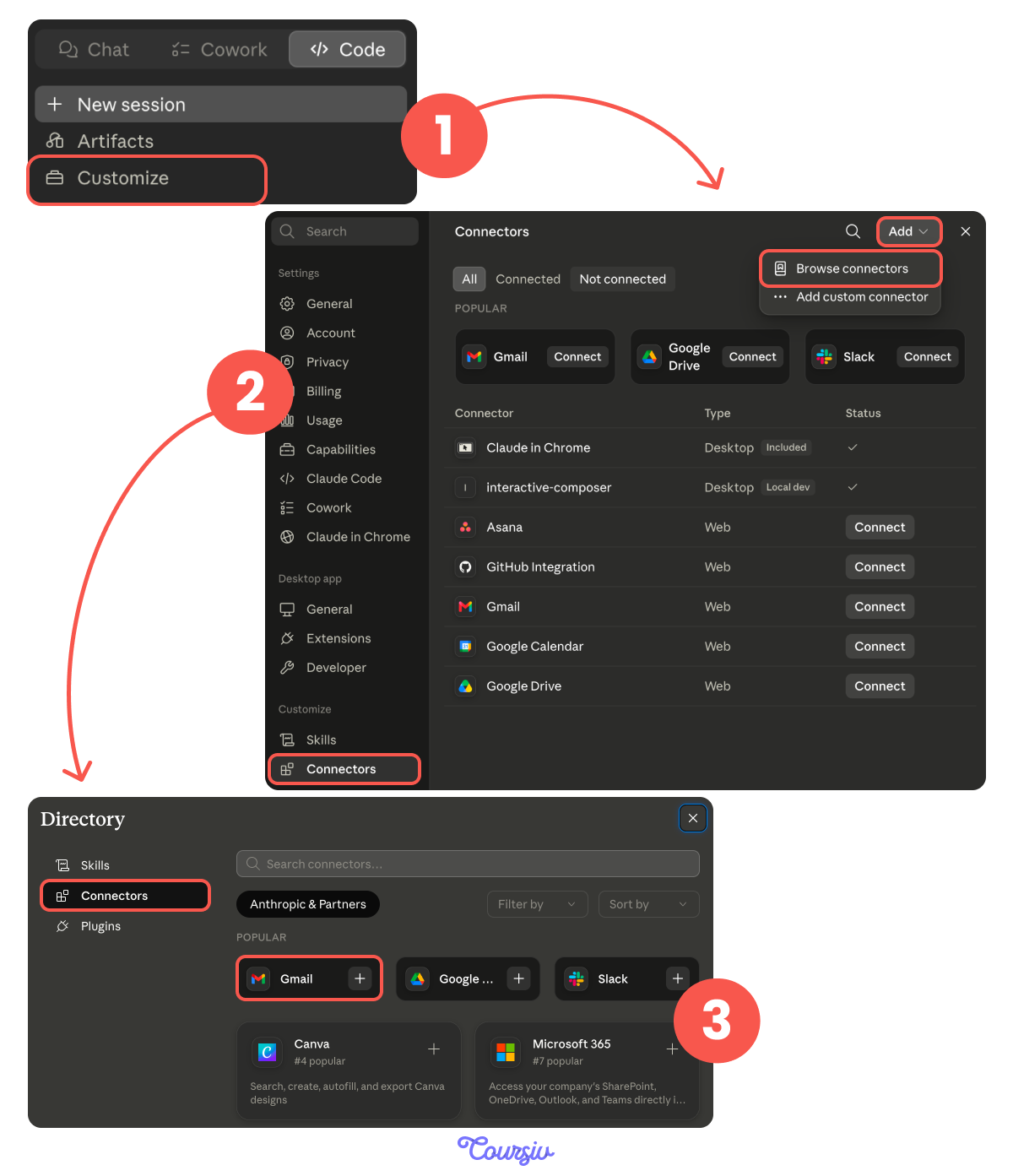
The project tracker and meeting notes live in your project folder, where Claude Code can read them directly. The email thread is different — it lives in Gmail, and the tool needs a way to reach it.
That's what Connectors are for.
Go to Customize and select Connectors. Click "Add" then "Browse connectors," and then choose Gmail. Sign in, authorize the connection, and Gmail becomes a source the tool can read from.
The connection happens once, and the tool uses it every time it runs.
Describe What You're Building Before You Prompt
The temptation is to start prompting immediately. The better move is to describe the tool to yourself first — in writing, in your project folder — so when you prompt Claude, you're handing it a real specification.
A clear spec covers four things:
- Goal = what the tool does, in one sentence
- Inputs = what files, in what format, in what location
- Processing = what the tool does to the inputs, step by step
- Output = what comes out, in what format, where it lands
Skipping this is the most common reason vibe-coded tools end up nearly working instead of actually working.
When writing a spec or prompt, you reference files and folders by typing "@" followed by the path. Two things matter:
- @file_name includes the file's contents in context. For example, @spec.md loads the spec. Use this when Claude needs to read what's in the file.
- @folder_name/ includes the folder's contents listing. For example, @data/meetings/ shows Claude what files exist in the meetings folder. Use this when Claude needs to know what's there and then read individual files as needed.
practice preview
Interactive practice
Fill in the blank
Write the spec for the client report tool in the new session chat. Each gap defines one part of what the tool will do.
First Build, Test Data First
Now you build. The prompt is short because the spec does the heavy lifting.
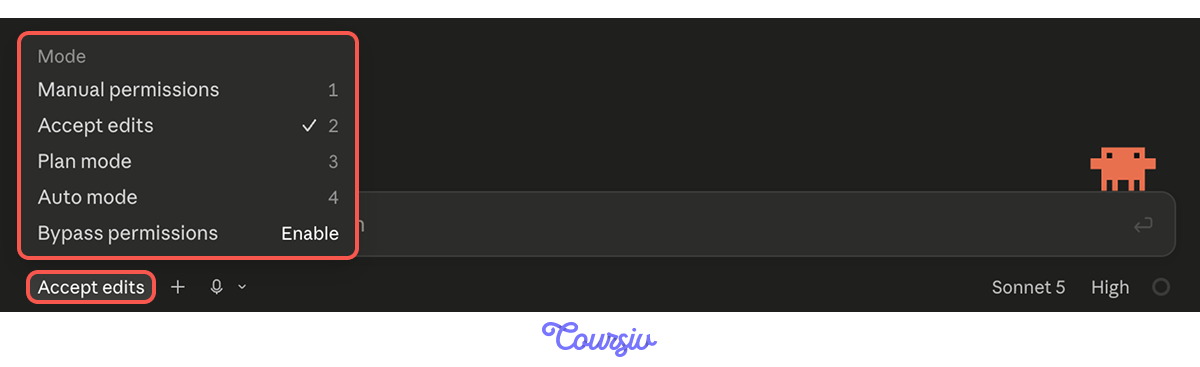
Permission Modes
As Claude starts building, you'll notice it doesn't just silently write the file. It pauses and asks.
That's the default behavior: Manual permissions mode. Claude tells you what it's about to do, and you approve each step. For a first build, this is the right default: you see what's happening and learn what the tool touches as it's being made.
There are other modes for when you don't want to approve every step:
- "Accept edits" runs through small changes without stopping.
- Plan mode maps out the work before any file changes.
- Auto mode runs straight through with a background safety check.
- "Bypass permissions" skips all permission checks essentially and lets Claude execute any tool without prompting.
practice preview
Interactive practice
Fill in the blank
Fill the gaps to build a tool from the spec.
The Acceptance Criterion
You have 9 months of these reports in a folder. Each one was produced by you, by hand. You know what a correct report looks like, because you wrote them.
That's your verification standard. The tool's first real test is running it against last month's inputs. The output should match the report you actually sent.
Running It on Last Month's Data
You run the tool. It produces a Word document. You open it next to last month's actual report and read them side by side.
You'll find three kinds of things:
- Matches — sections the tool produced that look like what you wrote
- Misses — things the tool didn't catch that you did
- Surprises — things the tool surfaced that you missed manually (rare but useful)
The misses are the iteration material. Don't fix the code — describe the miss to Claude, and let it iterate the tool.

After Claude builds the first version of the tool, the most useful next step is comparing what you described in the spec against what Claude built.
Ask Claude to walk through what it built, step by step, in plain language. Then check each step against three questions:
- Did anything from the spec get skipped? Something you asked for that isn't in the build.
- Did Claude add steps you didn't ask for? Sometimes useful, sometimes scope creep.
- Did Claude interpret a step differently than you meant? The most common gap — the spec said "read every meeting note," Claude built "read meeting notes from this folder, but skip ones older than 30 days."
How the Iteration Loop Works
When the tool's output doesn't match the reference, the loop is:
- Describe what's wrong, naming the specific case where it appears.
- Let Claude rebuild the broken piece.
- Re-run on the same test data.
- Compare the new output to the reference again.
You repeat until the output matches. Each pass narrows the gap.
The Limits of Vibe Coding
Not everything that could be a tool should be a vibe-coded tool. Three categories of work fit:
- Buildable via vibe coding: recurring work with clear inputs, clear logic, deterministic outputs. The client report tool fits.
- Requires developer assistance: anything that needs security review, runs on production systems, handles sensitive customer data, or needs to scale beyond your machine.
- Not suitable for automation at all: work where the judgment changes each time, where the inputs aren't stable, or where the value is in the human doing the thinking.
Knowing which bucket a tool falls into is the most important calibration in vibe coding. Over-scoping into the wrong bucket is how Claude Code projects get abandoned.
practice preview
Interactive practice
True / False
Decide whether this tool is a fit for vibe coding or whether it needs a different approach.
A tool without documentation is a tool only you can use — because you remember the inputs, the order, and the quirks. Sarah doesn't.
Good tool documentation answers four questions for someone who's never seen it: what does it do, what inputs does it need, how do I run it, and what do I do with the output.
The standard place to write good documentation is a file called README.md, saved in your project folder. When anyone opens a tool they've never seen before, the README is the first thing they look for — that's the whole job of the file.
This is a documentation example for a different tool — read it as if you're about to use it for the first time: "Tool: expense-categorize. Usage: run the script with your expense data. Output: a categorized version. Edge cases handled."
You'd immediately hit the questions this documentation doesn't answer:
- Where does your data go?
- What format?
- What command?
- What's "a categorized version" — a file, a printed table, a chat response?
Documentation that doesn't survive a stranger's reading isn't ready for a team handoff. Picture the failure: Sarah opens the documentation and can't figure out where to put her data or which command to run, and then ends up texting you from the airport.
practice preview
Interactive practice
Fill in the blank
Ask Claude to write the README for Sarah. Each gap shapes what the documentation must cover.
Handing the Tool to Sarah
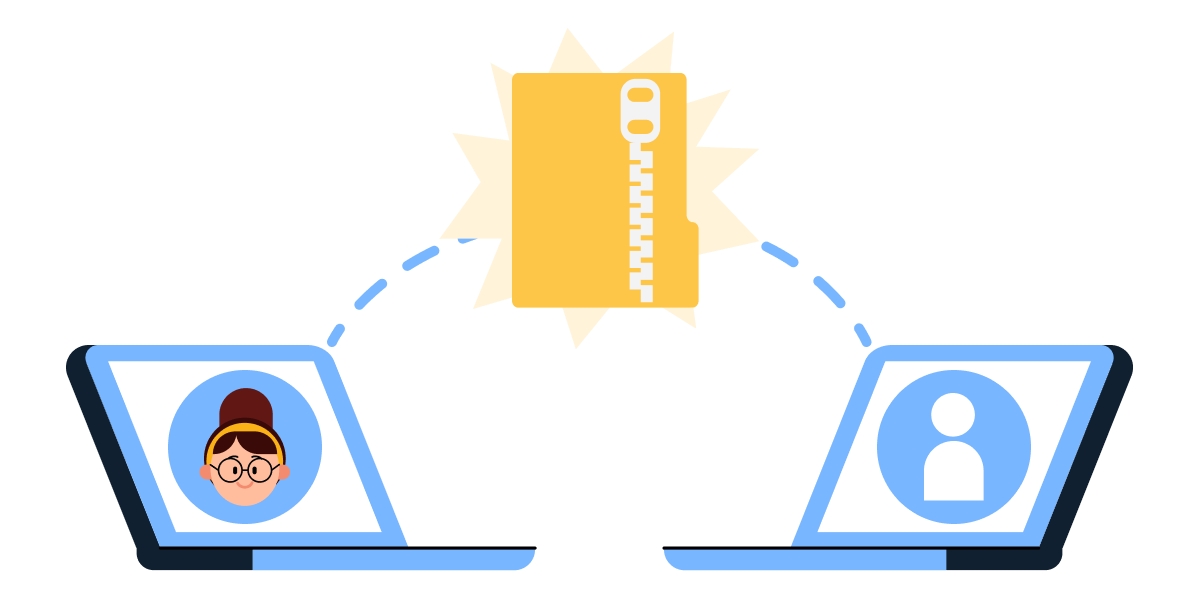
The tool lives on your computer. To make it Sarah's tool during your vacation, you need to get the project folder onto her computer.
The simplest way is to zip the whole project folder and send it to her. She unzips it on her machine, opens the folder in Claude Code, and the tool is ready to run. Because the tool uses relative paths, it works wherever she puts the folder.
How Sarah Uses It Each Month
From here on, generating a new client report is straightforward — for you or for Sarah. Drop the new month's inputs into the data folder (or, for your colleagues, into a copy of the folder).
Then open the tool's interface, set the client name and the month in the Run panel, and click Generate report. That's it!
The Tool Is Done
You have a working tool. You've verified it against 9 months of reference reports. You've documented it for Sarah. The hard work is over.
What's left is the small habit of running the tool yourself once before vacation — on this month's data, with this month's inputs — to confirm everything's working in your absence. If anything looks off, you fix it now. By the time Sarah's covering, the tool is solid.
A quick note: If you've never used Claude Code before, there's a separate course that walks through the installation, the desktop app, and the core workflows for vibe coding and automations.

- Claude Code earns its place when work needs local files, real scripts, and deliverables on disk. Not chat-shaped, not browser-shaped.
- The spec comes before the prompt. Goal, inputs, processing, output, named in writing before you start building.
- Match-the-manual is the verification standard. Last month's reports are the answer key; the tool is ready when the output matches what you wrote.
- Iterate by description, not by code. Describe the miss, name the case, let Claude rebuild that piece.
- Compare the spec to what got built. Gaps, additions, and drift are where the build deviated from the brief.
- Not every recurring task is the best fit for vibe coding. Stable rules and deterministic outputs fit; judgment-heavy, customer-facing, or production work doesn't.
What's Next?
You've built a tool that turns a 90-minute recurring report process into a faster, reviewable workflow. Sarah can run it.
In the next lesson, you'll meet Cowork — the layer that wraps automation around tools like this one. The same client report tool can become part of a larger workflow that runs without anyone triggering it. Let's keep going!