Claude: Deep Dive · Claude Capabilities
Claude Cowork
Automate weekly routine with Cowork
Hand Off the Whole Task
So far, you've been prompting Claude through tasks — describing what you want, reviewing what it produces, refining the next prompt.
This lesson is a different move. You'll learn to hand Claude an outcome — not a prompt — and let it execute the multi-step work on its own across your files, apps, and connected services. You review the finished deliverable instead of coordinating every step.
That's what Cowork is for. Let's get started!

What's Cowork?
Claude Cowork is Anthropic's desktop agentic surface. You give it a task — an outcome you want — and Cowork plans the work, executes the steps, and produces the deliverable. You don't prompt it through each step; you assign the task and review the result.
One important note: Cowork is paid-plan only (Pro, Max, Team, or Enterprise).
Three things make Cowork distinct from everything else you've used in Claude:
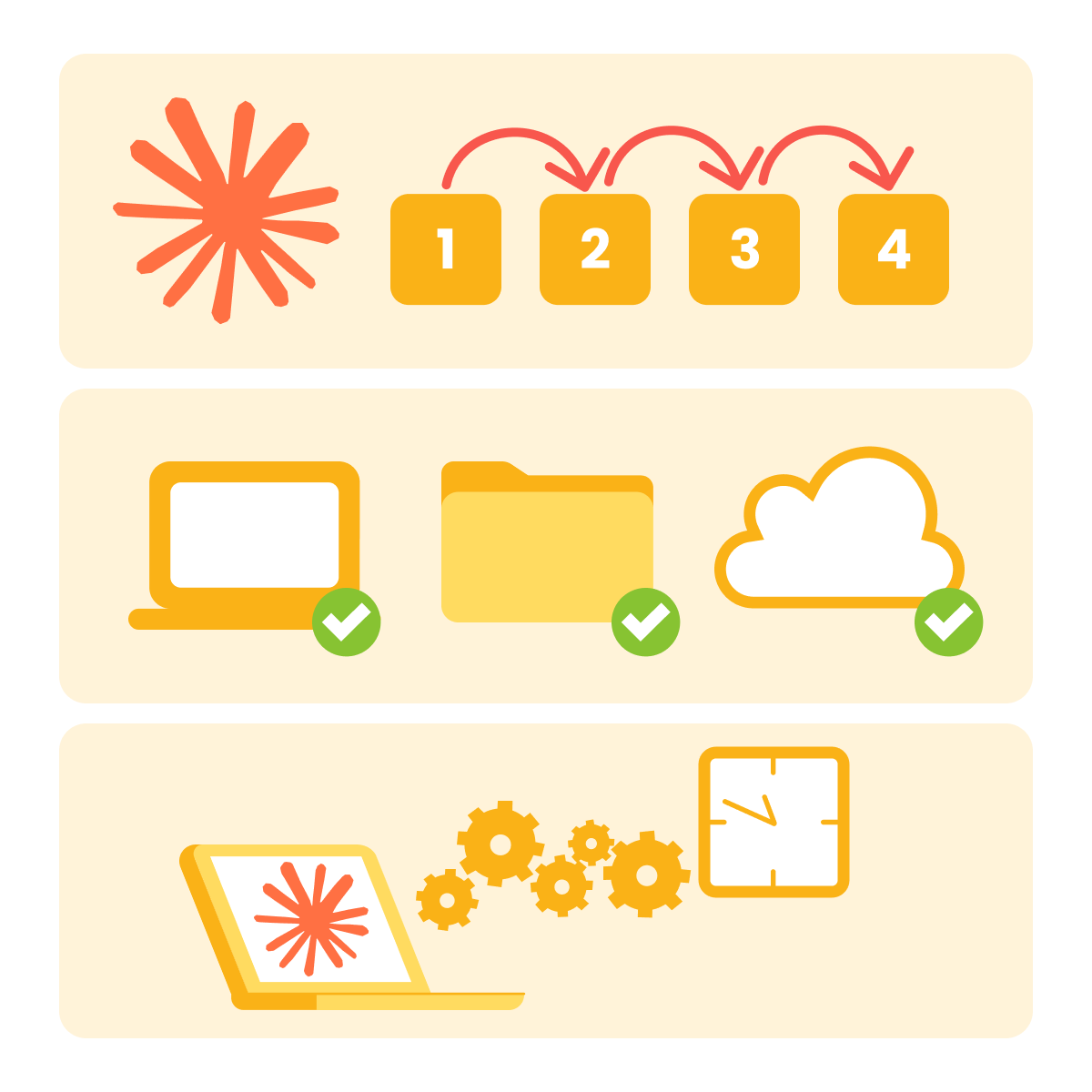
- Agentic execution: Cowork doesn't wait for your next prompt. It works through the steps on its own and only checks in when it hits something needing judgment.
- Cross-surface reach: Cowork works across local files, connected services, and desktop apps within a single task. No other Claude surface crosses all three.
- Long working sessions: A Cowork task holds its working state across a session that runs minutes to hours, so each step builds on what the previous steps produced. A chat exchange handles one back-and-forth, whereas a Cowork session accumulates work.
How Cowork Fits With Everything Else
You've now seen several shapes of Claude:
- Regular chat — conversation. You ask, it answers.
- Connectors — Claude reaching into your tools to read and act.
- Artifacts — interactive tools that live in a browser, shareable as a link.
- Claude Code — tools built from real files on your machine.
- Cowork — autonomous execution of multi-step work across surfaces.
Each surface hands more of the work to Claude. Cowork is the furthest along that line — you set the outcome, Claude drives the work.
Judgment Comes First
Before learning how to use Cowork, the first skill is knowing when to use it — and when not to.
Cowork is powerful because it can execute across your tools, files, and apps. That same power is what makes the wrong delegation risky. A task assigned to Cowork that shouldn't have been delegated can cause damage.
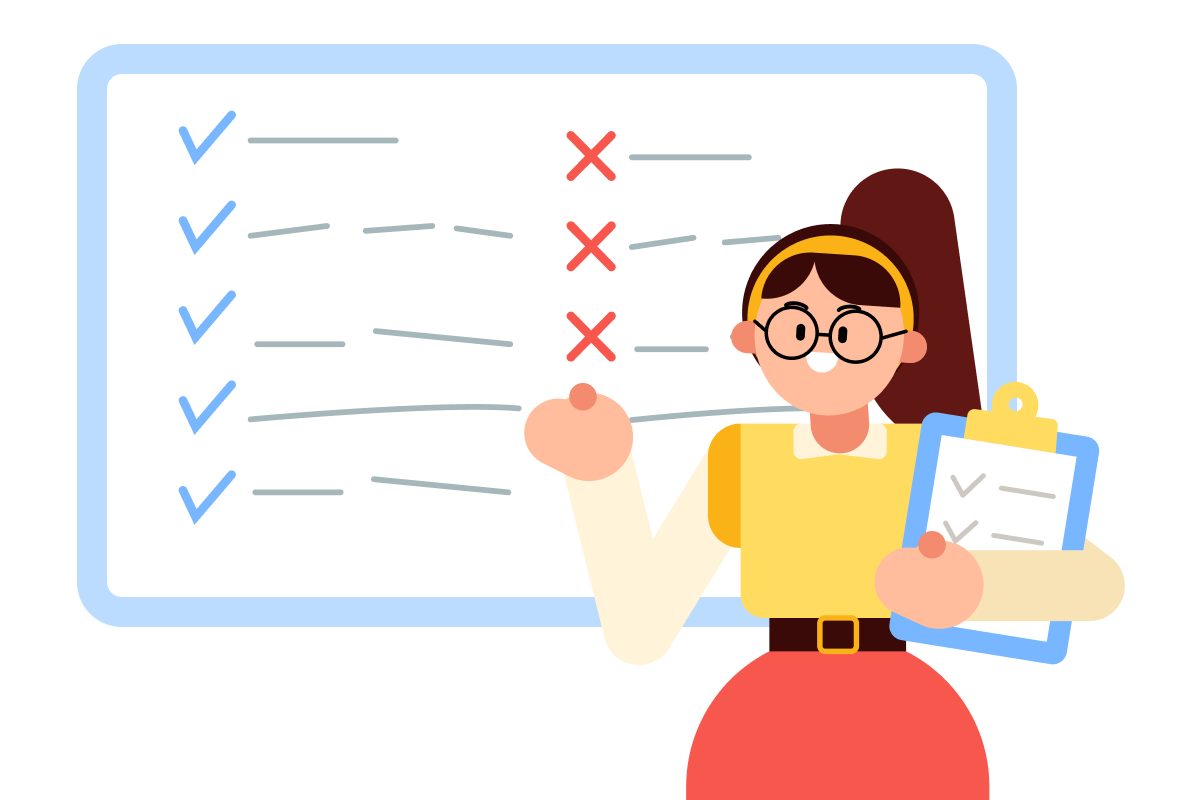
The starting framework is three tiers, based on how much human judgment the work requires.
The Three Tiers of Delegation
Tier 1: Cowork prepares autonomously.
Read-only synthesis: reading scattered information and producing a summary, a briefing, or an analysis. No actions taken on anyone else's behalf. The cost of a mistake is contained — you read the output, catch any errors, and move on. This is where Cowork is safest and most valuable.
Tier 2: Cowork prepares, you review before action.
Drafted responses, suggested priorities, and recommendations. Cowork writes the draft; you decide whether it goes out. The judgment lives with you because the cost of a mistake is higher.
Tier 3: Never delegate.
Replying to emails on your behalf, sending messages, accepting invites, and changing the state of any system that affects other people without you in the loop. The cost of a mistake here is hard to walk back — relationships, trust, commitments made in your name.
Select all that apply
Why do you think the tier framework matters?
Classifying the Work Before You Delegate It
To make the tiers concrete, let's walk through a few real tasks. For each, decide which tier it belongs in and what specifically about the task drives the decision.
practice preview
Interactive practice
True / False
Decide which Tier this task belongs to.
Scenario: Weekly Brief
Imagine this: you run a small architecture studio with four people on your team. Across any given week, work happens across email, Slack, your project tracker, and your calendar.
Monday morning is currently a slow start. You sit down, figuring out what the week holds:
- Which meetings need real prep
- Which decisions need to come out of you this week
- Which projects are about to hit a deadline
You piece it together, often catching things later than you'd like.

What the Monday Brief Will Contain
You're going to set up a Cowork task that runs Sunday evening and already has your whole next week planned.
Your plan will include the five sections, all forward-looking:
- Your week ahead
- What needs your response or decision this week
- Ongoing projects status
- Where your team needs you
- Top priorities
Let's build your automation step by step!
Where Cowork Lives
Cowork lives inside the Claude desktop app, alongside Chat and Claude Code. The left sidebar shows your Projects and Scheduled tasks. The main area is where you'll write your task brief and run it.
You'll see an input field and a few suggestion cards for common tasks.
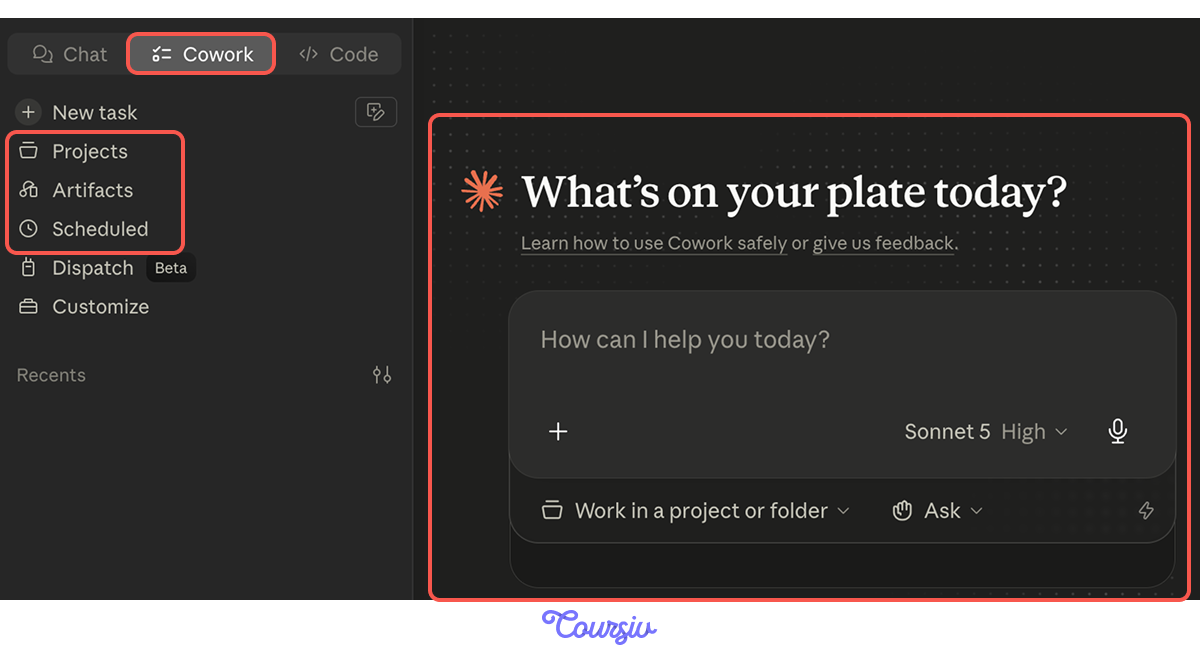
Below the input, you'll see Work in a project. A project is the workspace for ongoing Cowork work. Each project carries its own:
- Folder on your computer where Claude reads and writes files
- Instructions — standing context Claude reads every session (your role, your team, your formatting preferences)
- Memory — Claude remembers what it's done inside the project across sessions, scoped to that project
- Scheduled tasks that belong to the project
- Context — additional URLs or linked Chat projects Claude can reference
Connected services (Gmail, Slack, calendars) are configured separately at the account level, not at the project level.
Starting a Session
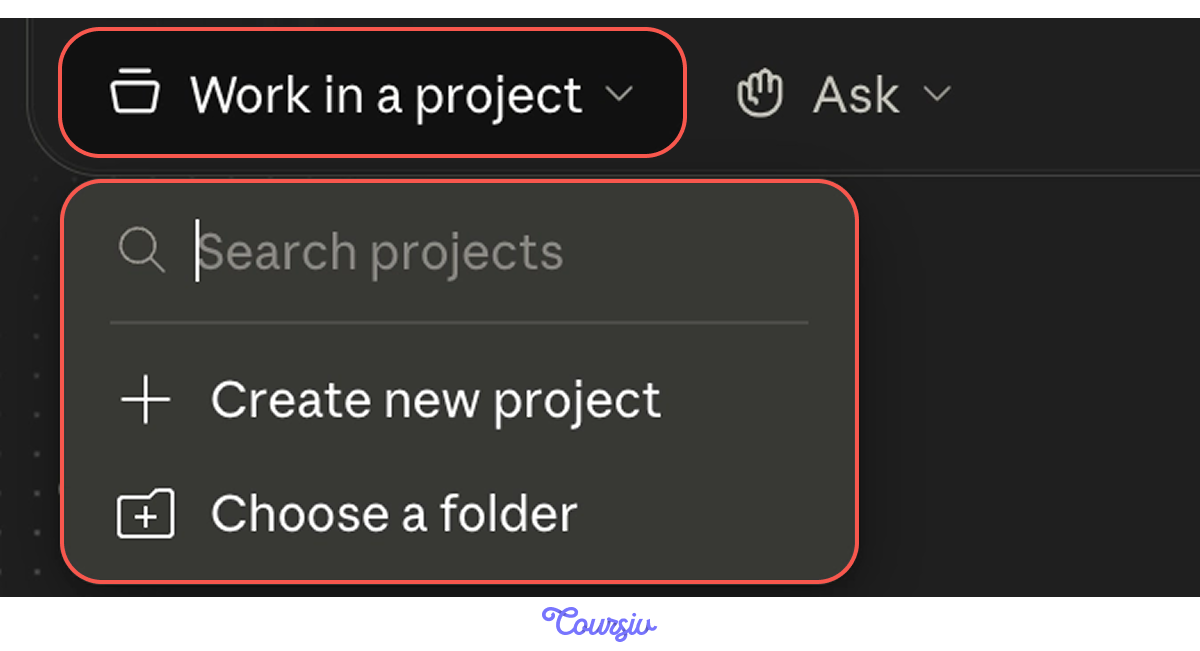
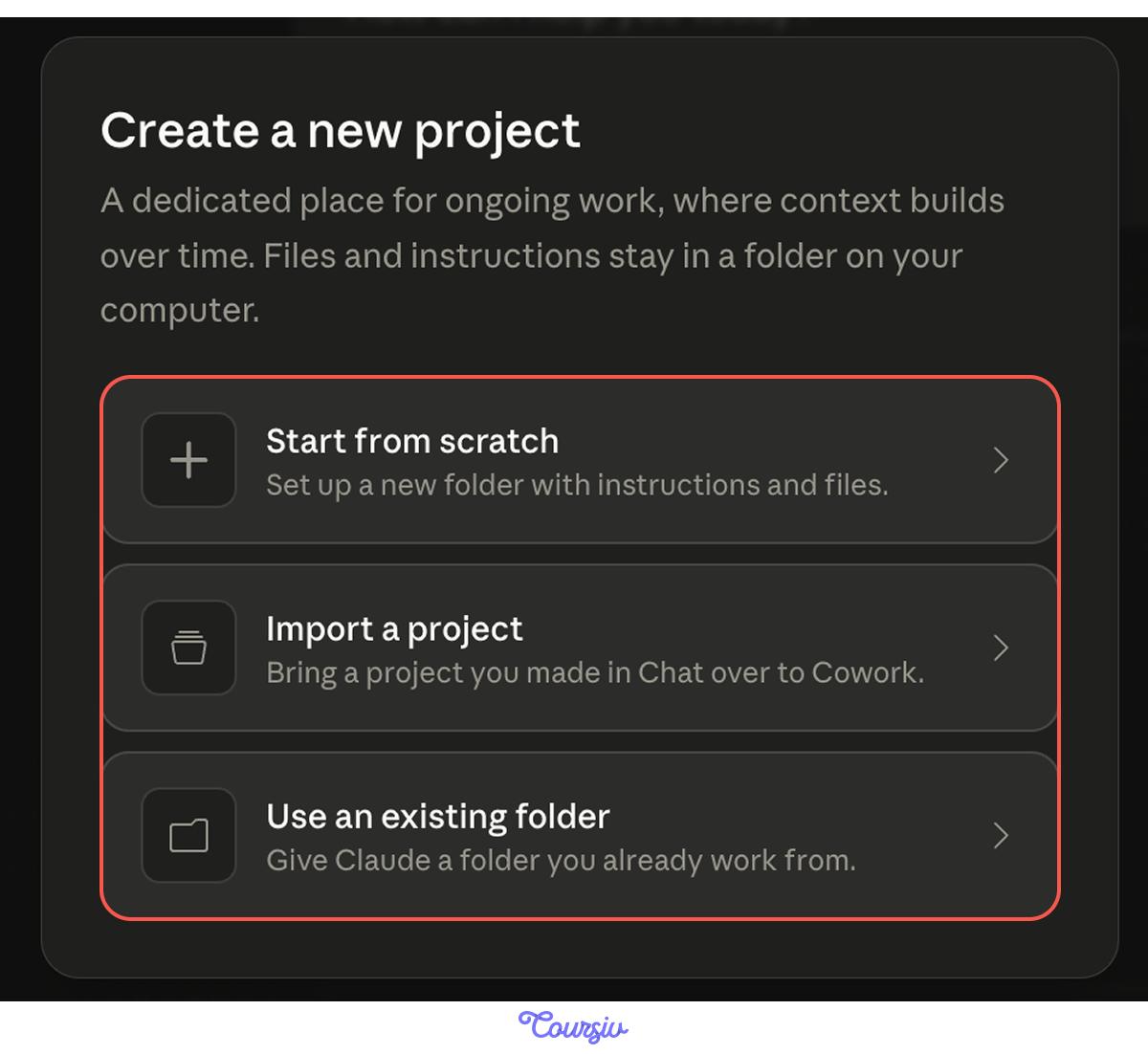
Click Work in a project below the chat input. You'll see two options: Create new project or Choose a folder. You'll see three ways to create a new project:
- Start from scratch — pick a new folder, add instructions, attach files
- Import a project — pull in a Claude Chat project you've already built (its instructions and files come with it)
- Use an existing folder — point Cowork at a folder on your computer you already work from
For a one-off task with no need for accumulated context, you can pick Choose a folder for the session. For your week prep — a task that runs weekly and benefits from Cowork knowing your studio's specifics — a project is the right setup.
Setting Up the Project From Scratch
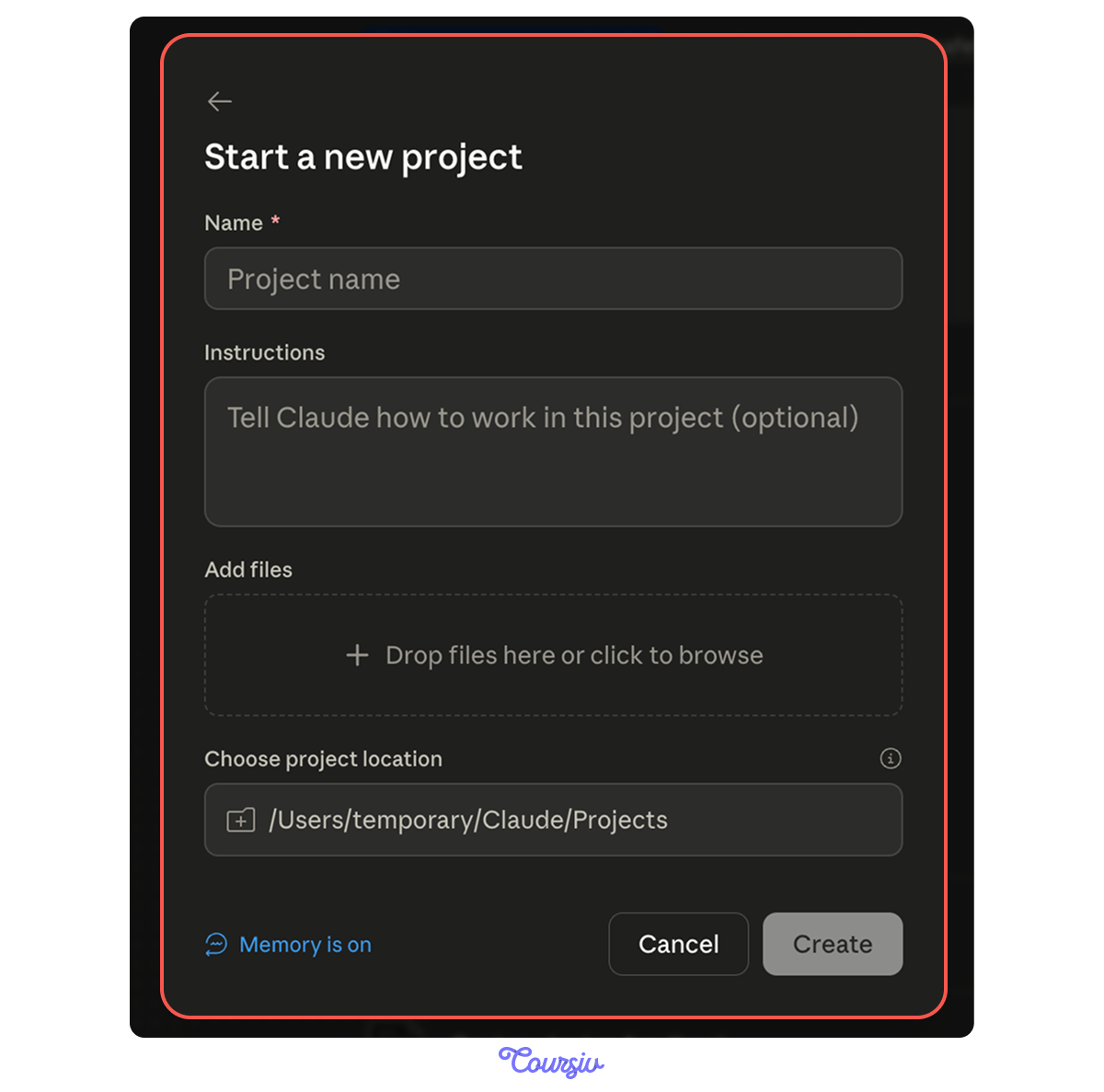
Selecting Start from scratch opens a project setup modal with four things to fill in:
- Name — what the project is called in the sidebar.
- Instructions (optional) — standing context Claude reads every session.
- Add files — drop in any reference material the project should always have access to.
- Choose project location — where on your computer the project folder lives.
The Memory is on indicator at the bottom confirms that Claude will accumulate context across runs inside this project — useful for a recurring task, where week 2 builds on what week 1 saw.
Click Create and your project is live.
The Task Brief Structure
After setting up the project, you proceed to briefing the Cowork. A Cowork task brief has three parts:
- Outcome = what you want at the end, in one sentence.
- Sources = what Cowork should read, named specifically.
- Scope = what Cowork is allowed to do — read-only vs. take action, what it should never touch, and where the work stops.
Scope is where Cowork tasks succeed or fail: vague scope leads to scope creep, and a tight scope keeps the task focused.
If you want your task to recur, a fourth decision — schedule — comes after, when you turn the task into a scheduled one with a command /schedule. A guided Skill asks you for the cadence (hourly, daily, weekly, weekdays only, or manually) and confirms the schedule.
Scheduled tasks are tied to projects and appear in the Scheduled sidebar.
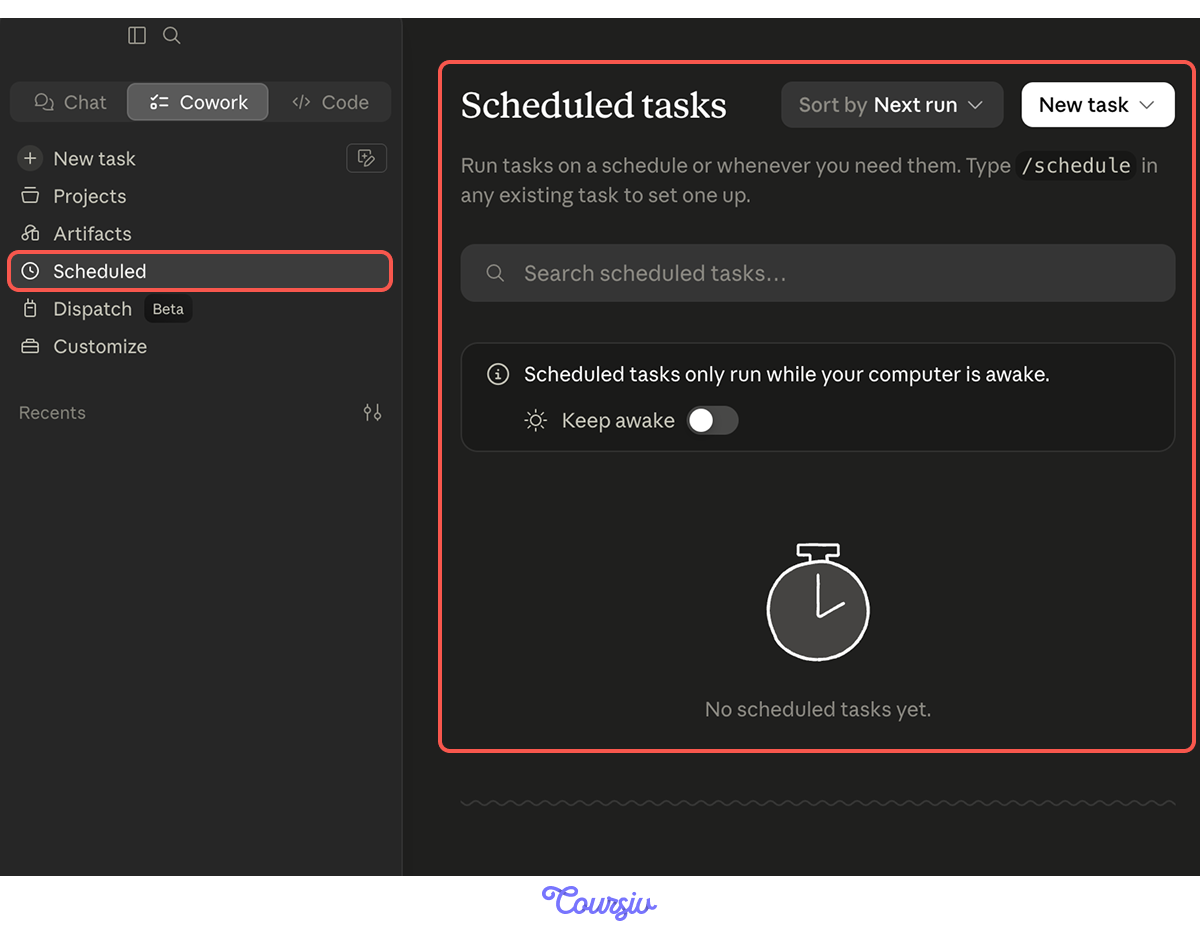
One thing worth knowing: Cowork needs the desktop app open and your computer awake while it runs. If your computer is asleep or the app is closed when a scheduled task is due, Cowork skips it, then runs it automatically the next time your computer wakes up or the app opens. You'll see a notification.
Connecting the Tools Cowork Reads
Before the task runs, the four sources need to be reachable. Cowork uses the same connectors you set up in the first lesson — they authorize once at the account level and are available across surfaces.
For your week prep, four connectors need to be active:
- Gmail — for the email thread synthesis
- Slack — for team channel reading
- Asana — for project status
- Google Calendar — for the week ahead
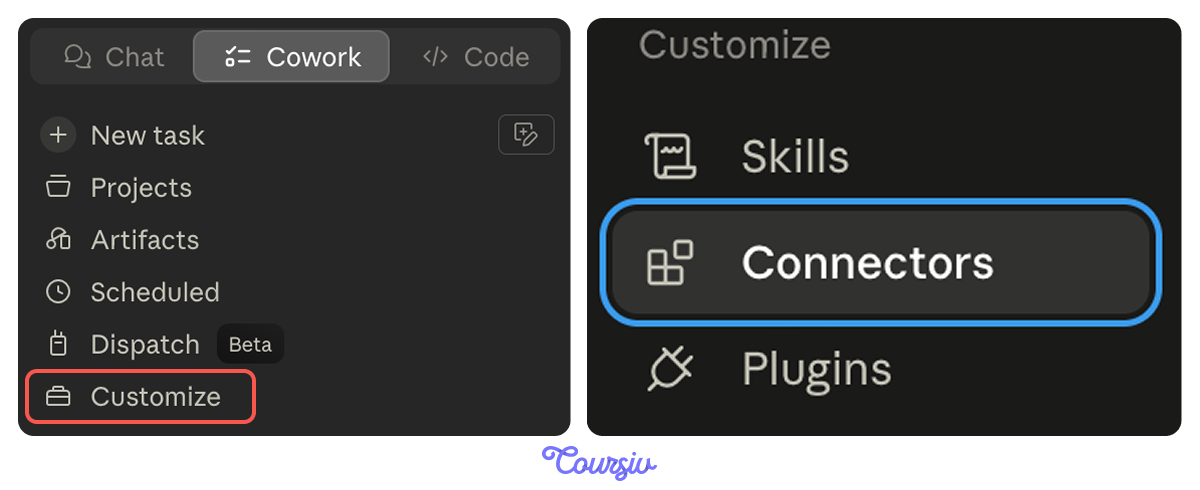
If any of these aren't connected yet, open the Customize section at the Sidebar, choose Connectors, and complete the authorization for each.
Setting Up the Task
Writing a Cowork task is a short conversation, not a long prompt:
- Describe the outcome. Type the task brief in the input field: outcome, sources, scope, and schedule if needed.
- Review Claude's plan. Before doing anything, Cowork proposes how it'll approach the work. You read the plan, ask for changes if it's off, and approve when it's right.
- Let it run. Once approved, Cowork executes on its own. You can step away, work on something else, or close the active conversation. The work continues in the background as long as the app stays open.
Permission Modes
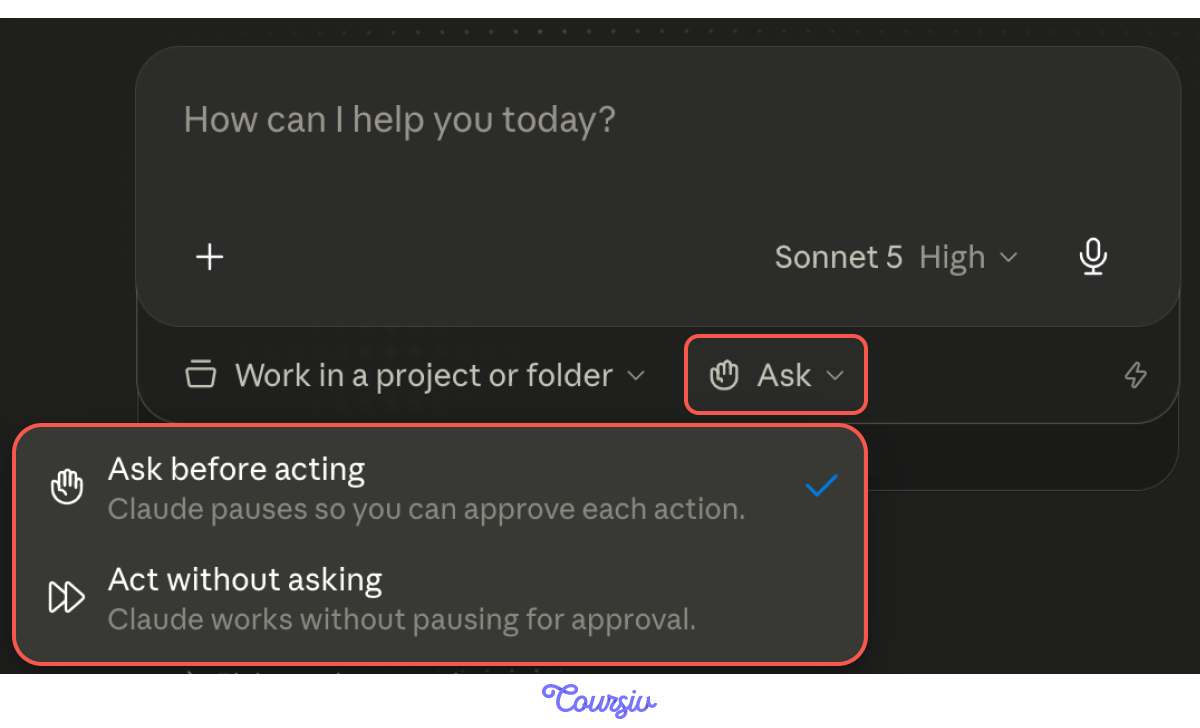
Before you write the task, one more setting to know about: Cowork's permission modes. You'll see two options:
- Ask before acting (default): Cowork pauses before each significant action and waits for your approval.
- Act without asking: Cowork executes the whole task without pausing.
For your first run, stay in Ask before acting. Watch what Cowork pauses on, what it touches, and where it asks for permission. Once you've seen it run cleanly at least couple of times, switching to Act without asking for the scheduled runs is a reasonable next step.
Now that the setup is in place, it's time to write the task itself.
practice preview
Interactive practice
Fill in the blank
Write the Cowork task for your week prep. Each gap defines one part of the task.
Now Schedule Your Task
You've built a working Cowork task — a project that holds context, a brief that scopes what Cowork reads, and a clean first run you've audited. One step left: turn it into a weekly habit.
In the same task, type /schedule and Claude walks you through cadence options — hourly, daily, weekly, weekdays, or manual. Pick weekly, Sunday 9 p.m. and Cowork saves the schedule. You can find your task (and edit) under Scheduled in the left sidebar.
Your First Run
You run the task manually as a first test. Click "+ New task" in the top-left and paste the brief into the chat input. After, both files appear:
- The document — a week-prep-1 saved in your designated folder
- The run itself — the Cowork session for this task, showing the full execution
You open the brief first. The five sections are there. The top priorities are right — they read like what you would have written if you'd done the brief yourself. Then — the run. This is how you stay in control of an agentic task. It shows what Cowork read, what it produced, and any steps where it paused or hit something unexpected.
Select all that apply
After you read the brief and it looks right, what do you think is the next thing to do and why?
When Things Go Wrong
The run log audit is how you catch real failure modes before they propagate. Cowork tasks can break in four specific ways:
- Scope overrun: Cowork went beyond what the brief asked for, doing extra work that wasn't requested.
- Output that misses the brief: The deliverable doesn't address what was asked. Right shape, wrong content.
- Content that shouldn't have been included: Something private, confidential, or off-topic ended up in the final output.
- Access that touched something it shouldn't have: Cowork read files, channels, or services outside the scope you defined.
Each one fails differently, and each one is caught the same way: by reading the run log carefully.
A Brief That Went Off-Scope
Imagine the second week your task runs. You open your week prep and notice something that shouldn't be there: a paragraph in the "Decisions made without you" section summarizing a Slack thread between two team members about a sensitive HR situation — performance concerns about a third team member.
The thread happened in a private channel, it was confidential, and definitely shouldn't be sitting in a document you might forward or screenshot.
Choose one
Looking at the original task brief, what do you think is the most likely root cause of the HR thread appearing in the brief?
Writing the Corrective Brief
The fix is to make the scope explicit about which Slack channels Cowork reads, rather than which ones it should avoid.
The principle: allowlist, not blocklist. Tell Cowork the specific channels it can read, rather than telling it to avoid an open-ended set of things that might or might not be labeled.
practice preview
Interactive practice
Fill in the blank
Fix the scope so the HR thread couldn't have been read in the first place.
The Scope Audit Habit
The corrective brief fixed the problem. The audit habit catches problems before they become a brief you're forwarding to someone.
Once a month — or after any change to a task brief — read a recent run log carefully. Catching potential issues early is how you keep Cowork reliable.

- Cowork is built around outcomes. You give it the result you want, it executes the steps, and you review the deliverable.
- Classify before you delegate. Tier 1 (autonomous), Tier 2 (review before action), Tier 3 (never delegate). The judgment is yours, every time.
- Use a project for recurring work. Projects carry your folder, instructions, memory, and scheduled tasks — so each run builds on the last instead of starting fresh.
- Scope by allowlist, not blocklist. Name the specific channels, folders, and connectors Cowork can read. Filters that rely on labels ("skip confidential") miss real cases.
- Schedule after auditing, not before. Run the task manually, read the run log, and only then convert it to a recurring task with /schedule.
- Read the run log, not just the deliverable. The deliverable shows what Cowork produced; the log shows what Cowork actually did. Both matter.
- Stay in "Ask before acting" until you trust the task. Switch to "Act without asking" only after you've watched the task run cleanly several times.
What's Next?
You've now seen the full set of shapes Claude takes — chat, Connectors, Artifacts, Claude Code, and Cowork. Each one fits a different kind of work, and the choice of surface is its own skill.
In the next lesson, you'll try something different. Claude Design will take you from a written brief to a visual prototype through the same conversational pattern you've been using all along.
Let's keep going!