Claude: Deep Dive · Claude Capabilities
Artifacts
Build interactive tools with Claude
Build Something With Claude
In the last lessons, you've been configuring Claude to work the way you do. Every conversation now opens with Claude already loaded for the work ahead.
This lesson is different. Instead of configuring Claude to help you better, you'll build something with Claude — an Artifact — a working interactive tool that holds its own data and makes its own moves.
Let's get started!

What's an Artifact?
You've likely seen Artifacts before — the side panel that appears when you ask Claude to build something interactive: a chart, a calculator, a small webpage, or a draft document you can edit in place.
Artifacts are how Claude builds things you can actually use, right inside the conversation. No deployment, hosting, or separate tool to open. The artifact appears in a panel beside the chat. You interact with it directly, and it updates as you ask for changes.
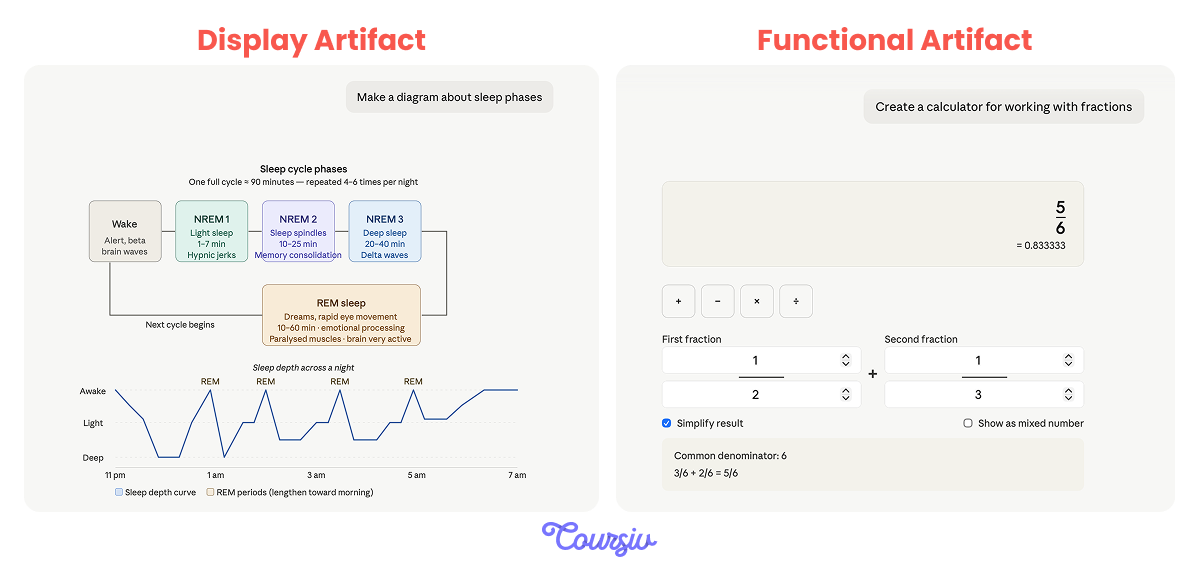
Display Artifacts vs. Functional Artifacts
There's a distinction worth being explicit about:
- A display Artifact shows you something — a generated chart, a formatted document, a diagram, a styled webpage. It's a visual output.
- A functional Artifact does something — it takes input from you, processes it, and produces a result that depends on what you put in.
This lesson focuses on functional Artifacts because they behave more like small tools than static outputs.
Basic vs. Advanced Artifacts
A basic functional Artifact runs once — you open it, use it, close the conversation, and the data is gone. That's fine for a quick calculator or one-time tool.
A more advanced Artifact is different.
Three capabilities together separate it from the basic version:
- Persistent storage: The Artifact saves data between sessions, so it remembers what you did last time.
- AI inside the Artifact: The Artifact can call Claude directly to handle context-sensitive work.
- Publishing: The Artifact can be shared with people without a Claude account via a single link.
Together, these turn an Artifact from a throwaway demo into a tool you return to.
Select all that apply
Let's test your understanding! Which statements correctly describe what each capability enables?
Scenario: Your Progress Tracker
Let's say you've decided to train for a half-marathon. Your target date is twelve weeks out. You currently run 5K comfortably twice a week. To get from where you are to a finished half-marathon, you need a real training plan and the discipline to follow it.
You want a tool that can:
- Log your sessions
- Adapt your training plan based on what you did
- Be shared with a friend who's training for the same race
An Artifact handles all three. It logs, adapts, and lives in a link you can open from anywhere.
Specification Comes Before Building
Every Artifact specification needs four things:
- Inputs = what the user provides and in what shape
- Processing logic = what happens to the input
- Output = what the user sees in return
- Edge cases = the situations that aren't the happy path
Write these down before you write the prompt that builds the Artifact.
practice preview
Interactive practice
Fill in the blank
Complete the specification in the chat before building. Each gap defines one part of the Artifact.
The Build Order
For a tool with persistent data, the iteration order goes in the following passes:
- Pass 1: Data structure. What gets stored, what shape, what fields
- Pass 2: Logic. The rules that produce recommendations, plus the AI moments
- Pass 3: Interface. How the user sees and edits the data
- Edge cases handled throughout, not at the end
How the Build Conversation Works
Building an Artifact is a conversation. You hand Claude the spec, then walk through each pass with a focused prompt for that pass. Claude builds, you review what appeared in the side panel, confirm or adjust, and move to the next pass.
The mistake is asking Claude to build the whole thing from the spec in one prompt. The result is impressive in version one and impossible to iterate on. Building in passes keeps each layer focused and reviewable.

Pass 1: Data Structure and Storage
The first prompt establishes what the Artifact remembers. You describe the shape of each session entry and tell Claude to use persistent storage so the data carries across sessions after the Artifact is published and storage is available.
The data structure decides what the rest of the Artifact can do. Get this pass right, and the next two are much easier.
Let's try that in action.
practice preview
Interactive practice
Fill in the blank
Write the first build prompt in the same chat. Each gap defines part of what gets stored.
Verify Before Moving On
During development, test the UI and data flow. For persistent storage, publish the Artifact first (you'll see how to do it further in the lesson), then add test entries, reopen the published Artifact, and confirm the data persists.
The Artifact's storage is limited to about 20 MB, which is plenty for a 12-week training block.
Pass 2: Logic
The second pass adds the recommendation logic. Two kinds of work happen here:
- Rule-based logic handles the math: progression rates, recovery patterns, goal-distance planning. This is regular JavaScript inside the Artifact.
- AI inside the Artifact handles what the rules can't read — your notes about how a session felt.
You still decide. The AI is doing pattern recognition on what you wrote.
practice preview
Interactive practice
Fill in the blank
Write the prompt that adds the recommendation logic.
AI inside the Artifact handles work the rules can't reach. When you log "legs felt heavy", AI inside the Artifact reads the note and surfaces a flag — "You've mentioned tightness three times this week. Consider an easier session or a rest day before the next long run."
Pass 3: Interface
The interface is the thinnest layer but the one that gets the most attention from users. For the training tracker, four views matter:
- A session entry form: quick to fill, defaults sensible
- The next session recommendation: what to do, when, and why (the reasoning matters as much as the recommendation)
- The week-view of the upcoming plan: what the rest of the week looks like
- The trend view: distance and frequency over time, ideally as a simple chart
Good Artifact interfaces don't require explanation. If the user has to ask what something means, the interface failed.
practice preview
Interactive practice
Fill in the blank
Write the prompt that brings the interface together.
Read It Like a Stranger
With the interface in place, the Artifact is now functional. The last review is the hardest one: walk through it as if you've never seen it before.
Open the entry form. Are the fields self-explanatory? Read the next session recommendation. Does the reasoning make sense without your context? Check the week-view. Could you act on it cold? If anything makes you stop and think, "What does this mean?" — the interface failed there.
The Edge Cases
The Artifact has to handle situations that aren't in the textbook progression:
- A skipped week: the user didn't run at all for 7 days
- A session that doesn't match the plan: they were supposed to do intervals, but did an easy run instead
- Injury flags: multiple consecutive notes mentioning pain or tightness
- Behind the goal-distance curve: 6 weeks out, the long run is still at 10K when it should be at 15K
- Ahead of the goal-distance curve: the user is feeling strong and progressing faster than planned
Each one needs an explicit handler in the logic. Without that, the Artifact confidently gives wrong recommendations.
Iterating Without Breaking What Works
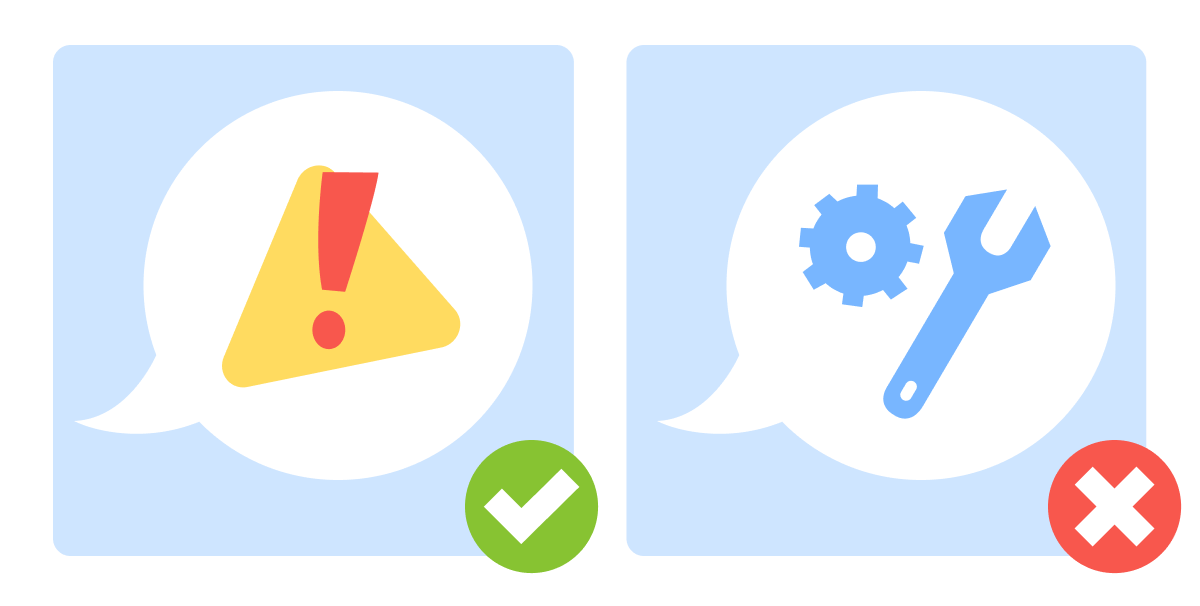
The temptation when fixing one issue is to ask Claude to rebuild the Artifact. That regresses the parts that were already working.
The better move is targeted iteration. Describe the problem, not the fix. Name the specific behavior that's wrong, the specific scenario where it appears, and what the correct behavior should be.
practice preview
Interactive practice
Fill in the blank
One specific edge case isn't handled. Write the iteration prompt that fixes it without regressing the rest.
Sharing the Artifact
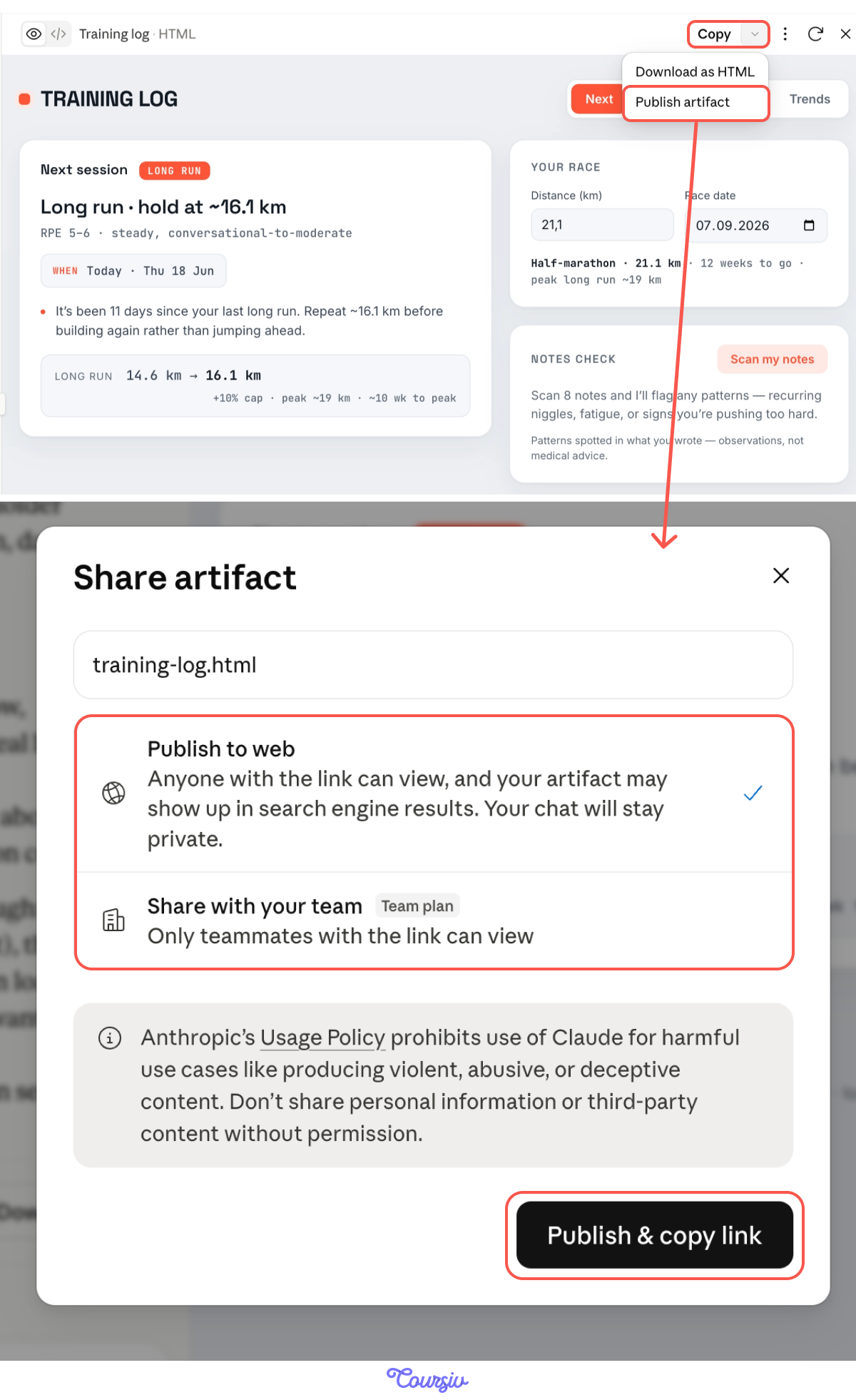
Once the build holds up, sharing makes the Artifact accessible to your friend. In the top-right of the Artifact panel, click Publish artifact.
A Share artifact dialog opens with two options:
- Publish to web — anyone with the link can view, and the Artifact may appear in search engine results. The chat stays private.
- Share with your team — teammates with the link can view (Team plan only).
When Your Friend Opens the Link
You've built the tracker. You've iterated through three passes. You publish the Artifact and send the link to your friend, who's training for the same half-marathon.
They open the link cold with no context, conversation history, or an idea of how the inputs work.
This is the test. If they get confused, the Artifact isn't done.
A Different Build, Same Use Case
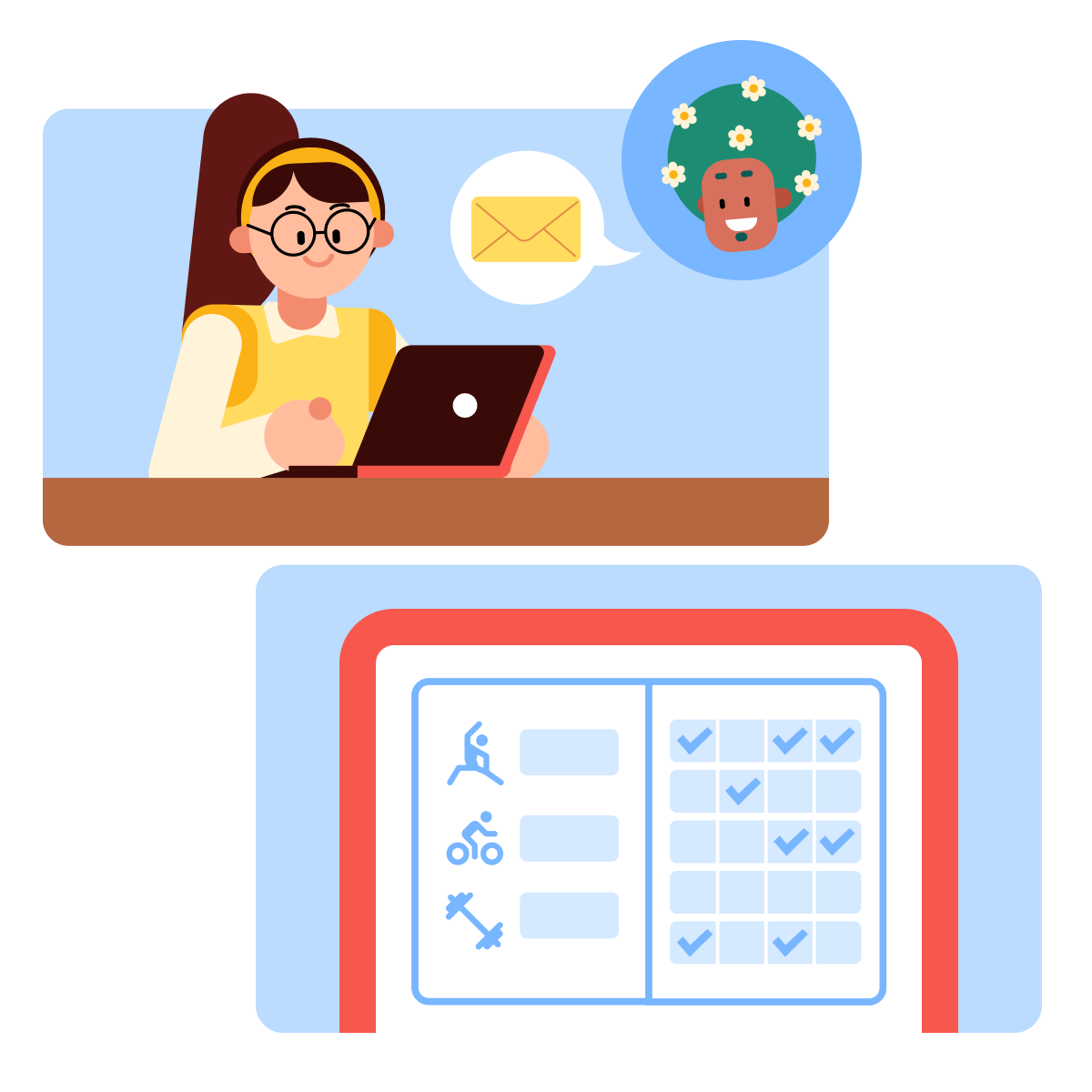
Imagine a colleague built their own training tracker for the same goal. Their version is functional, but it makes different choices from yours. They've sent it to you to look at.
Read what they built — not the code, but the behavior. What does a non-builder actually encounter when they open it for the first time?
How to Read an Artifact Like a Non-Builder
When you audit a tool you didn't build, the trick is to forget your assumptions. Ask:
- Can a first-time user figure out what to do without instruction?
- Are the input fields self-explanatory, or do they require knowledge the builder forgot to surface?
- Does the output explain itself, or does it require the builder's mental model to make sense?
- Are the edge cases handled, or do they produce wrong-but-confident output?
The answers distinguish a tool worth sending from one that needs more work.
Select all that apply
Reading your colleague's training tracker, which issues would a first-time user actually hit?
When an Artifact Is the Right Tool
The training tracker works as an Artifact because two things line up:
- The data fits comfortably in persistent storage.
- The user wants to share it with people who don't have Claude.
When those things don't line up, another tool fits better:
- Claude Code for tools you'll run on your own machine that need full local access: reading and writing files on disk, running scripts, invoking other software, or operating on a schedule.
- Cowork for work where Claude executes a multi-step task across your computer rather than building a tool you'll use again.
- Claude Design for visual-first prototypes meant to be shown to stakeholders before any working tool is built — landing pages, mockups, decks.
You'll try all of them further in this course.
- Functional Artifacts are stateful, intelligent, and shareable. Persistent storage holds the data, AI inside handles work the rules can't reach, and publishing puts the tool in the hands of people who don't have Claude.
- Write the specification before any prompt. Inputs, logic, output, and edge cases paired with their handlers; "what could go wrong" is part of the spec, not an afterthought.
- Build in passes, not in one prompt. Data structure first, then logic, then interface, with edge cases handled throughout; each pass gets reviewed before the next one starts
- Validate between passes. Log real sessions to confirm storage works, test recommendations after logic, walk the interface as a first-time user. Skipping validation is how bugs survive into the final version.
- The real test is whether someone else can use it cold. Your understanding of how the tool works hides issues a non-builder hits immediately, which is what the audit step exists to surface.
- Iterate by describing the problem, not the fix. Name the wrong behavior, the trigger scenario, and the intended behavior; let Claude apply the fix to the specific component without rebuilding the rest.
What's Next
Great job! You've built a tool that holds its own state, makes its own moves, and can be opened by anyone with the link. That's a real shift in what you can do with Claude.
The next step pushes further in the same direction. Instead of building tools you and others use interactively, you'll start working with Claude as something that can take a brief and execute on its own — across your files, your apps, and your desktop. The agentic side of Claude begins next. Let's keep going!