Personal Intelligence On Your Devices · Personal Intelligence Essentials
Getting Started With Personal Intelligence
Meet built-in AI features
Personal Intelligence on Your Devices
Imagine the apps you already use could help rewrite messages, summarize long text, and organize information into useful next steps — without requiring a separate AI app.
In this lesson, you'll explore selected Apple Intelligence features available on compatible devices and learn where to find them.
Disclaimer: This is an independent educational course created by Coursiv and is not affiliated with, sponsored by, authorized by, or endorsed by Apple Inc. References to Apple products and features are included solely for educational purposes.

What Is Apple Intelligence?
Apple Intelligence is a collection of personal intelligence features integrated across apps and experiences on compatible iPhone, iPad, and Mac models.
Unlike standalone AI tools or chatbots, these features appear within supported apps and system experiences, helping with tasks such as writing, summarizing, organizing, and communication.

- On iPhone: iPhone 15 Pro models, iPhone 16 models, or a later compatible model.
- On iPad: iPad mini with A17 Pro, or a compatible iPad with M1 or later.
- On Mac: A compatible Mac with M1 or later.
Before You Start: Turning It On
Apple Intelligence isn't enabled by default — you need to turn it on first. On iPhone or iPad, go to Settings → Apple Intelligence & Siri and toggle Apple Intelligence on.
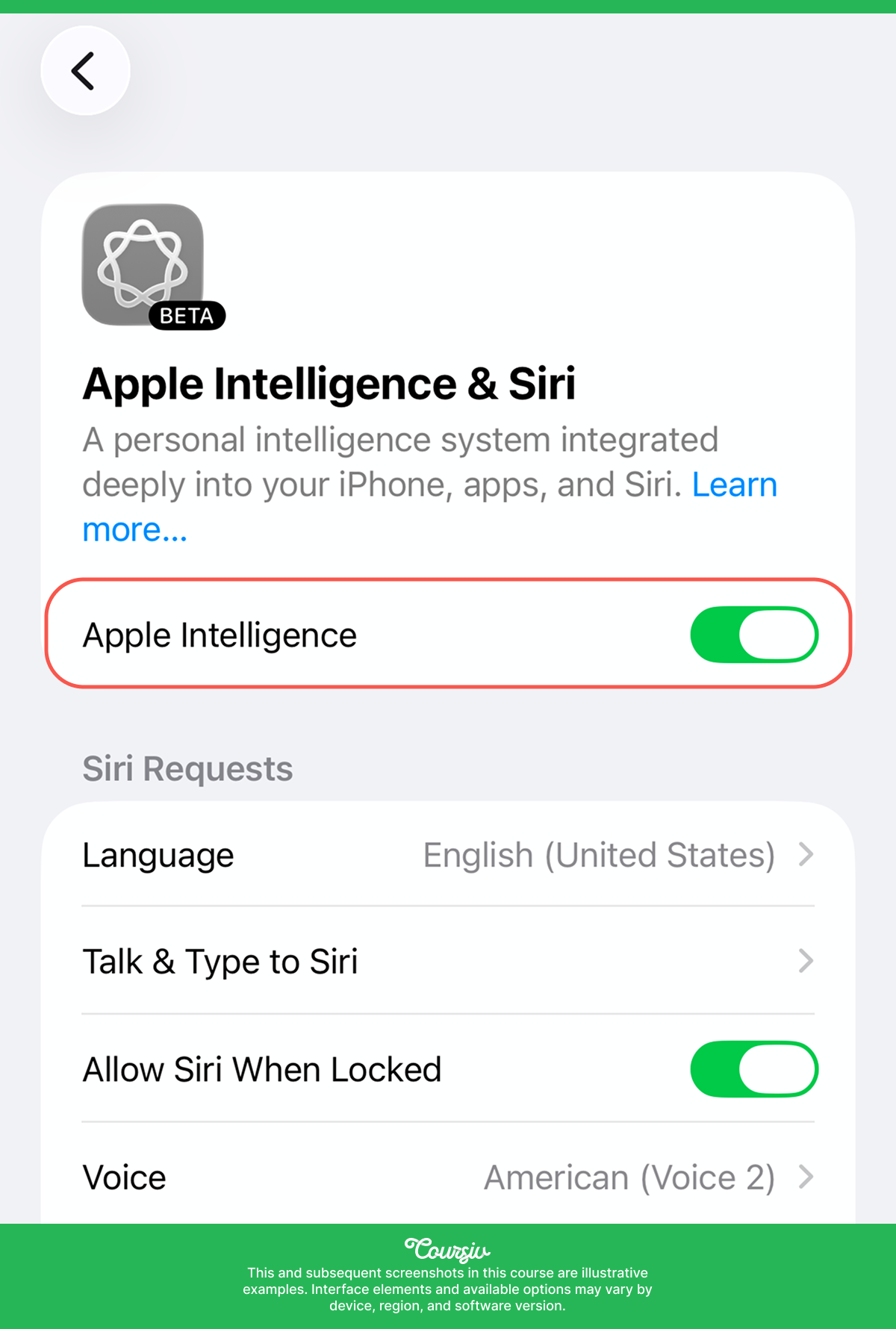
On Mac, open System Settings → Apple Intelligence & Siri and do the same. The setup process is usually quick.
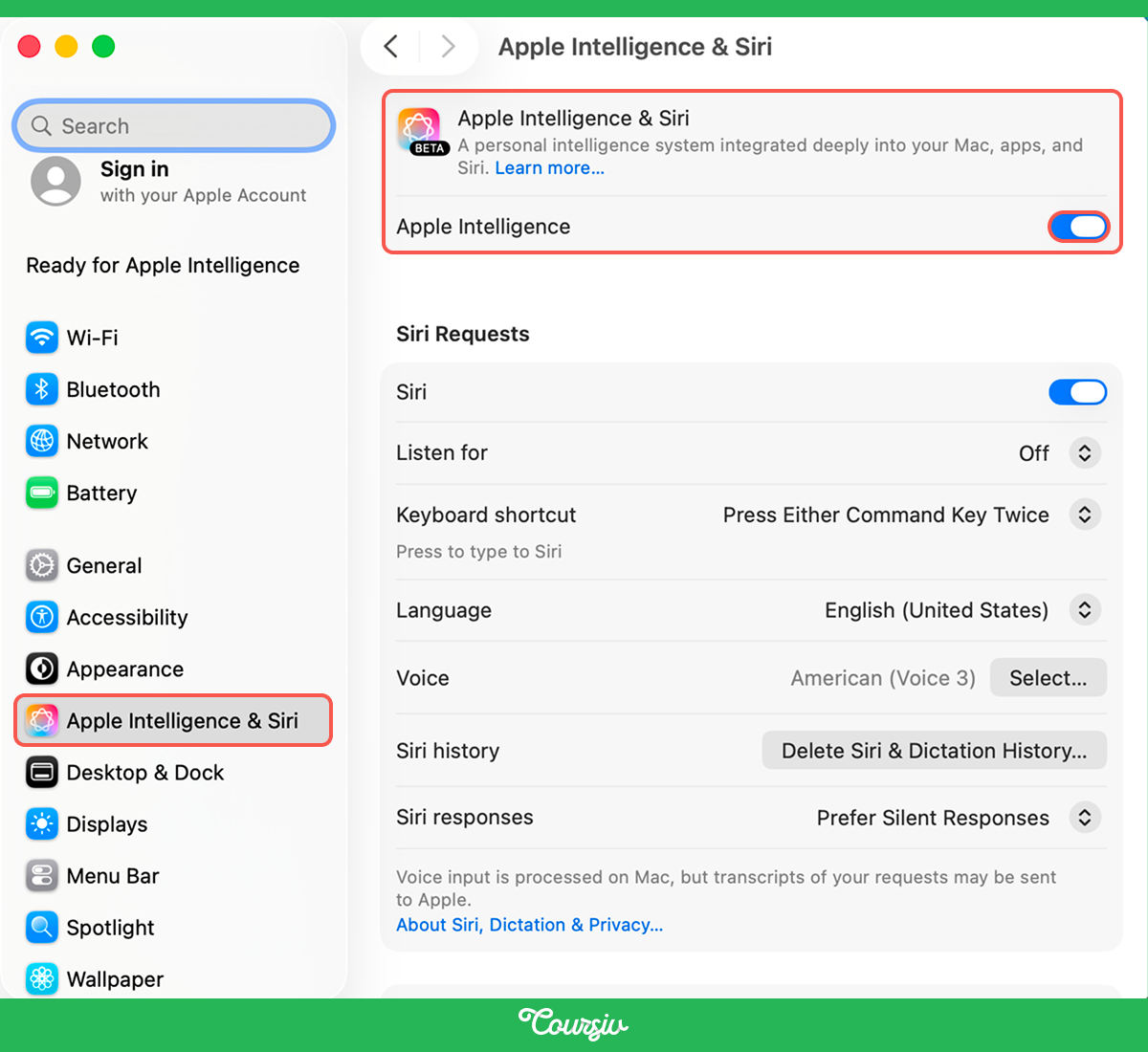
Where to Find Supported Features
Apple Intelligence is not a standalone app. Its features appear across supported apps and system experiences.
Apple Intelligence lives among different tools and apps that can help you with various tasks.
- Writing Tools works as a full-fledged assistant, helping you write and edit texts.
- Safari can summarize entire webpages.
- Mail condenses long email threads and suggests quick replies.
- Reminders create tasks from content in other apps.
- Siri handles more natural, context-aware requests.
- Shortcuts lets you chain these capabilities into repeatable workflows.
Select all that apply
Where can supported Apple Intelligence features appear?
Writing Tools
Let's start with Writing Tools. Select any text in Mail, Notes, Messages, or most text fields, and a "Writing Tools" option appears.
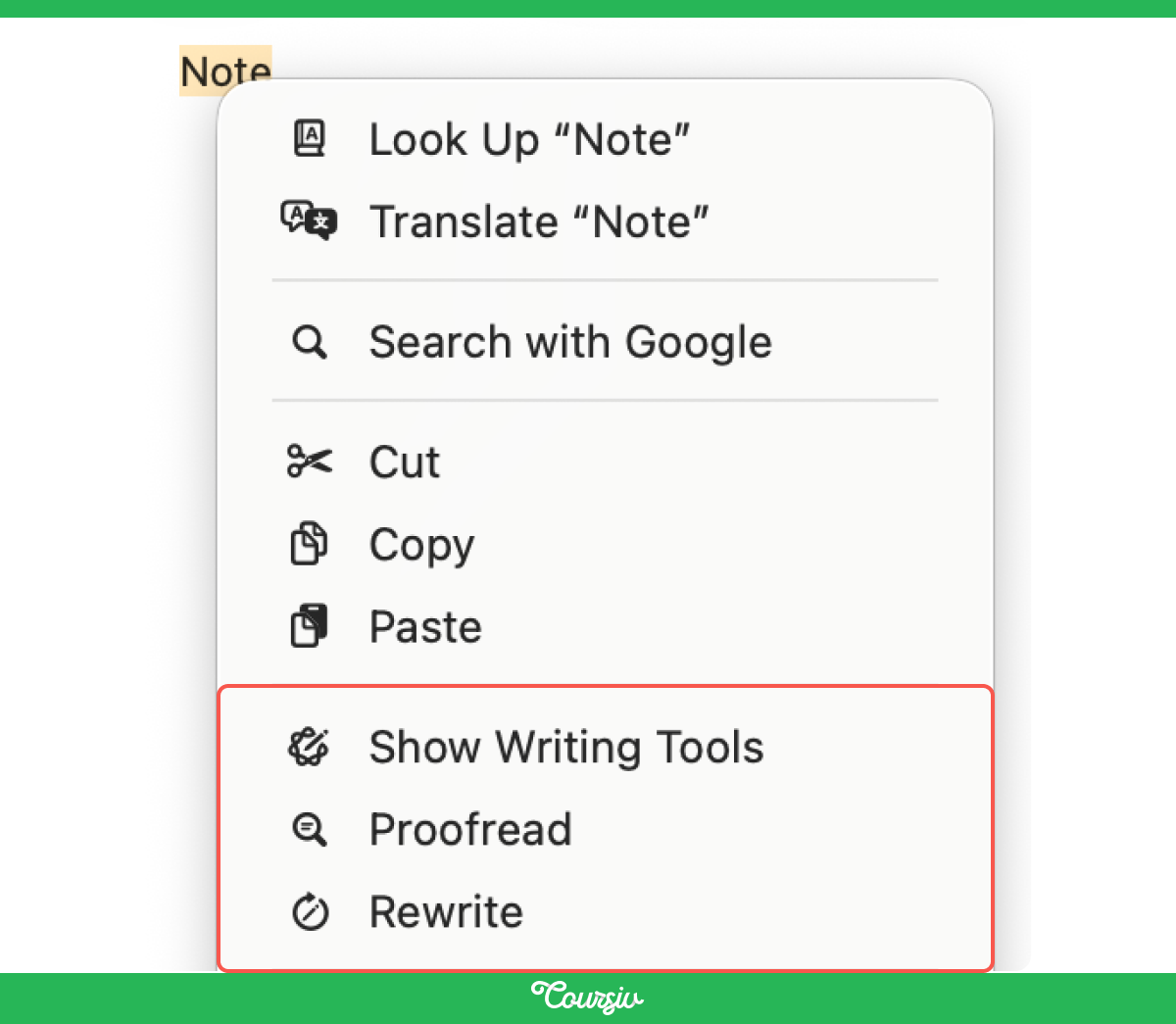
Writing Tools gives you these options:
- Proofread checks grammar, spelling, and phrasing.
- Rewrite creates an alternative version of the selected text for you to review.
Within the Rewrite feature, you can also adjust tone:
- Choose Friendly for casual messages
- Professional for work emails
- Concise to tighten your wording
And remember: always review rewritten text before sending or publishing it.

For longer text, Writing Tools offers formats that go beyond rewriting:
- Summary condenses a long block of text into a short paragraph.
- Key Points generates a bulleted overview of the main ideas it identifies, which works well for meeting notes or research.
Writing Tools in Action
These options work for both personal and professional tasks.
- Cleaning up a message? Proofread can suggest corrections for spelling, grammar, and wording.
- Pitch email sounds too stiff? Switch to Friendly.
- Product description running long? Apply Concise.
- Three-page article before a meeting? Key Points creates a short bulleted overview for you to review.
Moving On!
Writing Tools handles the words. Next, let's explore how Safari can summarize supported webpages.
Summarizing a Webpage
On supported webpages available in Safari Reader, you can generate a short summary without leaving the browser.
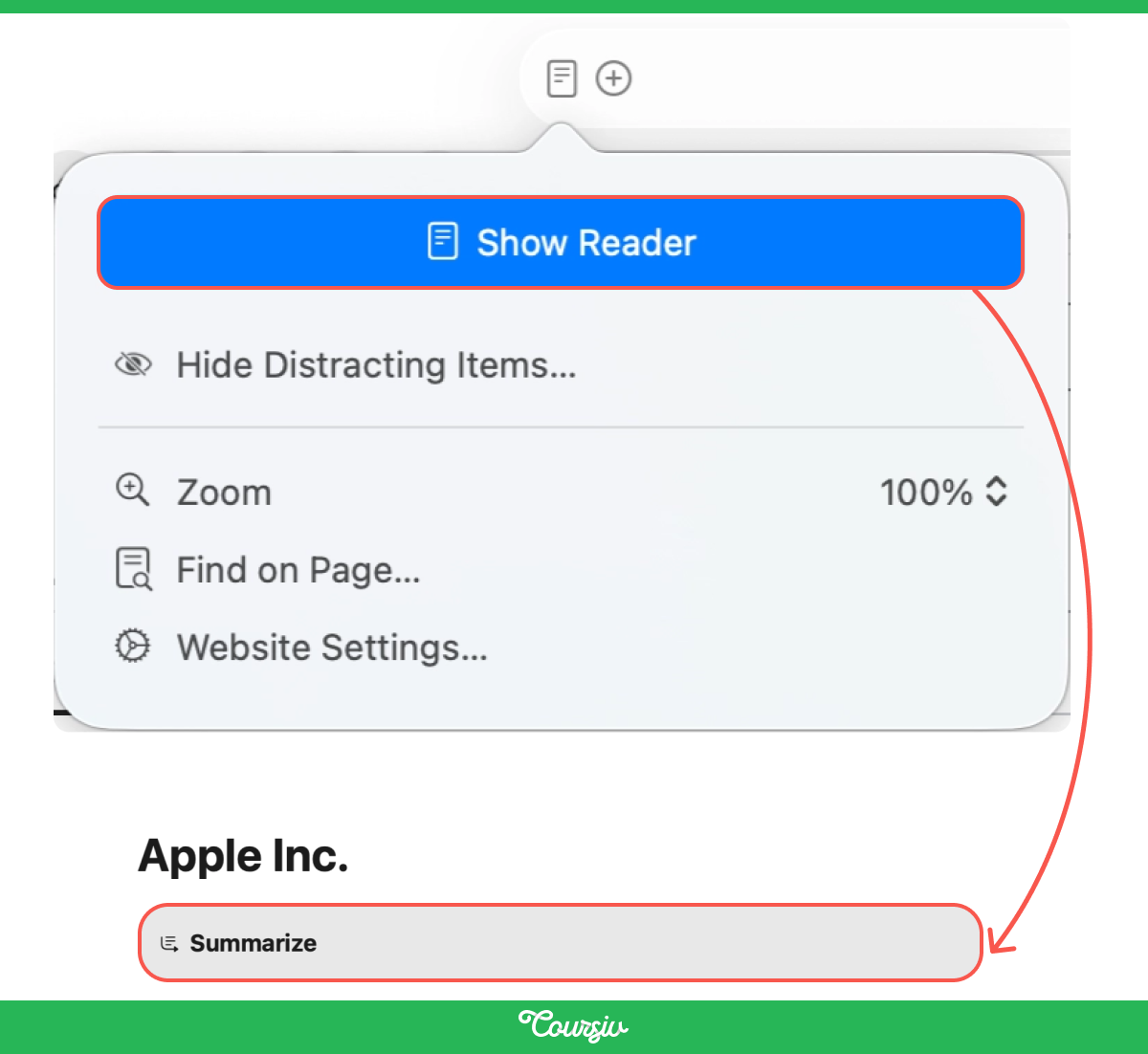
To do so on iPhone or iPad, open a supported webpage in Safari, open the page menu, select Show Reader if needed, and choose Summarize.
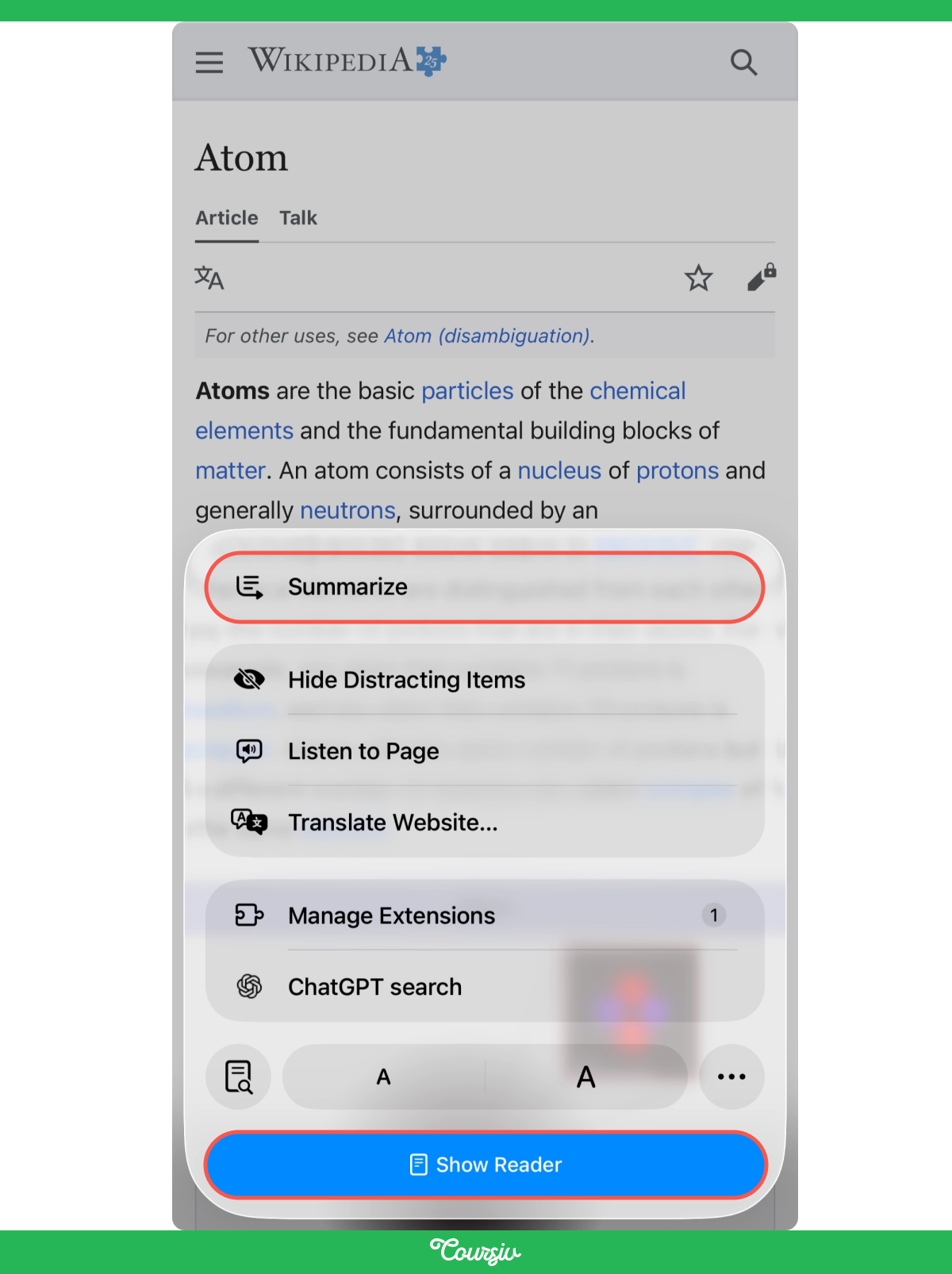
On Mac, click the page menu icon, select Show Reader, then click Summarize at the top of the page. Note that the location of these controls may vary by software version.
This works for all kinds of tasks:
- Researching a topic for work? Generate a summary to preview the article before deciding which sections to read in full.
- Planning a trip or comparing products? Get the essentials without endless scrolling.
Safari summaries can help you decide whether to read the full page. Yet, they may omit details or make mistakes, so it's always good to check the original source before relying on important information.
Great Work!
You're now familiar with Writing Tools and can summarize webpages without leaving Safari. But that's just the start — other supported features can help with communication, organization, images, and automation.

What Else Is Ahead
Let's see what's coming in this guide:
- Inbox overflowing? Mail can show summaries and Smart Reply suggestions for supported messages.
- Action items buried in a long email? Reminders can suggest tasks from supported content and help organize related items.
- Need assistance? For selected requests, Siri can offer access to ChatGPT after asking for permission to share the request.
- Doing the same steps regularly? The Shortcuts app can combine supported actions into a reusable workflow.
So, in the next lessons, you'll practice selected features and learn where they can fit into everyday tasks.
- Features appear across supported apps: Apple Intelligence is not a standalone app. Its capabilities appear in compatible apps and system experiences.
- Different tools for different needs: Proofread suggests corrections while helping preserve your original meaning. Tone options like Professional or Friendly reshape how your message feels.
- Experiences vary by device: Many features are available across iPhone, iPad, and Mac, but controls and availability may differ by device, software version, language, and region.
What's Next
Now that you know how to check availability and find the first supported features, you're ready to explore Writing Tools and summaries in more detail.
Let's keep going!