Personal Intelligence On Your Devices · Personal Intelligence Essentials
Turning Information Into Action Across Apps
Build practical workflows across apps
Your Apps, Working Together
You read an email, skim an article, finish a meeting, and walk away with a list of things to do. The hard part is turning it into action before it slips away.
In this lesson, you'll learn how to turn content from your apps into reminders, task lists, and organized follow-up plans. Let's get started!

From Reading to Doing
So far, you've been using Apple Intelligence inside individual apps — one task, one place, one result. But Apple Intelligence can also pull tasks from emails, extract items from webpages, summarize recordings into notes, and organize your reminders.
The goal is to start using your apps as a connected system.
Turning Content Into Reminders
When you're reading a webpage in Safari, an email in Mail, or notes in the Notes app, you can share the content directly to Reminders.
Select the text (or share the entire page) → tap the Share button → tap Reminders.
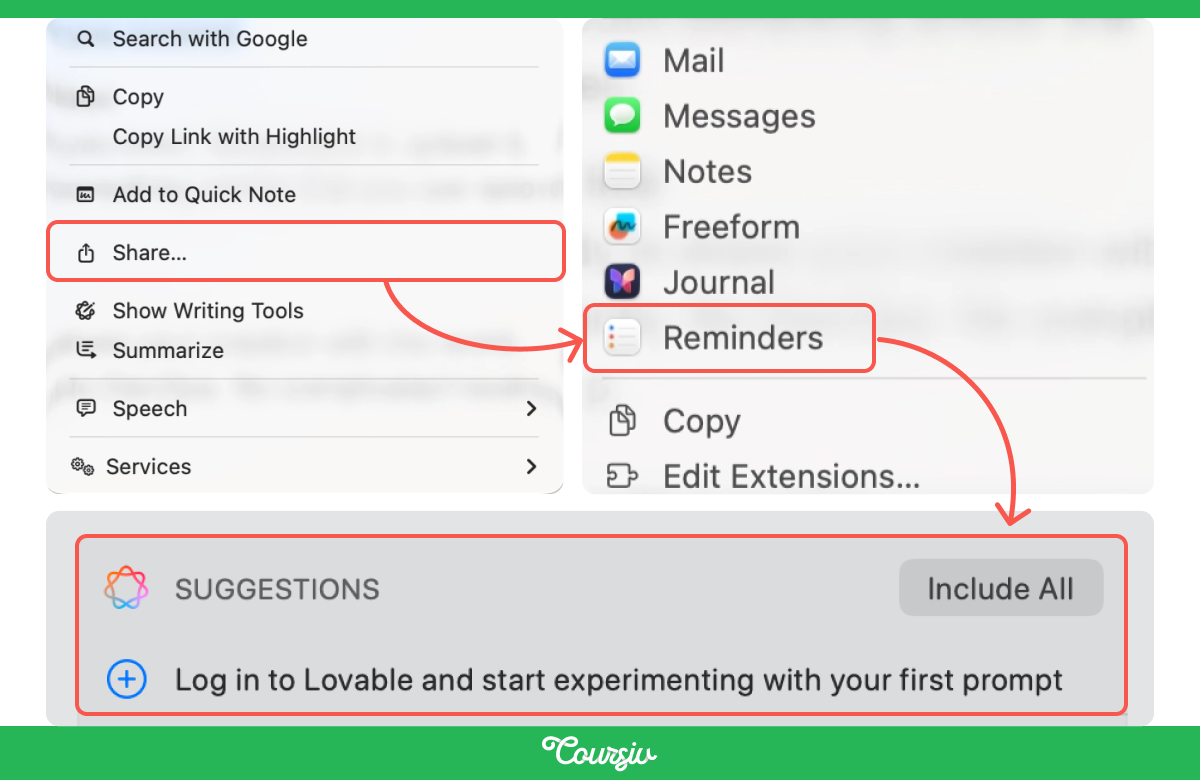
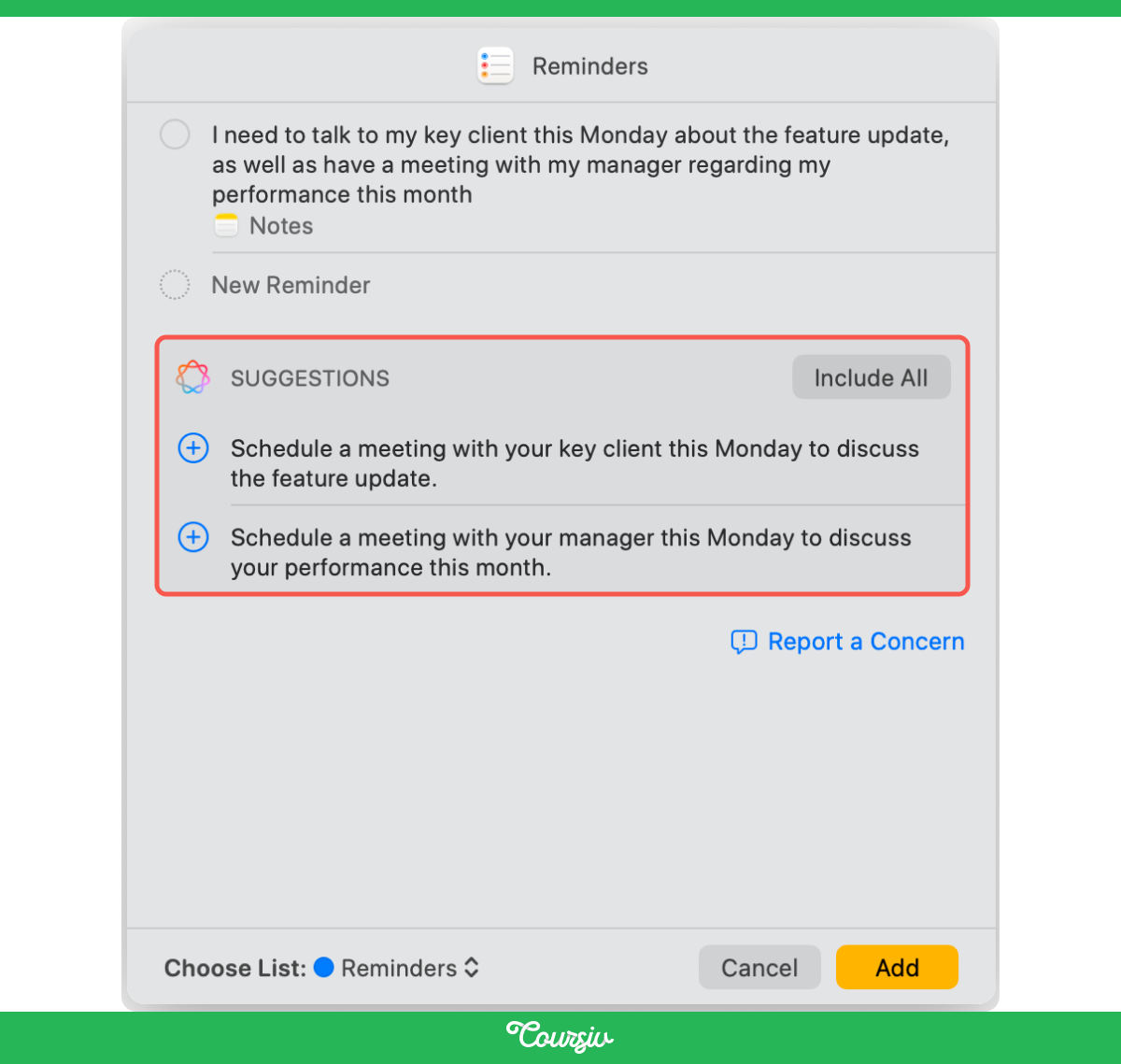
On supported devices, Apple Intelligence may analyze the shared content and suggest relevant tasks — like action items from an email, grocery items from a recipe, or deadlines from a project brief.
Tap the + next to any suggestion to add it to your list, or tap Include All to add everything at once. You can also choose which Reminders list to add them to.
practice preview
Interactive practice
Put in order
Put these steps in the right order to turn webpage content into a reminder.
The quality of the suggestions depends on the structure of the source text. Casual or conversational writing tends to produce weaker results. When in doubt, select just the most relevant paragraph rather than sharing an entire page — it gives Apple Intelligence a clearer signal.
practice preview
Interactive practice
True / False
Which text would produce more useful suggested reminders?
Auto-Categorize: Let Reminders Organize Themselves
Once you have a list full of reminders, Apple Intelligence can sort them for you.
On supported devices and software versions, Auto-Categorize scans your list and groups related tasks into sections automatically, separating work items from personal tasks.
On iPhone or iPad, open a list in Reminders, tap the menu icon, and tap Auto-Categorize.
On Mac, open a list and choose File → Auto-Categorize.
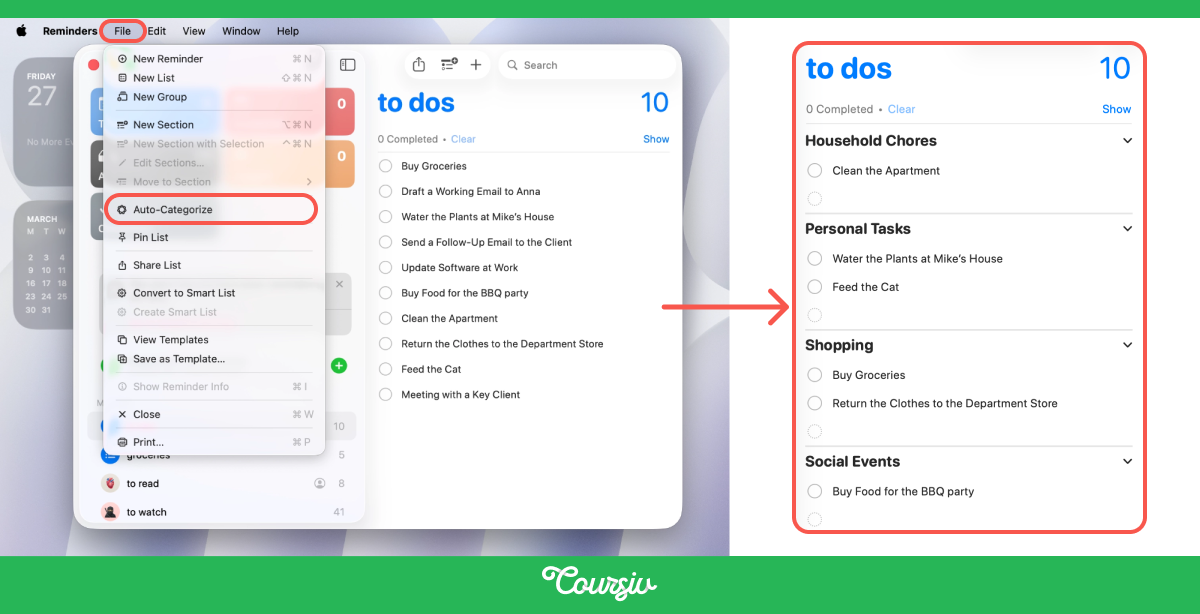
If the sections don't look right, you can turn Auto-Categorize off, remove the sections, then turn it back on — this resets the grouping and lets Apple Intelligence try again. Removing sections doesn't delete any reminders.
Notes App as Your Organization Hub
Notes is a place to collect, record, and process information with Apple Intelligence. You can type notes, paste content from other apps, and — importantly — record audio directly inside a note.
After recording, Notes can provide a transcript where supported, and Apple Intelligence can generate a summary on compatible devices.
To record audio in Notes, open a note and tap the attachment button (the paperclip icon), then select Record Audio.
And, make sure you have permission from everyone involved before recording a conversation.
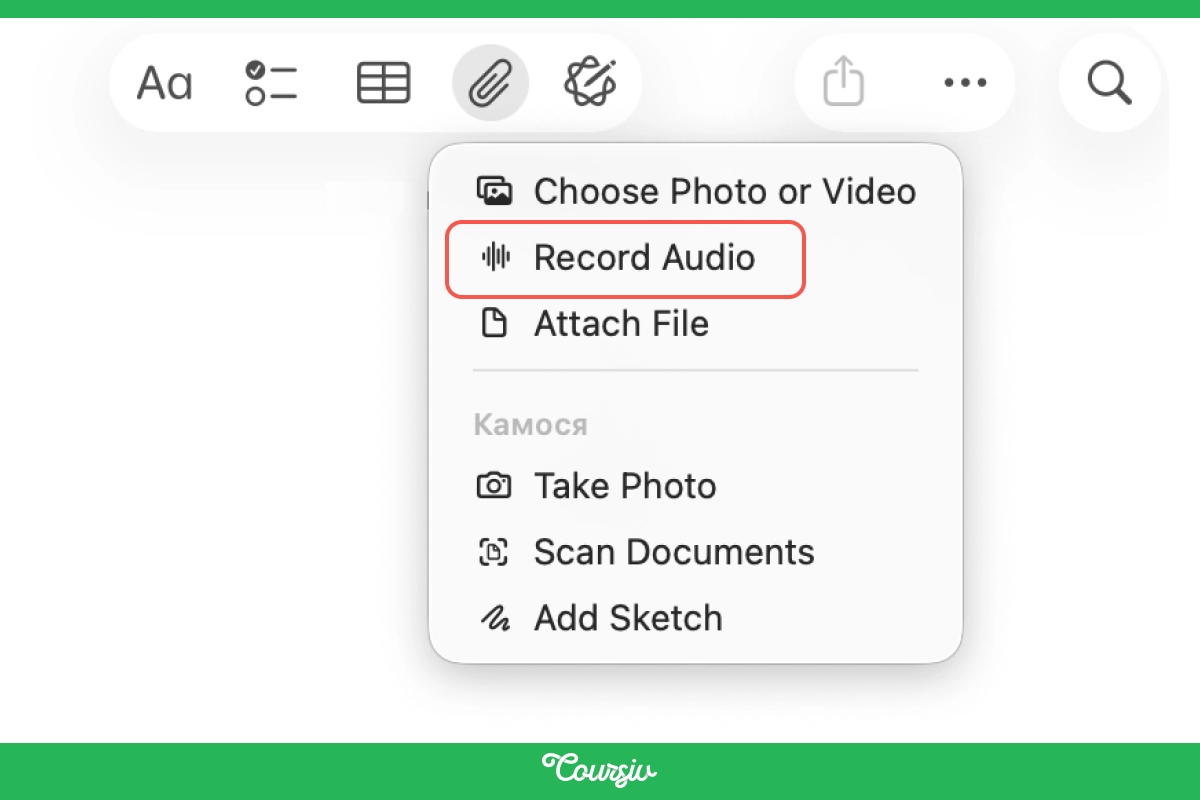
Once the recording is done, tap it to see the transcript, then tap Summary to get an AI-generated overview of the key points.
Availability varies by device, language, region, and software version.
This makes Notes the natural hub for meetings, calls, and brainstorms. Record a client call, get the transcript, summarize it, then share the action items to Reminders.
You can also use Writing Tools on the transcript to pull out Key Points or organize it into a List for easy follow-up.

Cross-App Flows That Save Time
The value of Apple Intelligence shows up when you connect apps. Here are three flows that turn scattered information into organized action:
- Safari → Reminders: Summarize an article, then share the key takeaways to Reminders as a task list.
- Mail → Reminders: Share an email with action items directly to Reminders and let Apple Intelligence suggest the tasks.
- Notes → Reminders: Record a meeting in Notes, summarize the transcript, then share the follow-up items to Reminders.
In each flow, the pattern is the same: find the content → process it with Apple Intelligence → send the result to the right app.
The Share sheet can reduce manual copying when the relevant sharing option is supported.
practice preview
Interactive practice
Match pairs
Tap a left item, then a right item to match.
Great Work!
You're now working across apps instead of inside them one at a time. Let's make sure you have the full picture.
- Share to Reminders for task extraction: Use the Share button to send content from Safari, Mail, or Notes to Reminders. Apple Intelligence suggests specific tasks, so you don't have to type them manually.
- Auto-Categorize organizes your lists: Once your reminders are in, Apple Intelligence can sort them into logical sections automatically — one tap replaces manual sorting.
- Notes is a powerful organization hub: Record audio, get transcripts, summarize key points, and share action items to Reminders — all without leaving Notes.
- Cross-app flows follow one pattern: Find content → process it with Apple Intelligence → send the result to the right app with the Share sheet.
What's Next
You now know how to turn scattered information into organized action across Apple's apps. Next, you'll see what Apple Intelligence can do with the visuals — generating images, cleaning up photos, and identifying what your camera sees in real time. Let's keep going!