Personal Intelligence On Your Devices · Personal Intelligence Essentials
Writing, Editing, and Summarizing
Rewrite, summarize, and refine text
Make Every Word Work
You've written an email to a client, but the tone feels too formal. You could rewrite it from scratch — or use Writing Tools to describe how you want it changed. In this lesson, you'll learn how to create more focused rewrites and summaries, then review the results before using them.

Rewrite and Customize
You've already seen that Writing Tools can be used to rewrite and adjust tone. But preset options only go so far — sometimes you need the result to be two sentences, sound confident, and keep a specific detail intact, all at once.
This lesson is about using Writing Tools to create more focused rewrites while preserving the details that matter.
Set the Writing Tools
On iPhone or iPad, select editable text, then choose Writing Tools from the contextual menu. Depending on the app and software version, Writing Tools may also be available from the keyboard.
On Mac, Control-click selected text and choose Writing Tools or Show Writing Tools.
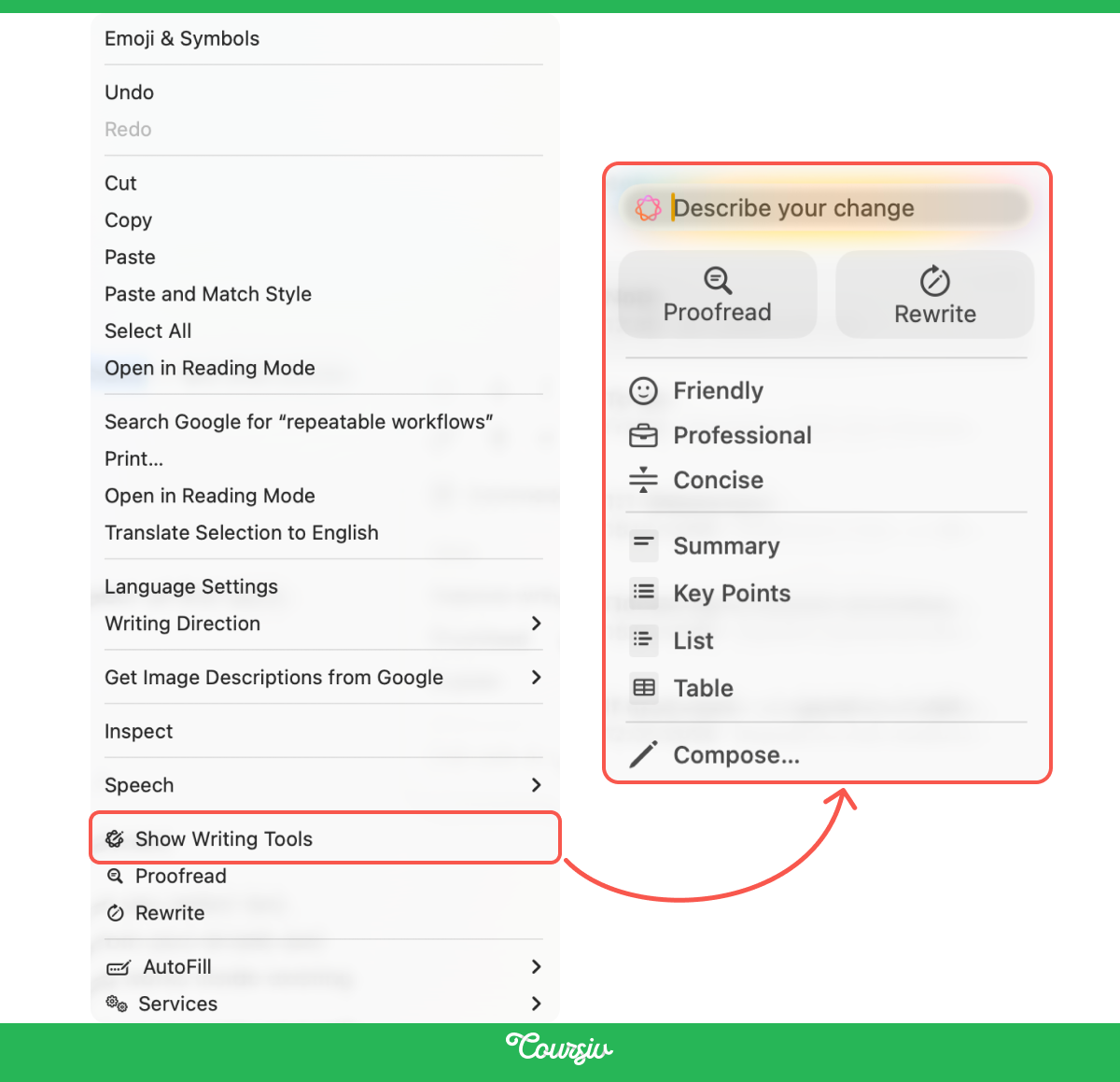
The Preset Options
Once Writing Tools is open, you'll see the preset tone options: Professional, Friendly, and Concise. Choose an option to generate a revised version of the selected text for you to review.
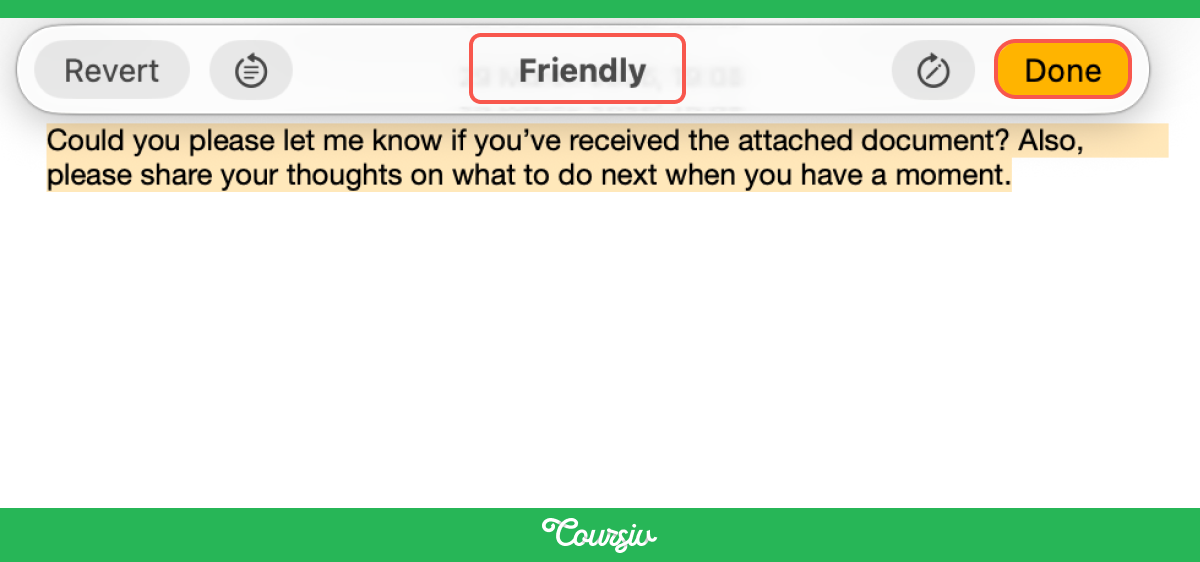
"Friendly" in Action
Say you've written this to a colleague, "Please confirm receipt of the attached document and advise on next steps at your earliest convenience." Tap Friendly, and see the result.
Also, consider reviewing the result before replacing your original text, since important wording or details may change.
Beyond the Preset Options: Describe Your Change
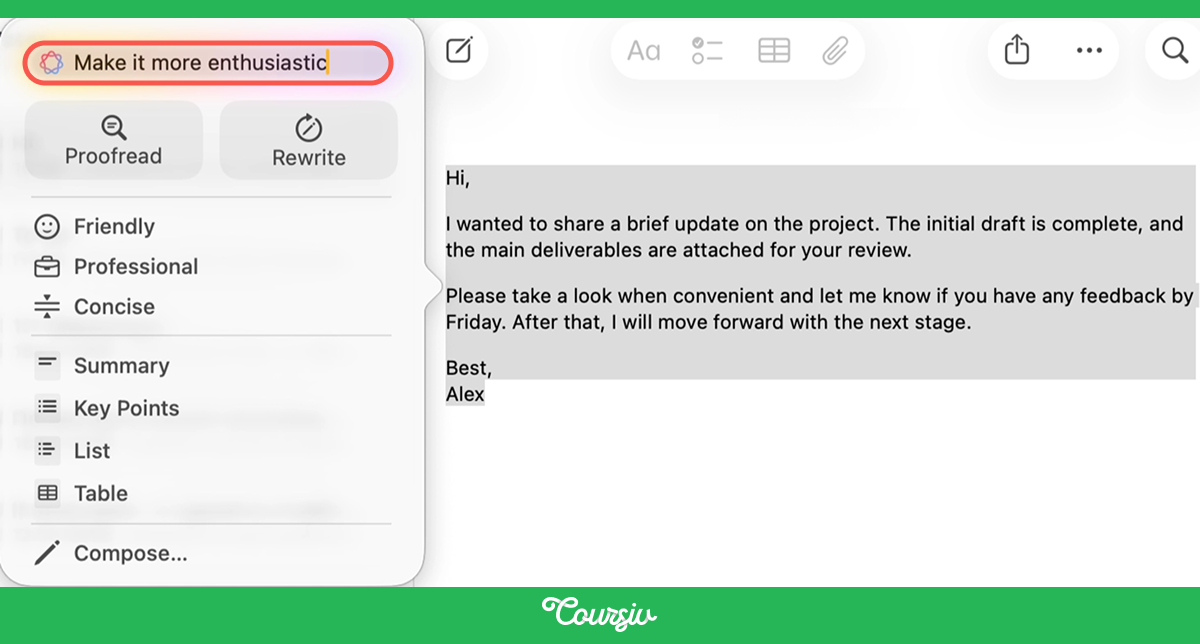
If the preset options don't fit your goal, Describe Your Change lets you enter a custom instruction for the rewrite. Availability may depend on your software version, language, and whether ChatGPT integration is enabled.
Open Writing Tools on any selected text and tap Describe Your Change. Then type what you want — for example, "Make this more enthusiastic," "Shorten to two sentences," or "Remove jargon and simplify."
Writing Tools generates a revised version based on your instruction, which you can then review and adjust.
practice preview
Interactive practice
True / False
Decide whether this is a vague or specific instruction for "Describe Your Change."
practice preview
Interactive practice
True / False
Decide whether this is a vague or specific instruction for "Describe Your Change."
The more specific your instruction, the better the result. Compare these two:
- Vague: "Make this better."
- Specific: "Make this sound confident but not aggressive, and keep it under three sentences."
The specific version gives Writing Tools a clearer target, although the result should still be reviewed.

Iterative Refinement: Layering Changes
You don't have to get the perfect result in one step. Writing Tools lets you apply changes one after another, just like editing a document in rounds.
For example, you can use Rewrite to create an alternative version, apply Concise to shorten it, then use Proofread to suggest corrections. And, remember about the importance of reviewing the text after each step to make sure important details and meaning remain intact.
This works because each tool does one thing well:
- Rewrite creates an alternative version of the text.
- Tone options adjust how the text sounds.
- Proofread suggests corrections for spelling, grammar, and wording.
Layering them gives you more control than relying on a single pass.
practice preview
Interactive practice
True / False
Decide whether this task needs a two-step approach.
Summary Formats
In Writing Tools, you can summarize the information you want. It offers four different summary formats, and each one fits a different situation.
Here are the summary formats:
- Summary creates a short paragraph with the main ideas it identifies.
- Key Points creates a bulleted overview.
- List reorganizes information into a scannable list.
- Table attempts to structure suitable content into rows and columns.
practice preview
Interactive practice
Match pairs
Tap a left item, then a right item to match.
Working With Text You Didn't Write
Writing Tools aren't just for your own drafts. They can also work with selectable text in supported webpages, PDFs, and compatible third-party apps.
Select the text, open Writing Tools, and choose Summary or Key Points to generate an overview for review.
One important thing to consider is that the availability depends on whether the text can be selected and whether the app supports Writing Tools.
For some read-only text, Writing Tools may offer Copy instead of Replace, allowing you to paste the generated result elsewhere. Available controls may vary by app and software version.
Great Work!
You now know how to choose between several rewrite and summary formats.
Now let's see how related summarization and reply features work inside Mail and Messages.

Summaries and Replies in Mail
Apple Intelligence does more in Mail than just Writing Tools. When the feature is active, you'll see AI-generated summaries under your emails — a one- or two-line overview of what the message is about, replacing the old first-line preview.
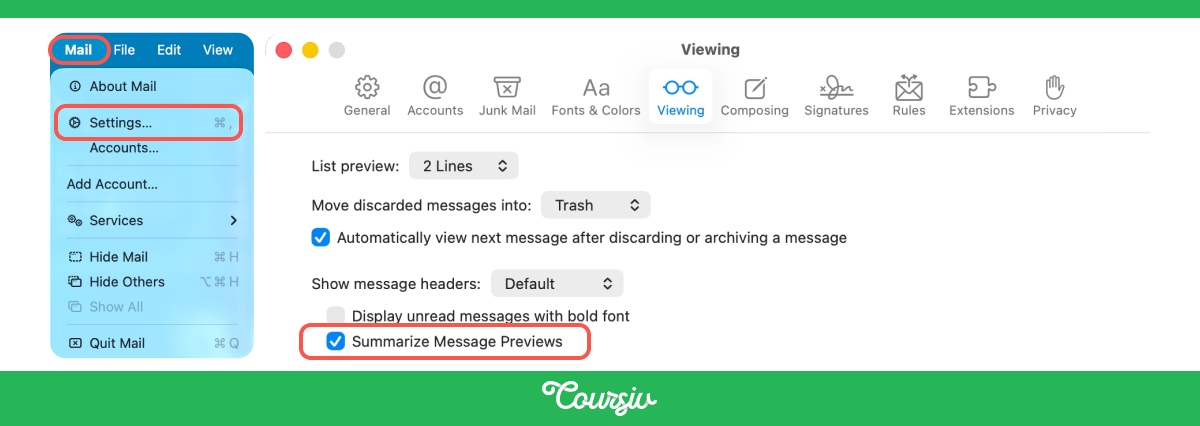
If you don't see them, go to Settings → Apps → Mail on iPhone or iPad, or Mail → Settings → Viewing on Mac, and make sure Summarize Message Previews is turned on.
Menu names and locations may vary by software version and language, so follow the labels shown in the current version of Mail.
For longer emails or threads with many replies, tap Summarize at the top of the message. Apple Intelligence condenses the entire thread into a short paragraph with the key points — who said what, what was decided, and what's still pending.
This is especially useful when you're joining a conversation that's already ten messages deep.

When replying to a supported email, Smart Reply may suggest responses based on questions it identifies in the message.
Suggestions vary by message, device, language, region, and software version, and should be reviewed before sending.
Summaries and Smart Reply in Messages
Mail isn't the only place where summaries and Smart Reply work.
In the Messages app, Apple Intelligence shows a summary under each conversation with unread messages — so you can see the key points before tapping in. When you open a conversation and tap the text field, Smart Reply suggestions appear above the keyboard, just like in Mail.
Choose one
You're catching up on messages after a busy morning and see five unread conversations. What's the fastest way to decide which to reply to first?
- Describe Your Change supports custom rewrites: Clear instructions can produce more focused results, but every rewrite should be reviewed.
- Layer tools carefully: Apply changes in stages and compare each result with the original to prevent meaning or details from being lost.
- Choose a suitable summary format: Use Summary, Key Points, List, or Table based on the structure you need, then verify the output against the source.
- Mail and Messages may offer summaries and Smart Reply: Availability varies, and generated content should be checked before you rely on it.
- Writing Tools work with selectable text in supported apps: Availability and controls vary by app, content type, language, and software version.
What's Next
You can now rewrite, summarize, and respond more strategically across supported apps.
In the next lesson, you'll explore ways to turn information into reminders, checklists, and follow-up plans where those features are available. Let's keep going!