Personal Intelligence On Your Devices · Personal Intelligence Essentials
Repeatable Workflows With Shortcuts
Automate recurring tasks
Building Repeatable Workflows With Shortcuts
Every week, you draft your emails from scratch using the meeting notes. What if you could turn this task and others into a repeatable workflow that processes your input and prepares a result for you to review?
In this lesson, you'll learn how to turn everything you've practiced into repeatable workflows using Shortcuts.

Why Shortcuts?
Everything you've used so far works one task at a time. You pick the text, choose the tool, and review the result.
Shortcuts lets you chain those steps together into a workflow that runs automatically. Instead of doing five things in sequence, you can trigger the workflow with one tap, then review any generated content or requested actions before completing the task.
Shortcuts is available on iPhone, iPad, and Mac. Your shortcuts stay synced across devices when iCloud Sync is turned on.

Starting With the Gallery
The fastest way to get started is with ready-made shortcuts. Open the Shortcuts app, tap Gallery, and look for the Apple Intelligence category.
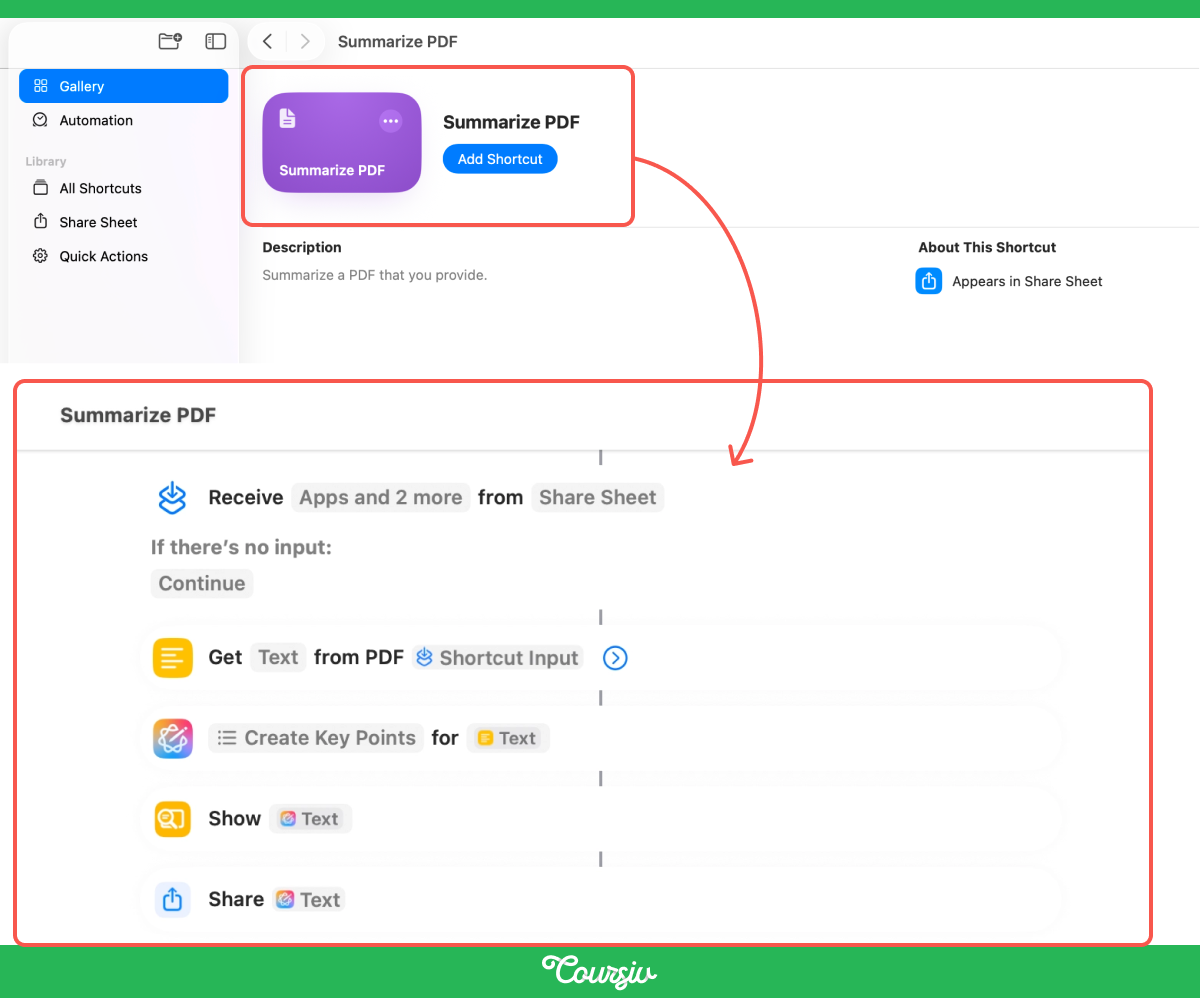
You'll find many shortcuts, like "Morning Summary," "Leftover Recipes," "Summarize PDF," and more — each one built to show you how Apple Intelligence fits into a workflow.
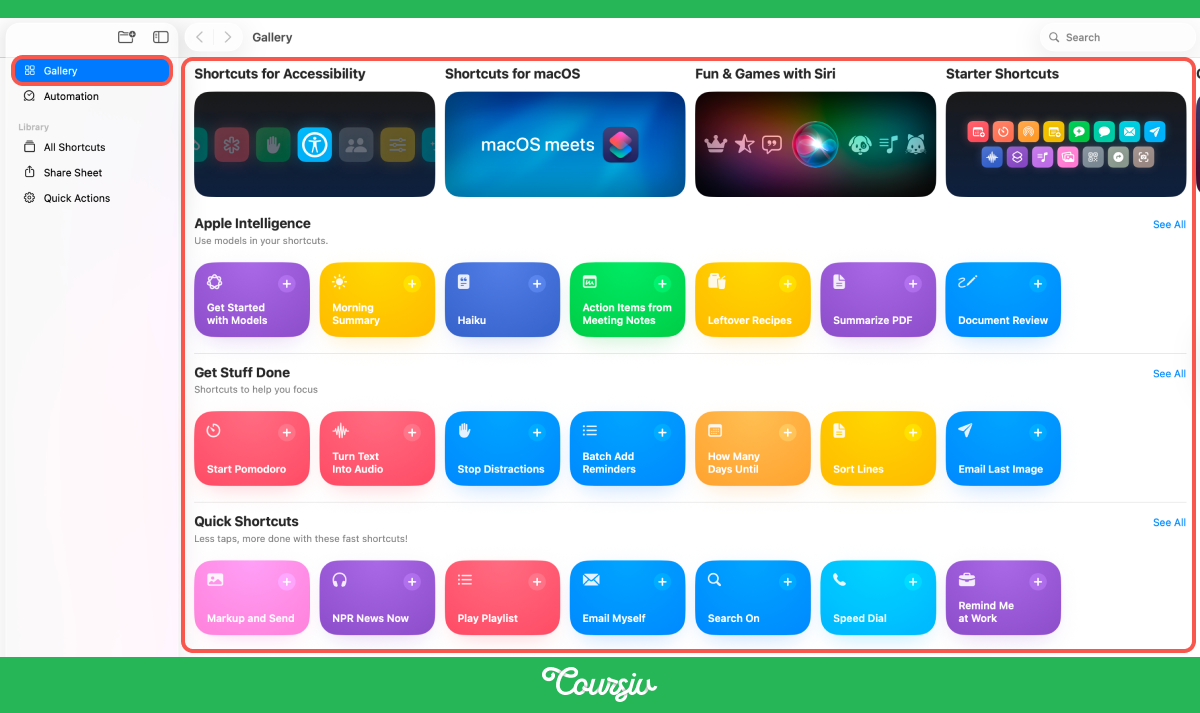
Tap any shortcut to see how it's built before adding it to your collection. This is the best way to learn: you can see which actions are used and how data flows from one step to the next. These are the templates you can study, run, and then customize.
Building Your First Shortcut
Let's walk through the logic of a shortcut that turns your rough notes into a polished email draft.
This shortcut can pass selected notes to an AI model, generate an email draft, and open the result in Mail for review.
The flow has three steps: get the input → process it with Apple Intelligence → send the output somewhere useful.
Let's see how it works on macOS. On iPhone, the workflow and the interface are similar:
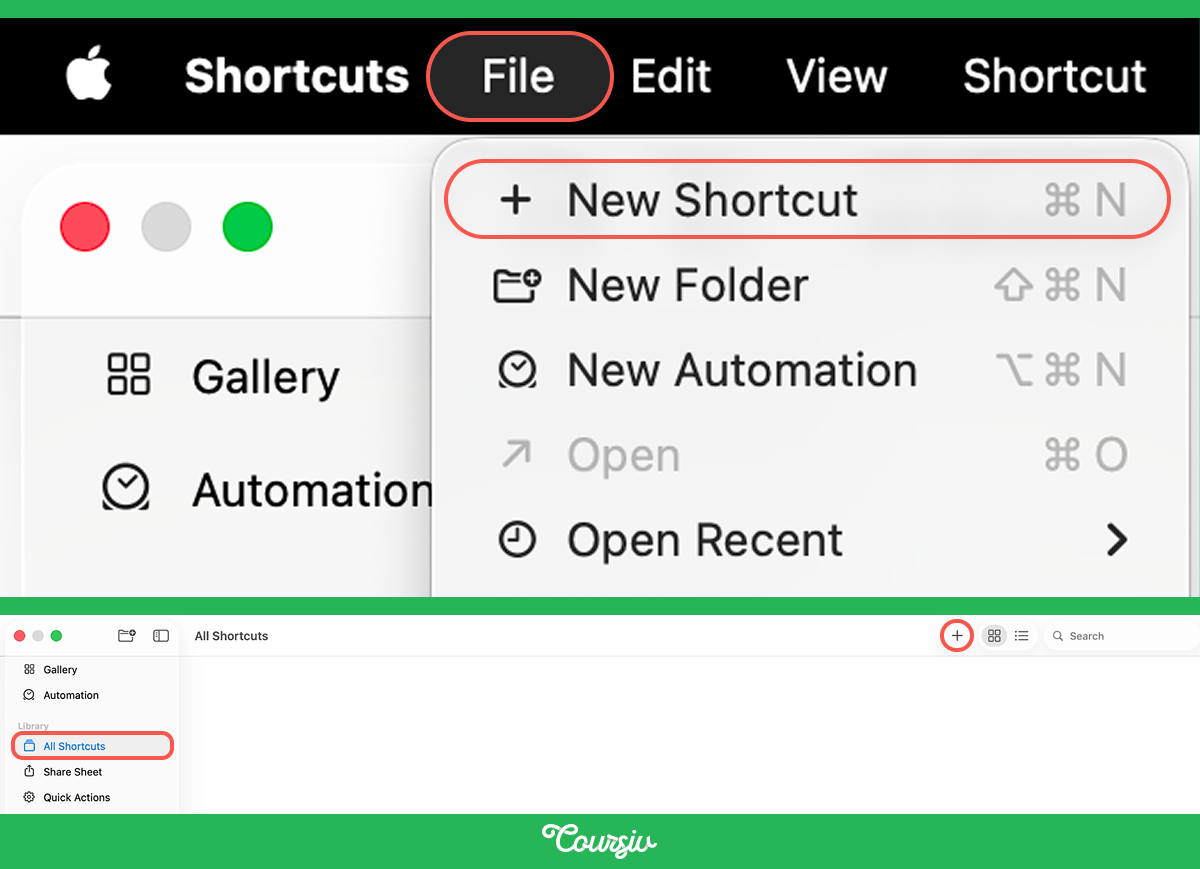
Step 1: Open Shortcuts App, click File → New Shortcut. Or open All Shortcuts and choose +.
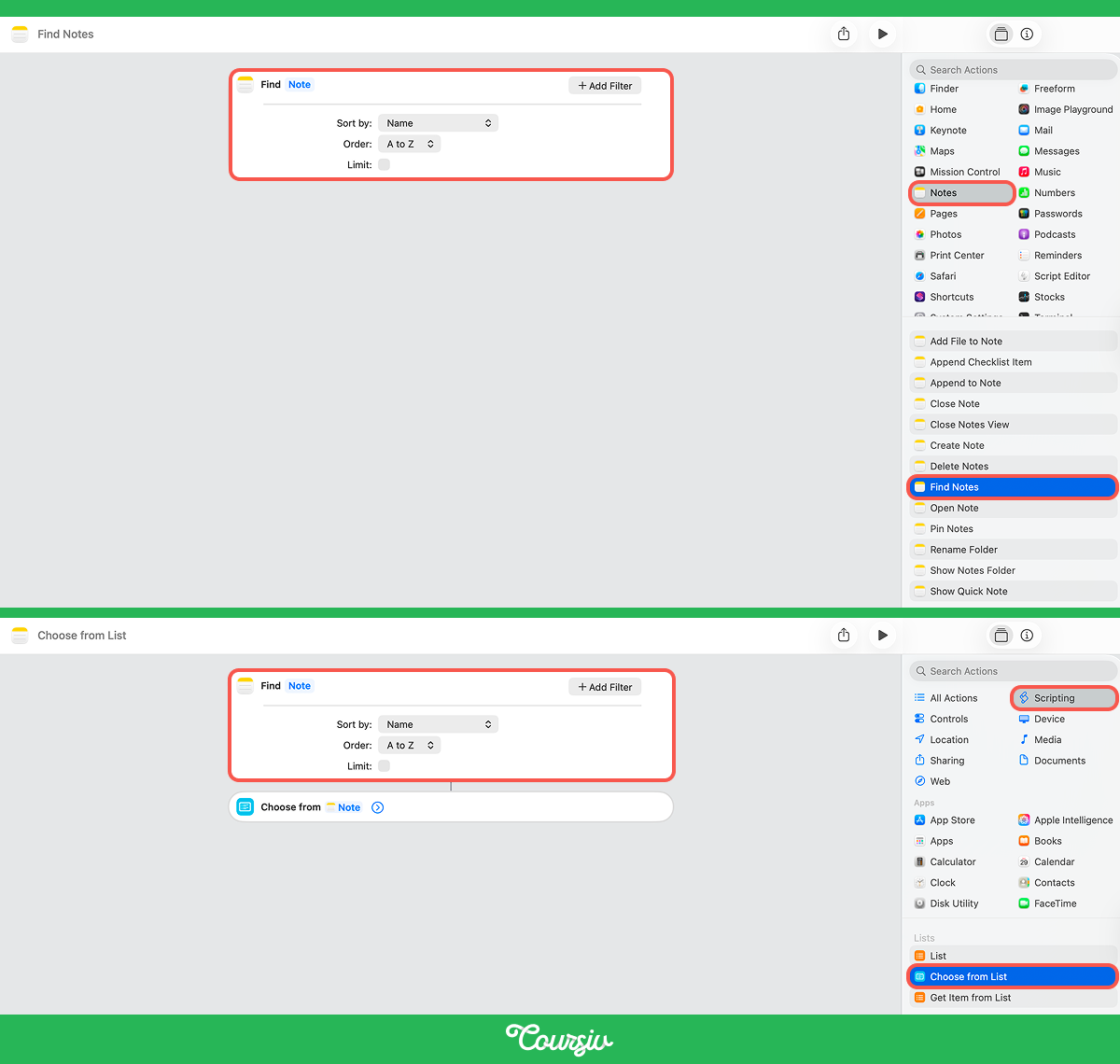
Step 2: Add a "Find Notes" action from the action section on the right, then add a "Choose from List" action right after it. This way, when you run the shortcut, it shows you a list of all your notes and lets you pick the one you want to turn into an email.
The real power comes from an action called Use Model.
It lets supported shortcuts send compatible input to an available AI model and pass the result to another action.
Use Model is the action that brings Apple Intelligence into your shortcuts.
If ChatGPT is selected, the input is shared with OpenAI according to the user's ChatGPT extension settings.
Step 3: Add a "Use Model" action, set it to On-Device, Private Cloud Compute, or ChatGPT.
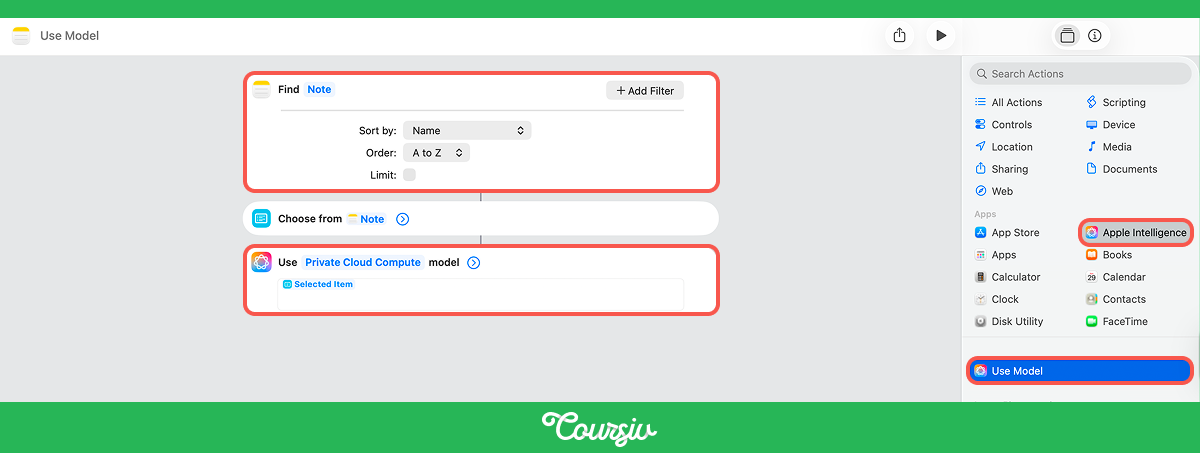
When you add Use Model, you choose which model to use:
- On-Device runs Apple Intelligence locally on your device. On-Device processes supported requests locally and may work without an internet connection, depending on the actions and data sources used by the shortcut.
- Private Cloud Compute processes supported requests on Apple silicon servers using Apple's privacy protections.
- ChatGPT sends the request to OpenAI when selected and enabled. Review the data being passed before running shortcuts that contain private or sensitive information.
For this example, ChatGPT can be selected for open-ended drafting if the user is comfortable sharing the note content with OpenAI.
Another available model can be used instead where appropriate.
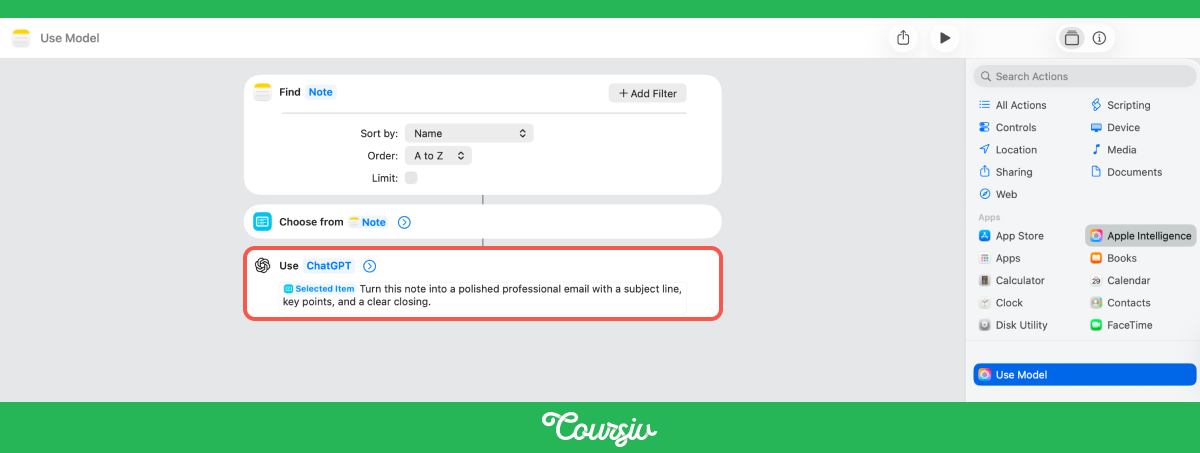
Step 4: Type an instruction like "Turn this note into a polished professional email with a subject line, key points, and a clear closing."
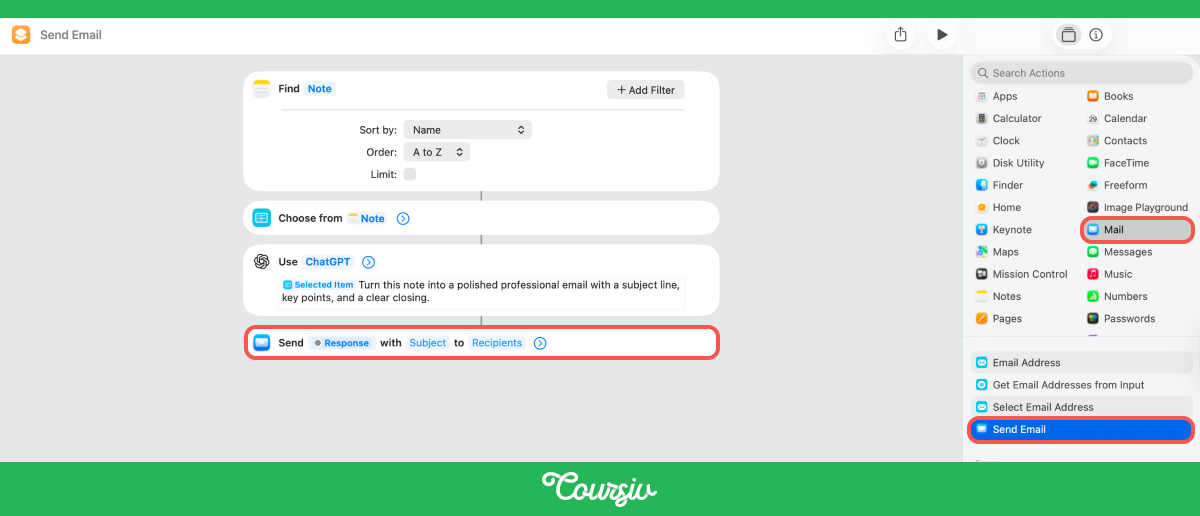
Step 5: Add a "Send Mail" action. It opens a new email compose window with the model's response already filled in as the body. Review it, adjust the recipients and subject if needed, and hit send.
Review the generated body, recipients, and subject before sending.
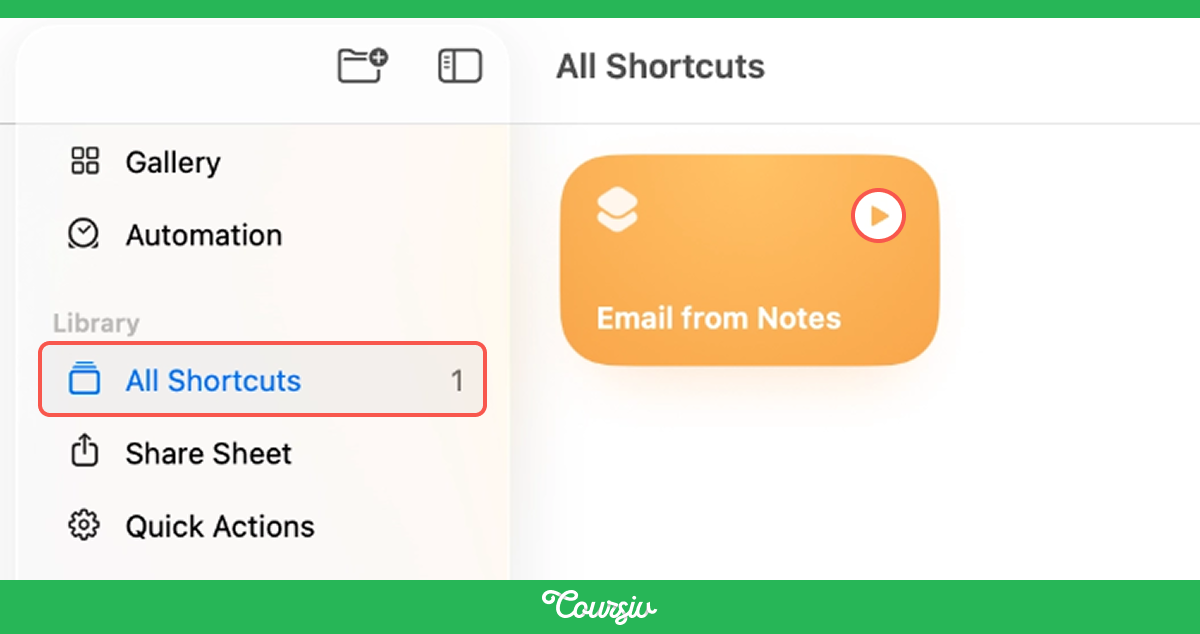
Once built, run this shortcut from the Shortcuts app, assign it to the Action button or Lock Screen on iPhone, or trigger it with Siri by saying the shortcut's name.
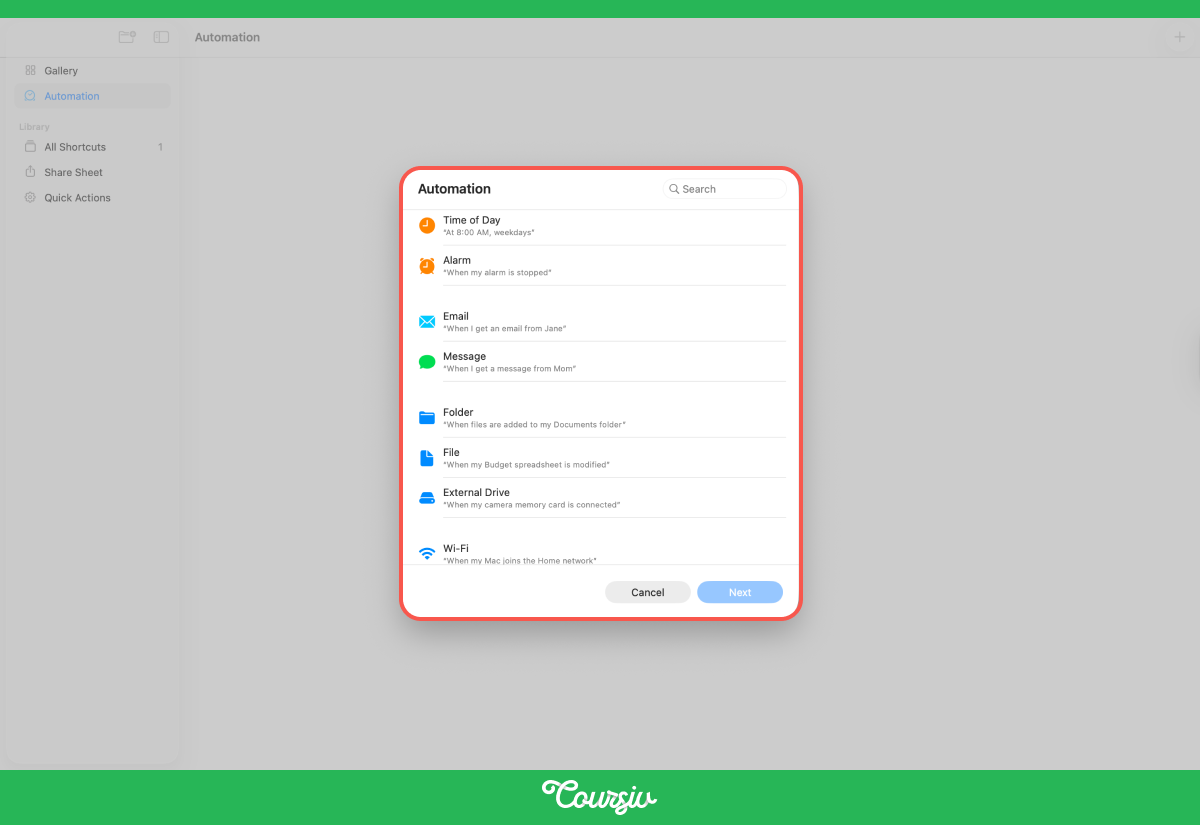
Shortcuts can also run automatically when triggered by events.
Go to Shortcuts → Automation → + and pick a trigger. It can be:
- A specific time of day
- An email arriving from a certain sender
- A file added to a folder
- An app launching, etc.
practice preview
Interactive practice
Put in order
Put these steps in the right order to build a shortcut that turns notes into an email draft.
Chaining Steps Together
The power of Shortcuts is connecting them. Each action's output becomes the next action's input. This means you can build workflows that go far beyond a single task.

Examples of what chained shortcuts can do:
- Meeting notes → action items → Reminders app: Record audio in Notes, use Apple Intelligence to summarize the transcript, then review the generated action items before adding them to Reminders.
- Email → summary → reply draft: Get the selected email text, summarize it with Use Model, then use the summary to draft a reply. And, don't forget to review the original email, summary, and reply draft before sending.
In each case, the pattern is the same: input → Apple Intelligence processing → output to another app.
Once you see this pattern, you can design workflows for recurring tasks supported by the available apps, actions, permissions, and data types.
Finding Your Own Automation Ideas
The best shortcut ideas come from tasks you already repeat every week. Think about what you do regularly that involves multiple steps, multiple apps, or the same type of content.
If you can describe the task as "every time I get X, I do Y, then Z" — that's a shortcut waiting to be built.
Some starting points:
- What do you summarize repeatedly? Weekly reports, long emails, articles for research.
- What do you capture and organize? Action items from meetings, recipes from Safari, project tasks from email.
- What do you rewrite or reformat? Client messages, social posts, internal updates.
Each of these may be suitable for a shortcut when the required apps and actions are supported. The same three-step pattern can be used: get the content, process it with Apple Intelligence, and send the result to the right place.
Great Work!
You've gone from using Apple Intelligence one feature at a time to building workflows that chain those features together.
One last check before you go — let's make sure the key concepts from this lesson stick.
- Shortcuts turns Apple Intelligence into a system: Instead of using features one at a time, chain supported actions into repeatable workflows that may still require input, permission, or review.
- Use Model is the key action: It plugs Apple Intelligence into any shortcut. Choose On-Device for fast, offline tasks; Private Cloud Compute for complex processing; or ChatGPT for broader knowledge and creative generation. Note that selecting ChatGPT shares the relevant shortcut input with OpenAI.
- Start with the Gallery: The Apple Intelligence category has ready-made shortcuts you can study, run, and customize before building your own.
- The pattern of smart automation is the same: Get content → process it with Apple Intelligence → send the result to the right app. Once you see this pattern, you can automate supported recurring tasks using available actions and integrations.
- The best ideas come from your own habits: If you repeat a task every week — summarizing, organizing, reformatting — it's a shortcut waiting to be built.
What You've Accomplished
Apple Intelligence is already inside the apps you use every day. You now know how to find it, use it, and build it into the way you work. That's not a small thing — most people never get past the first feature.
In turn, you've explored a practical selection of supported Apple Intelligence features and workflows. Now make it work for you!

Trademark Notice: Apple, Apple Intelligence, iPhone, iPad, Mac, macOS, Siri, Safari, FaceTime, Shortcuts, and other Apple product and service names are trademarks of Apple Inc., registered in the U.S. and other countries and regions. References to these products and features are used solely for independent educational purposes.
This course and the third-party tools referenced in it are not affiliated with, sponsored by, authorized by, or endorsed by Apple Inc.