Personal Intelligence On Your Devices · Personal Intelligence Essentials
Communication and Contextual Support
Get useful assistance in context
Your Smart Assistant
What if your iPhone could translate a conversation in real time, help you draft a message, and pull in expert-level answers when you need them — all without leaving the app you're in?
In this lesson, you'll learn how Siri, optional ChatGPT integration, and Live Translation can support different communication tasks.

Siri With Apple Intelligence
Siri has always been able to execute simple everyday tasks like setting timers or checking the weather. With Apple Intelligence, it becomes even more useful.
Siri now understands natural, conversational language — even if you stumble over your words or change your mind mid-sentence.

You can type to Siri when you can't or don't want to speak out loud. On iPhone or iPad, double-tap the bottom of the screen.
On Mac, press the Command key twice. A text field appears, and you can type your request. Siri responds in the same text format — perfect for meetings, libraries, or public spaces.
Follow-Up Requests
One of the biggest improvements is contextual follow-up. Siri can remember what you just asked, so your next request can build on the previous one.

For example, ask "What's the weather in Barcelona this weekend?" Then follow up with "What about restaurants nearby?" And then, "Make a reservation at the top one."
You don't need to repeat the location each time — Siri keeps the context.
This makes Siri practical for multi-step tasks. You're not limited to one request at a time — you can keep building on the same thread until the task is done.
Siri's Product Knowledge
Siri now has built-in knowledge about Apple products and features. If you're not sure how to do something on your device, just ask Siri.
For example, "How do I use Writing Tools?" will get you step-by-step instructions without opening Safari or searching through Settings.

When to Use ChatGPT Through Siri
Siri handles quick, integrated tasks well — timers, calendar events, device questions, follow-up requests. But when a task requires broader knowledge or deeper explanation, Siri can hand it off to ChatGPT.
A ChatGPT account isn't required to use the integration, but ChatGPT must first be enabled in Apple Intelligence settings.
When Siri routes a request to ChatGPT, it asks for confirmation before sending a request to ChatGPT by default.
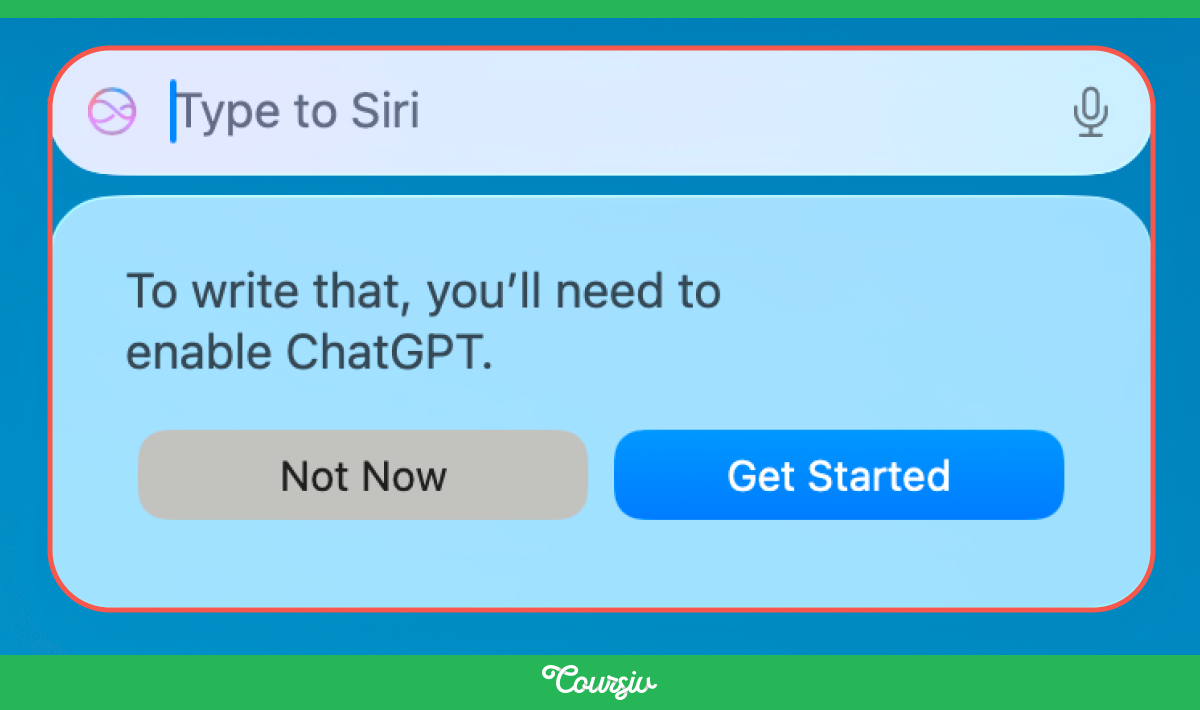
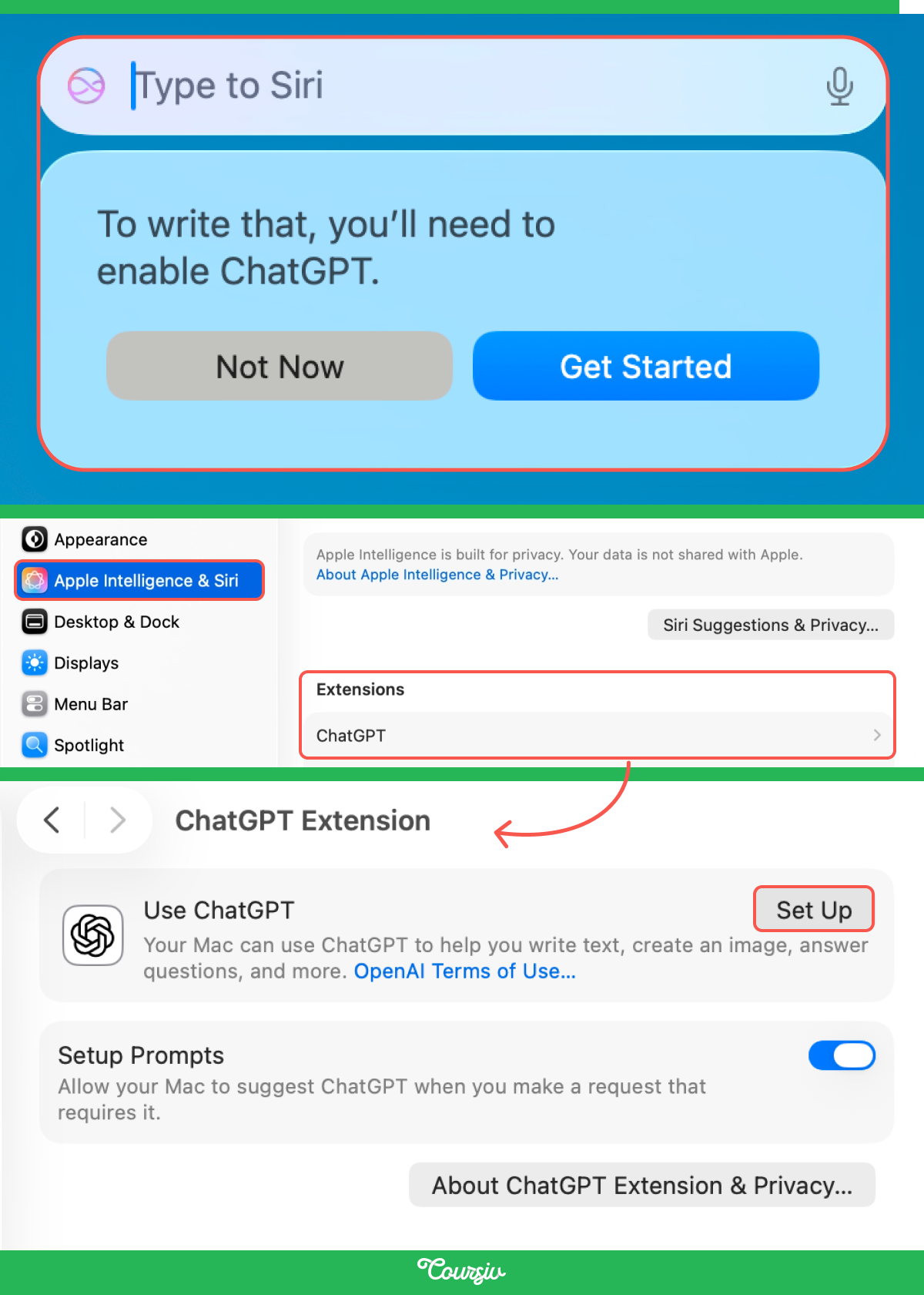
To enable ChatGPT integration, go to Settings → Apple Intelligence & Siri → ChatGPT and tap Set Up. Once enabled, ChatGPT becomes available wherever Apple Intelligence can use it.
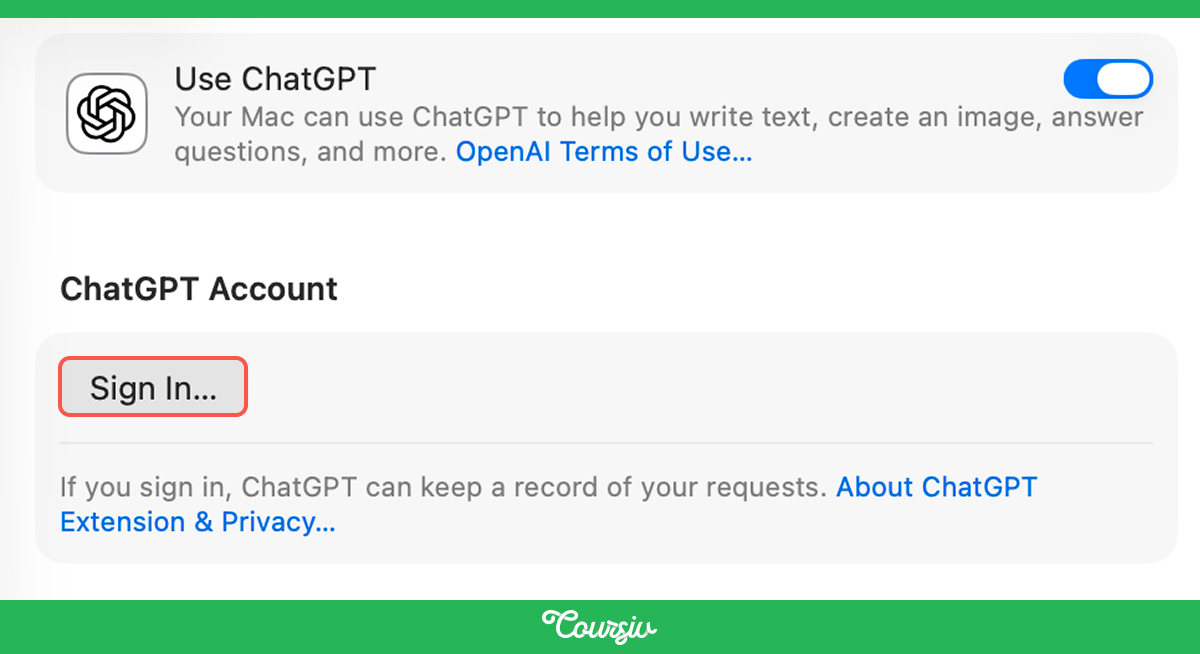
You can sign in to a ChatGPT account to access the features and usage limits included with that account.
Go to Settings → Apple Intelligence & Siri → ChatGPT and choose Sign in to your ChatGPT account.
But even without a paid account, ChatGPT can analyze documents, summarize PDFs, answer complex questions about on-screen content, and help with open-ended tasks such as brainstorming or drafting.
For example, if you're looking at a long PDF and ask Siri to summarize it, it can send the full document to ChatGPT for a detailed overview.
practice preview
Interactive practice
True / False
Choose if Siri alone will handle the task, or if it requires ChatGPT integration.
ChatGPT is available across five Apple Intelligence features: Siri, Writing Tools, Visual Intelligence, Image Playground, and Shortcuts — which you'll cover in the next lesson.
ChatGPT Through Writing Tools
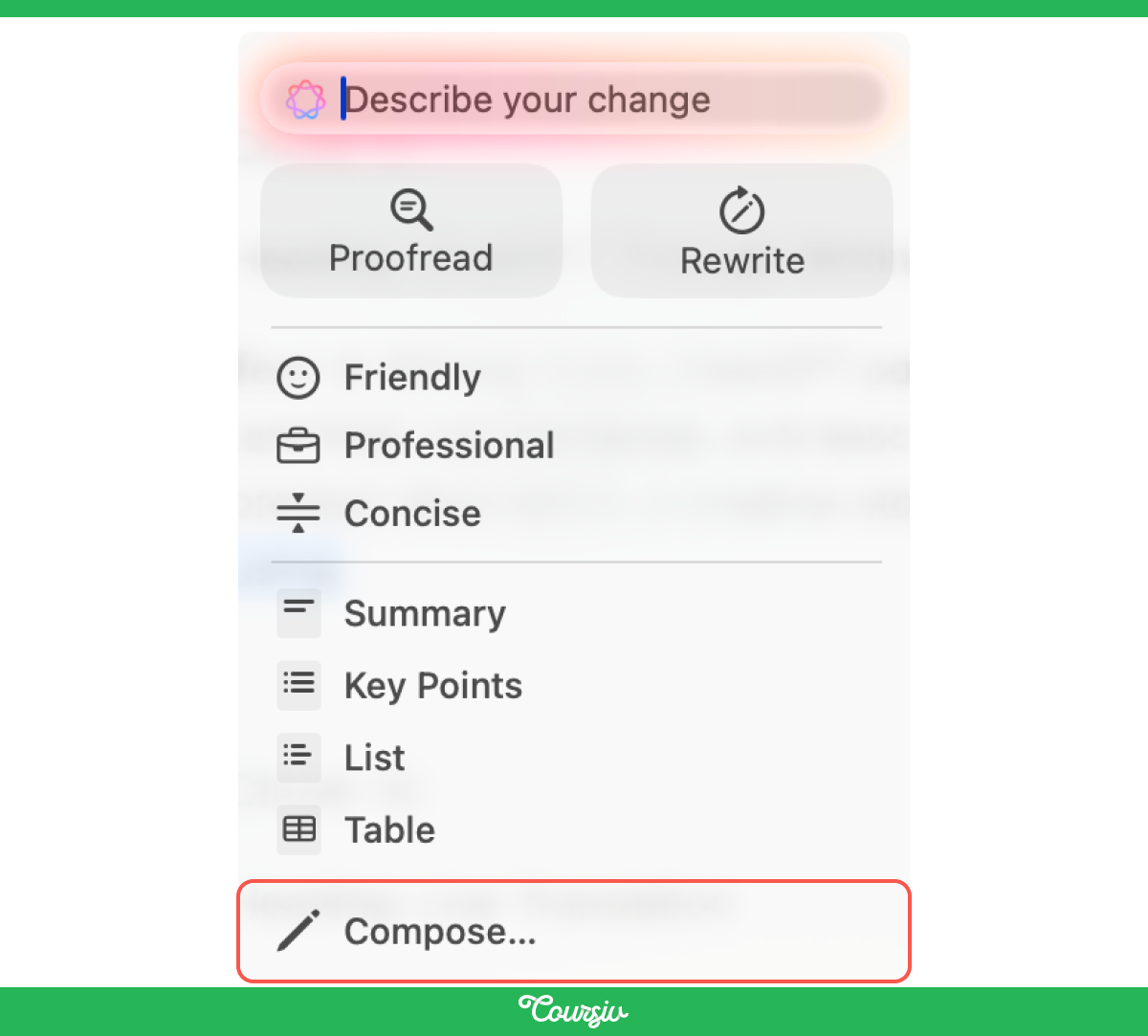
In Writing Tools, ChatGPT powers the Compose feature. Open Writing Tools in a supported app or text field, tap Compose, and describe what you want ChatGPT to write — a draft email, a message opener, or a quick product description.
ChatGPT generates text directly in the app you're using.
Live Translation
Let's look at how Apple Intelligence handles a different kind of communication challenge — the language barrier.
Live Translation is Apple Intelligence's real-time translation feature, built directly into Messages, FaceTime, and the Phone app. It runs entirely on the device, so your conversations stay private.
Before using it, you'll need to download the language packs for the languages you want to translate — you can do this in the Settings → Apps → Translate → Languages.
In Messages, turn on Live Translation for a conversation, and your replies are automatically translated as you type. Incoming messages in another language are translated to your preferred language instantly.
Tap the contact's name at the top of the conversation, scroll down, and tap Automatically Translate to enable it.
On FaceTime, live translated captions appear on screen during one-on-one calls — you can read the translation while still hearing the other person's voice.
On Phone calls, the translation is spoken aloud in real time, so both sides of the conversation are translated automatically.
If you have AirPods Pro 2, AirPods Pro 3, or AirPods 4 with Active Noise Cancellation, you can also use Live Translation for face-to-face conversations.
The translated audio plays directly in your ear. This works through the Translate app on iPhone.
Your Communication Toolkit
You now have the full communication toolkit — Siri for quick tasks and follow-ups, ChatGPT for deeper questions, and Live Translation for crossing language barriers.
Choose one
A coworker just sent you a message in German. You want to reply in English but have them see it in German. What's the fastest approach?
- Siri understands context now: Follow-up requests build on previous ones, so you can chain tasks without repeating yourself. Type to Siri when you can't speak out loud.
- Siri knows your devices: Ask Siri for help with supported Apple product features and settings.
- ChatGPT is integrated across Apple Intelligence: It works through Siri, Writing Tools, Visual Intelligence, Image Playground, and Shortcuts. An account isn't required, Siri asks for confirmation before sharing a request with ChatGPT by default.
- Live Translation bridges language barriers: Messages translates text as you type. FaceTime shows translated captions. Phone calls get spoken translation. AirPods bring it to face-to-face conversations. All on device, all private.
What's Next
Every feature you've used so far — rewriting, summarizing, organizing, translating — works well on its own. The shift happens when they work together.
In the final lesson, you'll learn how to chain everything into automated workflows using Shortcuts, so you can turn selected repeated tasks into workflows that run when you trigger them or when configured conditions are met. Let's finish strong!