Personal Intelligence On Your Devices · Personal Intelligence Essentials
Images, Photos, and Visual Intelligence
Explore built-in visual features
Your Camera Just Got Smarter
You see a poster for an event while walking downtown and want to save the date. You take a picture you like, but there's a crowd in the background. You return home and see that the client wants you to generate visuals for a project. All of these tasks are manageable with your Apple device.
In this lesson, you'll learn how Apple Intelligence helps you understand what your camera sees, clean up photos, and create images.
Apple Intelligence and Visuals
This lesson introduces the visual side of Apple Intelligence. It can:
- Generate images and emojis from descriptions
- Remove distractions from photos
- Search your photo library using natural language
- Analyze what your iPhone camera is pointing at in real time
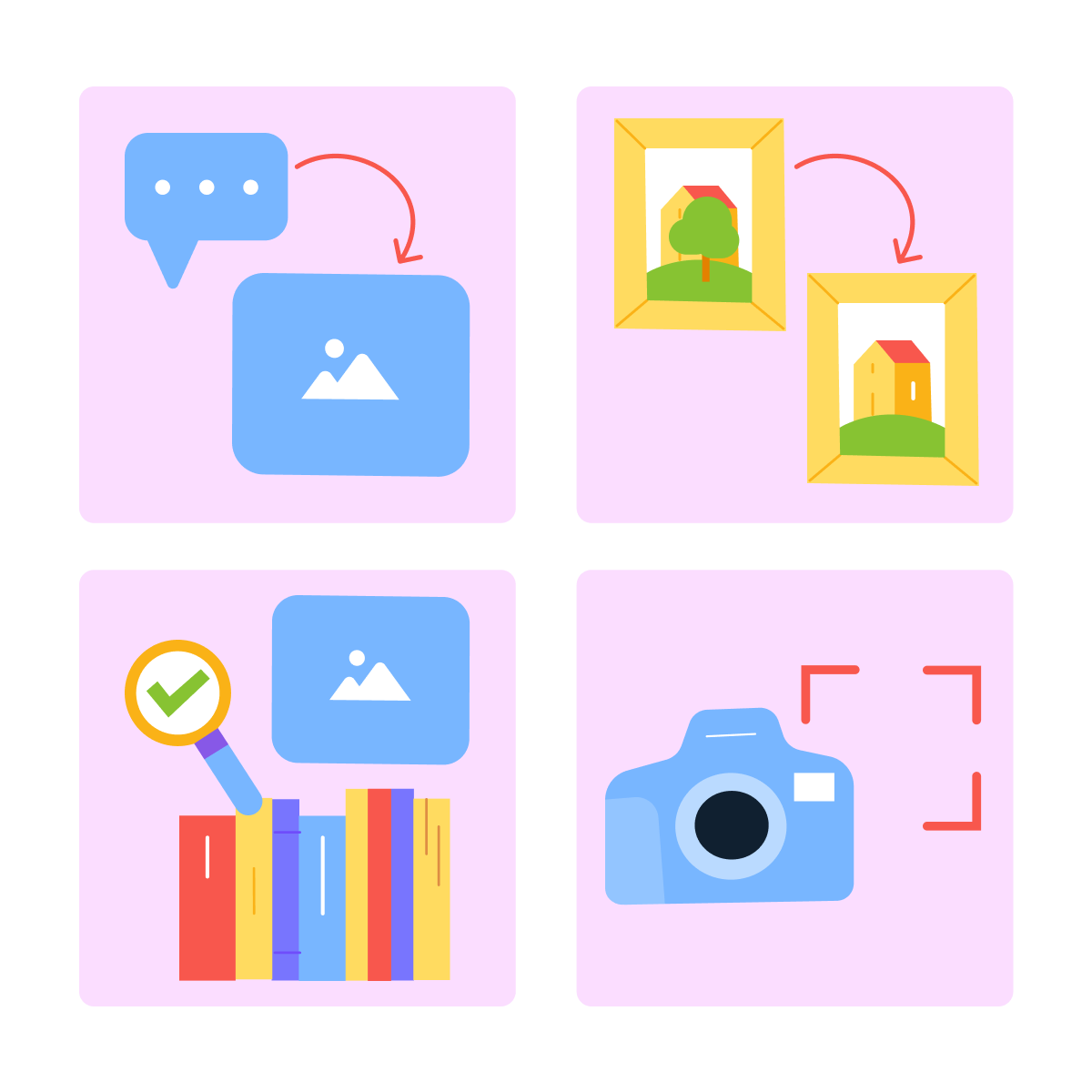
Some of these features work across iPhone, iPad, and Mac. One of them — Visual Intelligence — is iPhone only. We'll call that out clearly when we get there.
Image Playground: Creating Images From Descriptions
Image Playground is Apple's built-in image generation tool. You can use it as a standalone app or access it inside Messages and Freeform. Describe what you want, and Apple Intelligence generates an image.
When generating your images, you can include details like theme, setting, characters, costumes, accessories, and more, to shape the result. You can combine up to 7 elements.
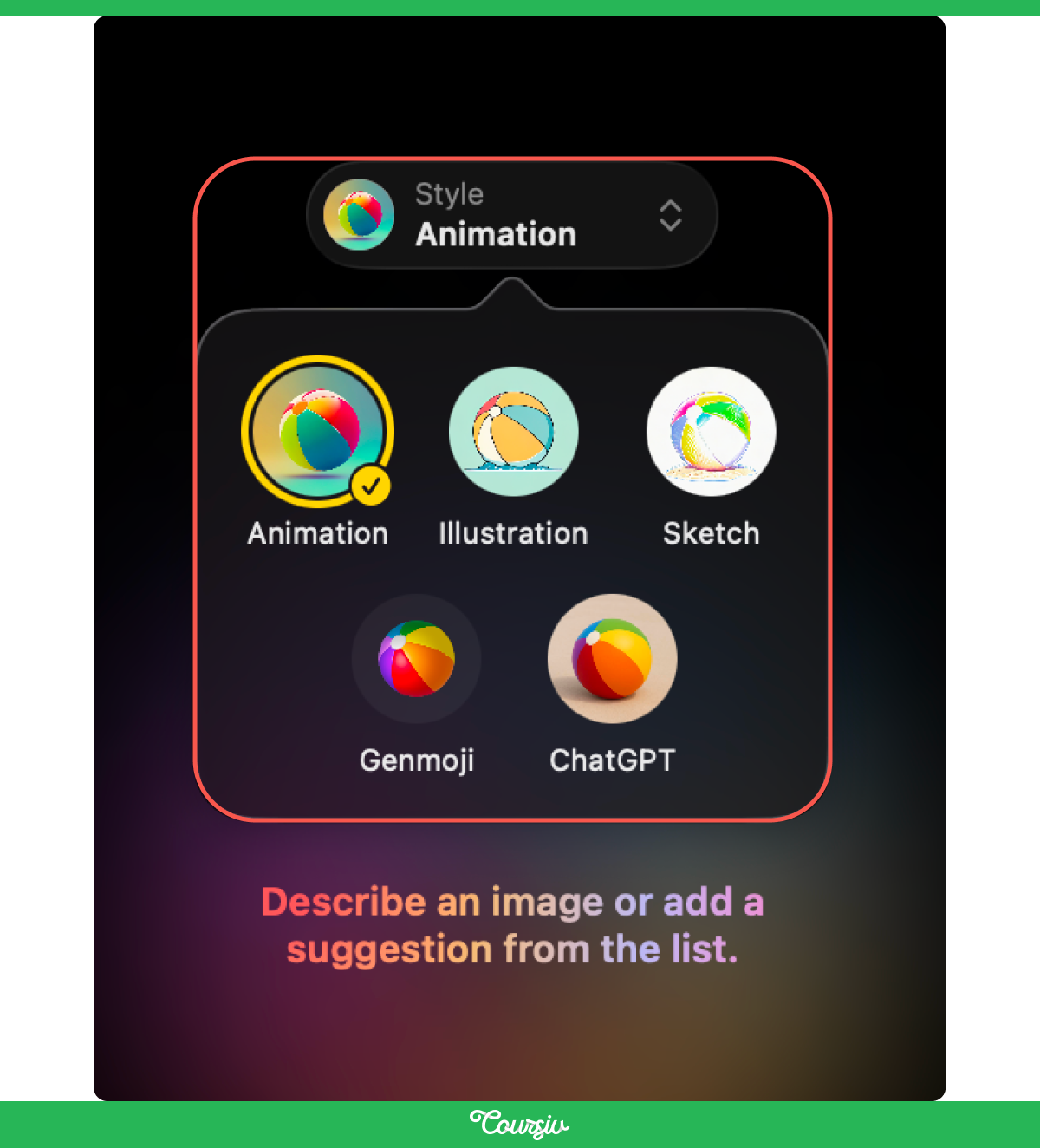
Image Playground offers three styles:
- Animation = a modern, 3D-animated look
- Illustration = simple shapes and bold colors
- Sketch = detailed, technical line art with a vibrant palette
If you enable the ChatGPT extension, you also get additional styles like Oil Painting, Vector, or Any Style, where you describe the exact look you want.
practice preview
Interactive practice
Fill in the blank
Fill in the gaps to describe an image in Image Playground.
Descriptions Shape the Result
Image Playground generates 4-8 image variations. The more specific you are, the closer the result matches your idea. And if the first image isn't right, swipe through the variations or adjust your description to try again.
Your Photo Library as a Creative Source
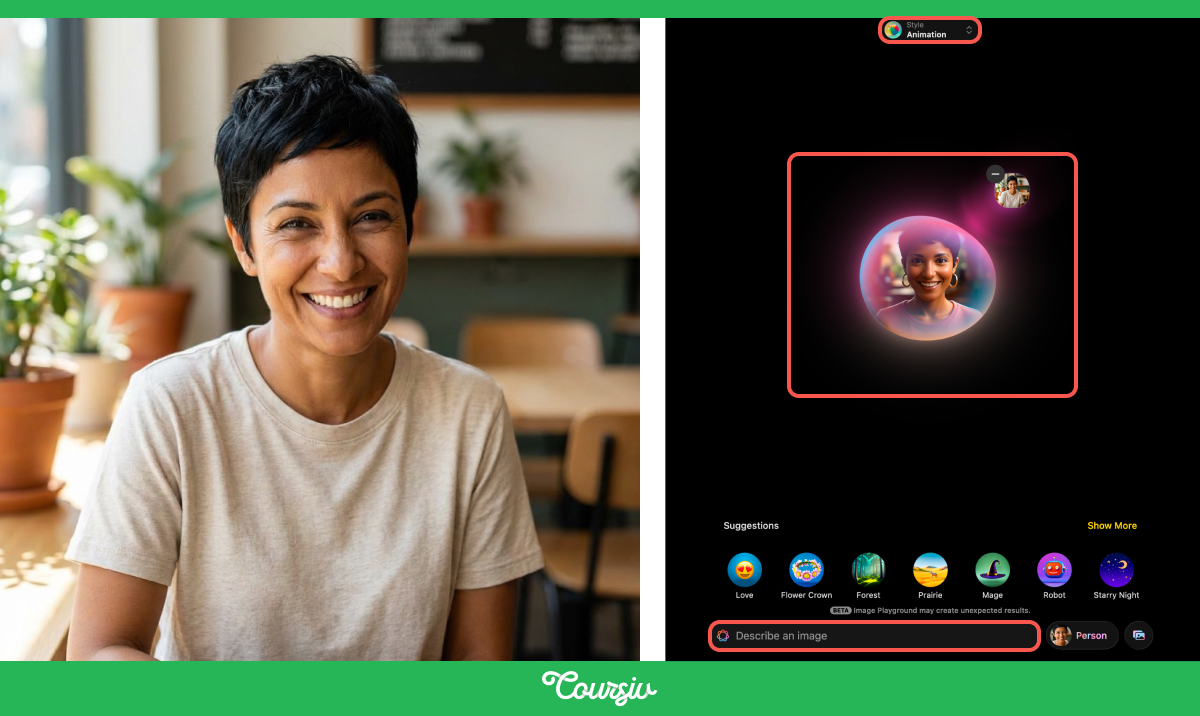
You can create images based on people from your photo library.
Select their photo, and Image Playground uses it as a starting point to generate an image, with follow-up text prompts.
Genmoji: Custom Emoji on Demand
Genmoji lets you create your own custom emoji by typing a description. Open the emoji keyboard in Messages and tap Genmoji.
Type something like "cat in a space helmet," and Apple Intelligence generates multiple options to choose from.
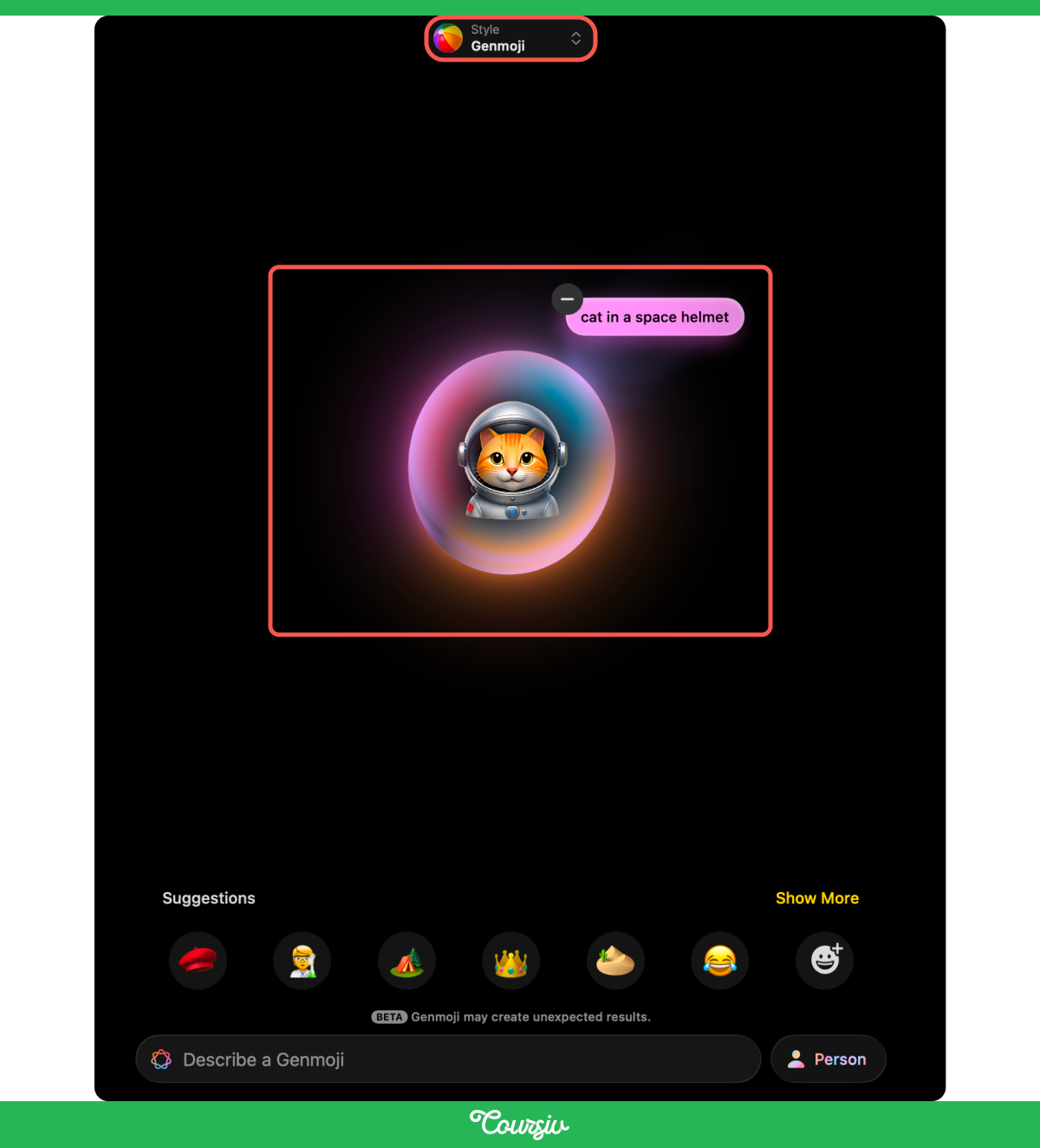
Image Wand in Notes
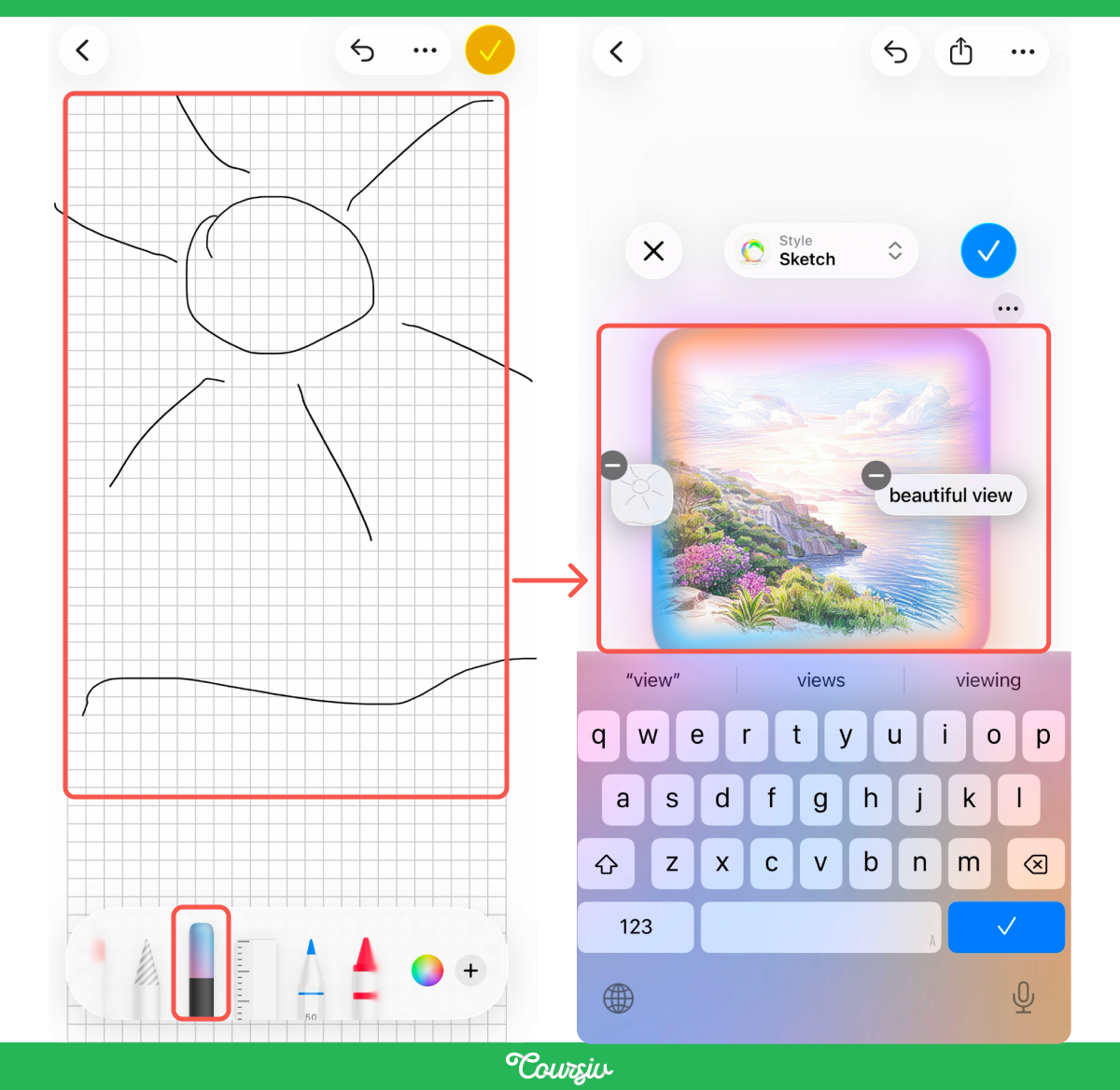
Image Wand is a Notes-specific tool available on iPhone and iPad. It turns rough sketches into polished images using Apple Intelligence.
Draw a quick sketch in a note, then select Image Wand from the tool palette and circle your sketch. Apple Intelligence transforms it into a more refined image in your chosen style — Animation, Illustration, or Sketch.
Photos: Clean Up and Smart Search
The Clean Up tool in the Photos app removes distracting objects from your images.
- Open a photo
- Tap Edit
- Then tap Clean Up
Apple Intelligence highlights objects it thinks you might want to remove.
Tap or brush over anything else you want gone — a stranger in the background, a trash can on the beach, a power line across a sunset, and it disappears while keeping the rest of the image intact.
Apple Intelligence also powers natural-language search in your photo library.
Instead of scrolling through thousands of images, type what you're looking for. Apple Intelligence finds matching photos based on what's in them. It can even find specific moments in video clips.

Visual Intelligence
Visual Intelligence is an iPhone-only feature that lets you point your camera at the world around you — or analyze what's on your screen — and get instant information.
On iPhone 16 and iPhone 17 models with Camera Control, press and hold the Camera Control button to activate it.
On iPhone 15 Pro, iPhone 16e, and iPhone 17e, access it via the Action button, Control Center, or Lock Screen.
How can Visual Intelligence assist you?
- Point your camera at a restaurant to see hours, reviews, and menus.
- Aim at a plant or animal to identify it.
- Point at text to have it summarized, translated, or read aloud.
- See a poster with an event date? Tap Add to Calendar, and the details are captured automatically.
If the ChatGPT extension is enabled, you can tap Ask to send information about what you're viewing to ChatGPT and ask follow-up questions.
You'll learn more about ChatGPT and Apple Intelligence workflow in the next lesson.
Visual Intelligence also works on your screen. Take a screenshot, and the Visual Intelligence tools appear at the bottom.
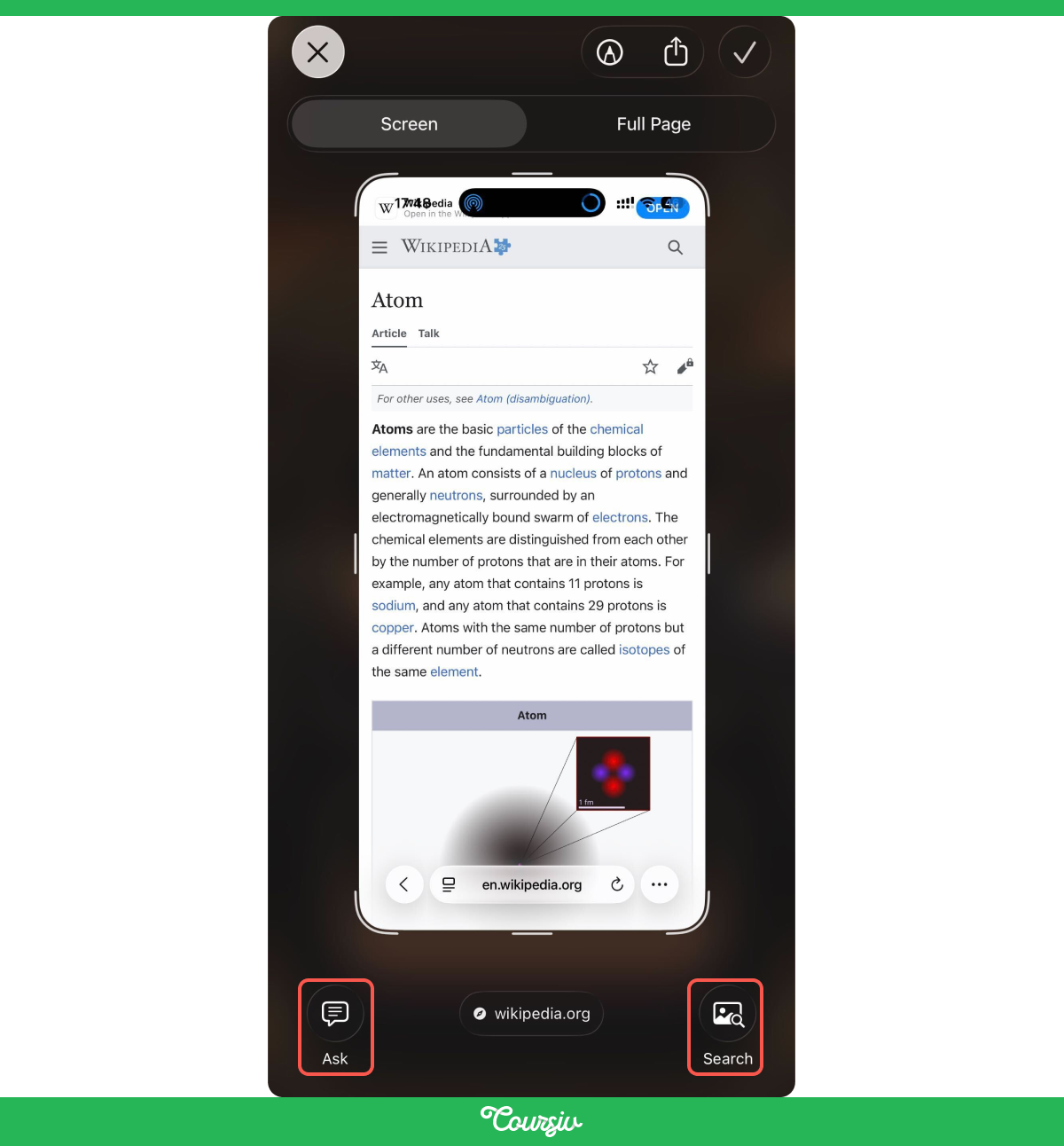
There are several options for what you can do with the Visual Intelligence. Here are some of them:
- You can use visual search for similar images or products.
- Ask ChatGPT about what's on screen.
- Add events to your calendar from a screenshot.
practice preview
Interactive practice
Match pairs
Tap a left item, then a right item to match.
- Image Playground creates images from descriptions: Combine themes, descriptions, and people in three Apple styles (Animation, Illustration, Sketch) plus ChatGPT styles. Works on iPhone, iPad, and Mac.
- Genmoji makes custom emoji: Type a description to create emoji-sized images for messages and reactions.
- Image Wand turns sketches into visuals in Notes: Circle a rough drawing, and Apple Intelligence generates a relevant image. Available on iPhone and iPad.
- Clean Up can remove selected distractions from photos: Tap or brush over an unwanted object and review the edited result.
- Apple Intelligence supports natural-language search in your photo library: It helps you search for matching photos and moments by describing what you're looking for.
- Visual Intelligence is your iPhone's live assistant: Point the camera at the world or analyze on-screen content to identify, search, translate, summarize, and take action. iPhone only.
What's Next
You've built a solid foundation — writing, organizing, and creating visuals. In the next lesson, you'll see what happens when you need help in the moment and how your device can be your smart assistant. You'll learn about Siri, ChatGPT integration, and Live-Translation features.
Let's keep going!