Build a Personal AI System on Your Computer · Personal AI Systems Essentials
What Is a Personal AI System?
Learn how personal AI agents work
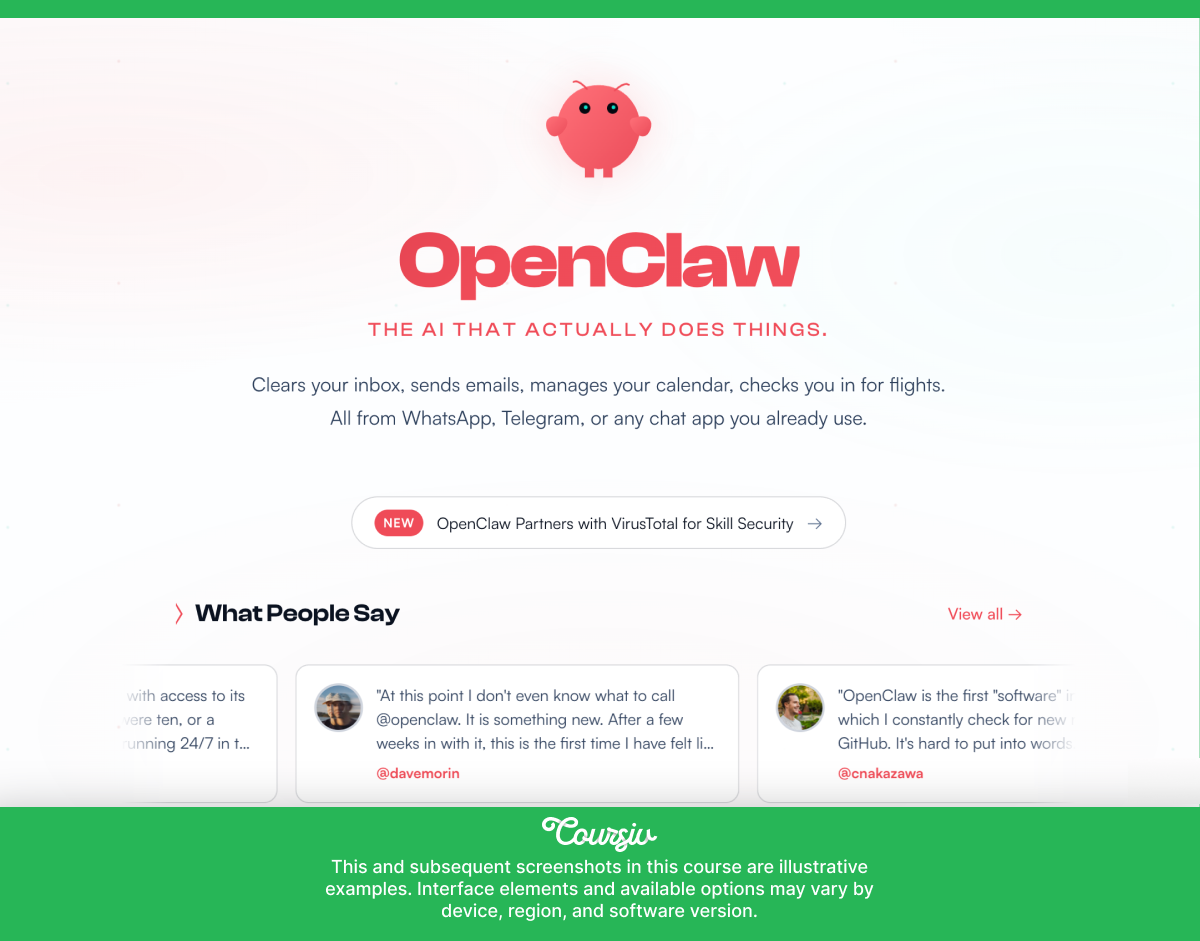
Meet OpenClaw
You're busy. Your inbox doesn't stop. Your to-do list grows faster than you can clear it. And every "AI assistant" you've tried so far has been a glorified search engine that forgets you the moment you close the tab.
OpenClaw is different. It lives on your Mac, works while you sleep, and actually does things — not just answers questions! This lesson shows you what it is, what it can do for you, and the four things to have ready before you install it.
This will be your first step toward building a personal AI system that works for you around the clock!
Disclaimer: This is an independent educational course created by Coursiv and is not affiliated with, sponsored by, authorized by, or endorsed by Apple Inc. References to Apple products and features are included solely for educational purposes.

Chatbot vs AI Agent
Before we begin, let's take time to understand how an AI agent differs from a chatbot. From what we know so far, a chatbot answers questions, and every conversation starts from scratch.
An AI agent is different: it safely accesses your Mac and works through tasks without you watching. And when it's done — or stuck — it tells you.
OpenClaw is an agent, running on your own hardware!
Choose one
Imagine you send your AI agent a task at 11 pm and go to sleep. When you wake up, what should you expect?
What OpenClaw Actually Does
Let's now look at the real problems it solves — not hypothetical ones.
Your Inbox Is Out of Control
You message OpenClaw on WhatsApp: "Go through my inbox and tell me what needs a decision today." By the time you finish your morning coffee, there's a prioritized list waiting — flagged by urgency, with context. You didn't open your inbox once.

You Don't Have Time to Research
Before bed, you send: "Compare the top three family SUVs under $40,000 on safety, fuel economy, and reliability. Send me a summary in the morning." It does the reading overnight, and you make the decision over breakfast.
Things Keep Falling Through the Cracks
OpenClaw keeps a running log of what you tell it — decisions made, things to follow up, ideas worth keeping. You message it the way you'd jot a note. Unlike a note, it remembers the context and can remind you at the right moment.

Repetitive Work That Eats Your Day
Anything you do the same way more than once is a candidate for automation: summarizing weekly reports, drafting routine replies, organizing files by date or project. You describe the pattern once — OpenClaw handles it from there.
You're Busy, and Something Needs a Quick Answer
You're in back-to-back meetings. A question comes in that needs a response. You forward it to OpenClaw on Telegram. It checks your files and previous decisions, drafts a reply, and sends it to you for approval. Thirty seconds and it's done.
Inside OpenClaw
OpenClaw is an app you install on your Mac.
Once it's running, it turns your computer into a persistent AI workstation — active around the clock without you needing to touch it. The app has two main parts.

The Gateway
The Gateway is the engine running quietly in the background. It keeps everything alive even when your screen is off, and you're nowhere near the machine. You never manage it directly — the app handles it for you.
The OpenClaw App for macOS
It sits in your menu bar — that row of small icons at the top right of your screen. It's your control panel for checking status, managing permissions, and adjusting settings.
The good news is, you don't need advanced commands or technical knowledge.
Which Computer to Use?
OpenClaw runs on any Mac, so the Mac you already have is a perfectly fine place to start.
A MacBook or iMac works well when the machine is on and connected. The one limitation: if your Mac sleeps or the lid closes, your AI goes quiet. For most people starting out, that's completely fine.

Mac mini
If you want an AI that truly never stops — running overnight, never missing a task — Mac mini is the natural upgrade. It sits on a desk, stays on, runs without a screen: no lid to close, no battery to manage.
How to Talk to Your AI
You don't open an app on your Mac to use OpenClaw. Although it's not a chatbot, you message it — the same way you'd message a person — through WhatsApp or Telegram, from your phone, wherever you are.
It all works through a conversation.
practice preview
Interactive practice
Match pairs
Tap a left item, then a right item to match.
What You Need Before You Install
Two things need to be in place before you open the OpenClaw app for the first time. If either is missing, the setup wizard will stop and you'll have to go find it mid-flow.
The First Thing: Node.js
Node.js is free software that OpenClaw runs on top of. You'll never interact with it directly — it just needs to be there, like a language your Mac needs to have installed before OpenClaw can speak it.
To check if Node.js is already installed, open Terminal on your Mac. For this, press Command + Space, type "Terminal", and press Enter to open. Then type this exactly and press Enter again: node --version
If you see a version number — something like v24.0.0 — you're good. If you see an error, it isn't there yet.
Installing Node.js if You Need To
Go to nodejs.org and download the version labeled LTS — Long Term Support. Open the file and follow the installer.
When it's done, go back to Terminal, type node --version again, and you should see a number.
The Second Thing: API Key
An API key is a private code that connects OpenClaw to an AI model — the intelligence behind everything your assistant does. You generate it once, paste it during setup, and never think about it again.
Which Provider Should You Use?
To get the API key, you can go with Claude, as it handles long tasks reliably and is what the people who built OpenClaw use themselves.
If you already have a ChatGPT account and prefer to start there, that works too. The setup is identical either way.
Getting Your Claude API Key
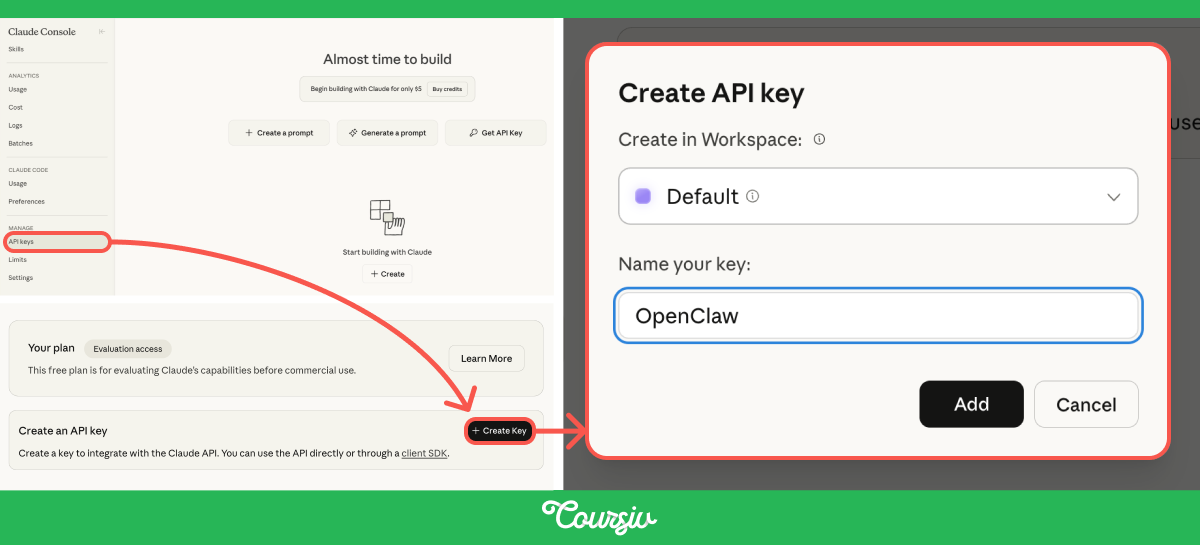
Go to console.anthropic.com and create an account. Find API Keys in the left-hand menu, click Create Key, name it "OpenClaw", and copy what appears.
Paste it somewhere safe — a note on your Mac or your phone. You'll need it in the next lesson, and after that OpenClaw stores it for you.
Quick Settings Check
Two Mac settings are worth checking before you move on. Both take under a minute, and both affect how reliably OpenClaw runs.
Your macOS Version
Open the Apple menu in the top-left corner and select About This Mac. You need macOS Ventura or later. If you're on an older version, update first from System Settings → General → Software Update.
Wake for Network Access
This tells your Mac to stay reachable even when the display is off. Without it, your AI goes quiet the moment your Mac rests — which defeats the always-on idea entirely.
Open System Settings, go to Energy, and turn on Wake for Network Access. If you see both that option and Prevent Sleeping When Connected to Power, enable both.
- Node.js is installed and shows a version number in Terminal.
- You have an API key from Claude or ChatGPT saved somewhere you can find it.
- Your Mac is running macOS Ventura or later.
- Wake for Network Access is turned on in Energy settings.
What Comes Next
In the next lesson, you'll learn to download the OpenClaw app for macOS, run the first-time setup wizard, and end with a running Gateway and a menu bar icon confirming your AI is alive.
Let's get to it!