Build a Personal AI System on Your Computer · Personal AI Systems Essentials
Automation and Long-Term Setup
Keep your personal AI system running
Automation, Check-ins, and Keeping It Running
Your AI system is set up, personalized, and doing real work. This lesson is about making sure it stays that way — without you having to babysit it.
By the end, your AI will check in with you proactively, you'll be able to reach it from anywhere, and you'll know exactly what to do if something ever stops working.
This is the lesson that makes it truly set and forget.

Proactive Check-ins
So far, your AI has been reactive — it waits for you to send a message, then acts on it. That's useful. But OpenClaw can also be proactive — checking in on its own, on a schedule you set, to report on what needs attention.
This is called heartbeat mode.
What Heartbeat Mode Does
On a schedule you define — every morning, every few hours, once a week — OpenClaw runs a check and sends you a message. What it checks and reports on is up to you. You define it in a file called HEARTBEAT.md in your workspace folder.
It's basically like a standing briefing from a colleague. Every morning at 8 am, without you asking, you get a summary of what needs your attention today.
What to Put in HEARTBEAT.md
HEARTBEAT.md works the same way as SOUL.md and USER.md — plain text, written in your own words. You tell your AI what to look at and what to report on each time it runs.
Keep it focused. A heartbeat that tries to check everything becomes noise. One that checks two or three specific things becomes a genuinely useful briefing.
practice preview
Interactive practice
Fill in the blank
Complete this HEARTBEAT.md with what you actually want checked every morning before you start your day.
Setting the Schedule
Open the OpenClaw app from your menu bar and go to Settings → Agent. Find the "Heartbeat" section and set how often you want it to run.
For most people a daily morning check-in is more than enough — less noise, more signal. Set it to once a day and let it run overnight so the briefing is ready when you wake up.
Choose one
You set a heartbeat to run every 30 minutes checking ten things. By end of day you've got 48 messages, most of them irrelevant. What's the fix?
Reaching Your AI From Anywhere
Right now, OpenClaw works when you're connected to your home network. But what happens when you're traveling, at the office, or on a different wifi?
The answer is Tailscale — a free tool that connects your devices securely over the internet, so your Mac is always reachable from anywhere as if you were on the same network.
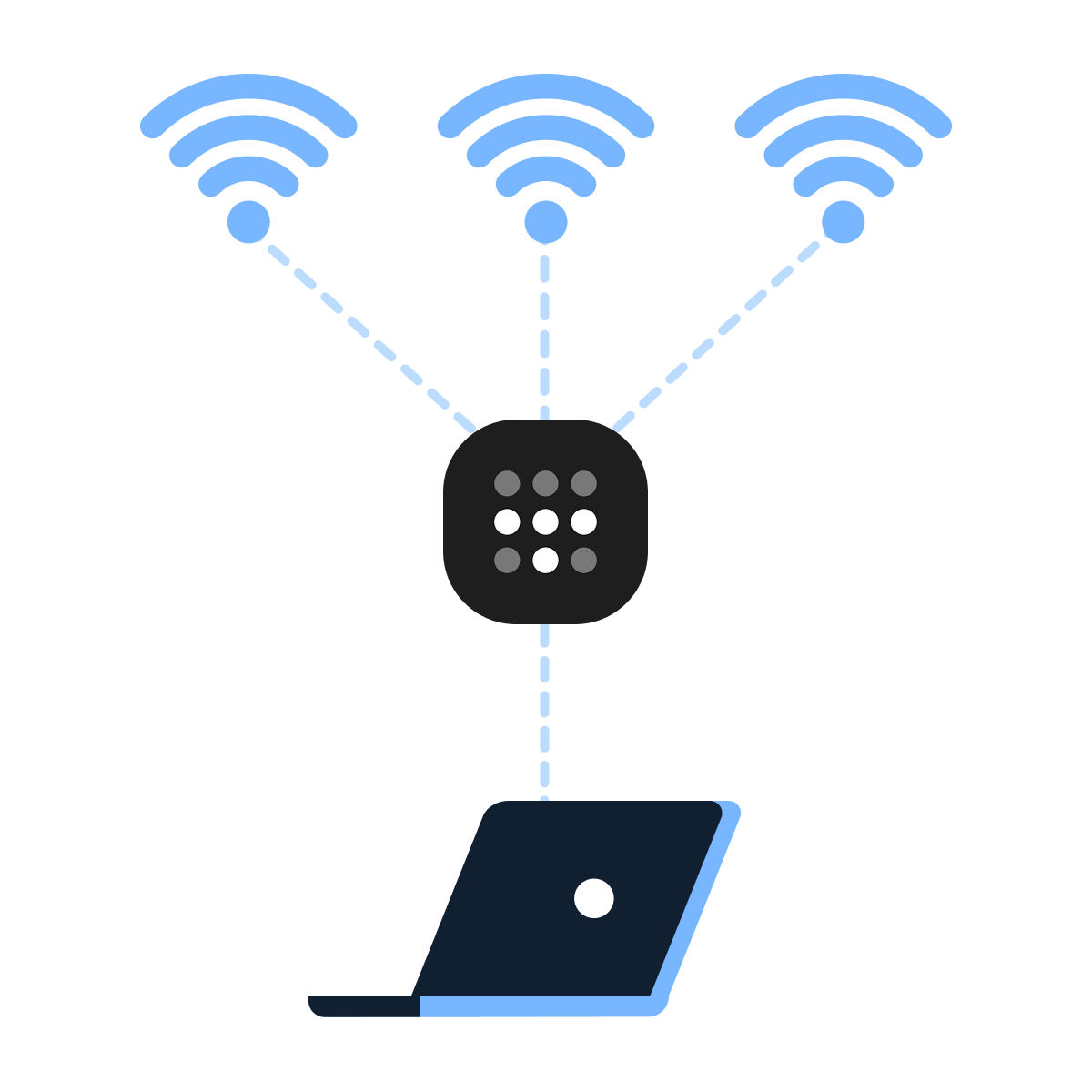
What Tailscale Does
Tailscale creates a private, encrypted connection between your devices. Your Mac becomes reachable from your phone or your work laptop — without opening ports on your router or doing anything technically complex.
For OpenClaw, this means your AI stays reachable from your phone even when you're on the other side of the world.
Setting Up Tailscale
Go to tailscale.com and download the app for your Mac. Create a free account, open the app, and click "Connect." Do the same on your phone.
Once both devices are on your Tailscale account, they can reach each other from anywhere. Then open the OpenClaw app, go to Settings → Gateway, find the Tailscale option, and enable it.
If you never leave the house, skip this step. If you travel or work from multiple locations, it's worth the ten minutes.
Keeping Your API Key Safe
Your API key is what gives OpenClaw access to your AI model. OpenClaw stores it on your Mac by default, which is fine for most people. If you want an extra layer of security, store it in a password manager like Bitwarden or 1Password instead of leaving it in plain text on your machine.
What to Do When Something Stops Working
OpenClaw is stable, but no software is perfect. Let's look at the three most common things that go wrong and exactly what to do about each one.
The Gateway Shows as Not Running
Click the OpenClaw icon in your menu bar. If the status shows as stopped or offline, look for a "Start or Restart" option and click it.
If that doesn't work, quit the OpenClaw app entirely from the menu bar, then reopen it from your Applications folder. The Gateway should start automatically when the app opens.
Your AI Stopped Responding on Telegram or WhatsApp
This usually means the Gateway is running but the channel connection dropped. Open the OpenClaw app, go to Settings → Channels, and check the status of your connected channel. If it shows as disconnected, click Reconnect.
If it still doesn't work, check that your Mac is connected to the internet and verify your API key is still valid by opening the dashboard and sending a test message there.
OpenClaw Isn't Starting After a Restart
This means the background service may have stopped or wasn't installed correctly. Open the OpenClaw app, go to Settings, and look for the option to reinstall or enable the background service. Click it and restart your Mac. After the restart, the OpenClaw icon should appear in your menu bar automatically.
The Rhythm That Makes It All Work
You've now built something most people only talk about. An AI that runs on your hardware, knows who you are, takes instructions from your phone, works overnight, and checks in every morning with what needs your attention.
The rhythm that makes it stick is simple.
In the Evening
Before you finish for the day, send OpenClaw one or two tasks to work on overnight. Research, drafting, organizing, summarizing — anything that would take you time but doesn't need you present. Be specific about what you want back and when.
In the Morning
Read your briefing. Review what was completed. Unblock anything that needs a decision. Reply with direction on anything in progress. All that in just five minutes!
Throughout the Day
Delegate the things that come up as they come up. A quick message on Telegram is faster than adding something to a to-do list you'll deal with later. The lower the friction, the more you'll use it — and the more time you get back.
What You've Built
Six lessons ago you had a busy inbox, a growing to-do list, and an AI that forgot you the moment you closed the tab.
Now, you've built a personal AI system that runs on your hardware, knows your name, and works while you sleep. That's not a tool — that's infrastructure!
Now, it's time to leverage it.
Where to Go From Here
OpenClaw keeps growing — new integrations, new ways to connect it to the tools you already use. The official docs at docs.openclaw.ai are worth bookmarking for when you're ready to go deeper.
But the most important next step is to use what you've built — tonight, with a real task sent from your phone before you go to sleep. See what's waiting for you in the morning.

Trademark Notice: Apple, Mac, MacBook, iMac, Mac mini, macOS, and other Apple product and service names are trademarks of Apple Inc., registered in the U.S. and other countries and regions. References to Apple products and platforms are used solely to describe compatibility and provide independent educational instruction.
This course and the third-party tools referenced in it are not affiliated with, sponsored by, authorized by, or endorsed by Apple Inc.