Build a Personal AI System on Your Computer · Personal AI Systems Essentials
Control Your AI From Your Phone
Make your system fit your pocket
Connecting Your Phone
Right now, your AI lives in a browser tab on your Mac. That's useful for testing — but it's not how you'll actually use it day-to-day.
This lesson connects OpenClaw to your phone. By the end, you'll be able to message your AI from anywhere — in the kitchen, on the commute, between meetings — and get a real response back, just like texting a person.
That's when it starts to become a real personal assistant.

Which Messenger to Set Up First?
OpenClaw supports both Telegram and WhatsApp. You can set up one now and add the other later. But if you're starting fresh, the choice matters — they work differently and one is significantly simpler to get running.

Telegram: The Easier Starting Point
Telegram connects with a single bot token — a code you generate in a few taps inside the Telegram app itself. No second phone number needed, no scanning QR codes. It takes about five minutes and works straight away.
If you don't have a strong reason to start with WhatsApp, start here.
WhatsApp is the app most people already use every day — which makes it feel like the natural choice. But the setup requires a second phone number dedicated to your assistant, separate from your personal WhatsApp.
This is intentional and important. If you link your personal WhatsApp to OpenClaw, every message anyone sends you becomes input for your AI. That's not what you want.
Setting Up Telegram
If you don't have Telegram, download it from the App Store and create an account. It's free and takes two minutes.
Once you're in, you'll create a bot — a dedicated Telegram account that acts as the interface for your AI. It sounds technical, but Telegram has a built-in tool that does it for you in a few messages.

Creating Your Bot
Inside Telegram, search for a contact called BotFather. This is Telegram's official bot creation tool — it's the real one if it has a blue verified checkmark next to the name.
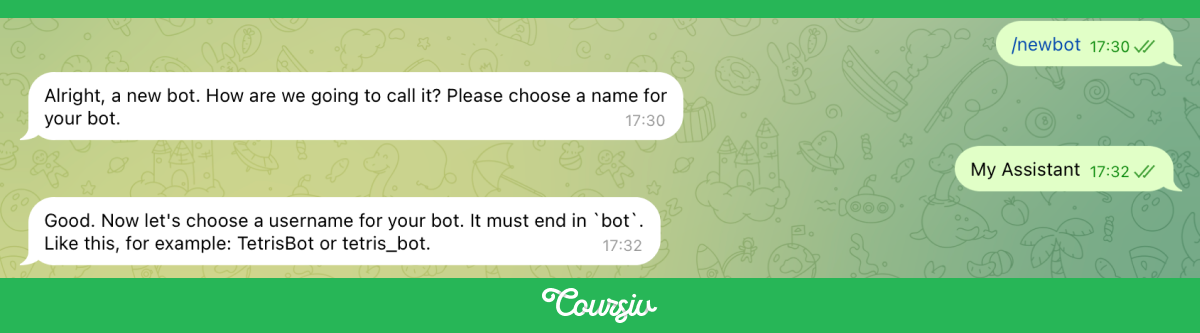
Start a conversation with BotFather and send the message: /newbot
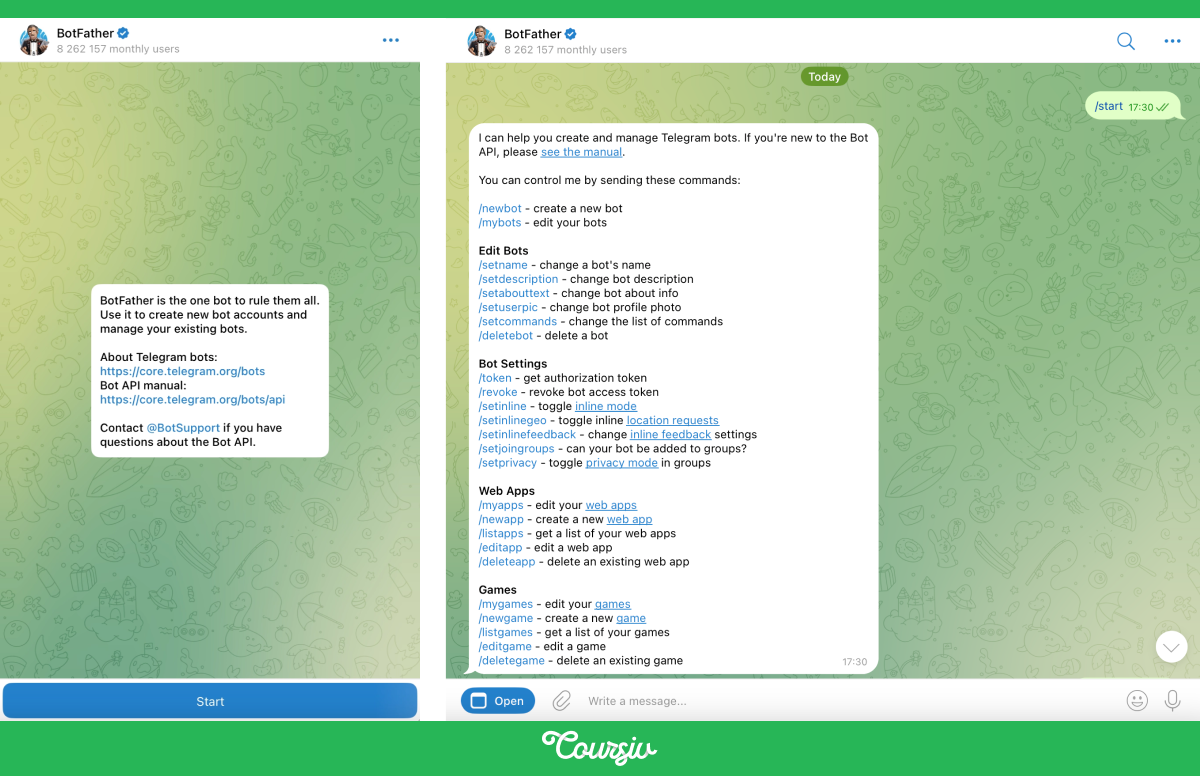
It will ask you to choose a name for your bot — something like "My Assistant" — and then a username, which must end in the word "bot". Once you confirm both, BotFather sends you a token. It looks like a long string of numbers and letters.
Copy that token. You'll need it in the next step.
Connecting the Bot to OpenClaw
Open the OpenClaw app from your menu bar and go to Settings → Channels → Telegram.
Paste the token you copied from BotFather into the field provided and save. OpenClaw will verify the connection — when it confirms, your bot is live.
Sending Your First Message From Your Phone
Open Telegram on your phone and search for the bot username you chose during setup. Start a conversation and send any message.
You should get a reply from your AI within a few seconds. That's the confirmation that everything is working end-to-end.
practice preview
Interactive practice
Put in order
Put the Telegram setup in the right order.
Setting Up WhatsApp
If you want to use WhatsApp instead of or alongside Telegram, you'll need a second phone number for your assistant. A prepaid SIM or an eSIM from any carrier works — it doesn't need a data plan, just the ability to receive a verification text during setup.

Once you have the number, install WhatsApp on a second phone or use WhatsApp's linked device feature on your main phone with the second number active.
Linking WhatsApp to OpenClaw
Open the OpenClaw app, go to Settings → Channels → WhatsApp, and follow the pairing flow. You'll be shown a QR code — scan it with WhatsApp on your assistant's number, just as you'd set up WhatsApp Web.
Once scanned, the connection is live.
Whether you use Telegram or WhatsApp, there's one setting to configure before you start using your AI in earnest.
In OpenClaw's channel settings, find the option called Allow From. This controls which phone numbers can send instructions to your AI. Add your personal number and leave everything else blank.
What to Send Your AI First
Now that your phone is connected, here are a few things worth trying straight away — not to test the setup, but to start getting real value from it immediately.

Ask It Something You've Been Putting Off
Is there a question you've been meaning to research but haven't had time for? A decision you've been circling? Send it now. Let your AI take a first pass and see what comes back.
It can be comparing insurance plans, researching a neighborhood before a move, or summarizing a long document you've had sitting in your Downloads folder for weeks.
Give It Some Context About You
Send a message like: "Here's a bit about me and how I work — I'm [your job], I usually start my day at [time], and my biggest challenge right now is [whatever it is]."
Your AI will hold this for future conversations. The more it knows about you upfront, the more useful every response becomes from here.
Try a Simple Task
Ask it to draft something, summarize something, or look something up. Keep it small and concrete — one clear task with a clear output.
People in the OpenClaw community often start with things like: drafting a follow-up email after a meeting, summarizing a news topic they haven't had time to follow, or writing an out-of-office reply for an upcoming trip. Small tasks, real results.
Choose one
You've just connected Telegram. Which message gives you the clearest picture of what OpenClaw can actually deliver?
What You Now Have
Your phone is connected, your AI responds, and you've already sent it something real to work on. You now know how to start a conversation and how to keep it safe.
What Comes Next
Your system now travels with you!
Next, you'll make it actually know you by telling it who you are, how you work, and what you want from it. That's what separates a generic AI response from one that actually sounds like it knows you.