No-Code Websites and Apps · Build Your Product with AI
Simple No-Code App
Build an app from prompts
Build a Simple No-Code App
A parent discovers your website, browses a few lessons, and subscribes. Great! They now need BrightMinds to be on their phone: quick to open, easy to pick up where they left off, built around a daily routine.
In this lesson, you're about to build your no-code app. Let's get started!
Define the App's Purpose
Before you build anything, get specific about what the app does. An app isn't a smaller version of your website — it's a focused tool for a specific workflow.
For BrightMinds, that workflow is: a child logs in, picks a lesson, completes it, and tracks their progress.
practice preview
Interactive practice
Fill in the blank
Ask ChatGPT to define the app's core structure.
Choose one
The AI listed 5 screens for the app. What should guide which screen a user sees first after logging in?
From Concept to Builder
You've defined the app's purpose, screens, and data. Let's build.
Bolt.new is an AI app builder that works similarly to Lovable: you describe what you want in natural language, and it generates a working app. If you've written prompts in Lovable, you already know the core skill.
Your First Prompt in Bolt.new
Just like with Lovable, specificity drives quality. Your first prompt should include what the app does, who it's for, which screens to build, and the overall style.
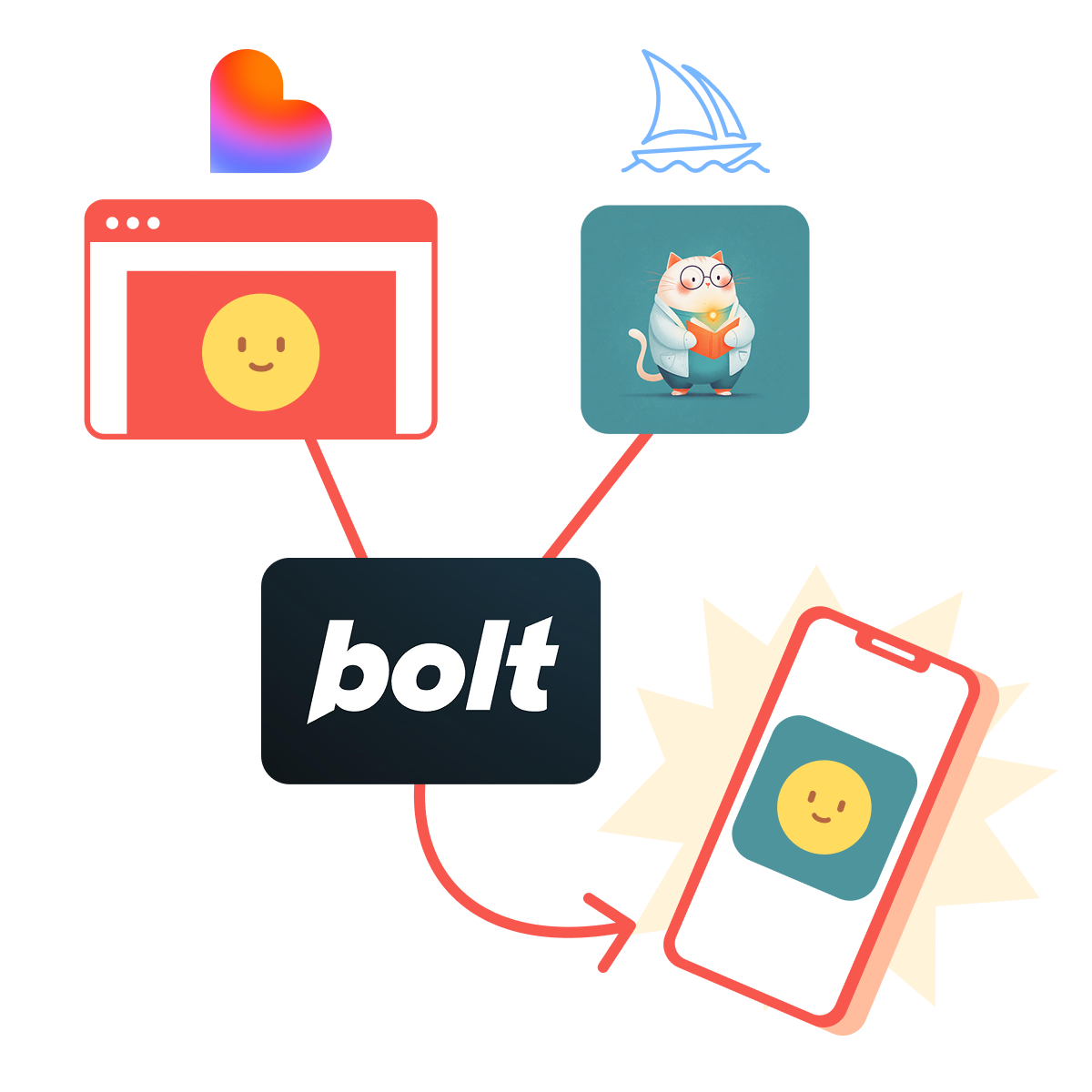
Upload two reference files into Bolt.new's chat: a screenshot of your BrightMinds website from Lovable and the Professor Whiskers mascot image from Midjourney. Bolt.new will use them as visual references to match the app's style to your existing brand.
Let's generate the first app draft.
practice preview
Interactive practice
Fill in the blank
Write a Bolt.new prompt to create the first version of the BrightMinds app.
How Bolt.new Works
The Bolt.new interface will look familiar. On the left, the chat panel where you type prompts and follow-ups. On the right, a live preview of your app that updates as the AI builds. Every change you request happens through conversation — same workflow as Lovable.
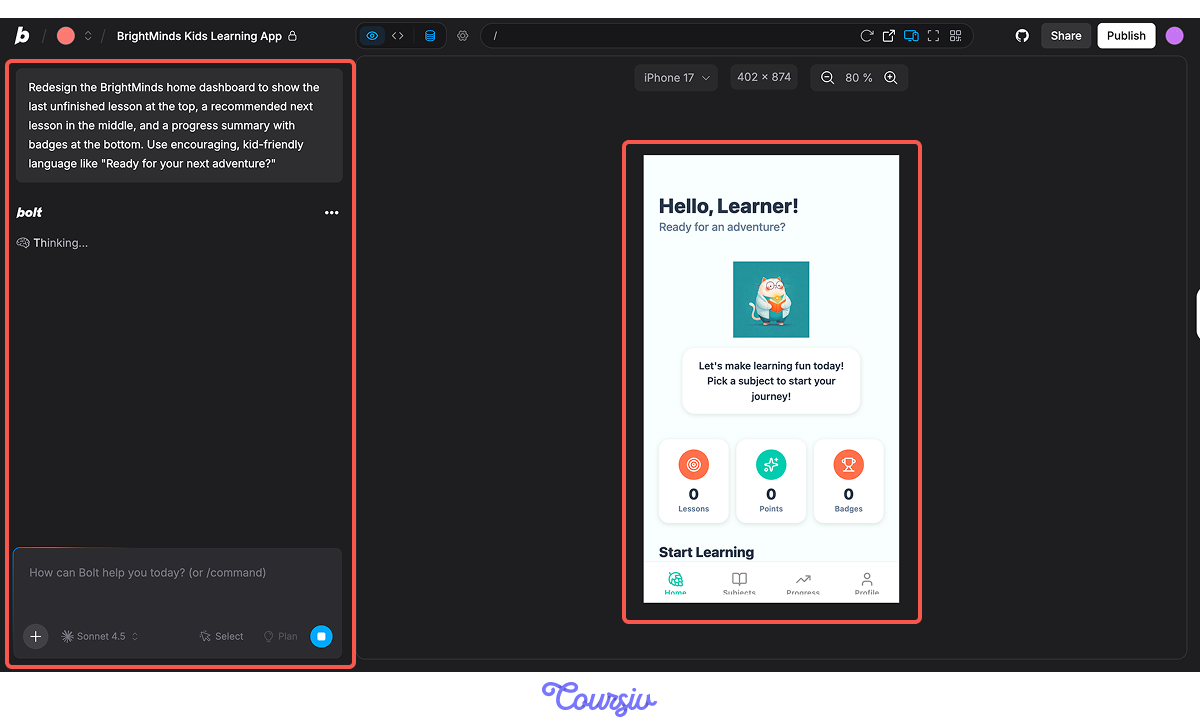
Navigating Your App
Bolt.new organizes your app with a bottom tab bar — the row of icons at the bottom of the screen. Each tab links to a main screen. This is standard for mobile-style apps: familiar to anyone who's used a phone. You can rename tabs, reorder them, or add new ones through follow-up prompts.
The Key Difference
Unlike Lovable, Bolt.new generates a full-stack app — meaning it handles both what the user sees (the interface) and the logic behind it (data storage, user accounts, tracking). When you ask it to track quiz scores, it builds the system that stores and retrieves the data.
Refining the App
You have a working app draft with five screens and navigation. Let's refine the most important screen first — the one users see every time they open the app.
The Home Dashboard
The dashboard is where engagement lives. A child opening the app should immediately see what to do next. The best dashboards answer three questions: What did I do last? What should I do next? How am I doing overall?
practice preview
Interactive practice
Fill in the blank
Write a follow-up prompt to improve the BrightMinds home dashboard.
practice preview
Interactive practice
True / False
Is this a strong or a weak dashboard for a kids' learning app?
Build the Lesson Player
The lesson player is where learning happens. It needs to feel different from a website article. App lessons should be interactive: short content sections, tappable elements, a quiz at the end, and clear feedback on every answer.
practice preview
Interactive practice
Fill in the blank
Prompt Bolt.new to build an interactive lesson experience.
None of This Saves Without Login
You've built a dashboard and a lesson player. But if a child closes the app and reopens it, their progress is gone. The app needs user accounts to store data per user. Bolt.new handles authentication out of the box — you just need to ask for it.
practice preview
Interactive practice
Fill in the blank
Prompt Bolt.new to add login and account creation to BrightMinds.
Test Before You Share
Your app has screens, data, and user accounts. Before going further, you need to test it the way a real user would. Bolt.new lets you preview the app in your browser — and you can open the preview link on your phone to see how it feels on a mobile screen.
How to Test Your App
Click the preview link in the top right corner of Bolt.new's editor. This opens your app in a new browser tab. To test on mobile, copy the preview URL and open it on your phone.
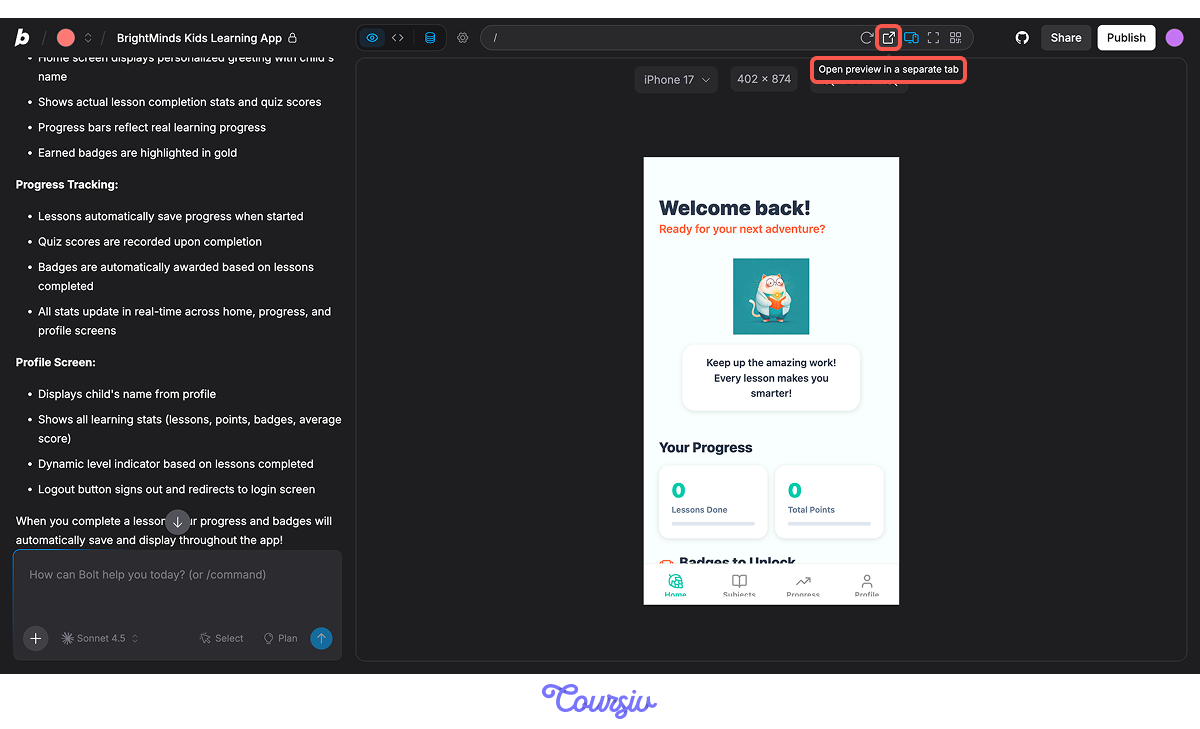
Walk through the full flow: create an account, browse subjects, start a lesson, complete a quiz, and check if progress saves correctly. If anything breaks, describe the issue in Bolt.new's chat panel — be specific about what happened and what you expected.
Connect the Website to the App
Many products work across both a website and an app. BrightMinds is no different. The point is to make both options visible and easy to access. Right now, a parent who signs up on the website has no way to find the app.
practice preview
Interactive practice
Fill in the blank
Prompt Lovable to add an app download or access section to the BrightMinds website.
Great Work!
BrightMinds now lives in two places — a website and an app — delivering the daily learning experience. Both are connected, branded consistently, and built entirely from natural language prompts.
- Define screens, actions, and data before you start building an app.
- Upload your references in Bolt.new to keep the brand consistent.
- The home dashboard should answer "What do I do next?", not show everything at once.
- Connect your website and app, so subscribers know where to go after signing up.
What's Next?
You've built a working app with a dashboard, lesson player, and user accounts — and connected it back to the website. In the next lesson, you'll build the interface and user experience so it feels polished, intuitive, and ready for real users.
Let's keep going!