Canva AI · Introduction to Canva AI
The Code Feature
Create an interactive quiz from a prompt
The Code Feature
Want to invite friends to your birthday party in a way nobody expects? Instead of sending a plain message, the Code tab turns a description into an interactive quiz, a countdown, or a custom embed — no coding knowledge needed.
In this lesson, you'll explore the most interesting features of the Code tab: from creating quizzes to calculators, and learn how to share them across multiple channels.
What Is the Code Tab?
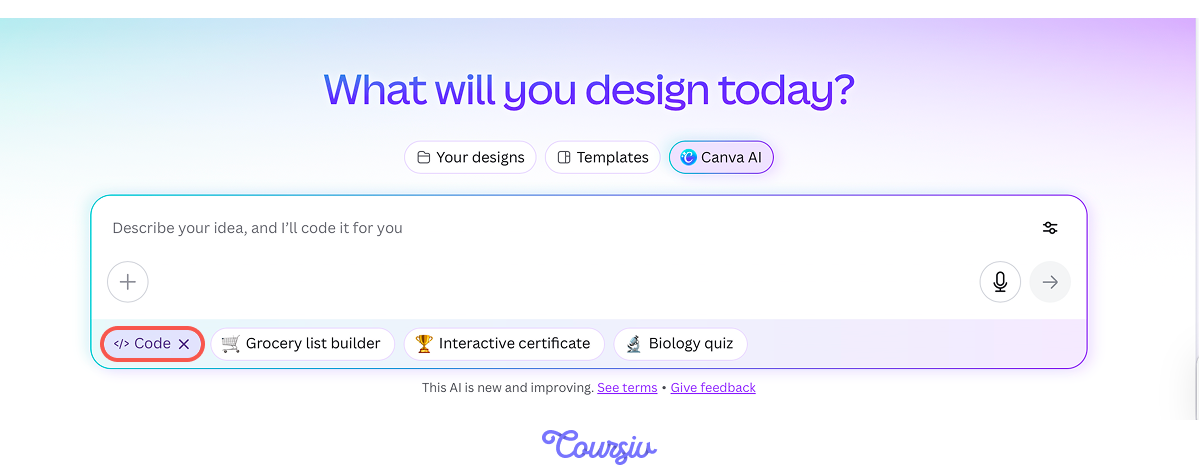
The Code tab turns a simple description into functional interactive elements: quizzes, polls, countdown timers, calculators, and embeds. Type what you want to build or explore given templates, and Canva AI writes the code behind it.
Choose one
How is the Code tab different from the other tabs in Canva AI?
Build Your First Interactive Element
Now that you know what the Code tab produces, let's build one: a birthday invitation quiz with fun questions, and shareable as a link. Type the prompt into the Code tab and see what comes back.
practice preview
Interactive practice
Fill in the blank
Complete the prompt to generate your first interactive element in the Code tab.
Great Work!
This is just the first draft, where Canva generated the questions and answers on its own. Let's refine it to be more personal and build a quiz that will really make your friends think.
Refine Through Conversation
Every part of a generated element — questions, labels, colors, logic, and layout — can be adjusted through follow-up prompts. You can simply describe the changes in a prompt, and Canva AI updates the code behind it.
So, to make changes, just ask Canva AI to update the questions — for example:
- "What's my favorite film?" = "Memento"
- "What's my favorite artist?" = Bon Iver
It rewrites both instantly without you touching a line of code. Here's what the result looks like.
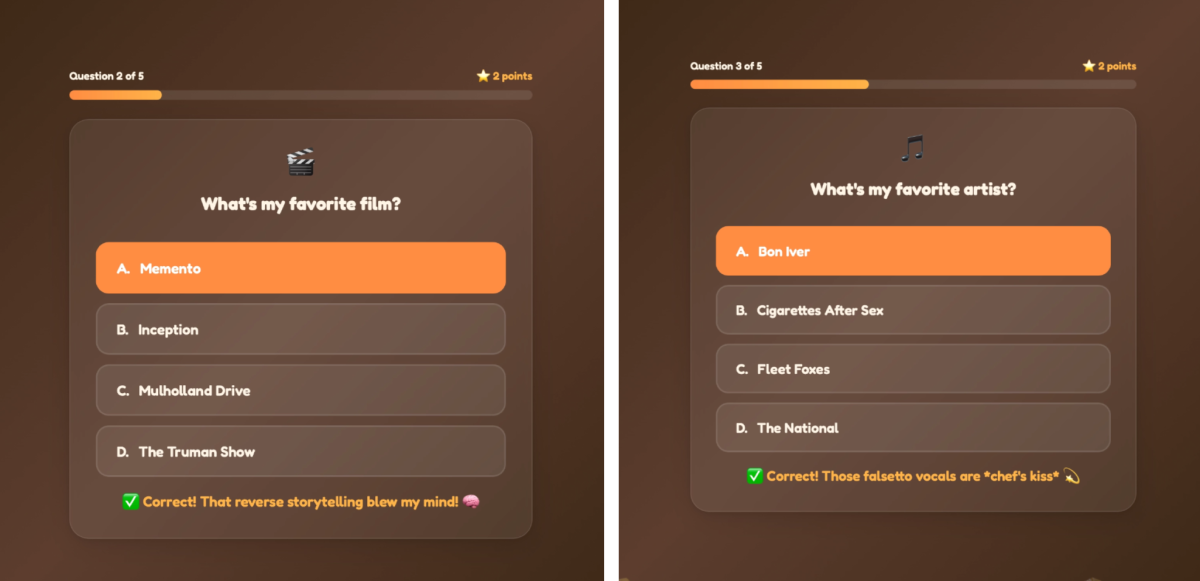
You've created a quiz and made it personal just by describing what you wanted. That's the core idea behind the Code tab: it responds to plain language, whatever the project.
Using Templates
Now, aside from creating something yourself, Canva AI also suggests templates directly in the Code tab: Grocery list builder, Biology quiz, and more.
You can also scroll down to "See what you can do with AI" to explore the full range of possibilities. Let's try one — an interactive menu for a restaurant.
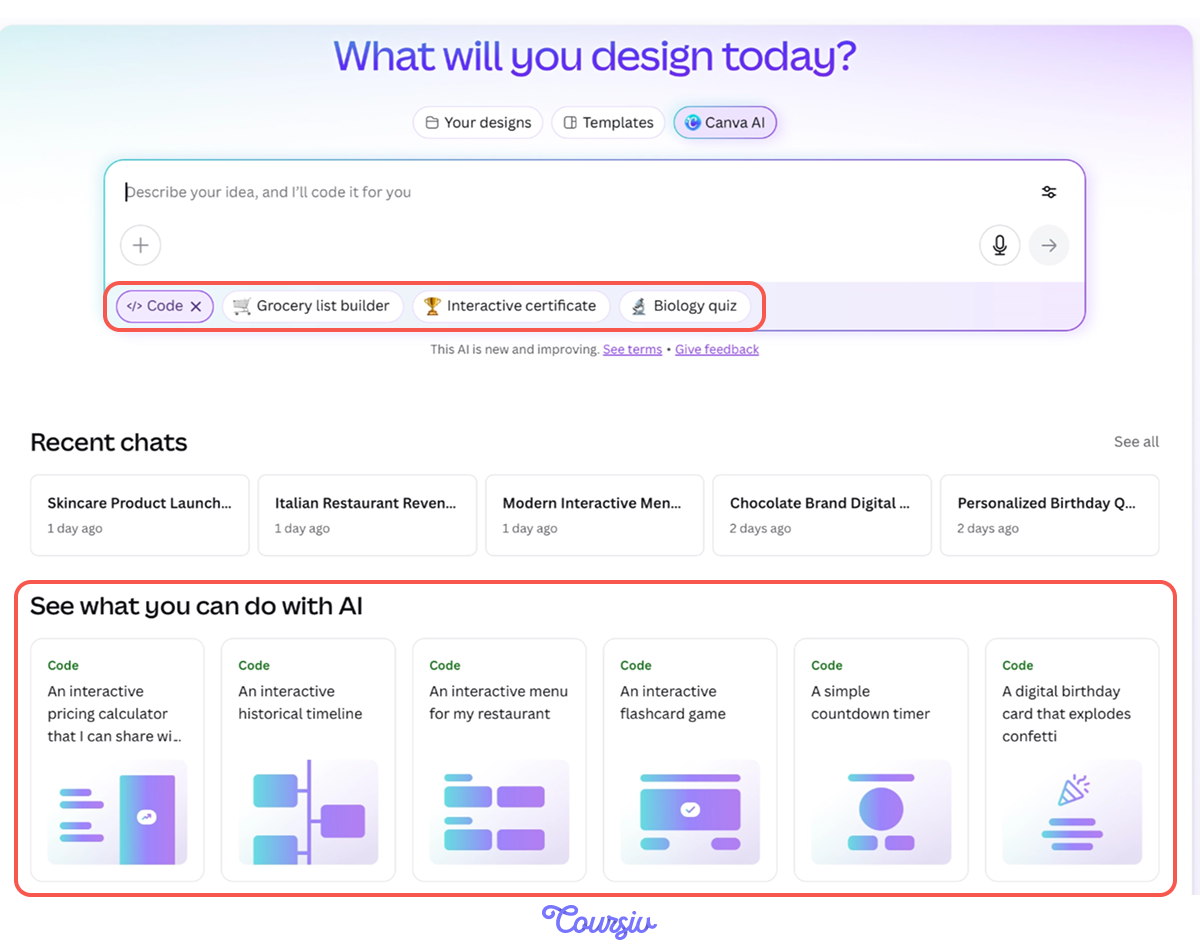
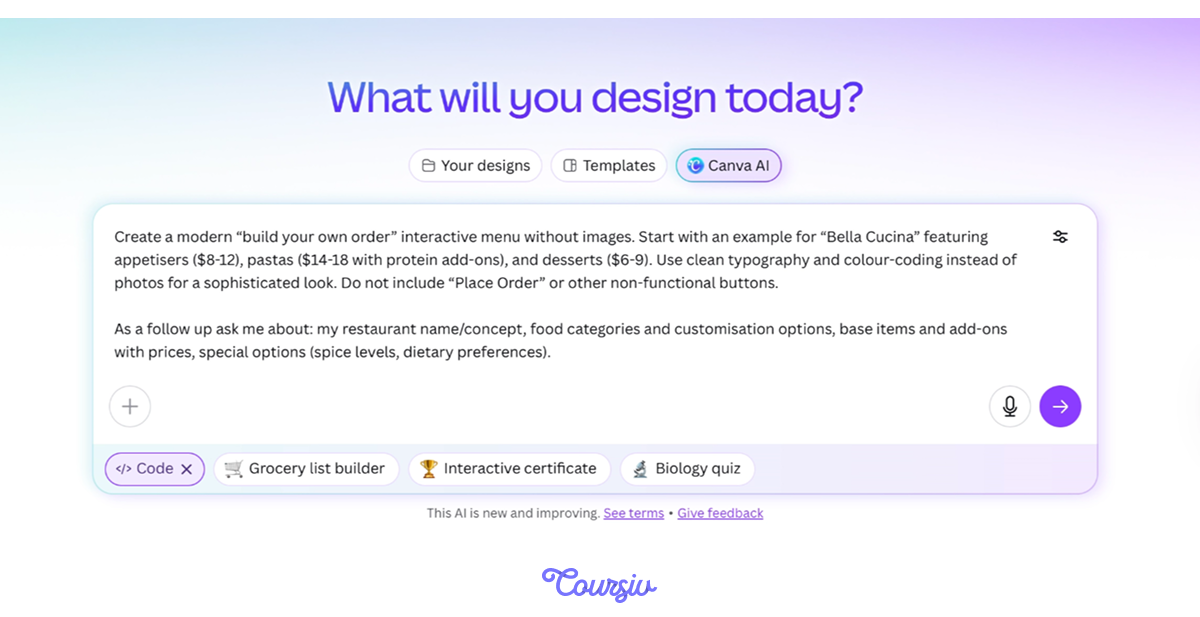
When you click on a template, Canva AI shows a built-in, detailed prompt that you can adjust before generating. Let's add a detail to it: a color palette, and see what it returns.
practice preview
Interactive practice
Fill in the blank
Generate an interactive menu for a restaurant using a ready prompt in the Code tab.
See how it built a full interactive menu from a template and applied the detail you added to the prompt. Having it ready is only half the job, though; the next question is how people will actually see it.
Share and Publish
Canva offers a few ways to put it in front of people. Share it as a direct link, embed it on your website, or publish it so it appears in search engines like Google — simply paste your site address or connect a custom domain in settings.
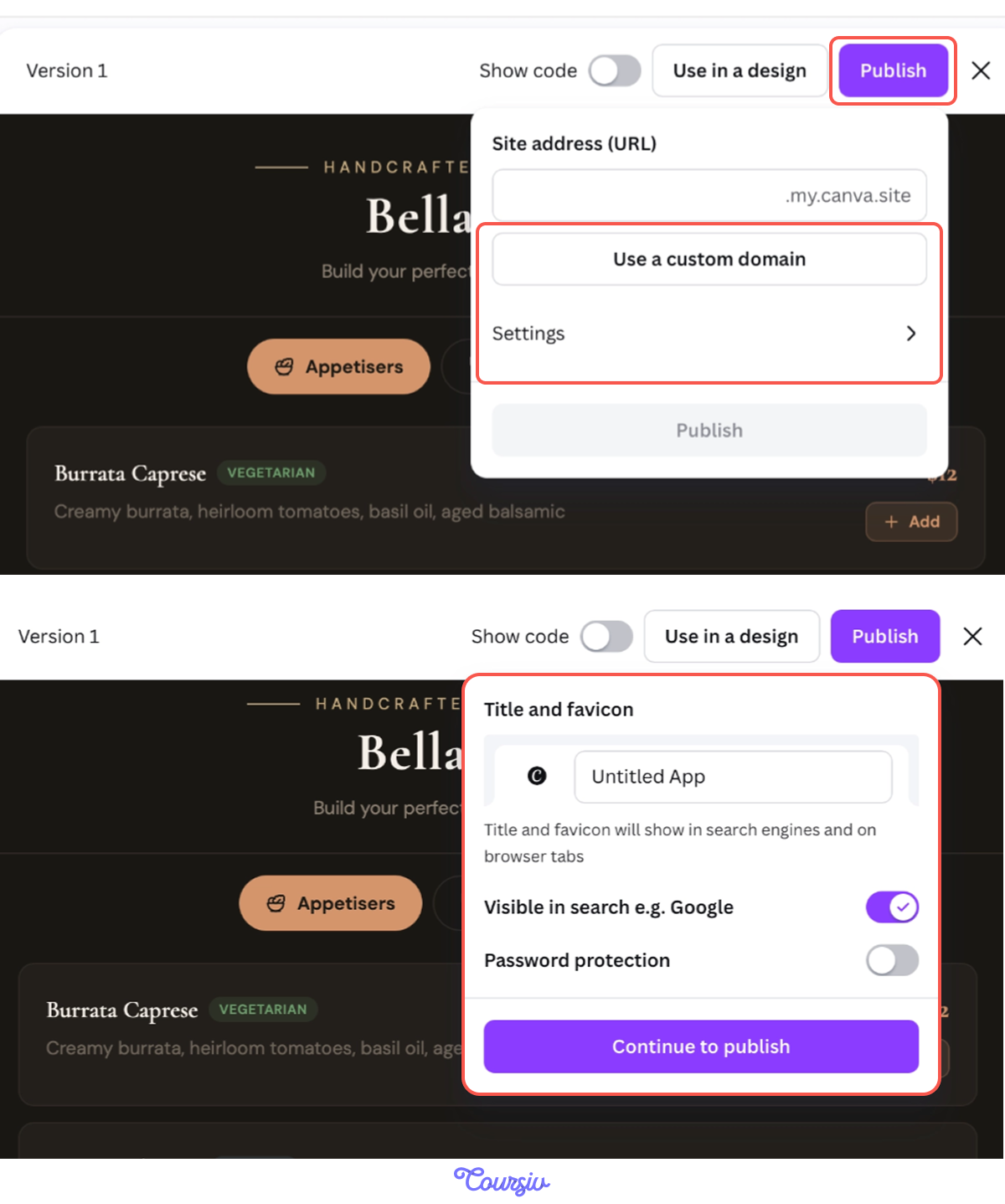
Select all that apply
Where can an output from the Code tab be shared?
You've built a personal quiz and picked up a ready template from Canva. Now let's see what else the Code tab can do — this time, a pricing calculator to track the restaurant's daily revenue.
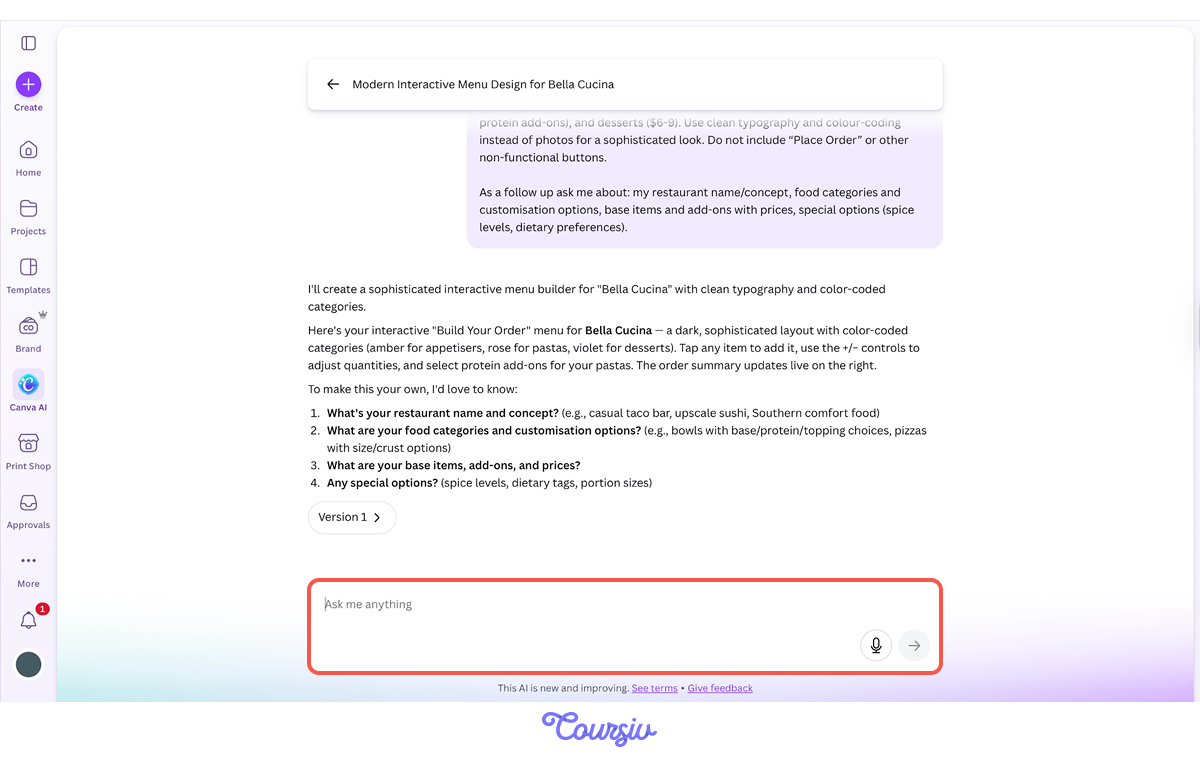
Just prompt your request in the same restaurant chat, and Canva AI builds the calculator from there. Let's try it.
practice preview
Interactive practice
Fill in the blank
Generate a pricing calculator for an Italian restaurant's daily revenue.
Now you can adjust the calculator as your menu or prices change. That's the range of the Code tab: from a personal birthday quiz, an interactive menu from a template, and a working business calculator in one tab.
- Plain text builds working elements: Describe what you want, and the Code tab generates the functional interactive element behind it.
- Follow-up prompts refine without rebuilding: Any part of the element — questions, colors — updates through conversation.
- Templates give you a head start: Pick a pre-built option from the Code tab and adjust it with your own details before generating.
- One build covers every channel: The same export works as a link, a website embed, or a Google-published page.
Unit 1 Complete!
You've gone from a birthday quiz to a restaurant menu to a revenue calculator in the Code tab. And across this unit, you've created images, designs, videos, and documents from the same platform.
In the next unit, you'll see how these tools come together in real professional workflows. Keep building!