Canva AI · Introduction to Canva AI
The Design Feature
Turn one design into multiple formats
The Design Feature
You might already know Canva for presentations and social posts. This lesson is about what happens when you stop picking templates and start describing what you need instead: a wedding invitation, and a YouTube banner and letting Canva AI build it.
You'll also learn how to keep every design on-brand and convert one format into another without starting over.
What Is the Design Tab?
The Design tab takes a plain-text prompt and returns a fully editable layout — complete with structure, visuals, and copy already placed. Describe the format, purpose, and tone, and Canva AI handles the rest.
Select all that apply
What can you use the Design tab for?
Generate a Design From a Prompt
The Design tab covers a wide range of creative needs — Social Media, Presentations, Marketing, Cards & Invitations, Logos, and more. Choose the right type and format for you, and it returns several complete, editable layouts to choose from.
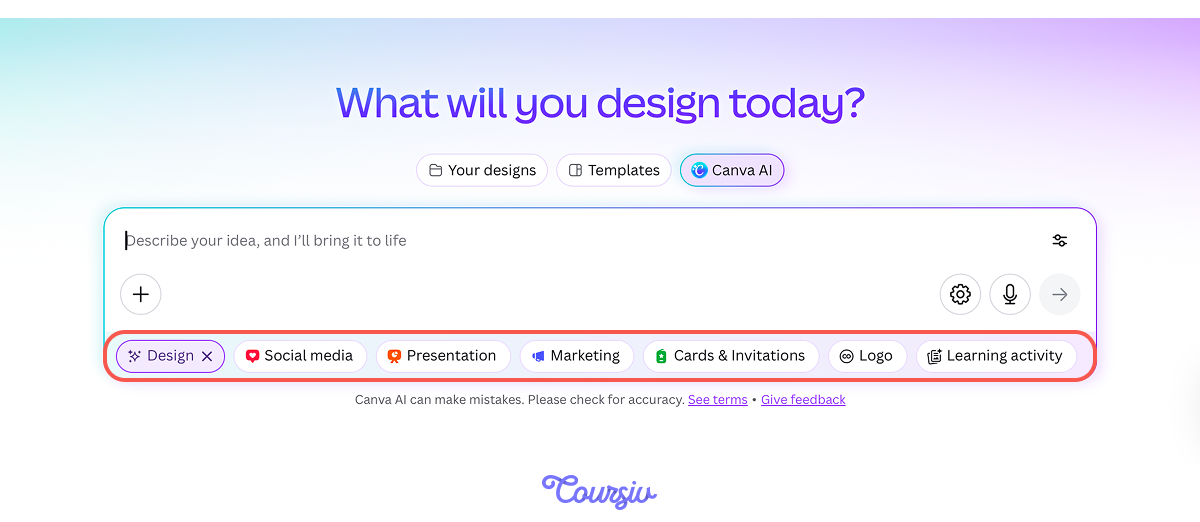
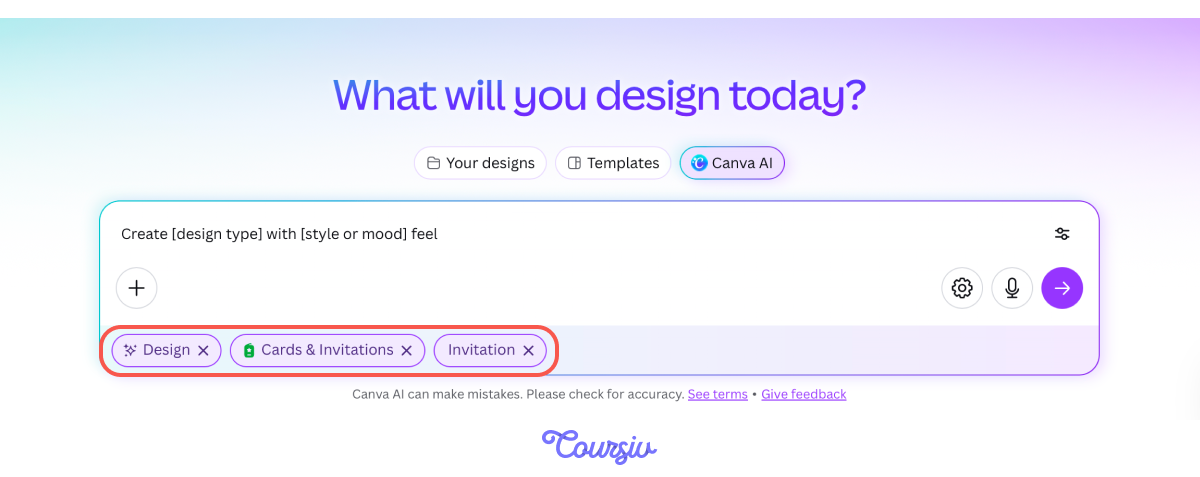
Imagine you need to create a wedding invitation, but you don't want to look for a specific template in Canva. Choose the Design tab, pick Cards & Invitations, then select the Invitationformat and see what comes back. Let's try it.
practice preview
Interactive practice
Fill in the blank
Complete the prompt below to generate a personal design in the Design tab.
Refine With a Reference Image
Now you've realized the mood you set for the invitation isn't quite right — you want something more creative, but still want to keep that romantic feel.
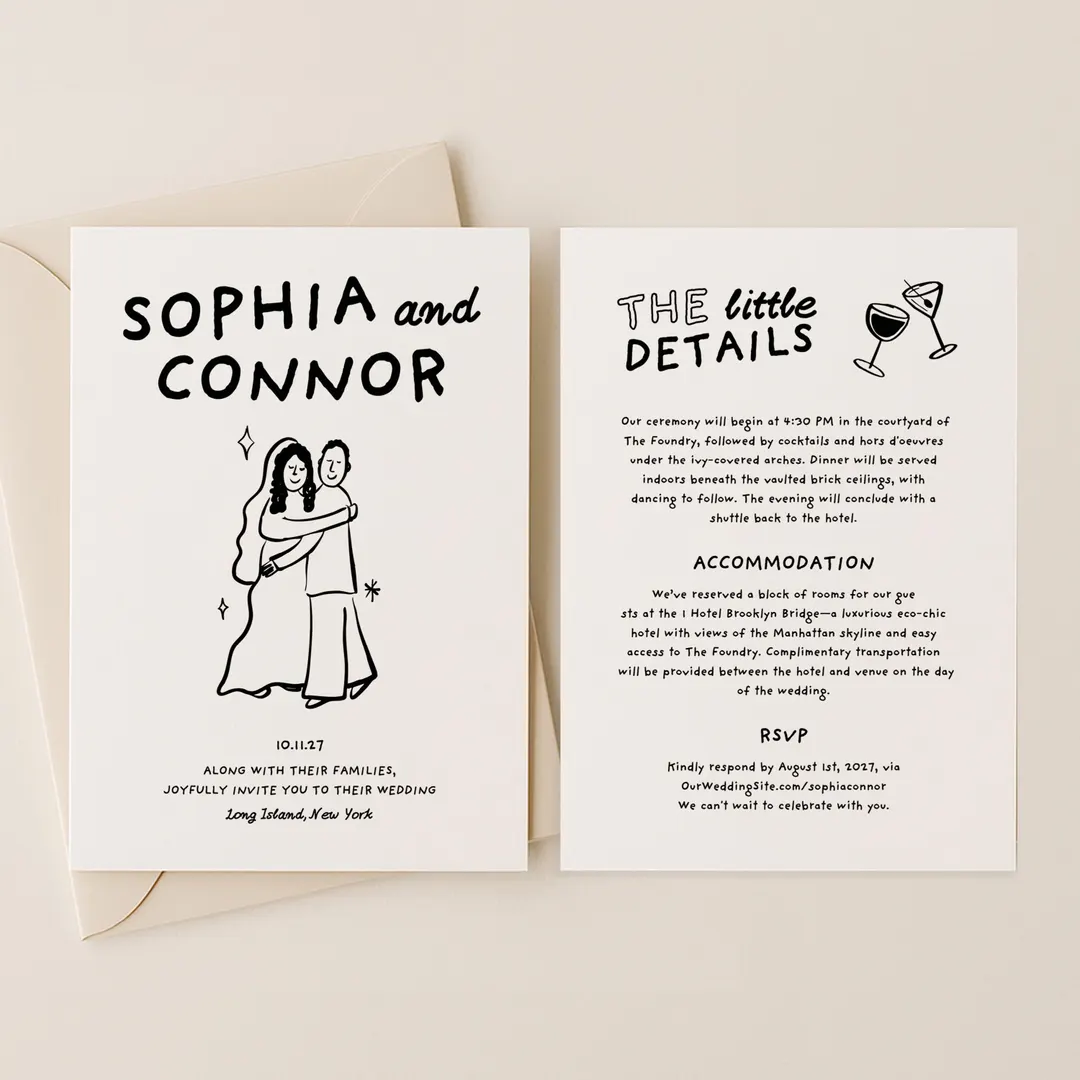
To get there, upload a reference image, and Canva AI will reflect your style much more closely. Let's use this wedding invitation as a reference.
practice preview
Interactive practice
Fill in the blank
Upload the reference image and refine your wedding invitation prompt.
You've got your invitations sorted, but what if you notice a mistake in the name or address?
You can easily fix it manually in the Canva Editor.
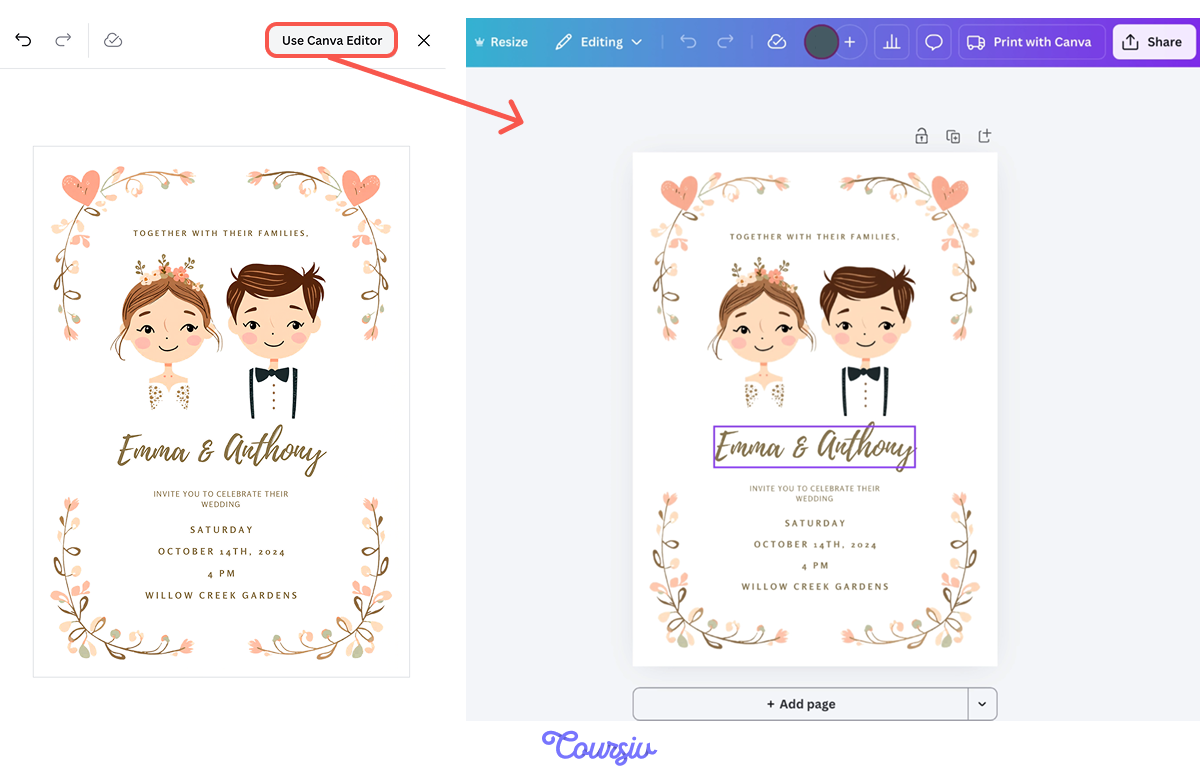
So that's what the Design tab can do — it gives you several ready-made outputs to choose from, and if anything's slightly off, like a name, an address, or a color, you can fix it directly in the Canva Editor. The final touches are always yours to make.
The Design tab works just as well for other personal content. Take a YouTube banner for a Tokyo travel vlog.
Head to the Design tab, pick the Social Media type, and choose the YouTube Banner format. Let's generate it.
practice preview
Interactive practice
Fill in the blank
Use the same Design tab to generate a YouTube banner for a travel vlog.
Canva AI returned a colorful result, but what if the colors or fonts don't quite match your personal style? That's where Brand Kit can help.
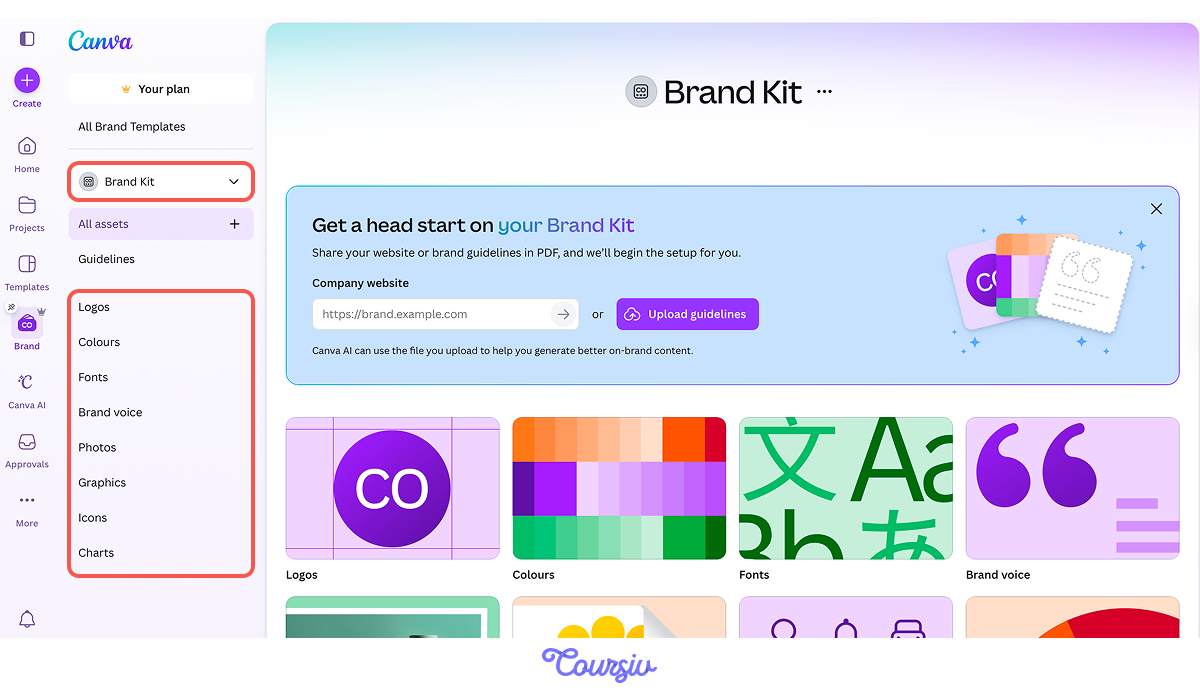
To generate a fully branded post, Canva AI will prompt you to set up a Brand Kit — a paid feature available on the Pro plan. This is where you customize your logo, colors, and fonts, keeping everything visually consistent across all your designs.
practice preview
Interactive practice
Fill in the blank
Update your YouTube banner using your Brand Kit colors.
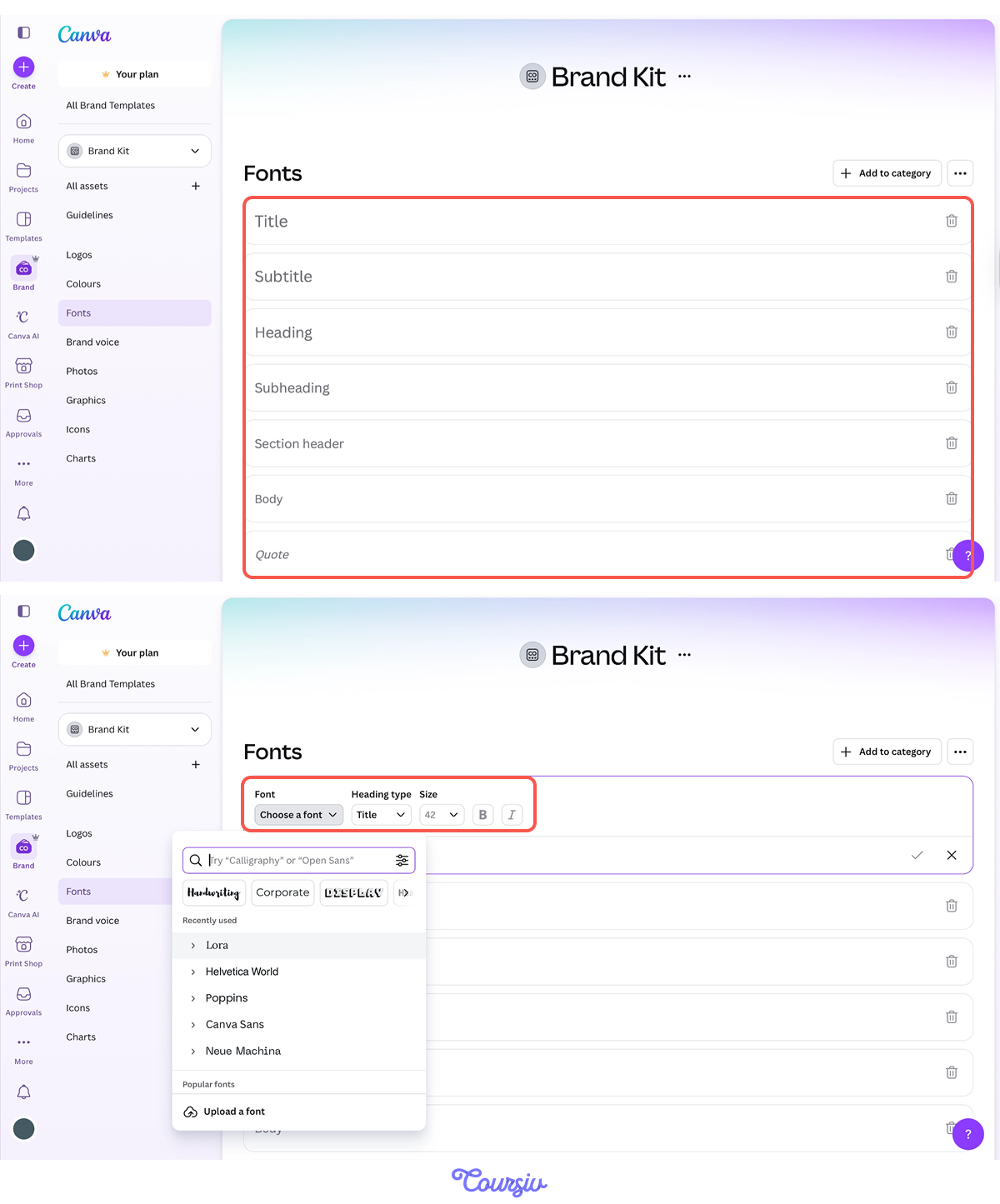
The colors are locked in, now make sure the typography matches too. Choose a font for your headings, subheadings, section headers, body text, and quotes, and customize the size and style of each.
Excellent!
From there, every asset will automatically reflect your brand.
The next step is to create a single design that works across multiple formats.
Remix The Formats
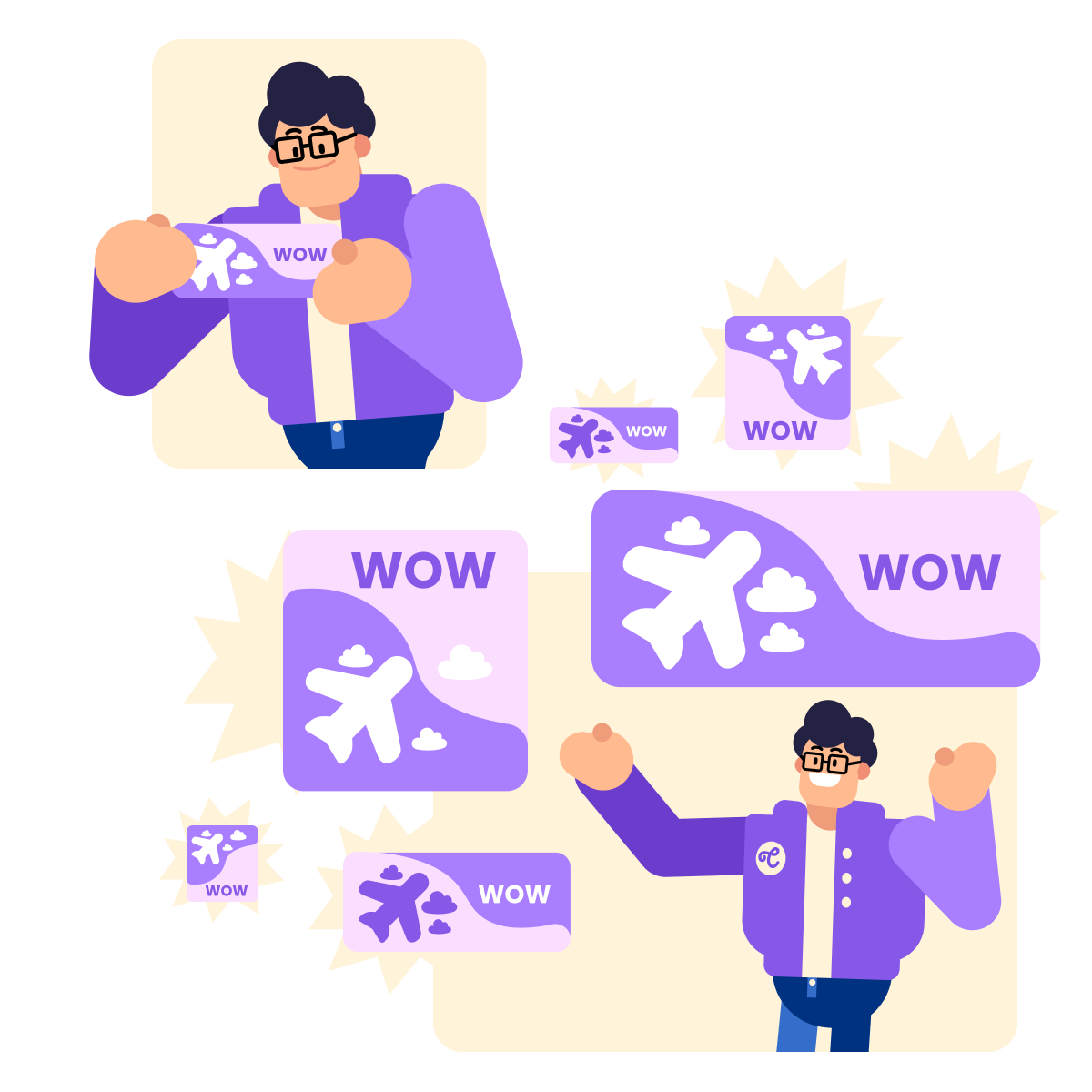
Remix is built into how you prompt the Design tab. Describe what you want to convert, and Canva AI suggests new looks and structures automatically.
Open an existing design, use "remix" in the prompt, and Canva will adapt the layout, colors, and format while keeping the content intact.
practice preview
Interactive practice
Fill in the blank
Take an existing design and convert it into a different format.
practice preview
Interactive practice
True / False
Decide whether using Remix is the most useful approach here.
- Specify format, subject, and tone in your prompt: The Design tab uses all three to shape the layout it returns.
- A reference image personalizes the result: Upload one, and the output reflects your style.
- Brand Kit keeps everything consistent: Set it once, and every design follows it.
- Remix adapts the format type: Banner to carousel, post to deck, without rebuilding.
What's Next?
You've seen what the Design tab can do: from a wedding invitation to a YouTube banner, each built from a single prompt and fine-tuned to fit.
Up next, the Video tab. Turns out Canva AI can make your designs move, too. In the next lesson, you'll turn your designs into moving, voiced clips ready to publish. See you there!