Canva AI · Introduction to Canva AI
Writing Tool
Rewrite and expand existing content
Write Without Switching Tools
Canva AI turned the platform into more than a visual tool. Without switching apps, text is now part of the same workflow. A quick caption, a short announcement, or a full document is now generated in the same place.
In this lesson, you'll generate copy, refine it with tone and length with the Doc tab, and turn it into a finished design.

The Common Mistake
Most people write copy in one tool, edit it in another, then copy it into the design. Different formats end up stored in different places, and the back-and-forth adds up.
Canva AI shortens that path: you can use the Doc tab to generate text and place it into a visual layout without switching tools or platforms.

With the Doc tab, Canva AI can work either way: give you the text as plain copy to use wherever you need it, or pair it with a ready-made design layout straight away.
Generate Copy From a Prompt
The Doc tab generates blog posts, stories, articles, outlines, and scripts from a plain-text prompt. Start by describing what you need, then select the output Type.
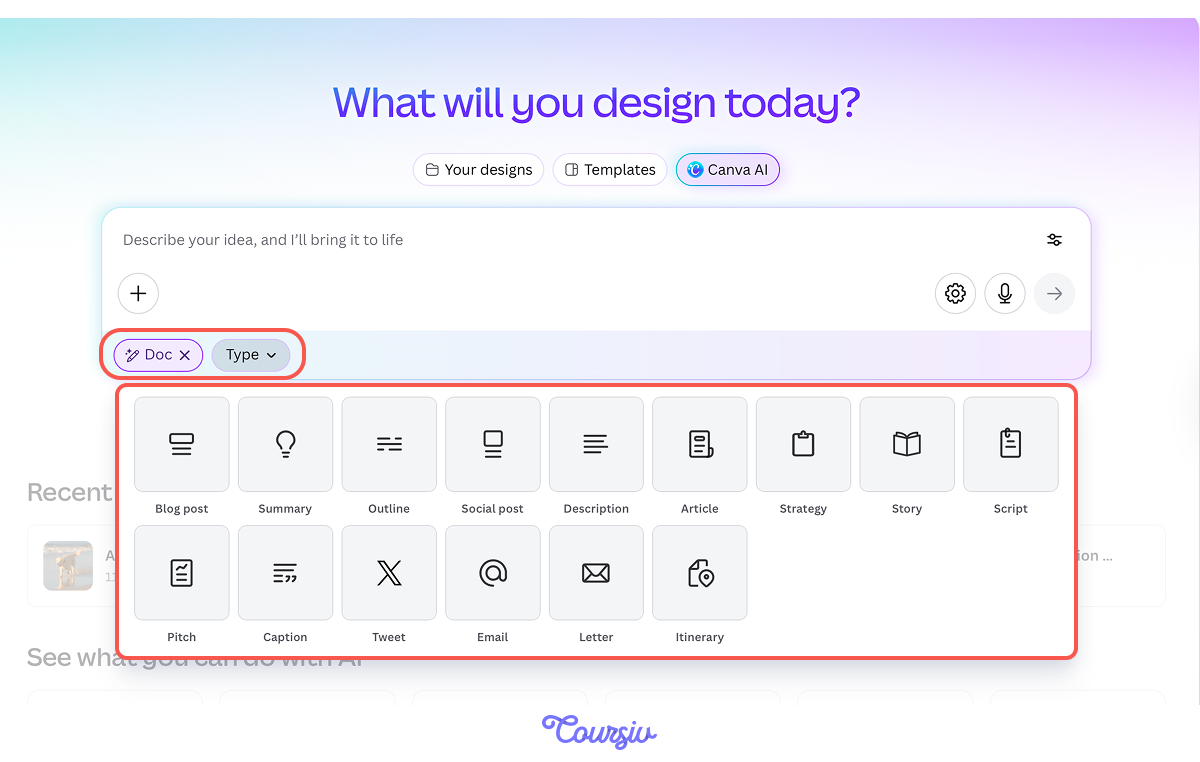
Imagine you need to write a summary of a Harry Potter book series you read with your book club. PicktheSummarytype and add your prompt.
practice preview
Interactive practice
Fill in the blank
Complete the prompt to generate a book summary in the Doc tab.
See what happened? The result is readable, but the tone could be more casual, and the length can be shorter for easier understanding. Let's see how adding those details to the prompt changes the output.
practice preview
Interactive practice
Fill in the blank
Add tone and length to your prompt with settings and see how the output changes.
Choose one
You generated two summaries. What caused the difference in the output?
Great Work!
You've added two small things to the prompt: tone and length, and the output changed to match what you asked for. But what if you need to go further and brainstorm new ideas, or expand a bullet point? That's where you meet Magic Write.
Meet Magic Write
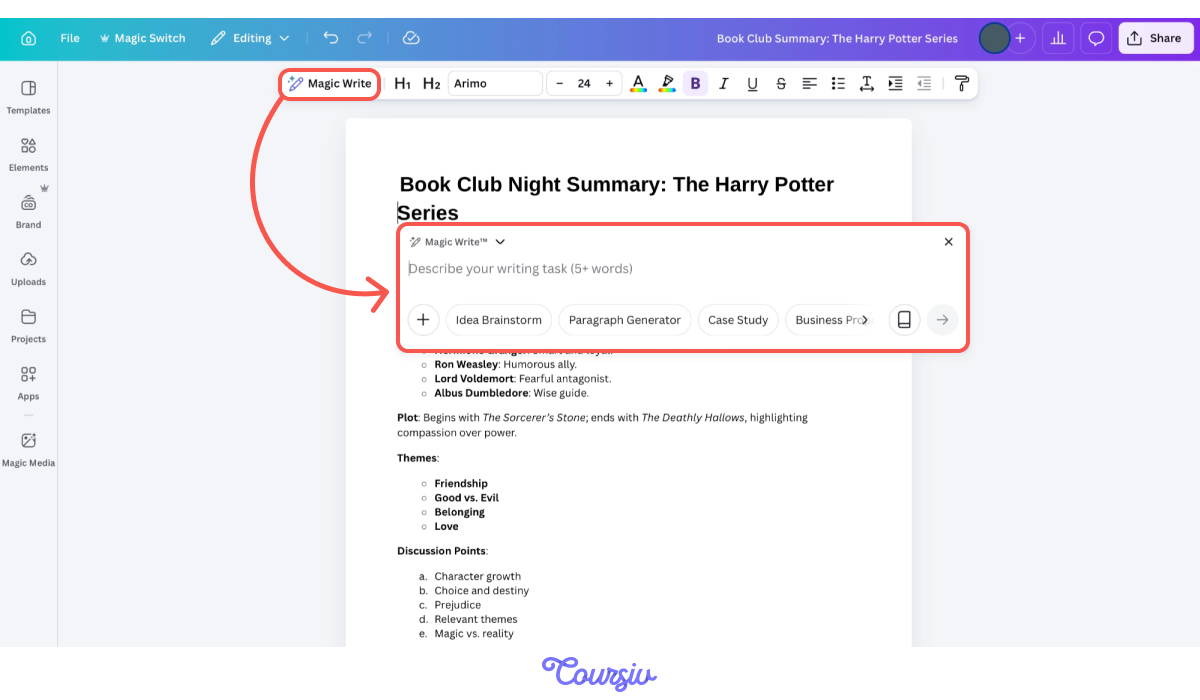
Magic Write is Canva's built-in AI writing assistant that lives right inside the Canva Editor. Select any part of your text, trigger Magic Write, and ask it to do the heavy lifting — from rewriting to brainstorming. Let's try it with your summary and ask it to generate discussion points for your book club night.
practice preview
Interactive practice
Fill in the blank
Use the Magic Write to generate discussion points for your book club.
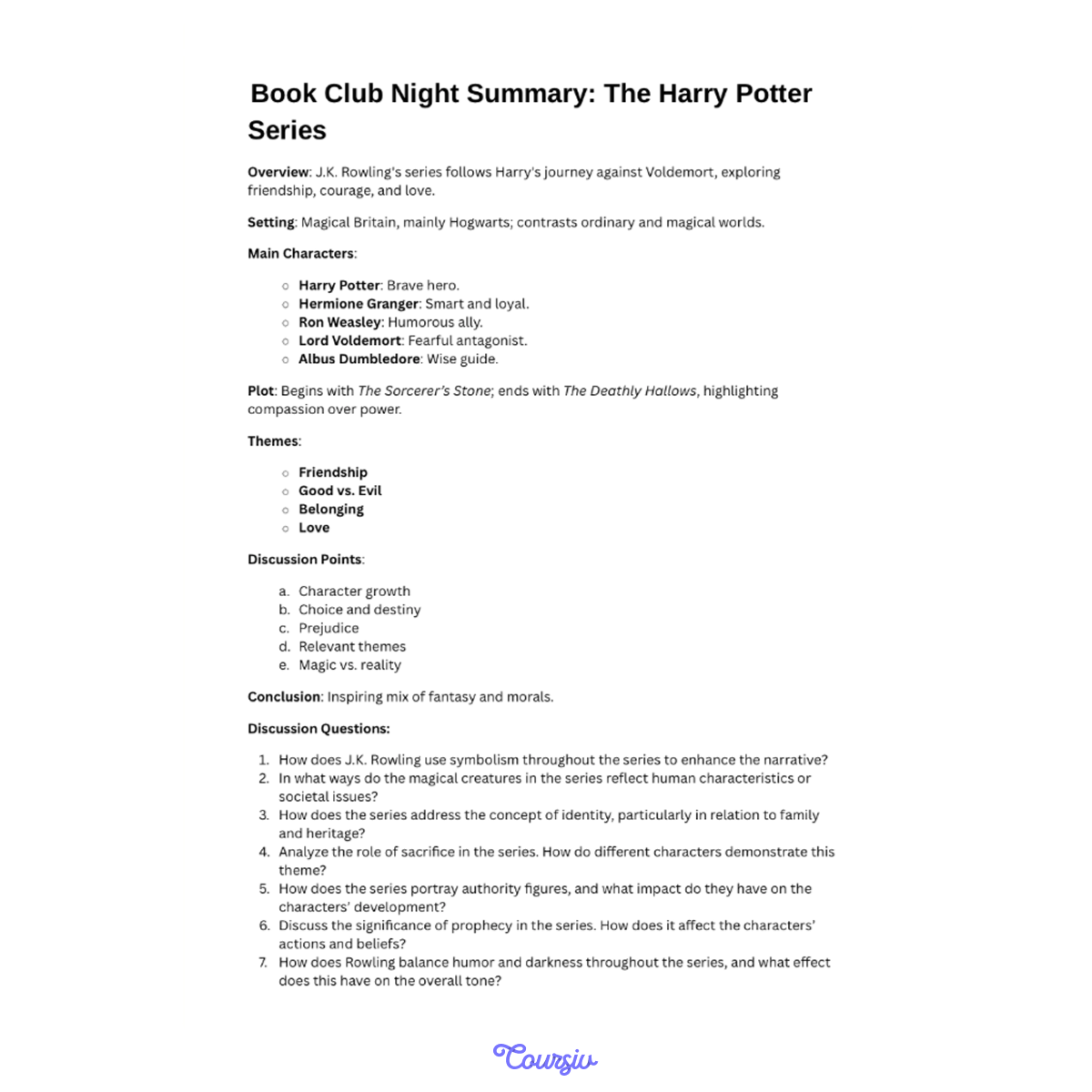
If the discussion questions look good to you, simply insert them directly into your summary. Now you've made changes inside the editing tool without starting over.
Rewrite, Expand, and Shorten
Magic Write isn't the only way to refine your content. Back in the Doc tab, you can paste in existing copy and ask Canva AI to rewrite it for a different audience, expand a bullet point into a full paragraph, or shorten a long block to fit a character limit.
This is especially useful when one piece of copy needs to work across multiple formats. Your book summary, for instance, could become a club announcement, a caption, or even a headline — each version adapted from the same source. Let's turn your summary into an email to book club participants.
practice preview
Interactive practice
Fill in the blank
Take your book summary and rewrite it as an email to share with all book club participants.
Excellent!
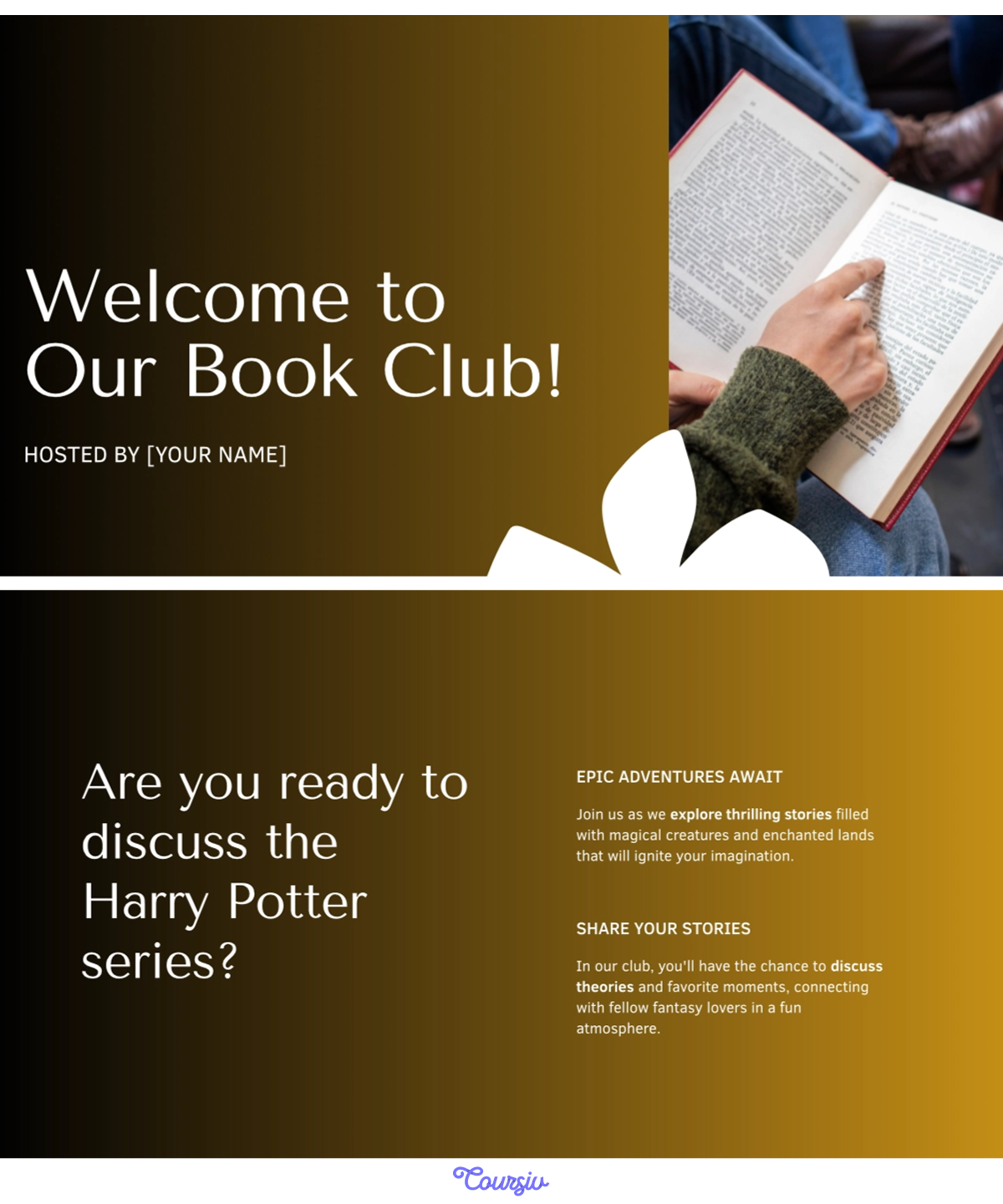
You started with a summary, added discussion points with Magic Write, and rewrote it into an email with the Doc tab. Now, to make it even more engaging for participants, let's turn that same content into a full presentation.
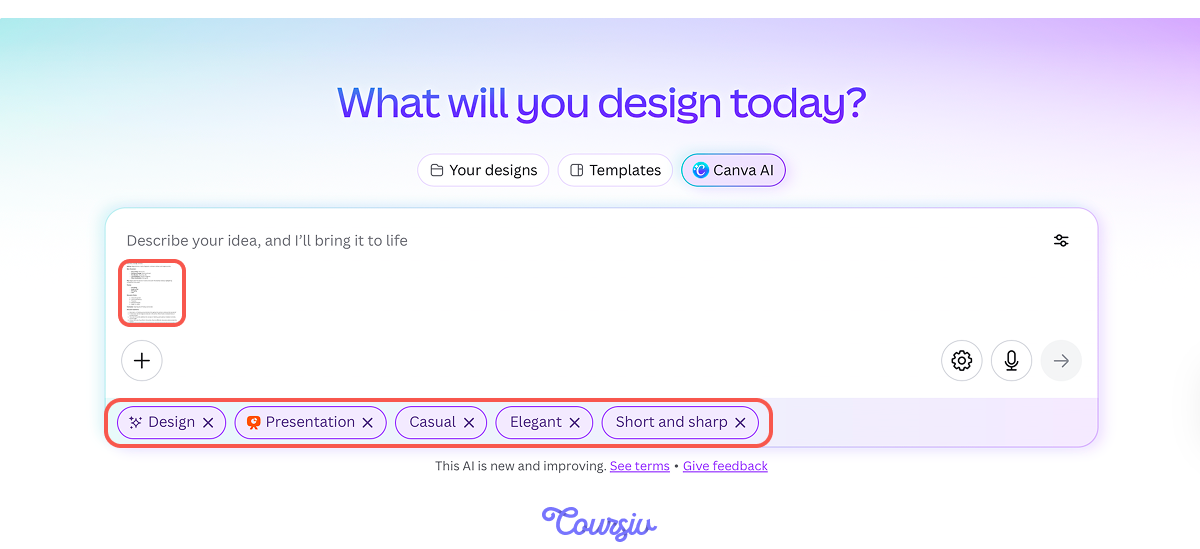
Go to the Design tab, upload your summary, pick a Presentation format, and adjust the settings: Audience, Style, and Length. Canva AI will build the slides around the content you already wrote.
practice preview
Interactive practice
Fill in the blank
Upload your book summary and generate a presentation in the Design tab.
See how fast Canva AI switches between formats — the same content that worked as a summary and an email now works as a presentation. That's what keeps the writing and the design connected throughout the workflow.
The benefits of moving copy between tabs in Canva AI:
- No rewriting needed: Take the same text and move it to a different tab, and Canva AI restructures it to fit the new format.
- The Doc tab gives you the raw copy: Plain text you can refine, expand, or rewrite before using it anywhere else.
- The Design tab builds a layout around it: Your copy becomes a presentation, a poster, or a social post with structure, typography, and visuals applied.
- The output type shapes the structure: Pick the right type before generating, and the structure follows from that choice.
- Tone and length are creative decisions: Specify them in the prompt, and the copy lands in the right register from the first generation.
- Magic Write goes further: Brainstorm, expand, or rewrite directly inside the Canva Editor.
- One source, multiple formats: The same content can be rewritten into an email, expanded into discussion points, or turned into a presentation, without starting over.
- Copy moves across tabs: A summary written in the Doc tab can easily become a full presentation in the Design tab.
What's Next?
You've generated a summary, refined it with tone and length, turned it into an email, and built a presentation from it.
In the next lesson, you'll build something interactive — the Code tab turns a plain-text description into a functional quiz, countdown, or embed, no development skills required.