Canva AI · Introduction to Canva AI
Canva AI Essentials
What can you create with Canva?
Welcome to Canva AI
Canva is one of the most accessible tools for creating visual content. And with AI built directly in, going from idea to finished design is significantly faster, no design background required.
In this guide, you'll learn how to unlock Canva AI's full potential, from personal projects to professional work. Because with AI, you're no longer limited to static designs — you can generate text, video, and even code, all from a single prompt.
What Is Canva AI?
Canva AI is a prompt-driven creative tool built directly into Canva. Type an idea, upload a reference image, or speak a request — and it generates a finished, editable design.
Canva AI works across text, images, code, presentations, and video, and it's all in one place.
Here's what the interface looks like.
The Interface
The Canva AI interface has three main areas: a central prompt field at the top, output tabs for switching between Design, Image, Doc, Code, and Video modes, and a sidebar on the left for creating, accessing, and re-editing previous generations.
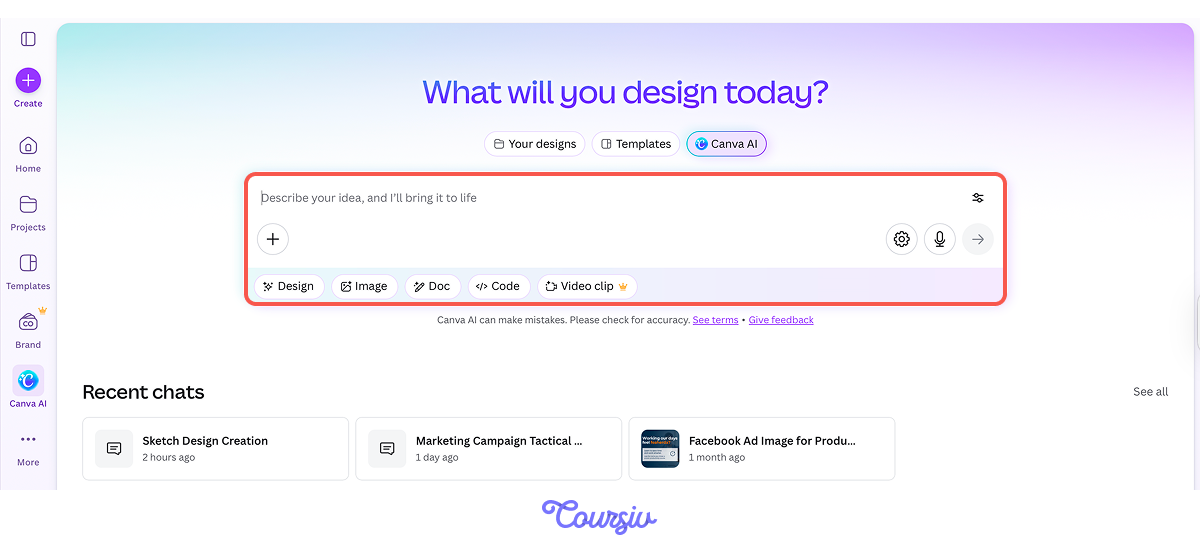
Here's what each tab does:
- Design generates full layouts.
- Image produces standalone visuals.
- Doc drafts ready-to-use text content.
- Code builds interactive elements.
- Video creates motion clips.
The prompt field stays the same across all of them — the tab you select determines what comes out.
Let's start with a simple image generation. Select the Image tab, choose a style and an aspect ratio, and generate: a man climbing Mount Everest.
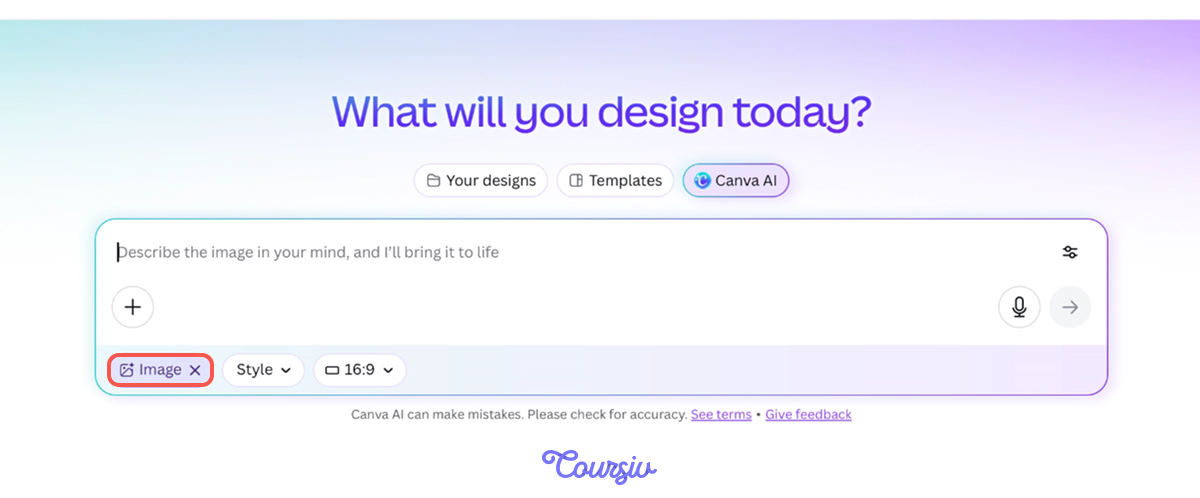
practice preview
Interactive practice
Fill in the blank
Fill in the gaps to generate your first image in Canva AI.
Canva generates four variations of the output. Choose one and adjust as needed.
You can also customize the Style and Aspect Ratio. Let's use the same prompt to create a Cinematic Style, 9:16 Aspect Ratio image.
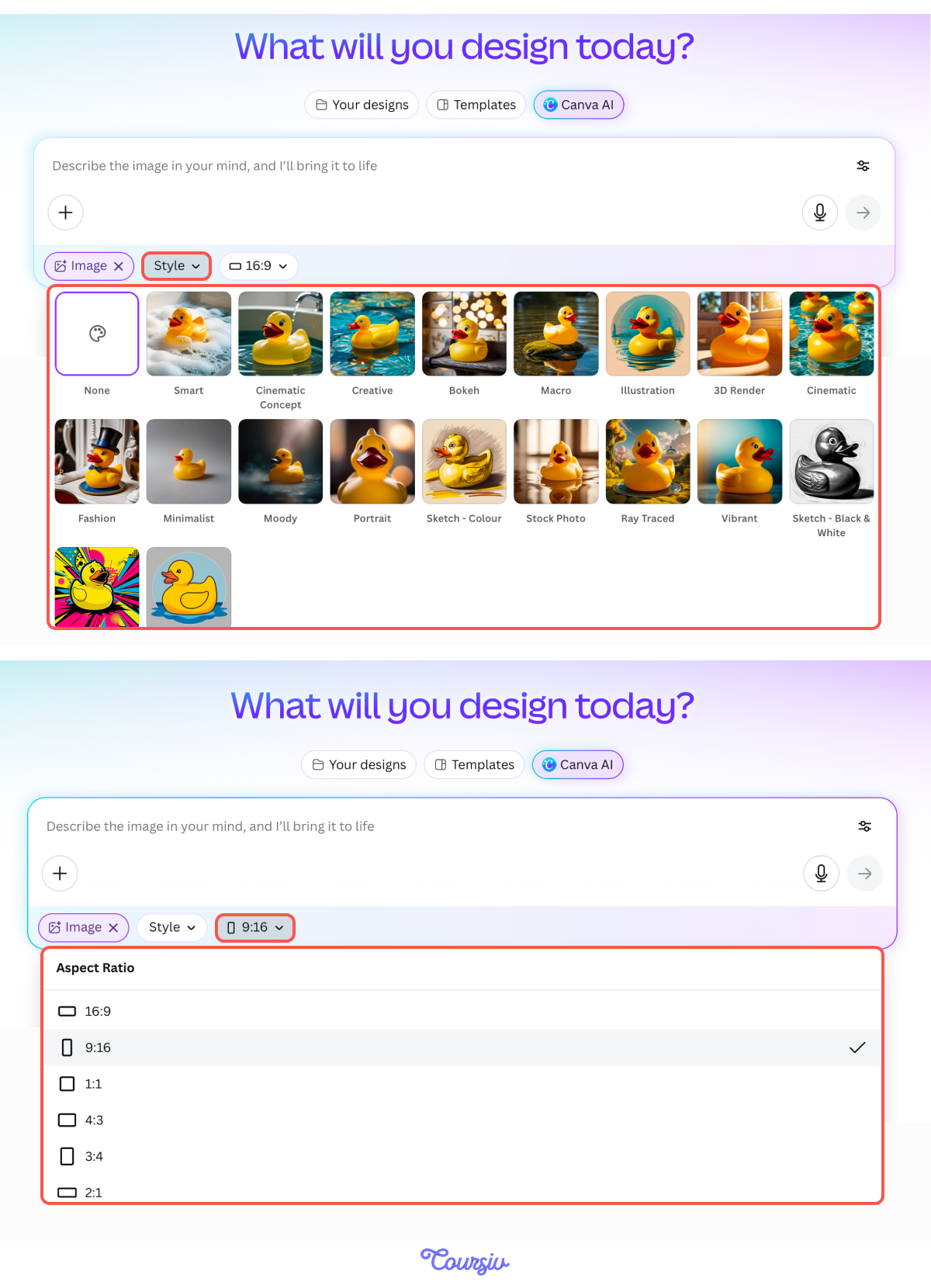
practice preview
Interactive practice
Fill in the blank
Fill in the gaps to generate another image in Canva AI.
And if you want to take it even further, switch to a 16:9 ratio for a full cinematic look.
Notice that you don't need to mention the style or ratio in your prompt — they're already selected in the settings.

practice preview
Interactive practice
True / False
Decide whether this is a useful approach.
There is one more way to make changes and adjustments across all tabs. Canva AI accepts three types of input: typed text, uploaded images, and voice.
On desktop or mobile, you can describe what you need, show a reference, or speak the request — whichever feels most natural in the moment.
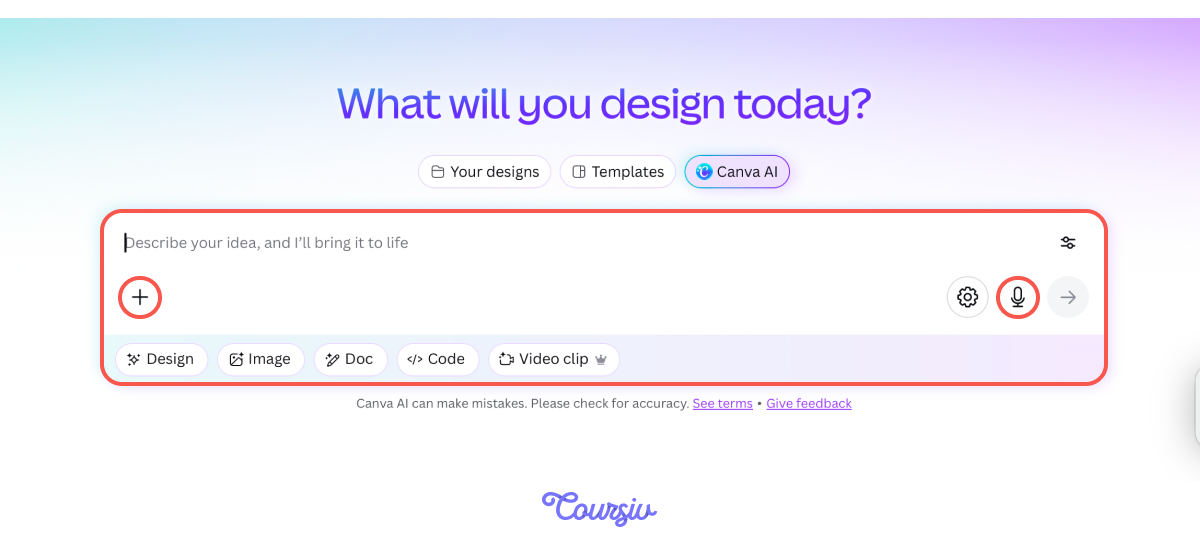
This matters because you can use each one depending on your task and situation:
- A typed description lets you prompt or refine a generation with precise wording.
- An uploaded image produces a visual reference to work from.
- A voice input produces a prompt through audio for use on the go.
practice preview
Interactive practice
Fill in the blank
Refine one of your existing images by adding a detail through a typed input.
You can also refine your image by uploading a reference image. Just tap the + icon, upload an image, and Canva AI will use it as a visual starting point — adjusting the style, mood, or composition of your existing design to match.
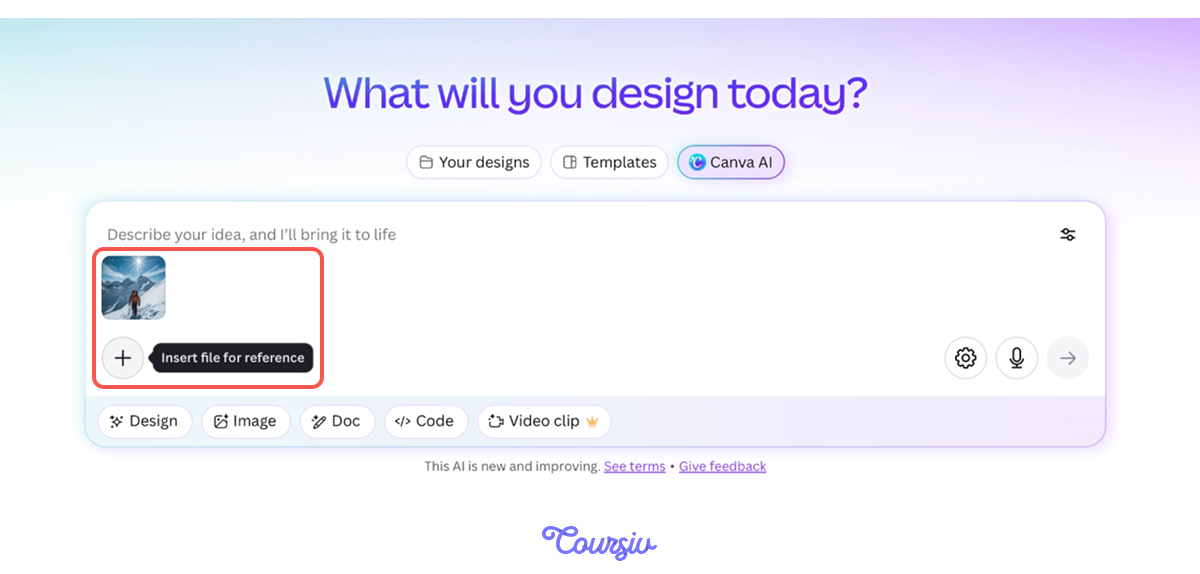
Choose one
You're on the go and need to quickly update a design. Which input type is the most useful option?
The Canva AI Chatbot
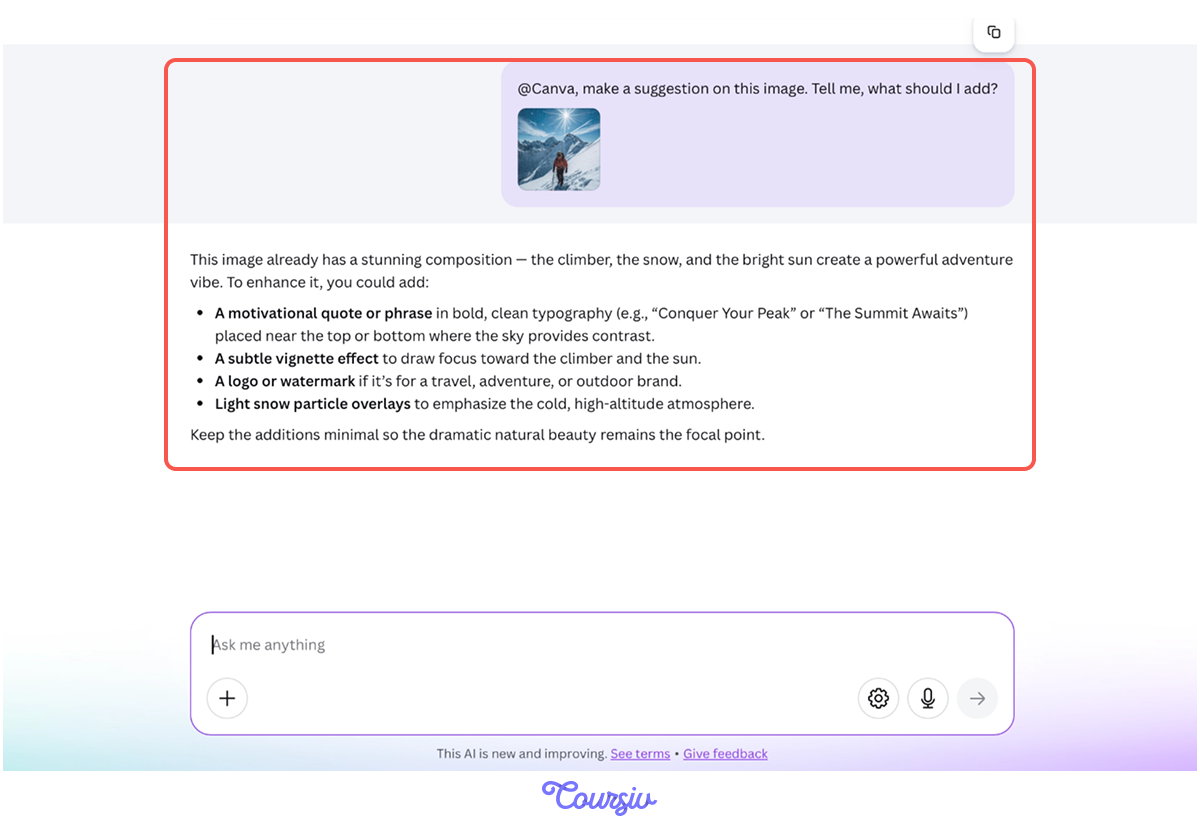
Canva AI also has a chatbot built directly inside the editor. You can tag @Canva in the comments of any active design and ask it to make suggestions on your image.
This is what its feedback looks like — helpful! Let's ask @Canva to apply one of its own suggestions directly to the image.
practice preview
Interactive practice
Fill in the blank
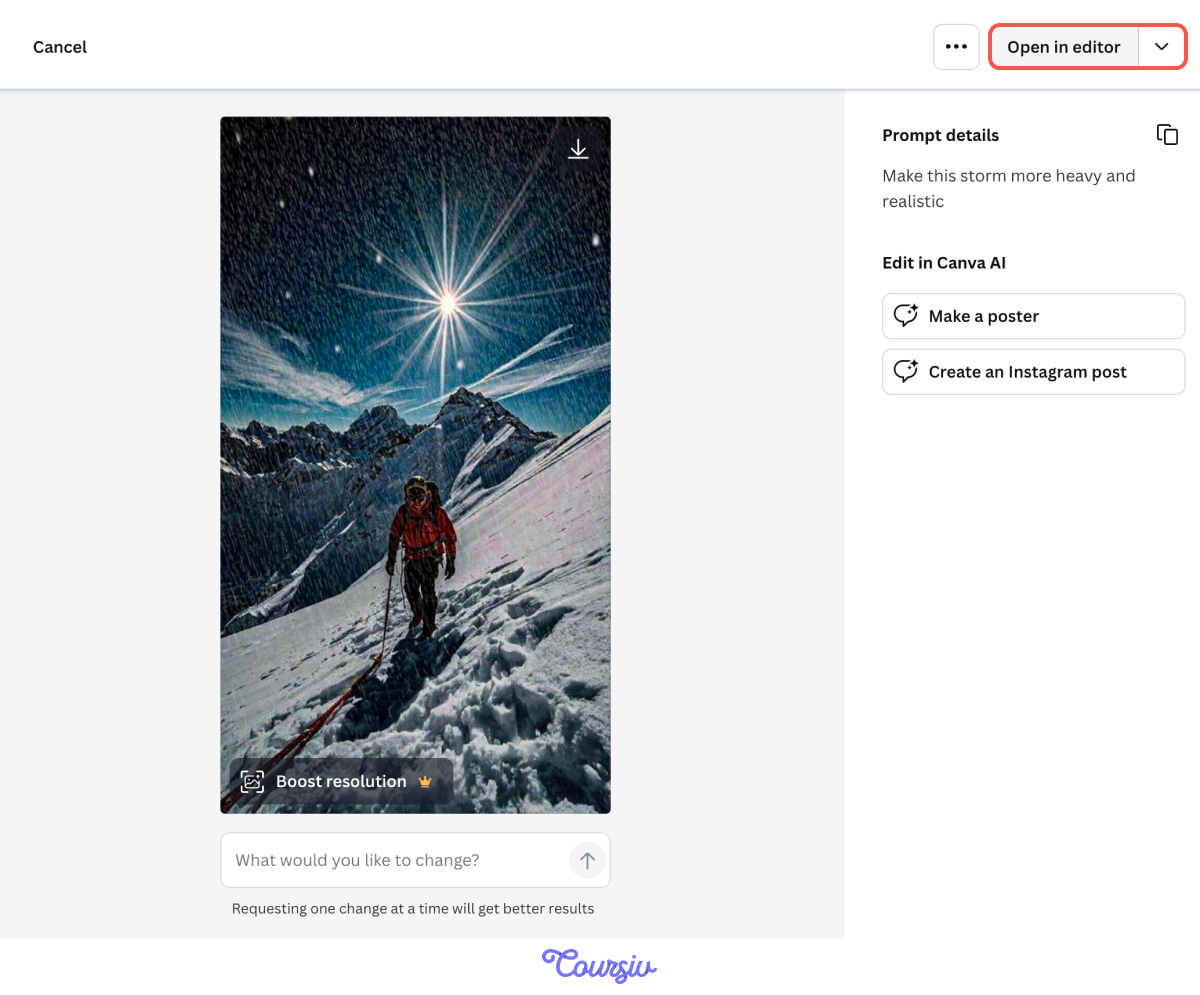
Ask @Canva to apply one of its own suggestions to the image.
Before saving, you can also make manual adjustments in the comment bar below or in the Canva Editor — changing a color, repositioning an element, or adding something the prompt didn't include.
Select all that apply
What makes the Canva AI chatbot valuable?
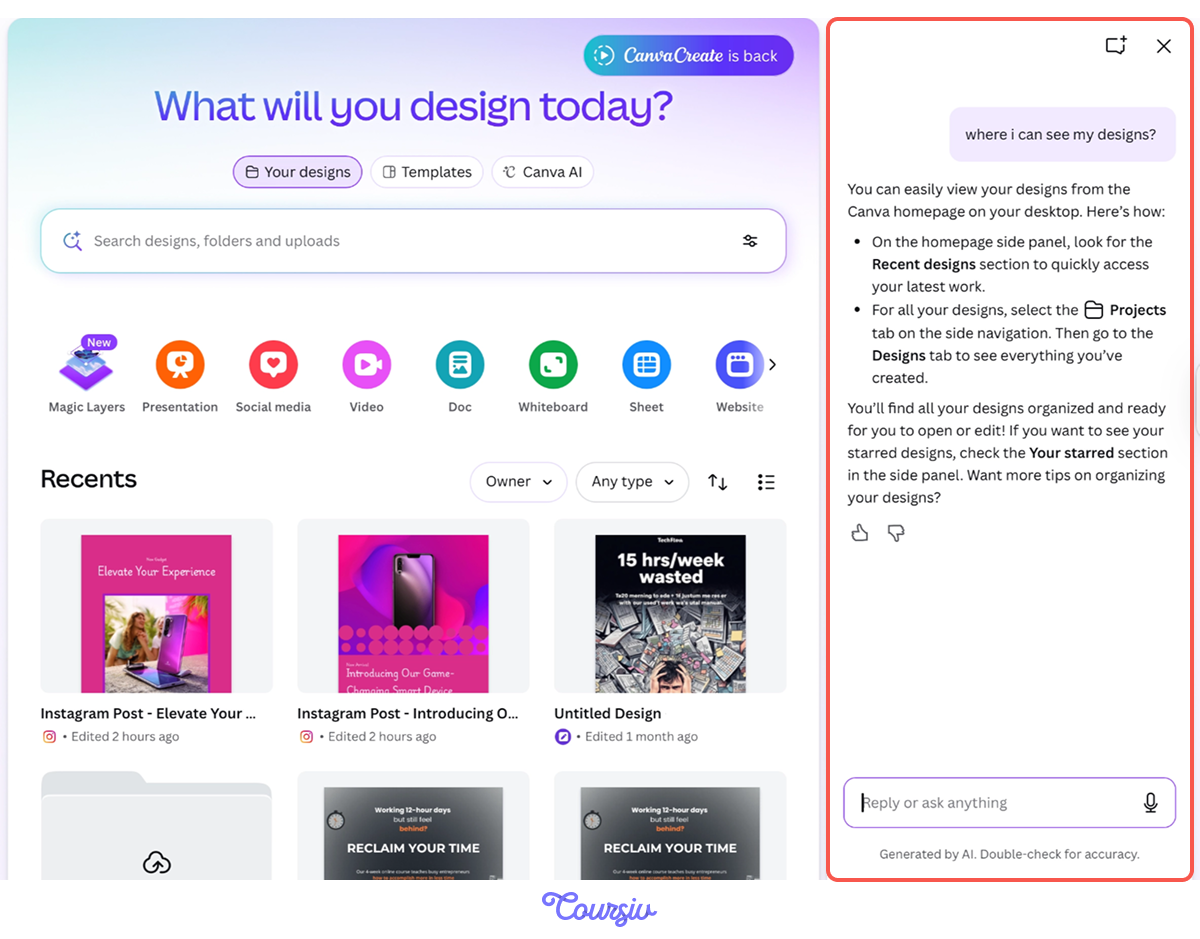
Canva AI also has a built-in Help Assistant. Ask it anything directly inside the editor: feature questions, navigation, settings — and it responds immediately.
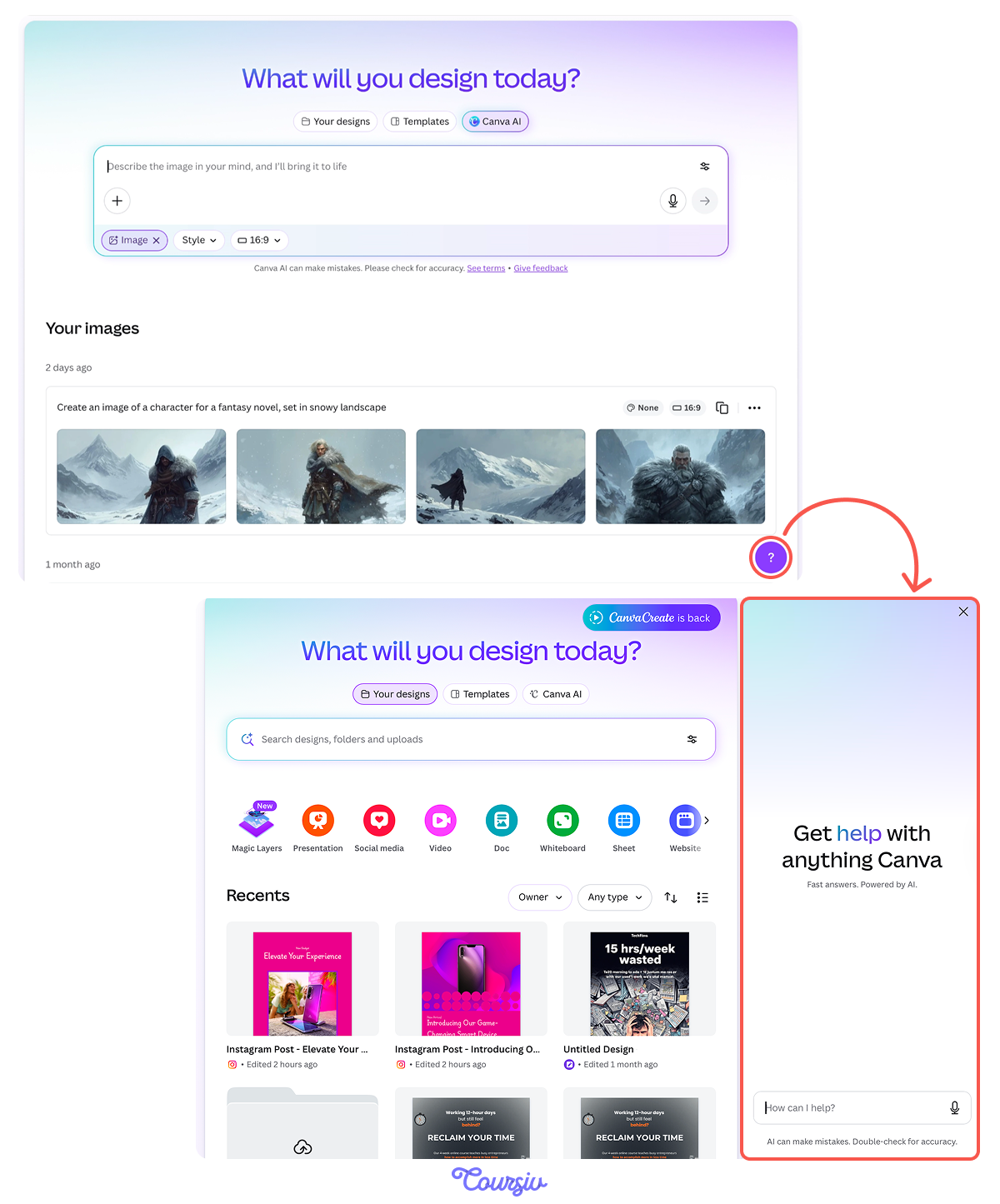
For instance, you can ask it where your saved projects are, and it will guide you there.
- Canva AI generates finished designs from a single prompt: Text, image, or voice input all work.
- The tab you select determines the output: Design, Image, Doc, Code, or Video.
- Style and Aspect Ratio shape the result: Set them upfront to get an output that's ready to use.
- The chatbot refines without rebuilding: Tag @Canva inside the editor to give suggestions and adjust one element without touching the rest.
- The Help Assistant answers instantly: Ask it anything from navigating features to finding saved projects.
What's Next?
You've navigated the interface, generated your first design, and used the chatbot to fine-tune it like a pro.
And that's just the beginning — the Design tab takes it further, where a single prompt can produce ready-to-use layouts for social media, presentations, invitations, and more.