Canva AI · Canva AI in Professional Practice
Canva AI for Sales
Win clients with AI-powered materials
Canva AI for Sales
As a sales professional, you're constantly producing assets under time pressure — proposals, decks, follow-ups, and presentations that all need to look polished and land fast.
In this final lesson, Canva AI will help you optimize the process and turn a client brief into a complete proposal package in a single session.

The Sales Production Problem
Between writing proposals, chasing designers for decks, and formatting follow-up emails, a lot of selling time gets eaten up by production work. Each asset lives in a different tool at a different stage of the deal.
Let's put the whole process in one place.

Imagine you just finished a client meeting with a chocolate brand — they need new packaging that better reflects the premium quality of their product.
The deliverables: a proposal brief, a visual infographic, product visuals, and an ROI calculator. Let's build it step by step.
Step 1: Draft the Proposal on the Go
Proposal content doesn't have to wait until you're back at a desk. Create the client brief immediately after a meeting, and Canva AI generates the first draft of the deck structure and copy before the details fade. Let's handle this step first with the Doc tab.
practice preview
Interactive practice
Fill in the blank
Ask Canva AI to draft a proposal brief for a chocolate brand's new packaging pitch.
Great Work!
The brief is captured while the memory is still fresh. Next, let's turn it into something the client can actually look at.
Step 2: Build the Proposal Layout
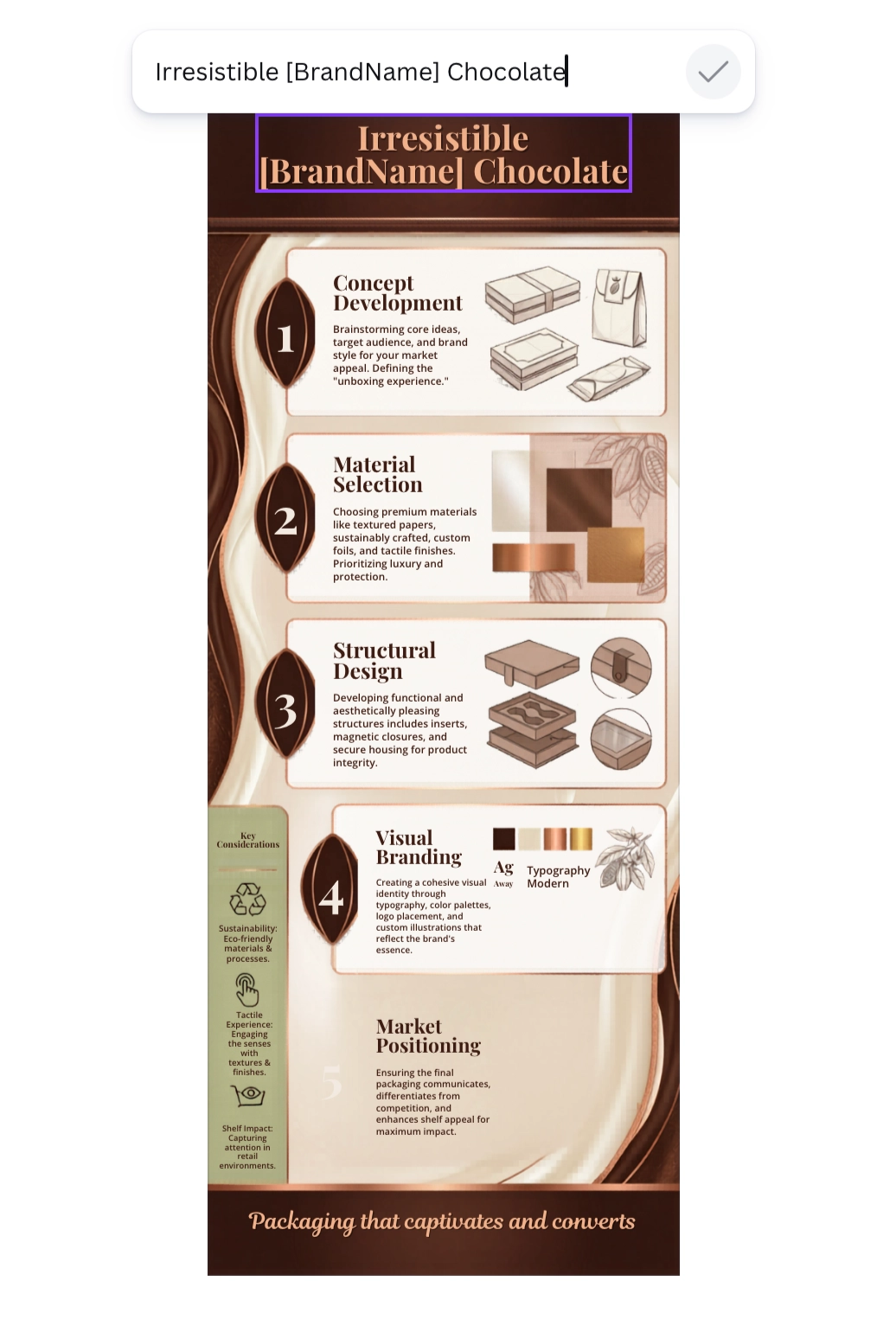
A brief is a starting point, but it's not enough to send to a client. The client may need a branded proposal infographic, alongside the brief, to communicate the idea visually. Let's try building it by uploading the brief into the Design tab.
practice preview
Interactive practice
Fill in the blank
Use the Design tab to build a branded proposal layout for your client, with the brief uploaded as a reference.
Notice that Canva generated the layout without knowing the brand name, so a few details will need manual updating before you send it.
Open Canva Editor to add the brand name — and while you're there, you can also refine the design, adjust colors, or swap out any images that don't quite fit.
Step 3: Generate Supporting Visuals
The brief and layout communicate the idea, but seeing the actual packaging makes it real. Let's add product visuals using the Image tab and show the client what the new packaging could look like.
practice preview
Interactive practice
Fill in the blank
Generate new packaging visuals for the chocolate proposal using the Image tab.
You can switch the style or aspect ratio in the settings if your task requires it. Let's see how choosing Macro style and a 3:4 Aspect Ratio changes the output.
Here's how the image changes when you apply different settings with the same prompt.

Perfect!
You can create visuals and change the output if you need, with settings.
Now, the client can see the packaging you are producing, read the brief, and understand the offer. There's one thing left — something that moves a sales conversation from interesting to actionable: showing the client what the investment is actually worth.
Step 4: Build the Interactive Sales Tool
Let's add a real-life ROI calculator, let the client input their own figures, and see the projected return from the new packaging in real time with the Code tab — no developer needed.
practice preview
Interactive practice
Fill in the blank
Build an interactive ROI calculator for the chocolate packaging proposal using the Code tab.
Now you can share the calculator as a direct link alongside the proposal, embed it into your pitch deck, or send it as a standalone asset before the next call.
Great Work!
As a sales professional, you now have everything you need to walk into any client conversation prepared — a structured brief, an infographic, product visuals, and a live calculator. The proposal package is ready to use now!
- Draft the brief immediately: The Doc tab captures and structures the proposal while the meeting details are still fresh.
- Build the layout in the Design tab: Upload the brief and generate a branded infographic that the client can actually look at.
- Generate product visuals in the Image tab: Show what the new packaging will look like before it physically exists — adjust the style and ratio in the settings to match the context.
- Make it interactive with the Code tab: Adding a functional element: calculator, quiz, or menu, turns a proposal into a decision-making tool the client uses.
Almost There!
Let's do a quick recap of everything covered throughout the course.

practice preview
Interactive practice
Match pairs
Tap a left item, then a right item to match.
Select all that apply
What can the Code tab generate from a plain-text prompt?
Choose one
What are the two ways to add a voiceover to a video in Canva AI?
Guide Complete!
You've built designs, run marketing campaigns, and put together a full sales proposal, all inside one platform.
That's the full Canva AI toolkit in practice. Now go use it — see you out there!