Kling · Introduction to Kling
Meet Kling AI
What Kling is and how it works
Create Anything You Can Describe
Everyone's creating images and videos for their business, brand, and personal use with AI — and a lot of those viral clips you've scrolled past were made with one tool. If you've been watching from the sidelines, wondering how to get started, it makes that easy. That tool is Kling!
In this guide, you'll learn how to use it — by generating images, videos, and avatars yourself, from your first prompt to a finished output.

What Is Kling AI?
Kling AI is a multimodal creative platform that generates images, videos, and avatars from text prompts and reference images. It runs entirely in a browser.

The Interface
When you open Kling, you'll see your main navigation on a left-hand sidebar. Everything you need to create, find, and manage your work lives here.
There are five items to know: Explore, Assets, Generate, Canvas, and All Tools.
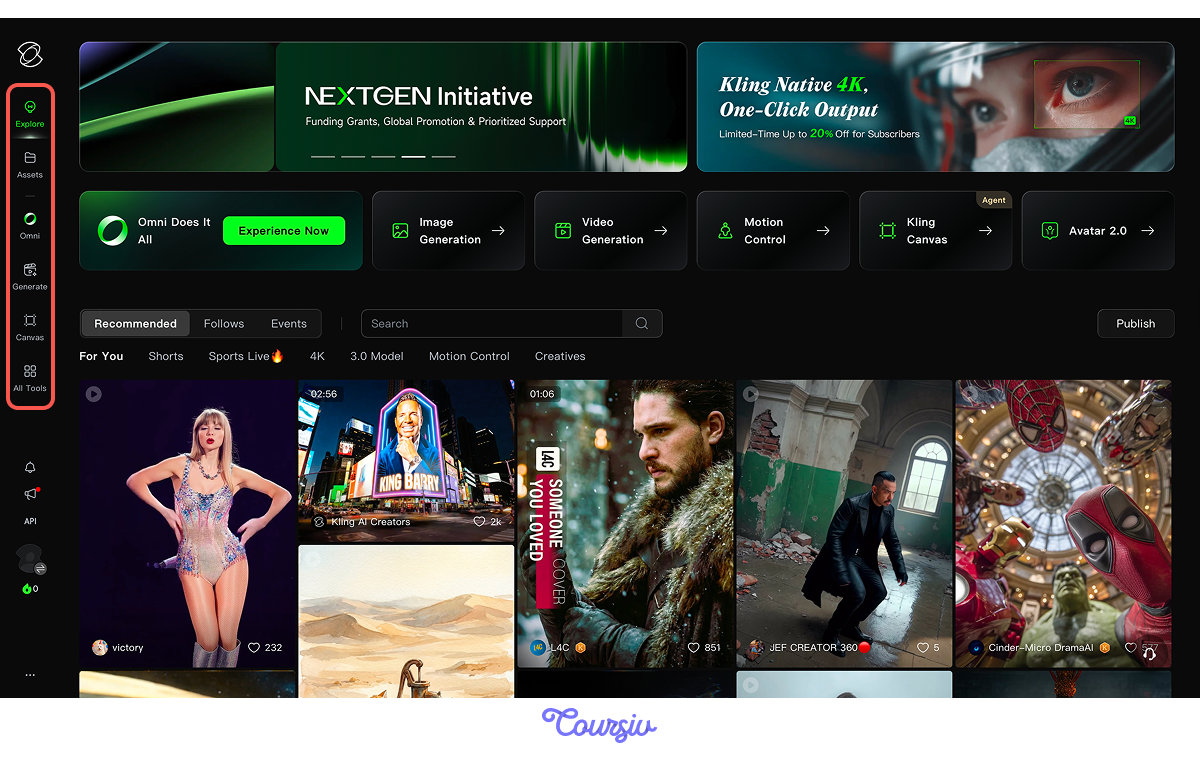
- Explore: A feed of other users' generated content. Useful for seeing what Kling produces before you make anything yourself.
- Assets: Where your own work is stored. Every generation saves here automatically, searchable and downloadable at any time.
- Generate: Where you create. Access Image Generation, Video Generation, Motion Control, and Avatar from here.
- Canvas: A multi-layer workspace for projects that combine multiple outputs.
- All Tools: A full overview of everything Kling offers, including features not visible in the main sidebar.
In the top bar, you'll also see five tools: Image Generation, Video Generation, Motion Control, Kling Canvas, and Avatar 2.0.
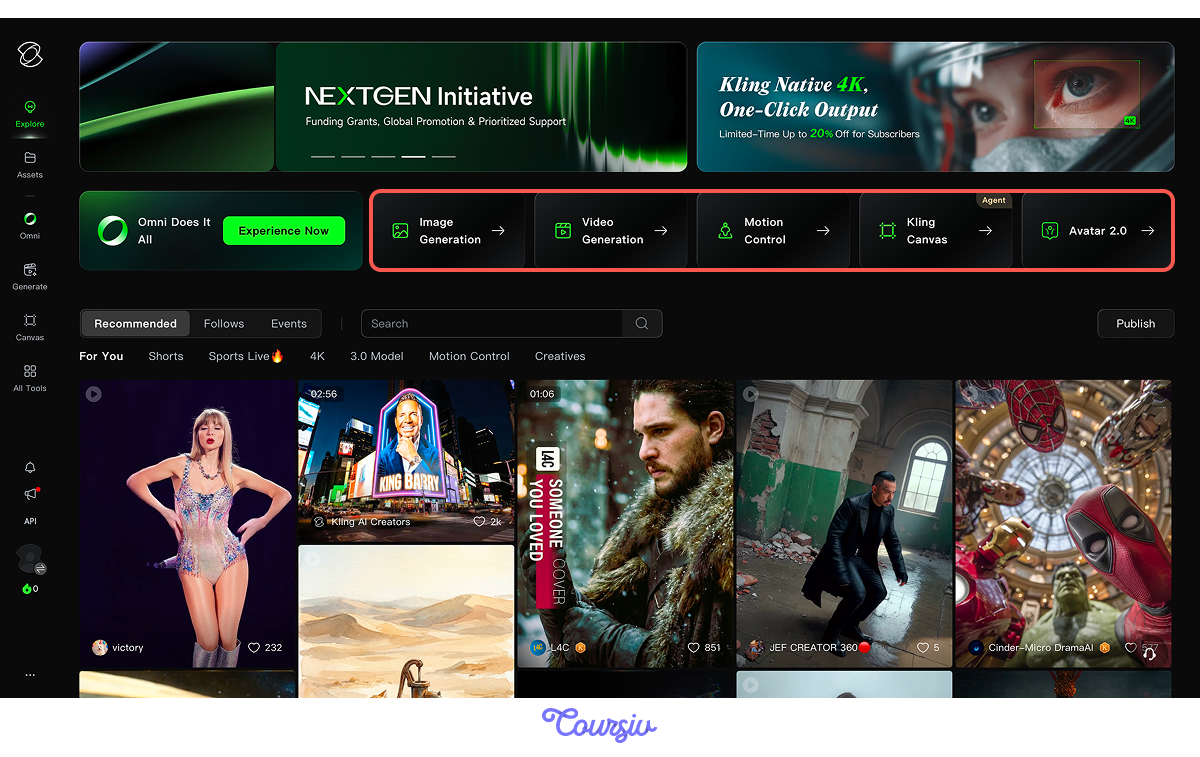
Here is what each one handles:
- Image Generation — where you build and test concepts: visual references, mockups, and style explorations before committing to a direction.
- Video Generation — where you produce the asset: the ad, the clip, the scene, ready for distribution or delivery.
- Motion Control — where you direct exactly how things move: camera angles, subject trajectory, speed, and direction.
- Avatar — where you handle delivery: a consistent, reusable character who can speak scripted lines and appear across multiple videos.
Your First Prompt
Let's create your first image in Kling.

practice preview
Interactive practice
Fill in the blank
Ask Kling to generate an image of a horse.
Good! That image is now automatically saved in Kling. When you switch to Video Generation, you can use it as a reference for a more accurate output — or skip it and work from a prompt alone. Here, we'll upload it as a reference to keep the result consistent with what we just generated.
practice preview
Interactive practice
Fill in the blank
Turn the image of a horse into a moving scene.
Here's what a detailed, realistic video looks like when the prompt gives Kling enough to work with. Now let's look at where outputs like these fit in real work.
What Kling Is Used For
Kling works well for both personal projects and professional ones. Need a product photo, a person video, or a branded spokesperson? You don't need a camera, software, or design skills — just open Kling and describe what you need.
practice preview
Interactive practice
True / False
Decide whether Kling is the right tool for this situation.
That's what the rest of this course covers — how Kling works, how to write prompts that produce usable results, and how to apply those skills across film, marketing, education, and personal projects.
And there's one more thing worth knowing — Kling has DeepSeek built directly into the platform. It helps you write and refine prompts for any output type — images, videos, and avatars — without leaving the tool. In the next lesson, we'll go deeper into how it works and how to use it across every module.

- Kling generates images, video, and avatars on a browser-based platform.
- The sidebar is your main navigation: Explore, Assets, Generate, Canvas, and All Tools each serve a different purpose.
- A good first prompt covers subject, setting, lighting, and camera movement. Those four elements are enough to get a usable result.
- Each module maps to a different stage of the workflow: concept, production, control, and delivery.
- DeepSeek is built into Kling and helps you write and refine prompts without switching to another tool.
Great! You've seen what Kling is, navigated the interface, and even generated your first image and video. But here's the thing — the results you just got are only as good as the words behind them.
In the next lesson, you'll learn how to write a structured prompt — one that gives Kling enough to produce what you had in mind.