Kling · Kling in Professional Practice
Kling for Marketing
Produce launch-ready brand assets at scale
Kling for Marketing
Kling works just as well for marketers as it does for filmmakers. Say you need several product assets for a brand, but your design team is already tied up.
In this lesson, you'll learn how to use Kling to generate brand-consistent visuals, build social ad videos with stable on-screen text, and structure a full reveal-to-CTA ad sequence.

Select all that apply
What are some major issues when producing multiple marketing assets for the same brand?
That's the problem Kling's multi-reference input solves. Let's fix it step by step, starting with the product itself.
Step 1: Generate Product Image
Before anything else, you need a clean product visual: the image that goes on the billboard, the website, and every other format in the campaign. Let's do it.

practice preview
Interactive practice
Fill in the blank
Generate a clean product image of sneakers in Kling Image.
Great foundation! In the same way, you can take the logo you generated in the image generation lesson and combine it with the product image to create a proper marketing asset.
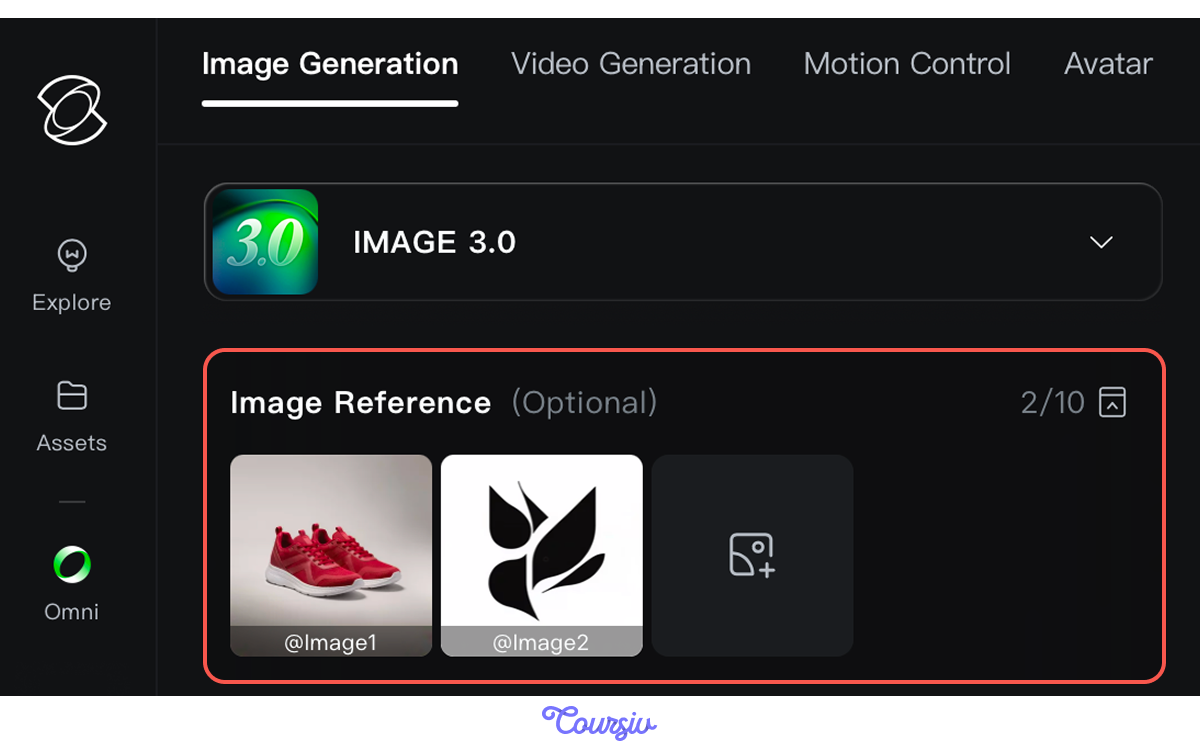
Step 2: Add the Logo
Upload your logo as a reference image alongside the product shot. Kling locks in the logo and generates a new visual with both elements placed together.
practice preview
Interactive practice
Fill in the blank
Generate a branded product visual.
Great Work!
Logo placed, colors consistent, billboard-ready format. That's your static ad — the visual that goes on the billboard and the website.
Choose one
You need to produce the same branded sneaker visual in three different formats: billboard, square social, and vertical story. What is the most efficient approach in Kling?
Your static assets are ready. Let's take that sneaker visual one step further and turn it into a moving ad with a person running in the shoes and a spoken call to action at the end.
Step 3: Create the Video Ad
In Kling's Video Generation, upload the product image, describe the scene, and add a spoken CTA using Native Audio. Let's try it!

practice preview
Interactive practice
Fill in the blank
Animate the sneaker image into a social video ad with a person running and a spoken CTA.
Excellent! Here's your result.
Step 4: Structure the Ad With Multi-Shot
A standard social ad follows a clear structure: highlight the key feature, announce the CTA, and show the product. Custom Multi-Shot lets you build it all into a single continuous clip.
practice preview
Interactive practice
Fill in the blank
Generate a three-shot sneaker ad sequence using Custom Multi-Shot mode.
Perfect!
See how all three shots came through in one generation: feature highlighted first, CTA announced in the middle, and the product shown at the end.
Select all that apply
How does Kling help marketing specialists in their day-to-day work?
Here are the steps to build a complete marketing asset set in Kling:
- Step 1: Product Image. Generate a clean product visual as the foundation for all campaign assets.
- Step 2: Add the Logo. Upload the logo and product shots as references. Kling places them consistently across all formats.
- Step 3: Video Ad. Animate the product image into a clip with a spoken CTA built directly into the prompt.
- Step 4: Multi-Shot Ad Structure. Use Custom Multi-Shot to specify each beat individually; reveal, feature, and CTA all land exactly where the brief requires.
Good Job!
You've built a product image, added a logo, produced a billboard visual, and created a social video ad — all from a prompt.
In the final lesson, the same approach extends to education and training — turning complex content into clear visual learning materials without a production crew. Almost there — let's go!