Kling · Kling's Core Features
Building AI Avatars
Create a reusable digital human character
Building AI Avatars
Ever wanted a spokesperson, a character, or just a face to bring your idea to life without filming anyone? That's exactly what Avatar Generation is for.
In this lesson, you'll learn how to create a digital human, give it a voice, and place it in a scene that looks production-ready from the start.
Avatar Generation
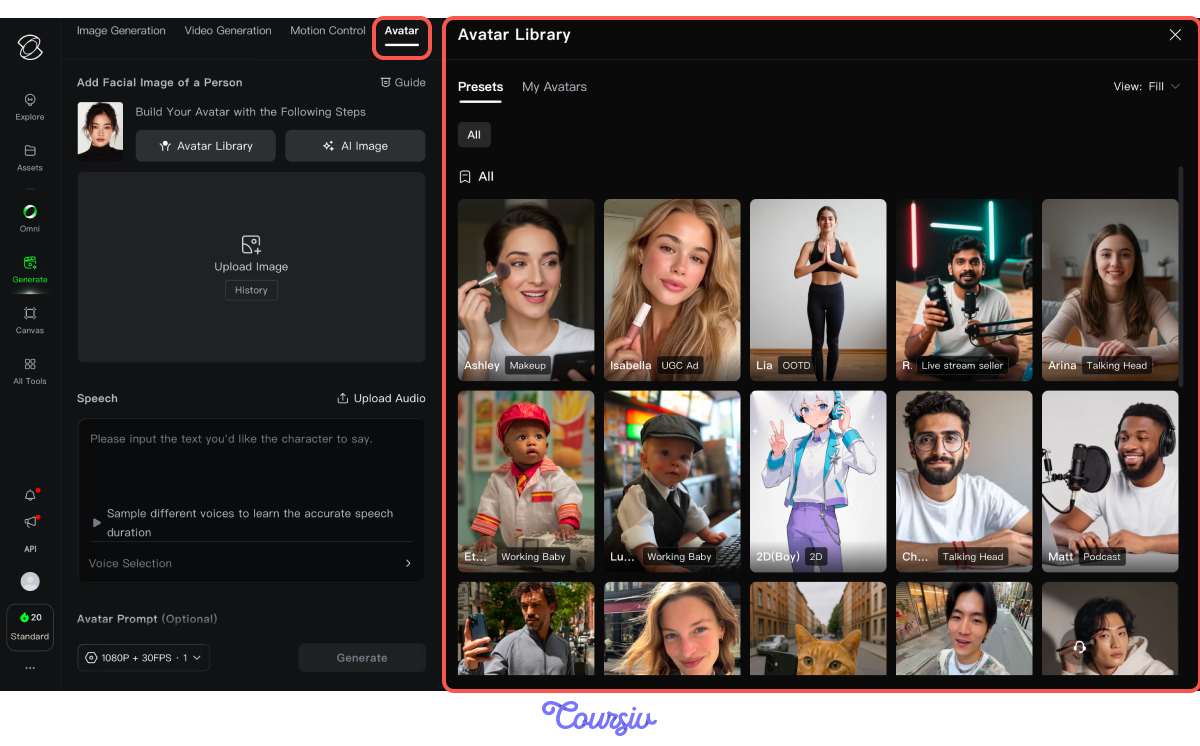
Kling's Avatar Generation creates a digital human character from a written description or a reference photo.
In Avatar, you'll find two starting points. Avatar Library gives you ready-made presets for common formats — Vlog, Talking Head, Podcast — so you can get started without building a character from scratch.
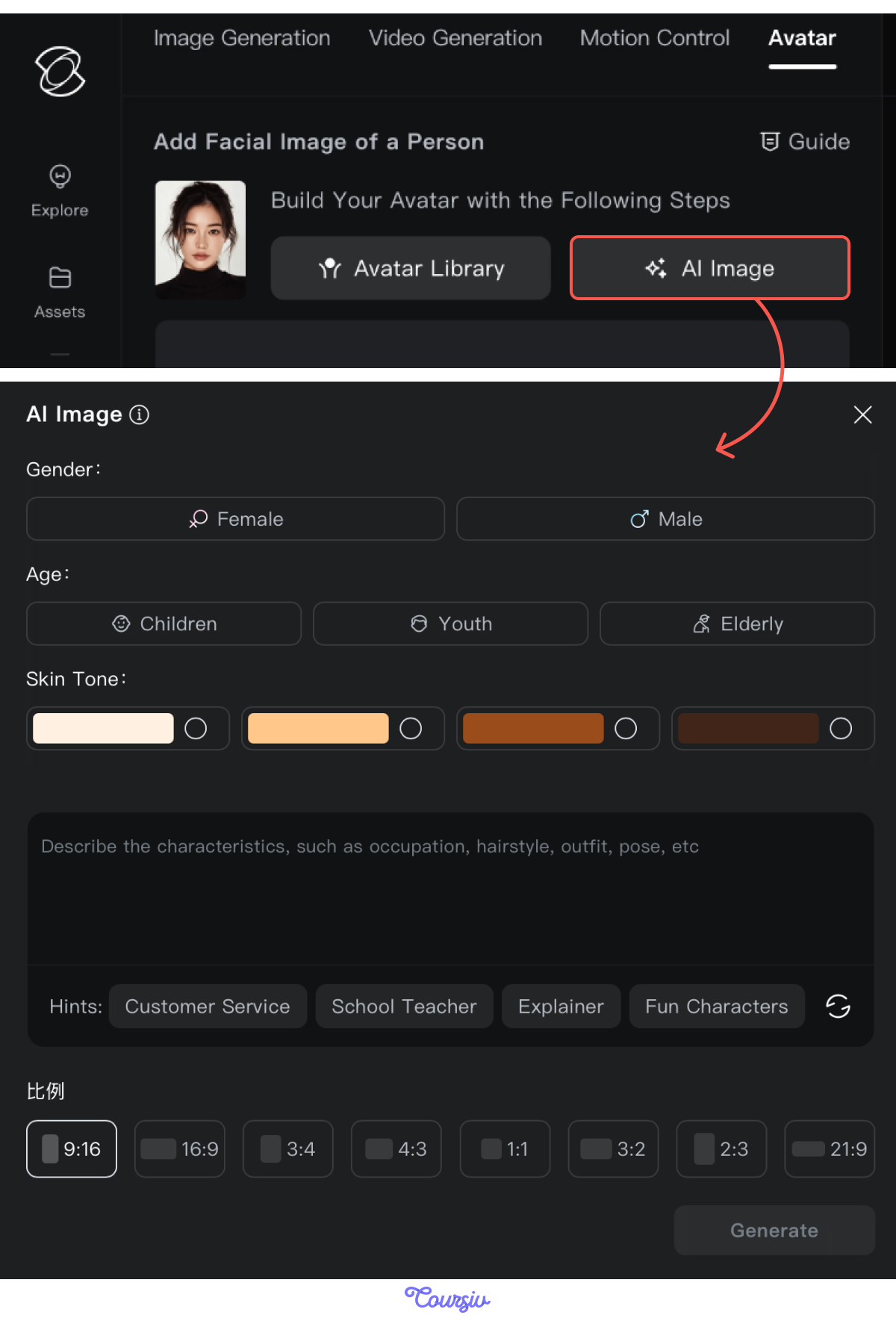
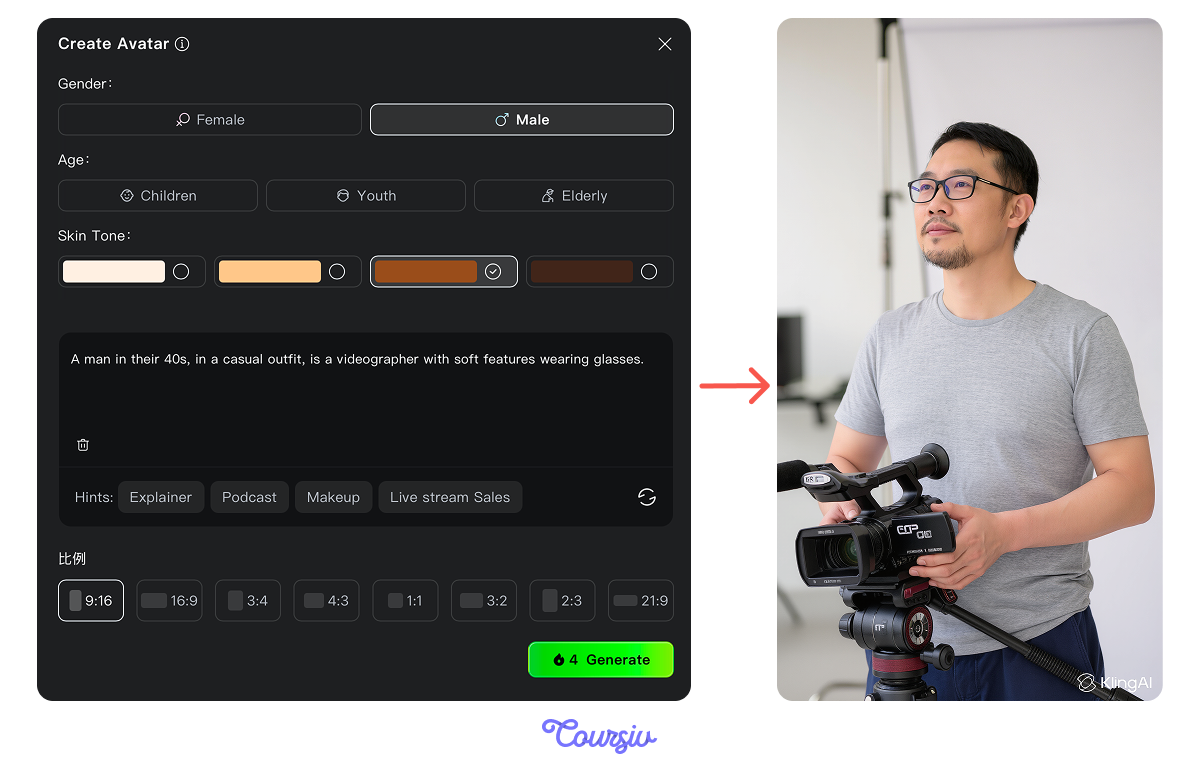
Or you can build one yourself using a prompt and AI Image feature, customizing gender, age, skin tone, and generating a full character description from your own inputs. Let's create one!
practice preview
Interactive practice
Fill in the blank
Generate a digital human avatar in Kling.
Speech
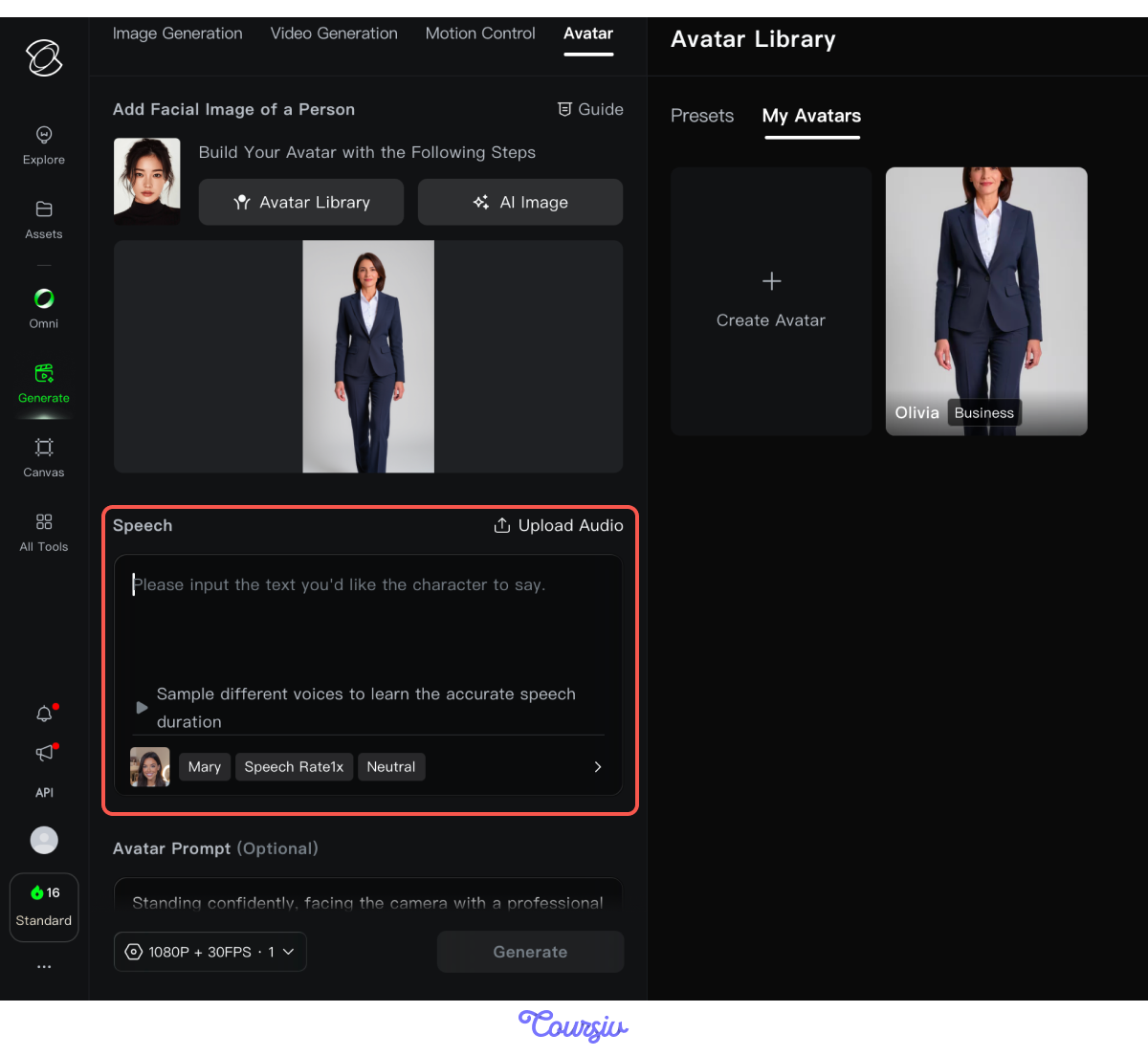
With your avatar saved, go to Speech in the left panel and type in what you want your character to say. Set the language, accent, and tone, and the audio adjusts automatically.
Try typing this line: "Welcome to our latest product launch. Everything you'll see today was built with one goal: to make your workflow faster, cleaner, and easier to manage from day one."
practice preview
Interactive practice
Fill in the blank
Assign a scripted line to the avatar you just created in Speech.
The mouth movements and facial expressions followed the script without any manual adjustment.
Select all that apply
What can you use your saved avatar for?
You can use one avatar for multiple uses: vlogs, podcasts, product clips, or course modules. Kling also lets you place two or more avatars in the same scene, each with their own dialogue, animated independently as they speak.
Multi-Character Scenes
Let's create a male character to pair with the one you just built. Follow the same process.
Now, set your first avatar as the start frame and your second as the end frame in Video Generation. Then describe the scene in the prompt: who speaks first and what they say.
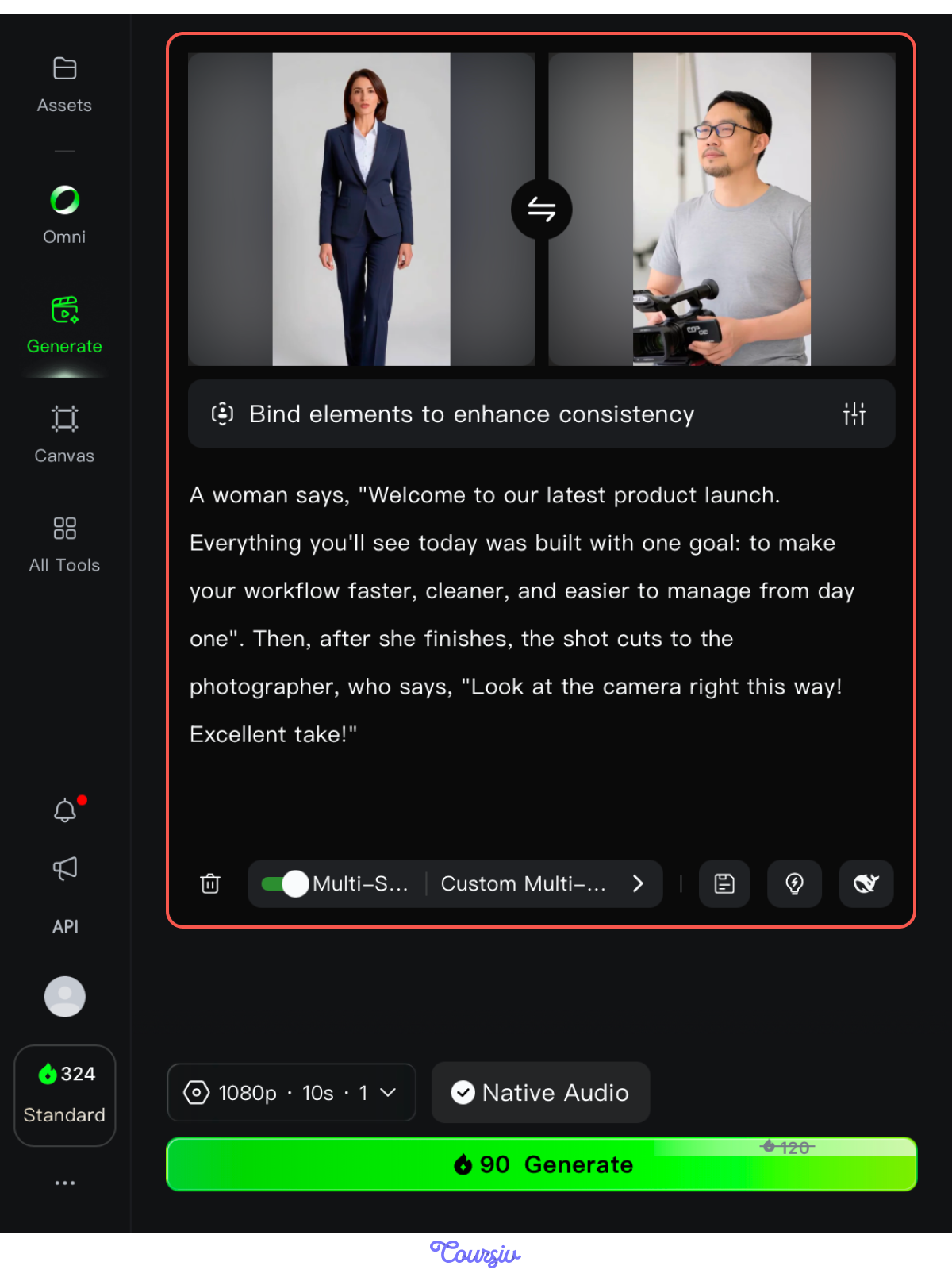
You got two avatars in one scene from a single prompt. Kling tracked which character was speaking and animated each one independently.
Cross-Session Consistency
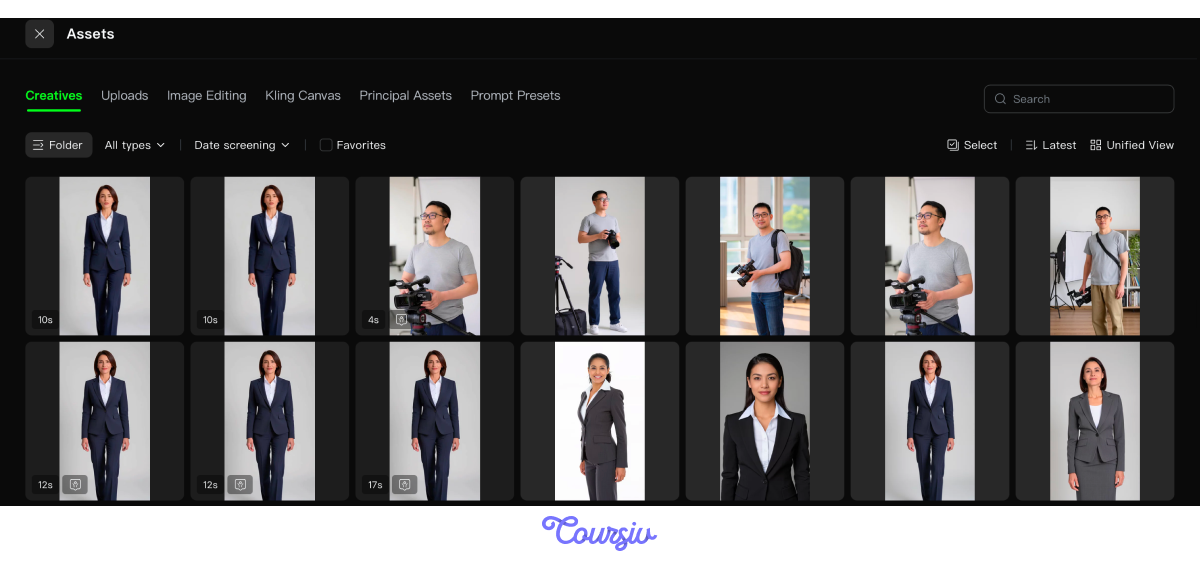
For the last step, every avatar you generate in Kling is saved to your Assets. The same facial structure, expressions, and visual identity are locked in. You can reopen the avatar in any future session, and it looks identical to the first time you generated it.
- Avatar Library: Ready-made presets for vlog, talking head, and podcast formats.
- AI Avatar Image: Build a custom avatar from a prompt with full control over gender, age, skin tone, and character description.
- Speech: Type your script directly into the Speech panel, and the avatar's mouth movements and facial expressions animate automatically in sync with what you wrote.
- Multi-Character Scenes: Place two avatars in Video Generation with distinct dialogue, and Kling animates each speaker independently.
- Cross-Session Consistency: Saved avatars maintain identical facial structure and visual identity across every future project.
You've built an avatar, given it a voice, and put it in a scene with another character in just one tool.
In the next unit, you'll move into professional use cases and see how everything you've learned applies to real creative and business work. Keep creating!