Omni · Advanced Omni Tricks
Extending & Pacing
Plan scenes, extend stories beyond limits
Managing the Pace
By this point, you've learned how to create individual videos, keep your characters consistent across them, and create transitions. But what if you want to tell a story that lasts a little longer than what you have created so far?
In this lesson, you'll learn how to extend videos beyond Omni's default length to tell a complete story!

The 10-Second Limit
Omni generates videos up to 10 seconds long. This is ideal for capturing a single moment, but many stories need more time.
A short narrative, a product demonstration, or a tutorial might need 20, 30, or even 60 seconds to unfold effectively.
The solution isn't fighting the limit; it's working with it.
Choose one
How can you create videos longer than 10 seconds in Omni?
Planning Your Story
To make multi-scene videos work smoothly, you need a plan before you generate them. This is where Gemini can become your creative partner.
You can use it to:
- Describe your story idea
- Ask for a storyboard
- Receive a scene-by-scene breakdown of your video
You then generate each scene with Omni — refining conversationally with follow-up prompts until you're happy with it before moving to the next.

For example, you might ask:
"I want to create a 20-second video showing someone's morning routine: waking up, making coffee, and heading out the door. Break this into 3-4 scenes. Include scene descriptions, reference image prompts, video generation prompts, and timing suggestions for each scene."
By requesting all these elements upfront, Gemini gives you everything you need in one response.
So, when requesting a storyboard, ask Gemini to include:
- Scene descriptions
- Reference image prompts for consistent visuals
- Video generation prompts to use in Omni
- Timing suggestions for each scene
This will give you a complete blueprint before you generate anything.
practice preview
Interactive practice
Put in order
Arrange these elements in the correct order to create a full prompt for Gemini.
Good job! Now that you understand the flow, let's create a storyboard with Gemini for a full video project.

practice preview
Interactive practice
Fill in the blank
Complete this request for a multi-scene video plan.
Great! You have a complete plan with a clear purpose for each scene, and prompts for both image references and video generation.
An important detail to remember: you can control how long each scene lasts by specifying duration directly in your Omni prompt.
Simply add the duration at the end: "5 seconds long" or "6 seconds long."
Choose one
Why would you need to control the exact length of each video scene?
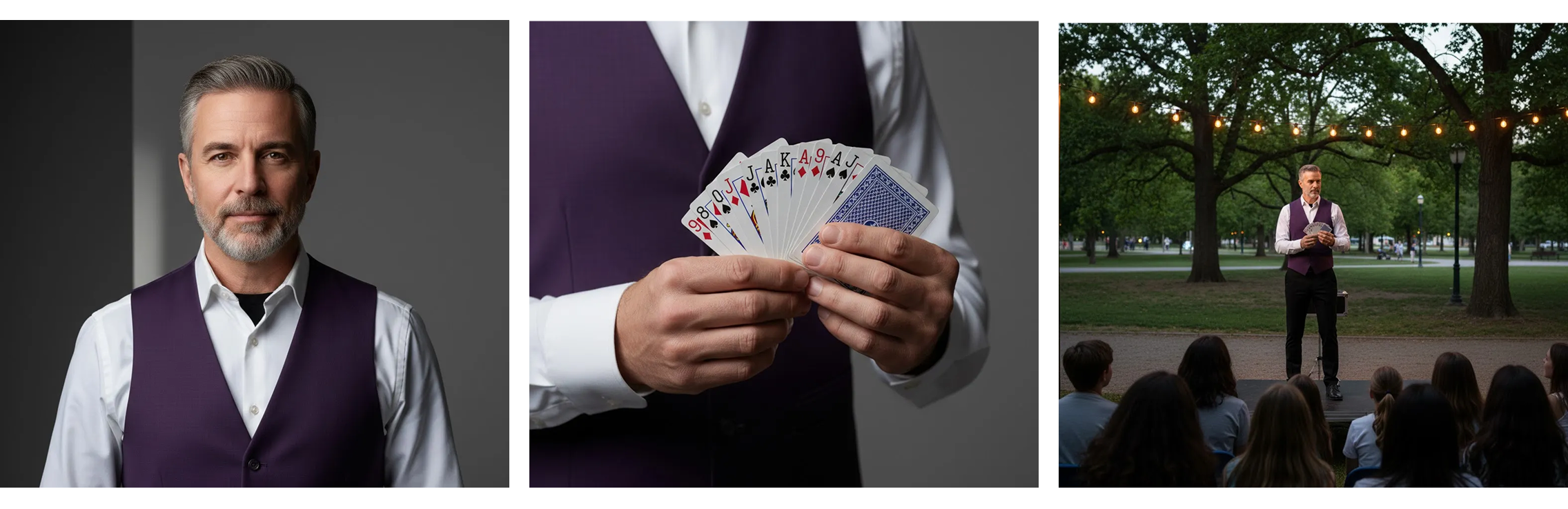
So, for a 20-second story with three scenes, you might create two 10-second clips, or mix durations like 6 seconds, 7 seconds, and 7 seconds.
Let's proceed with the latter option in the following exercises!
practice preview
Interactive practice
Fill in the blank
Using the reference image from your storyboard, complete the prompt for the first scene.
Your first scene is ready. In practice, this is the moment to refine — send follow-up prompts to adjust timing, expression, or lighting before moving on.
When you're happy with it, generate the next scene.
practice preview
Interactive practice
Fill in the blank
Now, complete the prompt for the second scene that continues the story.
Scene 2 is done. Same principle applies — iterate here if anything feels off before moving to the final scene.
practice preview
Interactive practice
Fill in the blank
Using the same character reference, complete the final scene.
Great! You now have three scenes that flow logically from start to finish.
The next step is to assemble them into one seamless video.
Combining Your Scenes
Once all scenes are generated, combine them using any video editor.

Popular video editing options:
- Mobile apps: CapCut, InShot, iMovie (iOS)
- Desktop (free): DaVinci Resolve, CapCut desktop
- Desktop (paid): Adobe Premiere, Final Cut Pro
- Online tools: Canva Video Editor, Clipchamp
Choose whatever you're comfortable with — the process is simple in all of them.
The basic workflow is the same everywhere:
- Import your generated scenes.
- Arrange them on the timeline.
- Ensure smooth transitions between clips.
- Export one final video.
That's it. Your 20-second story is ready!
One thing to keep in mind: Omni generates audio independently for each scene, so ambient sound and music won't automatically match across clips.
In your editor, add a single continuous music track or ambient layer across all scenes — this is the simplest way to create audio continuity in the final video.
Here's your final video! Three separate scenes edited together into one complete magical performance.
This is how you create narratives of any length using Omni.
Great Job!
You've learned to break down longer stories into manageable scenes, generate each with precision, and combine them into polished final videos.
This workflow opens up endless possibilities — tutorials, product demos, brand stories, or any narrative that needs more than 10 seconds to unfold.
- Use Gemini to create a storyboard, breaking your idea into multiple scenes.
- Specify video length in your prompts (e.g., "5 seconds long").
- Maintain continuity with consistent lighting, characters, and visual style.
- Combine scenes in any video editing tool to create your final story.
What's Next?
In the final lesson, you’ll explore real-world applications and safety considerations for using Omni professionally and responsibly.
Almost there!