AI-Powered Creative Income · Create Profitable Content
Client Design
Deliver polished designs with Canva
Creating Client Designs
Imagine this: a yoga studio owner messages you, "We're launching a new studio soon and need Instagram graphics — can you help?" You know Canva, you've got AI tools, but you've never done it before.
In this lesson, you'll learn how to take a client request, turn it into a structured brief, and deliver polished, branded designs using Canva AI — on time and on budget.
Client Design — Your Accessible Revenue Stream
Small businesses, startups, and solo founders constantly need social posts, pitch decks, ads, and brand visuals. Most can't afford agencies. If you can turn a messy request into clean deliverables quickly, you will have people who will pay for it repeatedly.
What Makes Client Design Different
Client work requires you to follow the client's taste. The biggest shift is constraint — you're designing within someone else's brand, goals, and preferences. Canva AI speeds up production dramatically, but only when you feed it the right inputs.
Select all that apply
A new client emails you, "I need some graphics for my Instagram, something clean and modern." Before opening any design tool, which of these should you clarify first?
Turning Client Requests Into Design Briefs
Most clients won't hand you a polished brief. They'll send a short email, a voice note, or a few scattered reference images. Your job is to translate that into a structured document.
Use Claude to structure the brief from whatever raw input the client provides. The key is feeding Claude the full context — brand details, goals, audience, and deliverables — so it can help you organize, not just summarize.
practice preview
Interactive practice
Fill in the blank
Use Claude to build a brief for a new yoga studio's Instagram launch campaign.
Great Work!
You now have a brief that covers everything you need before touching a design tool. Notice how it eliminates guesswork — every creative decision is already made. Let's open Canva AI!
Generating Designs in Canva AI
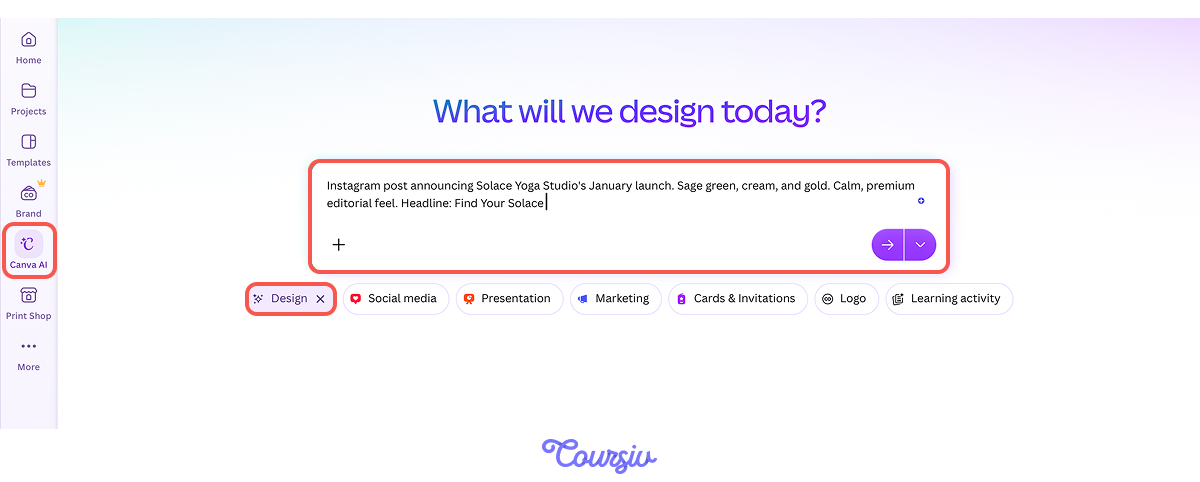
Canva AI's Magic Design generates layout options based on a text description. It handles composition, typography pairing, and visual elements, but the output quality depends entirely on what you tell it.
Start with one post from your brief — the studio reveal. You'll generate options, evaluate them against the brief, and then refine. This is how you avoid the "four hours of tweaking" trap.
Building the Full Post Set in Canva AI
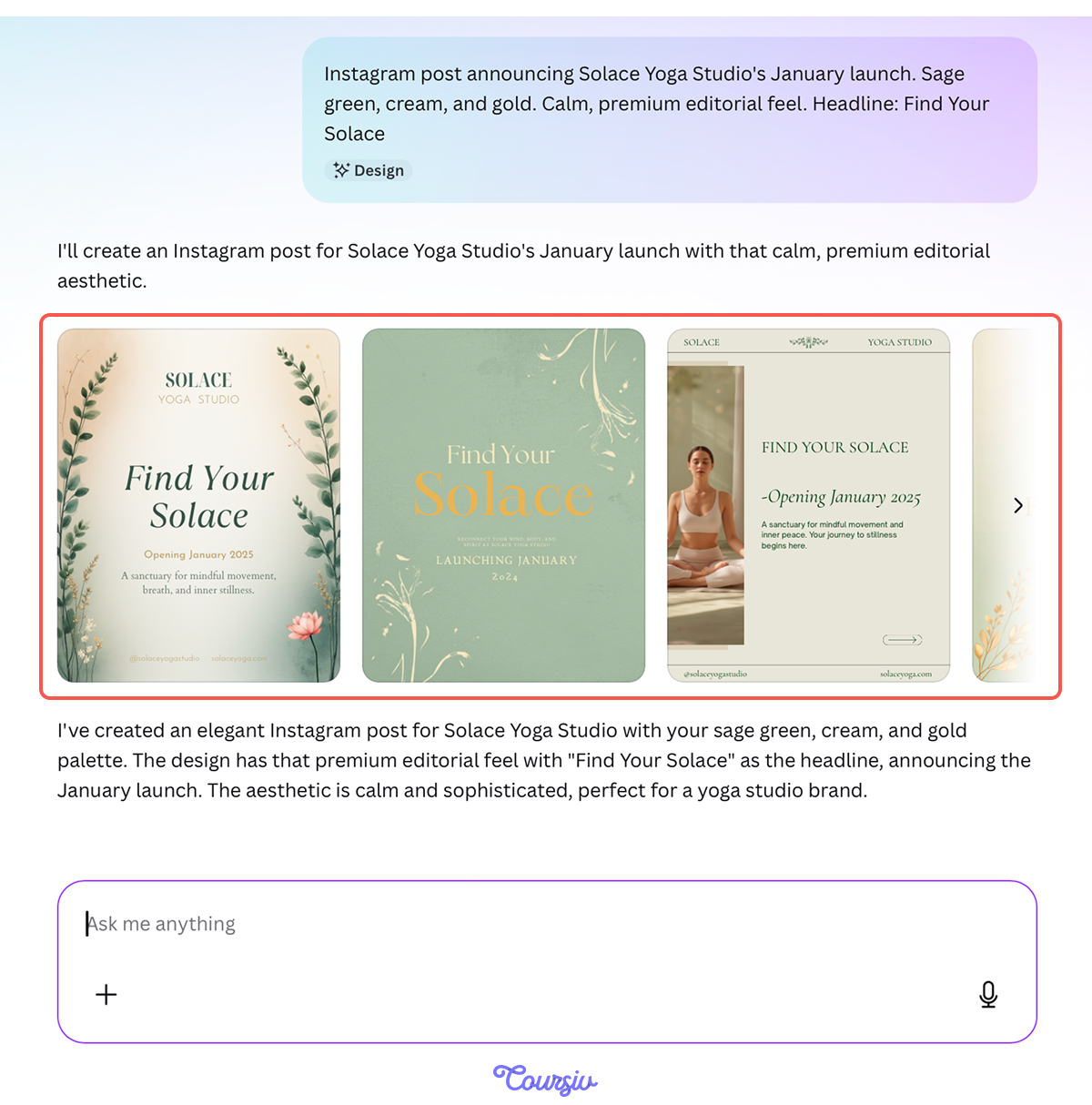
With your brief locked in, open Canva and select Magic Design. Type a prompt built from the brief — include the brand name, colors, tone, and the specific post topic. Magic Design will return several layout options. Pick the one closest to the brief's direction: you'll refine from there.
Select your strongest layout and start editing.
Replace any placeholder text with the actual copy: headline, launch date, location, CTA. Swap generic stock imagery for your own AI-generated visuals or Canva's brand-aligned photo library. Adjust fonts to match the client's brand guidelines. The goal is making every element intentional.
Expanding to the Full Set
Your brief defined 6 posts: studio reveal, class schedule, founder story, intro offer, testimonial, and launch countdown.
Canva's Batch Create feature can speed this up if your content is organized in a simple spreadsheet: one row per post with headline, body text, and image reference.
Adapting Across Formats
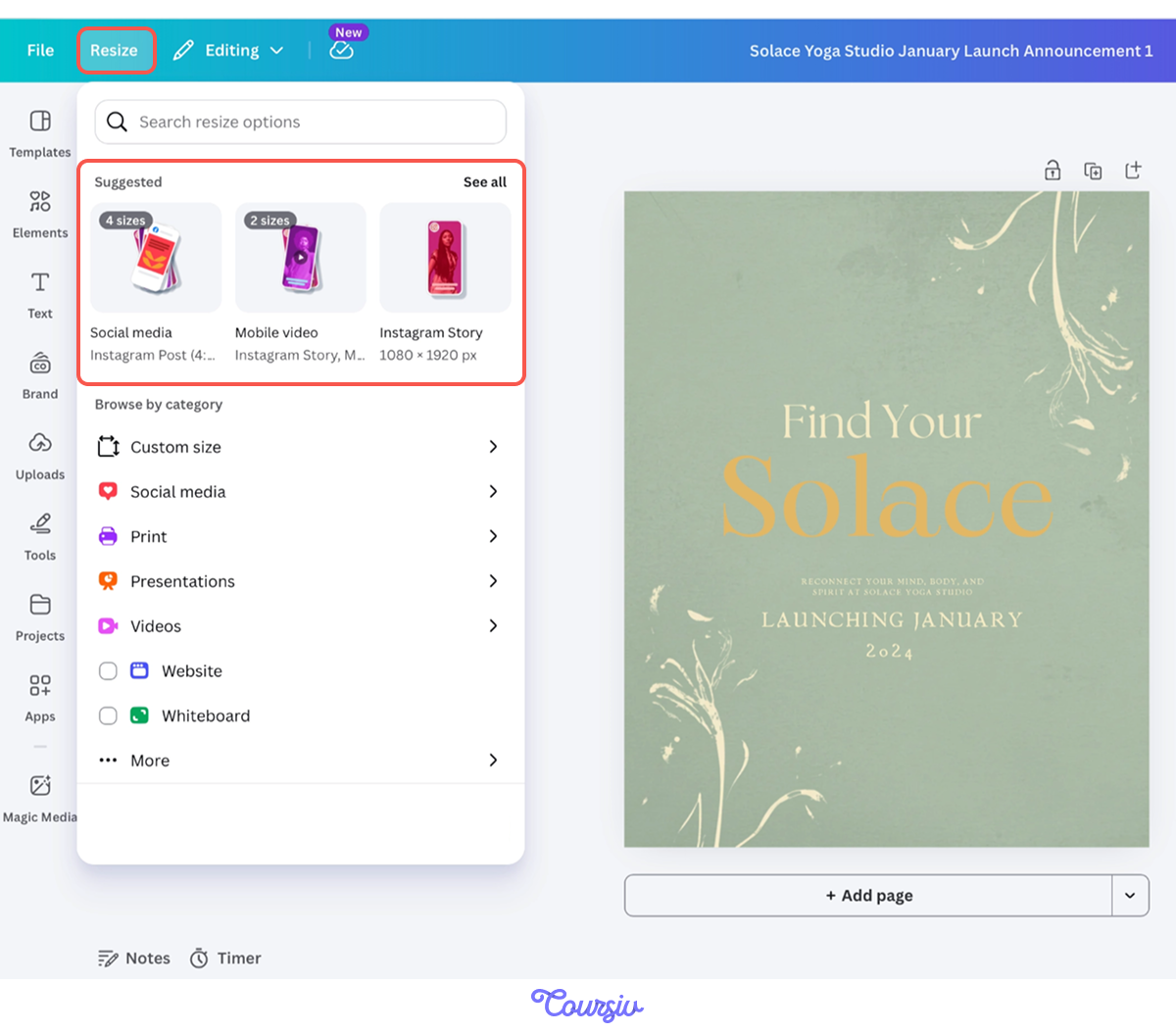
Most client projects need more than one size. Your Instagram feed post becomes a Story, a Facebook banner, or a website hero.
Use Canva's Resize feature to adapt your master design to new dimensions. The layout will shift automatically, but always review each version.
Presenting Your Work
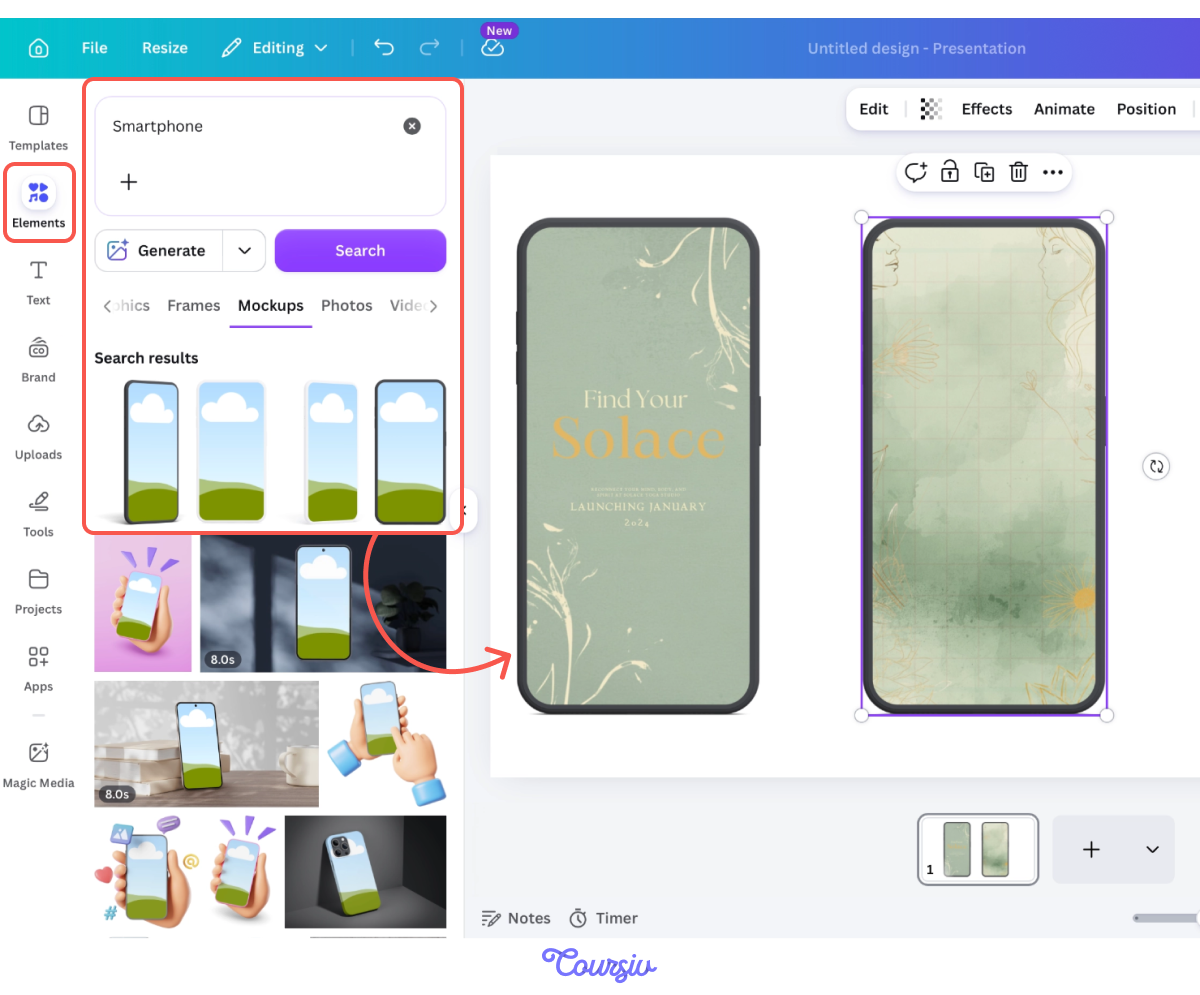
Don't send raw PNGs in a zip folder. Create a Canva Presentation instead — one slide per finished design, each placed inside a device mockup frame using Canva's Mockups feature.
Canva Pro Features
If you're doing client work regularly, Canva Pro's Brand Kit lets you store each client's logos, colors, and fonts separately.
Combined with Brand Templates, where you save approved designs, you can onboard a new client's visual identity fast. These features can turn one-off projects into a scalable client design service.
Excellent!
You just walked through the full Canva AI client workflow from brief-driven prompt to polished multi-format delivery to a reusable system. Every project that follows will take less time and earn you more per hour.
practice preview
Interactive practice
Put in order
Arrange these steps in the correct order for a complete client design project using Canva AI.
- Client design starts with translating requests into structured briefs. The client tells you what they want, but the brief defines what you'll build.
- Canva AI delivers on-brand results only when you feed it specific brand details, audience context, and content direction. Brief-driven prompts produce client-ready work.
- Presentation is part of the product. Showing work in context justifies premium pricing and drives repeat business.
Next Up — AI Image Generation for Business
You now have a complete workflow for turning client requests into polished design deliverables. In the next lesson, you'll go deeper into image creation — learning to generate high-quality visuals for content and products.
Let's keep going!