AI for SEO · Building and Scaling SEO With AI
Technical SEO Simplified
Audit and fix your site's technical issues
Fix What Breaks Your Rankings
You optimized your content in Lesson 4. Your articles have proper headings, keywords, and structure. But here's the problem: even perfectly optimized content won't rank if Google can't access it.
In this lesson, you'll learn which technical issues hurt rankings — and which ones you can safely ignore.

How Technical SEO Works
Technical SEO is the backend work that makes your site accessible to search engines. Unlike on-page SEO (your content and keywords), technical SEO focuses on how your site functions:
- Crawlability: Can Google find and read your pages?
- Indexing: Does Google store them in its search database?
- Speed: Do pages load fast enough to keep visitors?
- Mobile-friendliness: Does your site work properly on phones?
Which Technical Issues Matter?
When any of these break down, your content doesn't rank — no matter how good it is. And since not all technical issues are equal, it helps to know which ones to fix first.

Issues fall into three priority levels:
- High priority: Pages Google can't find or read, and content that doesn't work on mobile.
- Medium priority: Slow page speed, duplicate content, and missing or weak meta descriptions.
- Low priority: Minor schema errors, small image optimizations, and outdated sitemaps that still function.
Choose one
You find 20 technical SEO issues on your site. What do you think is the smartest approach?
For example, your home decor site might have 15 technical issues. But if three are high priority (broken pages, slow speed, not mobile-friendly) and 12 are low (minor schema tweaks), fix the three high ones first. You'll see bigger ranking improvements faster.
This is called impact-based prioritization — fixing what moves the needle.

Choose one
Which technical issue should you fix first: a broken page that Google can't crawl or a minor schema markup error on a low-traffic blog post?
How to Spot Technical Issues
Remember: you can't fix what you can't see. Technical issues hide in your site’s code and server responses.
Tools like Frase and SEOWriting.ai are great for content, but they don't crawl your site or spot broken links. You need a tool that mimics Google's crawling process to find these hidden issues — enter Screaming Frog.
What Is Screaming Frog?
Screaming Frog is a website crawler that scans your site the way Google does. It visits every page, follows every link, and reports technical issues: broken links, slow pages, missing meta descriptions, duplicate content, and more.
If your homepage links to a product page but it returns a 404 error, Screaming Frog catches it. If 10 pages have identical meta descriptions, it flags them as identical. This is how you find critical issues before they hurt rankings.
Step 1: Download and Set Up Screaming Frog
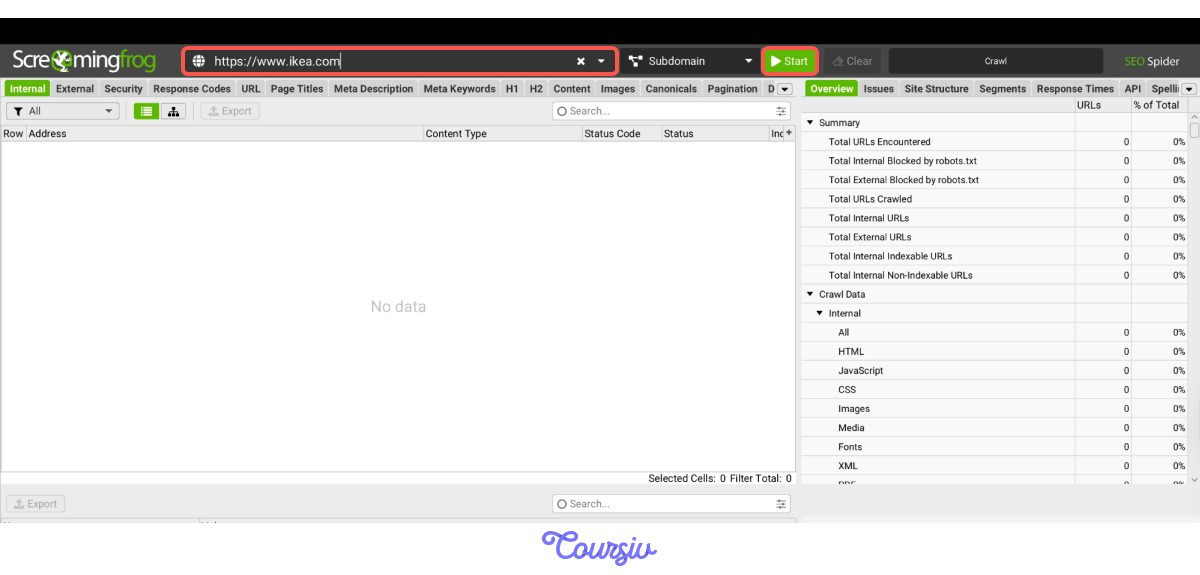
Download Screaming Frog from their website — the free version crawls up to 500 URLs, which works for most small to medium sites. Install it on your computer (Windows, Mac, or Linux), open the app, and enter your website URL to start.
Let's pick a well-known company for today’s analysis — IKEA. For your real audit, use your own website.
Enter the website URL in the search bar and click "Start." Screaming Frog will now crawl your entire site, following every internal link. This may take up to 10 minutes, depending on your site's size. You'll see a progress bar showing the number of pages crawled.
Step 2: Crawl Overview
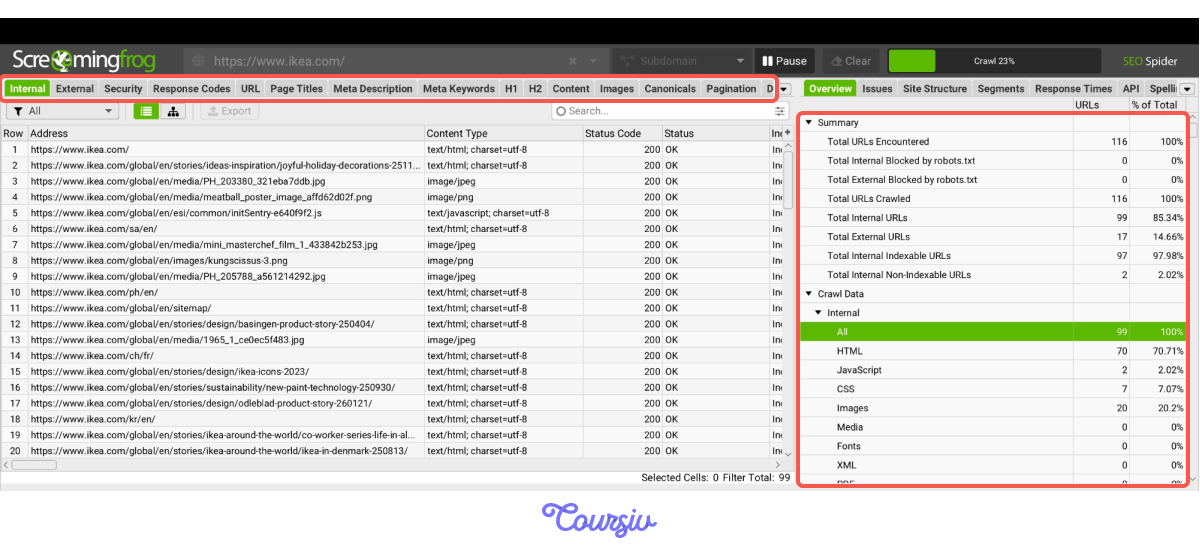
Once the crawl completes, you're looking at your complete site data in Screaming Frog. The top navigation tabs (Internal, External, Response Codes, Page Titles, Meta Description, H1/H2) show specific elements you can examine.
The right sidebar Summary displays total URLs crawled and critical stats like blocked pages or indexing issues.
Click on "Issues" in the right panel. It highlights critical problems organized by Issue Name, Issue Type (Warning, Issue, Opportunity), and Issue Priority (High, Medium, Low).
Start with the issues that show high priority — these are your critical blockers.
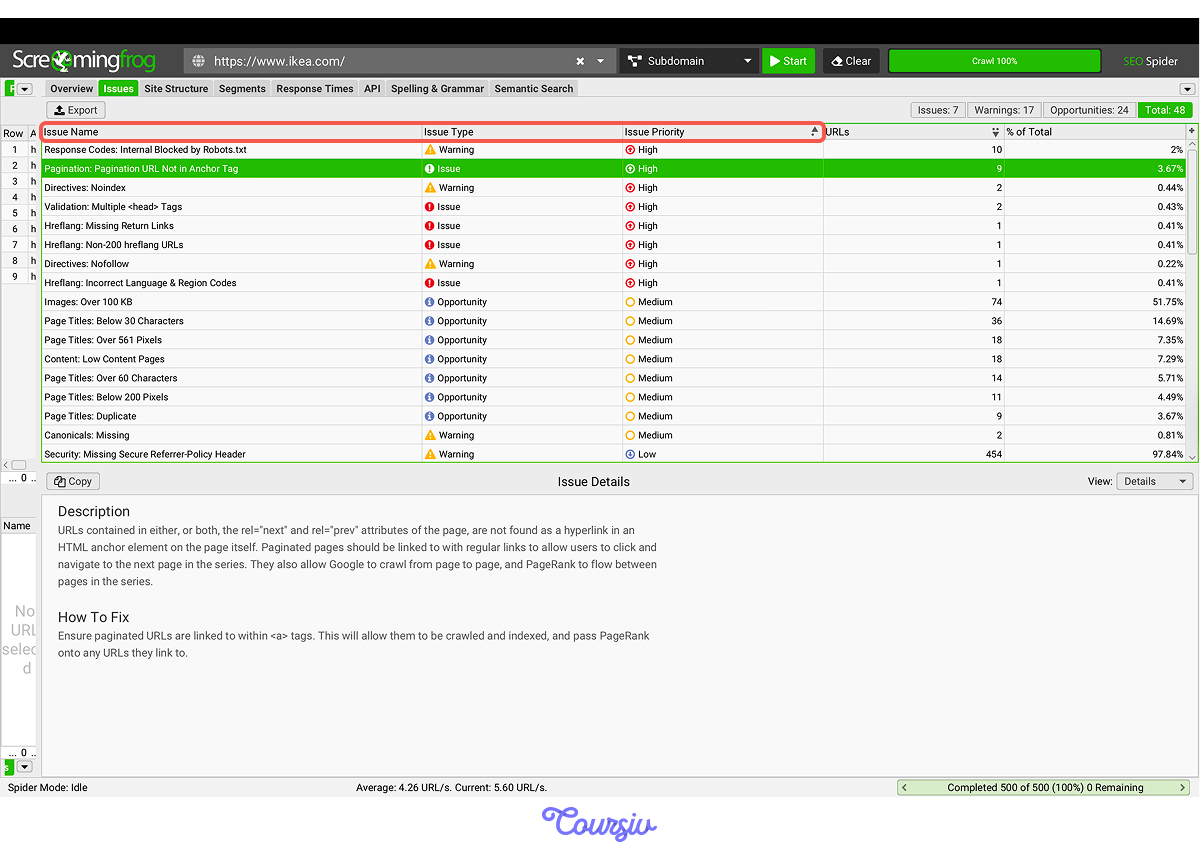
Screaming Frog also lets you see what caused the issue! Click on a specific one, and in the "Issue Details" section, you'll see a description of the problem and "How To Fix" instructions.
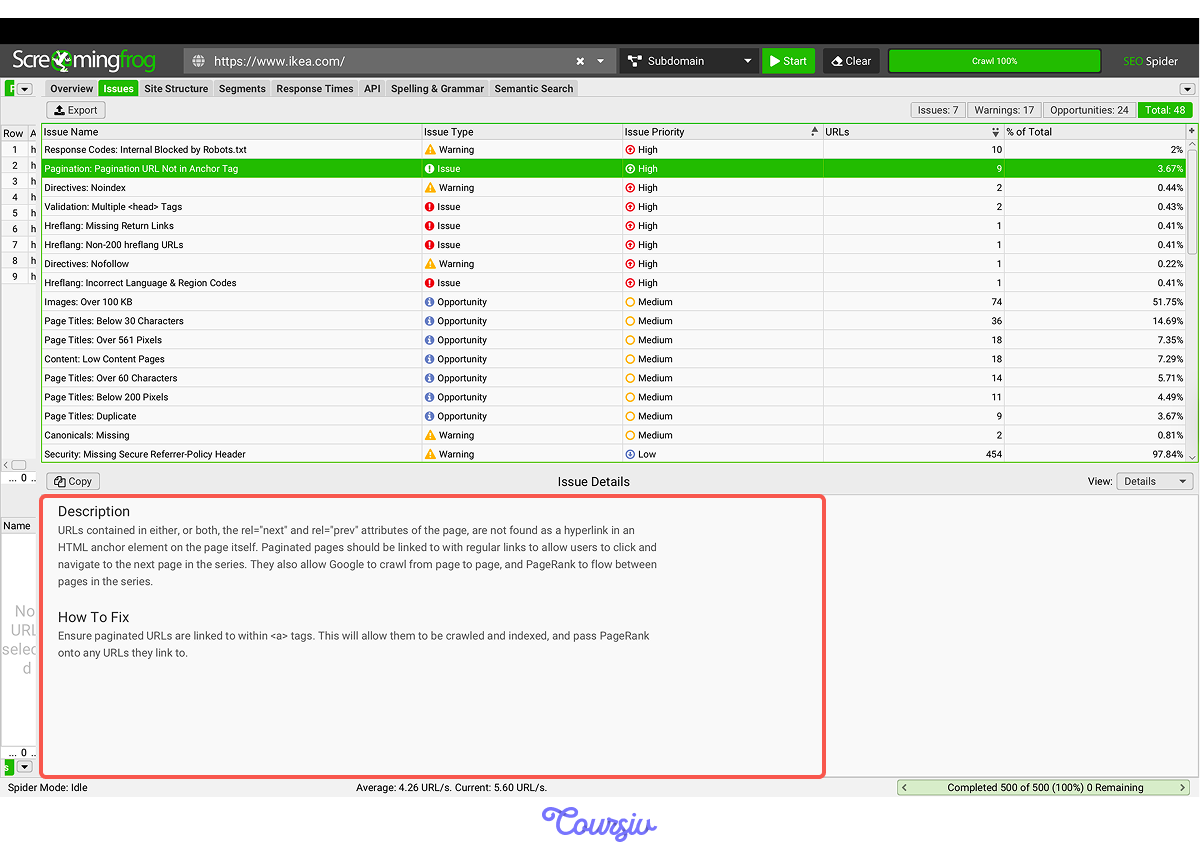
For example, we found a "Response Codes: Internal Blocked by Robots" issue with High priority.
From Issue Details, you know that important pages are blocked from Google's crawlers — a critical problem that stops those pages from ranking entirely. Now, let's understand why this happens and how to fix it by sharing issue details with ChatGPT.
practice preview
Interactive practice
Fill in the blank
Ask ChatGPT to explain the cause of the issue.
Step 3: Fix the Issue
ChatGPT explained the "why," and Screaming Frog shows you the "what": which pages are affected and need fixing. Now, let's create a prevention plan to ensure the problem will not occur again.
practice preview
Interactive practice
Fill in the blank
Use ChatGPT to build a checklist that prevents technical issues.
Prevention plan is ready, let's start fixing! In Screaming Frog, view URLs that link to blocked pages using the "Inlinks" tab. Then export them in bulk via Bulk Export > Response Codes > Internal > Blocked by Robots.txt Inlinks.
This gives you a spreadsheet showing every internal link pointing to blocked pages — so you know what to fix and how.
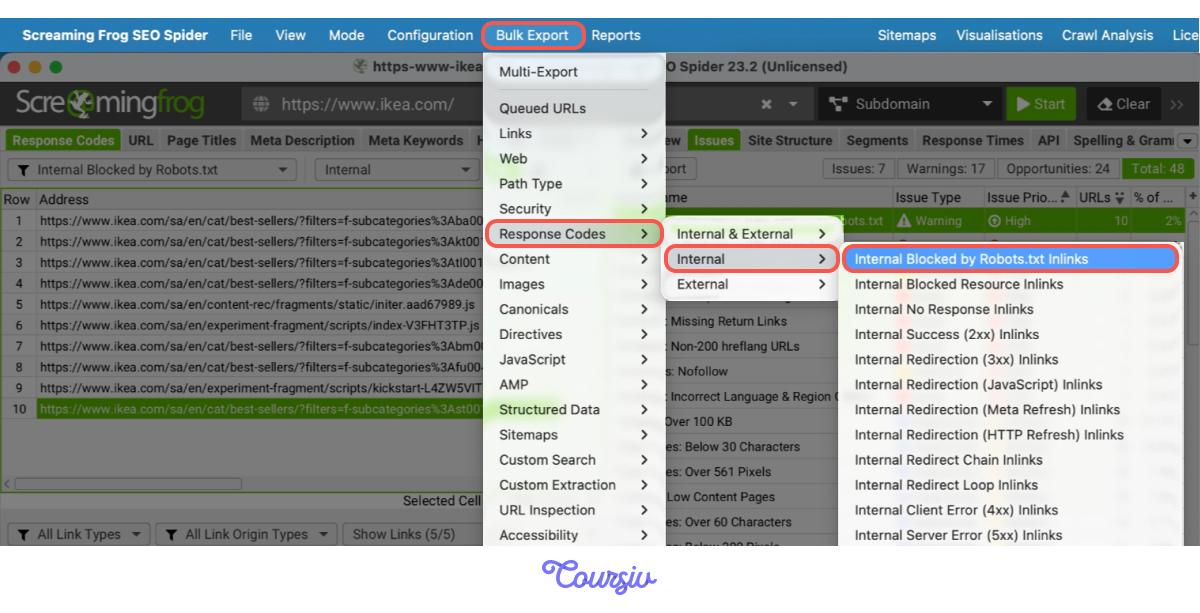
For each blocked URL, check whether it should actually be blocked. A page is blocked by mistake if it's important content — like a product page or blog post — that you want Google to find. A page should stay blocked if it's private, like an admin panel or checkout page.
If it's blocked by mistake, update your robots.txt to allow access. If it's meant to stay private, remove any internal links pointing to it so the warning stops appearing.
Perfect!
Understanding the root cause means you won't just fix the problem today — you'll stop it from breaking again tomorrow. For a final step, let's verify your fix worked with a follow-up crawl.
Step 4: Run a Follow-Up Crawl
After fixing the robots.txt blocking issue, run Screaming Frog again. Enter your URL, then click "Start" to run a fresh crawl.
Compare the new crawl to your first one — the "Internal Blocked by Robots" issue should be gone from the High Priority list. If new issues appear, apply the same priority system and use your prevention checklist to understand why they showed up.
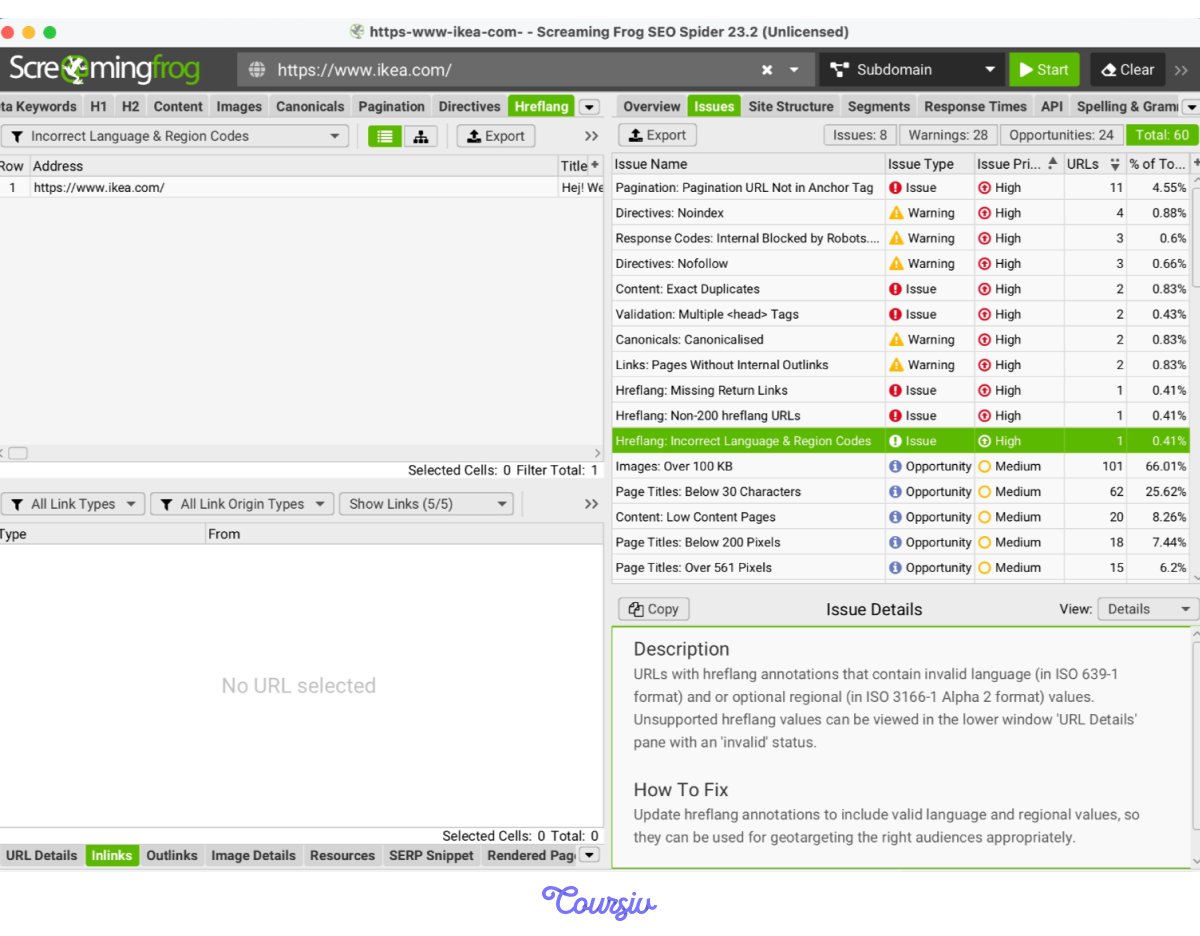
Remember: Technical SEO is about removing blockers, not achieving perfection. Fix critical issues, verify they're resolved, then get back to creating content. More time optimizing articles beats endless technical tweaks every time.
- High Priority: broken links blocking pages, slow load times (4+ seconds), mobile usability errors, robots.txt blocking important pages, and missing or broken sitemaps
- Medium Priority: duplicate meta descriptions, missing alt text on images, redirect chains, orphan pages with no internal links
- Low Priority: minor schema errors, small HTML validation issues, outdated copyright dates
- Screaming Frog crawls your site like Google. Click "Issues" to see problems by priority — fix High first (blocking crawl/indexing).
- ChatGPT explains why issues happen and creates prevention checklists. Monthly audits catch problems before they hurt rankings.
- Fix critical blockers in 1-2 days, verify with follow-up crawl, then focus on content creation.
You've come a long way from Lesson 1! You started by understanding SEO basics, found valuable keywords, planned strategic content, optimized it, and now removed the technical barriers that could block your rankings.
See you in the next lesson!